8 min read
Row-level security in reports: access by branches and managers
Row-level security in reports hides data between branches and managers without copying views. We cover approaches, steps, common mistakes and checks.
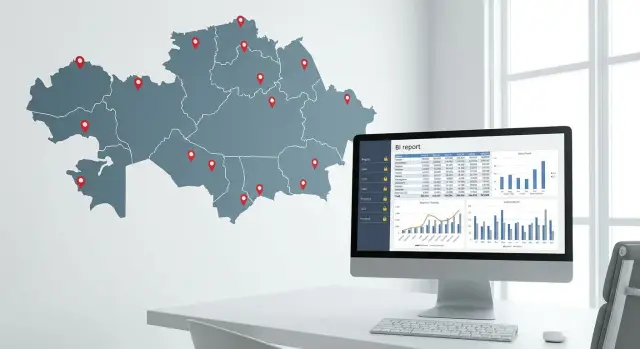
The task in simple terms: one report, different data
Sometimes you need the same report for everyone, but it should show different data. A branch manager sees only their branch, a manager sees only their clients and sales, and the head office sees the full picture. That's Row-level security in reports: which rows are visible depends on who opened the report.
The most common workaround is copying views, reports or tabs: "report for Almaty", "report for Astana", "a report for each manager". It seems convenient at first, but chaos follows quickly. Metrics change, new fields are added, formulas are edited — and you have to repeat this in dozens of copies. Versions drift apart, numbers stop matching, and maintenance becomes a race with no finish line.
The risks aren’t just inconvenience. If access is set "on trust" (for example, by a page filter or a separate export), data can easily be shown to the wrong people. That might be revenue of another branch, payroll figures, margins or sales plans. This often leads to leaks, disputes over differing numbers and, most importantly, loss of trust in reporting.
Usually a company needs only a few clear roles that then become access roles in BI:
- branch employee — sees only their branch or area;
- manager — sees only their clients, deals and plans;
- supervisor — sees the whole team (for example, all branch managers);
- HQ (head office) — sees all branches and the overall totals.
A good goal sounds simple: one report, one model, unified metrics — and restrictions built into the data, not into copies. Then a metric changes once and is calculated consistently for everyone, while each person sees only what they are allowed to see.
Where to start: visibility rules and access levels
Row-level security in reports starts not with BI settings, but with agreements: which data is sensitive and who actually needs it to work. Skip this step and you’ll end up with either "everyone sees everything" or "no one can work."
First list what exactly needs hiding. Often it's not only sales but margin, discounts, client lists, contract terms and personal data. Decide in advance whether you hide whole records (rows) or also details inside records. Example: show sales by branch but not client full names.
Next define access levels and what each level means. Usually 3–4 levels are enough: branch, region, team and a specific manager. The same person can fall under multiple rules — that’s normal: a manager sees their portfolio, a supervisor sees the team.
Fix rules in simple phrases without technical terms. For example:
- a manager sees only their deals and clients;
- a team lead sees everything for their team;
- a regional manager sees the region's branches;
- back office sees everything but no personal data;
- finance sees margins and discounts, others see revenue only.
Record exceptions separately, or they will "break" the model at the least convenient time. Typical cases: temporary manager replacement (vacation), joint deals (two managers), matrix management (functional manager), executives who need cross-cutting overviews.
Finally, draw the line between row restriction and detail restriction. RLS answers "which records are visible", but sometimes you also need to hide fields or metrics (e.g., margin) even within allowed rows. Agree this in advance so you don’t have to redo the report after a request like "show to everyone but without margins and client names."
How to structure the data model so RLS works
For Row-level security in reports to work predictably, start from the model, not from roles. RLS often breaks not because of a formula, but because branch or manager is stored differently in facts, relationships are ambiguous, or keys don't match.
The basis is separate reference tables. Create a "Branches" table and a "Managers" table as dimensions, and sales, plans, requests and other events as facts. In reference tables keep stable identifiers and attributes (name, region, status), but not the user.
Next, ensure the path by which a filter reaches the facts. If Fact rows already have BranchID, then the relationship "Branches -> Fact" should be one-to-many and unambiguous. If the branch is determined via store, department or project, add an intermediate dimension and provide a single clear filtering route. Otherwise RLS will produce different results in different visuals.
A user-to-access mapping table is usually implemented as a separate bridge table. Each row contains a user and an object of access: a branch and, if needed, a manager. A supervisor who sees 3 branches will have 3 rows. A manager working in multiple branches is handled by rows, not by copying views.
Keys must be consistent and "clean." For entities (branch, employee) use the internal ID from the master systems (number or UUID), not the name. For users use the identifier that actually arrives in BI on login (login or UPN) and store it in a single format.
To avoid breaking aggregates and totals when filtering, check basic things:
- filters from reference tables must flow to facts by one route, without ambiguous relationships;
- avoid many-to-many relationships where a bridge table can be used;
- totals should be calculated from facts, not from dimensions (otherwise "empty" branches behave oddly);
- don’t create a separate role for "all branches" — manage that through the matrix.
In practice it looks like this: the "Sales" table stores BranchID and ManagerID, "Branches" and "Managers" link to it, and "Accesses" connects the user to allowed BranchID and ManagerID. Then RLS is simple: restrict the "Accesses" table by the current user, and the filter will reach the facts without breaking totals.
Static vs dynamic RLS: which to choose
Row-level security in reports can be implemented in two basic ways: static (fixed roles) or dynamic (rules depend on the user). Both show people only their branches, teams or clients. The difference is how much manual work you’ll have later.
Static RLS: easier to start, harder to scale
Static roles are suitable when the structure is stable and variants of access are few. For example, you have 5–10 branches, changes are rare and there are few users.
You create roles like "Branch Almaty", "Branch Astana" and manually add people to the right role. It’s easy to explain to the business and quick to pilot.
The downsides appear later: any manager movement, a new branch or a temporary substitution becomes a stream of manual edits. Worse, roles start to fragment: "Almaty — managers", "Almaty — sales", "Almaty — interns". Support grows with the org structure.
Dynamic RLS: less manual work, more order
Dynamic RLS is needed when there are many users and frequent reassignments. Instead of dozens of roles you create one or two roles and tie access to a rights table (matrix) that lists which user sees which branch, department or managers.
Typically it works like this: a user logs in with a corporate account, BI reads their login (or e-mail) and finds them in the rights table. The rows found are used to filter the needed branches and data.
If you use corporate groups (e.g., sales department, regional teams), IT security or HR can manage access. Move a person to another department — the group changes and access updates without editing reports.
The rights table is also convenient for control: you open the matrix and immediately see who has access and why.
Example: manager Ivan is responsible for branches A and B today, and only B tomorrow. With static roles the administrator changes roles in the report. With dynamic RLS it’s enough to update the rows in the access matrix and all reports that rely on it will show correct data.
To choose, answer a few questions:
- how many branches and users will there be in a year?
- how often do responsibilities change?
- are temporary accesses needed (substitutions, projects, business trips)?
- is an auditable trail of who opened what access important?
If growth and frequent changes are expected — build dynamic RLS from the start with an access matrix and corporate groups.
Step by step: setting up restrictions by branches and managers
To make Row-level security in reports work without copying views, start not with BI buttons but with rules: who should see what and in which cases access is expanded (for example, during a temporary substitution).
1) Define roles and visibility levels
Describe 2–3 roles in plain language and map them to data levels. Often the scheme is: an employee sees only their branch, a manager sees their client list or plan, a supervisor sees the team or region. Resolve ambiguous points early: does a manager see others' plans, does a supervisor see personal metrics, how to handle joint sales.
2) Prepare the rights table (access matrix)
You need a single source of rights where each row is a permission. Don’t make "one column per branch" — make "user — access object" rows. Minimum fields:
- login (as it arrives from the identity system);
- access type (branch, manager, region);
- branch code or manager ID (the same key used in facts);
- start date and, if needed, end date;
- note or owner of the change (to resolve disputes).
3) Link the rights table to the model
In the data model the rights table should connect to the same dimensions that filter facts: branches, employees, managers. The main rule: the filter must reach sales, plans and other metrics via normal relationships. If relationships are broken or use workarounds, RLS will produce unexpected holes.
4) Configure the filter rule and test with test accounts
Create a role and set the condition: show rows where the current user's login matches the login in the rights table. Then test at least three scenarios: an employee of a single branch, a manager with access to two branches, a regional manager. Test not only totals but details: tables, cards, exports.
5) Agree on the process to update rights
Even a perfect setup will fail if it’s unclear who changes access. Assign an owner of the matrix (often HR, security or sales admin) and a simple regimen: how to add a new employee, how to revoke access at termination, how to grant temporary expansions.
Example: manager A handles branches 01 and 02, manager B only 03. In the matrix that’s three rows, not three copies of the view. Both see the same dashboard but different numbers because the filter flows through the branch dimension to sales and plans facts.
Where to store and how to update the access matrix
The access matrix answers a simple question: which user may see which data rows. For RLS it’s important that this table is the single source of rights, not a set of manual exceptions in different views.
The best sources for the matrix are operational systems: HR (staff, org structure, supervisors) and CRM (client assignments, regions, managers). If manager assignments live in CRM, take them from there. If branch and position are in HR, use HR. The key is not to multiply separate spreadsheets on someone’s PC.
What to store in the matrix
To make rights understandable and auditable, keep at least these fields:
- UserID (email or domain account);
- access level (branch, region, specific manager);
- access key (branch code or manager ID);
- start and end dates (for temporary assignments);
- source and reason (HR, CRM, order, project).
Change history solves reassignments and rotations. If a manager moves, don't overwrite the old row: close it with an end date and add a new row. That way reports for past periods can be shown correctly: by the old structure or by the current one (a business decision), but the matrix must allow both options.
Temporary access (vacation, substitution, project) is easier via validity dates rather than separate roles. Give the sales head access to a branch for two weeks — it disappears automatically after the end date, greatly reducing the risk of "forgotten" extended rights.
How to update without manual edits
Automation usually comes down to scheduled loads and simple quality checks:
- regular extracts from HR and CRM (e.g., daily);
- merge by stable keys (UserID, branch codes, employee IDs);
- checks for duplicates, empty keys, assignments without start dates;
- change log (what changed, even if the source is external);
- alerts for anomalies (manager without a branch, branch without a supervisor).
Practical example: Ivanova is moved from branch A to B, and during the handover she’s given access to both for 10 days. In the matrix this is a closed assignment for A, a new one for B and a temporary row for parallel access. Reports will behave predictably without copying views.
Common mistakes and pitfalls when implementing RLS
Even if Row-level security in reports is formally configured correctly, problems often arise at the intersection of data, reference tables and real processes.
1) User is identified incorrectly
A common cause of leaks or empty reports is the wrong user key. Logins change, AD has duplicates, someone logs in under a UPN while the access matrix stores an e-mail. As a result one person may get another’s rights and another may lose theirs.
Practice: choose one stable identifier (for example, corporate UPN) and use it everywhere consistently: in the access matrix, the user table and the RLS rule.
2) Facts lack branch (or it’s empty)
Roles are often based on branch, but the sales or requests table may not always have the "branch" field filled or it may use different values. Then the filter fails: either extra data is shown or nothing is shown.
Before implementing check:
- does every fact row have a branch key?
- are there rows with an empty branch?
- do branch codes match between facts and the branch dimension?
- are names and codes mixed up ("Almaty" vs "ALM")?
- is there a single branch reference table and not several similar ones?
3) Mixing roles and unexpected "sum of rights"
Real life is more complex than "one person — one branch." A supervisor may temporarily substitute a colleague, a manager may handle clients in two regions, accountants need access to several branches. If a user falls into several roles, they will see the union of accesses. Sometimes this is correct, sometimes not.
To avoid confusion, don’t create roles manually. Keep a matrix "user — access entity" (branch, manager, division) and make the rule explainable in one sentence. For disputes add an access type (for example, "own branch only" or "by list") and record who grants such rights.
4) Bypassing restrictions via export and drill-downs
RLS must work not only on charts. Check that a user can’t get extra data through export, "show as table", drill-through or detail pages. This is especially important for personal plans and KPIs.
5) Rules that are too complex for anyone to support
If a rule looks like "magic" and depends on one person, it will fail at the first reorganization. Simple schemes and a clear access matrix almost always beat a clever set of exceptions.
Guideline: if tomorrow leaders and responsibilities change, you should update access by replacing matrix rows, not by rewriting formulas and roles.
How to test that restrictions work correctly
Testing RLS answers a simple question: does the same report show different data to different people while numbers stay correct? Errors often hide in totals, filters and "special" users.
Start with 3–5 test users representing different roles: branch manager, branch director, regional manager, back-office staff (sees several branches), administrator (sees everything). Keep separate test accounts so you can repeat checks after model changes.
Minimum checks
Run the same set of pages and visuals while only changing the user:
- row visibility (detail table): "foreign" branches and managers do not appear under sorting or search;
- totals and subtotals: sums are calculated only from allowed data, without "mixing" hidden rows;
- filters and slicers: a user cannot pick a forbidden branch even by searching values;
- export and drill-through: restrictions remain when exporting and drilling into details;
- empty results: if a user has no access, the report shows empty correctly (not an error or "all data").
Then reconcile with control numbers: known values for a specific branch and period like revenue, order count, plan, margin. Control values are best from a trusted source (e.g., a closed register or an extract from an accounting system) and fixed for tests.
Also test exceptions: a regional director sees all their branches, a temporary replacement gets access only for the assignment period, dual employment doesn’t reveal extra branches. In practice exceptions break logic most often.
Make tests repeatable: document who is tested, which pages, which filters, which control numbers and expected results. Then you can run checks quickly before releasing report updates.
Example: a retail network with branches and personal plans
Imagine a retail network with 8 branches. There is one sales and plans report, but data should differ for different people. Row-level security fits well here: one dataset while visibility is cut by rules.
A store manager opens the report and sees only their deals, revenue and plan. They compare themselves to last month but don’t see other managers, even in the same branch. The branch director sees all managers in their branch, the regional manager sees branches in their region, and HQ sees the whole network.
To work without copying views, models typically separate facts (sales, plans, returns), dimensions (branches, regions, managers) and the rights table (who can access what).
A tricky case: a corporate client is served by two branches. For example, purchases go to branch A but sometimes shipments go through branch B. There are two clear options.
First: tie sales to the shipping branch and grant client access to both branches via a separate client-branch table.
Second: introduce a rule "client's primary branch" and show such sales only to the primary team, while the second branch gets access only to aggregates (no manager-level details).
The choice depends on how the company assigns responsibility and bonuses.
Another case: a manager is transferred to another branch. Ideally the access matrix changes the assignment (and start date if needed). Then the report shows new data immediately. Decide in advance what happens to history: show the manager’s old sales after transfer or not. Usually this is handled by a rule "visibility by current branch" or "visibility by branch at time of sale."
Sometimes you need a public report for a planning meeting but without personal details. Then create a separate page or visuals aggregated to branch or region level and hide manager fields or make them unavailable by role.
Checklist and next steps for painless implementation
Row-level security in reports relies not on a single role setting but on discipline: clear rules, one rights table and regular checks.
Quick checklist before launch
- The model has clear keys linking facts to branch and manager (no duplicates or gray zones).
- The rights table is separate from business data and updated from a known source.
- Roles are tested with at least "manager", "branch director" and "central office" test users.
- Negative tests exist: a user clearly cannot see another branch or its plans.
- No bypass paths exist (pages or visuals that pull data around model filters).
Who owns rights and how to maintain them
Assign an owner. Usually this is a business role, not a BI developer: for example, a sales manager or account administrator. Their job is to confirm reporting lines, which branches are accessible and when to revoke access.
Then define a simple regimen: how to add new employees, what to do on transfers, how to quickly close access at termination and how often to audit (for example, monthly).
If reports slow down due to model complexity, rebuilding the model and ensuring reliable infrastructure usually helps more than adding another filter. In large organizations it may be useful to integrate systems and deploy infrastructure solutions from GSE.kz (for example, S200 servers for hosting BI and data) with 24/7 support and a service network across Kazakhstan.
The next step after implementation is to schedule periodic checks and keep one set of control test users so any release can be run through in 10–15 minutes.
Frequently asked questions
What is Row-level security (RLS) and why is it needed in reports?
This is a setup where the same report shows different rows of data to different people. For example, a manager sees only their deals, a branch director sees the whole branch, and HQ sees the entire network, while metrics and formulas remain consistent for everyone.
How does row-level restriction (RLS) differ from hiding fields and metrics?
RLS answers "which records are visible" — it limits rows in fact tables through the data model. Hiding fields and metrics is a separate task: sometimes you also need to remove details within allowed rows (e.g., margin, discounts, or client names) so people see only what they should.
When to choose static RLS and when dynamic?
If you have few users, a small number of branches and rare changes, static roles can be faster to start. If the structure changes often, there are many users, replacements or projects, it’s better to implement dynamic RLS with an access matrix so rights update by data rather than manual role edits.
What should the rights table (access matrix) for RLS look like?
Typically a separate table where each row is one permission: which user can see which branch, manager or region. It’s important to store the same user identifier that actually arrives to BI and the same branch/employee keys that are used in facts and dimensions; otherwise filtering will be unreliable.
How to handle temporary manager replacements or vacations without breaking access?
The most reliable method is to grant temporary access as a row in the matrix with start and end dates. That way the permission automatically expires and you avoid forgotten extended rights.
What if a deal has two managers or a client is served by two branches?
First define the business rule of responsibility: who “owns” the deal and who should see it. In practice, joint deals are easiest when you explicitly assign multiple owners in data or use a separate distribution table so access is transparent and consistent across visuals.
How to verify that RLS really works and does not leak data?
Check not only charts but also detail tables, drill-throughs, filter searches and exports. A good minimum is several test accounts for different roles and control numbers for a specific branch and period to quickly catch leaks and hidden-row mixing in aggregates.
Why might a user see an empty report after RLS is enabled?
Most often it’s a mismatch of user identifier or missing branch/manager keys in facts, or empty values in the fact rows. Start by making sure the login in the access matrix matches the format and that each sales/plan row has the correct BranchID and ManagerID linked to dimensions.
Can a user bypass RLS via data export or drill-through?
If RLS is implemented correctly through the model, it should apply to exports, "show as table" and drill-throughs. However, verify this separately because issues typically arise from pages or visuals that pull data around model filters or use the wrong tables.
How does RLS affect performance and what to do if reports become slower?
RLS logic itself usually doesn't cause slowness, but a complicated model, ambiguous relationships and large volumes can slow reports. The remedy is to simplify the model into clear dimensions and facts and rely on stable infrastructure and support—e.g., server and integration solutions deployable at the enterprise level.
