7 min read
Rooms and Workstations Registry: linking room, seat, employee and equipment
Rooms and workstations registry: how to link room, seat, employee and equipment to simplify moves, renovations and procurement planning.
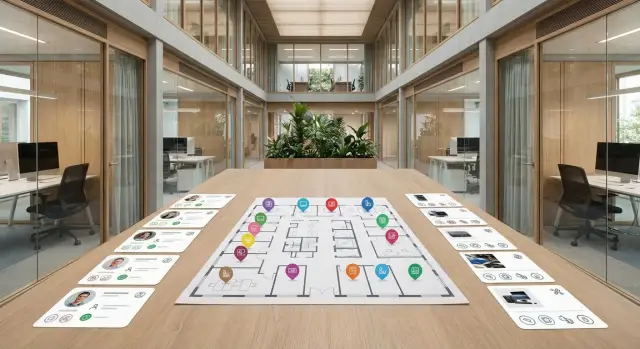
Why a registry is needed and what it should solve
When there is no single source of truth, the office runs on rumors: who sits where, who has which laptop, where the printer is, who holds keys and access. Small issues turn into week-long message threads, and a move or renovation becomes a lottery.
A rooms and workstations registry is not about a “nice table” — it’s about answering simple questions quickly: where a person is, what is assigned to a seat, what equipment is in a room and which service is responsible for what. This reduces losses, disputes and downtime.
Most teams start in Excel, with floor plans and scattered inventory lists. But these diverge from reality fast: people swap places, equipment is moved "for a few days", rooms are partitioned. Files lack clear links and change history.
For a registry to work daily it must provide a few basics: a unique "address" for every seat and equipment item (building, floor, room, zone, seat number), links "seat - employee - equipment - responsible service", transparent responsibilities, movement history with reason, and a basis for planning (utilization, shortages, replacements).
Several teams need this system. Facilities want to see occupancy, keys, furniture and repairs. IT needs to know where equipment is and who has it so support and replacements are fast. Security controls access and placement of critical devices. HR and managers plan seating and team growth without chaos.
Terms and boundaries: what counts as a room and a workstation
To avoid the registry becoming a "dump of addresses", agree on terms and levels of accounting. Then moves, repairs and purchasing requests will follow one logic.
Room: where the asset is located
A room is not just "office 312". It’s useful to think of location as a chain from large to small: building (or campus), floor, room (numbered space), zone (open space, meeting area, reception desk), and treat warehouse/storage as a separate room type.
The main rule: each location must have a clear identifier (code) and a readable name. If you don’t need zones inside a room, don’t create them, but separate the warehouse — otherwise equipment will "go missing".
Workstation: what we call a "seat"
A workstation is not a job title or a person. It’s a physical seat: desk, chair and a connection point (power and network/Wi‑Fi) in a specific location. Create seats for hot-desking as well, so you see capacity and utilization.
Keep the relationship logic simple: a room contains workstations; a workstation can be assigned to an employee or be free; equipment is linked either to a workstation (PC, monitor, phone, UPS), to a room (printer, network cabinet), or to the warehouse.
Also define employee categories: permanent, temporary, contractor, shift worker. This helps keep records consistent when the same desk is used by different people on shifts.
Finally, assign a responsible service for each object: Facilities — furniture and layout, IT — computers and network, Security — access and cameras, Cleaning — cleaning schedule, Leasing/Administration — leased areas. Changes are then agreed within responsibility boundaries instead of through endless "who knows?" threads.
What data to store: the minimum without bureaucracy
The registry’s purpose is not to collect "everything everywhere", but to answer practical questions quickly: where someone sits, what’s on their desk, who is responsible for the room, what can be moved and what cannot.
Room and workstation
For a room record keep only what affects seating, access and repairs: code/number and address (building, floor), area and purpose (office, meeting room, storage), status (active, under repair, reserved, decommissioned), access mode and responsible service.
For a workstation keep a short card that’s easy to update during moves: unique seat code, type (fixed, hybrid, hot), default equipment set (e.g., 1 monitor, docking station), availability (occupied, free, reserved) and link to the room.
Employee and equipment
An employee card is not "for HR" only — it helps changes happen quickly: department and manager, role (regular user, VIP, call-center operator), date of last move and, if planned, the next move date.
Don’t overcomplicate equipment. Differentiate the specific item and responsibility: inventory number and serial number, type and model, owner/account holder and responsible person, warranty (until when) and status (in use, under repair, written off).
Example: if room "under repair" from March 10, you immediately see all seats and equipment to move and can prepare a request for missing items for the temporary area without manual counting.
How to link room, seat, employee and equipment
A working registry must have links, not just lists. Start with unified identifiers: building code, floor code, room code and seat code. For equipment use an inventory number (and serial number where possible). Without these, moves become manual searches.
The basic model is simple: a room contains several seats, each seat has a set of attached equipment. It’s easier to link an employee to a specific seat than to a room — it helps track needs and equipment composition.
Agree on rules in advance:
- one primary seat per employee (if the person sits permanently);
- a workstation can have several equipment items;
- responsibility for an object lies with a service (IT, Facilities, Security), not a specific person.
Don’t assume common areas are personal. For meeting rooms and training rooms attach equipment to the room. For hot desks register seats as "non-personal" and keep only equipment composition and the responsible party; handle booking separately.
Most useful in daily work is a change history. Any action (moving a monitor, swapping the person at a seat, replacing a PC) should leave a trace: who changed it, when, what was and what became. When moving an accountant from 305-02 to 410-07 change the "employee-seat" link and move only the items that actually went with them, leaving the rest assigned to the old seat or room.
Step-by-step: how to launch a registry in 2–4 weeks
Launch in short iterations. The goal for the first 2–4 weeks is not a perfect database but a workable minimum that can be maintained without heroics.
Week 1: model and rules
Describe the object structure the way people actually say it: building, block, floor, zone, room. This will be the "skeleton" and prevents confusing identical numbers in different buildings.
Create reference lists you’ll need to avoid chaos: departments, workstation types (regular, reception desk, operator, meeting room) and equipment types (PC, monitor, printer, phone, UPS). Decide which fields are mandatory.
And the most important part — numbering rules. For example: room by plan, seat as "Room-Seat" (401-03). Ban "around here" and "we’ll clarify later."
Weeks 2–3: walkthrough and fact capture
Conduct a physical check: what is in the room, at which seat, who has been issued what and which service is responsible. Go floor by floor to avoid missing items. Practical roles help: one person inspects and dictates, another enters data.
To meet deadlines, focus on the minimum. First fill in rooms and seats (the skeleton), then link employees to seats, and only after that add equipment and responsible services. Record the source of truth (plan, inspection, issuance act) so you know where errors are more likely.
Week 4: updates and control
Assign who makes changes and when: employee moves, equipment issuance or replacement, room repairs. Rule of thumb — update the registry on the day of the event. Have one owner for each data group (e.g., Facilities for rooms, IT for equipment, HR for org structure).
Monthly do a short check: a discrepancy report (empty seats, equipment without a seat, employees without a seat) and a spot check of 5–10% of rooms. This keeps the registry alive instead of turning it into an archive.
Moves: how to record changes without chaos
Moves break accounting fastest: people swap seats, equipment is put in corridors "temporarily" and after a month no one remembers where it should be. Treat moves like short projects: date, owners, action list and closure.
For one-employee moves a simple request is enough: who moves, from where to where, date, what to move (PC, monitor, phone, badge) and who will do the work (admin, facilities, contractor). Keep approvals minimal: manager confirms the seat, IT checks network and access readiness.
For a department move add a seating scheme and priorities. Temporary seats are normal if the record marks them as temporary with a return date.
A short checklist helps:
- 5–7 days before: approve seating scheme, equipment list and work window;
- 2–3 days before: check power outlets, network, telephony, badges and accesses;
- move day: transfer equipment, label "seat — employee", verify connectivity;
- next day: confirm everything works and close the request;
- within 1–2 days: update registry records and return surplus items.
To speed up moves track delays: planned vs actual, number of seats, downtime (hours) and the cause (network, access, furniture, delivery, absent employee). Repeated moves reveal bottlenecks so you can preprepare network, telephony and standard workstation kits.
Renovations and reconfiguration: how not to lose records
Renovations break accounting not because of forgetfulness but because "temporary" easily becomes "permanent." A simple rule helps: change the room and seat status during works but keep records and history.
Use clear statuses for rooms under repair: "Planned repair", "Closed (access prohibited)", "Partially available", "Returned after repair". Statuses must have dates and a short comment: what is limited (passage, noise, dust, power off, no network).
Work plan by stages
Break the renovation into 3–5 stages and link actions in the registry: what to clear, what to keep, what to remove. Decide in advance which assets move (PCs, monitors, printers) and which normally stay (cabinets, cabling, some phones and access points). Then you update by list rather than recount everything.
Track temporary workstations and leased zones to avoid losing people and equipment. For equipment a field "temporary location until (date)" is a good reminder to return items or close the movement formally.
Agree requirements before works start
Reconfiguration often stalls on basics: power, network, air conditioning, security. Before starting agree the minimum: how many outlets per seat, where network points will be, whether UPS is needed, server/cabinet requirements, access control and CCTV. Record this in the room card so requirements don’t live only in email.
Use the registry as the single source for plans and lists: seats to clear, equipment to remove, employees for temporary seating. Then you don’t collect the data anew every time.
Procurement planning: from the registry to clear requests
With a registry purchases stop being a best-guess. You can see how many seats are occupied, reserved, where equipment exists and where it’s missing.
Count needs by seat types and work profiles, not merely by headcount. An accountant and a designer need different kits even in the same room. In the registry keep seat type (office, contact center, manager, meeting room, temporary) and a load profile (light, medium, heavy).
Factor in common disruptors: shift schedules (one seat for two people), hiring reserve, replacements during renovation, criticality. Mark "available and ready" separately from "available, requires completion."
Fix a short standard kit so it works as a filter. Example: office seat — PC or AIO and 1–2 monitors; high-load seat — more powerful PC and a second monitor as default; temporary seat — basic kit for quick onboarding; meeting room — screen, mini-PC, cables/adapters and a video kit.
Then the registry turns into a clear request: how many seats of each type are active, planned in the next 3 months, what is pulled from reserve, what’s in stock and what to buy.
Example: a department moves to another building plus 5 new hires. The registry shows 3 spare PCs in the warehouse but two need upgrades and 2 seats are ready but lack monitors. So you buy monitors and upgrade parts, not five full kits.
For budgeting split into "now" and "later": now — what blocks work or is needed by the move date; later — improvements that don’t affect launch.
Common mistakes and traps when keeping a registry
The top reason a registry becomes useless is unclear ownership of data. Rooms usually "belong" to Facilities, equipment to IT, seating to HR or managers. Without owners and change rules the registry becomes a "snapshot from the past."
Second trap — naming. "Rm. 312", "312 (left wing)" and "Meeting room 3 floor" can be the same place. Without a single numbering scheme duplicates appear and reports and planning fail.
Moves often happen "in reality": people and equipment leave but records aren’t updated. A month later no one remembers where the printer is or why a seat lacks a monitor. Enforce the rule: any movement is closed by updating the registry the same day the request is closed.
Renovations are another pain. If the room card has no status and dates (e.g., "under repair from 12.02 to 01.03") the seat remains considered available: someone schedules a placement and buys equipment for it, and everything is manually canceled later.
Another common error is tracking only equipment and forgetting place constraints: network and power points, UPS needs, badge access, storage requirements. These details most often break moves.
To keep the registry intact use simple rules: one owner for the room directory, one owner for equipment, another for "seat-employee" links; unified numbering and ban on free-form names; statuses and dates for repairs; tracking of connection points and access restrictions; and a change history (even as comments).
Example: a team is temporarily relocated for 2 weeks. Without history you cannot prove that a laptop and monitor were lent temporarily and later you won’t understand inventory mismatches.
Quick check: a 15-minute registry checklist
This short check helps understand whether the registry is alive or diverging from reality. Pick one floor (or zone) and check 5–10 workstations on site.
10 quick questions
- Each room has a code (on the plan and in the registry), a purpose, a status and a responsible person.
- Each workstation has its own code, type and current employee, or a status "free".
- Each device has an inventory number and a current location: room + seat code (not just "3rd floor").
- For key assets you can see who is responsible for support: IT, Facilities or a contractor.
- Any change (move, replacement, issuance from the warehouse) is recorded with a date and responsible person.
After the check note where records differ from reality. Common causes repeat: employee moved without a ticket, equipment taken "for a week", room purpose changed after renovation.
A mini ritual to keep the registry alive
Once a month do a spot check of one zone and fix discrepancies the same day. Keep a separate list of spare equipment and warehouse stock — this immediately helps with moves and procurement planning because you see what can be redistributed instead of bought.
Example scenario: moving a department during renovation
Situation: a floor is under repair and 30 employees relocate for 6 weeks to a free zone on another floor. The goal is not just to seat people but to ensure PCs, telephony, printers and accesses work immediately. The registry shows in advance where everything is and who is responsible.
Prepare a list of employees and each seat’s minimum requirements. For example, accounting needs two monitors and wired network, designers need powerful workstations, and someone handling personal data needs a seat in an access-restricted area.
Create a short "move packet": per employee (current room, new seat, move date, critical equipment), per seat (outlets, network, ability to add monitor), per device (inventory number, responsible person, what moves and what stays), restrictions (badge access, security rules, safes not to be moved) and gaps (what’s missing: patch cords, switch, docking stations, chairs).
Then split tasks. Facilities handles furniture, seat labeling, badges and keys. IT handles PCs, monitors, network connection, printers and equipment tracking. Security handles access and control so equipment and documents don’t "wander."
On move day check only what stops work: seat labeled and clear where to sit; power and network working; accounts log in; printing available; critical devices in place (monitors, headsets, tokens); old seat marked temporarily empty so no one is assigned there by mistake.
The next day close open items: update "employee-seat-equipment" links, mark temporary status (e.g., "move until date X") and create requests for missing items. Most often monitors, docking stations and network ports are missing.
Next steps: how to lock the process and scale
To keep the registry from becoming a one-time spreadsheet assign an owner (often Facilities/office management with IT) and agree on the minimum fields without which a record is incomplete: location, workstation, employee, equipment units, responsible service.
A short immediate plan: appoint an owner and deputy, fix 8–12 fields and one source of truth (one registry, no copies), approve numbering rules (room, seat, rack/cabinet, equipment tag), define who creates records on hire and who closes them on termination/transfer, and choose a channel for change requests (move, repair, equipment issuance).
Next, agree standard workstation types (e.g., "type A" for regular staff, "type B" for engineers, "type C" for managers). This simplifies procurement and replacements: instead of debating each item you check standard compliance.
To make reports useful for managers keep a few regular reports: occupancy and free seats by zone, deviations from standards, equipment assigned to former/moved employees, planned replacements by warranty and wear.
If you modernize hardware and infrastructure to these standards, it’s useful to work with an integrator who covers supply and support in one contract. For example, GSE.kz (gse.kz) supplies PCs, workstations and servers and can help build unified equipment standards within a modernization project.
Frequently asked questions
Where to start the registry if everything is currently in Excel and "in people’s heads"?
Start with a minimal skeleton: a list of locations (building, floor, room) and a list of workstations with unique codes. Then link employees to seats and add equipment afterwards. If you try to load "all devices and every field" at once, the registry won't launch and will quickly become outdated.
Which fields are really necessary for a room and a workstation to avoid bureaucracy?
Keep only what you need for daily decisions. For a room, usually code/number, address (building, floor), purpose, status, access mode and responsible service are enough. For a workstation — code, type, availability and room link; add other fields only if they are actually used for moves or planning.
How to number workstations correctly so duplicates don’t appear later?
The clearest approach is "Room-Seat", e.g. 410-07, and one numbering rule across the whole office. Make sure identical numbers in different buildings cannot conflict by including the building/campus code in the location address. Ban vague names like "around here" or "left wing" to avoid duplicates.
Should an employee be linked to a room or to a specific workstation?
Link the employee to a specific workstation rather than just to a room. It’s easier to see equipment, needs and move history that way and avoid "there's a PC in the room but no owner". For shared zones and meeting rooms, attach devices to the room rather than to people.
How to decide what to attach to a workstation, the room, or the warehouse?
Typically a PC, monitor, phone and UPS are linked to a workstation so you can see what should be on the desk after a move. A printer, network cabinet, or meeting-room display are better linked to the room because they serve multiple people. Treat the warehouse as a separate location so equipment doesn’t get "lost" between rooms.
Who should maintain the registry: IT, Facilities, or HR?
Assign data owners by responsibility and enforce "update on the day of the event". A common pattern: Facilities (AHO) handle rooms and statuses, IT manages equipment and its movements, HR or managers handle employee-seat links. With clear owners, changes flow quickly and don’t get stuck in endless approvals.
How to process a single-employee move so the registry stays accurate?
Treat a move as a short ticket: who moves, from where to where, the date, what is moved and who performs the tasks. In the registry change the "employee-seat" link; move only the equipment that actually goes with the person, leaving the rest assigned to the old seat or room. The key is to close the move by updating the registry, otherwise no one will remember where things should be.
How to manage the registry during renovations so nothing gets lost?
Set clear statuses with dates for rooms and seats and don’t delete records. That way you see temporary unavailability and won’t schedule seating or deliveries to that room. It’s useful to mark temporary placements of equipment with a return date so "for a couple of weeks" doesn’t become permanent by accident.
How to use the registry for procurement planning rather than reporting alone?
Store the workstation type and a baseline kit, and mark "available and ready" separately from "available but needs completion." Then buying is based on real capacity and missing items, and you can reuse stock instead of purchasing full kits. This lets you buy monitors or upgrades instead of five entire new setups.
How to tell in 15 minutes that the registry is already diverging from reality?
Do a quick check on one floor: pick 5–10 seats and verify on site whether employee, equipment and location in the registry match reality. If you repeatedly find "equipment without a place", "employee without a seat" or "room without a status", the update process is failing. Fix by having one source of truth, mandatory fields and the rule to update on the day of changes.
What are the next steps to make the process stick and scale?
Appoint an owner for the process (often Facilities with IT) and agree on the minimum fields required for a valid record: location, workstation, employee, equipment items and responsible service. Then define who creates entries on hire, who closes them on termination/transfer, and which channel is used for change requests (moves, repairs, equipment issuing).
