6 min read
Backing up Revit and Vault: what to back up and how to test
Backing up Revit and Vault: which files, databases and settings to keep, where to store copies and how to regularly verify restores.
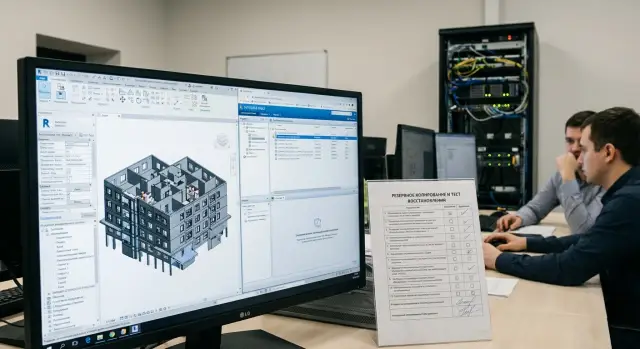
Why just copying folders isn't enough
When it comes to backing up Revit and Vault, the first instinct is simple: copy the project folder to disk or to the cloud. For single files this sometimes helps. But in BIM most of the project's “life” is not inside the RVT files themselves, but around them: in databases, indexes, settings and permissions.
Revit failures don't only happen because a model is lost. Problems begin when the surrounding structure is gone: central models and local files stop syncing, paths to linked models and libraries break, and workset conflicts appear. The file may exist, but opening it “as it was” becomes difficult, and sometimes impossible without manual repair.
With Vault the situation is even more severe. Vault is not just a file storage — it is a system with a database, service components and rules. If you copy only the folder with files, you keep the “body” but lose the “passport”: version history, states, links between objects, approval routes, and the search index.
Most often missing from backups are the Vault database (metadata, versions, links), the Filestore and search indexes, server settings and jobs (for example Job Processor), permissions and account bindings, as well as client configurations and add-ins that change project behavior.
Why is a backup that only copies the project folder dangerous? It becomes obvious quickly: search in Vault is empty, projects have no history, assembly links are “orphaned,” and the needed model version can't be found. A typical scenario: the server failed, the admin restored files from a copy, and users see in Vault that documents seem to "not exist" or they show up without versions and attributes.
A good backup here is not a “file warehouse” but a snapshot of the system that can be deployed and verified.
Revit: what to back up besides the RVTs
If you limit yourself to copying the RVT folder, recovery often looks formally successful. But the team loses links, common standards and data reproducibility. Revit lives not only in the model.
The models are still central. For active projects save the central files and folders with Revit's automatic backups (created on save). Local working copies can normally be recreated from the central model. Sometimes it's useful to keep them briefly as a “snapshot” for troubleshooting if odd warnings appear or elements disappear after a failure.
Next are links. A project may have dozens of linked models, CAD inserts, underlays, images and point clouds. If these files are stored in different places, after a restore the model will open but some links will be “not found,” and views and schedules will behave differently. A good practice is to keep linked files near the project or at least store a path map and folder structure.
To keep the project's logic after rollback, separately preserve what defines standards: project templates (RTE) and typical “starter” RVTs, libraries of families and materials, the shared parameters file (TXT) and keynote tables, configuration files and service catalogs for schedules, and add-ins with their settings (if they affect export, checks and compatibility).
Don't forget about workstations. Different plugin versions, different templates or a missing shared parameters file cause a “my schedules broke but my colleague's didn't” effect. Mini-scenario: you restored the RVT but forgot the shared parameter and the keynote table — next day half the schedules are empty even though the model is “intact.”
Vault: components you must back up
It is dangerous to back up Vault by copying only the project folders. Vault consists of the file storage, the database and the settings. Losing any part breaks links, history and permissions.
1) Filestore
This is the physical data: models, drawings, attachments and Vault's internal structures. Filestore is not just a “folder with projects”: it contains versions and internal catalogs. A backup must capture the Filestore in full, not selected subfolders.
2) Vault database
The SQL database stores what makes Vault “smart”: cards and properties, versions, links between files, history, search results and lifecycle statuses. If you restore only the Filestore without the database, you'll end up with a set of files without context. If you restore the database without the Filestore, you'll see records that point to missing data.
The minimal set to preserve usually includes: the Filestore (all volumes and catalogs), Vault SQL databases (and related instances if used), configuration (categories, templates, properties, lifecycles), accounts and permissions (groups, roles, domain integration), services and jobs (including Job Processor and queues if used).
Short example: after an incident they restored Filestore and SQL but forgot settings and permissions. Employees can log in but don't see expected categories, can't move files through lifecycles, and automatic jobs stop running.
Metadata and links: what disappears with an incomplete backup
Often only the files are saved. They can usually be opened. But the system around them may be empty, and you lose what makes work manageable: who approved what, which versions are current, where a source or derived file lives.
In Vault the main value is often not the DWG/IPT/RVT files themselves but the data that describes them. This includes properties (cards), lifecycle statuses, version history, approval routes and access rights. Restoring only the file storage makes the project look like a set of documents without attributes or control.
Dependencies suffer badly. Links between assemblies and parts, between model and families, between source files and publications can disappear. The user sees a file but can't quickly understand where it came from and what it drags with it. In practice this becomes manual searching, errors with the “wrong” version and wasted time.
Most commonly lost and hard to restore are: properties and custom fields, statuses/revisions and approval history, links and dependencies (which version is linked to what), search indexes, logs and operation records.
Search and indexes are a separate trap. After restore “everything seems in place,” but search works slowly or returns wrong results because indexes don't match actual data or were rebuilt without part of the history. Sometimes it looks like “files disappeared,” while in reality the hints Vault uses to find them are gone.
Logs and records are rarely considered part of a backup, but in an incident they save hours. They show when errors began, who performed operations, and why the database and storage drifted apart.
A correct restore is the combination “database + Filestore + settings/services.” Otherwise you get working files without manageability.
Where to store backups and how often to create copies
Two things matter: how often you make copies and where they are stored. If you choose only one, recovery suffers: either you lose recent changes or copies are unavailable in an incident.
Frequency is best chosen from how many edits you can afford to lose. For BIM this usually follows the team's pace and the cost per hour:
- Hourly backups — when models and families change actively throughout the day.
- Daily backups — when rolling back to yesterday is acceptable.
- Event-based copy — before major imports, Vault updates, plugin installs, or template migrations.
You don't always need a full copy each time. Full is a snapshot of all data; incremental contains only changes since the last copy. A practical pattern is fewer full copies (for example weekly) with more frequent incrementals between them.
Store data on multiple levels: Revit data (central models, families, templates) separate from temporary and local folders; Vault data (Filestore and DB) separate from exports; configurations and settings separate so they can be quickly restored and compared.
The 3-2-1 rule in plain words: keep three copies, on two different storage types, and one copy offsite. Offsite protects against simple failures and ransomware. At least one copy should be isolated: not writable by regular accounts and not mounted continuously.
If infrastructure is in a server room or data center, ensure copies go to a separate storage domain and access is restricted.
Step-by-step: how to set up backups for Revit and Vault
Start with an inventory. For Revit this is not only RVT and families but shared resources: templates, shared parameters, libraries, configuration files, and things stored on file shares (for example sources for links). For Vault separate “file storage” and “database data”: without the database you lose history, links, statuses, users and rules.
Then determine when copies can be made without disrupting work. Vault needs a coordinated mode: a maintenance window or snapshot procedure with a freeze of writes so the database and Filestore don't drift. Assign an owner of the process: who monitors jobs, who gets error alerts, who decides to start a restore.
A practical minimal plan:
- List protected objects (Revit: models and libraries; Vault: Filestore, SQL DB, settings, Job Processor jobs, custom scripts/rules).
- Define frequency and depth: daily incrementals and regular full backups, plus point-in-time copies before updates.
- Agree on storage structure and naming (date, system, backup type, environment prod/test).
- Configure success checks: reports, notifications, backup size checks and presence of all components.
- Fix RPO and RTO in simple terms: “how much data we can lose” and “how fast we must return to work.”
After setup, create a control backup and immediately verify the restore. Spin up a test Vault on a separate machine, restore the database and Filestore there, then open a couple of typical Revit projects the team uses.
How to test restores so they actually work
A backup test answers a simple question: can you return Revit and Vault to the state people actually use — with permissions, versions and links. If you never tested a restore, you don't know if the plan works.
Which scenarios to run
Pick 3–4 situations that happen most often and run them on a schedule (for example quarterly) and after major changes:
- Accidental deletion: a project, folder, RVT or family disappeared.
- Corruption: a file opens with errors or won't open.
- Disk failure or lost storage: Vault data or a Revit project folder becomes unavailable.
- Update error: after an update Vault client connects but some data is missing.
Restore into a non-production environment. Bring up a separate test environment (VM or stand) and deploy the data and database copy there.
What to check after restore
One successful service startup proves little. You need checks from both user and admin perspectives:
- Login under 2–3 roles: admin, designer, viewer.
- Open and save Revit files, collaborative workflows (if used).
- Vault: search, check-in/check-out, version history, permissions on folders and files.
- Links: Revit links, family paths, external links, publications.
- Reconcile numbers: project count, storage size, number of versions and metadata for a sample.
Practical trick: keep a control set of 5–10 objects (a project, a family, an assembly, a document) and compare their state to a golden copy after restore. For example a project should have N versions, assigned attributes in its Vault card, and access for a specific group.
After the test record what was restored, how long it took, where discrepancies were and what was changed in the instructions.
Example: Vault server failure in the middle of the workday
A team of 18 works on two large Revit projects (3–6 GB each) and manages a family library through Autodesk Vault. The internal requirement: downtime no more than 2 hours, data loss no more than 30 minutes (RTO 2 hours, RPO 30 minutes). Backups are configured, but restores have never been tested.
At 11:40 users see the same thing: Vault Client fails to connect, Revit loses access to shared families, and new versions are not created. Some people's RVTs open, but syncing with the central model throws errors because of locks and missing version confirmations.
First rule — stop attempts to “self-fix.” Then follow the short plan:
- Stop Vault services and access to storage to avoid worsening corruption.
- Record the incident time and choose a restore point according to RPO (for example 11:15).
- Restore Vault database and Filestore strictly from the same point in time.
- Restore settings and the server's identity (name, certificates, service accounts), then start services.
- Grant access to a limited group for verification, not the entire company.
Verification takes 20–30 minutes but determines the outcome. Open 2–3 control projects: check permissions, version history, property search, check-in/check-out, and correctness of links and dependencies (families, templates, shared parameters). If metadata is “messed up,” a frequent cause is restoring the database from one time and the Filestore from another.
Common mistakes and traps
The main trap is that backups seem simple: copy folders and relax. Problems surface during restores when time is scarce.
One common mistake is creating a backup while Vault and related services are active. Parts of the data or database may be included in different states: some written, some not. The archive looks normal, but after restore broken links, missing revisions or index errors appear.
Second trap — saving only models and Filestore while forgetting the environment. In Revit this means templates, shared parameters, shared coordinate files, families and libraries, export settings, and scripts/add-ins required for producing documentation. Models open after an incident but the team can't produce sheets or correct schedules.
Third mistake — not preserving permissions and access rules. Restoring data without roles, groups and Vault rules may result in users either losing access or gaining excessive permissions. This threatens change control.
Another typical problem is “we have a backup, but we never tested it.” Testing gets postponed until an incident reveals the copy is incomplete or unreadable, the encryption password/key is missing, dependencies aren't saved, restore takes much longer than expected, or name and path conflicts appear.
A separate trap is mixing copies from different environments and versions (test/pilot/prod; different Revit/Vault releases) in one structure without clear labeling.
Short backup checklist
A backup is “alive” only if you can quickly answer three questions: what is saved, where it is, and how to bring systems up tomorrow morning.
- There is an up-to-date list of what is backed up for Revit and Vault (projects, templates, families, settings, databases, Filestore, service folders, logs). Update this list after changes and path moves.
- It is clear where physical copies are stored (at least two places) and who has access. Access is restricted, actions are logged, and critical passwords/keys are not tied to one person.
- RPO and RTO are documented and validated in practice.
- Regular restore tests are performed in a separate environment: Vault is started, a test client connects, several Revit models are opened and links and permissions are checked.
- The restore procedure is available and up-to-date: who runs the restore, in what order, where to get installers and how to return services to operation.
If infrastructure uses local servers, add snapshots of storage and monitor free space. A backup with nowhere to write is discovered too late.
Next steps: embed the process and keep tests on schedule
If the backup lives only in the admin's head, it will fail. Make the process resilient to vacations and staff changes.
Assign an owner responsible for scheduling, reporting and ensuring restore tests are actually run. Then set a simple rhythm: weekly quick checks (logs, free space, job success) and quarterly full restore tests on a separate stand. After any change (Vault update, storage move, server replacement) run an unscheduled test.
If you lack resources for a stand or need help with Vault/BIM infrastructure, involve a systems integrator. For example, GSE.kz (gse.kz) acts as a server vendor and integrator and can cover server platform, backup configuration and 24/7 support so checks don't depend on one busy specialist.
Frequently asked questions
Can I just copy the Revit project folder and consider it a backup?
Usually no. A folder copy preserves the RVT files, but it doesn't guarantee recovery of links, paths to linked files, project standards, or the reproducible environment. After a rollback the model may open, but some links, schedules and settings can be “broken” or behave differently.
What must I back up in Revit besides the RVT files?
First of all, keep central models and the folders with Revit's automatic backups. Additionally, save everything that affects the result: linked models and underlays, family and material libraries, RTE templates / typical RVTs, the shared parameters file and keynote tables. That way after restore the project will open “as before,” not only “it opens.”
Should I back up users' local Revit files?
Local files can usually be recreated from the central model, so keeping them permanently is not necessary. It can make sense to store them short-term as a “snapshot” if you are investigating an incident and need to know when warnings or element losses appeared. Otherwise focus on central models and the project environment.
Why can't I back up Vault by simply copying folders?
Because Vault is not only files but also a database and operational rules. If you save only the Filestore you lose versions, properties, statuses, dependencies, history and search; if you save only the database you end up with records that point to missing data. A workable restore requires a consistent copy of multiple components at once.
Which Vault components must be included in backups?
The minimal set is: the Filestore in full, Vault SQL databases and configuration (categories, properties, templates, lifecycles). Also important are accounts and permissions, and services/jobs like the Job Processor if they are used. Forgetting any part may let Vault start but users will see empty searches, “orphaned” links or wrong permissions.
When should Vault be stopped for backup?
To ensure the database and Filestore end up in the same state. If you copy “live” while services are running, some data may be written while other parts are not, and after restore you get mismatches: missing revisions, broken links, or strange search behavior. It's safer to perform backups in a maintenance window or use snapshots with a clear freeze/write policy.
How to choose backup frequency for Revit and Vault?
Decide RPO as “how much editing time you can afford to lose,” and choose frequency accordingly. In practice teams combine full periodic backups with frequent incremental ones, plus point-in-time copies before updates, migrations and plugin installs. It's important not only to make copies but to be able to restore them within required timeframes.
What are RPO and RTO and how to apply them in BIM?
RPO is the allowed data loss in time, for example 30 minutes of edits. RTO is the time within which you must return to work, for example 2 hours of downtime. State these simply and verify them with test restores, otherwise they will be just theory and may not match reality.
How to properly test restoring Revit and Vault?
Restore into a separate test environment and verify scenarios from a user's perspective. Check login under different roles, search, version history, check-in/check-out, and in Revit—opening models and correctness of links and libraries. If you never tested, you'll discover problems at the worst possible moment—during a real outage.
What are the most common backup mistakes for Revit and Vault?
Most often teams forget about the environment and component consistency. In Revit they miss shared parameters, keynote tables, templates, libraries and plugin settings—so schedules go blank even though models are intact. In Vault they back up while services run, or they restore database and Filestore from different points in time, which breaks links, permissions and search.
