7 min read
Resource sizing for VDI/RDS: CPU, RAM and IOPS per user
Resource sizing for VDI/RDS: simple rules for CPU, RAM, IOPS and network for office and heavy profiles, with examples and quick checks.
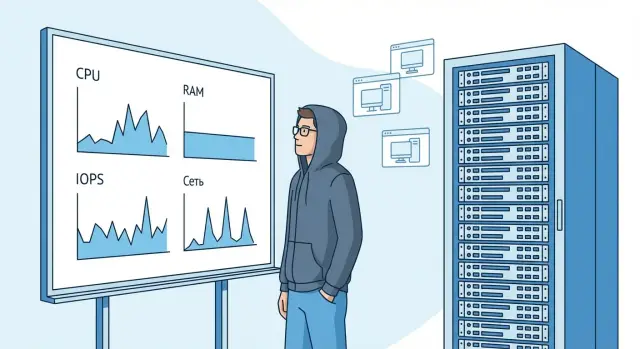
What problem are we solving and where VDI/RDS usually "hits a wall"
VDI/RDS often feels slow not because there is "not enough hardware in general", but because a single resource runs out at the wrong moment. It's therefore more useful to calculate consumption per user and per profile, then multiply by concurrency and add headroom. This helps avoid cases where CPU is 40% busy but users complain about lags caused by disk or network.
The same number of users can produce very different load. Fifty employees using office apps and fifty who keep dozens of tabs, heavy portals and video calls all day consume very different amounts of CPU, RAM and disk operations. In RDS (terminal server) users share one OS, so peaks tend to aggregate. In VDI each user has a separate VM, so base memory and storage requirements are usually higher.
In practice the bottleneck is almost always in one of four layers: CPU (insufficient compute during peak seconds), RAM (swap starts and everything becomes sluggish), storage (latency grows, logons and profile loads become painfully slow) or network (average bandwidth may look fine, but quality is poor due to latency, loss or Wi‑Fi issues).
Look at peaks and tails, not averages. For example, average disk latency of 3 ms looks fine, but if the 95th percentile during morning logons is 25–40 ms, users will see black screens and long load times. The same applies to the network: average traffic may be low, but short spikes and packet loss make the UI feel jerky.
A typical scenario is a classroom or public office where 60 people log on nearly simultaneously. If hosts and storage can't handle that peak, complaints will follow even when aggregate numbers look "good." The logic is simple: base decisions on profiles and metrics that show the exact moment the system is constrained.
Basic assumptions: VDI vs RDS and what counts as a user
VDI and RDS are often treated the same, but they are different models.
In RDS many people share one OS and common services, so some costs are shared: caches, Windows services, some agents. In VDI each VM carries its own OS and services, so the base "cost" per user is higher, but it's easier to isolate apps and settings.
Decide in advance whether workstations are persistent or non-persistent. Persistent is closer to a regular PC: profiles and installed programs accumulate and storage grows. Non-persistent is easier to maintain and update, but it is sensitive to peak events like mass morning logons and requires careful profile management.
Also account for overhead from security and management agents: antivirus, encryption, DLP, EDR, inventory agents, and regular updates. They add CPU, RAM and especially disk activity. If these components are mandatory, treat them as a constant add-on, and consider updates and scheduled scans as separate peaks.
Agree what you call a "user". For planning it helps to distinguish an active session (someone is actively working) from an idle session (the session is open but little activity). Also define peak scenarios — times of maximum load (morning logon, month-end, mass web app launches).
A key parameter is the concurrency factor: what portion of all accounts are active at once. For example, an organization has 300 employees but 180 are active at peak: concurrency 0.6. Usually CPU, RAM and IOPS are sized based on this number, not on the total headcount.
Fix these assumptions in writing before calculations. That way, when choosing servers and storage it’s clear where the numbers come from and what headroom is included for peaks and background activity.
Typical user profiles: office vs heavy web
Sizing starts not with hardware but with a clear description of how people actually work. Don’t try to guess vCPU and IOPS immediately. First define 2–3 profiles tied to measurable habits.
The office profile is predictable: email, documents, 5–15 tabs, messenger, occasional printing. Load is steady, with short spikes when opening large files or during mass logons.
The "heavy web" profile looks similar but behaves differently: 20–60 tabs, CRM/ERP, BI dashboards, frequent page refreshes, browser extensions and video calls. Peaks are more pronounced (rendering, codecs, charts) and disk latency can suffer on active profiles.
Design and engineering apps (CAD/3D, visualization) should not be lumped with office into an "average" profile. They often require GPU, more video memory and different latency and network needs. Treat that profile separately and validate with a pilot.
To describe a profile use a few parameters: number and type of tabs (CRM, BI, maps), frequency of file operations (open/save/autosave), printing/scanning needs, frequency and hours of video calls and when peaks occur.
Collect data, not guesses. Combine a short survey with quick measurements on several workstations, then confirm with a pilot group running real apps and policies. Record "bad days" (month-end, mass meetings) as separate scenarios.
Example: accounting may behave like "office" three weeks of the month but turn into "heavy web" at month-end due to reporting portals. If unaccounted for, the system will suddenly lag at critical times.
CPU: estimating vCPU per user without guessing
In VDI/RDS it’s convenient to think in vCPUs and host CPU usage. One vCPU is a share of physical core time. The goal is not to guess how many cores to buy but to understand demand for simultaneous active users and keep headroom for peaks.
Average CPU percent is misleading. A session may average 10% CPU but spike to 80–100% for 5–10 seconds when opening a heavy tab, starting Teams or rendering a page. Those spikes break responsiveness: the cursor stutters, audio glitches and the UI becomes sticky. Focus on the 95th percentile load and perceived responsiveness, not the pretty average.
As a starting point, use simple guidelines then validate with measurements:
- Office (email, documents, 5–10 tabs, messenger): 1–2 vCPU per user.
- Heavy web (CRM/BI in browser, many tabs, video calls): 2–4 vCPU per user.
Add headroom for background tasks: updates, indexing, antivirus, telemetry. Practically, keep 15–25% free CPU capacity on hosts during working hours.
If you add vCPU and the slowness remains, often the problem is waiting on disk or lack of RAM. A telltale sign: CPU is low but apps open slowly, logon takes minutes, disk queues rise or swapping appears.
Mini example: 60 office users in RDS. Start estimate — 1.5 vCPU per user = 90 vCPU total. If planning 2 hosts, distribute so each host keeps about 20% headroom for peaks and background, otherwise morning session surges will break responsiveness even with a "normal" average load.
RAM: how much memory and how to avoid swapping
Memory often becomes the main limiter for user density on a host. CPU can be tolerated for short spikes, but if RAM runs out and swapping begins, latency moves to storage and users experience slowdowns even with normal CPU usage.
Office profiles are often dominated by the browser and background agents: tabs, messenger, mail client, antivirus, DLP/EDR, print client, sync. Heavy web adds large caches and frequent small writes. In RDS memory depends on how similar applications are across users (shared libraries help), while VDI means each VM carries its own OS and services.
When a host or VM starts heavily using pagefile/swap, load shifts to storage. This almost always increases IOPS and disk latency, then logons, profile loads and app launches suffer. The root cause is often underestimated RAM.
A practical approach is to size memory in layers and include headroom: base OS and system processes, add-on for profile (apps and browser), add-on for security agents, then 15–25% reserve for growth and background events.
Guideline by profile: an office user with 8–12 tabs, mail and messenger often uses 2–3 GB; a heavy-web user with frequent video calls uses 4–6 GB. Verify on a pilot and size to the 95th percentile so you don’t swap on a normal day.
Storage: estimating IOPS and protecting against logon storms
IOPS are operations per second, but for VDI/RDS latency is frequently more important. When latency rises, sessions stall even if reported IOPS look "normal."
Disk load is rarely uniform. There is steady-state (normal daytime work) and short bursts: mass morning logons, updates, antivirus scans, cache rebuilds. If storage is sized only for averages, a logon storm will quickly overwhelm the disk queue.
Main sources of writes: user profiles, TEMP, browser cache, mail clients, logs, and background processes (antivirus, indexer). Heavy-web users add large caches and many small writes.
For rough estimation use ranges:
- Office: 5–15 IOPS per user steady-state and 30–60 IOPS per user during logon peaks.
- Heavy web: 10–25 IOPS steady-state and 50–100 IOPS during peaks.
Multiply by concurrency. For example, 200 office users at 10 IOPS gives ~2000 IOPS daytime, but if 60 people log on within 5–10 minutes you need headroom for the peak and, importantly, low latency.
Practices that help against logon storms: separate VM system disks from user profiles (including FSLogix) so they don’t compete for the same resources, limit cache and TEMP growth, and move updates and scans outside peak hours.
Signs you’re hitting storage limits: long session logons and black screens during logon, sharp growth in app open times, high disk queue depth and rising read/write latency, and user complaints coinciding with antivirus spikes.
Network: how many Mbps per user and how to avoid "lag"
Network rarely "runs out" by average bandwidth in VDI/RDS. The problem is almost always peaks, latency or packet loss. Include not only Mbps per user in your calculation but also channel quality.
Display protocol traffic (often RDP) depends on screen activity and redirected devices. The same office user might use ~0.3 Mbps in quiet work and 3–6 Mbps during a video call.
Bandwidth grows when many pixels change or when media is present: in‑browser video and video conferences (especially 1080p), audio, print/scan redirection, USB redirection, two monitors and high resolutions.
Rough estimates: office profiles often fit into 0.5–1.5 Mbps per user, heavy web into 1.5–4 Mbps, and users with frequent calls should be allocated 3–6 Mbps.
Size the WAN by peaks, not averages: take the share of concurrently active users (e.g., 60–70%) and add 20–30% headroom for bursts. Separately, check latency and loss. A comfortable target is RTT up to 30–50 ms and packet loss below 0.5%.
If lag is caused by other traffic, segmentation and prioritization help: separate user sessions, management/monitoring and storage traffic, schedule backups with limits and avoid competition with RDP traffic.
Step-by-step calculation: from user profile to host configuration
A practical workflow:
-
Describe 2–4 profiles (e.g., office, heavy web, 1C/ERP, design) and set the concurrency factor. Common values are 50–80% of total accounts.
-
Define what "works normally" means: logon time, app responsiveness, acceptable disk and network latency. This is your internal SLA.
-
Estimate per-profile consumption: vCPU, RAM, IOPS (and logon peaks), plus average and peak network usage.
-
Convert per-user to per-host/cluster: multiply by concurrency, add platform overhead (hypervisor, broker, antivirus, monitoring), then check that bottlenecks align across compute, memory, storage and network.
-
Add safety margin: growth (+20–30%), node failure (N+1), maintenance (patches, reboots) and reserve for morning logon storms.
Short example: 120 office users and 30 heavy-web users, concurrency 70%. Size for 105 active sessions, not 150, and sum load by profile. CPU and RAM scale roughly linearly; storage and network often produce sharp peaks at certain times.
The final, indispensable step is a pilot. Run 10–20% of the target load, collect metrics for CPU, RAM, IOPS, disk and network latency and see what hits the red zone. After the pilot numbers almost always change, especially for storage and logon times.
Sizing example with real numbers: mixed office + heavy web
Scenario: 120 users — 80 office (email, documents, 10–20 tabs) and 40 heavy-web users (many tabs, video calls, BI in browser).
CPU and RAM: account for peaks and headroom
Use simple starting norms (validate with a pilot):
- Office: 0.3 vCPU average and 0.6 vCPU peak; RAM 1.8 GB.
- Heavy web: 0.6 vCPU average and 1.2 vCPU peak; RAM 3.5 GB.
Peak CPU: 80 × 0.6 + 40 × 1.2 = 48 + 48 = 96 vCPU. Add 20% headroom for spikes and background: 96 × 1.2 = 115 vCPU.
RAM: 80 × 1.8 + 40 × 3.5 = 144 + 140 = 284 GB. Plus 15% for OS/services/cache: ≈327 GB. In practice design the cluster so that after a node fail there is still memory headroom.
IOPS and network: normal hour and mass logon
Daytime disk (assumed): office 5 IOPS, heavy web 10 IOPS. Total: 80 × 5 + 40 × 10 = 800 IOPS.
Logon storm (first 5–15 minutes) can be 5–10× heavier. If assuming 50 IOPS per office and 80 IOPS per heavy user: 80 × 50 + 40 × 80 = 7200 IOPS. Here not only IOPS count but latency matters: if latency rises users will feel stalls even with normal CPU.
Network: for remote access assume average 0.2 Mbps per office and 0.4 Mbps per heavy user: 80 × 0.2 + 40 × 0.4 = 32 Mbps. For peak multiply by 3 and add 30% overhead: about 125–130 Mbps. For a branch this often means a 150–200 Mbps link with QoS for VDI/RDS traffic.
To decide what to scale next, look at symptoms:
- CPU 80–90% at peak with normal disk latency: add compute or separate heavy roles into another pool.
- RAM near limit and swapping appears: add memory, clean autorun and background agents.
- High disk latency at logon: strengthen the SSD tier, rethink profiles and spread I/O across pools.
- Complaints only from a branch while the datacenter is fine: investigate network, QoS and link stability.
Common planning mistakes for VDI/RDS
The most expensive mistake is sizing everyone to the same "maximum" profile. You end up overpaying for CPU/RAM while the real bottleneck remains storage or network.
Another trap is relying on average load. Average CPU may look fine, but during peaks (morning, month-end, reports) the system stutters. For VDI/RDS watch peaks and at least the 95th percentile.
Mass logon behavior is often underestimated. A logon storm includes session starts, profile reads, policy application, background agent starts, update checks and scans. Storage gets a brief but very intense I/O and latency spike.
Typical outcomes: uniform resources for all users without profile separation, planning by averages without peak testing or headroom, bloated profiles and redirected folders, overloaded hosts because sessions weren’t balanced, and lack of disk latency and network quality monitoring.
Small example: at 09:00 eighty employees log on simultaneously. If antivirus databases update and scans start, profiles swell, and profile storage isn’t designed for peaks, then even fast CPU hosts will "hang" due to disk. Users see long logons, frozen browsers and app delays.
Short checklist and next steps
Before buying hardware or expanding a cluster run this quick check:
- CPU: is there headroom for peaks and background tasks (AV, indexing, updates)?
- RAM: is there enough memory to avoid swapping during the busiest hour?
- Storage: do you measure not only IOPS but latency under real load?
- Network: do you test bandwidth and RTT to users, especially branch offices and VPNs?
- Peaks: do you separately size for mass morning logons, updates and reporting periods?
If any single item is "on the edge", don’t hope it will "somehow pass." In VDI/RDS degradation is often chained: disk slows, queue grows, sessions get heavier and then it looks like CPU is lacking.
Next check fault tolerance. The minimum that often saves a project is N+1: if one host fails users continue working at acceptable speed. Also plan maintenance without downtime: hypervisor updates, patches, disk replacement and backup testing.
Before the final sizing collect baseline data: user counts and profiles, mandatory apps and tabs, hourly load chart, profile and redirected folder sizes, storage and backup requirements, and the real network topology (offices, branches, remote users).
A practical next step is a pilot with 10–20 users using the same policies, profiles and apps that will be in production. In 1–2 weeks you will see the logon storm, peak IOPS, typical disk latency and network behavior, then scale based on verified metrics.
If you need to quickly turn sizing into a concrete configuration, it’s useful to work with those who supply server platforms and design infrastructure. For example, GSE.kz as a server manufacturer and system integrator in Kazakhstan can help choose servers for VDI/RDS and plan node-failure headroom and peak capacity without "buying cores just in case."
Frequently asked questions
Which to choose: VDI or RDS for a typical office?
If you have many identical office tasks and need maximum user density on a server, RDS is often the simpler start. If you need isolated desktops, different app sets and a PC-like experience, VDI is usually chosen, but it typically requires more RAM and storage.
How to correctly calculate the concurrency factor?
Use the number of active sessions during the busiest period, not headcount. A practical starting point is to estimate peak concurrency by real working hours (for example 0.6–0.8), then refine it on a pilot using host metrics and login logs.
Why is CPU "not busy" but users still complain about lags?
Don’t trust averages only — look at peaks and the 95th percentile for CPU, memory, disk latency and network. A common sign of a bottleneck is user complaints despite a "nice" average CPU (for example, 40% CPU) while disk latency spikes during logons.
How many vCPUs to allocate per user in VDI/RDS?
As a starting range, consider 1–2 vCPU for an office user and 2–4 vCPU for heavy web / conferencing profiles. The critical part is to watch spikes: if sessions hit the 95th-percentile CPU in peaks, add headroom or separate pools by profile.
How much RAM per user and how to tell if memory is insufficient?
To avoid swapping, size for the heavier browser scenarios and mandatory security agents. Office sessions often use about 2–3 GB, while heavy-web sessions use 4–6 GB. Add headroom so paging doesn’t turn a memory issue into a storage problem.
What matters more for VDI/RDS: IOPS or disk latency?
IOPS is a useful metric, but users perceive disk latency first. Even with acceptable IOPS, logons and app launches can lag if queue depth and the 95th-percentile latency climb into tens of milliseconds.
How to survive a "logon storm" when everyone logs in at once?
Plan for the mass logon peak ahead of time and don’t size storage for the average day. Tactics that help: split system disks and user profiles (including FSLogix), limit cache/TEMP growth, and schedule updates and scans outside the morning window.
How many Mbps per user and why quality matters more than raw speed?
Most average environments are not bandwidth-limited; latency and packet loss or weak Wi‑Fi are more often the cause. Estimate peak scenarios (video calls, dual monitors, high resolution) and check RTT and loss, otherwise you may have enough Mbps but a jerky interface.
How to include fault tolerance (N+1) in resource planning?
Design the cluster so that if one node fails the remaining nodes can handle the load with acceptable responsiveness. This usually means N+1 for CPU, RAM and especially for storage, because storage peaks are often the hardest to absorb.
Why run a pilot and what to measure before buying hardware?
A pilot replaces guesswork with real numbers for your apps, policies and agents. Run 10–20% of target load and collect 95th-percentile metrics for CPU/RAM, disk latency, logon times and network quality, then adjust norms and headroom.
