8 min read
Replacing PCs at the reception desk without disrupting patient intake
Replacing PCs at the reception desk requires a plan for queues, printing and access. We walk through a step-by-step scenario to update equipment without stopping patient intake.
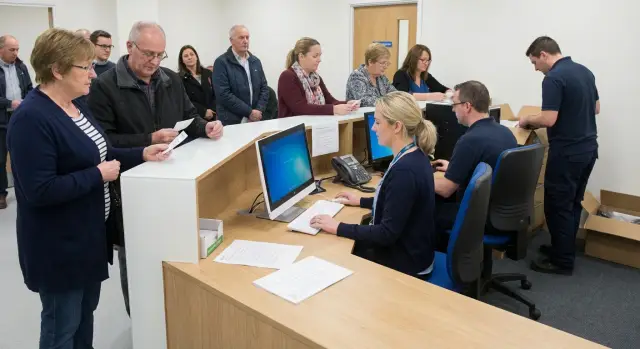
Why updating the reception easily disrupts patient intake
The reception desk looks simple: a computer, a printer, access to the system and a staff member at the counter. But in practice it is the hub through which the whole patient flow passes. If even one window stops working, even briefly, delays quickly spread across the entire clinic.
Replacing a PC at the reception often disrupts service not because of the hardware itself, but because of the dependencies around it. One workstation may be used to log into the medical system, print tickets and referral forms, work with an e-signature, scan documents, call the electronic queue and connect to the cash desk or lab. If a single element doesn’t work, the staff member cannot serve people properly.
Where intake fails most often
Problems usually start not when the new computer is switched on, but right after. Access to the medical system can disappear in one place, the ticket printer or scanner may not be recognized in another, or the electronic queue may stop working. Default settings are often reset, and staff spend time searching for familiar functions. The riskiest scenario is replacing all windows at once, leaving no one to handle the patient flow.
Even a simple 10–15 minute pause at the counter rarely stays just 10–15 minutes. First a live queue builds up. Then patients approach other windows, distracting administrators and doctors, and call centers get busy. A short delay turns into a full-blown disruption to the start of the shift.
Updating all workstations at once is especially dangerous. If there are two or three windows, it may seem faster to replace them all together. In reality that removes any buffer. While one window can be temporarily compensated by a neighbor, stopping them all at once means nobody can print documents, confirm appointments or answer patients’ questions.
Even for 2–3 windows you need a clear plan. Without it, the IT team fixes problems as they appear, and the reception staff improvise while serving people. It is much safer to decide in advance which window will be updated first, where a working reserve remains, and how to quickly restore the old setup if something fails.
For medical institutions in Kazakhstan this is particularly important where high patient flow begins early in the morning. The first hour at reception sets the pace for the whole day. If the start of the shift is disrupted, it is much harder to get back to a calm rhythm.
What you must not lose during replacement
During equipment replacement it is important to preserve not just the computer, but the whole workstation. If the new PC powers on but the staff member cannot serve patients as usual, that counts as a failure. The main goal here is continuous patient intake, not just powered hardware.
The first thing you must not lose is access to the medical system. The receptionist should immediately be able to open a patient’s record, view doctors’ schedules, book appointments and access other necessary modules. If login fails even for a few minutes, the queue grows quickly.
The second critical point is the queue system. Tickets, calls on the display and the order of service must work without interruption. When this fails, staff switch to manual handling and patients get confused about who is next.
Printing is equally important. The reception constantly prints referral forms, certificates, consent forms, receipts and other documents. A common mistake during a PC replacement is to check system login but not verify the printer, print templates and required settings. As a result, the window may seem operational, but issuing documents becomes impossible.
There are also less visible but crucial items: document scanners, e-signature tokens, signature keys, and sometimes barcode or card readers. One non-working accessory can halt the entire intake even if the computer and monitor are fine.
Also check staff communication. Many clinics have a phone, IP handset or an internal channel to the doctor’s office and the head administrator at the workstation. If that connection is lost, any non-standard question slows down the window.
Define a minimal readiness checklist in advance. Consider a workstation ready only when:
- the staff member logs into the medical system under their own account;
- at least one real document prints successfully;
- the queue, ticket and display operate correctly;
- scanner, e-signature and other required devices are connected;
- a phone or other working communication channel is available.
If these points are met, patients often do not notice the equipment change. If any one item fails, the replacement cannot be considered complete.
Preparation the day before work
Most replacements fail not because of a major breakdown, but because of small details remembered too late. The day before the work, clear up weak points: who makes decisions on site, which PC the printer is connected to, under whose account the medical system opens and which window should not be touched in the morning.
Start by appointing one responsible person from reception. This should be someone who knows how the shift really runs, understands where the longest queue forms and can quickly confirm: this workstation can be switched off now, this one cannot. Whether the replacement is done by an internal IT specialist or a contractor, they should have a single contact, not five people giving different answers.
What to check in the evening
Evening preparation should be highly practical. Walk through each window and record which equipment is in place, who uses it, which devices are connected, what logins and permissions are needed, and whether spare cables, a mouse, keyboard and a backup printer are available in case the main one does not respond immediately.
Check printing separately. In many receptions everything looks fine until the first attempt to print a ticket, referral or consent form. If the new device uses a different port, a different printer name, or has a driver issue, the window will appear to run but service will stall. It’s better to print a test document on the printer that will be used after the replacement.
The same applies to access. You need not only the Windows login and password but also access to the medical system, email, print templates, local folders and sometimes the electronic queue system. If a staff member lacks required permissions, find out in the evening—not at 8:05 when patients are already in the lobby.
Finally, choose quiet hours. This is usually not the start of a shift or the post-lunch period when patients return from tests and doctor visits. Pick a short window with minimal flow and change equipment one workstation at a time. In a typical clinic even 20 quiet minutes are more effective than an hour of work during peak times.
If the facility works with an external integrator, agree on the route through windows and a list of equipment in advance. Then on the day of replacement you won’t waste time searching for a cable, password or the correct printer at a neighboring desk.
Step-by-step scenario for replacing one window at a time
The safest approach is to replace equipment not across the whole reception at once, but one workstation at a time. Start with a pilot place with predictable load: not the emptiest, but not the one with the longest queue either. That way you can spot real issues without risking the whole shift.
Before disconnecting the old PC, prepare the new one so the staff member doesn’t have to hunt for familiar items. Transfer the user profile, document templates, print settings and shortcuts to the medical systems. If the window regularly opens the schedule, insurance forms or local folders with forms, they should be in the same places.
Then perform the switch during a short lull between peaks. Don’t move the old workstation far: keep it nearby as a fallback in case something doesn’t open on the new machine. Even 10 minutes of downtime quickly turns into a queue at the counter.
After connecting the new PC or all-in-one, immediately check peripherals. Reception depends not only on system access but on everyday items: printing tickets, referrals, consents and certificates. If the printer is detected but prints with errors, the workstation is not ready.
Keep the verification order simple:
- log in with the staff member’s account;
- open the medical system without extra prompts;
- find a test patient record or open a doctor’s schedule;
- print one test document;
- check that folders, templates and shortcuts open without searching.
Only after this should you fully move the staff member to the new station. A good sign is that the receptionist can take the first patient at the usual pace without constant help from the sysadmin.
Have an IT person or contractor nearby for the first 30 minutes after launch. They should not leave right after successful login. That period usually reveals small but critical issues: wrong default printer, incorrect print format, empty shortcut, or access error to a network folder.
If the pilot window works smoothly, proceed to the next using the same routine. This approach is especially useful where reception rarely stops and a failure in any process immediately affects patient intake.
How to keep queue, printing and access intact
The most common mistake when updating reception equipment is switching off the old computer too early. Until the new PC passes a full check, the old workstation must remain operational. This gives a clear rollback path if the medical system won’t open, the printer disappears, or the scanner is not recognized.
During a short test, direct the flow to a neighboring window. Patients keep coming, while the staff member can check the new workstation without queue pressure. Even 10–15 minutes of such a pause reduces the risk of disrupting service much more than a quick but stressed replacement in front of patients.
A paper backup is also necessary, even if the expected outage is only a few minutes. Keep blank forms, a pen and a simple recording template at hand: full name, time, doctor, area number, contact. If the system or printer freezes, the receptionist can maintain the flow and avoid asking patients to wait without explanation.
What to test first
Testing should follow real receptionist actions, not a checklist of "everything seems to work." At reception the important things are actual tasks:
- logging into the medical system under the correct account;
- printing a ticket, referral and receipt if cash printing is linked to that window;
- scanning documents without freezes or errors;
- the e-signature being recognized and signing the necessary document;
- data going to the correct printer, not a neighboring office.
Test the e-signature and scanner separately rather than assuming they work with system login. Often access is fine, but signatures fail due to a certificate, driver or browser setting. Scanners show similar behavior: the application opens, but images are not transferred into the patient record.
The safe order is always the same: verify the new PC with live actions, and only then switch off the old one. For clinics in Kazakhstan this is especially important where reception handles queueing, printing and access to state or internal systems simultaneously. Even good hardware won’t help if you don’t validate the whole staff workflow—from login to handing the paper to the patient.
Example of a replacement in a typical clinic
A typical morning in a city clinic starts early: people arrive before opening, some are booked in advance, others join the live queue. At such times replacing a PC at reception is risky not because of the equipment but because of small items: ticket printing freezes, the schedule window doesn’t open, or the operator must log in again.
That’s why in real shifts equipment is replaced one workstation at a time, not across the whole area. Usually the senior receptionist’s station is chosen first. That person often has more experience and can quickly spot if something is amiss: the wrong printer selected, barcodes printed badly, or a patient record taking longer than usual to open.
While switching over, the neighboring window temporarily takes part of the flow. The queue moves a bit slower, but service continues. For visitors it looks like normal workload, not a technical failure.
How such a shift goes
A workday in this scenario is straightforward: at opening all old stations remain active; after the first wave of visitors, replace the senior receptionist’s PC or all-in-one, verify system access and printing, then serve a few patients without errors and only then move to the second window. If a new rush begins, pause all work.
Order matters more than speed. If the new workstation passes a short live test, proceed. If any critical step fails, return the old workstation to service and fix the issue without queue pressure.
A good example looks like this: at 10:30 the flow decreased, the senior receptionist’s PC was replaced in 20–30 minutes, a few documents were printed, two patients were seen without errors, and then the team moved to the next window. But at 12:00 a new wave of people arrived after therapy visits, and the replacement was postponed to a quieter time.
This is how reception upgrades are done with minimal risk. For medical institutions in Kazakhstan there is another practical advantage: if equipment and service support are available locally, unexpected compatibility, printing and replacement issues are resolved faster.
Common mistakes during replacement
One of the most frequent causes of failure is choosing the wrong time. Starting a replacement on Monday morning when a queue is already at the counter turns even a small delay into a major problem. Safer times are quiet hours: end of day, the gap between shifts, or running a test on a non-working day before opening.
The second typical mistake seems minor until a ticket, consent or referral stops printing. Reception often uses a local printer with simple but important settings: a chosen port, paper format, or binding to a specific account. If the new PC is connected but the printer hasn’t been tested on an actual task, staff will discover the problem with a patient present.
Loss of the familiar working environment also causes trouble. The old computer often holds saved forms, quick shortcuts to the medical system, templates, scans, browser settings and even a desktop folder used daily. Formally the system may be accessible, but in practice the window works slower because the receptionist searches for everything anew.
Another mistake is updating equipment only with IT staff and not informing those who depend on reception. Doctors should know which window is temporarily switched, the call center where to direct patients during that hour, and the head administrator where the backup station will be. Otherwise the queue fragments: some people go to the wrong place, calls get lost, and some patients wait for duplicate prints.
The most dangerous oversight is the lack of a simple rollback. If the new computer powers on but can’t see the printer, won’t open a required module, or freezes at authorization, there must be a clear way back: the old PC not dismantled, cables labeled, power nearby, and a restore that takes 5–10 minutes. Without this, a small error balloons into an hour-long outage.
For medical institutions in Kazakhstan the service aspect is especially important. When equipment and support are available locally, it’s easier to get a replacement or on-site help quickly. But this does not replace the main rule: before going live, test not whether the computer turns on, but whether the entire patient path works—queue, record, printing and transfer to the doctor.
Short checklist before opening
Before opening a registration window, perform a quick check of the essentials that would immediately stop service. This usually takes 5–10 minutes if the responsible person follows the same routine.
Check directly at the staff member’s workstation rather than "the room in general." That makes it easier to spot small failures before the first patient appears.
- The staff member has their login, password and a backup way to log in if the main account fails.
- The medical system opens without errors, a patient record is found, the doctor’s schedule is visible, and switching between windows does not freeze.
- A ticket prints correctly on the required printer in the right format on the first try.
- The electronic queue displays on both the public board and the receptionist’s screen.
- The staff member knows who to call on failure: internal IT, the contractor or the on-call engineer.
A simple test is to ask the receptionist to perform three routine actions in sequence—find a patient, print a ticket and call the next number. If all goes smoothly without admin help, the window can be opened.
If an external contractor will support replacement day work, share their contact in advance. This is especially useful when a project is handled by a company with local production, integration and a service network in Kazakhstan, for example GSE.kz. In such cases compatibility, workstation setup and on-site support issues are resolved faster.
What to do after the first successful replacement
The first successful replacement is not the end but a working template. Immediately after the switch, record what went well and what caused extra workload: how long data transfer took, where printing lagged, how quickly staff logged in, and whether there were questions about the queue or scanners.
Note not only errors but also what worked well. For example: did labeled cables help, was one test ticket enough, was it more convenient to replace equipment at the end of a shift or early in the morning before opening?
Then avoid trying to update the entire reception at once. The safest path is to repeat the replacement for 1–2 workstations per session. This makes it easier to control risk, spot recurring problems and avoid overloading IT or counter staff.
After the pilot, update the overall plan for the remaining windows and offices. Often by the second step it becomes clear that one window needs an all-in-one, another a desktop PC, and somewhere a printer or network cable should be replaced in advance.
Include several items in the scaling plan: exact times for work on each window, a list of equipment and peripherals, the verification order, the IT responsible person, the reception responsible person and a fallback scenario in case of failure.
If the pilot shows that a single contractor should handle supply, setup and support, look not only at separate devices but at the whole process. For such tasks GSE.kz solutions may fit— from L200 Series desktops to M200 Series all‑in‑ones—especially when local production, integration and a clear service scheme in Kazakhstan matter.
This becomes even more important for larger updates. When different companies handle equipment supply, setup, integration and service, blame is assigned faster than fixes. If the project goes through one contractor, reception staff can work with a single plan and return to normal service faster.
A good outcome after the first replacement is simple: the next one should be faster, quieter and require fewer manual steps.
Frequently asked questions
Why can’t all registration desk computers be replaced at once?
Replace equipment one desk at a time during low-traffic hours. Until the new computer has passed testing, keep the old workstation connected as a backup.
What should be checked on a new PC before seeing patients?
Check login to the medical system, patient search, the doctor’s schedule, printing of tickets or referrals, the electronic queue, scanner, and electronic signature. A computer is ready only if the registration clerk can admit patients at a normal pace.
When is the best time to replace PCs at the registration desk?
Choose a short quiet period after the first wave of patients, between peaks, or at the end of the day. Do not start work on Monday morning or at other times when a queue usually forms at the desk.
How can you avoid interrupting patient intake while replacing one desk?
Do not disconnect the old computer until the new one has been fully tested. Redirect patients to a neighboring desk, prepare paper forms, and keep the old workstation nearby so you can quickly return to it if an error occurs.
How do you test a printer after replacing a computer?
Print an actual ticket, referral, or consent form from the new workstation. Check the correct printer, paper format, port, and templates, because the “printer connected” status does not guarantee correct printing.
What should be prepared the day before updating the registration desk?
The day before the work, make a list of the devices at each desk, user accounts, access permissions, printers, scanners, and cables. Assign one registration staff member to confirm when a specific desk can be disconnected.
What should you do if the new PC cannot open the medical system or detect the printer?
Immediately return the old workstation to service if this can be done within a few minutes. Do not try to fix the problem while the queue is growing: document the cause, keep patient intake running, and reschedule configuration for a quiet time.
Is a paper backup needed for a short replacement?
You will need blank forms, a pen, and a simple list for recording the patient’s full name, time, doctor, service area, and contact details. This backup helps maintain order while the IT specialist restores the system or printing.
Who should be nearby after the new workstation is launched?
Keep an IT specialist or contractor nearby for at least the first 30 minutes. During this period, issues often appear with the default printer, network folders, print formats, and access permissions.
What should be done after successfully replacing the first computer?
Record the replacement time, any issues found, printer and peripheral settings, and the verification procedure that worked. Then repeat this process for the next desks, one or two workstations during each maintenance window.
