8 min read
Removable Media Usage Policy: Education and Security
Removable media policy: how schools and colleges balance educational needs and security using exceptions, logs and training.
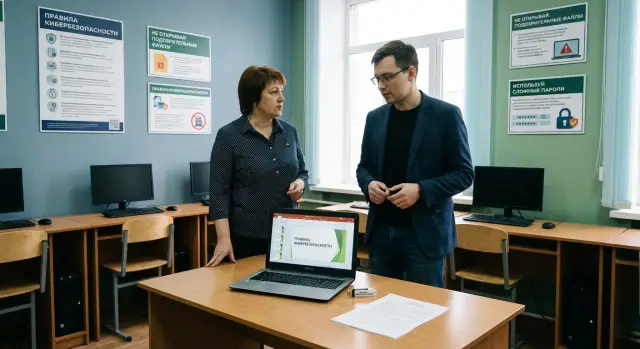
The problem: teaching needs USB, security needs control
Removable media in schools and colleges don’t appear out of convenience alone. Students bring presentations, move video files for editing, print assignments in the computer lab, and submit projects for review. Teachers exchange templates, tests and lesson plans. Even with good internet, USB often remains the simplest way to quickly transfer a large file or work where the network is unreliable.
But convenience brings real risks. A flash drive can easily introduce a virus or ransomware that in minutes can put a whole computer lab out of service. Files can leak (for example, student lists or grading results), and work can be swapped: a student hands in a “folder” that contains someone else’s project or an altered document. There’s also a mundane problem: flash drives get lost, broken, or end up where they shouldn’t, and important materials disappear at the worst moment.
A total ban usually doesn’t solve the problem. It pushes people to work around rules: sending files via personal messengers, using personal email, random cloud services, or borrowed unchecked drives. Control gets weaker and responsibility gets blurred.
The task of a removable media policy is simple: allow educational activities where they are truly needed and make file transfers predictable and safe. In other words, you don’t “fight flash drives” — you introduce clear rules about who, where and for what data USB may be used, what checks are mandatory and what to do if something goes wrong.
Scope: where, for whom and what data we protect
For rules to work, agree on boundaries first: what exactly you control, where, and why. Otherwise some will think the document is only about “flash drives,” while others will assume it covers any portable device.
A removable medium is not only a USB flash drive. In educational environments you often encounter external HDD/SSD, camera memory cards, and smartphones when they are connected as storage.
Usually the policy applies to all institutional devices where educational and official data are stored or processed: classroom and lab computers, staff and administration PCs, library stations, and laptops issued for lessons or taken home. It’s useful to explicitly highlight higher‑risk places, for example computer labs with a large flow of students.
Which data we protect first
If a leak or tampering with a file can harm a child, staff member or the institution, that’s sensitive data. In schools and colleges this typically includes personal data of students and staff (forms, contacts), grades and registers, test results, medical records (certificates, benefits, health information), financial documents and contracts.
Who it applies to
The rules should cover everyone who connects media to school equipment: students, teachers, administrators, IT staff, and contractors (for example, those who service printers and interactive panels). If a student brings a presentation on a flash drive for class, and a teacher transfers files from a personal laptop to a school PC, the same definitions and responsibilities apply in both cases.
Basic rules and levels of strictness: not the same for everyone
A policy works only when it has a clear baseline. Organizations usually pick one of two approaches: “default deny, allow by rules” or “default allow, prohibit dangerous actions.” For a school the first option is often safer, but it must include understandable exceptions; otherwise teaching will quickly start bypassing the bans.
To avoid burdening everyone with the same restrictions, divide computers into zones. The logic then becomes simple: the more critical the data, the stricter the controls.
Zones and the basic logic
Three zones are minimally sufficient.
- Classroom PCs: media are allowed for lessons, but with checks and limits.
- Administrative PCs: only institutional media are allowed; personal devices are forbidden.
- PCs with access to registries, personal data, or financial systems: removable media are banned or allowed only with one‑time special approval.
Apply a risk‑based approach from there. A flash drive for a history presentation and a flash drive containing grade exports are different threat levels. Roles also matter: a student, a teacher, a system administrator and an accountant should not follow identical rules.
How to write rules so people understand them
Write short and direct. A good format is “who, where, what is allowed, what is forbidden, what to do if needed.” For example: “On classroom PCs a flash drive may be connected only to copy lesson materials. Do not run programs from a flash drive. If you need to bring video for a project, first check it on the teacher’s PC.”
Add a few “allowed/not allowed” examples for the most common situations. That helps people follow rules without constantly asking IT.
Roles and responsibilities: making the policy work in practice
Rules don’t work by themselves. Everyone should have a clear role and a simple action to take in disputed situations. Otherwise it’s reduced to requests like “allow the flash drive for a minute” and arguments about who should control it.
Who approves and who owns the content
The director usually approves the text, but it’s drafted together. IT describes technical parts (which devices can be connected and where). The person responsible for personal data checks that the requirements don’t create privacy risks. A lawyer reviews wording and consent. A security officer (if present) sets minimum controls.
To avoid gaps due to vacations or substitutions, pre‑assign who makes decisions and who covers responsibilities.
A typical distribution looks like this:
- final approval: director (or authorised deputy);
- permissions and exceptions: deputy director for teaching and IT (jointly);
- record keeping and storage: secretary/records clerk or IT (school decision);
- PC configuration, antivirus, blocking: IT specialist;
- compliance checks and selective audits: information security/personal data officer.
Handling violations without overreaction
Describe a gradation in advance. Forgetting to register a device is one thing; plugging an unknown flash drive into a PC with registers and grades is another.
A simple scheme prevents turning incidents into a “blame hunt”:
- one‑off: warning and brief guidance on proper procedure;
- repeat: temporary USB access suspension for the user or class and mandatory training;
- suspected malware or leakage: disconnect the PC from the network, document facts, investigate the incident;
- outcome: corrective measures (settings, training, rule updates).
A general rule: if in doubt, do not connect the device and call IT. This reduces risk and saves time on investigations.
Exceptions: enabling teaching tasks without creating security holes
Banning all USB is easy, but in schools that quickly hits reality: presentations for lessons, materials for competitions, lab files, practice reports. So the policy should include a clear mechanism for exceptions that are rare, time‑limited and auditable.
A good exception looks like a permit. It’s valid for a specific task and time. For example, an IT teacher needs to transfer a set of files for a competition to a computer with no internet access. The permit is issued for 2 days, for one device, with a fixed set of folders.
How to document an exception safely
To avoid drowning in approvals, use a short request (in a log or electronic form). Usually it’s enough to state the purpose and educational activity (lesson, contest, lab, practice), the validity period, where the media can be used (room, specific PC), allowed file types (e.g., PDF, PPTX) and total size, and who is responsible: who brings it, who checks it, who copies it.
For contractors the logic is the same but stricter. Prefer allowing work only on a designated service PC or using a device issued by the institution. Record what was done and what was copied.
What cannot be allowed even by exception
Some data and actions should never go on a flash drive:
- databases and exports with personal data of students and staff;
- files with accounts, tokens, keys, passwords, profile backups;
- system logs containing sensitive network and access information;
- software from unverified sources and unlicensed builds.
This way exceptions support teaching without becoming a loophole for leaks.
Logs and records: what to record without drowning in paperwork
Logs are needed not for reporting, but to quickly understand who connected a device, where and why. If an infection or leak happens, a record saves hours of tracing and reduces panic. Choose a simple recording method people will actually keep.
Most often three types of records are enough: issuance of school devices (if you issue them), registration of connections in rooms with critical data, and a separate entry for transfers between isolated zones (for example, from a computer lab to the staff room).
Minimum fields that work
To prevent the log from becoming bureaucracy, keep only what helps reconstruct the chain of events: who used it (name, class or department), when (date and time), which device (inventory or serial number), where (room, specific PC), purpose and who approved (one line).
Example: a 10B student brings project materials on a flash drive. The teacher records the connection in the computer lab, notes the purpose “project presentation” and marks approval by the lab manager.
Format, storage and checks
A paper log works where there’s no unified system but careful entries and limited access. An electronic form is easier to search and summarise, but access should be limited to those responsible.
Set retention simply: for example, one academic year for routine entries and longer for incidents. Do scheduled checks: the lab manager or class teacher reviews entries weekly, and the IT specialist samples rows monthly and compares them with the reality (rooms, PCs, devices).
Technical measures: simple settings that greatly reduce risk
Rules rely not only on bans but also on configurations that reduce the chance of mistakes. In schools it’s often better to make the safe path the easy one than to expect everyone to remember instructions.
The first setting on all classroom PCs should be to disable autorun and automatic execution of programs from USB. This blocks a common infection scenario where a drive is inserted and a malicious file runs automatically. The second basic step is limiting privileges: students and most teachers operate without admin rights; installing programs and changing system settings is left to IT.
Separate accounts also help. For example, a teacher has a work account and a lesson/demo account that lacks access to administrative folders and personal data. If something goes wrong, the damage is smaller.
To avoid chaos when checking media, set a procedure: automatic antivirus scan on connection, manual check before copying files to shared folders (responsible staff or IT), quarantine for suspicious files and devices. And one more rule that saves nerves: if there’s an obvious threat, don’t “fix it on the spot” — seize the device and hand it to IT.
Another topic is approved media. It’s convenient when flash drives are issued by the institution, labelled (number, room) and encrypted if necessary. It’s then easier to attribute a drive and keep records.
A scheme that works well in rooms is a dedicated PC for file exchange: students hand in materials there, and from that PC files are moved into the network. Add simple segmentation (teaching computers separate from administrative and accounting) and regular backups of shared folders. Then lessons won’t “stop” during an incident and data can be quickly restored.
How to roll out the policy: a step‑by‑step plan without big projects
Implement the rules as a small school project: fast, in steps and with clear outcomes. A convenient horizon is 30–60 days. Don’t try to cover all rooms equally on the first pass.
A practical plan might look like this:
-
Days 1–10: inventory (where USB is actually needed, who uses it, what data is transferred) and assignment of responsibilities.
-
Days 11–20: short rules on 1–2 pages and templates (exception request, log form).
-
Days 21–35: pilot in 1–2 rooms (e.g., IT and project classroom) and collect feedback.
-
Days 36–50: school‑wide launch, teacher and IT training, clear “allowed/forbidden” posters.
-
Days 51–60: compliance check, rule adjustments and consolidation of responsibilities.
Describe issuance and return procedures step by step, in plain language: who issues (secretary or IT), where stored (locked cabinet), how labelled (number), loan period, what counts as “return” (device + check + log entry), and what to do if a device isn’t returned on time.
Pack exceptions into a safe process: a teacher’s request with purpose and term, approval by the IT/security lead, minimal rights (only needed room and file types), post‑completion control, and closure of the exception (delete copies, return device, log entry).
If there’s suspicion of infection or leakage, speed and order matter. Agree in advance on a simple algorithm: isolate the PC (disconnect network and don’t move files), document facts (who, where, which device, what happened, time), notify responsible persons (IT, administration, security), and do not attempt onsite recovery. Check the device and PCs on a separate workstation, then decide on restoration. After the incident, document the findings, actions taken and which measures to change to prevent recurrence.
This approach fits both typical school PCs and more managed infrastructures (centralised PCs and servers), where it’s easier to enforce technical policies and support.
Common mistakes and pitfalls: why rules aren’t followed
The most common reason for failure is simple: rules interfere with teaching. If you ban USB completely but don’t provide a safe alternative (a shared folder, controlled school network exchange, or a dedicated printing PC), teachers and students will still find workarounds. Usually that means unchecked personal flash drives and “urgent” transfers.
The second trap is having no process owner. The policy is written but it’s unclear who issues exceptions, who checks logs weekly, who answers teachers’ questions. Without regular checks the log becomes formal: entries are missed, signatures aren’t made, and issues are discovered by chance.
A separate problem is “shared” flash drives. They are kept in the staff room or with the lab assistant, handed out on request but without noting where they were used and what was copied. Worse is using the same drive to move files between administrative and teaching machines — that is the common way malware reaches the system.
Training is often done perfunctorily: a long annual presentation and no practice. What works is short one‑page rules and a few real examples of what to do in typical situations (brought a presentation from home, need to print photos, group project).
Rules typically collapse when there is no safe USB alternative, no responsible person and schedule for checks, shared media are used without logs and antivirus checks, exceptions are verbal (no record or term), and new staff don’t get instruction in their first week.
Quick checklist: daily checks for teachers and IT
Short daily habits work better than long regulations.
For teachers before and during a lesson
Before connecting media, be sure the purpose is clear and educational: transfer a presentation, lab photos, or project files. Use only approved drives (school issued or issued for the project), not random ones.
During the lesson keep it simple: only topic‑related materials on removable media. Do not copy databases with personal data (registers, lists, medical records), nor store passwords, keys or scanned documents on a flash drive.
Check three things before starting:
- the device is approved and labelled;
- antivirus on the PC is up to date and scanning runs without errors;
- the flash drive hasn’t been used “between zones” (for example, plugged in at home and then into the school network without approval).
After the lesson and IT routine
After class, delete temporary files and downloaded copies (especially from Downloads and Desktop). If the flash drive was school‑issued, return it to storage. If a log is in use, make an entry immediately: who, when, which PC, and for what task.
IT should do small daily checks: on several machines, ensure updates and antivirus are fine and USB connection settings haven’t been disabled.
Once a month, 30 minutes of selective log checks and a short rule refresh with staff (5–7 minutes at a meeting) reduces grey exceptions and clarifies expectations.
Case study: a project classroom exchanging materials safely
In a project class students prepare an olympiad robotics entry. Three students share source code, a presentation and a demo video. They have different laptops at home and use the shared school computer lab. Everyone brings files on flash drives, and the teacher struggles to know what’s safe.
Instead of banning useful practices, the school issues a short exception for the project. The request names the project, participants, rooms and term (e.g., 4 weeks). Allowed file types are limited: sources, images, documents and project archives. Executable files and installers are forbidden even if “needed to run.” This is practical: the educational task is allowed but within clear limits.
They also create a “clean” exchange workflow so home and school rules are consistent:
- one PC in the room is designated to receive flash drives (not used for lessons or internet);
- automatic scans and autorun ban are enforced;
- files are copied only into the project folder on school storage or a network share;
- after copying the flash drive is safely removed and not left in class;
- the log records date, name, class, project name and action (brought, picked up, copied).
If a drive is lost or a suspicious file is found, don’t “handle it on the spot.” Give the teacher a simple sequence: report to IT/security, do not open the file or move it to other computers, place the device in a bag or envelope and sign the date and finder. Then IT checks the project computers for copies, deletes if needed, and may reset access to the project folder and rebuild archives.
This way students keep working and the school maintains control that is realistic to uphold daily.
Next steps: lock rules in and support them with technology
To keep the policy from becoming paper, start with small clear steps. The most common reason for failure is overly long rules that don’t say what to do in class.
Form a small working group: IT, deputy director for teaching, a security rep (if any), and 1–2 active teachers. Their task is to approve a 1–2 page policy and one clear exception process (for example, how to issue a flash drive permit and who signs it).
Then lock rules with technology so teachers don’t have to assess risks manually each time. Define access zones (staff room, computer lab, IT room) and what is allowed in each. Block unknown media and allow only registered devices. Disable autorun and write protection on critical PCs (for example where grades are kept). Set a unified antivirus check procedure.
At the same time start simple record keeping. The log is not for control but to quickly trace where a file came from in an incident. Many schools get by with a minimum: who took the device, date, class or room, purpose, return date.
Keep training short and regular. Fifteen minutes at a staff meeting and a brief memo for senior students are usually enough if you cover 2–3 common cases: “brought a presentation from home,” “need to print photos,” “group project.”
If you plan to update PCs and servers, consider manageability from the start: centralised policies, remote administration and clear support. For schools and colleges in Kazakhstan this is easier when equipment and services are local. For example, GSE.kz produces domestic PCs, all‑in‑ones and servers, and provides system integration and 24/7 support — convenient when rules must be not only written but consistently supported.
Frequently asked questions
What exactly should be considered a “removable media” in the school policy?
Start by defining what counts as a removable media device at your school: USB flash drives, external HDD/SSD, memory cards, and smartphones when they are connected as storage devices. Then specify which computers the rules apply to (classrooms, staff room, administration) and which data you consider sensitive (personal data, grades, medical records, financial documents).
Which basic approach is better: ban USB or allow everything?
For schools, a safer approach is “default deny, allow by rules” with clear exceptions for educational tasks. This prevents arbitrary devices being plugged into any machine while still enabling necessary teaching activities.
Should different rooms and computers have different rules?
Divide computers into zones based on risk. In classroom PCs you can allow USB for lessons with checks; on administrative PCs only institution-issued media should be allowed; on systems with access to grade books, registries or financial systems, removable media should be tightly restricted or banned unless explicitly approved.
How to properly document an exception when a flash drive is necessary?
Make an exception look like a pass: tied to a specific task, time and place. The request should state the purpose (lesson, contest, project), the room or specific PC, allowed file types and the people responsible for checking and copying, so the exception doesn’t become a permanent permission.
Which file types can be allowed on classroom PCs?
Allow only formats needed for education that don’t require running programs from the device — documents, presentations, images, videos. Explicitly forbid running programs from USB and transferring installers without approval, since those are the most common routes for malware.
Is it allowed to carry student lists, grades and other personal data on a flash drive?
By default, do not allow exporting or transferring databases and exports containing personal data, grades, medical records or financial documents on removable media. If someone needs to work with such data, do it inside a protected zone and via controlled storage, not on portable devices.
What if someone plugged in an unknown flash drive or the antivirus alerted?
Stop using the device immediately and do not open files to “check”. Disconnect the PC from the network, record who and when connected the device, and report the incident to the IT specialist following the pre‑agreed procedure to avoid spreading the problem.
What is the minimum information to record in a USB log?
Keep only fields that help reconstruct events: who used the device, when, on which PC, for what purpose and who approved it. This minimal log is easy to maintain daily and is useful in incident analysis without creating unnecessary paperwork.
How to work safely with contractors who bring their own media?
Contractors should generally not be allowed to use personal media on regular workstations. Permit work only via a dedicated service PC or on a school‑issued device, and record the purpose and outcomes so you can later see what was changed or copied.
How to implement the policy so teachers and students actually follow it?
Move in short steps: first inventory where USB is truly needed, then write a 1–2 page policy, run a pilot in one or two rooms, and only then roll out school‑wide. At the same time, enforce settings on PCs (disable autorun, restrict rights, check media) — otherwise the document will be ignored.
