8 min read
IT support for regional offices without a local admin
IT support for regional offices without a local admin: which workstation functions are needed and which processes can be handled remotely without disruption.
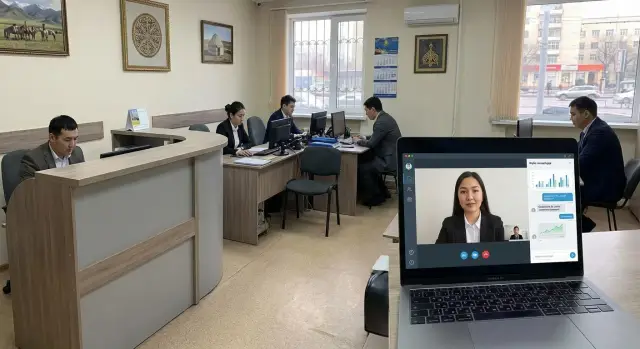
What usually breaks when there's no admin on site
When a regional office has no local admin, a small malfunction quickly becomes downtime. People don't always know what they can safely fix themselves, they are afraid to click the wrong thing, and remote support hits limits on issues you can't check over the phone: power, cables, indicators, and the physical condition of equipment.
Most problems are not complex, but they are repetitive. They happen both in the office and when employees work offsite, where the connection is unstable and there is little time to troubleshoot.
Typically it looks like this: someone cannot sign in (password, lockout, expired session), network or internet access disappears (Wi‑Fi, cable, proxy), printing fails (queue, driver, wrong default printer), a workstation becomes slow after updates or due to a full disk, files or services don't open because of permissions or expired certificates.
Remote administration covers well what can be solved by settings and access: password reset, connecting to corporate resources, installing and updating software, clearing temp files, checking logs, running diagnostics.
But there is an area where distance won't help or only helps partially. This is usually hardware and physical infrastructure: power supplies, disks, memory, screens fail; cables, ports or chargers are damaged; routers or switches fail; power goes out or surges occur; the device won't power on or boot to the OS.
A simple example: an employee reports no internet. Remotely you can check settings, the NIC status, gateway availability. But if the cause is a loose connector or a burned adapter, work won't be restored without replacing the part.
The point of a support model without a local admin is to make these cases predictable: handle common failures with standard steps, and deal with rare hardware faults through quick replacement without long on‑site investigations.
What remote IT support for regional offices consists of
Remote support doesn't rely on some magical remote access tool; it relies on a clear structure: what is supported, who is responsible for what, and which actions can be performed remotely without risking operations.
Common supporting blocks are:
- End devices: desktops, all‑in‑ones, laptops, printers, scanners, UPS.
- On‑site network: router, switch, Wi‑Fi, tidy cabling and, if possible, a backup channel.
- Servers and services: some may be local (file shares), others in a data center or cloud (mail, accounting systems, backups).
- Users: accounts, access rights, basic rules and a clear procedure for incidents.
- Suppliers: connectivity, licenses, repairs, replacement parts and consumables so you don't depend on one person on site.
When these blocks are documented, the remote team can close routine tasks without visiting: restore access, configure workstations, deploy updates, check logs, help with printing, diagnose performance or access problems, and monitor backups and antivirus.
Practical example: the accounting department in a branch can't print. Remotely you can check the print queue, driver, network availability of the printer and user permissions. If the issue is hardware (sensors, power, device error), the repair vendor or a designated on‑site person follows a short instruction to perform 2–3 simple steps.
If infrastructure is built with the remote model in mind (standardized PCs and all‑in‑ones), it's easier for an integrator to maintain the same service rules across sites. In Kazakhstan this is often linked to equipment unification and centralized service, for example when working with GSE.kz.
What functions are needed for workstations and all‑in‑ones
When there's no local admin, requirements for workstations become stricter. It's not about maximum power but about devices that are easy to service, quick to restore and safe to manage remotely.
First — reliability and easy part replacement. It's good when components are standard and accessing the disk and memory doesn't require long disassembly. Then an on‑site person can follow instructions to swap a drive or memory module while IT checks the results remotely.
Second — enough ports and good peripheral compatibility. Branches often connect printers, scanners, e‑signature tokens, POS devices and a second monitor. If ports are tight or missing, support turns into a chain of adapters and repeated calls about why a device isn't detected.
Third — remote platform management. Useful features include remote power on/reboot, power control, basic BIOS/UEFI settings so you can recover after a failure or problematic update without visiting. The more you can do before Windows starts, the less downtime.
Fourth — data protection on the device. A basic set usually suffices:
- TPM for key storage
- disk encryption (for example, BitLocker)
- Secure Boot and boot control
- BIOS/UEFI password and blocked boot from external media
- separate non‑admin user accounts for employees
Finally, common configuration across devices. One or two standard models and OS images are easier to support than many different variants. This reduces errors and speeds up replacement. In practice it's convenient when workstations are from one equipment line and differ only by RAM and disk. In Kazakhstan organizations often choose unified PCs and all‑in‑ones from a local vendor, including GSE.kz lines.
What matters for stability without on‑site IT
Stability without regular site visits depends on two things: devices must be able to recover themselves after a failure, and processes must provide quick diagnostics and clear on‑site actions.
First — remote reboot and power management. Critical workstations (reception, accounting, cash desk, terminals) should be restartable remotely and report whether the device is powered at all. This reduces false alarms when the issue is actually a hung PC or power problem.
Second — logging and diagnostics. OS events, application errors, SMART, temperature and critical reboots remove guesswork. Without this, remote support collapses into asking "do you definitely have internet?"
Third — unified images and managed updates. When everyone runs the same OS and software versions, support is faster and failures recur less. Schedule updates and define maintenance windows.
To avoid dependence on deliveries and visits, preposition a minimal on‑site reserve:
- a spare PC or all‑in‑one with a prepared account and basic software
- 1–2 power supplies and a surge protector
- cables (power, network), mouse, keyboard
- printing consumables if printing is critical
Also appoint a duty person on site. Assign them only simple, safe tasks: check a cable, photograph an error, connect a spare PC, reboot the router by instruction. Do not ask them to handle security‑sensitive actions: granting admin rights, disabling antivirus, installing unknown programs or sharing passwords.
Example: if a PC's drive is failing, SMART and temperature show degradation. The duty person moves the user to a spare workstation and IT remotely migrates the profile and closes the incident without stopping the branch's work.
Secure remote access and activity control
In a remote model the main risk isn't that something won't be fixed, it's that someone gains unnecessary access. Remote access should be managed as strictly as server‑room access.
Basic rule: access is role‑based and time‑limited. Each support employee has a role (e.g., user help, PC administration, server administration) and rights are enabled only for the task and disabled afterwards.
Practices that actually reduce risk:
- least privilege: access only to the required device and functions
- temporary rights: admin rights for hours, not permanently
- account separation: separate admin and user accounts
- access via approved tools with logging and, where possible, session recording
- two‑factor authentication for all privileged accounts
Control is not for surveillance but to investigate disputed situations and quickly recover from mistakes. With access logs and session recordings it's easier to see what changed and roll back settings.
Useful scenario: a branch employee calls about printing loss. The specialist connects only to that PC and only to printer settings. They don't get access to unrelated folders and can't install third‑party software because rights are limited by role.
Agree on an incident response plan in advance so there is no improvisation at night:
- lost device: block accounts, check logins
- malware: isolate the PC from the network, collect logs, restore from gold image
- suspected leak: change passwords, revoke tokens, review accesses and actions
- compromised admin: stop remote access and run emergency procedures
If support is provided by an external partner with 24/7 service, these rules are recorded in regulations: who connects, how requests are confirmed, where logs are stored.
Processes handled remotely on a daily basis
Daily remote support follows a simple rule: a request should quickly turn into a clear task. If a user writes "nothing works", time is wasted on clarifying details. If they provide specifics up front, many problems are solved in one session.
Ask users to report in the initial request: what exactly is not working (mail, accounting system, printer, internet), when it began, one user or the whole office, any error text (a photo of the screen helps), PC name or inventory number and a phone number.
The Service Desk classifies the ticket by priority and response time. One printer not printing and an entire department locked out are different urgencies. This is especially important in regions where a single failure affects citizen reception or cash operations.
Most work is remote diagnostics: network (connectivity, DNS, access to addresses), account (password, lockout, rights), device (disk, updates, drivers), software (services, licenses, settings). Often the issue isn't a broken computer but an expired password, a hung print service or a dropped VPN.
Daily remote tasks include password resets and unlocks, mail setup on a new PC, printer connection and queue cleanup, restoring access to network folders, checking and reconfiguring VPN, and installing updates and necessary software.
Sometimes the right approach is replacement, not repair. If a PC is unstable, a disk shows many errors or a problem repeats weekly, it's more efficient to issue a pre‑configured spare and send the faulty unit to service. This works well with a standardized equipment fleet.
How to build the model: step‑by‑step implementation plan
Start with rules, not tools. When procedures are clear, the remote team resolves more issues without calling everyone and without unnecessary visits.
Five practical steps
Begin with a basic rollout plan and document decisions so they outlast staff and equipment changes:
- Map the environment: which sites exist, who works there, what devices are installed, available communication channels and who handles connectivity on site.
- Standardize the fleet: 1–2 models of PCs or all‑in‑ones, a single system image, uniform policies and clear privilege levels.
- Run a pilot with 1–2 units: choose sites with different conditions (e.g., city and rural), process tickets through the Service Desk and track recurring problems separately.
- Train duty users: this is not an admin, but an employee who follows a checklist to reboot equipment, connect a spare mouse, photograph errors and accept deliveries.
- Introduce equipment movement regulations: how replacements are recorded, who packs and ships, how acceptance, inventory and write‑offs are handled.
After the pilot you'll uncover small details that make a big difference: where the spare power supply is stored, who can open a cabinet, how fast you can access a router, which requests count as emergencies.
What to agree before scaling
A minimal set to document: duty contacts, a device map by room, rules for granting rights, a replace‑from‑box scenario, response times and escalation rules.
If you buy identical workstations and plan for service in advance, it's easier to keep a single standard. For example, in projects that standardize equipment with GSE.kz it's simpler to support branches centrally: fewer configurations, easier swaps and consistent servicing by the integrator.
Monitoring, inventory and proactive support
When support works blindly, you only learn about problems from user calls. Monitoring and inventory change that: risks become visible beforehand and you fix things before downtime.
What to monitor daily
Start with signals that most often stop work: device and channel availability, free space on system disks, update status, antivirus health, and recurring errors (e.g., print service crashes or domain login failures).
You need automatic alerts. If an accountant's PC has 2–3 GB free, there should be a warning before updates fail and applications start crashing. The same for updates: if a site falls behind several cycles, it's a visible risk rather than a surprise incident.
Inventory of hardware and software is not just paperwork. It helps manage licenses, plan purchases and quickly identify what is on a given workstation. This is especially useful when regional fleets are mixed: desktops, all‑in‑ones, different OS versions and office suites.
Reports and metrics for managers
Keep a short set of indicators:
- SLA for tickets (how many closed on time)
- average downtime per site (hours per month)
- share of recurring incidents (what keeps breaking)
- top causes of downtime (network, disk, updates, peripherals)
- reliability by site (where failures happen most)
These reports show where preventive work, equipment replacement or Service Desk tuning is needed. If an integrator supplies and services equipment, for example GSE.kz, these metrics become a common language: discussions focus on concrete causes of downtime and risk points, not impressions.
Common mistakes and traps in support without a local admin
Most failures are not technical but procedural. Everything looks fine until a serious incident happens and it's unclear who does what.
A typical trap is a zoo of models and configurations. One district has an old PC, another a different all‑in‑one, a third a printer bought in a hurry. Remote setup and updates turn into manual work and parts and system images are incompatible.
Second problem — remote access without rules. If there are no roles, approvals and activity records, risks grow: from accidental errors to security and accountability issues. Even with good intentions, "I logged in and fixed it" can end with no record of what was changed.
Third trap — no spares. Without a spare PC, power supply or even a prepared replacement kit, a routine failure becomes days of downtime while approvals, procurement and delivery take place.
Fourth — chaotic updates. If updates are applied haphazardly, some computers get an incompatible driver while others remain unpatched for years. You need a schedule, a test group and clear maintenance windows.
Fifth — unclear on‑site roles. Remotely you can do a lot, but someone on site must perform basic actions: reboot a PC and check power, replace a cable or switch to a backup channel, photograph an error and serial number, accept delivery and deploy a replacement, confirm the problem is resolved.
Example: accounting in a district can't log in. If there is a responsible person on site, they check internet and token, take photos of the message and reboot the PC. The Service Desk sees the expired certificate and updates it per procedure. Without the on‑site responsible person this often ends with "waiting for someone to arrive."
Reducing such failures is helped by fleet unification and prepared images. If you rely on a local vendor and integrator with a service network, like GSE.kz, it's easier to organize consistent configurations and quick replacements across all branches.
Short readiness checklist for a regional office
For an office to operate without a local admin, the most important things are clear agreements: who is responsible on site, how quickly a device can be replaced and how to connect safely remotely.
Check readiness with a short list. If two or more items are missing, support will be firefighting — with downtime and many unnecessary calls.
- An up‑to‑date equipment list (PCs, all‑in‑ones, printers, network gear), serial numbers and assigned on‑site contacts (primary and backup).
- A spare PC or an agreed rapid replacement scenario: where the spare is kept, who can connect it, and how accesses and work programs are restored.
- Remote access works by a single scheme: only through a corporate tool, with 2FA, no temporary exceptions and no passwords in messengers.
- OS and critical software updates follow a schedule: a maintenance window is defined, devices are not left off permanently after work, and reboots don't disrupt the workday.
- There is an order for connectivity: provider contacts and contract details are saved, a plan for switching to a backup channel (secondary provider or LTE router) is described, and it is clear who on site performs basic actions.
Example: if the internet drops at 9:00, the responsible person shouldn't have to guess. They check router power, switch to the backup channel per instructions if needed and inform support with the site number and provider name. The remote specialist already sees what devices are online and doesn't waste time gathering information.
Example: how a typical problem is solved without a visit
Morning, the service desk is already receiving people and suddenly a workstation stops working: the computer powers on but won't let the user into the system, and ticket or receipt printing fails. There is no admin nearby and the reception queue grows.
First, the employee does short actions that help and don't require knowledge. They check power and network cable, see if the port indicator is lit, reboot the PC and printer. Then they photograph the error message on the screen and the printer panel (codes or messages are often visible there) and only then contact the Service Desk.
Support follows a script. The specialist matches the device by inventory number, checks monitoring to see if the PC and printer are visible, and asks what changed since yesterday (update, power outage, moved workstation).
Typical remote steps:
- check the account and domain status, reset the password if needed
- remote reboot of the PC and print services, check the queue
- test printing and confirm the correct default printer
- check access to network resources (server, folders, profile)
- install or roll back the printer driver if the issue began after an update
Often the problem is solved in 10–20 minutes: the print service hung, the default printer changed or paper simply ran out and nobody noticed the message. If remote action fails (e.g., the device won't power on or the power supply failed), the replacement plan is triggered: a spare device on site or a pre‑agreed kit that can be rapidly deployed.
After recovery, the Service Desk records what was done, the root cause and the time spent. To prevent recurrence they add preventive measures: deploy a tested driver version, configure alerts for printer status (paper, toner, errors), and create a short memo for staff for frequent issues.
Next steps and where supplier help is appropriate
The quickest action you can take this week is to tidy up standards. Ensure equipment is consistent, access is issued by rules and device and user records are current.
Start with a typical site template: one workstation template, one set of rights, one list of mandatory security settings. Then any remote diagnosis becomes a checklist verification rather than an investigation of what exactly each employee has.
Decide in advance what is centralized and what remains local. Usually accounts, updates, antivirus, security policies, backups and monitoring are centrally managed. On site stay only the simple actions: replace a mouse or cable, reboot a router, connect a prepared spare PC.
To avoid visits disrupting operations, provide a minimal regional reserve: one spare system unit or all‑in‑one for several sites plus a kit of cables and peripherals. The replacement should be "plug and work" without lengthy setup.
Supplier support is appropriate where repeatability across the country is needed: supplying identical workstations and all‑in‑ones, preparing images, service and replacement under regulations, system integration and a service network. In Kazakhstan this can be handled by GSE.kz: L200 PCs, M200 all‑in‑ones, S200 servers, and 24/7 technical support.
Also agree procedures for procurement and support to meet public procurement and local manufacturing requirements: which documents are needed, who signs acceptance acts, and acceptable response and replacement times. This removes disputes before the first failure.
Frequently asked questions
Where to start if branch offices have no local system administrator?
Start by documenting what is supported and who is responsible: workstations, on-site network, printing, user accounts, communication channels and suppliers. Then standardize the fleet (1–2 models of PCs/all‑in‑ones and a single OS image) and route requests only through a Service Desk so you don't lose context and history. Next, choose 1–2 pilot sites and run through common scenarios (login, internet, printing, updates). After that, scale with formalized replacement and inventory procedures.
What failures occur most often when there is no admin on site?
Most often access and network issues stop work: forgotten passwords, locked accounts, VPN problems, Wi‑Fi or cable issues. Next come printing problems (queue, driver, wrong default printer) and slowdowns after updates or due to a full disk. A lot of time is lost not because problems are complex, but because simple local checks are missing: power, indicators, cables and a clear description of the error.
What can realistically be solved remotely, and what needs on‑site replacement?
Remote support handles tasks that require settings and access: password resets, software installation, updates, printer setup, clearing temporary files, log checks, and diagnostics of network and services. Hardware and physical issues are hard to fix remotely: power problems, faulty cables/ports, dead power supplies, disks, memory, or failed routers/switches. In those cases you need a plan for quick on‑site replacement rather than long phone calls.
What are the requirements for workstations and all‑in‑ones if there is no admin on site?
Reliability and serviceability are more important than peak performance. It's helpful when disk and memory are easy to replace and components are standard and identical across locations. Ports and compatibility with peripherals (printers, scanners, e‑signature tokens, second monitors) are critical, as is the ability to manage power remotely and perform basic firmware/BIOS tasks to reduce downtime after failures.
What security settings on workstations are mandatory for a remote model?
A basic security set is usually enough: TPM for key storage, disk encryption (e.g., BitLocker), Secure Boot and boot control, BIOS/UEFI password and blocking boot from external media. Issue standard user accounts without admin rights to employees. This reduces the risk of leaks and infections and lets support safely fix issues remotely without frequent "temporary exceptions."
What minimum spare equipment should a regional office keep to avoid downtime?
Keep a minimal "plug and play" reserve: one spare workstation or an agreed replacement kit for several sites, basic power and network cables, a spare mouse and keyboard. If printing is critical, also keep consumables and a clear scenario for quickly switching to another device so reception or cash operations do not stop.
Who should be made responsible on site and what can they be asked to do?
Appoint a "duty user" and limit their role to simple, safe actions: check power and cables, photograph errors and indicators, reboot PC/router by checklist, connect a spare device. Do not ask them to do anything that affects security: handing over passwords, disabling antivirus, installing unknown software, or granting admin rights.
How to organize secure remote access and control support actions?
Access must be role‑based and time‑limited: a specialist connects only to the required device and only for the specific task. Enable 2FA for privileged accounts and keep an action log. This makes it easier to investigate incidents, roll back changes and prove what was done within the request scope, rather than having someone "just log in and change something."
What should be included in a ticket so the issue is solved in one session?
Ask employees to report up front: what exactly doesn't work, when it started, is it a single user or the whole office, any error text or photo, the inventory number or PC name, and a phone contact. This dramatically reduces clarification time. Requests should go into the Service Desk with priorities and response times, otherwise "one printer not printing" competes with "reception stopped" on the same level.
When does it make sense to involve an external integrator and how to evaluate a supplier?
Choose a partner who can ensure identical configurations, prepare gold images, provide clear replacement procedures and a service network so you don't depend on one person or one repair point. If local supply and centralized service in Kazakhstan are important, consider vendors like GSE.kz, but the key criterion is measurable response and replacement times formalized in agreements.
