7 min read
Reducing workstation noise in the office: cases and fans
Reducing workstation noise in the office depends on the case, fans and placement. We cover practical measures and procurement requirements.
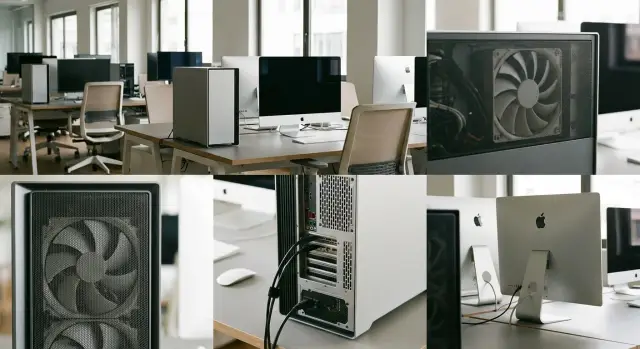
Why workstation noise is noticeable in open space
In an open office sound has nowhere to hide. There are no walls to “cut” the noise, so it spreads freely across rows of desks. A workstation that seems acceptable at home can become irritating in an open space, especially when dozens of systems contribute to the background.
What tires people most are not loud occasional noises but constant and tonal ones. Typical culprits are the low hum from fans and airflow, a high-pitched whine (often from small fans or worn bearings), case rattles, and periodic “spikes” in RPM when cooling suddenly ramps up.
In an open space a single poorly behaving PC can be heard across an entire row. A tonal whine is easy to pick out from the office noise, and the brain keeps latching onto it. Desks are often aligned in one line, and vibrations through the floor or worktops make the source feel closer than it is. Reflections from glass, ceilings and bare walls amplify the overall hum.
The problem becomes noticeable not because everyone wants library silence, but because the office needs intelligible speech. Noise interferes with calls and video meetings: microphones pick up the constant background and people have to speak louder. It complicates conversations at a desk, onboarding, and tasks requiring focus. A typical scenario: mid-day in accounting or a call center, one station starts to whine under load and within an hour half the row complains of “head fatigue,” even though measured levels might not look critical.
Much can be improved without replacing the entire fleet. Most often you need to address three areas: the case (to stop rattles), fans and cooling settings (to eliminate whines and sudden RPM jumps), and placement (so the tower doesn’t reflect sound or draw in dust). Sometimes replacing 1–2 of the loudest fans, removing vibration points and positioning the tower correctly noticeably reduces perceived noise in the workspace.
Where noise comes from: a simple source map
Workstation noise almost always consists of several small sounds. In open space this is especially noticeable: pauses between conversations are short, and a steady background from a dozen PCs quickly becomes fatiguing. With a basic understanding you can usually find the source in 5–10 minutes.
A convenient “map” to keep in mind:
- Fans (case, CPU cooler, GPU, power supply)
- Vibrations (HDD, case resonance, poorly fastened panels)
- Airflow issues (whine and hum from grilles, tight gaps and dust)
- Electronic squeal (inductors, sometimes PSU)
Most often the fans are to blame. They produce either a steady hum or a “moaning” if RPMs constantly change. GPU noise typically changes when running graphics (3D, multiple monitors, heavy tabs). PSU noise is often stable but can increase under load.
Vibrations are easy to distinguish: the sound becomes louder if you press the side panel or case lightly. A classic source is an HDD: it creates a low hum and short trills during access. Sometimes a panel or drive cage is simply not fully fastened and the case starts to vibrate on the desk.
Airflow issues are another story. A fan may be quiet on its own, but air “shearing” across a dense grille, a bundle of cables, or a dusty filter can create whistling, rustling or a “hairdryer” sound even at low RPMs.
Electronic squeal is less common but highly annoying in offices. It’s a thin high tone that can appear during particular tasks (scrolling pages or sudden load changes). Cleaning won’t help here; replacement of the component is often simpler.
By the sound you can usually orient yourself quickly:
- steady hum that changes in steps — fans and their settings
- thin whine near grilles — turbulence and dust
- rattle gone by pressing the case — vibrations and mounts
- high-pitched squeal that depends on load — inductors or PSU
Example: an employee complains of a “whine” in quiet. You remove the side panel and the whine doesn’t change, but after cleaning the front filter and grille the noise drops significantly. That almost always points to airflow, not a “bad fan.”
Case: what in the design affects quietness
When people talk about reducing workstation noise in the office, many immediately think of fans. But the case sets the conditions: how air moves, where rattles occur, and how audible high frequencies from grilles and gaps are.
A cramped case is almost always noisier. Less internal space restricts airflow, fans run at higher speeds more often, and hot air gets trapped. In an open space that becomes noticeable quickly: one loud tower can be heard across a row.
The second point is stiffness. Thin metal and weak reinforcements resonate more easily. You then hear not only the fan but also panel vibrations, especially if the case stands on a pedestal or desk. Thicker walls and solid assembly usually reduce rattles and ringing.
Dust filters can help but also hurt. They reduce internal dust so fans and radiators stay cleaner longer. But a clogged filter sharply impedes intake and causes fans to spin up. Filters that are easy to remove and clean without tools are therefore important.
Check mounts separately. Rubber pads under fans, solid panel attachment points and dampers for drives reduce vibration transfer to the case. Even without HDDs, fans and PSUs can create vibrations.
Finally, front panels and grilles. Fine “honeycomb” mesh or narrow slits often create whistling and add airflow resistance. It’s better to have sufficiently large openings and a clear intake path.
Before procurement or accepting a batch, check:
- whether there is decent intake and exhaust without a sealed front panel
- how snug side panels fit and whether there is any play
- whether filters are removable quickly and conveniently
- whether there are rubber pads or dampers at fan mounts
- whether the case is resting on bare plastic that can slip and amplify vibration
Example: in a row of 10 workstations, two cases with dense front panels and clogged filters will be louder than the rest, even with identical components.
Fans and cooling: how to choose quiet components
Office noise often comes more from cooling than from the other hardware. Quietness is usually achieved not by “silencing” but by choosing the right fans and tuning their behavior.
A large fan is almost always quieter than a small one at equal airflow. The reason is simple: a larger diameter moves the same volume of air at lower RPM. So prioritize 120–140 mm fans over 80–92 mm high-RPM units.
The second important point is cooling headroom. When a system is barely keeping up, fans constantly “hunt” for speed, which is more irritating than a steady gentle background.
Look beyond the word “quiet” and check bearing type and lifespan. Hydrodynamic bearings (FDB) or quality ball bearings are usually quieter and longer-lasting. Cheap bushings often start to rumble after months, especially if the fan isn’t mounted vertically.
Fan curve: silence at idle
For open spaces it’s important that fans don’t spin up without reason at idle. Use PWM and be able to set a curve that keeps RPMs low until moderate temperatures, and only accelerates under real load.
Simple example: accounting work is largely browser and 1C activity. If fans howl during those tasks, fatigue builds quickly.
CPU cooler and power supply
For office CPUs a tower cooler with a 120 mm fan is often the best choice: it removes heat efficiently and keeps temperatures quiet. Compact low-profile coolers fit small cases but typically need higher RPMs.
The PSU also affects workstation noise. Prefer PSUs with predictable behavior: the fan is nearly silent at low load and there are no abrupt speed jumps under load.
Quick checklist for evaluating a kit:
- 120–140 mm fans in case and on CPU cooler
- FDB or quality ball bearings with specified lifespan
- PWM and configurable fan curves
- CPU cooler with some power headroom
- a PSU that doesn’t become the main noise source
Placement: desk, floor, partitions and spacing
Even quiet components can sound loud if the tower is placed badly. In open space sound reflects off hard surfaces and vibrations transfer through desks and partitions. So reducing workstation noise in the office often starts with placement rather than parts.
Air gaps: quiet without overheating
When intake is blocked, fans spin up and noise increases. Leave free space where the case intakes and exhausts air:
- front and rear: at least 10–15 cm from walls and cabinets
- top: 5–10 cm if there is a grille or fan
- don’t press the case against a partition, especially where there’s ventilation
- cables should not block grilles and filters
- clean filters regularly, or noise will return
Floor or desk? For others, floor placement is usually quieter because the source is farther from ears and the desk doesn’t act as a resonator. But the floor has more dust and there’s a higher risk of blocked intake (e.g., carpet or against a wall). On a desk the PC is easier to service, but desk vibration can be more noticeable than fan noise.
Contact with furniture and “forbidden” spots
The main mistake is placing the case so it touches furniture. Even light rattling amplifies when metal presses against chipboard. Use soft supports, don’t clamp the case with panels, and ensure cabinet doors don’t vibrate.
Poor placements: a niche without ventilation, a case tightly tucked under a dense cabinet, the rear grille pressed against a wall, a corner between two partitions, or near many hard reflective surfaces.
Practical tip: if a few “hot” workstations (3D, analytics, engineering) are in a row, seat them closer to an aisle or edge and orient exhaust away from people. That reduces noise and hot air in the shared workspace.
Step-by-step: making a workstation quieter without risking overheating
Silence starts with understanding what’s actually making noise. Often the fix is tuning and maintenance, not replacing half the tower.
1) Find the noise source in 5 minutes
Listen first: a steady wind-like noise is typically fans. Rattles and clicks are usually panels, cables or mounts. A quick visual check helps too: are filters clogged, is the side panel loose, does a cable touch an impeller?
Workflow:
- open the side panel and listen where it’s loudest (front, rear, top, GPU area)
- check filters and radiators for dust
- tune fan profiles in BIOS or vendor tools: lower idle RPMs, smoother ramp under load
- remove rattles: tighten screws, secure cables, check panel fit
- after changes re-check temperatures and noise under the same tasks
2) Cleaning and temperature control: tuning alone won’t work without this
Dust forces fans to spin faster, so clean filters, radiators and grilles before changing fan curves.
After cleaning, run a typical workload and verify temperatures remain acceptable. For an office this could be 10–15 minutes of heavy spreadsheets, a video call, a render or a compile — whatever matches your real tasks.
3) Fan tuning: quiet does not mean “minimum”
A good curve is smooth. If a fan jumps RPM every 30 seconds, subjectively it sounds louder than a steady moderate hum. Leave some thermal headroom and smooth transitions.
Example: after moving a PC under a desk, a bookkeeping workstation became noisy. The side panel vibrated against a cable holder and the front filter was clogged. After cleaning, securing cables and softening the fan profile the noise dropped and temperatures stayed normal.
What to specify in procurement and RFPs: measurable requirements
If you write simply “quiet workstation” a vendor can deliver anything. Better to set measurable conditions: when and how noise is measured, acceptable temperatures, and what counts as a defect (for example, tonal whining).
Noise: dB(A) and measurement conditions
Noise level should be fixed together with the scenario. The same PC can be quiet in idle and loud under load.
Possible RFP clauses:
- maximum noise level, dB(A), in idle and under a typical workload (e.g., office apps + a 15-minute video conference)
- measurement conditions: 0.5 m from the front panel, microphone at desk level, background room noise not exceeding a set value
- fan profile: automatic, without manual “overclocking” to pass acceptance
- explicit clause on tonal noise (whine, squeal) as grounds for replacement
Cooling: temperature headroom, not “on the edge”
Quietness must not be achieved by overheating. Require thermal limits: maximum CPU and GPU temperatures under the same workload, plus a clause that frequencies must be maintained without throttling. Include headroom so fans don’t instantly ramp up in normal office heat or after some dust accumulation.
Components: what to restrict
For quiet zones it makes sense to restrict mechanical noise sources. For example, avoid HDDs at workstations (use SSDs), require PSUs with predictable fan behavior at low load, specify case fan sizes (larger is usually quieter) and bearing types.
Maintenance and acceptance: keeping them quiet after installation
Include a cleaning schedule for dust filters and radiators, frequency and access requirements (filters removable without full disassembly).
Acceptance protocol can include:
- noise check in idle and under typical load with recorded dB(A) and conditions
- temperature check and no throttling during the same test
- inspection: filters present, vibration isolation, tidy cable routing
- recording serial numbers and configurations
Common mistakes that increase noise
A frequent issue is treating silence separately from cooling and placement. In open space all three matter at once: intake, clear fan control and a place where the tower can breathe and not vibrate.
What is often done wrong:
- setting an overly “quiet” profile that causes overheating and then abrupt fan spin-ups
- choosing a “sound-insulated” case with poor ventilation and getting constant high RPMs
- hiding the PC inside a closed niche under a desk for aesthetics, where hot air circulates
- not cleaning dust and filters, then trying to fix noise by swapping fans
- mixing very cool quiet PCs with hot high-performance ones in the same row, making the whole row sound noisy
A small example: visually identical workstations but two users run heavy rendering and analytics. Those stations heat up faster and fans ramp by midday. People nearby hear short spikes rather than a steady hum. The usual fix is to separate hot machines, give proper intake space and smooth fan curves.
Short checklist: before purchase and after installation
To make sure noise reduction isn’t just on paper, walk through a few points.
Before purchase: decide placement. Will the tower be under the desk, on a pedestal, or in a niche? What noise level is acceptable for that zone?
Before purchase: clarify main noise sources. Fan size/type (bigger and slower is better), presence of PWM and BIOS curve control, PSU behavior at low load, and storage type (SSD quieter than HDD).
Before installation: plan placement. Leave air gaps, don’t press the case to partitions or enclose it in a box. If the case sits on a cabinet, simple vibration isolation (rubber feet or a mat) often helps.
After installation: short test. Listen for 5–10 minutes in normal use, then apply a typical load and verify there’s no whine, rattle or sudden RPM ramp.
After 1–3 months: dust and profile check. Filters clog and temperatures rise; quick cleaning and fan curve review usually restore the normal background.
Practical rule: if moving the tower 30–50 cm away from the ear and restoring proper clearances noticeably reduces perceived noise, you’re on the right track.
Practical example: organizing quiet workstations in an open space
A 20-person open space with constant calls needs concentration and runs all day. Typical complaints: “it hums under the desk,” “you can hear the fan on video calls,” “noise seems to get louder by evening.” You can’t simply throttle cooling because stability matters more than absolute silence.
The first solution focused not on parts but on placement and roles. The hottest PCs (designers, analysts, those who render or compile often) were moved out of high-call zones. Towers were positioned so they didn’t press against partitions or sit in closed cabinets without intake. For the call zone, calmer configurations were chosen so fans rarely hit high RPM.
The compromise was simple: quietness depends not only on a “quiet PC case” and “choosing PC fans” but also on matching performance to role. For different roles they set rules: call centers prioritize low heat and quietness; analytics require a balance with cooling headroom; graphics and engineering prioritize performance with clear noise limits.
To avoid arguments at acceptance they added measurable items to the RFP: maximum noise in idle and under typical load (with scenario), requirement for automatic fan control, prohibition of placing PCs in closed niches without ventilation, and a throttling test (so “quiet” doesn’t mean overheating).
If you buy through a system integrator, discuss load scenarios, tower placement in open space and filter maintenance in advance. For example, GSE.kz as a manufacturer and integrator in Kazakhstan can help select configurations (including all-in-ones and workstations) to match your RFP so quietness lasts beyond installation day.
Frequently asked questions
Why can one noisy workstation be heard across an entire row in an open space?
In an open space there are no walls to “cut” the sound, so the hum or whine from one PC is immediately heard by several people. Constant and tonal sounds — steady low hum, high-pitched whine and sudden speed jumps — are especially irritating because the brain quickly focuses on them against speech.
How to quickly tell whether the noise is a fan, the case, or an electronic “whine”?
First define the character of the sound: a steady “wind” is usually fans, rattling indicates panel or mount vibrations, and a thin high-pitched squeal is often electronics. A quick practical check: if the noise noticeably changes when you press the side panel lightly, it’s almost certainly resonance or loose mounts, not a “bad CPU” or a weak PC.
How to set fans so idle is quiet without overheating?
Set the fan curve so idle RPMs are low and stable, and speed only rises under real load. Avoid frequent RPM jumps: a fan that accelerates smoothly is subjectively quieter than one that repeatedly surges, even at similar dB levels.
What to look for in a case if the goal is lower office noise?
A case that provides enough room for airflow and a clear intake/exhaust path is usually quieter than a sealed front panel that chokes airflow. A rigid frame and tight panels reduce rattling, and convenient filters help keep cooling efficient without constant RPM increases due to dust.
Can a whine be caused not by the fan but by grilles and dust?
Yes — often the issue isn’t the fan itself but how air moves through the grille, filter or narrow gaps. If cleaning the filter and front grille noticeably reduces noise, the main cause was flow resistance and turbulence and the fan may not need replacing.
Is it worth giving up HDDs for workstation quietness?
In most office scenarios, yes: SSDs eliminate the low hum and characteristic trills from disk access and reduce vibrations. If HDDs are required for capacity or policy, move them to a server/storage array or at least use dampers and proper mounting to avoid exciting case resonance.
What to do if there is a high “coil whine”?
Cleaning or tuning usually won’t fully fix it: this tonal sound (coil whine) comes from inductors or power circuitry and appears at certain loads. A practical approach is to record it as a defect (if it bothers users) and replace the component, since attempts to “muffle” it often give inconsistent results.
Is it better to put the PC on the floor or on the desk in an open space?
Place the system so it has clear intake and exhaust gaps; otherwise fans will spin up to compensate. For bystanders it is often quieter when the PC sits on the floor and is not touching furniture, but ensure the intake is not blocked and consider dust. On a desk the PC is easier to service, but the tabletop can amplify vibrations.
How often should filters and radiators be cleaned so noise doesn’t return?
Depends on dust and workload: filters in an office can clog in 1–3 months, after which noise typically increases. Good practice is regular quick cleaning of filters and checking that temperatures in typical tasks haven’t drifted up; otherwise even a ‘quiet’ fan profile won’t help.
What noise and cooling requirements should be in procurement specs?
Specify measurable conditions, not just “quiet”: maximum noise level in idle and during your typical workload, and how measurements are taken (distance, microphone position, allowed background noise). Also state that tonal whining is a cause for replacement and set temperature limits without throttling so silence isn’t achieved by overheating.
