7 min read
Reducing SSD wear in kiosks: cache, logs and writes
Reducing SSD wear in kiosks: which writes damage the drive, how to configure cache, logs and browser, and how to monitor writes for 24/7 operation.
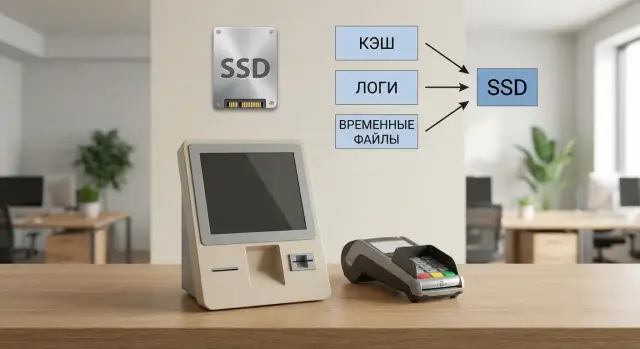
Why SSDs wear out faster in kiosks and terminals
A kiosk or terminal is almost never "idle." Even when the screen doesn’t change, the system and apps continuously write: browser cache, temporary files, logs, updates, databases, service journals. So reducing SSD wear in kiosks starts not with buying the "most expensive drive" but with understanding the sources of continuous writes.
The workload makes this worse: often writes are small and frequent. SSDs wear from writes and rewrites, not reads. When a system appends tiny blocks every few seconds (logs, cache, telemetry), the drive is busy with constant small work. That increases internal SSD operations (block redistribution, garbage collection), and the usable life is consumed faster.
Running 24/7 adds two more accelerators of wear. First, writes happen with almost no pauses, so the drive has less time for background housekeeping. Second, temperature: terminals are often placed in closed cabinets, near heat sources or in dusty areas. Higher temperature and poor ventilation increase the risk of errors and reduce stability under write load.
Early signs usually don’t look like a dead drive but as gradual failures. The kiosk starts to stutter during normal actions, the browser takes longer to open pages, and load freezes appear. I/O errors increase, unexpected reboots occur. Sometimes apps lose cache and settings or the system enters automatic recovery after a crash.
In practice, this often shows up after several months to a year if kiosks run without cache and log tuning. A sensible approach is to reduce unnecessary writes in advance, control temperature, and choose drives rated for continuous workloads.
How to measure wear and write volume instead of guessing
If a terminal runs 24/7, the impression "the SSD dies quickly" is a poor guide. You need numbers: how much data is actually written, how fast wear increases, and whether errors appear. This is visible via SMART (and SMART/Health for NVMe).
Which SMART metrics to watch
A few parameters usually give a clear picture:
- Total Host Writes (or Data Units Written / Total NAND Writes) — total written data.
- Percentage Used (NVMe) or Wear Leveling Count / Media Wearout Indicator (SATA) — overall wear.
- Reallocated / Pending Sectors (SATA) or Media and Data Integrity Errors (NVMe) — degradation signs and errors.
- Unsafe Shutdowns — sudden power losses (often cause write spikes and issues).
- Temperature — overheating accelerates degradation and causes throttling.
You can collect these metrics with OS tools or utilities like smartctl. It's important to track trends, not only the current snapshot.
How often to collect and where to store history
For kiosks, once a day is usually enough. If you change cache or log settings, collect data every 4–6 hours for the first 7–10 days to see the effect faster.
Store history off the SSD you’re trying to protect — on a central monitoring server, network resource or a second drive. A simple approach for a network of terminals: each terminal sends a line with SMART values to a centralized log once per day.
Distinguish one-time write spikes from persistent issues by trend. After an OS update, daily writes may spike for a day. If writes/day stays high for a week, there’s a steady source.
Minimum metrics to monitor: writes per day (GB/day), monthly change in Percentage Used, error counters (ideally zero) and temperature under load. That’s enough to locate where resources are being consumed and what to change.
Where writes come from: a quick breakdown
On kiosks, SSDs often wear due to small but constant writes rather than heavy tasks. The device runs 24/7, users swap in and out, and the system and apps constantly update caches and journals.
The most obvious source is the browser. It writes page cache, images, fonts, video fragments, and profile data: cookies, history, local storage, extension files. In kiosk mode this is especially wasteful: users don’t save anything but writes continue.
The second big group is application and system logs. Network errors, service restarts, security events, POS reports — all write small amounts around the clock. Without rotation a log either grows indefinitely or is constantly rewritten.
Next come temp files and system maintenance: OS and app caches, installer files, temp folders, updates and unpacking, antivirus signature databases, integrity checks. Even when the kiosk just displays a page, background activity often writes to disk.
Don’t forget swap and dumps: pagefile, crash dumps, error reports, telemetry. If RAM is low or an app leaks memory, swapping becomes a continuous write source.
There are hidden sources too — peripherals and queues: receipt printing, device drivers, spoolers, temporary files for scanners, acquiring terminals, fiscal printers. A receipt prints instantly, but intermediate files and logs can be created on disk.
Before tuning, list installed components and split writes into two groups: what must be written to disk (receipts, critical logs) and what can be moved to RAM, a second drive or strictly limited in size.
Where to write data: SSD, RAM, second drive or network
The rule is simple: write to the system SSD only what the terminal needs to boot and operate. Anything that can be recreated or restored centrally should be moved off the SSD or limited.
What to keep on the SSD
Store the OS, drivers, security updates, configurations, essential services and applications on the SSD. These are necessary and usually not written continuously. Keep a small set of diagnostic logs locally in case the network is down and you need to diagnose boot issues.
What to move to RAM or limit
Items that are constantly rewritten and not critical to recover should be placed on a RAM-disk or strictly limited. This includes browser caches and temporary web app files, intermediate print/scan files, noisy debug logs and session data that aren’t needed after reboot.
A RAM-disk stops SSD writes but loses data on reboot. Put on RAM only what can safely be lost.
A second drive makes sense if the kiosk runs 24/7 and logs are required for investigations. The system SSD is spared and logs live separately — useful when there’s space for a second disk or you want to swap the log drive without reinstalling the OS.
The network is suitable for security events and important logs. A common compromise is to keep a short local buffer (e.g., 1–3 days with rotation) and send long-term history to central storage. This reduces local wear while keeping data for incident analysis.
Step-by-step: configuring browser cache for a terminal
The browser is often the main continuous-writer: page cache, cookies, history, updates and downloaded form files. Start here.
Profile and kiosk mode
Create a dedicated Windows user for the kiosk and a separate browser profile. This avoids sync, personal extensions and accumulated history.
Practical steps that usually help:
- Enable kiosk mode (or start full screen with a fixed URL) and remove extra tabs.
- Create a new profile with no sync and no unnecessary extensions.
- Prevent downloads to the system Downloads folder and decide where downloads should go.
- Move download and temp folders to a second drive, network or an easily cleaned directory.
Cache and cleaning
For 24/7 devices, limit or move disk cache to RAM via settings, startup parameters or policies. This reduces small writes that harm SSDs.
Add scheduled auto-cleaning: clear cache, cookies and history at session end or on a schedule. Don’t overdo it — too frequent cleaning can increase load because content is re-downloaded.
Verify results with facts:
- Compare writes per hour before and after changes.
- Check if persistent writes disappear when the screen shows one page.
- Ensure the site isn’t broken by cache clearing (authentication, cart, offline mode).
- Confirm downloads don’t accumulate on the system SSD.
Step-by-step: log rotation and journaling without endless writes
Logs are useful while they’re controlled. On a 24/7 kiosk logging easily becomes the main reason for excess SSD writes: browser, remote management agents, antivirus, printing, POS drivers. The goal is to limit volume, retention and detail, and send important logs to a central place.
1) Configure rotation for application logs
Check each key app (kiosk browser, payment client, monitoring agent). You need three things: file size limit, number of files and retention period. A moderate size + several files + time-based deletion usually works, and avoid debug-level logging in normal operation.
If an app can’t rotate logs, use an external tool or reduce what it writes (for example, only errors and warnings). Keep a diagnostic mode for short troubleshooting windows.
2) Limit system logs and storage
On Windows, check sizes of Application, System, Security logs. A common issue is too large logs or a setting to never overwrite events. Choose overwrite-old-events and a reasonable limit so logs don’t balloon for weeks.
For many terminals, central collection is better: send events off-device and keep only a short local history for quick checks.
3) Verify settings persist after reboot
After updates and restarts, settings can revert. Test on one terminal before wide rollout:
- Reboot and ensure logs don’t spike in size;
- Verify debug/tracing didn’t turn on;
- Check rotation removes old logs by age;
- Compare write volumes before and after changes.
Step-by-step: optimizing Windows temp files and app caches
Temp files are invisible but often a large part of writes in 24/7 mode. Make them manageable: know where they are, how they’re cleaned and how they’re limited.
1) Keep temp folders in one controlled place
Consolidate system TEMP/TMP and app temp folders into one directory. It’s easier to clean, monitor and move to another storage (second drive, network or RAM-disk when appropriate).
2) Clean on schedule, not manually
Manual cleaning works until the first overnight update or stuck process. Define rules to delete old items without removing data needed for updates.
Watch common perpetual sources:
- update cache (clean only after successful installation);
- print queue (a stuck job can cause continuous writes);
- autosaves in PDF and office viewers (sometimes create copies every minute).
3) Cap growth: app cache, local DBs, buffers
If an app keeps a local DB, event queue or offline buffer, set size limits and a clear retention policy. A practical approach: keep the last 7–14 days or a fixed volume, not everything forever.
4) Quick check: what grows fastest in a day
Measure sizes of key folders in the morning and after 24 hours. Often the unexpected leader is not TEMP but an update cache, app folder or print spooler. Tuning those spots gives quick wins.
Step-by-step: pagefile, dumps and background writes
On a 24/7 kiosk, writes often come from system mechanisms: pagefile, crash dumps and background services. Don’t disable everything — reduce unnecessary writes without harming stability.
Pagefile: when to fix, when to move
If the terminal has enough RAM and predictable apps, set a fixed pagefile size so Windows doesn’t constantly grow/shrink it. Turning off pagefile can cause odd crashes under peak load.
Moving the pagefile to a second drive is reasonable if available. For most kiosks, it’s simpler to keep it on the system SSD and fix the size.
Memory dumps: smaller but sufficient for diagnostics
Full memory dumps after BSOD can be gigabytes. For a terminal, small or kernel dumps are usually enough for diagnostics and much smaller.
Background services: remove unnecessary writers without breaking maintenance
Identify processes that constantly write: updaters, telemetry, indexing, unused agents. Disable only things you’re sure aren’t needed and document changes for rollout.
Don’t disable features that help SSD health: TRIM and standard disk maintenance. TRIM doesn’t "wear out" the SSD — it helps the controller manage blocks efficiently.
Suggested steps:
- Fix pagefile size and reboot;
- Switch dumps to small or kernel dumps and ensure space is reserved;
- Disable background services one or two at a time and observe for 24 hours;
- Ensure TRIM is enabled and disk maintenance isn’t turned off;
- Run a peak-day test (updates, printing, user queue) and check for errors.
Hardware-level settings and habits that help
With 24/7 operation, software matters, but hardware sets limits. Two identical-capacity SSDs can behave very differently if one overheats or has unstable power.
Choosing an SSD for continuous operation
Look beyond capacity. For kiosks choose drives with clear endurance ratings:
- TBW: pick a drive with margin for your actual daily writes, not just barely enough;
- Memory type and model class: choose drives focused on endurance rather than the cheapest high-performance consumer parts;
- Warranty and terms: compare TBW and warranty period to your 24/7 schedule.
Estimate expected daily writes and compare with TBW to understand real lifetime.
Temperature, power and free space
Temperature affects degradation. In a tight kiosk enclosure the SSD and controller may run hot, speeding wear and causing throttling. Stable power matters too: dips and noise cause write errors and failures more often than you’d think.
Leaving free space (overprovisioning) almost always helps. Don’t partition all capacity — keep 10–20% unallocated so the controller can balance writes more effectively and improve endurance.
Three simple operational rules: monitor temperature and thresholds, check SMART on schedule, and plan replacements based on wear trends rather than waiting for failure.
Common mistakes when fighting SSD wear
The main trap is trying to "forbid writing completely." A kiosk will still write: sessions, updates, logs, caches, print queues. The goal is manageable and predictable writes, not zero writes.
The costliest mistake is turning off logs entirely. Things may look fine for a week, then the terminal starts rebooting or freezing and there’s no way to diagnose. Keep minimal logs, enable rotation and size limits, and centralize critical events.
The opposite extreme is moving "everything temporary" to a RAM-disk. Writes drop, but after reboot queues, update files, temporary DBs and auth caches disappear. In a real kiosk this causes strange morning-only failures. Use RAM for truly disposable data and keep important buffers on disk or on a server.
Another typical mistake is disabling disk maintenance and forgetting TRIM. The SSD then struggles to clean blocks, background writes grow and performance drops. Ensure TRIM is enabled and don’t break OS maintenance routines.
Aggressive cache cleaning can also hurt: content is re-downloaded, network and CPU load increases, response times rise, and sometimes writes increase due to constant cache rebuilding.
Finally, making tweaks without measuring is risky. The same change may help on one Windows build, browser or SSD model and harm another.
Quick sanity checks to avoid regressions:
- Keep logs but limit size and retention;
- Move to RAM only what can be lost without consequence;
- Don’t disable TRIM or basic maintenance;
- Don’t clean caches more often than needed;
- Measure writes first, then change settings.
Pre-launch checklist for a 24/7 terminal
Before enabling round-the-clock operation, measure how much the device writes. Otherwise you won’t know if changes helped.
1) Measure writes before changes
Run the terminal in a working mode for 24 hours and collect baseline numbers: GB written and which locations grow most. Note night events: updates and maintenance, antivirus activity.
2) Logs and journals: limit and rotate
Find places where logs can grow indefinitely (services, monitoring agents, kiosk apps, antivirus). Set size and retention limits, enable rotation and auto-deletion. If logs are only for diagnostics, keep a short period and increase detail only during investigations.
3) Browser in kiosk: cache and updates
If the UI runs in a browser, tuning its cache often yields quick wins. Check where cache lives, whether it balloons and how profiles reset. Schedule browser and extension updates outside working hours to avoid daytime write bursts.
4) OS and background writes: pagefile, dumps, TEMP, free space
Quickly review typical write sources: pagefile (size and RAM sufficiency), dumps (avoid full dumps if not needed), TEMP and app caches (don’t let trash accumulate), and free space (keep at least 15–20%).
5) SMART report and alert thresholds
Set regular SMART reporting and clear alert thresholds: wear percentage, rising write volume, growth of errors. Alerts should arrive before failure, not after. Centralized monitoring helps for many terminals.
Example rollout across a terminal network and next steps
At a medical organization we had 50 registration terminals running 24/7. After 8–12 months some devices began to stutter: browser pages loaded slowly and terminals occasionally rebooted. SMART showed high write volumes and rising SSD wear. The task was practical: reduce disk writes without losing stability.
1-week plan: quick wins and a pilot
We measured daily writes, disk load, log and cache sizes on all terminals, then tested changes on a pilot of 5 devices: limited browser cache, scheduled temp file cleanup, enabled log rotation, removed unnecessary dumps and debug modes. We also checked that updates and antivirus weren’t stressing disks for hours.
After 3–4 days it was clear which changes reduced writes and which had little effect.
1-month plan: governance and rules
After the pilot we rolled the configuration centrally, added collection of key events to one place and introduced procedures: check SMART weekly, audit logs monthly, monitor free space and software versions.
Success was measured by three indicators: fewer writes to disk, fewer unplanned failures and faster diagnostics (you can see what’s writing and why).
Next steps were standardizing the system image and update rules. When replacing the fleet, choose devices rated for 24/7 and design supporting infrastructure and maintenance. If you build such solutions via an integrator, include SSD endurance, temperature regimes and monitoring requirements at the project stage. For example, GSE.kz as a manufacturer and integrator supplies computers and servers and can provide 24/7 support — simplifying unified settings and park-wide control.
Frequently asked questions
Why can an SSD in a kiosk “die” faster than in a regular office PC?
SSD in a kiosk wears faster because of continuous small writes: browser cache, temporary files, logs, telemetry and background OS maintenance. Reads have almost no effect on endurance — it’s the repeated writes and internal controller operations (garbage collection, wear leveling) that consume the drive’s life faster.
What are the early signs that an SSD in a terminal is degrading?
Usually you’ll see gradual symptoms: the kiosk becomes sluggish for normal actions, the browser takes longer to open pages, and there are freezes during loading. You may also see increasing I/O errors, unexpected reboots, lost cache/settings or automatic recovery after crashes.
Which SMART metrics are really useful for monitoring wear in a 24/7 kiosk?
Watch SMART/Health and track trends. The most useful metrics: total written (Total Host Writes or Data Units Written), endurance indicator (Percentage Used for NVMe or a SATA equivalent), media/data integrity errors or reallocated/pending sectors, unsafe shutdowns and temperature. The trend over time matters more than a single reading.
How often should SMART be collected across a network of terminals and where to store history?
Once a day is usually enough to see trends in a stable environment. After you change caches or logs, collect data more often for 7–10 days (for example, every 4–6 hours) to quickly see the effect. Store history off the same SSD you’re protecting — on a central server or separate storage.
What typically accounts for the largest share of SSD writes in kiosks?
Most often the browser is the main contributor: disk cache, cookies, local storage, profile files and updates. The second major source is application and system logs, especially if rotation isn’t configured. Third are temporary files, updates, antivirus databases, swap and crash dumps; sometimes the print spooler or device drivers unexpectedly produce the most noise.
What should remain on the system SSD and what should be moved to RAM / a second drive / the network?
Keep on the system SSD only what’s required for boot and operation: OS, drivers, applications, configuration and a small set of diagnostic logs if the network is unavailable. Move or limit everything that can be recreated: browser caches, temporary files, noisy logs, print queues. If logs are needed for investigations, use a second drive or centralize them, keeping a short local buffer.
How to start configuring the browser so it writes less to the SSD?
Start with a separate browser profile and a separate Windows user for kiosk mode — no sync, no personal extensions. Limit or relocate the disk cache (RAM-disk or another volume) and arrange automatic cleaning at session end or on schedule. After changes, compare actual writes over the same period and verify that the site or application still works (auth, cart, offline behavior).
How to configure logging so you don’t kill the SSD but also keep diagnostics?
Turning logs off completely is a bad idea — you’ll lose visibility. Instead, limit file size, retention period and detail level, and ship important events to a central collector. If an app can’t rotate logs, reduce its logging level in normal mode and enable verbose diagnostics only when troubleshooting.
Should I disable pagefile and crash dumps to reduce SSD wear?
Disabling pagefile completely often causes strange crashes and errors under load. It’s usually safer to set a fixed pagefile size so Windows won’t constantly grow and shrink it. Moving pagefile to another drive makes sense if you have a second disk, but on most kiosks fixing its size on the system SSD is simpler and reliable. For dumps, use small or kernel dumps instead of full memory dumps when full dumps aren’t needed.
How to choose an SSD and operating conditions for a 24/7 terminal?
Estimate your daily writes (GB/day) and compare with the drive’s TBW with some margin — don’t buy ‘just enough’. Keep 10–20% free space for overprovisioning, monitor temperature in the kiosk enclosure, and ensure stable power. Plan replacements based on rising wear indicators and SMART trends rather than waiting for a failure.
