6 min read
Reduce OS Images: 3–4 Profiles Instead of Dozens
Reducing OS images is easier when you define common roles, required software and clear rules for exceptions. Here’s a practical workflow.
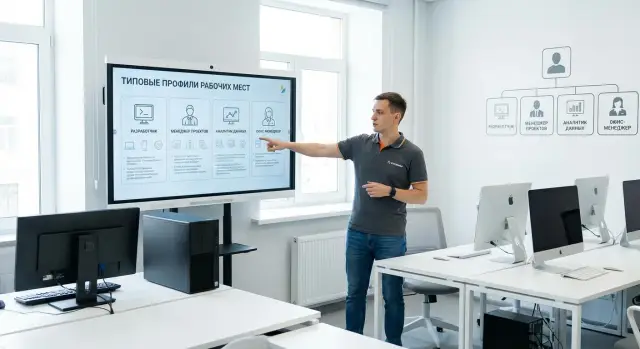
Why having too many OS images hinders work
When a company has 15–20 OS images instead of 3–4, it may seem convenient at first. Each department can get its own settings, programs and rules. But this approach quickly stops helping and starts getting in the way.
The problem is not just the number of files. Over time each image develops its own history: a unique set of programs, driver versions, security exceptions and local tweaks. After a few months it becomes hard to tell which image is primary, which is outdated and which should have been removed long ago.
The main costs don’t come from creating an image, but from maintaining it later. Any change must be repeated many times. An OS update arrives, a security policy changes, a program must be replaced — the work multiplies by the number of images.
You usually see the consequences in several areas:
- updates and patches take longer to test;
- program and driver conflicts occur more often;
- deploying new workstations and modifying existing devices becomes more difficult;
- IT support spends more time on similar but not identical configurations.
A separate issue is confusion around program versions and access rights. Two accountants may have the same tasks, but one PC has one client version and the other a different one. One user may have extra rights because of an old exception, while another lacks rights they need. Formally employees do the same job, but in practice their computers behave differently.
That also increases the time spent diagnosing failures. It’s unclear whether the cause is the application, OS version, driver, user rights or a local setting of a particular unit. The more variants there are, the more time is spent not on fixing the problem but on figuring out what’s installed on the device.
The chaos is especially noticeable during mass updates. If an organization buys PCs in batches for different units, a large number of standard images slows device commissioning and complicates ongoing support. Even good hardware won’t deliver full value if the images themselves are disorganized.
And almost always this is an organizational, not a technical problem. Usually 15–20 images don’t appear because there are genuinely that many roles, but because nobody separated a permanent role from a one-off exception in time. One department requested a special setting, another kept an old program version, a third gained extra rights. Temporary solutions became the norm. So reducing image count starts not by building new images, but by putting rules in order.
Where a role ends and an exception begins
The main mistake is simple: mixing role, department, position and individual requests into one. As a result, accounting gets one image, HR a second, legal a third, then versions for branches, managers and special cases are added. The fleet quickly grows into dozens of variants that are hard to maintain.
A role is not the department name. It’s a recurring set of tasks, programs and access rights needed daily by a group of employees. If two people work in different departments but use the same applications and resources, they often fit the same base profile.
A department name can be a hint, but it shouldn’t determine everything. A procurement specialist at headquarters and a procurement specialist in a branch often work almost identically. Conversely, tasks within one department can differ strongly: a manager needs broader access while an ordinary employee only needs the standard toolset.
How to tell a role from an exception
The most useful question is: does the whole group need this or just one or two people? If the need is rare, it’s likely an exception, not a reason to create a new image.
Usually a separate image is unnecessary if the difference is one of these scenarios:
- adding 1–2 programs on top of the base set;
- requiring different access rights rather than a different system;
- changing peripherals without changing core tasks;
- an employee temporarily working on a special project.
Create a separate profile only when a group truly has a different set of tasks, applications and distinct security or performance requirements. Otherwise the number of images will grow again without benefit.
What to look at instead of the department name
It’s much more useful to group people by actual work. Look at what people do in a normal day: work with documents, use accounting systems, connect to specialized software, process graphics, serve visitors, handle large datasets. After that it becomes clear where groups really differ and where differences are imagined.
In practice 3–4 clear categories are often enough: general office workers, business-system users, specialists with specialized software, and employees with higher performance or security needs. That’s enough to build a coherent scheme.
If you need a quick way to test the hypothesis, make a simple table with three columns: main tasks, required programs, special requirements. When several groups match 80–90% of the set, it’s better to merge them into one profile.
How to build 3–4 basic profiles
If the goal is to reduce OS image count, start not with the images themselves but with facts. Companies often believe there are many special cases. But after checking it turns out most employees work in a few repeating scenarios.
It’s better to collect the actual picture first and then decide what is an exception. Otherwise rare programs that only 2–3 people need will quickly make their way into the base image and complicate support.
Steps to follow
-
Make a complete list of programs actually installed on workstations. Not from old documents, but from reality. Mark who uses an app daily, who rarely, and who never opens it.
-
Group employees by task type, not department names. For example: office work, accounting systems, specialized workstations, engineering or graphic tasks.
-
Define the common minimum for everyone. Usually this is the OS, protection tools, a browser, an office suite, basic drivers, printing tools, corporate communications and required security policies.
-
Move all rare items outside the base set. If a program is needed by one lawyer, a couple of engineers or a single service point, it doesn’t belong in the common image.
-
Fix an exception rule. It should be clear who approves the request, why the program is needed, how often it’s used and whether it can be delivered separately without creating a new profile.
How to know a profile is assembled correctly
A good profile can be explained in one sentence. For example: a standard office profile for most employees, or a profile for users of heavy accounting systems. If the description needs a long list of caveats, the profile is already overloaded.
A typical case looks like this. A company is sure it needs 14 images because each department has its habits. After verification it turns out about 70% of employees work in a browser, email, office files and an internal system. Two other large groups use accounting systems and heavy specialized software. As a result, instead of 14 variants there are 4 clear profiles, and rare programs are installed separately.
This approach simplifies not only support but also device issuance. It’s especially noticeable where the fleet is large and new workstations must be deployed quickly without manual fine-tuning of each device.
What should be in the base image
The base image should include only what almost all employees really need. Anything required by rare roles or a single unit is better installed after device issuance.
The foundation of such an image is the OS itself, current drivers, protection tools and basic settings. This usually includes security policies, updates, encryption, antivirus, monitoring agents, access to corporate resources and standard account settings. The user should turn on the PC and immediately get a ready and secure workstation.
It’s important that the image not be tailored for accounting, procurement or a particular branch. Base profiles should be built around common tasks, not the habits of one department. If a program is needed by 15 people out of 800, it doesn’t belong in the common build.
Common office and corporate applications often included in the base set are: email, browser, office suite, PDF reader, video conferencing client, archiver, digital-signature client and other tools typically used daily. When an organization uses typical devices of one class, maintaining such a set is even easier.
What is better to install separately
Keep rare, heavy or on-request licensed applications out of the image, for example:
- CAD and graphics packages;
- industry-specific systems for narrow roles;
- development tools;
- analytical and BI tools;
- specialized medical, engineering or banking clients.
This keeps the image lighter and easier to update. It’s even better if it’s pre-defined what should be installed automatically after handing over the PC: role-based apps, certificates, printers, shortcuts and separate policies. In that case exceptions don’t break the standard but live as separate packages with clear rules.
A good test is simple: if tomorrow this PC moves to another department, would you need to reinstall it from scratch? If yes, the image is too tied to a single scenario.
Example for a real company
Imagine a company with 500 employees, a central office and several branches. Previously it had 18 OS images: separate ones for accounting, different sales teams, engineers, reception desks, plus versions with special settings for managers and branches. The IT team spent time on disputes about who needed another variant instead of on development.
After review the company kept 4 base profiles:
- office — browser, office suite, email, messenger, PDF, antivirus, VPN, basic printing drivers;
- accounting — everything from the office profile plus the accounting system, digital signature client, corporate banking client and reporting tools;
- engineering — everything from the office profile plus CAD programs, utilities for project documentation and stricter access settings;
- reception kiosks — simplified interface, browser in kiosk mode, visitor registration software, scanner and printer.
Profiles can also be matched to hardware without unnecessary complexity. Office and accounting can run on standard desktops, reception desks on all-in-ones, engineers on more powerful workstations. When the company buys these devices as repeatable standard configurations, there are fewer surprises with drivers and maintenance.
The key idea is that not every new request leads to a new image. If accounting needs a different PDF reader or one branch needs a local printer driver, that’s not a reason to clone the build. These items are installed as additional packages after deployment.
A new image is usually unnecessary if it’s just one additional program, temporary access for a project, a local printer, a changed shortcut, interface language or a browser plugin.
To keep exceptions from becoming chaos, companies can use a simple rule: each exception has an owner, a reason and a review date. The exception is formalized as a separate package or policy, not as a new permanent build.
Common mistakes when reducing images
Problems usually start in habits, not technology. A company wants to reduce OS images but continues creating an exception for every new request. In a few months the chaos returns.
The first mistake is building an image for a specific manager, small department or temporary project. If the employee’s role hasn’t really changed, a separate profile isn’t needed.
The second mistake is trying to include every possible program in one image. That seems convenient at first, but the system becomes heavy, updates are harder and extra software creates extra risks.
The third mistake is not deciding upfront who approves exceptions. If any request for a special build is accepted without clear rules, the standard falls apart. There must be a responsible person: the IT manager or a small IT-and-business group.
The fourth mistake is forgetting to test updates on every profile. Even with only three or four profiles, updating a driver, security tool or office suite can affect user groups differently.
The fifth mistake is not keeping a simple list of differences between profiles. You don’t need a long regulation — a clear table is enough: who the profile is for, which programs are included, which policies apply and what counts as an exception.
A simple sign the scheme is breaking: an IT specialist can’t explain in one minute how profile A differs from profile B. If the difference is hard to state, the profiles probably should be merged.
Short checklist before rollout
Before switching to 3–4 profiles it helps to answer a few simple questions. If you can’t clearly answer at least two items, fill the gaps first.
- Roles are described in plain terms. Not by department, but by real work: office worker, accountant, operator, engineer, administrator.
- Each profile contains only the necessary minimum. No “just in case” programs.
- Exceptions are handled by one rule. Additional software is issued by request, with an owner and a review date.
- Updates can be quickly tested on all profiles. If testing takes too long, there are already too many profiles.
- A new employee gets a ready workstation without manual assembly. If an admin builds each PC from scratch every time, the standard isn’t working yet.
Also assess the device fleet. If devices are too diverse, even good profiles quickly gain workarounds. Many companies advance faster when PCs, all-in-ones and workstations are reduced to a few standard configurations.
What to do next
After defining future roles and base profiles, don’t immediately roll them out en masse. First understand the current state: how many images are actually used, how they differ and which exist only because of old exceptions.
At this stage you’ll usually find duplicates. One differs by a couple of programs, another by a local setting, a third by an outdated driver. Such differences are better removed from the image and formalized as separate installation rules.
Then follow a simple plan:
- audit current images and list differences;
- remove obvious duplicates and merge similar variants;
- choose a pilot group and test 3–4 profiles in practice;
- approve a standard for new workstations, device replacements and future purchases.
Run the pilot on users with clear task sets rather than the most complex users — for example, office staff, accounting and some specialists with specialized software. In a few weeks you’ll see where profiles fit fully and where a targeted setting, not a new build, is required.
After the pilot, document the standard. It should be clear which profile is assigned to whom, which programs are in the base, what is issued by request and who approves exceptions. This prevents the company from reverting to the old pattern where each department again has its own image.
If the company is updating hardware at the same time, link profiles to standard hardware configurations. Then the office profile can be tied to standard desktops, reception and training scenarios to all-in-ones, and high-load tasks to workstations or servers. Standardization becomes part of ordinary procurement, not an IT-only problem.
If the team lacks time or experience, involve a vendor or integrator. For companies in Kazakhstan such a partner can be GSE.kz. The company produces corporate PCs, all-in-ones, workstations and servers in Kazakhstan and provides system integration, so standard configurations, deployment and ongoing support can be combined into one workable scheme.
The goal is simple: not just to reduce OS images, but to make the new standard sustainable. If new employees, new devices and new requests pass through the same clear process, the system won’t expand again after six months.
Frequently asked questions
How many OS images does a company usually need?
Usually 3–4 basic profiles are enough if roles are described by actual tasks rather than department names. When there are 10 or more images, support almost always starts consuming too much time.
When is a separate OS image truly necessary?
A new image is needed only when an entire group of users has a different set of tasks, applications and security or performance requirements. If the difference is just one program, a printer or temporary access, it’s better to provide that as a separate installation or policy.
How is a profile different from an exception?
A profile is a recurring standard for a group of people with similar work. An exception is a rare case for one person, a small team or a limited time.
What must be included in the base image?
Only what nearly everyone needs: the OS, up-to-date drivers, security tools, required policies, basic corporate applications and access settings. Rare software should be excluded so support isn’t overloaded.
What software is better not to include in the common image?
Usually heavy, rare or highly specialized programs, as well as software licensed on request. This simplifies updates and prevents tying a PC to a single department.
How to know there are too many OS images?
A simple sign is that the IT team spends more time comparing builds than solving real tasks. If updates, PC replacements and troubleshooting have noticeably slowed, there are already too many images.
How to start reducing image count without risking operations?
Start with an audit: which images are actually used and how they differ. Then merge similar variants, move private settings into separate packages and test the new scheme on a pilot group.
Do branches need separate images?
Not necessarily. If employees’ tasks match, branches can usually work from the same profile, and local differences are handled with separate settings, drivers and policies after deployment.
Who should approve exceptions and new requests?
Assign a responsible person up front: typically the IT manager or a small committee of IT and business representatives. Without that, private requests will quickly turn the standard back into a set of fragmented builds.
Do I need to reinstall a PC when an employee changes role or department?
Ideally no. If the base profile is assembled correctly, you adapt the device for a new role by installing the required packages and applying the correct permissions, without a full OS reinstall.
