8 min read
Workstations for Radiology: Display, Calibration, Reliability
How to choose radiology workstations: monitor resolution and type, DICOM calibration, stability, quality control and differences from an office PC.
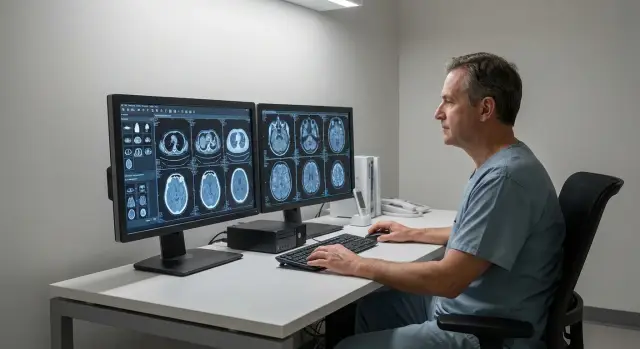
The radiologist's task and why an office PC is not enough
A radiologist's job is more than just "looking at an image." You need to notice subtle differences in density and shape, compare series, make measurements and assess dynamics. What matters is not peak performance but predictable results: the same image should look the same today, tomorrow and on the next workstation.
An office PC is usually chosen for documents, email and browsing. It can be fast, but that doesn't guarantee stable visualization. Drivers change, image "enhancers" are enabled, the monitor may run in different modes (auto-brightness, "cinema" profile, power saving), and color profiles and settings often reset after updates.
The worst risk is an unstable image. If brightness "floats," blacks shift toward gray, and shadow gradations collapse, small findings are easier to miss or interpret differently. That leads to repeat studies, disagreements between clinicians and extra questions when reviewing cases.
Typical problems with the "office approach" boil down to one thing: lack of system and control. In the end you often have a standard monitor without clear calibration or uniformity checks, the GPU or driver changes scaling and brightness, cables and adapters introduce different output modes, OS updates reset profiles and power settings, and there are no checks until someone notices something is wrong.
Disputes usually start with "it was fine yesterday" and quickly focus on three areas: the monitor, the GPU and maintenance. That's why a diagnostic workstation is designed as a system: compatible components, clear calibration rules and regular quality control. In projects for diagnostic suites, for example with GSE.kz, responsibilities for the "image" are predefined so teams don't hunt for causes piecemeal when outcomes are already at stake.
Types of workstations in radiology and diagnostics
Departments typically use different workstation types with different requirements. The key distinction is between a diagnostic station (where the report is produced) and a viewing station (for orientation, consent or teaching).
A diagnostic station is used where the clinician makes a clinical decision: assessing fine details, comparing series, measuring and producing the report. Predictable visualization and stable operation matter here, so monitor and QC requirements are higher.
A viewing station is suitable for tasks without a formal report: previewing a study before consultation, checking dynamics, preparing the patient, or discussing a case in a meeting. Errors there are unfortunate but lower risk, so a simpler configuration is usually acceptable.
A typical workflow looks like: PACS/archive - study list - image series (CT/MRI/X-ray) - comparison with prior - conclusion. At this stage it's important to agree which modalities and formats are primary, how many series are usually opened at once, whether 3D reconstruction is needed and if mammography will be handled. That determines the class of workstation you need.
Many teams choose one or two monitors. Two are handy when one holds the study list and report and the other shows images, or when comparing studies side by side. One large screen can be simpler in small rooms, but you'll switch windows more often.
Before procurement, agree with the head and IT on four basics: where the report is signed and where studies are only viewed; how many monitors at each post and their arrangement; which applications must run (PACS, viewer, voice dictation, printing); and who is responsible for maintenance (calibration, updates, warranty replacements).
Example: a department performs CT and X-ray. For CT reporting they provision two monitors (image and report), while in the junior doctors' room they keep a single viewing station for teaching and consultations. This divides requirements and budget sensibly, without compromising where it matters.
Monitor requirements: resolution, brightness, uniformity
In radiology the monitor is part of the measurement tool. Workstations are judged not by how "pretty" the image looks but by how accurately and consistently they show detail every day.
Resolution and diagonal matter, but chasing the maximum isn't always helpful. A small screen with very high resolution tires the eyes faster because UI elements are tiny. A very large display without sufficient pixel density can "smear" fine boundaries. Choose a diagonal+resolution pair matched to the study type and viewing distance, not simply "bigger is better."
Brightness and backlight uniformity directly affect the visibility of subtle tissue differences. If gray transitions read well in the center but are darker or lighter at the edges, the reader compensates unconsciously, increasing the chance of missing a detail. Stability of gray gradations is also crucial: the same area should look the same in the morning and evening.
Repeatability over time (today vs six months) is a key requirement. A good monitor maintains its characteristics, and the department can confirm that with regular checks.
At acceptance and on schedule, check: luminance uniformity across the field (with test patterns and visually), readability of dark and light gray steps, absence of noticeable corner glow or color spots, and stability after a 15–30 minute warm-up.
Color displays are useful where color information matters (some ultrasound or endoscopy tasks). For most radiographic reading tasks priority is accurate gray tones and predictable behavior; "vivid color" can even hinder perception if it distorts contrast.
Calibration and DICOM: keeping the image correct
DICOM calibration in plain terms is tuning the monitor so gray steps are displayed predictably. That way a barely visible shadow won't disappear because the screen is too dark, too bright, or uneven. For diagnostic workstations this is a basic requirement, not an optional "quality improvement."
Teams most often follow the DICOM GSDF curve: it defines how luminance levels are distributed so the eye notices changes evenly across the range. If the monitor and video pipeline don't maintain that curve, different clinicians might see a different image from the same study.
Hardware calibration is performed by the monitor itself: it stores settings in an internal LUT and keeps brightness and gradations more precisely. This tends to be more stable over long periods and less dependent on OS settings. Software calibration changes profiles and GPU settings; it can help but is more vulnerable to driver updates, cable swaps or moving the profile to another PC.
Agree on frequency and responsibility in advance. A simple regimen works well in practice: a quick visual test before each shift (pattern, uniformity, artifacts), an instrument check and adjustment every 1–3 months, and an out-of-cycle check after repairs, relocations or GPU/monitor changes. Responsibility usually falls to an engineer, biomedical technician or medical physicist, while the clinician notes suspected deviations.
Keep a short QC log to avoid disputes. Record date and responsible person, monitor model and serial number, target parameters (luminance/curve), test result (pass/fail), what was changed and when the next check is due.
Example: after a video driver update one clinician noticed midtone shifts in CT. With records you can see when the deviation started and after what change, so restoration is not guesswork.
Workstation hardware: what affects speed and stability
For a clinic, predictable daily behavior matters more than "the most powerful PC": stable image output, identical behavior after updates and no surprises with drivers.
People often underestimate drivers and the video pipeline. Even a good monitor won't help if the GPU and driver produce random brightness changes, incorrect scaling or artifacts. Look beyond "model and memory" to vendor support, tested driver versions and the ability to disable image interventions (dynamic contrast, enhancers, auto adjustments).
CPU and RAM affect the "feel" of the workstation more than expected. When clinicians open multiple studies, scroll series, build reconstructions and work with RIS/MIS in parallel, the bottleneck isn't just the GPU. You need headroom in CPU and enough RAM so the system doesn't constantly load and swap.
Storage affects both speed and reliability. A fast SSD speeds app launch and study loading, but its endurance under years of writes matters. For working files and cache, speed is critical; for archive and long-term storage, endurance, controller quality and clear health diagnostics matter.
Before purchase, test the configuration with real tasks: open several heavy studies and assess responsiveness when scrolling and zooming, check brightness stability and absence of flicker during prolonged use, ensure the GPU driver does not enable "enhancements" by default, and run a short stress test to rule out throttling and overheating.
In practice, diagnostic setups usually benefit less from the most powerful GPU and more from a balanced combo: a reliable GPU with stable drivers, adequate RAM and a dependable SSD for cache. That yields steady performance and fewer issues during shift changes.
Operating environment and compatibility with medical software
Even a powerful station can fail if the OS is configured like a "typical office PC." Diagnostics require repeatability and stability so a series looks the same today, tomorrow and after updates.
Three common disruptors are automatic updates, aggressive antivirus and poorly configured permissions. Plan OS and driver updates on a schedule rather than accepting them automatically. Configure antivirus so it doesn't block DICOM transfers, viewer caches or temp folders. User rights must be balanced: the radiologist shouldn't work daily as admin, but denying write access where the viewer stores profiles can break calibration and settings.
Another topic is time stability and preservation of monitor profiles. If the workstation clock drifts, logs show errors, study timestamps diverge and certificates fail on the corporate network. Monitor profiles and LUT tables should survive reboots, driver updates and GPU swaps. Keep copies of viewer settings and note driver versions.
Before procurement and deployment ask vendors and integrators concrete questions: which OS, GPU driver and viewer versions are supported and tested; are special settings required for DICOM GSDF and hardware calibration; which ports and exceptions are needed for PACS and how to align that with cyber security; what must not be updated without testing; and how quickly a workstation can be restored from a clean image.
Plan fallback. For a clinic with daily service, a spare workstation or a ready "gold image" often matters more than minor savings. In projects requiring continuity (e.g. hospitals), it's convenient when the vendor and integrator handle support and update regimens — as is commonly offered by suppliers like GSE.kz with 24/7 service.
Operational reliability: power, environment and preventive maintenance
Even a well-specified workstation can fail due to surrounding issues: unstable power, overheating, dust and infrequent maintenance. In diagnostics a mid-shift failure means postponed studies and recovery time.
Power is the first risk point. A UPS is needed not only to prevent sudden shutdowns but to allow graceful termination, save databases and avoid filesystem damage. Where voltage dips occur, filters and surge protection help. Simple rule: no abrupt power offs by unplugging — always use orderly shutdown.
Room conditions affect reliability too. High temperatures speed wear, dust impairs cooling and constant fan noise often signals a system running at its limits. Place the system unit with clearance for airflow and avoid locating it next to a radiator or in a dusty nook.
Quarterly preventive maintenance helps: check error logs and hangs, monitor temperatures and fans under load, clean filters and intakes, test the UPS and shutdown sequence, and verify driver and firmware updates against the medical software regimen.
24/7 operation isn't required everywhere. It's justified where there are night shifts, teleradiology or continuous CT/MRI throughput. If the clinic runs scheduled hours, continuous operation increases wear and costs — better to shut down properly and perform regular checks.
If support is critical, agree in advance how incidents are handled. For example, GSE.kz offers 24/7 service and national coverage, which is useful when a workstation outage stalls an entire department.
Step-by-step selection: from room requirements to acceptance
To procure radiology workstations without surprises, start with a realistic description of the department's work rather than the "most powerful PC." The more precise you are about tasks and QC rules, the easier it is to compare offers and choose equipment.
Collect inputs: which modalities are primary (CT, MRI, X-ray, mammography), how many workstations are required, how many monitors per post, whether a second screen is needed for RIS/PACS and reports. Note the workload: shifts, peak hours, remote consultations and study opening speed requirements.
Next, focus on the display. Choose a medical monitor for the specific studies and define operational rules for the image: calibration frequency, responsible person, where reports are stored and acceptable parameter ranges. This matters more than an "ideal" one-time picture at installation.
When selecting a station, prioritize compatibility with medical software: supported OS versions, viewer requirements, multi-display support and driver stability. In diagnostics, reliability and repeatability beat benchmark numbers.
Agree service terms before ordering: response times, availability of replacement equipment, maintenance schedules and rules for recording configuration changes. For a clinical setting downtime is not merely inconvenient but risks cancelling appointments.
At acceptance act according to the plan. Verify opening typical studies (including heavy cases) and dual-monitor workflows, record brightness settings, profiles, calibration results and driver versions, run a uniformity and stability test after warm-up, and ensure power protection and grounding meet requirements. Document a checklist and an acceptance certificate that defines the department's norm.
If a system integrator or vendor like GSE.kz supplies hardware and support, request configuration and maintenance documentation as part of the package. That saves time during inspections and planned updates.
Common procurement and operational mistakes
The most common scenario: buy an "extremely powerful" PC but choose the display as an afterthought. The workstation opens studies quickly, but the clinician sees an unstable or incorrectly bright image.
Repeated mistakes include:
- buying a high-performance PC but a weak or uncalibrated monitor (for diagnostics a predictable image matters more than extra CPU cores)
- mixing different monitors "as available" (one may have warm gray, another cool gray), making comparison difficult
- leaving auto-updates, "optimizers" and GPU utilities that change profiles, scaling or image processing
- not implementing a calibration regimen or assigning responsibility (calibrated once at install and forgotten, then brightness drifts)
- skimping on UPS and grounding, so voltage dips cause errors and accelerate wear
A good rule: separate responsibilities. The monitor and its calibration are responsible for image "correctness," while the PC and GPU ensure speed and stable handling of your software.
Example: two rooms run the same viewer but use different monitors without regular calibration. One clinician "overexposes" windows, another "darkens" them, and a discussion over a borderline case turns into guesswork. This is solved with a unified monitor set, scheduled checks and bans on software that autonomously changes output settings.
At acceptance ask the vendor to show which updates are disabled, who handles calibration and how power and grounding are protected. Integrators and vendors at GSE.kz's level often include this in their standard procedure, but it's better to formalize it in internal rules.
Short QC checklist for the clinic
Even medical monitors and stations drift over time and software updates sometimes change viewing behavior. Simple regular checks catch issues before they affect reports.
Check schedule
Agree on a clear schedule and log results (even a simple table is fine). A typical set of checks:
- Before commissioning: correct DICOM profile, target luminance, no obvious backlight mottling, and test images read uniformly across the field.
- Weekly: quick visual inspection with test patterns and live studies; note new artifacts (bands, flicker, "dirty" patches).
- Quarterly: planned calibration, verification of settings (brightness, contrast, power saving), check for driver, firmware or viewer updates.
- After changes: cable, GPU or monitor replacement, or OS/viewer updates — repeat test images and profile check.
If an incident occurs, collect minimum data to avoid guessing: time, what was observed (e.g. "dark patch in upper left"), which study and viewer, a screenshot if it shows the problem, and versions of OS, GPU driver and medical software.
When to continue working and when to stop
Set rules ahead of time to avoid debates:
- Continue temporarily: the deviation does not affect low-contrast visibility, the defect is stable and logged, and a backup workstation is available for critical cases.
- Stop using the workstation: gray gradations fail on test patterns, flicker appears, dead zones cover areas of interest, calibration fails or settings reset repeatedly.
- Stop immediately: suspected wrong profile/curve making the image clearly non-medical, or the problem repeats across two studies.
This checklist is especially useful when updating fleets to confirm consistent images across posts.
Example scenario: upgrading two diagnostic workstations
Two clinicians work in shifts. Each post has two monitors: main for CT/X-ray viewing and a secondary for RIS/MIS and reporting. Old PCs were slow opening images and monitors looked different between shifts.
They agreed on a single standard: identical DICOM monitors at both posts and the same calibration schedule and targets. That simplifies defining what is normal for clinicians, engineers and IT.
On hardware they didn’t chase top specs but fixed real bottlenecks: enough RAM to keep multiple studies open, a fast SSD for local cache, a GPU that reliably drives two diagnostic displays at required resolutions, a stable PSU and quiet cooling.
The update was done without stopping clinical service: one upgraded station became the fallback, profiles were migrated, acceptance testing used test images, then the second station was updated. The service plan added calibration checks and a log for "image changed" events.
To align IT and the clinic they set short acceptance criteria: "passes DICOM test", "luminance and uniformity within limits", "typical study opens in X seconds." Projects like this are convenient to hand to an integrator such as GSE.kz that covers assembly and support.
Next steps: moving from selection to stable operation
Start with a short verifiable specification. Separate the diagnostic part (monitor and image control) from the "ordinary PC" that handles office tasks.
Fix a minimum acceptance checklist: which monitors (size, resolution, luminance, uniformity) and whether DICOM is required; how calibration is performed and where reports are stored; what medical software and OS versions are allowed; working mode (24/7 or shifts), noise and installation constraints; and who provides service and spare parts.
Ask the vendor not just to "turn it on" but to perform acceptance on test images using your checklist: open the same study on the old and new post, check gray scales, small-detail visibility, uniformity after warm-up and provide a calibration document.
Stability is not delivered out of the box but built by habit. Assign responsible persons for QC, set check frequencies and define actions for deviations.
If local manufacturing and regional support matter, consider workstations and integration from GSE.kz (gse.kz): this simplifies procurement, acceptance and ongoing support.
Before scaling, run a 2–4 week pilot on one workstation. A pilot helps catch small issues like monitor profiles, power settings, software compatibility and real shift load without risking the whole department.
Frequently asked questions
Why can't a radiologist just use a good office PC?
An office PC may be fast, but it does not guarantee consistent visualization day to day. In diagnostics, stability is critical: brightness, midtones and scaling must not change after updates, cable swaps or profile resets. If the image "floats," the risk of missing low-contrast findings and getting differing reads between physicians increases.
How is a diagnostic workstation different from a viewing station?
A diagnostic workstation is where the physician produces the final report and makes clinical decisions, so DICOM settings, quality control and stable gray-scale behavior matter. A viewing station is suitable for consultations, case reviews and orientation without final reporting, and requirements are usually more relaxed. If in doubt, use the place where the protocol is signed as the dividing line.
How many monitors does a radiologist need: one or two?
Two monitors are convenient when you need to keep the image and the report/RIS side by side or compare studies. One large screen can work in limited space, but you will switch windows more often and lose time organizing the view. The easiest way to decide is to test your typical scenario and see how often you actually compare series in parallel.
How to choose monitor size and resolution for CT/MRI/X-ray?
The optimal combination depends on modality and viewing distance: you need to read small details without constant zooming and without unnecessary eye strain. Very high pixel density on a small diagonal makes the interface tiny; a very large screen with low pixel density can blur fine borders. A practical approach is to choose size and resolution for your typical studies and verify with real series.
What to look for in a monitor besides resolution?
Key parameters are brightness, field uniformity and stability of gray-scale steps. If the edges are significantly darker or lighter than the center, clinicians begin to "compensate" visually and the chance of missing subtle findings grows. Let the monitor warm up for 15–30 minutes before evaluating and periodically check test images to notice degradation early.
What does DICOM calibration do and is it mandatory?
DICOM calibration ensures gray steps display predictably and consistently across workstations. In practice, teams follow the DICOM GSDF curve so midtones don't "merge" or vanish in shadows or highlights. Without calibration or with a drifted profile, the same study can look different to different readers even when using identical software.
Which is better: hardware or software calibration?
Hardware calibration is generally more reliable because the monitor stores settings in its LUT and depends less on the OS and drivers. Software calibration can help but is more sensitive to driver updates, GPU changes and profile resets. For diagnostic stations, prefer hardware calibration where possible and log parameters in a QC register.
How often should calibration be checked and what to do after updates?
Set a simple regimen: a quick visual check on a test image before each shift, scheduled instrument-based verification every 1–3 months, and an ad-hoc check after any system change. A common trigger is a video driver update or cable replacement — always re-check profiles after such events. Even a short log with date, responsible person and result shortens troubleshooting time when the image "changes."
What hardware actually affects viewing speed and stability?
Problems usually come from drivers and settings that alter the image: dynamic contrast, auto-brightness and nonstandard scaling. Use vetted driver versions, disable all image "enhancers," and ensure stable output to the required number of displays at the correct resolution. Performance-wise, sufficient RAM and a fast SSD for cache often affect perceived speed more than the top-end GPU.
How to accept a workstation in the department and avoid disputes later?
At acceptance open several representative "heavy" studies and check responsiveness when scrolling, zooming and comparing series, then verify image stability after warm-up. Record OS, driver and viewer versions, brightness settings and calibration results so you have a baseline. Agree ahead of time who owns the monitor, who owns the PC and who handles maintenance; when an integrator like GSE.kz supplies and supports the system, these responsibilities are often clearer.
