7 min read
Workstations for an electronic queue: replace hardware without changing the queue software
Workstations for an electronic queue: how to handle peak load, swap a device quickly without reinstalling or changing the queue software.
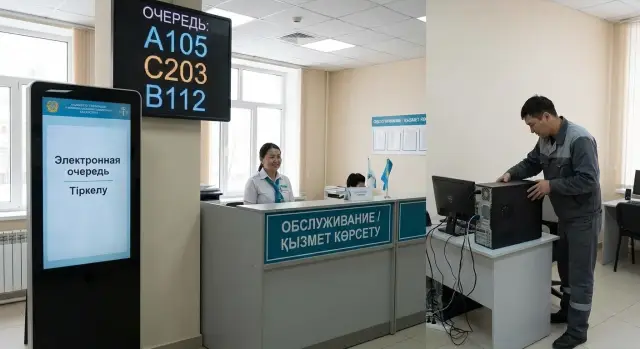
What goes wrong at an electronic queue workstation
A workstation for an electronic queue is not just “a computer at the counter.” Usually it’s a set of devices with different roles: the operator’s workstation (registration desk, cashier, reception), a kiosk or ticket dispenser in the waiting area, and one or more displays for calls and information.
Failures usually don’t start with the queue software. A visitor doesn’t care about the cause, but “the queue isn’t working” almost always means a hardware, network or configuration problem: a disk failed, an all‑in‑one froze, a network port stopped working, the ticket printer went missing, an OS update changed a driver, or the display lost its signal.
The worst part is that these failures are hard to fix quickly if every device is configured differently. Then replacement becomes manual on site: install drivers, connect peripherals, restore logins, recreate shortcuts, check server connections — all while people are waiting.
Typical critical scenarios look like this:
- the kiosk stops issuing tickets and people pile up at the entrance;
- the operator can’t call customers, the queue grows and confusion starts;
- the display doesn’t show calls, people miss their turn and argue with staff;
- the network “drops” on one segment and it appears everything is broken;
- the ticket printer prints blank pages or shifts text because of wrong settings.
If you agree in advance what each workstation includes and standardize devices (same models, same system images, same ports and peripherals), replacement becomes simple: remove, install, connect, verify.
Load and failures: what breaks in practice
Problems don’t happen on quiet days — they appear at peak times. As visitor flow increases, the operator switches between windows faster, prints more tickets and uses scanners, printers and document readers more often. In those moments the weak link is usually the workstation next to the queue.
The most common failures are simple but painful. Overheating from dust and cramped enclosures leads to throttling: the computer doesn’t turn off but starts to slow down and the queue seems to “freeze.” Drives suffer too: budget SSDs degrade from constant log and temp file writes, and old HDDs cause delays and read errors. Power is another story: dips or short outages trigger freezes and sometimes corrupt a user profile.
USB peripherals are another frequent source of trouble. In practice printers (receipt and ticket), barcode scanners, card readers, touch panels and USB hubs often “drop out.”
The network contributes as well. A short disconnect looks like “everything froze,” even though the computer is running: statuses don’t update, calls don’t reach the display, the operator doesn’t see confirmations. If local network and power behavior are planned in advance, such situations are often resolved by restarting the interface or switching ports — without touching the queue software.
That’s why standardization matters: the same models, the same configuration, the same drivers. When your fleet becomes a “device zoo,” fast replacement turns into a search for the right power supply, cable, driver and settings. When workstations are built from a single template, a spare PC or all‑in‑one can be installed in minutes and service continues with almost no interruption.
Choosing equipment by role: operator, kiosk, display
To prevent the electronic queue from depending on a single “special” device, separate your devices by role. The operator’s workstation, the self‑service kiosk and the display have different tasks and different failure causes. When roles are mixed, replacement becomes stressful: you have to remember what was connected where and why “it worked yesterday.”
For the operator, predictability is the most important factor. It’s usually hardware, not the software, that fails: worn storage, insufficient RAM when many windows are open, unstable drivers. You need a configuration with spare RAM, a reliable SSD and decent cooling. That reduces freezes during peak hours and gives you time to swap the device calmly.
An all‑in‑one is suitable where compactness and minimal cabling matter: registration desks, cashier windows, reception points. A separate system unit is more practical where the workstation grows lots of peripherals and is changed frequently: you can replace only the PC without touching the monitor.
Choose a kiosk that’s built to be used: a touch screen, a sturdy enclosure, protected ports and minimal exposed connectors. It’s better when critical cables are routed inside the stand and port access is behind a service cover.
A display usually doesn’t need a powerful computer but it does need a stable video output and reliable power. A common issue is the screen being on while the signal source “sleeps” or reboots after a power event.
A typical kit for a point should include the essentials: a ticket printer with easy paper replacement, a scanner (if records are needed), a reader (if required by the process), a UPS for the PC and critical peripherals to cover short outages, plus spare power and video cables labeled by role.
Principles for configuring without touching the queue software
To swap workstations in minutes, base the setup on predictability. Any device should behave the same way even if it has just come out of the box.
Start with a single standard system image. This is not about “pretty settings” but about identical OS versions, drivers, fonts, layouts, network parameters and browser configuration (if the kiosk is web‑based). Then replacement won’t turn into a hunt for why a button works on one PC and not on another.
Separate “hardware and OS” from “data and settings.” Where possible, keep critical items off the local disk: shortcuts, launch configs, certificates, server addresses. If you can’t fully externalize them, at least gather them in one clear folder and include it in backups. The idea is simple: replace the device, don’t move the user’s whole environment.
Then set up autostart and login so you don’t need to touch the queue application itself. Use OS features: auto‑login to a dedicated kiosk/operator account, autostart the application or browser in fullscreen, disable unnecessary windows and notifications. For example, in a clinic you can configure the all‑in‑one at reception to automatically log in, bring up the network and launch the queue client. Then when a device fails, you only need to swap and power on.
Check these basic standard rules:
- one model or 2–3 strictly approved configurations;
- identical device names and a clear numbering scheme (Window‑01, Kiosk‑02);
- separate accounts by role (operator, kiosk, display);
- fixed network parameters or reserved DHCP assignments.
Be disciplined with updates. Antivirus signatures and remote support tools can be updated regularly, but drivers only on a plan and after testing on a pilot device. Major OS updates and critical browser changes (if kiosk mode depends on the browser) should not be installed unexpectedly on workdays.
Step by step: how to organize a fast device replacement
If a queue device fails, the main rule is: don’t repair it on site and don’t change the queue settings. The goal is simple: remove the failed device, put in the spare, power on and continue.
1) Fix the “reference” and don’t change it without reason
Define once what a typical workstation must be: device model, OS version, driver set, computer name, local accounts, network and autostart settings. This is critical when you have many points and different roles.
Then follow one scenario:
- describe the reference configuration on a single page: what is installed and what must not be changed;
- capture a system image (or use another fast deployment method) and test recovery on a clean spare device;
- prepare spare peripherals and small items that fail most often: cables, power supplies, mouse/keyboard, USB extenders, adapters;
- label devices: a sticker with the role (Kiosk‑1, Operator‑3), image date, installation place;
- approve a procedure: who swaps devices, where the instructions are kept, acceptable downtime (for example 10–15 minutes).
2) Make replacement a “plug‑and‑play” action
The rule is simple: devices for the same role must be identical in hardware. Then images and drivers match and replacement becomes a mechanical operation. A quick test scenario: a kiosk in a clinic freezes. Staff take the “Kiosk‑Spare,” connect power and network, power on, check the queue app and touch input. The broken kiosk goes to repair and service continues.
Network and power: so replacement doesn’t turn into a quest
Fast replacement often fails not because of hardware but because of cables, ports and outlets. If network and power are prepared in advance, a spare workstation can be up in minutes without calls to IT or changes to the queue software. This is critical for queue workstations: downtimes during peak hours are immediately visible to people in the hall.
Network: predictable connection
Make it possible to plug the same PC or all‑in‑one into any point and get the same result.
- Label lines and ports: mark which is “kiosk,” which is “operator,” which is “display.” A label on the cable and on the switch port saves dozens of minutes.
- Keep a stock of quality patch cables of the same length and type. A common reason for “it doesn’t work” is a broken or homemade cable.
- Use fixed ports and a clear scheme: one place — one port — one role. Don’t do “we’ll temporarily plug it here” if that becomes the norm.
- Plan redundancy: spare ports nearby or a clear plan for what to do when a port dies.
- Make sure outlets are physically accessible and cables can be unplugged without disassembling furniture.
Power: protection from dips and quick access
Stable power matters not only for servers. In the service area, dips and flickers often cause freezes and lost time.
- Put UPS units for the operator workstation and for critical nodes on site (for example, a local switch near the desk).
- Separate power by role: dedicated outlets for kiosk and display so servicing one doesn’t turn off the other.
- Remove the cable tangle under desks: secure power strips, use cable channels and leave slack for repositioning.
- Keep a simple connection diagram on site (a sheet in a transparent sleeve inside the cabinet or on the stand wall).
Example: a kiosk in a clinic doesn’t power on. If the outlet is labeled, the power cable goes to a separate filter and a spare patch cable is nearby, replacement can take 5–10 minutes. If there’s a “ball of cables” under the stand and a shared extension for everything, finding the right plug can take an hour.
Monitoring and simple diagnostics without complex tools
To keep queue workstations from failing at the busiest hour you need simple monitoring that doesn’t require code changes or developer involvement. The idea is: watch easy‑to‑understand health signals and quickly determine whether the fault is in the PC, the network, printing or power.
Minimal set of metrics
It’s enough to check a few things that most often cause queues to stall at the desk:
- CPU temperature and overheating;
- disk health (SMART/errors) and free space;
- network availability: does it have an IP, can it reach the gateway, are there packet losses;
- print queue: are jobs stuck;
- uptime and reboots: how often a device restarts or freezes.
These parameters can be viewed with built‑in OS tools (Task Manager, Event Viewer, print queue) and simple connectivity checks. The important thing is to measure the same things at all points so you have something to compare.
Local tests without touching the queue software
When the queue “stops,” start a short sequence: check the system log for the last 10 minutes, verify the network (address, reachability to the queue server), send a test print, restart only the problematic component (for example the print spooler) rather than the whole system.
To prevent repeat failures, keep a simple incident log: time, device role (operator/kiosk/display), symptom (not printing, no network), what helped, and anything unusual (hot, power spike, cable was moved). Patterns will emerge in 2–3 weeks.
Maintenance should also be regular: clean dust and check ventilation every 3–6 months, test UPS and battery, inspect cables and connectors in high‑traffic places, update the system image on schedule, and test a spare device quarterly.
Common mistakes that stretch replacement into hours
When a device fails, time is lost not on the hardware but on small things: where to get a spare, how to quickly bring a workstation up, why a ticket won’t print or a scanner isn’t detected. For electronic queues every minute of downtime instantly becomes a line.
Replacement is most often prolonged by five mistakes:
- the fleet contains many different models and driver sets, the common image doesn’t fit;
- no prepared spare device exists, so settings are transferred “from the neighbor”;
- OS and driver updates are applied during work without a rollback plan;
- peripherals are plugged into different USB ports, creating new device profiles;
- passwords, accounts, IPs and settings are known to only one person.
Discipline and standardization fix this. If registration desks and kiosks use identical models with the same ports and drivers, a spare device can be plugged in and returned to service within minutes.
Minimum to keep on hand:
- 1–2 “hot” spare devices already tested with your peripherals;
- one golden image and a rule: updates only after testing and with a rollback plan;
- a simple workstation passport (logins, IPs, what is connected where) kept in an accessible place;
- a standard port scheme: ticket printer always in the same USB, display in its own, scanner in its own.
Short checklist before launch and before peak days
Before opening and before busy days (Mondays, document‑issuance days, seasonal campaigns) check not only “does the queue work” but also how fast you can restore a workstation if it fails. This takes 10–15 minutes and can save hours of downtime.
Turn the check into a short ritual that a duty admin or shift lead can perform:
- Golden image and recovery: is there a verified “golden” image (or setup template) and a practiced way to deploy it on any device within a fixed time?
- Spares by role: at least one ready spare device per role (operator, kiosk, display). The spare must match the role, not be a generic PC.
- Peripherals and cables: cables labeled, ports fixed (USB, network, power), power supplies marked.
- UPS and power: UPS powers up without errors, battery holds load, outlets are secure and there’s a spare network cable.
- Support and escalation: contacts and steps are written nearby (what to report: device role, location, symptom, start time).
If the fleet is unified (for example identical all‑in‑ones at desks and identical PCs for operators), this checklist works much better: fewer driver surprises and fewer “special” cables.
Example scenario: replacing a workstation in a clinic
Morning at a clinic. Ten minutes before the patient rush the operator’s queue PC freezes: the screen is unresponsive and a reboot doesn’t help. The task is to quickly restore the window without touching the queue software or losing settings.
The administrator follows a short plan. A spare standard workstation is stored nearby (the same model from the same batch to avoid driver surprises).
Steps on site:
- disconnect the frozen device from power and network and label it “for repair”;
- connect the spare: power, network, monitor (if needed), keyboard, mouse;
- log into the standard environment without manual installs or tweaks;
- check ticket printing: a sample ticket, correct time, font and cut;
- run a quick network test: does the queue interface open, does a request reach the server, are related services visible (display, kiosks).
The key time‑saver is that data does not live on the PC. Services lists, schedules, ticket templates and logs should be stored centrally (on the server or in an admin panel), and the workstation only holds access. Don’t keep the only copy of print templates or configuration files on the desktop or passwords in notes.
After the incident update the procedures in two places: record the minimal checks after replacement (network, test ticket, login) and reinforce standardization so replacements fit in 5–10 minutes.
Next steps: standardize your fleet and simplify support
The most beneficial improvement is to remove the “device zoo.” When workstations are assembled from different models and generations, any failure becomes manual setup and driver hunting. Standardization makes replacement predictable: take the spare, plug it in and it behaves the same as the one you replaced.
Start with a simple inventory: list points and roles (operator, self‑service kiosk, display). For each role define minimum requirements (screen, touch, ports, network, mounts, power) and approve 1–2 standard configurations.
Then run a pilot at one point and test the replacement scenario: unplug, connect a spare, attach network and power, boot. If each swap still needs queue software changes, the standard doesn’t work.
If you need a single standard for devices and support across a distributed network, many organizations rely on a local manufacturer and integrator. For example, GSE.kz (gse.kz) produces office PCs, all‑in‑ones and servers and does system integration, which helps keep configurations consistent and speeds up on‑site device replacement.
Frequently asked questions
Why does the electronic queue “fall over” when the program itself seems fine?
Most often the queue system itself is fine — what fails is the workstation around it: storage, power, network, drivers or USB peripherals. To the visitor it looks the same — “the queue is not working” — so the priority is to restore the device quickly rather than hunting for a software bug.
Why standardize devices instead of just fixing problems as they appear?
Standardization reduces downtime: identical models, a single OS image, the same drivers and the same connection scheme. Then replacement becomes a simple "remove — put in — connect — check" operation without on‑site manual setup.
Why separate equipment by roles: operator, kiosk, display?
Because different roles have different failure modes and requirements. An operator needs stability, extra RAM and a reliable SSD; a kiosk needs durability, protected ports and a predictable touch panel; a display needs stable video output and reliable power so the signal doesn’t ‘sleep’ the screen.
What is better for an operator: an all‑in‑one or a desktop PC?
All‑in‑ones are convenient at a reception desk due to compactness and fewer cables, and they’re easier to keep standardized. A desktop tower makes sense where there is a lot of peripheral equipment and you don’t want to replace the monitor when the PC fails — you can swap only the system unit.
What usually breaks in practice during peak hours?
The most common issues are overheating, SSD degradation from constant writes, freezes after power dips and USB devices disconnecting. These problems become obvious at peak times: more printing, more scanning and more switching reveal weak spots immediately.
How do you make a new device start “like the old one” without on‑site setup?
Keep a single “golden” image: one OS version, identical drivers, fonts, network settings and autostart rules. If the replacement device has the same hardware, you can quickly deploy the image or restore it to the spare PC and avoid lengthy manual setup.
Where should queue settings and templates be stored so they aren’t lost when a PC fails?
Store settings and critical templates centrally where possible; workstations should only hold the access and client. If you can’t fully centralize, collect important files (certificates, launch configs, connection parameters) into one clear folder and back it up regularly so replacement isn’t a transfer of someone’s entire desktop.
How should updates be handled so ticket printing and kiosk mode don’t break?
Roll out updates on a schedule and only after testing on one pilot device. Sudden updates during workdays often break the ticket printer driver, kiosk browser mode or USB behavior, and then you end up troubleshooting while people wait in line.
What should be prepared with network and power so replacement doesn’t become a quest?
Prepare predictable connections: labeled ports and cables, fixed port assignments, spare patch cables and accessible outlets. For the operator and any nearby network hardware, use a UPS so short power dips don’t cause freezes or corrupt user profiles.
How can I quickly tell whether the problem is the PC, the network or the printer without complex tools?
Use simple signs: CPU temperature and overheating, disk SMART status and free space, network reachability to required hosts, the print queue, and uptime or frequency of reboots. When a failure happens, quickly check logs, network and printing, then swap in a standard spare rather than trying to repair on the spot.
