8 min read
QR Codes on Support Equipment: Labeling Without the Chaos
QR codes on support equipment help engineers open a device card with instructions and repair history in one scan, reducing on-site errors and time to fix.
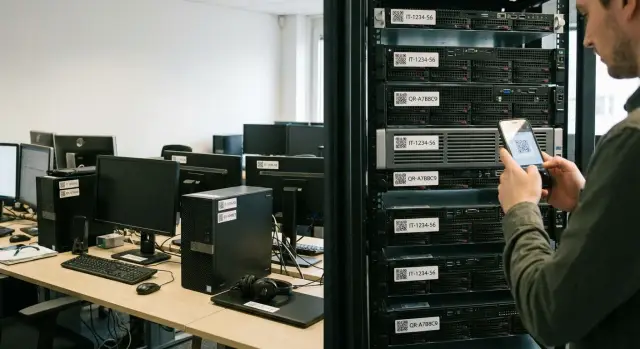
Why put QR codes on equipment: the three-minute problem
The most common reason for long on-site visits isn’t the repair itself but finding information. An engineer arrives and first needs to identify the device, who owns it, where its card is and what’s been done before.
A typical scene: a desktop on the desk that looks like the neighbor’s; a “some” mini PC in the meeting room; several identical servers in the rack; medical devices with their own labels. While you search for model, serial number, inventory ID and the responsible person, 5–15 minutes pass. Sometimes more: you have to call the office, pull old tickets or ask the user to send a photo of the nameplate.
If there is no unified IT asset labeling, mistakes become the norm: devices in the same room get mixed up, work is logged under the wrong serial, wrong parts are ordered, settings are reset on “the wrong” printer. Next comes chaos in accounting and repeat visits.
A QR code solves that exact “three-minute problem.” One scan from a phone opens the device card: exact name and configuration, owner or department, location, responsible contacts, quick prompts for the engineer and, most importantly, repair and incident history. The engineer can start working immediately, not investigating.
This helps most where there are many similar units and high cost of errors: office devices and MFPs, meeting rooms, server racks, classrooms, medical rooms. Even a simple sticker turns an “unknown device” into a clear object with documents and a past.
What data should open on scan
A QR scan should not lead to “text on the screen” but to a proper asset card. The idea is simple: engineer and user see the same thing, without searching Excel or calling “where is this located?”.
First agree on what you count as a device. Usually it’s not only PCs and laptops but also all-in-ones, monitors, printers, UPS, servers and network gear. The broader the coverage, the more important common rules become.
The card needs fields that help make a decision within a minute: a clear identifier and name, model and serial number, location (branch, floor, room, rack) and owner or department, status, warranty (purchase date, vendor, term), plus responsibles and support rules (contract, SLA, who to escalate to).
Keep naming rules short and consistent across sites. For example: “ALM-03-215-PC-007” or “AST-DC1-R12-SRV-02”. It’s important that the name shows where the device is and what type it is. That prevents confusion between identical rooms in different branches.
A useful link: asset → contract → service level → responsible. If an organization has critical zones (e.g., clinic reception or a server room), the scan should immediately show promised response times and who decides on replacement.
Example: an engineer arrives to replace a UPS. They scan the code and immediately see the exact installation spot, serial number for verification, warranty term and contact of the local responsible. Fewer false visits and fewer cases of bringing the wrong model.
How to make the sticker: format, location, durability
Good labeling starts not with the QR but with readability. If the camera can’t focus, signal is gone or the code is scratched, the engineer still needs clear text to quickly verify and not mix up devices.
On the sticker leave the minimum that helps identify the equipment without extra risks: QR code (links to the card), large inventory number, a short site name or code (e.g., office-2, floor-3), and a support contact without personal data (department phone or email).
Do not print full names, personal phone numbers, a specific person’s office or other personal data. Stickers are easy to photograph and equipment can move to another department.
For durability choose material and printing method according to the environment. For office PCs and monitors vinyl or polyester with lamination usually suffices. For servers, warehouses and transport use thermal-transfer printing and an adhesive that survives cleaning, temperature changes and moves. Size should allow reliable scanning from 20–40 cm: often a 25–35 mm square is enough, but dark cases may require larger codes.
Placement solves half the problems. Put the sticker where it’s easy to scan and unlikely to be pulled off: on a visible flat surface (not on a removable cover or on cables), not blocking vents, serial plates or ports. On laptops and all-in-ones the bottom near the hinge is convenient; on monitors—on the back side, to the side. For server chassis place it on the front panel or on the rack next to the unit.
What to encode in the QR and how to avoid losing the link
The main mistake is encoding a direct page link and assuming it’s enough. Domains change, services move, accounts reset, but the sticker on the server may stay for years.
More reliable is to encode a short unique device ID (for example, GSE-S200-042781) and, if desired, a check character to avoid confusing 0 and O. That ID is then used to find the device card, knowledge base and repair history. If you have a resolver page (a single entry point that redirects to the right system), you can encode resolver_address + ID. Then when the Service Desk changes you update only the resolver, not thousands of stickers.
To keep links stable, follow simple rules: one ID for the device’s entire lifecycle (never reuse after decommissioning), print the ID next to the QR in large type, use a unified ID template with a clear prefix for different device types, and store the same ID as the key across all systems (inventory, tickets, warehouse) rather than local numbers.
If connection fails, the engineer should still see the minimum offline: a readable ID, model, installation place (printed), and a short hint where to call and what to report. Example: on an S200 rack the scan failed due to poor signal, but with the printed ID the dispatcher quickly found the card and the last disk replacement, and the engineer drove with the correct part.
Device card: a simple template that works
If the QR leads to an empty page or a long form, it’s useless. The card must answer two questions within 10 seconds: “What is this device?” and “What to do right now?”.
Minimum data that actually helps
A good template relies on a short set of fields that are always filled and quickly updated: status (in use, in storage, under repair, decommissioned), identifiers (inventory ID, serial, model), key configuration (CPU/RAM/storage, OS, important ports), photos (general view, nameplate, installation spot), documents (warranty, handover act, maintenance schedule).
Add only what is actually used. For servers, record rack and U-position; for all-in-ones note the room number.
Actions for the engineer: fewer calls, fewer mistakes
The card should offer clear actions: create a ticket, mark completed work, add before/after photos, record part replacement. Simple scenario: a user scans the MFP code, presses “Report problem”, and the engineer immediately receives model, history and photos without long back-and-forth.
Record movements as events: room -> storage -> repair -> return or decommission. This helps when equipment moves between departments or when you change the fleet.
Access must be role-based. A user needs the name, location, a “create ticket” button and basic instructions. An engineer needs configuration and work history. Admins and inventory need movements, decommissioning, documents and permissions.
Link to the knowledge base: have solutions at hand
The scan should open not only the device card but also the hints that help on-site. When an engineer has the right article at hand, there are fewer calls and fewer “try-and-see” attempts.
What materials to link
Link not everything, but what most often saves time. Start with a set that covers most incidents: typical symptoms and quick fixes (no network, not printing, won’t boot after update), short setup instructions (Wi‑Fi, domain, mail, peripherals), verified drivers and firmware versions with model notes, connection diagrams and port layouts, rules for consumable replacement and basic tests (cable, PSU, RAM, disk).
How to write field (on-site) instructions
Long articles are read in the office; on a visit you need a cheat sheet. Make the main block 5–7 steps and add checkpoints: what should be achieved after each step. For example: “check cable – check link – check IP – restart service – record result”.
To keep articles from quietly aging, assign an owner role (e.g., “workstation engineer” or “datacenter admin”) and put a review date and status at the top: current, needs review, obsolete. If a solution no longer fits, say so and point to the replacement.
Photos and a mini-checklist in the article save time. One photo of correct connections and 3–4 items “before closing the incident” noticeably reduce repeat tickets.
Repair and incident history: what to record
A QR saves time only when the scan shows not just the device name but its past. History helps you see what was done, which parts were used and why the problem might have returned.
Record events that change device state or affect reliability: user reports (symptoms, conditions, urgency), preventive maintenance (cleaning, checks, tests), replacements and repairs (parts, consumables, work), upgrades, movements and configuration changes (room, rack, responsible).
To make entries easy to read and compare, use a uniform format. A short log works well where each event is 5–8 lines: date and time, reason, what was done, which components replaced (with serials), result and verification.
When the format is consistent, recurring problems stand out. For several identical PCs in a branch you can spot that power failures follow a specific batch of PSUs, or overheating occurs only in one rack. Then you fix the cause, not just individual incidents.
Separate warranty work from paid and internal jobs. A simple "work type" field (warranty, paid, internal) and confirmation (ticket number, act, approval) is enough. That helps accounting, support management and vendors in disputes.
Step-by-step rollout: from pilot to scale
The effect appears only when a code is backed by a process: who sticks stickers, who updates the card, where history is stored, how quality is checked.
A pilot you can hold in your hand
Choose an area where results are easy to measure: one floor, one office cluster or one branch. The pilot needs an owner (e.g., head of IT support) and a 2–4 week timeframe.
Keep a short chain. Collect the equipment list and create cards using one template (model, serial, location, responsible, contacts, warranty). Prepare stickers, apply them and take a photo on site as confirmation. Check that the scan opens the actual card (not “just text”) and that it works on the engineer’s phone. Add quick actions: create ticket, open instructions, view recent work. Then give short training: 15 minutes for engineers and 5 minutes for users (what to do when there’s a problem and what not to do with the sticker).
Scaling without quality loss
After the pilot, lock down rules: who creates a card for new deliveries, when location is updated, how a repair is closed (which fields are mandatory). A simple quality check helps: once a week randomly scan 10 devices to verify the right card opens and data is up to date.
Example: in an office an engineer is called “to the printer in accounting.” If the scan immediately shows precise room, responsible and last consumable change, the visit becomes 10 minutes instead of searching “which printer” and “what was done before”.
Common workflows: engineer, user, warehouse
Labeling works when the next steps are clear after scanning. The effect is usually most visible in three scenarios: engineer on a visit, user creating a ticket and replacement at the warehouse.
Engineer on site
The engineer scans the code at a desk or rack and sees the card: model, serial, location, warranty, past incidents and a short instruction for common faults. Before starting, they verify the device and see that a part was already replaced (e.g., PSU or SSD) so they don’t repeat diagnostics.
After repair they log the result in the same card: what was done, which parts installed, which tests passed. The next specialist doesn’t have to guess.
User files a ticket
The user scans the QR and gets a short form: device and location are pre-filled. They pick a symptom and add a short note. The fewer fields the better to reduce errors.
To reduce clarifying calls, agree on standard statuses and comment rules in advance. For example: “Accepted” (when to expect a response), “In progress” (what we are checking), “Need info” (what to send), “Waiting for part” (ETA and next step), “Closed” (outcome and recommendation).
Warehouse and replacements
When replacing items, don’t lose history. Close the old asset as “decommissioned/replaced” and record in the new one what it replaced and where it now stands. If only a module changes (e.g., storage) keep the history on the main device and log the replacement under components and the work log.
A practical workflow: for identical PCs in rooms the warehouse scans the old unit, the engineer sees which configuration should be installed and avoids swapping a similar but incompatible device.
Frequent mistakes and how to avoid them
Labeling saves time only with order behind it. Otherwise a scan leads to new confusion.
The most dangerous mistake is a QR that exposes personal data or an open page. This often happens when the code points to a shared file with employee phones or to an internal system without access control. Safer: QR encodes a neutral device ID, and the system shows data based on rights (engineer sees more, user sees less).
Second problem: inconsistent naming and duplicate cards. Today a laptop is “NB-12”, tomorrow “NOTE12” and after repair appears as “NB-12 (new)”. History fragments. A single immutable key—inventory number or GUID—solves this: it doesn’t change even if the case, department or user changes.
Third mistake: skimping on stickers. In warehouses and server rooms wear is fast: abrasion, cleaning, humidity, temperature. For racks and servers use thermal-transfer printing, lamination and place stickers where hands and cables won’t rub them off.
Fourth: the knowledge base is not updated and engineers stop trusting it. If a fix isn’t added to the notes after an incident, in a month everyone wastes time on the same search again.
Usually a few rules are enough: QR encodes only an immutable ID; data access goes through authorization; one naming standard and no duplicate cards; sticker material and printing fit the environment; knowledge base has an owner; repair history is stored in one source.
Audit shouldn’t be heavy. Once a month pick 10–20 devices across zones and check: the scan opens the correct card, rights are correct, the sticker is readable and recent repairs are logged, and articles are current.
Quick checklist before launch
Before printing hundreds of stickers, test the system on 10–20 devices. Mistakes at this stage cost minutes; after mass labeling they turn into weeks of fixes.
What must work immediately
The sticker scans with a phone camera from 30–50 cm and doesn't glare. Next to the QR there is plain text: a short ID or inventory number so an engineer can read it over the phone.
One scan opens exactly one device card, no selection required. The card shows the current location (room, floor, branch) and the responsible person.
For this device type prepare 3–5 most-needed articles: how to reboot correctly, how to check power and network, how to collect logs, what to do for a common error, and where to escalate.
To avoid losing history and access control
Work history is logged in a single format: date, reason, what was done, result, who performed it. Add photos where they help (damaged port, seal condition, cable labels).
Roles and access must be clear: users see basic instructions and status, engineers see history and technical data, warehouse and accounting see movements. You need a simple process for replacement, movement and decommissioning so the QR doesn’t point to an obsolete card.
Finally appoint data owners: who creates cards, who updates locations, who keeps articles current. A simple test: a new engineer finds an instruction and logs the work with one scan in 2 minutes.
Real example: how one QR shortens a visit
A classroom PC stopped powering on. Equipment was bought in different years, many towers looked similar, and the teacher could only say “second row, near the window.” Previously the engineer spent time clarifying: which model, which PSU, is it under warranty, who imaged it. Sometimes they brought a “roughly suitable” spare, but on site the connector differed or the case was from another batch.
After labeling it looked different. The case had a sticker, the scan opened the card: exact model and configuration, serial, location, responsible person, and past actions. The engineer saw that the SSD was replaced two months ago and before that there was a power error. Next to it was a short KB note: how to check the PSU and which parts are compatible. On the way the engineer could prepare the right spare and schedule a 15‑minute downtime rather than “as time allows”.
The visit was shorter and the ticket easier to close: the engineer logged the result, attached a photo and left a comment. One sticker turned scattered information into a single entry point.
Measure effect with a few metrics: average time from ticket to recovery, on-site work duration, share of repeat incidents for the same device, percentage of part/compatibility errors, time spent clarifying in chat and by phone.
Next steps: implement and lock the process
Start small but follow the rules. Prepare a simple card template and agree mandatory fields: inventory ID, model, serial, location, owner, commissioning date, status, responsible contacts and quick actions (create ticket, open instruction, view work history).
Choose a pilot zone: one floor, one department or one device type. Make sure both users and on-site engineers are present there, otherwise the effect will be unclear.
Printing and sticking should not halt work. Decide the format in advance (uniform company-wide), plan a sticker spare stock and assign a window for labeling: e.g., 10–15 devices per day during routine rounds or replacements.
To embed the process you usually need a few steps: approve the template and naming rules, create pilot cards and generate QR codes, stick and verify scan on site, configure where the scan leads (card, KB, ticket), and record who updates data and when.
Integrations can be added as you grow: service desk for tickets, asset management for status and movements, warehouse for spares, knowledge base for instructions. Assign roles early: process owner defines rules, engineers ensure incident record quality, warehouse manages part movement, security controls access.
If you refresh the fleet at the same time, include labeling and accounting rules at procurement and integration. For example, GSE.kz as a computer and server vendor in Kazakhstan and a system integrator can attach equipment to a clear accounting scheme and ongoing support, including 24/7 service and a nationwide network.
Frequently asked questions
Why stick QR codes on equipment if there are already inventory numbers?
A QR scan saves time on clarifications before work starts. Instead of searching for model, serial number, inventory ID and owner, an engineer opens the device card with a single scan and immediately sees what the device is, where it is located and what has been done to it.
What is better to encode in the QR: a link or a device identifier?
The most reliable option is to encode an immutable unique device ID, not a direct page link. That way, even if the service desk or addresses change, you keep one key for the asset’s lifetime and resolve the card by ID through your entry point.
What data must be shown in the device card after scanning?
Keep the card short and useful for on-site decisions. Usually enough: model and serial number, inventory ID, exact location, owner or department, status, warranty and support contact, plus incident history and recent work so you don't repeat diagnostics.
Where to stick the QR sticker so it won't be torn off and can be scanned quickly?
Place the sticker where it is easy to scan and unlikely to be removed: on a visible flat surface, not on a removable cover, not on cables and not where hands often touch. Also avoid covering ventilation, connectors and factory serial plates.
What to do if there's no internet in the server room or on site and the QR doesn't open?
Include a readable ID or inventory number next to the QR so it can be read or dictated by phone. For critical zones, also print model and installation location. Have a clear ‘offline’ support scenario so the dispatcher can find the card by the printed ID if the scan fails.
How to make labeling safe and avoid exposing personal data?
Do not print names, personal phones, specific cabinets or other personal data on the sticker. The QR should lead to a card with authorization and role-based access: the user sees minimal info to create a ticket, the engineer sees technical data and the work history.
What materials and printing methods ensure stickers last long?
For office use, vinyl or polyester with lamination is usually enough so the code doesn't wear off from cleaning. For racks, warehouses and frequent transport, use thermal-transfer printing and a strong adhesive that tolerates temperature and humidity changes.
How to start implementation: run a pilot without drowning in workload?
Start in a small area where results are measurable and limit the pilot to 2–4 weeks. Use a single card template, apply stickers, verify scan on engineers' phones and add quick actions like creating a ticket and logging completed work so the process actually begins working.
How to set up the "user scans and creates a ticket" scenario?
The user needs a short form where device and location are already filled in so they can choose a symptom and add a few words. The engineer should receive the same card with history and hints; all work logs must be in one place to avoid scattering information across chats and notes.
How to keep repair and replacement history correctly so nothing is lost?
When replacing an asset, do not recreate it from scratch. Close the old asset as decommissioned or replaced and link the new one as its replacement so the context is preserved. If only a component is changed, keep history on the main device and record the replacement as an event with details and verification.
