6 min read
Server for network OS deployment: disk and network for 200–1000 PCs
A PXE deployment server: how to calculate disk and network needs for 200–1000 installs, choose the approach and organize image storage.
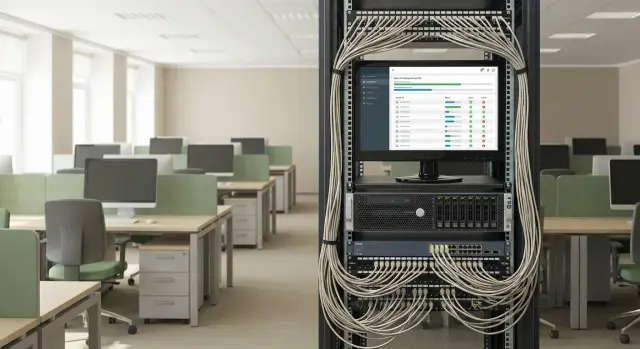
Where mass network OS deployment really starts
Mass network OS deployment doesn't start with choosing a utility, but with understanding the boot chain: the PC powers on, gets a minimal environment via PXE (bootloader and WinPE), then downloads installation files and the image, after which installation and initial configuration proceed.
PXE (Preboot Execution Environment) lets you boot a computer over the network without a USB stick. A deployment tool then takes over. WDS is often used for network booting and distributing Windows images. MDT adds scripts, drivers, packages and automation. FOG is chosen when you need fast disk cloning and multicast scenarios (many PCs at once).
In practice, the infrastructure fails more often than the software. When space runs out, images get stored haphazardly: versions are lost, needed files are deleted, and deployment breaks at the worst moment. When the network isn't sized correctly, PXE boots turn into a queue, and neighboring services (mail, 1С, video surveillance) dip during the peak.
Before calculations, fix constraints: deadlines (for example, 500 PCs over a weekend), deployment window (night or only business hours) and number of sites (single network or multiple branches).
Next determine baseline numbers: how many images and their real sizes (WIM, drivers, apps), how many installs will run concurrently, what peak traffic is acceptable in the network (core, floor switches, Wi‑Fi), and how much time you have for one wave.
A simple rule of thumb: 200 PCs are often deployed in batches of 20–30 to avoid saturating gigabit uplinks. 1000 PCs almost always require queues, multicast, or distributing distribution points across sites.
Data to collect before you calculate
Accurate calculation starts not with formulas but with short answers to a set of questions. If you skip them, the deployment server may turn out to be underpowered or unnecessarily expensive.
Collect data in five blocks:
- Scale and parallelism: total PCs and how many are actually installed concurrently in one window. For network and disk, parallelism matters most.
- OS set and variability: Windows 10/11, Windows Server, different editions, languages, role-specific images (classroom, accounting, call center). More variants mean more storage and harder maintenance.
- Image composition: updates, Office, antivirus, agents, core apps, drivers. Note whether you use a "thick" image (almost everything included) or a "thin" image (OS only plus software installed by tasks).
- Site topology: single office or multiple sites, LAN or WAN deployment, link speeds and stability, traffic limits.
- Deployment window: 2 hours, night, weekend, staged by departments.
Separately record the "installation unit": how much data is actually transferred to one PC and how long it takes to reach a usable desktop. A WIM at 18–25 GB plus drivers and post-install steps can differ significantly from a "packed" image of 35–45 GB.
Quick checklist before calculations:
- How many PCs start concurrently at peak: 20, 50, 100, 200?
- How many different images are truly needed and what can be unified?
- Are there different PC models requiring separate driver packs?
- Is deployment local or across branches over WAN?
- What is the deadline: "finish overnight" or can it be stretched over a week?
If you procure servers and network for this in advance, check not only the total disk volume but also read speed, number of simultaneous connections and the real throughput.
Disk sizing: what contributes to server storage
You size disk not by the number of PCs but by what you store and how often you update it. PXE deployment usually hits the network limit, but if storage fills up on the day of a new image release, the whole process will stop.
Typically the server or network storage holds: reference images (WIM), applications and updates, drivers, logs and reports, content cache and temporary build files.
A reference Windows WIM often occupies 6–12 GB, but the final size depends on included software and maintenance. More important than the size of a single WIM is the number of variants: different departments, languages, roles, and sometimes different hardware models.
Practical sizing model:
- WIM: size of one image x number of variants x (1 + number of retained past versions)
- Drivers: initial estimate 1–5 GB per model if storing full driver packs
- Packages/apps: easily 20–100+ GB in many environments
- Logs and reports: usually small, but allocate a separate quota
- Temporary import/build files: at least one additional image worth, preferably two
Plan for growth. Keep 2–3 previous versions for quick rollback (especially after Windows updates and driver changes) and add a 30–50% buffer to the total. That buffer will be used for new models, urgent branches, large driver packs and cache that hasn’t been cleaned yet.
Rules for storing images: order, versions and backups
With hundreds of installs, image confusion quickly becomes downtime: someone grabs the wrong WIM, drivers get mixed up, and there's no rollback. Storage rules matter as much as hardware selection.
Minimum version set
Keep 2–3 versions of each image: the current one, the previous (for quick rollback), and an emergency "golden" copy tested in different conditions. The emergency version is useful if updates or new drivers suddenly break installations.
Use a consistent naming format so you know what's inside. Example: build date (YYYY-MM-DD), OS and edition, version (v1.2), purpose (Office/Kiosk/Classroom), model or model group (if the image is not universal).
Store drivers separately from images, organized by OS and models. Example: "Win11 + L200", "Win11 + M200", "Win10 + universal". This makes targeted driver updates simpler and avoids rebuilding images unnecessarily.
Backup and recovery
Schedule cleanup regularly (for example, quarterly). Delete only intermediate builds and archive key versions marked "do not touch."
With backups, the point is not to "have a copy" but to be able to recover quickly. A working scheme usually includes copies in at least two independent locations and a periodic offline copy in case of ransomware.
Test recovery in advance: deploy the emergency image to a test PC and measure recovery time. This is the only reliable way to verify that backups actually work.
Network calculation: how much throughput for 200–1000 installs
Network traffic during PXE installs is uneven. At the start clients fetch the bootloader and WinPE almost simultaneously — a short peak. The bulk happens when the image (WIM or disk archive in FOG) is downloaded: that traffic persists and defines requirements.
A practical way to estimate load: take the data volume transferred to one PC (image plus drivers and packages), multiply by the number of concurrent installs and divide by the window length. Add 20–30% margin for control traffic, retries and parallel tasks.
Example: you send 12 GB to each PC. You start 300 installs and want to finish in 2 hours. 12 GB is roughly 96 Gbit. 96 Gbit x 300 = 28,800 Gbit. Divide by 7200 seconds and you get about 4 Gbit/s of useful throughput. Accounting for overhead and uneven transfers, plan for 5–6 Gbit/s. In this mode 1 Gbit/s is often insufficient already at 200+ concurrent installs, and 10 Gbit/s on the server and uplinks becomes a baseline.
Unicast is simpler: each PC gets its own stream, so load grows with client count. Multicast (for example, FOG multicast) helps when everyone installs the same image at once: the server sends one stream and switches replicate it to ports. But multicast requires careful setup (IGMP, etc.); in an unprepared network it can cause more problems than benefits.
Common bottlenecks:
- floor switch uplinks (a 1 Gbit/s uplink at a rack fills quickly)
- server ports (a single 1GbE port limits even with a fast disk)
- storage subsystem (many concurrent reads of the same image)
- switch capabilities and configuration (buffers, IGMP, congestion)
- parallel tasks after install (updates, software, domain joins)
Network and server must be calculated together: a fast 10GbE link without adequate read speed from disk won't help.
PXE architecture: where to place services and how not to complicate things
For 200–1000 installs a practical baseline looks like this: DHCP assigns addresses, the PXE client gets guidance where to fetch the bootloader, then pulls WinPE and from WinPE downloads image and drivers.
DHCP is almost always better left on the existing network server or appliance rather than standing up a second DHCP next to PXE. Two DHCP servers in one subnet quickly lead to chaos. If the PXE server is in another subnet, use DHCP relay (IP helper) on the router or L3 switch. PXE DHCP options can conflict with telephony, Wi‑Fi controllers and other services.
TFTP is needed only at the start (the small initial file). That’s often where it becomes a bottleneck due to many simultaneous requests. A good rule: keep TFTP on the same server as the PXE bootloader and don’t serve large files over TFTP. Anything larger than the initial boot file is better served from WinPE over SMB or HTTP.
WDS, MDT and FOG: roles
- WDS handles network booting and basic distribution of Windows images.
- MDT is built around task sequences: role selection, automated software installation, driver injection and settings.
- FOG is commonly used for disk cloning and mass rollouts, including via multicast.
In practice these tools are often combined: PXE and boot via WDS, with installation logic and post-configuration handled by MDT. The choice depends on whether you need flexible role-based installs or a fast identical-image rollout.
Step-by-step estimation: a quick way to size server and network
The goal of a rough estimate is simple: don’t buy too much and don’t hit the network on launch day. Make honest assumptions and validate them with a pilot.
-
Define parallelism and window: not "500 PCs total" but "how many concurrently and in how many hours."
-
Estimate data per PC: take the image/disk plus "overhead" (drivers, packages, post-install). For Windows 10/11 the typical transferred range is 12–25 GB.
-
Approximate network: (parallelism x GB per PC) / window. Then add margin for peaks.
-
Approximate disk: (image sizes x number of versions) + drivers + packages + temporary files + 30–50% buffer.
-
Check read speed: serving even 1–2 Gbit/s to many clients requires fast SSDs or an SSD RAID, otherwise the network will sit idle waiting for the disk.
Record assumptions and run a pilot
Before scaling, write down what you assumed: GB per PC, parallelism, window, distribution type (unicast or multicast). Then run a test on 10–20 PCs and measure actual speeds, peaks and time to desktop. If the pilot shows 1.5× the traffic you estimated, adjust the model now rather than hunting for bottlenecks at night.
Typical mistakes and pitfalls in mass deployment
A common mistake is counting only the size of one WIM. In reality versions, packages, updates, language packs, driver packs and temporary build files eat space. Without a buffer, space will run out exactly when you need to push a fix.
Another pitfall is planning for 200–1000 installs but hitting a bottleneck: 1 Gbit/s, slow disk or weak storage. PXE and image delivery prefer stable read throughput under parallel load. Often the issue is not the tool but underestimating hardware and network needs for the peak.
What often breaks on migration night
Check in advance:
- consistent naming that includes the image version
- drivers separated by model rather than dumped together
- knowing the real peak parallelism, not the daily average
- local replicas or caches for branch sites over WAN
- disk read speed tested under load, not just single-client benchmarks
Mixing models without separating drivers often leads to random failures: one batch works, another gets BSODs or network doesn't come up after reboot. Group machines by model and keep separate driver sets and tasks for them.
Deploying over WAN without a local cache is a special pain. Even if throughput calculations look acceptable on paper, latency and packet loss can turn the process into a lottery.
Checklist before launching to 200–1000 PCs
First fix the peak concurrent installs. Not the total number of PCs, but how many will start at once (for example, 50, 150 or 300). That peak determines whether the server and uplinks will hold.
Then determine how much data goes to one PC. Prefer the actual transferred size (e.g., 12–25 GB), not the ISO size.
Before the launch check three things: the server port (1/10/25 Gbit/s), the uplinks from floor switches to the deployment area (a common floor-level issue), and the storage subsystem (so the network doesn't wait on the disk).
For images, plan versions and rollback: at minimum the current stable and the previous working version, plus a separate testing branch. Space for rollback should be included in the calculation from the start.
And do a pilot with measurements: 10–20 representative PCs, logging time and speeds. If one PC installs in 25 minutes but 100 parallel installs take 70 minutes, you are constrained by an uplink, server port or disk read speed — fix it before migration night.
Example scenario: sizing for 500 workstations
Assumptions: 500 PCs, 8 hours to complete, 100 machines installed in parallel. One WIM with apps is 12 GB, a typical apply-and-reboot install takes about 30 minutes.
Network: unicast vs multicast
Unicast: the server sends 100 streams. One wave needs 100 x 12 GB = 1200 GB in 0.5 hours. That's about 0.67 GB/s or roughly 5.3 Gbit/s just for image delivery (excluding PXE overhead, drivers and post-install). For that reason you usually aim for 10GbE on the server and uplinks, otherwise the 8-hour window can slip due to queues and retries.
Multicast (e.g., FOG multicast): one image stream serves the group, so load is closer to that of a single client rather than a hundred. For 12 GB in 30 minutes that's roughly 0.8–1.0 Gbit/s per segment, but you must configure IGMP snooping and verify the network doesn't "flood" adjacent ports.
Disk: images, versions and drivers
Suppose you need 3 role-based images (office, engineering, lab) and 3 versions of each (current, previous, test). That's 9 WIMs x 12 GB = 108 GB. Drivers for 10 models at ~1.5 GB each add ~15 GB. But the main volume quickly accumulates in packages, working copies, temp files and backups. Therefore for deployment storage it’s reasonable to plan several times this amount — e.g., 500 GB–1 TB of fast SSD or NVMe.
Run a pilot on 20–30 PCs before launch and measure disk read speed, server port load, average client speed and PXE error rates.
Next steps: moving from estimates to implementation
Consolidate estimates into a plan: how many PCs to reimage per shift or night, acceptable downtime and which sites participate. This will define timelines, network requirements and service placement.
If all installs come from one datacenter, you need a predictable backbone and control over constraints along the path to clients. If branches have narrow links, a local replica or distribution point in the branch usually wins to avoid saturating WAN during a mass start.
Then verify system balance: disk (IOPS and steady read), network ports, uplinks, switch features, and only afterwards CPU and RAM.
If you need a ready platform for these loads, consider GSE.kz (gse.kz) offerings and S200 Series rack servers and support after launch.
Frequently asked questions
Where should I really start planning a mass network OS deployment?
Start by fixing the deployment window and the real peak parallelism, not the total number of PCs. Then calculate how much data is actually transferred to one PC (image, drivers, packages, post-install) and only after that choose the PXE scheme and the hardware for the peak.
What should I choose: WDS, MDT or FOG for 200–1000 PCs?
Typically WDS is used as the base for PXE booting and delivering Windows images; MDT is chosen when you need automation of roles, drivers and software installation; FOG is useful for fast cloning of identical images and when multicast makes sense. If the fleet is diverse and you need scenarios, the WDS+MDT combo is often more convenient; if the goal is rapid cloning of homogeneous PCs, FOG is frequently simpler.
How can I quickly estimate if the network is sufficient for 200–1000 installs?
Estimate based on the actual amount transferred per PC and the number of simultaneous installs. In practice you often see 12–25 GB per machine, and with hundreds of parallel installs the backbone quickly requires multiple gigabits per second of useful traffic — so 10GbE on the server and uplinks often becomes the minimally comfortable level.
When does the main network peak occur in PXE deployment?
The main peak is usually not the initial PXE start, but the long phase of downloading the image and packages from WinPE. Plan for the worst case: all clients pulling a large file at once, then immediately starting post-install steps that can also hit the network (domain joins, updates, agents).
When does multicast make sense and when is unicast better?
Unicast is simpler and more predictable to start with, but load grows proportionally to the number of clients and can saturate disk and network at 200+ concurrent installs. Multicast helps when many machines install the same image simultaneously, but it requires careful network setup and verification that equipment handles IGMP correctly; otherwise it can cause issues on neighboring ports.
How to correctly calculate disk space for the deployment server?
Count not "disk per number of PCs" but "disk for content and versions": WIM images, several past releases for rollback, drivers by model, packages and updates, cache and temporary build files. Best practice is to keep 2–3 versions of each image and add a 30–50% buffer for growth and unforeseen branches.
How many image versions should I store to avoid breaking deployments?
Keep the current stable, the previous working, and a separately verified emergency "golden" version so you can rollback quickly if updates or drivers break installation. Version names should include build date and purpose so you don't pick the wrong image on launch day.
How to organize drivers when the fleet has many PC models?
Store drivers separately from images, organized by OS and model groups, and apply them via tasks or rules rather than dumping everything in one folder. This reduces the risk of conflicts where one batch works and another gets BSODs or network failures after reboot.
Can I add a separate DHCP just for PXE and what to do across different subnets?
Don't deploy a second DHCP in the same subnet just for PXE — that's a near-certain source of chaos. Keep DHCP on the existing server or device and use DHCP relay (IP helper) on L3 to point clients to a PXE server in another subnet.
What must be checked in a pilot before launching to hundreds of machines?
Run a pilot on 10–20 representative PCs and measure time to desktop, average download speed, server/network port and disk load, and PXE failure rate. If time to install jumps dramatically with more parallel clients, you’re likely hitting an uplink, server port or disk read limit — fix that before migration night.
