6 min read
Professional GPUs for Workstations: RTX A vs GeForce
Professional GPUs for workstations: comparing NVIDIA RTX A-series and GeForce for driver stability, CAD certification, and warranty.
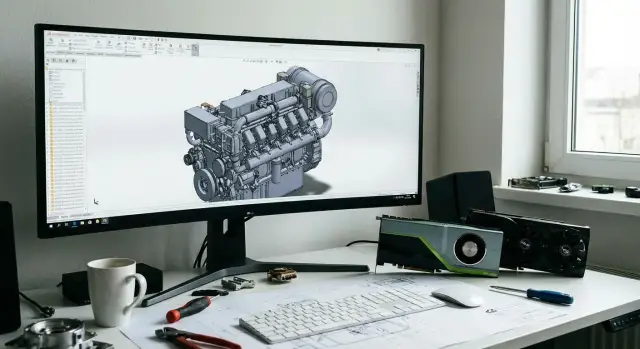
Why compare RTX A-series and GeForce for work
In games people usually look at FPS and price. For work, other things matter more: that a project opens the same way every day, that a driver update doesn't break the UI, and that a render or calculation doesn't crash at 80% progress. So comparing RTX A-series and GeForce is less about "which is faster" and more about how predictable and safe a solution is for real tasks.
Complaints from CAD and 3D teams are almost always about downtime, not missing frames. Most often it's crashes and viewport artifacts after a driver update, strange bugs in a specific software version, different behavior on otherwise identical PCs (especially in mixed fleets), and long diagnostics when it's unclear whether the driver, the app, or the hardware is at fault.
What affects deadlines is not peak performance but lost time: diagnosing instead of working, recomputing after a crash, or a whole team stalled by a recurring bug. In these situations certified drivers, more predictable support, and clear warranty terms are what bring value. Professional GPUs therefore often pay off not by raw speed but by reducing risk.
If you work on single projects at home, are learning 3D, or can survive an occasional one- or two-hour downtime, GeForce often gives better price-to-performance.
If you run a department with multiple workstations and an hour of downtime has a real cost, the comparison becomes practical: fewer surprises, easier rollout and support — which is how businesses and government buyers usually decide on workstation supplies.
The two NVIDIA lines in simple terms
Put simply, NVIDIA has two lines that are close in hardware but different in focus. RTX A-series are built for professional work and long-term stable operation in pro applications. GeForce targets gamers and the mass market, where price-to-performance is the priority.
RTX A-series are chosen where it’s important that CAD/BIM/3D behave the same for all users and driver updates aren’t a lottery. GeForce are often used for visualization, rendering, video editing and tasks where the final result matters more than formal compatibility and certifications.
A “professional” card isn’t “faster at everything” but rather “fewer surprises”: a different approach to drivers, focus on certified software stacks, and more predictable behavior in heavy scenes and long sessions.
The difference is often barely noticeable with moderate scenes, non-certified software, and a single user who can tweak their system. It shows up when a team follows standards, there is a reference system image, many identical workstations, and strict support requirements.
Driver stability: what it gives you day to day
“Driver stability” practically means one thing: you open the same project, perform the same actions, and get the same result — without random crashes, artifacts, or odd UI behavior.
The main value of stability is predictable updates. Professional driver branches usually release less often but are tested longer and behave consistently across dozens of identical workstations. IT teams can plan quarterly updates and quickly roll back to a known good version.
You usually identify a driver issue by repeatable signs: the problem appears across different projects, the crash happens with the same action (for example, rotating the model or starting a preview), things got worse right after an update, the failure occurs on several identical PCs, and rolling back the driver noticeably improves the situation.
Predictable rollback is as important as the update itself. If a department has 20 workstations, a problematic driver quickly becomes lost time: restarts, recovering autosaves, and fear of updating.
Gaming drivers can be acceptable when work is irregular and reproducibility isn't required. Risk increases when CAD/3D are used daily and you need the same image and behavior on every machine. It's better to set a policy in advance: who updates, when, and how to restore the previous version quickly if something goes wrong.
CAD and ISV certification: when it’s critical
ISV certification (Independent Software Vendor) means the application maker (CAD/BIM/DCC) has officially tested a specific combination: GPU + driver + app version. If something breaks, you’re working within a supported configuration, which makes diagnosing easier.
Certification matters not because it’s a bit faster, but because it’s predictable. When you see crashes, artifacts, display errors, or odd viewport behavior, software support almost always asks: which GPU and which driver? With a certified configuration, support usually has a clear diagnostic path and escalation route.
Where lack of certification hurts most
Certification is most critical where errors are costly and hard to reproduce: CAD/BIM with large assemblies and complex views, 3D scenes requiring viewport accuracy, engineering simulations and compute packages with strict environment needs, medical visualization, and other systems where stability and repeatability are essential.
In those cases professional GPUs are chosen not for the label but because downtime risk outweighs price differences.
How to read CAD docs without getting technical
Look at three things: supported GPUs, driver versions, and the list of certified configurations. If the docs say “certified” or “recommended” for a specific line (for example NVIDIA RTX A-series) and a specific driver, that’s a signal of how the vendor tested their product.
A practical example: with 20 designers, even rare crashes become constant support tickets. Integrators, including GSE.kz, typically lock a certified driver as the standard so all stations behave the same and issues are resolved faster.
Warranty and support: what to check before buying
The most powerful GPU won’t help if a workstation is down due to hardware failure or a disputed driver issue. When choosing, look beyond performance and memory: focus on how quickly people will be back to work.
A good warranty scenario for workstations includes clear diagnostics, repair or part replacement, and defined response times. Ask where diagnostics are performed: onsite, at a service center, or by remote checks. For CAD and 3D teams downtime should be measured in hours or days, not weeks.
Single point of responsibility
A common problem: the PC was bought from one supplier, the GPU in retail, and the software from a third party, and each says “not our problem.” It’s simpler when there’s a single provider responsible for the whole system: workstation, GPU, drivers, app compatibility, and warranty replacement.
Corporate purchase vs retail
Retail warranties often mean “bring it to the store.” In corporate deals the important part is SLAs, escalation, and a clear support contact. For organizations in Kazakhstan it’s useful to check in advance whether there’s a regional service network and how onsite visits are organized.
Before buying, ask the supplier: who diagnoses the whole PC if an issue appears only in work software; repair or replacement timelines and whether a loan GPU is available during downtime; where the service center is and how regional support works; and how driver versions and settings are recorded to reproduce problems.
A real case: a design team has renders failing on two workstations. With single-vendor support the issue is reproduced on a bench, the driver is rolled back to a stable version, and if needed the GPU is replaced without arguing over responsibility.
How to choose a GPU: a procurement algorithm
GPU procurement for workstations often fails not because of price but because of small details: incompatible drivers, unsupported CAD versions, or mixed team tasks. The steps below help choose between NVIDIA RTX A-series and GeForce without guessing.
Start with facts. Not “we use CAD,” but exactly which applications, which versions, which plugins, and which file formats. The same department may model in one package and render in another — GPU requirements will differ.
Then break down work by load type. Modeling and large assemblies are sensitive to driver stability and predictable viewport behavior. Rendering and AI workloads prioritize raw performance and VRAM. VR and video add output and latency requirements.
Practical plan:
- List the software and versions actually used by your users.
- Describe 2–3 typical scenarios: “viewport,” “render,” “VR/video” with approximate project sizes.
- Check whether ISV certification is needed and which drivers your software recommends.
- Calculate downtime risk: how much an hour of team time costs and how many people are affected by a failure.
- Agree the full workstation configuration and an update plan: drivers, OS, BIOS, GPU replacement.
If 10 designers open heavy assemblies daily, one driver crash can cost half a day — in this case RTX A-series with more predictable drivers often pays for itself. If the team is small and mainly does overnight renders, GeForce may be more rational.
Before finalizing, agree who is responsible for support and how quickly replacements arrive. It’s easier to settle this in advance if workstations are supplied turnkey with a replacement and update policy.
How to test a GPU before rollout: a simple plan
To avoid arguing about “it feels faster,” run a short test in identical conditions. Differences between RTX A-series and GeForce often show up not in peak FPS but in stability and predictability.
How to run a fair test
Pick one real project your team opens every day: an assembly with linked files, textures and heavy views. Prepare two identical machines (or one where you can quickly swap cards) and change nothing except the GPU and driver.
Run scenarios on two driver branches: Studio/Enterprise (usually closer to workstation tasks) and a gaming driver. Ensure the same app version, plugins, quality settings and Windows build.
Which tasks to run
Run 4–5 routine steps: open the project and switch sheets/views, navigate complex 3D nodes, edit the model (layers, rebuilds, updating links), a typical export (DWG/IFC/PDF or your format), and a render or compute in the mode you actually use.
Don’t look only at speed. Note crashes, hangs, artifacts, missing textures, “black screens,” and how the system behaves after a long session.
How to record results for management
Make a simple table and fill it the same way for each “GPU + driver” combination: versions (GPU, driver, app, OS), time for each scenario, number and type of failures, subjective smoothness/latency score (1–5), conclusion — suitable or not and under what constraints.
If you procure through an integrator like GSE.kz, ask them to run this test on your project before mass delivery. One day of testing is usually cheaper than a week of downtime caused by rare workstation bugs.
A practical example: CAD team with a mixed fleet
Imagine a design department at a construction company: 12 engineers, shared templates and standards, all using the same CAD and exchanging files.
The fleet grew “as it happened”: some stations were bought for visualization and got GeForce, others later for drafting and received RTX A-series. Performance seemed fine, until a few months later a small but annoying problem appeared: different driver branches and varying update rules.
Typical symptoms: two users had crashes opening heavy assemblies after a Windows update, another saw displaced lines and fonts, a fourth started seeing artifacts with hardware acceleration. Each time it turned out one group had updated drivers “for gaming/render” while the other kept an older version because “it works.” Support had to debug each case individually and the same file behaved differently.
The solution wasn’t finding a perfect driver but discipline. The team agreed on 1–2 standard workstation profiles by role, locked a single driver version per profile, and introduced a simple rule: test updates on 1–2 pilot PCs before rollout, plus a unified error report template (project, file, actions, driver version).
After unification things got noticeably easier: random crashes decreased, new hires ramped up faster, and IT stopped wasting time guessing. If an integrator supplies the workstations, it’s usually simpler to lock such standards into the delivery and support contract.
Common mistakes when choosing RTX A-series or GeForce
The main issue is treating the GPU as a standalone "piece of hardware" instead of part of the workflow. The costliest failures are not a few percent of performance but downtime and support confusion.
Common pitfalls:
- Choosing “what colleagues have” instead of listing actual tasks: specific CAD/3D versions, plugins, render needs, large-assembly workflows and memory needs.
- Updating drivers “all at once” without a rollback plan. You need a tested reference project and a saved installer for the stable version.
- Skimping on power supply and cooling, then blaming the driver. Throttling and power drops easily mimic “glitches.”
- Letting one team run different driver versions without reason. The same file can open and evaluate differently for different engineers.
- Ignoring downtime costs and repair timelines. The important question is not “10% cheaper” but how long diagnosis takes and whether quick swaps are possible.
A good rule: first fix the software requirements and update policy, then choose the complete config (power, cooling, warranty and support), and only then compare GPU models by price.
Quick checklist before buying
Before deciding on NVIDIA RTX A-series or GeForce, run through the basics:
- Does your CAD/CAE/3D software require or recommend ISV certification, and is the chosen card on that list?
- Is there a clear driver update plan: who updates, how often, and where you test before rollout?
- Is the warranty clear: who is responsible for the full PC and what response time do you need?
- Are key users’ configurations similar enough so projects don’t “float” because of different hardware and settings?
- Did you run short real-project tests (open heavy assemblies, export, render, stability over a day)?
One practical question: is there a single point of responsibility for workstations? When warranty and support are split across multiple suppliers, incident resolution almost always takes longer.
Next steps: lock the decision and roll out without chaos
Once the GPU decision is made, turn it into a standard, not something remembered only in someone’s head. For workstations the order matters: roles, configurations, drivers and who approves changes.
Start with 2–3 typical configs for real roles. For example: a CAD designer profile (focus on stability and certification), a 3D visualization profile (focus on performance and VRAM), and a GPU compute/render profile (focus on sustained loads and cooling).
Then formalize the operating standard: the set of software and versions, the source and type of drivers (and forbid “updated whenever someone wants”), the update and rollback procedure, a base system image, and success metrics (stability, render time, absence of crashes, compatibility).
Run a pilot on 1–2 typical workstations for one to two weeks. Let users work normally and collect feedback: crashes, artifacts, what became faster or slower.
If you need a single supplier to build the workstation to spec, lock driver standards and take on support, discuss options with GSE.kz (gse.kz) — they work with corporate and government customers in Kazakhstan as a systems integrator and supplier.
Frequently asked questions
How does the RTX A-series differ from GeForce for work?
RTX A-series is usually chosen for CAD, BIM, engineering calculations, and workstations where certified drivers and consistent behavior across the team matter. GeForce is often better value for rendering, video editing, studying, and individual 3D projects if an occasional crash does not bring a department's work to a halt.
Is RTX A-series always faster than GeForce?
Not always. At the same price, GeForce may perform certain rendering tasks faster, but RTX A-series more often delivers more predictable performance in supported professional applications. Compare the cards with your software and real files.
When do you need ISV graphics card certification?
Certification is needed when the developer of CAD, BIM, or engineering software tests a specific combination of graphics card, driver, and program version. It simplifies crash diagnosis and reduces the risk that support will refuse to investigate because of an unsupported configuration.
How do you check GPU compatibility with a CAD program?
Check the certified hardware list on your application's developer website. Look for your program version, GPU model, and recommended driver version, not just the graphics card family name.
Why do drivers matter for CAD and 3D?
Professional drivers are usually tested longer for workstation applications and released with an emphasis on stability. This is especially useful when several employees use the same projects, while IT needs to control updates and quickly roll back a problematic version.
Can you use GeForce for CAD?
Yes, if you work alone, use moderately sized scenes, and are not required to maintain a certified configuration. For a small team, it is better to standardize on one proven driver version in advance and not update it without a short test.
How do you choose a graphics card for a workstation?
First, make a list of applications, their versions, plugins, and typical files. Then assess what matters most for each role: a stable viewport, video memory capacity, rendering speed, AI workloads, or output to multiple displays. After that, check driver and support requirements.
How do you test RTX A-series and GeForce before purchasing?
Use a real, demanding project and perform the same actions on the configurations being compared: open the file, rotate the model, update references, export the result, and start a render. Record the time, crashes, artifacts, and behavior after a long session.
How do you safely update drivers across a department?
Do not install a new driver on every PC at once. Test it first on one or two pilot workstations using reference projects, keep the installer for the previous version, and prepare a clear rollback procedure for IT.
What should you ask a supplier before a corporate GPU purchase?
Clarify who diagnoses issues with the entire workstation, where repairs are carried out, replacement timelines, and whether a loaner component is available. A single supplier for PCs, GPUs, drivers, and warranty coverage reduces disputes between the hardware seller and software vendor.
