6 min read
Printer driver deployment: print server, GPO and rollback
Deploy printer drivers without chaos: print server, GPO, universal vs vendor drivers, testing, rollback plan and an approach for branches with limited bandwidth.
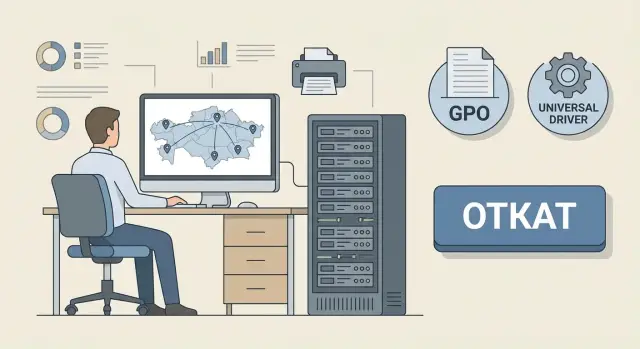
Chaos often starts quietly. One department installs a driver “however it worked”, another asks for “that old one that used to work”, a third plugs the printer in by USB because “it’s faster”. As a result, identical PCs end up with different driver versions: some print to the right queue, others to a similarly named copy, and some jobs hang for no clear reason.
Most problems surface after Windows updates or when models change. An update can change driver installation rules or Point and Print behavior, and what worked for years suddenly requires admin rights or is blocked by policies. Replacing a printer with a “nearly identical” model can also cause trouble: the driver and default settings change while old queues and user profiles remain.
Those who rely on printing constantly suffer most: accounting (invoices and closing documents), call centers (contracts and requests), reception (referrals and tickets), and classrooms (attendance sheets and assignments). When printing breaks, it’s not an inconvenience but a process stop. People start working around the system, printing “wherever”, asking colleagues, or copying to USB. The mess becomes entrenched.
Deploying printer drivers without chaos is not “set it and forget it.” You need a single process: one source of truth (queues and drivers on the server), clear rollout rules, change control and a preplanned rollback. Then an update or device replacement won’t turn into an emergency.
Basic layout: print server, clients and roles
It’s almost always simpler if you have a central point of control — a print server. Queues, settings and drivers live there, and users connect to printers as network resources. Manual installs decrease and changes become predictable.
Local installation is fine when there are one or two printers, they’re nearby, there’s no domain and change control isn’t needed. But if you have dozens of devices, multiple floors or branches, a centralized setup usually pays off quickly. In that framework, “deploying printer drivers” becomes a manageable task rather than a series of urgent fixes.
Agree on roles in advance. Typically four are enough: infrastructure administrator — responsible for the print server, queues, drivers and permissions; security team — responsible for installation policy and signing requirements; department owners — responsible for the list of needed printers and change windows; on-site support — handles basic device checks and user help.
Before you start, record a minimum set of data, otherwise you’ll be repairing “by hearsay”: which printers are where and what for, models and driver versions in use, who needs access and when printing must not be touched. Note constraints separately — branches with low bandwidth, different time zones, shift schedules. If headquarters updates a driver during the day while a branch prints reports at night, schedule rollouts by local time and allow time to recover.
Choosing drivers: universal vs model-specific
A universal driver is good where predictable office printing is required: Word/Excel, PDF, duplex and basic tray selection. It’s easier to maintain: one package covers many models and produces fewer surprises after updates.
A vendor (model) driver is necessary when device-specific functions matter. Typical indicators: nonstandard trays and finishers (stapling, sorting), precise color, PIN-secured printing, envelope and heavy-media handling, vendor MFP modules, and special printers (labels, receipts, thermal). A simple rule: accounting often gets by with a universal driver, while a warehouse using labels almost always needs the vendor driver and locked media settings.
Keep versions under control
In production, it’s better to pin driver versions and roll updates on a schedule. Auto-updates are only appropriate where you know the update source and can quickly roll back.
Record at least: package name, version, deployment date and which queues depend on it. This saves hours during an incident.
Classify your fleet
To reduce the “zoo” without losing functionality, think in classes. In practice, 2–4 drivers across the organization are often enough:
- office printing without special features — universal driver;
- departmental MFPs with PIN/scanning/finishers — model driver;
- special printers (labels, receipts) — model driver with strict media settings.
Preparing the print server: queues, permissions and order
Follow a simple principle: one canonical print server and only controlled changes. When queues are edited on different servers or directly on user PCs, printing quickly becomes a set of random “fixes” without an owner or history.
Organize queues into a clear structure. A good queue name reduces mistakes and speeds support. A simple template works: city or office, floor or zone, model or type (A4, color), plus a short tag like "default".
Standardize the queue description too, but avoid bureaucracy: location, purpose, restrictions (color/BW, format, duplex), and the local contact. One line is usually enough.
Then permissions. Separate "print" and "manage". Most users only need print permission. Pause, clear queue, change settings and driver management should be limited to a small group (IT and designated local owners). This reduces the risk of someone accidentally breaking printing for an entire department.
Finally, set up basic diagnostics: print service events, queue status (stuck jobs), typical driver errors and a change log (who and when updated drivers or settings). In large organizations, including the public sector and distributed offices, this routine quickly pays off.
Rollout via GPO: logic, groups and control
When distributing printers via GPO the goal is simple: the same user should receive the same printer predictably and without surprises. Then driver deployment stops being manual “magic.”
Choose assignment logic based on how work is organized. Computer-targeted assignment is good for shared workstations, cash desks, reception and classrooms where the printer is always near a specific PC. User-targeted assignment is convenient when staff move around but print on “their” floor or in their department. OU-based assignment works when AD structure closely reflects offices and departments and you’re prepared to maintain it.
Separate test from production to avoid Friday-night surprises. Create one policy for pilot and another for main rollout, even if settings are identical. A pilot group of 5–10 users or one department is usually enough; then expand in waves.
At minimum, record in one place (a table or wiki): GPO name and owner, scope (OU/group), which printer is assigned (queue on the server), expected driver and version, deployment date and a short rollback procedure.
Example: for accounting create "PRN-ACC-TEST" and "PRN-ACC-PROD". While testing, include two pilot users. If stable, expand the group without changing settings.
Step-by-step rollout plan: from inventory to stable printing
Treat driver deployment as a small project. That way it’s clear what changes, who is affected and how to revert quickly.
A working plan looks like this:
-
Inventory: printer models, locations, connection type (USB or network), user OS versions, and critical departments (accounting, reception, warehouse).
-
Driver approach: where universal drivers suffice and where model drivers are mandatory (PIN, finishers, special trays, labels).
-
Print server: create queues, give clear names, set permissions and default parameters. Start with pilot queues; don’t change everything at once.
-
Pilot GPO: test group, rollout window, and a clear feedback channel. After 2–3 business days without incidents, expand to the next groups.
-
Success criteria and rollback: what counts as normal (for example, 95% of users print without manual install) and what to do on failure (restore the old driver, disable the GPO for the group, revert queue settings).
Before expanding the pilot, test typical tasks: duplex, color/BW (if needed), tray selection, PDF printing and printing from the main business system. For accounting, verify fields and forms; for the warehouse, ensure stable invoices and correct media parameters.
If you don’t have a team to manage these changes regularly, consider hiring a systems integrator to document inventory, tests and rollback in a clear procedure.
Branches and narrow links: how not to break connectivity
In branches printing often fails not because of printers but because of the WAN. A driver package that installs in minutes at headquarters can take ages in a small town, fail and restart. Users see repeated installation attempts and the link gets saturated with traffic.
Roll out updates in waves: one branch or part of PCs, then pause to monitor before the next wave.
To avoid pulling packages during peak hours, prepare a local source in advance. This can be a local cache on a branch file server or preloaded PCs in the subnet. The idea is simple: deliver files once at night, then install locally during the day.
Practical rules for branches:
- schedule update windows (night or early morning);
- don’t allow endless repeated installs — after one or two attempts investigate the cause;
- start with 5–10% of PCs, then expand;
- use one proven driver where possible;
- keep a “silent stop” — the ability to quickly disable printer assignment for a specific branch.
A local print node in a branch makes sense if the link is unstable or expensive, printing volume is high, or printing must continue when the connection is down. Agree in advance what prints locally (critical forms), what waits for recovery, and who on site can restart the print service or switch to a backup queue.
Common mistakes and traps
The most common cause of chaos is different driver versions running simultaneously: one on the print server, another on some PCs, and local “fixes” in certain rooms. In that situation the process stops being manageable and becomes guesswork.
Another trap is mixing universal and model drivers without rules. The universal driver often prints “well enough” but breaks nuances: trays, duplex, finishers or scaling. The model driver gives more features but requires discipline for versions and tests.
Manual edits at workstations almost always conflict with GPO. A user changes the port, installs a driver “from the internet”, or creates a local queue — and centralized management starts fighting local settings. From the outside it looks like “sometimes it prints, sometimes it doesn’t.”
Quick risk signs:
- a driver was updated outside a change window and without a rollback plan;
- identical printers have different versions in different rooms;
- local queues exist “to print urgently”;
- the pilot wasn’t tested with typical documents (forms, invoices, medical records);
- it’s not defined who changes server queue settings and how.
Rollback plan: what to do if an update makes things worse
You need a rollback plan not because you expect failure but because printing tends to fail at the worst possible moment.
Before the update: record the baseline
The baseline is the exact driver version on the print server and a clear set of queue settings: name, port, duplex, trays, access and defaults. The practical minimum is to keep the previous driver installer and a record of which queues worked with it.
For branches with narrow links the baseline is especially important: you won’t want to transfer packages back and forth during an incident. Have one tested package locally available so it can be applied without extra traffic.
If something breaks: follow the scenario
First stop the spread. This often works faster than trying to “fix” the driver on individual PCs.
- Pause the rollout: disable or narrow the GPO scope (OU or group).
- Record symptoms: which models, which applications, a single queue or all, and check server and client logs.
- Restore the previous driver version on the print server and switch queues back to it. Clients will pick up the working variant.
- Provide temporary workarounds for critical users: a fallback queue, printing to a neighbor printer or a direct IP connection.
Tie the rollback decision to clear signals: a spike in tickets within the first 15–30 minutes, mass errors (stuck jobs, blank pages, corrupted output), or confirmed failures at key workplaces (accounting, reception, cash desks). Preassign who decides and who performs the rollback.
Quick checks before and after rollout
Before starting, verify the print server and GPO settings so you don’t multiply an error.
For each department pick 2–3 typical documents: a short text, a small table, a PDF with an image. Make sure exactly one intended queue is assigned without duplicates, key functions work (tray, duplex, color/BW), and ordinary users cannot change critical queue, driver or port settings. Record exactly what you change: driver version, date, approver and executor.
After rollout, check not only installation but behavior. On 1–2 PCs per department print the same documents and compare with the pilot. Verify no extra queues appeared, the default printer is set as intended, and settings don’t “reset” when users log out and in. For branches, test failure scenarios: printing should not stay blocked forever and must recover according to your plan.
Example scenario: unified printing for head office and branches
Head office plus six branches. The head office has several MFP models from different vendors; branches have 1–2 devices each and two locations have weak links. The goal is simple: users print without manual installs and admins don’t get surprised after updates.
For most queues choose a single universal driver (PCL6 or PS — whichever behaves better with your fleet). It covers 80–90% of use cases: normal documents, PDFs and standard trays. For a couple of critical cases (precise form scaling, special reports) keep the vendor driver only for those queues. Less variety, and important forms stay intact.
Run the pilot in one department at headquarters and in one “problem” branch. Then rollout in waves: first a floor or unit, then the whole office, then branches one or two sites at a time.
For branches choose a night or lunchtime window and reduce traffic: place drivers on a local node (branch print server or file share) and install by GPO inside the site instead of pulling packages across the narrow link. If the print server is in a data center, check resource headroom and platform reliability — these roles usually run on server-class hardware like S200 (for example from the GSE line).
What to do next: a short plan
First record the current state. Collect a list of printers by site, which queues are actually used, which drivers are installed on the print server and on workstations, and where printing fails most often (PDF, accounting system, terminal servers, special forms). Mark branches with narrow links separately.
Then choose the target architecture. One print server is usually enough for a single office. For branches decide between a local print node (less traffic and fewer complaints during outages) and centralized printing (easier to manage but higher bandwidth demands).
A 2–4 week plan usually fits five steps: inventory, driver standardization, pilot, change control and rollback, then wave rollout.
If the task is broader than printing alone (servers, workstations, network, 24/7 support), it’s convenient to combine this with systems integration. For example, GSE.kz as a vendor and integrator can help design the print infrastructure and formalize update and rollback procedures so the scheme works reliably both in the office and in branches.
Frequently asked questions
When is a print server really needed and when is local installation enough?
If there are more than a couple of printers, you have a domain and need predictability, use a print server. It becomes the single source of truth: queues, drivers and settings live in one place and you avoid manual fixes on user PCs. Local installation is justified only in a very small office with no need for change control and no regular device updates.
Where to begin if everyone has different drivers and printing is "whatever works"?
Start with an inventory: which models are where, which users need reliable printing and what OS they use. Then pick 2–4 driver classes (a universal driver for general office use, model drivers for special functions, and separate drivers for labels/receipts), create queues on the server and roll them out via a pilot GPO. This reduces the driver zoo and prevents different driver versions from spreading across rooms.
Which to choose: a universal driver or the vendor (model) driver?
A universal driver is the best default for typical office printing: Word/Excel, PDF, duplex, basic tray selection. It's easier to maintain and test because there are fewer packages. Use the vendor (model) driver when device-specific features matter: finishers, nonstandard trays, precise positioning on forms, PIN-protected printing, label or receipt/thermal printers.
How to keep driver versions under control and avoid surprises after Windows updates?
Lock driver versions and update them on a schedule. The practical minimum to record: package name, version, deployment date and which queues use it. That lets you quickly see what changed and roll back if updates cause stuck jobs, blank pages or permission errors.
How to name queues on the print server so users don't get confused?
Names should help users pick the right printer without guessing. A practical template: location (city/office), zone or floor, type/model and a short tag like "default". The queue description needs one line: where it stands, intended use, restrictions (color/BW, format, duplex) and the local contact.
Which logic to use for assigning printers via GPO: by user or by computer?
The main goal with GPO-based printer deployment is predictability: the same user should get the same printer reliably and without surprises. Computer-targeted assignment works well for shared workstations, cash desks, reception and classrooms where the printer is always near a specific PC. User-targeted assignment is better when staff move around but print within a certain area.
How to safely roll out new drivers via GPO without breaking a department?
Keep test and production separate with two different GPOs even if the settings match. Start with a pilot of 5–10 users or one department, observe for 2–3 working days, then expand in waves. Before wider rollout check the department's typical documents: PDFs, accounting system printouts, duplex, tray selection and form scaling.
How to update drivers in branches with narrow links without overloading the network?
In branches the issue is often WAN, not the printer: driver packages take long to download, installations retry and clog the link. Roll out in waves, schedule maintenance windows (night/early morning) and avoid endless retries. Useful approach: preload the driver package locally (a cache on a branch file server or preheated PCs) so installations occur inside the site rather than across the narrow link.
What to do if printing gets worse after a driver update and everything is failing?
First stop the spread: disable or narrow the GPO scope. Then record symptoms (models, applications, one queue or many) and restore the previous driver version on the print server, switching queues back to it. Provide temporary workarounds for critical users: a fallback queue, printing to a nearby device or a direct IP connection until the issue is resolved.
Which mistakes most often turn printing into an ongoing fire?
The main source of chaos is different driver versions living at the same time: one on the print server, another on some PCs, and manual fixes in offices. Mixing universal and model drivers without rules is another common failure—universals may miss tray/finisher or scaling details while model drivers require strict version control and testing. Fix with discipline: one canonical configuration on the print server, restrict critical permissions to users, pilot before production and a clear rollback plan.
