7 min read
Planned Disk Replacement for Wear: SMART Thresholds and Warehouse
Planned disk replacement for wear: which SMART metrics and thresholds to choose, how to configure alerts and tie them to inventory to avoid sudden failures.
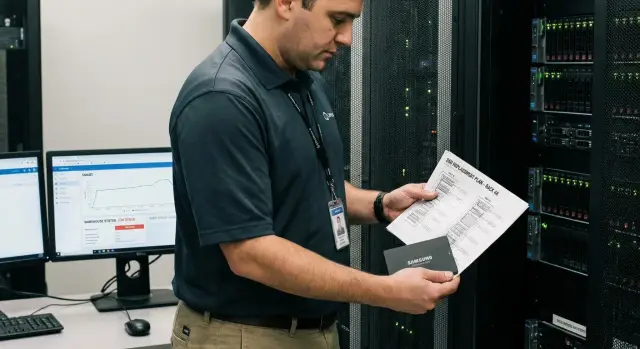
Why replace disks by wear instead of after failure
Sudden disk failure almost always happens at the worst moment. At a workstation it disrupts an employee’s day and often results in lost unsaved files. On a server the consequences are harsher: services stop, ticket queues grow, and recovery can take hours or days even if backups exist.
The “wait until it breaks” approach makes the problem more expensive. Downtime costs the business more than the disk. In emergency mode people make mistakes: they install whatever is at hand, forget to update configurations, postpone backup checks. Last-minute purchases lead to overpaying and incompatibility risks.
Planned disk replacement for wear changes the logic: you replace a drive while it still works but already shows signs of aging. This brings clear benefits: fewer emergencies and night callouts, easier scheduling of maintenance windows, more predictable budgets, and a higher chance to preserve data because the drive usually survives long enough for migration.
Example: an office with 200 PCs and several rack servers. If you wait for failures, many problems cluster at quarter-end or before audits. Replacing by wear lets you see rising warning indicators in servers and prepare swaps for the next maintenance window. This is especially important where supply predictability and service planning matter, for example with standard workstations and locally produced servers.
For the scheme to work, more than IT must participate. IT defines rules and confirms risk. Procurement ensures contracts and lead times. The warehouse holds compatible stock. Service teams perform replacements and record results. When roles are separated, the process does not depend on a single person and survives holidays and rotations.
SMART without myths: what really helps predict failure
SMART is a set of counters inside a drive that show its "health": how many errors occurred, how wear changes, whether bad sectors appeared. It’s a useful signal source, but not a weather forecast. Some drives die without clear warnings, while others run for years with alarming numbers.
The main value of SMART is not a single "red" value but the trend. If an attribute is stable for months, the risk is usually lower. If it climbs and speeds up compared to before, that’s a reason to plan replacement before downtime.
HDDs and SSDs behave differently. HDDs more often signal via mechanical and magnetic symptoms: rising reallocated and pending sectors, read errors, increased timeouts. SSDs show wear through cell endurance: percent used drops, total written data grows, and occasionally correction errors appear.
Three simple habits help most: look at trends over weeks and months (not a one-time snapshot), consider context (errors under load matter more than idle), and separate "warning" from "critical" so you can schedule a replacement while the system is still stable.
Why are thresholds usually stricter for servers than for office PCs? A server runs 24/7 under higher load and the cost of failure is greater: stopped services, RAID risks, database access loss. So it’s sensible to react earlier on servers, even if the drive is technically still "alive." Treat SMART as an early warning to make replacements planned, but it does not replace backups and common sense.
Which SMART attributes to track for HDDs and SSDs
There are many SMART attributes, but for wear-based replacement it’s better to pick those truly linked to degradation. It’s more practical to monitor a few clear signals and their growth than to collect dozens of metrics and still miss issues.
HDD: what usually warns in advance
The main risk for hard drives is surface defects and rising read errors. Useful indicators are:
- Reallocated Sectors Count. Growth almost always means the drive is remapping surface defects and its remaining margin is decreasing.
- Current Pending Sector Count. A dangerous “yellow” signal, especially if it grows week to week.
- Uncorrectable Sector Count / Offline Uncorrectable. Errors the drive couldn’t fix.
- Read Error Rate / Seek Error Rate. More important is the trend of worsening on the same disk than the absolute number.
- Temperature. Constant high temperature accelerates degradation and increases failure probability.
SSD: wear and write endurance
SSDs don’t have bad sectors in the same way, but they have wear counters. Watch Percent Used (or the vendor’s equivalent): it directly indicates how much resource is consumed. Also track Media Wearout Indicator, Total NAND Writes/Host Writes and compare accumulated writes with the drive’s TBW spec from procurement.
Temperature matters for SSDs too. Overheating can cause throttling (sharp speed drops) and faster wear. If airflow is blocked by dust or poor ventilation, SMART warnings will turn yellow sooner.
Also pay attention to softer signs even if thresholds aren’t crossed: rising timeouts, periodic freezes, sudden speed drops, repeated controller or OS log errors. If several office PCs show disk timeouts at once, don’t wait for failures—check the batch and prepare spare drives for quick swaps.
SMART thresholds: how to set alert levels
A threshold is not a magic number from the internet but a rule that tells you what to do next: watch, prepare replacement, or replace immediately. The goal is simple: planned replacement for wear should happen before the drive starts producing errors on the worst day.
Three levels: observe, critical, replace now
It’s convenient to split reactions into three stages. That way the team doesn’t debate each case every time.
- Warning. Metrics deviate from normal or show steady growth. The drive stays in service but is queued for inspection and remeasurement.
- Critical. Failure risk has noticeably increased. The drive is scheduled for replacement in the next maintenance window, backups are prepared and spare compatibility is checked.
- Immediate replacement. Degradation already affects operation (read errors, timeouts, repeated bad blocks). Replace the drive at the earliest opportunity.
Watch both values and trends. One reallocated sector over a year and five in a week are different stories. The same applies to SSDs: accelerated wear, write errors, shrinking endurance margin.
Different thresholds for different roles
One-size-fits-all thresholds don’t work. Workstations can tolerate softer alerts, while critical servers need stricter thresholds.
Include procurement and replacement lead times in thresholds. The critical level should trigger early enough to allow the full process without a rush: approval and ordering, delivery to site, a replacement window (especially for servers), testing and post-replacement observation.
If your fleet is standardized (typical PCs and servers of one class), predefine a list of compatible spare models and tie thresholds to those classes. Then a warning means not only "the drive is aging" but also "we know what to replace it with and when." With locally produced equipment and integrators like GSE.kz this is often easier due to repeatable configurations and clear compatibility.
How to configure alerts so they aren’t ignored
A SMART notification only matters if someone reads it and acts. The important part is not where to view SMART but how to get the signal to the person who can replace the drive.
Start with a data collection point. On workstations an agent that regularly reads SMART and sends metrics to monitoring is convenient. On servers collect data from multiple sources: the OS (if the drive is visible), RAID controllers (which often show earlier symptoms) and server management interfaces. This reduces the risk of "silent" failures where a drive degrades but never appears in monitoring.
Where to send alerts and what to include
If an alert goes "nowhere" it won’t be opened. A typical workflow: a primary alert goes to the service desk and the on-call team, and if there is no response escalation kicks in.
To make a ticket actionable the alert must include: model and serial number, host and role (PC, server, cluster), exact location (slot, bay, RAID group, controller), metric and trend (what grew and how fast), and a priority and deadline: e.g., "replace within 7 days" or "urgent within 24 hours."
Reducing noise
Noisy alerts kill trust. Set repeat windows (for example, no more than once per day), require acknowledgment (ack) and deduplicate events so ten identical events don’t create ten tickets. Separate warning and failure: start with a yellow level and a planned replacement date, then escalate to red on sudden worsening.
Simple example: SMART shows rising read errors on a rack server but the RAID is still green. If the alert already names the slot and serial, the technician can take a compatible disk from the warehouse and replace it without extra checks.
Integrating with the warehouse: consumables, stock and compatibility
For wear-based replacement to work, SMART alerts must end with action, not an email. A simple rule: when monitoring raises a warning, the warehouse should already have a suitable drive and a calendar slot for replacement.
Inventory must record more than "1 x 1 TB SSD." Track parameters that affect compatibility and replacement speed: type (HDD/SSD) and role (workstation, server, NAS), interface (SATA, SAS, NVMe), form factor (3.5, 2.5, M.2), important distinctions like capacity and class (consumer or enterprise, higher endurance for intensive writes), and platform compatibility (server model, cage type, firmware requirements, hot-swap support).
Minimum stock levels are better defined by classes and criticality. Servers without a redundant node need higher stock than single office PCs. Often a small buffer is enough: 1–2 spare disks of each critical class on site (e.g., server SAS or NVMe for databases) and 2–5 mass-market disks for workstations (common SATA SSD sizes). Keep a separate reserve for nonstandard models that remain in use.
Process chain: SMART signal -> verify and confirm -> reserve a compatible disk in warehouse -> create a work order and window -> replace -> tag and route the removed disk (diagnostics, RMA or disposal).
Plan warranty and return flows. Don’t mix "new for replacement" and "removed for diagnostics." Give removed drives a status (under test, for RMA, for disposal), store them separately and do not issue them as spares. This prevents the warehouse from showing stock that is actually unusable.
If you buy PCs and servers from a local vendor or integrator like GSE.kz, confirm standard configurations and compatible disk classes in advance. This reduces SKU variety in the warehouse and speeds up real incident response.
Step-by-step process launch: from zero to working scheme
Start with a simple goal: warnings should become tasks, and replacements should get scheduled. Without that SMART remains "interesting statistics."
-
Inventory. Don’t just count drives—identify where downtime is most costly: domain controllers, accounting, virtualization servers, clinic registration, classrooms. Record drive type (HDD/SSD), capacity, interface, form factor and installation location.
-
Metrics and draft thresholds for HDDs and SSDs. For HDDs focus on read errors, reallocated and pending sectors. For SSDs focus on wear (percent used, write indicators) and write error growth. Create at least two levels: "warning" (plan) and "critical" (replace soon).
-
Regular SMART collection and alert routing. An email to a shared inbox usually gets lost. Better: events automatically create incidents in the service desk with a clear priority.
-
Roles and rules. Make it clear who confirms alerts and checks backups, who plans maintenance windows and communicates with users, who performs replacements and data migration, who closes tickets and updates inventory, and who analyzes recurring cases.
-
Warehouse. Fix minimum stock by disk classes, verify compatibility and prepare request templates. A standardized fleet makes it easier to keep fewer SKUs and replace faster.
-
Pilot for 2–4 weeks on one group of PCs and one server system. After the pilot adjust thresholds and routing: if there are too many alerts raise the warning level; if alerts come too late lower thresholds or increase polling frequency.
Practical example: workstations and a rack server
In one project drives were split into two groups: office PCs in branches and rack servers. Rules were similar but logistics and error cost differed.
Scenario 1: branch office PCs
Site visits are infrequent and onsite spare stock is limited. Thresholds were earlier so a drive could be delivered during a planned visit or by courier.
When several PCs showed rising reallocated sectors and pending reads, tasks were created with a 10–14 day deadline. That timeline reflected logistics: up to 3 days to confirm model and compatibility, up to a week for delivery, then 1–2 days for a work window when the user can hand over the PC. If the total was up to 10 days, warnings needed to appear earlier than the expected failure.
Scenario 2: rack server, RAID and zero-downtime replacement
On a server the goal is to replace without downtime and control array rebuild. In RAID a drive may still operate while SMART shows worrying signs (HDD read errors, SSD wear).
Process: warning -> reserve the disk in warehouse -> agree a window -> replace -> monitor rebuild. After replacement the team stayed involved until rebuild finished, because the rebuild period carries higher risk of a second failure.
Outcome: fewer emergency tickets, fewer urgent site visits, and replacements moved into planned windows. In companies using domestic PCs and servers—like GSE product lines (L200 for workstations and S200 for racks)—this approach makes life easier: matching consumables and regional support is simpler.
Common mistakes and traps in SMART-based replacement
SMART itself usually isn’t the problem—its use is. A few wrong decisions make warnings either not appear in time or turn into noise.
Mistake 1: same thresholds for HDD and SSD
HDDs and SSDs signal differently. One universal threshold produces two extremes: SSDs get replaced too early and HDDs too late.
Mistake 2: single attribute instead of trend
A single red attribute can be useful, but trend is more important. If a metric is stable for years that’s different from steady weekly growth. Track not only current values but also change rates over 7, 30 and 90 days.
Mistake 3: ignoring RAID controller events
In servers SMART may be masked by the controller while the controller logs show timeouts, slow disks or channel errors. Relying only on OS-level SMART can miss a disk that already slows the array and raises rebuild risk.
Mistake 4: not recording serial numbers and slots
Without serial numbers and slot info it’s easy to replace the wrong drive. At minimum record serial number, model, role (OS/data), host, slot/bay, threshold trigger date and replacement date in the ticket.
Mistake 5: zero stock and hoping for urgent delivery
Wear-based replacement collapses without spares. A warning becomes “wait a week” and the drive dies at the worst moment. Keep a small buffer of common form factors and capacities and verify compatibility, especially for server cages and RAID.
Short checklist to control the process
Daily check (5 minutes)
- SMART is actually collected regularly for workstations, servers and drives behind RAID controllers (ensure physical drives are visible, not only virtual volumes).
- 2–3 priority levels are set and each level has one prescribed action: when to recheck, when to reserve a disk, when to schedule a window.
- Any alert automatically creates a ticket and assigns a responsible person. If there is no confirmation in reasonable time, escalation occurs.
- Warehouse holds minimal stock by disk class and critical systems, considering compatibility: interface, form factor, HDD/SSD type, endurance/class, and server cage requirements.
- There’s a work template that is actually used: backup or backup check, replacement, array or filesystem check, SMART verification after replacement, tagging and routing the old drive (quarantine, diagnostics, RMA, disposal).
Monthly review (30–60 minutes)
Once a month summarize: how many warnings, how many replacements, how many false positives, and how many sudden failures still happened. Adjust thresholds and rules: where alerts are too noisy (ignored) and where they’re late (replacements become emergencies). A good goal is most replacements happening in planned windows and stock being replenished by predictable consumption rather than after critical incidents.
Next steps: embed the process and reduce failure risk
To make wear-based replacement a habit, start with a pilot. Choose 1–2 areas where downtime is most costly: for example accounting PCs and one virtualization rack. Pilots reveal threshold, alerting and logistics mistakes without creating company-wide chaos.
Then formalize the process with short documents: a SMART threshold matrix (normal, warning, urgent), a replacement procedure (who confirms, deadlines, data migration, disposal), and warehouse norms (minimum stock, compatibility, lead times).
A typical adoption path:
- 4–6 week pilot with case logging.
- Approve thresholds and reaction levels: observe, plan replacement, replace in next window.
- Set up spare accounting: which models to keep, how many, who replenishes.
- Monthly short report: warnings, replacements, and prevented near-failures.
If replacements become frequent, drives are old and batches show similar wear patterns, it may be more economical to refresh the fleet rather than keep replacing individual drives.
Standardization simplifies support: fewer model varieties mean fewer spare SKUs and fewer mistakes when choosing replacements. If you need a comprehensive solution (hardware, compatibility, procurement, monitoring and support), it’s convenient to work with a system integrator. GSE.kz, as a manufacturer and integrator, can help tailor the process to your PC and server fleet and align spare planning with warehouse norms.
Frequently asked questions
Why is it better to replace a disk by wear instead of waiting for it to fail?
Replacing by wear is more efficient because you pick the time and conditions for replacement. This reduces downtime risk, data loss and emergency purchases when people take “what’s at hand” and then face incompatibility or extra costs.
When is it really time to plan a disk replacement if the drive still works?
Base the decision on the system role and the time needed for procurement and replacement. For servers, plan earlier because the cost of downtime is higher and RAID rebuilds increase risk—waiting until the last moment is dangerous.
How to read SMART correctly to distinguish noise from real risk?
Look at trends over weeks and months, not a single snapshot. A sudden rise in reallocated or pending sectors, repeated read errors or timeouts are more reliable signals than a one-time SMART readout.
Which SMART attributes matter most for HDDs and SSDs?
For HDDs, watch surface degradation and read errors: increasing reallocated and pending sectors and uncorrectable errors. For SSDs, focus on write endurance and wear indicators: percent used and signs of write problems, and always monitor temperature.
How to set SMART thresholds so they work and don’t trigger constant disputes?
Define at least two or three reaction levels: observation, planned replacement in a near window, and urgent replacement when operation is affected. The "critical" threshold should trigger early enough to complete confirmation, reserve a disk, schedule the window and perform the replacement without emergency measures.
Why should thresholds be stricter for servers than for office PCs?
Because the stakes differ. A server runs 24/7 with higher load, and failure can stop services or cause RAID-related cascades. It’s safer to act earlier on servers and replace in a scheduled window even if the drive still appears ‘alive.’
How to configure SMART alerts so they are not ignored?
Alerts must go where someone can act on them, typically into the service desk with a responsible person and a deadline. The notification should include host and role, model and serial number, exact location (slot, bay, RAID group), what worsened and suggested priority, otherwise replacement will be delayed by clarifications.
Why not rely only on SMART from the OS when a server has a RAID controller?
Controller events often show problems earlier: timeouts, slow disks in the array, channel errors, or a degraded state. Relying only on SMART from the OS can miss drives that already impair the array or raise rebuild risk.
How to organize spare disks so wear-based replacements don’t fail?
Stock by classes and compatibility, not just by count: interface, form factor, role (workstation or server), bay requirements and hot-swap support. Minimal buffers should reflect criticality and lead times: if delivery takes a week, keep enough stock to cover that period so a warning becomes action, not a wait.
What steps are mandatory before and after a threshold triggers?
First confirm the alert and ensure there’s a recent backup or a clear plan to move data. Reserve a compatible disk, schedule the window, perform the replacement, and then verify system stability and, for RAID, that rebuild completes. Sent-out drives should follow a separate flow: quarantine, diagnostics, RMA or disposal so they don’t return to stock as usable.
