8 min read
Plan for Equipping Computer Classrooms During Summer School Renovation
Plan for equipping computer classrooms during the school's summer renovation: how to align procurement, installation, configuration and acceptance with the builders' schedule.
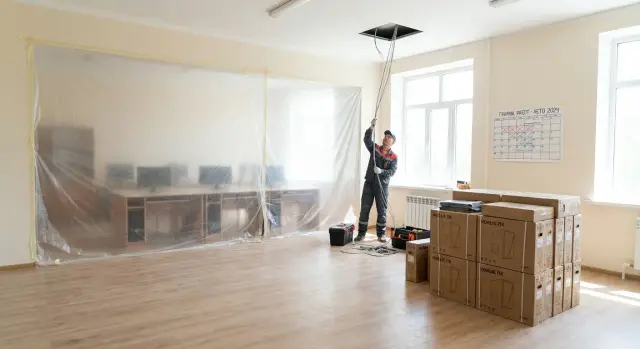
What exactly needs to be synchronized with the renovation
In summer, IT deadlines are usually missed not because of the equipment but because the room isn’t ready. While a classroom is still “under construction,” you can’t properly run cables, install a rack, or set up workstations. And when builders rush at the end of August, IT is left with too little time.
To make the plan for equipping computer classrooms during the summer renovation realistic, mark in advance the tasks that are tightly linked to the builders and room acceptance:
- Electrical work: dedicated circuits, breakers, grounding, outlets exactly where desks and the teacher’s station will be.
- Structured cabling and internet: cable routes, rack location, connection points.
- Furniture and layout: desk sizes, aisles, space for printer, projector, screen.
- Climate and ventilation: in a room with 15–30 PCs, overheating quickly becomes complaints and failures.
- Finishes: all dusty works must be finished before unpacking and installing equipment.
Calendars often omit the “non-hardware” steps: acceptance of IT works (acts, inventory, serial numbers), inventory and labeling, creating user accounts, basic rules for students, and short training for the teacher or lab assistant. These are simple tasks but can easily take 1–2 days, and without them the classroom is not formally ready.
You can test whether you’ll make it by September 1 with a simple check. If, by the delivery date, electrical and cabling readiness and the final cleaning date are not confirmed, the risk is almost guaranteed. If builders say painting will finish “on Friday,” plan installation no earlier than the Monday after cleaning. Otherwise you’ll need to protect equipment from dust and postpone work.
Even if equipment is purchased from a local manufacturer with clear lead times and support, it’s critical to lock in the room’s “readiness milestones” in the plan. Without them, fast installation and configuration won’t save the deadline.
Start: gather baseline data in 1–2 weeks
The first one to two weeks determine whether you fit into the summer schedule. At this stage, don’t argue about “which computers are better”; collect facts about rooms, people and renovation. Then procurement, installation and acceptance will be based on reality, not assumptions.
Create a simple passport for each classroom. For a school this usually takes 30–40 minutes per room if you walk the space and record decisions immediately.
Record for each classroom:
- how many workstations are needed and who will use them (students, teacher, lab assistant, administrator);
- what remains and what changes: PCs, monitors, furniture, outlets, network, UPS, projector;
- renovation constraints: when the room is closed, when installers may enter, cleaning and painting dates;
- safety and storage requirements for equipment (where to store, who holds keys, how to avoid damage);
- current weak spots: overloaded breakers, lack of outlets, old patch panels, dust, noise.
Agree in advance who approves what. Otherwise decisions will “wander” and deadlines will slip.
Typical roles are:
- principal: final approval of budget and schedule;
- facilities manager: access to rooms, storage, interaction with builders;
- school IT lead: network requirements, asset tracking, acceptance of configuration;
- renovation contractor and IT integrator: work plan and boundaries of responsibility.
Example: if builders replace electrical wiring in July and equipment delivery is expected mid-August, decide up front where equipment will be stored and who will sign the delivery acceptance. This prevents half of the conflicts before work begins.
Roles, responsibilities and the work calendar
Summer renovation follows its own schedule, and the IT part depends on it for almost everything: from finished electrical work to painted walls. To avoid a classroom with no outlets or equipment with nowhere to be placed, define roles and maintain a single master calendar.
Who is responsible for what
It’s best to appoint one person to keep deadlines and communications — often the deputy director for facilities or the IT project coordinator.
Then assign responsibilities:
- school client: approves classroom composition and schedule, signs acceptance;
- renovation lead: confirms room readiness (electrics, network, furniture, finishes);
- equipment supplier: responsible for delivery, completeness and warranty documents;
- installation crew: assembly, mounts, cable routing, labeling;
- IT specialist: configuration, inventory, access, tests, training.
If part of the work is given to an integrator, it helps when one contractor manages the chain from delivery to configuration and support. This is especially useful before September 1, when evenings and weekends are often needed.
Calendar with dependencies
Build the calendar by dependencies, not by “whenever possible” dates. Typical sequence:
- design: seating plan, outlet locations, network, power requirements;
- procurement and delivery: accounting for shipping and possible replacements;
- installation: only after floors, walls, electrics and furniture are ready;
- configuration: after stable power and network;
- acceptance: testing, documents, fixing remarks.
Include buffers: 3–5 days for logistics and 2–3 days for fixing issues (a port doesn’t work, a patch cord is missing, a different system image is needed). If electrical work is due to be ready on August 10, schedule installation not for the 11th but for the 13th–14th so builders have time to close small tasks and avoid stepping on each other.
Equipment and infrastructure requirements without unnecessary complexity
To keep the plan realistic, prefer “good enough” requirements rather than perfect. A common mistake is trying to please every subject with one “super-powerful” PC and getting bogged down in approvals and budget.
Start with what lessons will actually take place and what software is required. For computer science you need stability, office apps, programming environments and a working browser. Robotics often needs extra ports, driver support and power headroom. For testing and digital diaries, a reliable network and identical workstations matter more than top specs.
Form factor: fit to renovation and maintenance
Form factor is chosen not only by price but also by how renovation proceeds and how the classroom will be maintained.
Desktop towers and monitors are easier to repair part-by-part but have more cables and collect dust faster. All-in-ones reduce cables and speed up installation, especially when furniture is replaced and a tidy look is needed. Thin clients work if the school already has a planned server infrastructure and centralized settings.
Example: if floors, baseboards and furniture are replaced until mid-August, all-in-ones often win on installation speed and a tidy workspace.
Server, storage and compatibility
A server is not always necessary. It’s justified when local services are planned (content filtering, user profiles, shared folders, offline operation with weak internet). If not needed, it’s simpler to start without a local server and not complicate acceptance.
Check compatibility with existing equipment: outlets and switches, Wi‑Fi, printers, projector, OS and current licenses. A good practice is to agree on a checklist of what must work on the acceptance day: login to accounts, access to learning platforms, printing, sound, and key applications.
If equipment will be purchased from a local manufacturer, check typical configurations and production lead times in advance. This helps pick a kit suited to the room faster and avoids long approvals.
Procurement and delivery: avoiding schedule bottlenecks
Summer renovation is short, and a one-week delay can easily shift installation and acceptance. Treat procurement as a mini-project with its own milestones and control points.
Start with a specification, but avoid unnecessary bureaucracy. It should include not only PCs but everything that makes the classroom operational: monitors (if not all-in-ones), keyboards and mice, headsets, printer (if needed), switch, Wi‑Fi access points (if planned), rack, patch panels, cable and consumables, UPS. If part of the infrastructure is handled by the renovation contractor, note that clearly to avoid overlap or gaps.
What to confirm with the supplier in advance
Agree delivery times and acceptance conditions before signing the contract: how batches are accepted, whether partial delivery is possible, and what happens if a model is replaced. Check completeness: power cords, mounting hardware, patch cords, licenses, drivers and system images (if you plan a uniform configuration). This saves days during setup.
Quickly verify before ordering:
- the spec covers PCs, peripherals, network, cables, rack and UPS;
- delivery times are confirmed and tied to renovation dates;
- the kit is complete with no “we’ll buy later” items;
- there is a delivery acceptance procedure: who checks, where, and which documents;
- temporary storage with limited access is prepared.
Temporary storage and safekeeping
If finishing work is still ongoing, equipment often arrives before the classroom is ready. Allocate a dry locked room in advance, plan inventory (serial numbers, packing list) and designate responsibility for safekeeping.
Example: delivery arrives in July, but the classroom floor will be ready only in 10 days. Without proper storage, boxes get moved around, cables and hardware are lost, and installation becomes more expensive and stressful.
Installation: sequence of work in the room
Start installation based on room readiness, not the calendar date. A clear criterion is needed: dusty works are finished, walls and ceiling painted and dry, floor laid, wet cleaning done, and windows and doors can be closed. Bringing equipment earlier exposes it to construction dust and may result in cables and outlets being reworked.
Before bringing equipment in, check electrics and grounding. A 30‑minute check here can save days of troubleshooting. Verify the number of power outlets matches the placement plan, confirm labeled breakers, and ensure voltage is stable. Decide locations for the UPS, network rack and teacher’s desk.
Do cabling before placing desks and PCs. Route lines neatly in trays, ducts or cable channels — no cables across the floor and no sharp bends. Immediately label both ends of each cable and mark sockets and ports in the rack so you don’t have to hunt through 24 ports later. This simplifies configuration, acceptance and future repairs.
Room installation sequence:
- confirm the room is ready for IT work (no dust, painting and floor finished, cleaned);
- check power and grounding, fix locations for UPS and rack;
- run network and power, label cables, tag ports and outlets;
- agree final layout: student rows, teacher desk, aisles, board visibility;
- deliver and install equipment, leaving access to the rack and outlets.
Example: if the rack is placed behind the teacher’s desk in a corner, leave at least 60–80 cm for maintenance. Otherwise any fault turns into “we have to move half the classroom” to reach the patch panel.
Configuration and commissioning: step by step
To avoid last-minute problems, prepare configuration work in advance and only do in-room tasks that depend on room readiness.
Create a single system image (the “golden” image) and a short list of required software: office apps, browsers, teaching tools, device drivers and antivirus. Fewer variants mean fewer surprises with updates and checks.
Then set up access and rules: who logs in and how (teacher, student, admin), where files are stored and which actions are forbidden. Schedule updates so they don’t run during lessons and consume bandwidth.
Practical commissioning steps:
- deploy the golden image to all PCs and verify identical software versions;
- create user accounts and assign rights (students without install rights, teachers with needed tools);
- connect and test peripherals: printing, sound, webcams, microphones, projector or interactive panel (if present);
- configure the network: access to required resources, Wi‑Fi (if used), network printing;
- record the outcome: serial numbers, software versions, admin passwords sealed in an envelope.
A final set of quick tests often reveals finish-related issues. Measure network speed on 1–2 workstations, check power stability (turn all PCs on at once, restart, run 15–20 minutes under load). If UPS units are installed, do a short battery test.
Example: for a 16-seat classroom prepare one golden PC in advance, then after furniture and outlets are in place, image the remaining machines in 2–3 hours and immediately check printing and sound on every second seat.
Acceptance: documents and checks without conflicts
Acceptance is the moment when “computers are installed” becomes “class ready for lessons.” To avoid emotional disputes, agree in advance what defines a ready workstation: power and network present, device powers up, student can log in, required programs launch, printing (if present) works, and cables and outlets are safe.
A simple 1–2 page checklist that the school and contractor go through together helps. It should include basic items: power, network, user account, app launch, sound, camera (if applicable), and access to school resources. If the room still shows construction traces (dust, paint, no final cleaning), record the room condition required for acceptance. Otherwise the equipment may be blamed for construction issues.
Document the inventory and serial numbers for transparency. A minimal acceptance package to keep together:
- acceptance act (by workstation and for the room as a whole);
- list of serial numbers and inventory (PCs/all-in-ones, monitors, UPS, peripherals);
- warranty documents and terms;
- contact of the person responsible for support and how to register requests.
Agree how defects will be fixed: response time, who provides access to the room, what counts as “fixed,” and how re-inspection is done. It helps to classify defects into critical (block lessons) and non-critical (aesthetics, labels) so the classroom can open on time while minor items are closed later.
Common mistakes and how to avoid them
The most common cause of missed deadlines is when IT works run separately from the classroom renovation. The plan must be in the same calendar as the builders’ schedule. Otherwise equipment arrives too early and the launch turns into a scramble.
Mistake 1: starting installation while dusty works (putty, sanding, drilling) are still ongoing. Dust clogs fans and ports, and dirt on screens and peripherals is hard to clean without risk. Fix: agree the room readiness point and allow delivery only after final cleaning.
Mistake 2: not checking electrics and grounding before equipment delivery. Outlets can be unreliable, breakers may trip, and voltage may fluctuate. Before delivery check: whether there are separate circuits and breakers, working grounding, required number of outlets, and readiness of the low-voltage network (internet, patch panel, access points).
Mistake 3: buying equipment without considering delivery, unloading and storage. If the school’s storage isn’t ready, boxes sit in corridors and suffer from humidity and construction work. Assign storage, unloading times and a person responsible for counting on receipt.
Mistake 4: leaving configuration and testing to the last 2–3 days of August. Even with typical setups, updates, user accounts, permissions, printers and projectors pop up. Plan commissioning at least 7–10 days before opening.
Mistake 5: not appointing someone for acceptance and tracking defects. Small issues drag into September. Assign one person from the school and one communication channel for defects with a closing date.
Example: the floor was replaced but baseboards are installed on the last day. If equipment is already up against the walls, baseboards will force everything to be moved and cable management redone. It’s simpler to wait for finishing and perform installation and tidy cabling in one day.
Short 7‑day checklist before school opens
A week before September 1 it’s too late to argue about the project. Check facts: the classroom must be ready for lessons, not just for a photo.
1) Room and engineering
Ensure renovation is finished in the classroom area: clean, dry, no dust from sanding, doors close, windows don’t draft. Outlets and network should be in place and labeled, not “temporarily routed.” Test load: power on several PCs at once and see if breakers trip.
2) Delivery and documents
Match the actual inventory with the order: PCs or all-in-ones, monitors, keyboards, mice, cables, network equipment, UPS (if planned). Check acceptance documents: invoices, serial numbers, warranty cards and equipment manuals. One missing cable can derail the launch as much as a delivery delay.
3) Workstation readiness
Ask the contractor or responsible engineer to present the classroom in a “student view.” Verify user accounts work, network is stable on 2–3 consecutive seats, required programs are installed, printing and projector/panel work, and updates won’t run on the first school day.
4) Teacher and support readiness
Provide the teacher with a short clear cheat sheet: how to log in, how to start the projector/panel, where to get files, and what to do on error. Leave support contacts and reporting rules (what to include: classroom, PC number, problem description).
5) Contingency plan for delays
Decide in advance what to do if renovation or delivery is delayed: move lessons to another room, use a partial set of workstations, run a “minimum setup” (network + teacher station + 10 PCs) or postpone commissioning by 1–2 days with an approved schedule. The key is that the decision is agreed and documented, not made in a hallway on September 1 morning.
Example scenario: two classrooms with a hard September 1 deadline
Situation: two computer classrooms must be updated while corridor repairs and partial electrical panel replacement occur. The main risk is that different works in the same building interfere with each other. Tie the plan to builder milestones, not to “when it’s convenient to deliver computers.”
Simple weekly schedule if starting in early August for a September 1 deadline:
- Week 1: approve equipment list, power and network points, record dates when each room will be “IT ready.”
- Week 2: procurement and delivery confirmation, while builders finish dirty works (chases, painting, ceilings).
- Week 3: deliver equipment only after electrical acceptance and cleaning, install, route and label cables.
- Week 4: configuration, testing, train the responsible person, prepare acceptance package.
To avoid interfering with renovation, divide the site into zones: keep corridor and electrical room as construction zones until the end, and give each classroom a separate “clean zone” status. Store boxes and assemble in a separate room so corridors stay clear.
Acceptance usually happens in one day:
- commission: school representative (facilities manager/deputy director), IT lead, IT contractor, and if needed a builder’s electrical rep;
- checks: power and grounding, network at each seat, power-up of all PCs, printing (if present), access to required learning resources;
- documents: work acceptance acts, serial numbers, warranty cards, instructions, connection diagrams.
If renovation shifts by 5 days, don’t push everything into the last day. Replan: first secure engineering readiness (electrics, network, labeling), then deliver in batches by classroom.
Next steps: how to launch the project without a rush
Start by fixing simple facts: what must be ready by the opening date and which tasks depend on room renovation.
Prepare a short 2–3 page document understandable to all participants:
- equipment and infrastructure specification (number of seats, device types, power, network);
- schedule with checkpoints (delivery, room readiness, installation, configuration, acceptance);
- acceptance criteria (what to test, which tests, what documents to hand over);
- responsibilities and communication channels (who decides, who signs acts).
Hold one short meeting with the renovation lead, the school IT specialist and the IT contractor. Agree on dependencies: when drilling and mounting is allowed, when power can be shut off, when doors and furniture will be installed, and when room access is restricted.
When selecting equipment, consider the school’s operating mode: how quickly it can be serviced, availability of spare parts, and how support is organized at the school year start.
If the school prefers one contractor for supply and implementation, system integration can help. For example, GSE.kz (gse.kz) as a local manufacturer and system integrator in Kazakhstan supplies PCs, all-in-ones and servers and provides round-the-clock technical support. In real projects this helps to link delivery, installation and commissioning in one schedule.
Before starting, confirm the final acceptance date and a “no surprises” rule: any changes to renovation or IT are recorded immediately with adjusted deadlines and responsibilities.
Frequently asked questions
Where should I start planning a computer classroom if renovation is happening in summer?
First, tie the IT plan to the renovation: where desks, outlets, network points, the rack and the teacher’s workstation will be. Do not start installation before dusty finishing works and final cleaning are complete — otherwise you will lose time protecting equipment and redoing work.
Which room works are critical before delivery and installation of equipment?
At minimum, electrical work (separate circuits, breakers, grounding), structured cabling/internet (routes, outlets, rack location), furniture and layout, and all painting and other dusty works must be completed. If these are not confirmed by the delivery date, the risk of missing the launch is very high.
What baseline data should be collected in the first 1–2 weeks?
Create a "classroom passport": number of workstations, what is replaced and what remains, access restrictions, date for post-renovation cleaning, storage location, and responsible persons. This takes less than an hour per room but immediately shows missing outlets, network points, or equipment space.
How should roles be distributed between the school, builders and IT contractor?
Appoint one coordinator (often the deputy director for facilities or the school IT lead) to keep the master schedule. Define who confirms room readiness, who accepts deliveries, who installs, who configures, and who signs the acceptance report.
How to plan the work schedule to meet a September 1 deadline?
Build the schedule by dependencies: design, procurement, installation only after room readiness, configuration after stable power and network, then acceptance. Allow buffers: 3–5 days for logistics and 2–3 days for fixing small issues, otherwise late August becomes chaotic.
How not to overcomplicate equipment requirements and stall approvals?
Choose a “good enough” configuration for the actual software and lesson types instead of the most powerful option. Uniform workstations, a reliable network and clear support are more valuable than rare high-end specs that delay approvals and increase cost.
What to choose: all-in-ones or desktop PCs with monitors?
All-in-ones are faster to install and look neater with fewer cables — good when furniture or floors are changed. Desktop towers with separate monitors are easier to repair and upgrade part-by-part, but require better cable management and are more exposed to dust.
How to avoid problems with procurement, delivery and temporary storage?
Include not only computers but all small items that make the classroom operational: cables, mounting hardware, patch cords, network gear, UPS, rack and consumables. Agree where deliveries will be received and stored before ordering, otherwise boxes start to “migrate” and parts get lost.
Which installation and labeling rules save time?
Don’t bring equipment in before dusty finishing is done and final cleaning is complete. Route and label cables before placing PCs. After installation, verify power, network and user access with a simple "student view" test — this speeds up acceptance and future maintenance.
How to run acceptance without conflicts and endless rework?
Agree in advance what a ready workstation means: powers up, user can log in, required programs run, network and peripherals work, and cables are safe. Record serial numbers and inventory. Separate defects into critical (block lessons) and non-critical (cosmetic or labeling) so the classroom can open on time and minor issues are resolved afterward.
