8 min read
Physical protection of reception workstations: mounts and locks
Physical protection of reception workstations: mounts, locks, seals and rules for placing the desktop PC to reduce theft and sabotage.
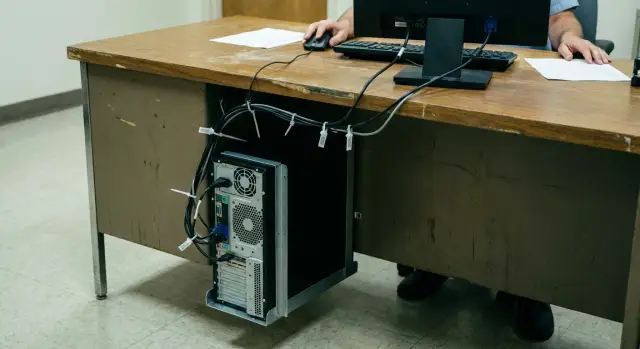
What threats are realistic in the reception area
The reception area is vulnerable for a simple reason: many people, little personal space, and constant distractions. The staff member answers questions, searches for documents, prints, accepts payments — and at the same time strangers may be close to the equipment. Physical protection of reception workstations is not paranoia, it’s basic hygiene.
Most often the risk is not someone carrying off a whole computer, but quick actions that are hard to notice. People stand close in line; at peak times the flow is dense, and any movement at the desk looks natural.
In 5–10 seconds people typically manage to:
- pull the power or network cable to stop service and create chaos;
- insert a USB stick or other USB device into an exposed port;
- press the power or reset button on a desktop PC under the desk;
- unplug the monitor or peripherals, pretending there is a “fault”;
- damage ports and connectors (often presented as an accidental kick or bag hitting them).
Less frequent but dangerous are cable swaps (for example an extension lead or patch cable) and attempts to replace small peripherals (mouse, barcode scanner) with an identical-looking device. This happens where equipment is openly placed, cables hang loose, and the desktop PC is easy to grab.
A typical scenario: a visitor leans over the counter to "clarify details," and in the commotion someone hits a button on the PC case or toggles the switch on the power strip. The screen restarts, the queue is annoyed, and the staff member is busy restoring service. These small “glitches” are often used for sabotage or to steal time.
What counts as a workstation and where the weak points are
A workstation in a reception area is not just the desktop PC. It’s everything through which data can be stolen, hardware disabled, or the service interrupted. Physical protection begins with a simple step: define the boundaries of what you are protecting.
Usually a workstation includes the PC (tower or all-in-one), monitor, keyboard and mouse, a printer or MFP nearby, phone, and all power and network cables. Even if thefts are rare, sabotage happens more often: it is enough to pull a cable, flip a switch on a power strip or plug something into USB.
The most vulnerable points often look like “small things”:
- USB ports on the front panel and exposed connectors: someone can plug in a flash drive, a charger with unknown contents, or a device that disrupts operation.
- Power and Ethernet cables: easy to disconnect by foot or hand, especially when the PC is near the walkway.
- Power strip switch or surge protector: one click and the workstation can go down at peak load.
- Documents and media nearby: papers with logins, seals, digital signature tokens, spare USB sticks.
To quickly find weak points, walk around the desk for two minutes and answer:
- What can a visitor reach while standing at the counter?
- What can be switched off or unplugged without tools?
- Are there spare USB sticks, adapters or devices nearby?
- Where are documents and tokens placed, and who can see them?
- What remains accessible if the staff member steps away for a minute?
After such a walk you will usually see immediately where mounts, locks and seals are needed and what can be solved by simple rearrangement.
Rules for placing the desktop PC and routing cables
Even a small rearrangement of equipment often reduces risk more than expected. Visitors stand close to the counter, lean over, and put bags down. If the case and cables are within reach, they can be accidentally knocked or deliberately unplugged.
Place the desktop PC so it cannot be reached from the visitor side: under the desk on the staff side, inside a cabinet, or in a separate locked cupboard near the workstation. A case in a walkway or at the edge of the desk is a bad idea: it’s easy to bump and, more importantly, to disconnect unnoticed.
Leave gaps for ventilation and cleaning. A practical rule: about 10 cm at the back and sides for airflow, and front access for power and quick indicator checks. If the case is in a cupboard, the furniture needs vents or grills. Otherwise the PC will overheat and make noise, and staff will start keeping the door open, which defeats protection.
One principle for cables: the visitor should not see or be able to identify where to quickly unplug them.
- Route cables away from the counter edge and secure them with clips under the desktop.
- Hide power strips and power bricks in a lockable cabinet or box under the desk.
- Keep spare cable length only where needed for cleaning; do not leave loops near feet.
- Try to have the socket and network cable on the staff side.
Crucially: the staff member should be able to monitor the case and connection points at a glance. If the desktop PC is “somewhere at the back” or far away, any interference will be noticed too late.
Mounts and boxes: types and how to choose
The simplest way to reduce theft and sabotage in a reception area is to remove equipment from easy reach and make removal noisy and time-consuming. Physical protection relies on visibility and delay, not on making things completely “invulnerable.”
An under-desk bracket works if the PC is standard and the desktop is rigid. The advantage is that the case isn’t on the floor, it’s harder to hit and easier to clean under. The drawback: plan ventilation and access to the power button and ports in advance.
Cabinet holders are convenient where the cabinet locks and sits flush to the floor or wall. Cabinets have weak points: thin walls and a loose rear panel. Make sure the mount is fixed to a sturdy part, not just screwed into particleboard for show.
Anti-vandal covers and boxes make sense when the workstation is in a public hall and can be approached from the side or rear. This is sensible for expensive configurations or where there have already been attempts to open equipment. Downsides are cost, weight and the risk of overheating if the box lacks proper vents and clearances.
If a monitor sits on the counter or a thin client is used, add separate fixation. A monitor can be mounted on a VESA arm with hex screws or security screws. Thin clients are often fixed under the desk or behind the monitor so they cannot be removed “on the fly.”
When choosing, look at:
- metal material and thickness (thin sheet metal bends easily);
- number of fixation points (2–4 is better than one);
- compatibility with dimensions and access to ventilation;
- ability to fit a seal or lock on the cover;
- serviceability (cleaning dust, replacing a cable, opening a side panel).
Locks: what really works at the workstation
A lock should meet two goals: prevent someone from taking a device in a minute and complicate quick sabotage (pulling cables, getting inside, swapping peripherals). In the reception area choose practical solutions that staff will actually use daily, not things that look good on a diagram.
Cable locks like Kensington are useful where there is a risk of “grab and run”: all-in-ones, laptops, thin clients, sometimes monitors. For a classic tower that can be quickly opened and have valuable parts removed, the cable lock alone is weaker. Combine measures: a cable lock securing the case to the desk plus a lock or seal on the case cover (a factory lock or screws sealed) is better.
Locks on cabinets often have a bigger effect than expected. If the PC and network devices are in a lockable cabinet, random actions and quick hands almost disappear. The cabinet must be anchored and the door must not have play; otherwise it’s easy to pry open.
Protect “sabotage points” separately: extension leads, surge protectors, small switches, tiny switches, small switches—small switches like tiny switches and small switches. (Note: keep small network switches, media converters, and power strips out of reach.) They are often placed on the floor or behind the counter and are the easiest to disconnect unnoticed. Practically, put them in a lockable box or cupboard and route cables through neat openings.
Keys compromise any system if not managed. A simple routine works:
- one person responsible for the key set per shift;
- issue and return logged with signature;
- spare key in a sealed envelope with the manager;
- do not store keys in the furniture with equipment;
- replace the lock immediately if a key is lost.
Decide key secrecy based on risk. Identical keys are convenient for large reception areas and duty admins. Different keys reduce the impact if one is lost. A practical compromise: identical keys for standard cabinets in the same hall, different keys for network closets and spare-equipment cabinets.
Seals and tamper control without unnecessary complexity
Seals do not replace locks and mounts, but they complement them: they quickly answer whether there was interference. In reception areas this is important because attempts to open a case, cabinet or cable channel are easily hidden as normal bustle at the counter.
Seal three common places: the PC case (cover or screws that grant internal access), the cabinet or box where the PC sits, and cable channels if USB, power and network run through them.
Choose seals that make tampering obvious. Destructible adhesive seals or numbered indicator seals are convenient. It’s important that the number can be quickly checked and that removal traces cannot be neatly hidden.
Place seals where they cannot be removed unnoticed and then reattached:
- across the seam between the case cover and chassis, blocking the opening line;
- on the cabinet or box door so the seal covers a gap and the fastener;
- on the cable-channel cover near the entry to the counter, where cables are most often pulled.
To avoid drowning in paperwork, keep a simple seal log: date, workstation (window number), seal location, seal number, responsible person’s name and signature, note (replacement, relocation of PC).
If a seal is broken, follow one rule: do not power on or touch the inside. Record the fact (photo, journal entry), inform the responsible person, isolate the workstation and replace the seal only after inspection. This preserves evidence and helps determine if it was an attempt at theft or tampering.
Organizational rules around equipment
Even good mounts and locks won’t help if there are no simple rules near the equipment. In reception areas two things matter: clear rules for access to cabinets and a habit of quickly recording any changes.
Assign roles. Only responsible people should have the right to open cabinets, boxes or cases: shift administrator, senior registrar or IT specialist. Keys and codes are not passed “informally” and are not stored in a desk drawer.
During service, follow a simple rule: do not leave the workstation unattended. If the staff member needs to step away, lock the screen and the visitor must not be left alone at the counter. This is often solved simply: the neighboring window covers the queue for 30 seconds.
Make a short regulation (a handout or a wall notice): who opens cabinets and receives keys, what to do when stepping away from the workstation, where spare devices are kept, who to inform about suspicious actions, and how incidents are recorded.
Shift handover should take 1–2 minutes but be mandatory: check the cabinet or box is closed (and seals intact, if used), quickly inspect cables and peripherals, ensure there are no “extra” USB sticks and adapters, and make a note in the log (time, signature).
Do not keep spare keyboards, mice and cables in plain view at the counter. Store them in a locked cabinet and issue them on request. Security staff and the hall administrator can help in simple scenarios: stop a person who reaches for cables and call the responsible person immediately.
Step-by-step plan to implement in 1–2 days
If time is limited, the goal is simple: in 1–2 days make theft and sabotage noticeably harder and the checks obvious. Start with the busiest points: registration windows, reception desks, and workstations near the entrance.
Day 1: assessment and choosing solutions
Walk the counters and mark what can be “broken” or unplugged in 10 seconds: a tower under the desk without a mount, an extension lead on the floor, open access to the power button and cables. Note the furniture type (metal, particleboard, lockable cabinet) and the PC model used. This determines whether a box, bracket, cable or moving the PC into a lockable niche will work.
Then choose a kit for each point: a mount for the tower, a lock for the case or box, and simple cable protection (cable channel, cover, securing the power strip). Don’t overcomplicate: if a lock interferes with cleaning or servicing, staff will bypass it.
Day 2: installation, checks and rules
Follow the same installation plan for all workstations:
- install mounts so the desktop PC cannot be removed without tools;
- route cables along the underside of the desk or in a cable channel, and secure the power strip above floor level;
- label the PC, monitor and power strip (inventory number, room, responsible person);
- place seals on the case cover or box and take a photo of the standard state (what “normal” looks like);
- give staff a one-page instruction: what to check in the morning and evening, where to report a broken seal.
Common mistakes that make protection ineffective
The most common problem is protection that looks present but actually doesn’t prevent theft or sabotage. Usually it fails on small details: where the extension lead sits, who stores the key, how cables are routed.
A typical situation: the tower is fixed, but the power cables and extension lead are still in reach of visitors. One kick or hand movement is enough to turn off the workstation, unplug a lead, swap a peripheral or take a monitor power brick. If a visitor can reach the socket and the area under the desk, the tower mount alone won’t save you.
Another mistake is hiding the tower in a cabinet “for looks” and forgetting ventilation. The result is overheating and failures, and staff will keep the door open “so it won’t overheat,” turning protection into decoration.
Key management errors are also common: one key “for everyone” with no record of who opened what. After an incident it’s impossible to tell who had access; keys are easy to lose or copy.
Seals are often used formally: there is a seal but nobody knows its number, what the seal should look like, or who checks it at the start of a shift. In that mode a seal offers no control.
Finally, overly complex constructions harm security. If a box or mount interferes with cleaning, cable replacement or a quick inspection, staff will start removing protection “temporarily.” A solution must be serviceable in minutes, otherwise it won’t survive in a real reception.
Short checklist for opening and closing a shift
Much is visible to visitors and almost everything can be touched. The best way to reduce theft and sabotage is a short, identical check at the start and end of each shift. It takes 1–2 minutes but quickly shows if something changed.
Before the shift:
- Check the desktop PC is secured (mount in place, no play) and the cabinet or box is closed. The key should be with the responsible person.
- Check power and network cables are routed away and not accessible to visitors. The power strip should not lie on the floor in the client’s foot area.
- Verify seals on the case, box or cabinet: are they intact and does the number match the log?
- Ensure available ports are controlled: fitted plugs or a rule about who may connect USB devices.
- Start the PC and check for unexpected messages about connected devices or network errors.
At the end of the shift:
- Inspect the workstation for new cables, adapters, USB sticks, chargers, or signs of forced entry.
- Recheck seals and their numbers against the log. If a number doesn’t match or a seal is damaged, record it and notify the responsible person.
- Remove removable media and store work USB sticks in the designated place.
- Ensure cables are tidied and the power strip and sockets are not accessible to visitors.
- Lock the cabinet or box and make a short note of the shift closure.
A simple rule: if a visitor can reach the socket, USB port or power-strip switch, that’s a risk area and a reason to adjust placement.
Practical example: a workstation in a clinic
A reception window in a clinic: the registrar works almost face-to-face with visitors. The queue, a narrow passage, and people leaning over the counter mean a patient can accidentally kick cables or notice a flash drive left in a port.
The problem was not only theft risk. Several times a week the computer would “suddenly” turn off because someone tripped the extension lead, and once a mouse went missing. The solution chosen was simple and didn’t require rebuilding the counter.
The desktop PC was removed from the floor and moved into a lockable cabinet under the desk on the staff side. Inside a metal mount was installed so the case could not be pulled out, and a lock was added to the door. Cables were routed away from the visitor side and hidden in a channel, and the power strip was secured so it wouldn’t hang loose.
To make checks instant, seals were added: one on the cabinet door and one on the cable-channel cover.
The result was immediate: fewer accidental shutdowns and fewer complaints that “the computer doesn’t work,” and reduced risk of losing small devices (mouse, flash drives, adapters). For the staff it became easier: at the start of the shift they look at two seals and immediately know everything is in order.
Next steps: formalize the standard and update equipment
For protection to last months it must become a standard, not a one-off installation. Start with an inventory: what typical workstations exist in reception areas (registration counter, information desk, administrator’s office, printing terminal). For each type define a minimum set of measures: where the PC sits, how it is mounted, how cables run, and which points are sealed.
Then agree the standard with IT and security. If mounts make it hard to replace a power supply or add memory, people will bypass the rules. A good standard always includes a service procedure: who may remove a seal, where the reason is recorded and how quickly the workstation is returned to a “closed” state.
It’s convenient to make a short card for each workstation type:
- layout diagram for the PC and cables (what visitors see and what is hidden);
- allowed types of mounts and locks;
- sealing points and what counts as “tampering”;
- repair procedure: who removes and replaces seals and where to log it;
- check frequency (for example, at shift handover and weekly).
When planning equipment replacement, include protection in the purchase and installation. It’s cheaper than buying mounts later and reworking furniture. Consider form factor: all-in-ones are often easier to protect physically than a separate tower under the desk.
If you have many identical reception points across a city, standardization helps. For Kazakhstan this is especially useful when unified support and clear installation rules are needed. In such cases discuss suitable workstations, all-in-ones and integration for reception areas with GSE.kz (gse.kz) in advance so protection and maintenance are considered from the start.
The main rule: any equipment update should automatically inherit the protection standard, not start from scratch.
Frequently asked questions
Which threats in the reception area are the most realistic?
The real risks are usually not someone carrying off a whole computer, but quick interventions: pulling the power or network cable, pressing the restart button, plugging in a USB device, or damaging a connector. These actions take seconds and can easily look like an accidental movement in a crowd.
How can I quickly tell if a workstation at the counter is vulnerable?
Stand in the visitor's place at the counter and see what can be reached by hand or foot in 5–10 seconds. If there is an extension lead with a switch, exposed power or network cables, USB ports or a desktop PC under the desk, these are priority spots to secure.
Where is the best place to put the desktop PC in a reception area?
Place the desktop PC on the staff side, out of visitors’ reach: under the desk near the wall, inside a lockable cabinet, or in a small locked cupboard. It’s important that the staff member can monitor the case and connection points at a glance.
How do I protect a PC without causing overheating in a cabinet or box?
Do not hide the PC completely in a tight niche without airflow: overheating quickly makes protection meaningless because the staff will keep the door open. Leave space for ventilation and maintenance, and provide vents or perforations in the cabinet.
What should be done with cables so they can't be pulled or disconnected?
Make it so a visitor cannot see or figure out where to quickly disconnect power or network. Route cables away from the counter edge, fix them with clips under the desktop, and put extension leads and power supplies inside a lockable box or cupboard so the switch cannot be pressed.
What to choose: under-desk bracket, cupboard mount, or anti-vandal box?
A bracket under the desk or a holder in a cupboard is often enough to remove the tower from the floor and make it harder to access. If people can approach the workstation from the side or behind and there were previous attempts to tamper, an anti-vandal cover or lockable box with proper ventilation is a better choice.
Which locks actually work at a reception workstation?
Cable locks like Kensington are useful for all-in-ones, laptops and thin clients where the risk is ‘grab and run’. For a desktop tower, combine a cable lock that secures the case to furniture with a way to lock or seal the case cover so parts cannot be quickly removed.
Why use seals if locks and mounts are already in place?
Seals do not replace locks and mounts, but they are a good addition: they show at a glance if someone tampered with the case, cupboard or cable channel. Seal the PC cover, the cupboard door, and cable-channel covers where USB, power and network cables run.
What to do if a seal is broken or looks suspicious?
Do not power on or dismantle the equipment to “check” it, as that can destroy traces. Record the fact (photo, entry in the log), isolate the workstation and notify the responsible person. Replace the seal only after inspection and documentation.
What is the minimum plan to implement protection in 1–2 days?
Focus on measures that give the biggest effect: move extension leads and cables out of reach, secure the desktop PC so it cannot be removed without tools, and introduce a short check at shift start and end. Once this routine works reliably, add seals and standardize solutions across windows.
