
Tracking Peripheral Devices by Serial Number: Fields and Receiving
A practical approach to tracking peripherals by serial number: which fields to create, how to receive scanners, MFPs, monitors and docking stations, and how to keep warranty records intact.
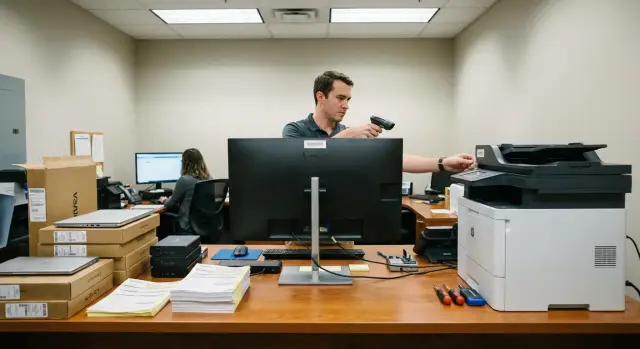
Why record serial numbers and warranty specifically for peripherals
Peripherals are usually the first to fall out of proper tracking. They get moved between rooms, lent "temporarily", have cables and power supplies swapped, and boxes and paperwork are often thrown away right after installation. A few months later no one remembers which monitor was at which desk, where the MFP service booklet is, or why a docking station suddenly "turned out to be the wrong one."
A serial number removes that confusion: it identifies a specific unit among many identical models. This is especially important where there are dozens of identical monitors or docking stations.
A serial number and warranty data help solve the main tracking tasks: inventory (what's present, what's missing), assignment to users (who it's assigned to), repairs (quickly confirm warranty entitlement) and disposal (close the device lifecycle without mistakes).
If serial numbers aren't recorded, the same problems almost always appear:
- warranty disputes (the service center asks for serial number, start date and documents, and you only have "we bought it in spring");
- swapping (visually identical monitors and docking stations are easy to mix up);
- missing components (MFPs and scanners often "lose" trays, cables, power supplies, or the ADF, and later it's unclear which parts belonged to which device).
Below is a practical guide specifically for scanners, MFPs, monitors and docking stations. They have different serial number locations and different service scenarios, but the principle is the same: one serial number — one device record and a clear warranty.
Basic tracking logic: how to avoid confusing models and units
The main rule: one tracked unit = one physical device. If a device has a serial number, it must have its own record. This keeps tracking intact even after years and when models multiply.
Confusion starts when levels are mixed. The model answers "what type is this?", while the serial number answers "which exact unit is this?" A convenient scheme is to store the model in a catalog and create a record for every serial number. That way you can quickly list all devices of one model and still not lose the specific monitor that moved to a branch.
Split kits simply: what has a serial number is tracked as a device; what doesn't is tracked as part of the kit.
For example, a docking station usually has a serial number, while a power adapter often doesn't and is easily replaceable. An MFP must have a serial number, while cartridges are better tracked as consumables. Monitors have serial numbers, while stands or mounting brackets are usually recorded as kit parts.
To avoid "ownerless" devices, agree on roles in advance: the warehouse handles receiving and storage, IT handles issuance and transfers, accounting handles cost, and an engineer or service manager handles repairs and warranty claims.
Also set simple lifecycle statuses so the device record clearly shows location and state: received, in warehouse, issued, in repair, retired.
Required fields of a device card in the inventory system
A good device card answers three questions: what the device is, where it is now, and how quickly to prove its origin.
Identifiers. The serial number is the main key for warranty and service. Alongside it, you need an internal identifier: an inventory tag number or Asset ID. If you use scanning, add a field for your barcode/QR value (usually the value from your sticker, not the factory code).
Device "passport." Brand and model are often not enough: peripherals have many similar variants. The minimum that usually helps:
- for scanners and MFPs: device type, presence of an automatic document feeder (ADF), interfaces (USB/Ethernet/Wi‑Fi);
- for monitors: diagonal and resolution (panel type if needed);
- for docking stations: connection type to the laptop (USB‑C/Thunderbolt), power rating (for example, 65/90/100W) and key ports.
Supply and documents. This block saves time when batches or warranty conditions don't match. Store supplier, invoice/order number and date, receiving date and commissioning date (these are different), and kit contents (cables, power adapter, trays, mounts).
Location and responsibility. Minimum: city/branch, location (warehouse, room), status, person financially responsible and actual user. For shared equipment (for example, an MFP in a corridor), record the owner: the department or responsible person.
Notes and attachments. Record things that are hard to restore later: damaged packaging, missing cable, signs of tampering. Attach photos of the serial label or installation place, especially for docking stations and monitors where the sticker may be inconveniently placed or wear off quickly.
Warranty and service fields: so repairs don't turn into a paper chase
When something breaks, time is usually lost not on the repair itself but on searching: where is the ticket, who bought it, what is the warranty period, where was it already sent. It's better to store a minimum of warranty and service info in the device card in advance.
Warranty
A set that answers most questions:
- purchase/delivery date and commissioning date;
- warranty source (manufacturer or supplier);
- duration in months and calculated end date;
- invoice/delivery number and date;
- notes on conditions (for example, prohibition of opening the case).
It's convenient to store documents as attachments to the card: a scan of the warranty certificate, handover act, RMA/return number, defect report (if any).
Service and history of claims
The service block should show what failed, where it was sent and what stage the device is at. Fields that really help:
- service center/contact or responsible division;
- case number (ticket/request/RMA) and current status;
- dates of handover and return;
- short description of the defect and the work done;
- outcome (repaired, replaced, warranty denied with reason).
Also record movements and changes of responsibility: room, branch, employee, date, comment. Then losses between departments become visible.
Some fields should not be changed after receiving without reason: serial number, model, device type, supplier/batch and purchase/commissioning dates. And reasonably limit permissions: only the inventory administrator edits serial numbers and models, while IT or support manage service statuses.
If your support is organized through an integrator with a 24/7 hotline and service network (for example, at GSE.kz this is part of their support), a single case number and statuses in the card noticeably reduce back-and-forth and repeated clarifications.
Where to get serial numbers: device-specific details
It's best to record the serial number on the day of receiving while the device and its box are together. Later the sticker may wear off, the box will be thrown away, and the device will go to a different room.
Scanners and MFPs
Scanner serials are usually on the bottom or the back near the connectors. A duplicate sticker is usually on the box and the factory certificate. If the scanner has an external power supply, the power unit may have its own serial. It's usually enough to note the adapter in kit contents, but record its type and parameters so it isn't confused during replacement.
For MFPs, look for the serial on the body (back or side) and on the box. Don't confuse it with cartridge numbers: consumables are better tracked separately. A useful field for MFPs is the page counter at the time of receiving or first installation — it helps in disputed wear cases.
Monitors and docking stations
Monitor serials are almost always on the rear panel. Check kit contents at the same time: stand or mount, power cable and video cable.
Docking station serials are often on the bottom. Record the connection type (USB‑C or Thunderbolt), otherwise it's hard to understand later why a dock doesn't work with a particular laptop. Power adapters are easy to mix up, so record their wattage and whether one is included.
If a serial is hard to read, don't guess. Enter it exactly as on the sticker (mind 0 vs O), photograph the label and box, and have a second person verify the entry. If the sticker is damaged, note that in the card.
How to organize receiving: process from box to card
A careful receiving process solves half the problems with service and inventory. If you collect correct data once, further tracking requires minimal manual work.
Prepare a short receiving template in advance: which fields are mandatory, who enters data, where photos and documents are stored. It's convenient to create the overall delivery record in the system first (supplier, invoice/order) and then add devices.
A practical workflow looks like this:
-
Reconcile the delivery with the invoice and inspect boxes (dented packaging, signs of tampering, mixed batches).
-
Capture serial numbers during unpacking (barcode scanner, phone camera with later verification, or manually). Immediately link the serial to the exact model and that delivery.
-
Check that the serial on the box matches the serial on the device.
-
Verify kit contents and record discrepancies at receiving, not "by word of mouth": cables, power adapter, monitor stand, MFP trays, ADF.
-
Affix an inventory tag and set storage location and status (for example, "in warehouse"). The tag should be visible but not block ventilation or connectors.
-
Save warranty documents and note the dates in the device card.
A simple effect: if you enter serial numbers, kit contents, delivery and warranty on the day of receipt, then six months later when contacting service the card is found in a minute.
Input standards and data quality control
Tracking breaks down not because the system is complex, but because of small inconsistencies. The same serial number turns into different records because of spaces, dashes and case. So agree on input rules in advance.
A practical standard: one case (usually upper), no extra spaces, no "No" signs, no dots or comments. Use dashes only if they really appear on the label. If staff copy serials from emails or invoices, add a rule: remove invisible characters and double spaces before saving.
Serial numbers must be unique. If the system supports it, enable strict duplicate checks. If not, add a mandatory step: search by serial before creating a card.
The two‑source rule works well: verify the serial on the device and box (or supplier sticker). For quality control, do spot checks on 5–10% of devices: model, serial, receiving date.
Scanning speeds up entry but sometimes adds "noise." Check that the scanner doesn't insert extra Enters, doesn't confuse similar characters (0/O, 1/I) and behaves consistently across fields.
Common mistakes and pitfalls in peripheral tracking
The most common mistake is tracking only the model. A record like "MFP such‑and‑such" doesn't prove which device went to repair, which was issued to a user, or which serial the warranty covers.
The second typical mistake is one record per batch. "Monitors, 20 pcs" almost guarantees confusion during issuance, repair and transfers. You need a card for every device.
Kit contents: small items that become points of dispute
Kits often get separated: a docking station is issued with someone else's power adapter, a monitor arrives without a stand, an MFP loses a tray or the ADF. The device may still work, but disputes start on return or warranty over what was in the box.
At receiving it is enough to record minimal kit types:
- docking station: module, power adapter of required wattage, cable (if included);
- monitor: stand/mount, cables as per the invoice;
- scanner: power adapter, interface cable, ADF (if specified);
- MFP: trays, ADF and other items per spec.
Data and documents: how to avoid duplicates and "ghost" serials
If warranty documents are kept separately and the card lacks invoice number, purchase date and supplier, then a breakdown triggers a folder search. Better attach documents to the card immediately.
A separate trap is quiet backdated edits to serial numbers. One character changed without comment, someone else creates a second record with the "correct" serial. Therefore serial edits should only be allowed with a reason (for example, a photo of the label) and must record who and when made the change.
One simple rule that helps a lot: do not issue a device to a user before receiving is completed. If an MFP is already printing in a department but it is not in the system, you lose the reference point for condition, serial number and warranty start.
Short checklist: what to check so tracking works
With proper tracking any check takes minutes: you can see what the device is, where it is, who uses it and when the warranty ends.
Before closing receiving, check five things:
- Acceptance and identification: serial captured and verified, model chosen from catalog, kit contents noted, status and location set.
- Warranty and documents: start date and term recorded, end date calculated, warranty source noted, confirmations saved.
- Issuance: responsible person and actual user assigned, room/branch specified, issuance documented.
- Repairs and downtimes: a case opened with symptoms, photos attached, device status set to "in repair."
- Inventory: discrepancies documented with reason and resolution (transfer, search, temporary storage, disposal).
A practical test: take one scanner, one MFP, one monitor and one docking station and try to answer three questions without the paper folder: where is the device, who uses it, when does the warranty expire. If any answer is "needs checking," you lack fields or discipline at receiving.
Real‑world example: receiving and a warranty case in one scenario
A branch received: 10 monitors, 5 docking stations, 1 MFP and 2 scanners. The task is simple: distribute them to workplaces and not lose serial numbers so you don't have to hunt for "that monitor" and warranty documents later.
Divide receiving by roles. The warehouse clerk checks boxes and quantities against the invoice. An IT specialist records serial numbers and creates cards. A barcode scanner speeds entry, but order matters: serial first, then exact model and link to the delivery.
Before unpacking, place temporary stickers (for example, FIL‑2026‑01‑001) and put boxes in a separate receiving area. That way a box won't be taken to a room before its serial is entered. After unpacking, link the temporary code to the actual serial number.
Issuance follows two logics. Monitors are usually tied to workstations. Docking stations are often tied to laptop users because they "travel" between office and home. The card records who received it and where it's used.
A month later the MFP stopped printing. Instead of searching for the box and receipt, IT opens the card: serial, commissioning date, warranty term, supplier, invoice number and attached documents. In a minute they see the warranty is valid and can file a service request.
The history keeps key events: receiving the batch, monitor movements, issuance of docking stations, sending the MFP to repair and, if replaced, the new serial number. Any next person quickly understands what happened and where the equipment is now.
Next steps: how to start tracking and keep it without overload
To avoid endless card filling, start with two things: one process owner and one approved template. Then receiving, transfers and repairs will follow the same scheme and depend less on who is on shift.
Appoint a responsible person (usually IT or warehouse) and fix a minimal standard: which fields are mandatory for scanners, MFPs, monitors and docking stations and who fills them. Split fields into "always required" and "as needed" to avoid overloading receiving.
Labels help: the inventory tag should appear immediately, and naming rules must be the same across branches. Agree in advance where to place the tag so it stays attached and doesn't interfere with servicing.
A short rollout plan:
- approve the field template and roles (receiving, IT, accounting, service);
- introduce labeling rules (tag format, sticker placement, actions on loss);
- run a short receiving training with hands‑on practice for each device type;
- set up quality control: check 5–10% of new cards weekly.
Plan the first inventory in 1–2 months. It's the best time to catch typical mistakes: swapped serials on docking stations, "shared" cards for identical monitors, incorrect warranty dates for MFPs.
If your fleet is large and the service loop already includes requests, repairs and spare parts, consider a broader approach: asset tracking together with support processes and workstation standardization. It's often convenient to do this with a system integrator who handles procurement and support, for example GSE.kz (gse.kz). But the start is always the same: a clear template, careful receiving and disciplined data entry.