8 min read
Checking peripheral compatibility when upgrading PCs in a department
A peripheral compatibility check lets you test tokens, scanners and printers in advance so a PC upgrade doesn’t halt a department’s work.
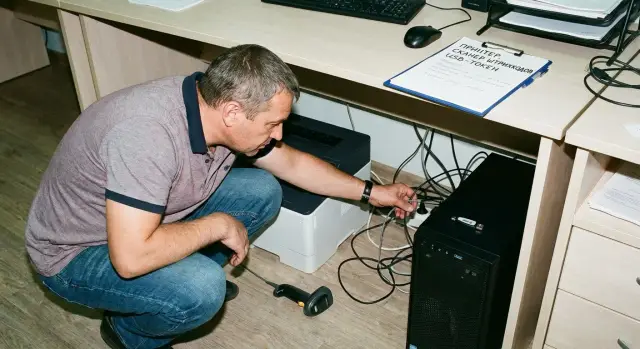
What can go wrong when replacing PCs
Upgrading PCs usually breaks not so much the familiar applications as the devices connected around them: printers, scanners, tokens, terminals, and readers. On the old machine everything worked for years because drivers were already configured, ports matched, and security policy was "used to" the device. After hardware replacement these small details suddenly become critical and a department can stop working.
The worst hit are places where peripherals are part of daily processes. Accounting will notice quickly if digital signatures can’t be applied. The warehouse will stop if barcode scanners won’t read or start producing garbage. Reception and front office lose pace when tickets, contracts or passes won’t print. In healthcare the risk is even higher: a label printer, scanner or specialized instrument fails while a queue forms.
Incompatibility is not just “device broke”. The cause usually hides in details:
- no suitable driver for the new OS or driver conflicts with updates
- a different port or connection method (USB‑A replaced by USB‑C, COM/LPT gone, an adapter required)
- security policy blocks driver installation, utility execution or smart‑card access
- the device has its own software that doesn’t run on the new OS version or requires admin rights
Simple issues almost always hit people, not the equipment. Typical scenarios: “printing stops and queue grows”, “digital signature fails and payments are delayed”, “barcode scanning stops and shipments are halted”, “special equipment is not recognized and a procedure can’t be completed”. That’s why peripheral compatibility should be checked before purchasing and mass replacing workstations — not on move day.
Peripheral inventory: what exactly to check
Before testing you need an accurate list of what is actually connected to PCs. Problems often surface not at “typical” workstations but in shared areas: the secretary’s desk, accounting, warehouse, the doctor’s office or the cashier.
Start with a walkthrough and record every device used in the last 1–2 months. It’s important to note not only the name but details that distinguish similar models or revisions.
For each device collect:
- model and exact designation (as on the nameplate), serial number and revision if present
- connection method: USB, COM, LPT, Ethernet, Wi‑Fi, Bluetooth, via hub or docking station
- current driver (name and version) and where it is installed (in the system or inside an application)
- software where it’s used (digital signature client, POS software, medical system, warehouse management)
- owner of the process: the department and the specific person who can confirm “it works as needed”
Mark critical devices separately — those without which a department stops: USB tokens for digital signatures, fiscal registrars, barcode scanners, specialized sensors and medical devices. For them it’s useful to specify acceptable downtime (for example, “no more than 30 minutes”).
A good habit is to photograph the nameplate and cables. In one company two visually identical printers differed by a single letter in the model, and the driver only fit one of them. Photos helped quickly find the right driver set and avoid swapping devices during migration.
What affects compatibility: OS, drivers, ports and security policy
When you replace a PC you change more than hardware. Usually the Windows version changes, the architecture (64‑bit almost always), the update set, and sometimes the edition (Pro, Enterprise). This directly affects drivers and whether the services needed by a device will run.
Check in advance what restrictions security policy will add: Secure Boot, blocking unsigned drivers, preventing software installation by users, USB device control, EDR/antivirus requirements. Often it’s precisely these restrictions that “break” tokens and special equipment, even though the old PC worked for years.
Ports and connections: a small thing that halts a department
New PCs might lack familiar connectors: COM, LPT, sometimes even enough USB‑A ports. USB‑C, docks and Bluetooth appear, and for old devices these aren’t always equivalent replacements. Another common surprise: “smart” adapters don’t work with everything, and some devices require a physical COM port or a specific chip in the USB‑to‑COM adapter.
Check in advance:
- which ports are actually available on the new PCs (USB‑A, USB‑C, HDMI/DP, audio, card reader)
- which adapters are needed and exactly which ones (USB‑C to USB‑A, USB to COM)
- whether the device supports working through a hub or docking station
- if the device has USB power requirements (often critical for scanners)
- whether driver installation is required and who has permission to do it
Drivers, services and legacy protocols
It’s not only drivers that matter but related components: a service, agent, browser plugin, crypto provider module, or a firmware utility. An old device may work only with a specific driver version and stop on a new Windows.
Evaluate networked devices separately. Printers and MFPs over IP may require a different driver (universal or model‑specific), and network scanners often depend on TWAIN/WIA and firewall settings. A typical case: after a PC upgrade printing by IP works but “scan to application” stops because a required module didn’t install or a port was blocked by policy.
If you are buying new work PCs (for example, as part of a local vendor’s refresh), ask IT for a list of ports and supported OS versions so you can test peripherals in the same conditions they will face in the department.
How to organize a test bench without extra cost
A test bench isn’t for “perfect” checks but to catch surprises early and avoid stopping a department on replacement day. One or two PCs that match the future workstations in key parameters are enough: port types, TPM presence, video outputs, and network adapter. If you plan purchases for a public institution or bank, ask the supplier to provide the exact configuration that will be delivered.
Minimum kit that pays off
Keep next to the bench a set of small items that usually solve problems faster than hunting around the office:
- powered USB hub (often saves tokens and scanners when power is low)
- a set of USB‑A/USB‑C cables, an extension, spare network cable
- video adapters (HDMI, DP, VGA) and, if needed, a COM/RS‑232 adapter
- a dedicated network port or test Wi‑Fi so you don’t break production settings
- a folder with drivers and installers actually used in the department
Do a clean install of the OS version you are moving to, perform basic configuration (domain, policies, antivirus, Office, typical apps) and save a system image. It saves hours: if a driver experiment “breaks” the bench you can return to the baseline in 20–30 minutes.
The principle is simple: less chaos, more repeatability. Record every change: what you installed, version, parameters changed, and whether a restart was needed. Then you can reproduce the test on a second machine and later on the whole batch.
To keep the bench from disrupting work, reserve a place and short time slots in advance. For example, test printers and MFPs at the end of the day, and run token and login tests in the morning when accounts and responsible staff are available.
Step‑by‑step plan for checking each device
To make tests useful, check each device the same way and in the same order. This makes it easier to see at which step a failure occurs and to repeat the test on another batch of PCs.
First prepare the test PC: correct OS, all updates, reboot. Ensure the system is stable (no crashes or freezes). In practice some peripheral issues turn out to be caused by a raw OS installation.
Then follow these steps:
- Connect the device and check how it’s recognized: a clear name should appear, not “unknown device” or warnings.
- If the driver didn’t install automatically, install it from an official source (manufacturer’s site or corporate repository). Record the driver version and date immediately.
- Perform the real operation: printer — print a test document, MFP — scan to the required format, USB token — log in and sign, reader — read a card.
- Test operation in the actual program used in the department (accounting system, online banking client, medical system, etc.).
- Repeat the test after a reboot and after unplugging and replugging (in the same port and in another). This often reveals USB power, policy or service autostart issues.
Record simple statuses: “works”, “works with conditions” (e.g., only with a specific driver, only on USB 2.0, only when a service is running), “doesn’t work”. Example: “MFP prints, but scanning is available only after manually starting the app”. That means the department needs a short instruction or an autostart configuration.
How to document results so they can be reproduced
If tests aren’t recorded, they effectively didn’t happen. In a week the responsible person may change, a new batch of PCs arrive, Windows or antivirus updates and you’ll be back to asking why “it worked yesterday”. Documentation isn’t bureaucracy — it lets anyone repeat the check and get the same result.
The simplest format is a single table for all devices. It’s important to record not only “works/doesn’t work” but the conditions under which you tested:
- device (model, serial number, connection type) and where it’s used
- test PC (model/configuration), OS version and key updates
- driver (version, source), required software and its version
- test result (success/partial/failure) and what exactly was tested
- notes: error, response time, limitations, user hints
Classify causes uniformly: driver, permissions, port/adapter, network (for network printers), conflict with other software or security policy. Then problems stop looking like “magic” and recurring causes become obvious.
If you find a workaround, record it immediately while it’s fresh. Not “it helped to fiddle”, but precisely: which driver was installed, which port was used, which cable was swapped, what permissions were granted, which service was restarted.
Collect minimal proof: a screenshot of the error, a printer test page, a scan file, a short log excerpt. This helps when you need to explain to security or management why an issue is real.
Decide in advance who approves replacements and budgets: department head, IT, procurement. For example, if an old scanner works only with an obsolete driver, know who approves buying a new device or hiring an integrator (for example, GSE.kz) to select a compatible replacement and provide support.
Special cases: tokens, scanners, printers and specialty equipment
Some devices “almost work” after a PC change but break the process at the most inconvenient moment. For these, link the test to specific applications and security rules rather than a general diagnostic.
USB tokens and digital signatures depend not only on drivers but also on crypto provider versions, browser compatibility and user rights. Test the full path: installation, login to required systems, signing, signature verification, and operation under a normal user account (not admin). Also check that certificates are visible and OS updates don’t block the token module.
Barcode scanners often differ by operating mode. They typically work as HID (keyboard) or COM (virtual port). In HID mode check layout, suffixes (Enter/Tab) and behavior in the target application, not in Notepad. In COM mode check the port number, baud rate and whether the application can access that port.
For printers and MFPs the main risk is the driver and connection method. PCL often helps for printing, PS for precise graphics, and a “universal driver” may lack needed features. Test printing by USB and by network, the print queue, duplex, and paper trays. For MFPs also test scan‑to‑folder or scan‑to‑email.
For specialty equipment (cash registers, scales, terminals, medical devices) the rule is simple: use certified software and specific driver versions. It’s risky to “update to the latest”. Manufacturers often support only a specific OS or library.
Before a final decision check network constraints:
- firewall and required ports
- SMB/FTP for scan‑to‑folder
- accounts and rights on network resources
- certificates and trusted authorities
Example: an MFP scans to a network folder, but after a PC replacement scanning stops because SMB1 was disabled or folder permissions changed. Catching that on a test PC is better than on mass replacement day.
Common mistakes that make tests useless
Tests can pass “with flying colors” and the department still stops on replacement day. The problem is usually not the device but how the test was organized.
The most common trap: seeing the device “appear” in the system and relaxing. The real risk appears only during actual operations: signing a document with a token, scanning a stack of pages into the required format, printing from the real program, sending a job to special equipment.
Results are often invalidated by mistakes like:
- testing a single unit while the department has different batches of the same model (different revision, controller, driver)
- installing a driver “as found” from an old folder or USB stick and not recording version, date and source
- testing under an administrator account: regular users have fewer rights and lose access to services, certificates, ports or security settings
- running the test once and not repeating after OS updates or reboots
- leaving testing for the last day: no time to replace models, find alternative drivers or agree with security
Example: on the test PC the token is detected and the management utility opens, but signing in the production system fails because a regular user lacks access to the certificate store or a required service. This looks like a random failure but is predictable.
If you are upgrading a fleet, plan time for repeatable checks and record test conditions. This catches problems before purchase and mass replacement.
Short checklist before a mass PC upgrade
Before replacing dozens of workstations at once, check basic things once but carefully. This is when a compatibility test really saves days of downtime.
Base your decisions on actual working conditions. If a device runs only for an administrator, it means “doesn’t work” for the department.
Checklist to run 1–2 days before mass replacement:
- all critical devices are accounted for (printers/MFPs, scanners, USB tokens, specialty equipment) and there are spare options for at least 1–2 workstations
- the OS image is agreed (version, build, updates) and a list of mandatory drivers with exact versions is prepared
- on the test PC key actions were checked: printing (including duplex), scanning to the required format, digital signing, operation in target programs and with shared folders
- all checks were done under a regular user account with real security policies
- responsible people are assigned and a rollback plan is approved: what to do if a device won’t start (return old PC, change driver, issue spare kit)
If you’re buying new workstations, it helps to get one sample in advance and run tests with the whole “zoo” of peripherals. That shows which drivers and settings must be included in the image before the batch (for example, from GSE.kz) arrives.
Example scenario: upgrading a department’s PCs without stopping work
A 12‑person department prepares for a PC upgrade. They have one shared network MFP, three barcode scanners (warehouse and receiving), and accounting staff use USB tokens for digital signing and filings. Any peripheral failure immediately halts work, so they start with a pilot.
Choose 2 pilot seats that reflect real load but aren’t the most critical. Usually one user who prints and scans daily and one accountant with a token. Keep the old PC nearby for 1–2 days as a fallback so the person can continue work quickly.
Give pilot users a short list of daily operations to perform:
- print typical documents to the MFP (from 2–3 programs, not just PDF)
- scan to a network folder or email, check quality and format
- use a barcode scanner in the target application (not only in Notepad)
- sign a test document with a token and log into required portals/clients
- reboot the PC and repeat operations (some issues appear only after restart)
Three problem groups usually surface. First — MFP driver: printing works but scanning doesn’t, or duplex/tray options disappear. Second — scanner mode: it appears as a keyboard on one PC and requires a utility or different port on another, or power management needs changing. Third — permissions and services for tokens: the crypto provider won’t start, certificate store is inaccessible, or security policy blocks installation.
Decisions can be made simply. If it’s a setting (driver, policy, rights) — document steps and rerun the test. If it’s the device (old MFP with no current drivers, unstable scanner, token that only works with a specific software version) — plan replacement or keep some seats on the old configuration until replaced. If the risk is too high (e.g., digital signatures are critical and no reliable solution exists) — postpone updates for that role.
After a successful pilot roll out in waves: 3–4 PCs per evening or weekend with a prepared driver package and settings, and a support window the next workday. This keeps the department working while the fleet is updated without surprises.
Next steps: move from tests to a safe replacement
When tests are complete, turn results into a clear action plan. The point of checking peripheral compatibility is to ensure that on replacement day people have everything working on the first try.
Compile a final list for each device and map it to specific workstations. It’s convenient to split devices into three categories: works out of the box, works after setup, not supported and needs replacement. Note exactly what was required to make it work: driver version, user rights, policy change, cable or adapter type.
Prepare a “workstation kit” so installation isn’t a scavenger hunt:
- PC (or laptop) with the correct OS and updates
- cables and adapters (USB‑A/USB‑C, HDMI/DP, power)
- tested driver and utility installers verified on the test PC
- a short user instruction: what changes and what to press on first run
- support contact and rules for when to roll back to the old PC
Do replacements via pilot. Choose 1–3 typical seats (e.g., accounting with tokens and printing, warehouse with scanners, reception with MFP). Replace them, allow 1–2 business days for feedback and only then scale up. Do not remove the old PC immediately: keep it ready to power on if a critical issue appears.
If your fleet has diverse peripherals or specialty equipment, it can be easier to engage a system integrator: they will match requirements, build the image and perform migration without downtime.
For hardware it’s more efficient to choose models that can be deployed and maintained uniformly. In Kazakhstan this often means working with a vendor and integrator in one: for example, GSE.kz supplies PCs, workstations and servers and provides system integration and 24/7 support, which is convenient for phased replacement and fast incident response.
Frequently asked questions
Why do printers, tokens and scanners suddenly stop working after a PC replacement?
Most often it’s not only the “hardware” that changes, but also Windows version, architecture, updates and security policies. As a result, old drivers, services, crypto modules and utilities for peripherals stop working the same way they did on the old PC.
What exactly should I collect during a peripheral inventory before upgrading PCs?
Start by walking through workstations and common areas and list every device used in the last 1–2 months. For each device record the exact model from the nameplate, connection type, current driver and the application where it’s used; this helps avoid missing the “rare” devices that actually stop operations.
How quickly can I tell if a device driver is compatible with the new OS?
Check whether a suitable driver exists for your Windows version and what user rights it requires. If the device needs separate software, plugin or a service, verify it runs under a regular user account and isn’t blocked by antivirus or policies.
What port and adapter problems happen most often?
Verify which ports are present on the new PCs and what disappeared compared to the old ones (COM/LPT and extra USB‑A are commonly missing). If adapters are needed, test that exact adapter model on the bench, because not all dongles and docking stations work the same with legacy peripherals.
How can security policy block peripherals after an upgrade?
Security policies often break components that used to be installed “silently”: unsigned drivers, token services, smart‑card access and USB device controls. The right approach is to test devices under the same policies (Secure Boot, driver restrictions, EDR) that will be applied to production PCs.
How do I build a test setup without unnecessary cost?
One or two test PCs that match the future batch in OS, ports and security settings are enough. Do a clean install, apply domain/policies/antivirus and save an image so you can quickly revert after experiments with drivers.
What is the minimal test sequence per device that gives reliable results?
Make sure the device appears correctly (no “unknown device” or warnings), install the official driver, then perform a real operation in the target application. Repeat the test after a reboot and after unplugging/replugging the device in other ports to catch power and policy issues.
How to properly test USB tokens for digital signatures before a mass PC replacement?
Test the full flow: driver and crypto provider installation, login to required systems and signing a document using a standard (non‑administrator) account. If signing fails, the cause is often component versions, certificate store permissions or a blocked service, not the token itself.
Why can a barcode scanner start producing garbled characters on a new PC?
Scanners often work in different modes: HID (like a keyboard) or virtual COM port. Test in the actual target application (not in Notepad), check layout, suffixes (Enter/Tab) and port stability/power supply.
How to document test results so you don’t have to redo everything?
Record not just “works/doesn’t work” but the conditions: OS version, driver and its source, user account, and the exact test scenario. This lets you reproduce results on another batch and quickly find what changed if Windows updates break something later.
