8 min read
Performance per Watt: Comparing PC Generations Without Myths
How to calculate performance per watt for PCs across generations: typical tests, outlet measurements, ROI formulas and examples when power limits matter more than peaks.
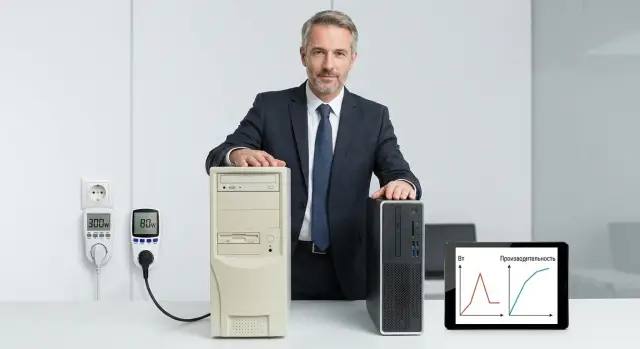
The problem: when power matters more than peak performance
If an office has a strict power limit, the "fastest PC" can quickly become a bad choice. It may be faster in benchmarks, but in real work you hit not the CPU speed but how many workplaces you can safely connect, how often breakers trip, and how much every extra kilowatt costs.
Limits usually come not from a single device but from the whole power chain. "A couple hundred watts difference" seems small, but summed across a department it quickly turns into new circuit runs, bigger UPSs and noticeably more heat in the room.
In such projects people most often hit limits in:
- wall outlets and dedicated power per room or floor;
- UPS (battery capacity, allowable load and runtime);
- PDUs in a server room or rack (port and current limits);
- cabling and breakers (current margin, voltage drops, heating);
- tariffs and consumption caps, especially if billing is driven by peaks.
There is a second layer: heat. The higher the consumption, the more heat. That raises HVAC requirements and reduces occupant comfort. In the end you pay twice: for electricity and for cooling.
So in offices and public organizations with fixed budgets and infrastructure, people often look not for maximum peak performance but for fewer watts per typical task. That’s where calculating performance per watt makes sense: how much useful work you get within the available power.
A simple example. A 20-seat department moves to a space where the line can only supply a limited current. If you pick "top" PCs, simultaneous loads (updates, antivirus scans, reports, video calls) may cause peaks. Because of them the UPS can overload or protections trip. More moderate consumption models deliver a bit less peak performance but let you install all 20 seats without rewiring.
In these conditions the goal is simple: get more real work per watt, produce less heat, and fit more seats into the same infrastructure.
What "performance per watt" means in plain words
"Performance per watt" isn't about how powerful a PC is at its peak. It's about how much useful work it does per unit of energy consumed. A handy mental formula: task result / consumed energy.
Don't confuse power and energy. Watts (W) show how much a device consumes right now. Watt-hours (Wh) or kilowatt-hours (kWh) show how much energy was used over the time to complete a task. For comparing PC generations it's almost always more useful to consider "energy per task": how many kWh it took to build a project, export a report or process a batch of documents.
Why idling skews the picture: real work rarely runs at 100%. A computer waits for network, disk, user input or a remote server response. Background processes (updates, antivirus, indexing) consume energy without adding results. If you measure "average over a day" you may end up comparing settings, user discipline and system clutter rather than hardware.
For business it's better to rely on metrics you can convert to money and power planning:
- task completion time (minutes, hours);
- energy per task (Wh or kWh);
- task cost (kWh × tariff);
- how many tasks can be done under a given power limit.
Small example: two PCs draw on average 120 W and 80 W. The first generates a report in 10 minutes, the second in 14. By watts alone the second looks more economical, but in kWh per task it can be different: 120 W × 10 min versus 80 W × 14 min. So fair comparison starts not with "how many watts it eats" but with "how many kWh cost one clear result."
Choosing typical tasks to compare generations
To compare different PC generations by "performance per watt", first agree on what they actually do. The same computer can look "efficient" at idle and unexpectedly greedy on video calls or 3D work. It's better to use scenarios repeated in your organization rather than abstract benchmarks.
Typical scenarios fall into four groups:
- office routine: browser tabs, email, documents, video calls, export and PDF printing;
- line-of-business systems: accounting, ERP/CRM, database work, reports, light analytics;
- graphics and design: CAD, photo editing, 2D/3D, occasional rendering;
- infrastructure tasks: light virtualization on a workstation, file roles, departmental services.
Then narrow this to 3–5 scenarios so measurements are quick and comparable. A good set covers most real load and doesn't depend on the user's "mood".
How to pick 3–5 tasks that repeat daily
Follow simple rules. Choose tasks performed frequently and similarly (for example, a monthly accounting report or a typical 30-minute call). Fix input data: the same file, the same number of tabs, the same call duration.
Separate short bursts and long loads. Opening a large file is one thing; an hour in an accounting system is another. Mix light and medium loads so you don't measure only idle or only peak, since offices live between them. Select scenarios with a clear outcome: file generated, model recalculated, report exported.
Example: purchasing and accounting teams hit a power limit per floor, and old PCs noticeably raise consumption during video calls and simultaneous ERP work. Include "video call + document work", "ERP report export" and "batch PDF print". This quickly shows which PC generation yields more work per watt and whether upgrading is sensible under a strict power limit.
How to measure: tools and rules for honest numbers
For a fair comparison, identical conditions and clear work modes matter more than a record test. Then the numbers can inform whether to refresh the fleet.
Tools you actually need
You don't need lab equipment. A repeatable measurement set is enough:
- an outlet wattmeter (for a single PC) or a measuring PDU (if testing a rack or group);
- a timer or stopwatch (a phone works);
- a recording sheet (Excel, Google Sheets or paper);
- the same test files and tasks (identical presentation, the same archive);
- if possible, the same power strip and outlet to avoid "floating" supply.
Decide up front whether you measure just the system unit or the whole workstation (monitor, dock, UPS). That changes conclusions.
Modes and rules that keep comparisons valid
Three modes usually give a useful picture: idle, "normal work" and peak. Idle shows baseline losses, "normal work" is closest to reality, and peak tells you if you hit a power limit.
To make results comparable, fix conditions:
- identical monitor brightness and power settings (for example, the same power-saving profile);
- the same network and peripherals (Wi‑Fi or cable, printer, external drive) or everything disconnected;
- no updates or background installs during the test (let the system "settle" beforehand);
- the same task order and measurement duration (e.g., 10 minutes for "normal work");
- 3–5 repeats per mode and averaging (if one run "goes wrong", repeat it).
Record not only average watts but also time. For payback, energy in watt-hours matters: 120 W for 30 minutes = 60 Wh.
If you compare the "whole workstation", measure outlet consumption including the monitor. If there’s a UPS, it’s often better to measure on the input side (before the UPS) because UPSs add losses that vary by model. Clearly mark in the report: "PC", "PC+monitor" or "PC+monitor+UPS".
Step-by-step method: from scenario to "tasks per kWh"
Start from the work you actually do, not the hardware. The idea is simple: measure energy per typical task, then calculate how many such tasks fit into 1 kWh. Then "performance per watt" ceases to be an abstraction.
Use the same scheme for old and new machines:
- Record configurations and environment: PC model, RAM, storage type, OS version and key app versions. You don't need every detail, but software versions matter.
- Choose three scenarios that reflect your reality and prepare identical input data. For example: "office documents", "ERP report", "batch image processing/CAD project". The file, database or dataset must be the same.
- For each scenario record two numbers: average power (W) and task time (s or min). Measure with the same power settings, brightness and network.
- Convert to metrics. Energy per task = power (W) × time (h). Also calculate throughput: tasks/hour = 1 / time (h).
- Compare the result: "tasks per kWh" = 1000 / (Wh per task). And, if needed for budget, "cost per task" = (Wh per task / 1000) × tariff.
Small example. An old PC completes a report in 10 minutes at an average 120 W. That's 120 × (10/60) = 20 Wh per task, i.e., 1000/20 = 50 tasks per kWh. A new PC does the same report in 6 minutes at 90 W: 90 × (6/60) = 9 Wh, or 111 tasks per kWh. Even if the new machine isn't the "most powerful", it delivers more output under the same power limit.
If you have a strict office power limit (line or UPS), this method is especially useful: it shows how many work operations fit into the available kWh. When planning fleet upgrades—whether considering local PCs or servers—do these measurements in advance to pick configurations by real load and energy per task, not peak numbers.
Formulas and metrics convenient to calculate in a sheet
When power limits matter more than peak watts, it's better to count "work per kWh" and "how many workstations fit into the limit" rather than benchmark scores. Keep everything in one table, having agreed on scenarios (for example, "process 1,000 rows", "10-minute render", "20-minute video call").
Basic metrics (what to always calculate)
Typically a few indicators are enough:
- Energy per task (kWh) = (average power, W / 1000) × task time, h. This is the main metric for electricity cost.
- Performance per watt = task result / average power. Result can be "reports/hour", "frames/sec", "requests/day".
- Cost per task (money) = energy per task (kWh) × tariff. Handy if tasks repeat daily.
- Workstations in the limit = line or UPS limit (W) / average power per workstation (W). This answers "can we add 5 more seats without rewiring?"
- Peak power (W) — not for efficiency comparison but for checking breakers, UPS and drops (important if PCs spike).
To be fair, use average power within the same scenario. If one PC completes a task twice as fast, it may use less energy even with higher average power.
What to include in the table (minimum columns)
Collect data so rows can be directly compared across models and generations:
- scenario and unit of result (e.g., "documents/hour");
- result (how much done) and time (min);
- average power during the task (W) and separately peak (W);
- energy per task (kWh) and cost per task;
- electrical limit (W) and "how many seats fit".
Write formulas directly in cells. For example:
Энергия_кВтч = (Средняя_Вт/1000) * (Время_мин/60)
Произв_на_Вт = Результат / Средняя_Вт
Экономия_в_день = (кВтч_старого - кВтч_нового) * Тариф
Рабочих_мест = Лимит_Вт / Средняя_Вт
About cooling: almost all consumed electricity becomes heat in the room. You can add an "HVAC" coefficient if cooling noticeably affects the bill. A practical estimate: additional energy for cooling = PC energy / COP, where COP (air conditioner efficiency) often lies between 2.5–4. If the new fleet saves 10 kWh/day, office heat decreases and so does HVAC load.
Small example: an old PC uses 0.20 kWh per typical task, a new one 0.12 kWh. With 50 tasks per day and a tariff of 35 KZT/kWh, savings = (0.20-0.12) × 50 × 35 = 140 KZT per day per workstation, not counting cooling. This is easy to translate into payback.
If you compare office PCs and workstations in Kazakhstan, it makes sense to keep separate rows for device classes (office desktops and all-in-ones, servers separately) and calculate by the scenarios you actually use.
Common mistakes and calculation traps
The most common mistake is comparing peak watts and concluding one PC is "more power-hungry." A peak can be higher on a new generation, but the task finishes faster and total energy (Wh) is lower. In power-limited solutions, kWh per task matters more than instantaneous W.
The second trap is a single run. Real tasks fluctuate due to updates, warming, caches and networks. One measurement can be an unusually lucky or unlucky case and skew payback timelines.
Non-comparable measurement conditions
Comparisons often use different software versions, drivers or power settings. For example, one PC in "High performance" and another in "Balanced". Then you measure profiles rather than hardware.
The same applies to "the same task" with different input files or output quality: exporting video to 1080p vs 4K, printing PDF at different resolution, different render settings.
If the comparison is for procurement, fix exactly what was run and how. Otherwise "performance per watt" becomes a pretty number without meaning.
What people forget when the limit is for the whole line
When power limits are shared (per room, floor, rack), many count only system units. But monitors, docks, laptop chargers, printers and switches sit on the same budget.
Items to account for first:
- monitor(s) and brightness;
- USB-powered peripherals (webcams, external drives);
- network equipment on the same circuit;
- PSU efficiency and losses (especially old ones);
- sleep/wake schedules.
Another trap is basing decisions on the "average PC" and ignoring the worst machines. Fleets always have dusty PCs, degraded PSUs, dried thermal paste or constant background scans. If you plan for the average, a real cabinet may trip a breaker.
Example: you tested 3 new PCs and got a nice picture, while leaving 10 old machines unchanged. One old machine under load may hold high consumption longer due to throttling, and total energy per task becomes worse than your spreadsheet predicted.
For upgrades, include spread and degradation. Large rollouts typically measure several "best" and "worst" machines so the decision holds up in real operation.
Quick check: pre-upgrade checklist
Before replacing a fleet, a short check keeps the decision about money and power limits, not about "the fastest CPU." The success criterion should be measurable: reduce consumption, fit into a line limit, fit more seats, lower bills or relieve UPS and cooling.
If you compare generations by "performance per watt", ensure you compare the same thing under the same conditions, not the "best scenario" for one model.
Mini-checklist that saves weeks of debate
- Goal and success criteria are numeric: e.g., "fit 20 seats within 3 kW per line" or "reduce electricity cost per task by 15%."
- 3–5 typical employee tasks chosen (documents, CRM in browser, ERP reports, PDF export, basic image editing) with fixed inputs (same file, same tabs, same DB).
- Honest measurements from the outlet and task time. Not once, but at least 3 runs with the same warm-up and no background updates.
- Calculate Wh per task and cost per task, not just peak watts. This answers payback questions better than benchmark points.
- Check behavior under sustained load: no overheating, throttling or unexpected drops. If a system "speeds up" first 2 minutes and then slows, energy and time totals differ.
Also verify infrastructure limits in advance. Often they make upgrades profitable or impossible:
- UPS, PDU and breaker margins (not just total W but distribution across outlets);
- cooling capacity in the room (if it's hot, fans and AC will eat some of the savings);
- operation schedule: 8/5 or 24/7, since payback depends heavily on hours used.
If numbers still "float", normalize the method first, then compare models.
Example scenario: fleet upgrade under a strict watt limit
A contact center with 40 seats moves to premises where one power line is limited to 3.5 kW (lighting and network included, margin minimal). Individual peak power is not the main issue: the line wattage is the constraint.
We take two configurations and compare them under identical conditions: same monitors, same OS and app set, same work scenario. "Old generation" are long-in-use desktops. "New generation" are modern office PCs optimized for lower average consumption. The numbers below are illustrative from measurements, not spec sheet values.
Day scenarios:
- 2 hours of video calls (call + screen share) while working on documents;
- 30 minutes of batch processing (export, convert, upload);
- 1 hour light analytics (spreadsheets, simple reports).
Measured average power at the outlet per workstation: 120 W for the old PC and 65 W for the new (typical load, not stress tests).
Compute energy and "fit" into the limit. Over an 8-hour shift:
- Old: 0.12 kW × 8 h = 0.96 kWh per workstation per day.
- New: 0.065 kW × 8 h = 0.52 kWh per workstation per day.
Now the key electrical metric: how many seats fit into 3.5 kW. Based on average power, 3500 / 120 ≈ 29 seats, and 3500 / 65 ≈ 53 seats. In practice you leave margins for peaks, chargers and peripherals, but the difference remains.
Conclusion: upgrading can be beneficial even without a big rise in "maximum performance." You either fit all 40 seats without rewiring, or you reduce daily kWh and electricity bills. "Performance per watt" here shows itself plainly: the same tasks done faster or equally well while consuming less and reducing the risk of tripping breakers.
Next steps: from measurements to an upgrade plan
Once you have measurements, turn numbers into a clear plan: where upgrades yield real benefits and where you should first tidy up loads and settings. "Performance per watt" helps make decisions under strict power limits instead of chasing peak numbers.
Make a short "reality map". It's important to know not only which PCs are deployed but what prevents them from working: line limits, overheating in racks or under desks, weak PSUs, old UPSs, and which roles truly need more power.
Practical order of actions:
- Consolidate inventory into one table: model, age, PSU, measured consumption for typical tasks, user complaints, outlet and UPS limits.
- Run a pilot on 5–10 seats with different roles (accounting, CAD, call center operator, analyst) and the same test rules.
- Compare by kWh per task, not by the fastest benchmark: how much work is done for the same energy and how much heat is released.
- Decide on strategy: full replacement, targeted refresh by role, or shift some load to servers or virtual desktops.
- Prepare support plan: single OS image, update policy, spare PSUs and drives, replacement timelines under warranty.
Small example. With 120 seats and a near-limit switchboard and UPS, a pilot showed modern PCs deliver 25–35% more output for office and analytics tasks while consuming less and producing less heat. The rollout plan could be: first update 40 seats with highest load and heat issues, while extending life of the rest by SSD upgrades and cleaning until budget or capacity frees up.
To avoid procurement issues, check organizational details in advance:
- who is responsible for image deployment and license management;
- how service and spare stock will work;
- how to record "before and after" metrics to confirm the effect.
If local origin, supply transparency and on-site support are critical, consider equipment and integration services from GSE.kz. Their office PC, all-in-one and server lines (L200, M200, S200) can be compared using the same scenarios and metrics: energy per task, peaks and "how many seats fit" into your power limit.
Frequently asked questions
Why can the "most powerful PC" be a poor choice when there's a power limit?
Look at energy per task, not instantaneous watts. If a new PC completes the same work faster, it often uses fewer watt-hours overall even if its short-term peak power is higher.
What's the difference between W and kWh, and which matters for comparing PCs?
Power (W) shows consumption at a moment in time, while energy (Wh or kWh) shows how much was used over the time it took to complete a task. For comparing PC generations, energy per task matters more because it translates directly into money and UPS/load impact.
Which tasks are best to use when comparing "performance per watt" in an office?
Choose 3–5 scenarios that repeat daily and have a clear result: a generated report, exported PDF, processed batch of files, or a recalculated model. The less variability in input data and settings, the fairer the comparison.
What tools are needed to make measurements useful and not just "for show"?
A simple outlet wattmeter or a measuring PDU and a stopwatch are enough. The key is to measure from the outlet, record average power during the scenario and the task duration so you can calculate watt-hours per task.
How to quickly calculate energy for a single task?
Take the average power in watts and multiply by the task time in hours. Example: 90 W for 6 minutes = 90 × (6/60) = 9 Wh, or 0.009 kWh.
Should I include the monitor and peripherals or is measuring the PC alone enough?
First decide whether you compare just the system unit or the whole workstation (monitor and peripherals). For projects limited by a power line, it’s usually more correct to count the full workstation because that’s what loads the circuit.
Why shouldn't I compare PCs only by peak watts?
Peak power is useful for checking breakers, UPS ratings and overload risk, not for efficiency comparison. Efficiency is better shown by energy per task, which accounts for both consumption and completion speed.
How many test runs are needed so numbers don't "float"?
Run each scenario at least 3 times and average the results; if one run is an outlier, repeat it. Real workloads fluctuate due to background updates, caches and network, and a single measurement can give a misleading result.
How is power consumption related to heat and cooling costs?
Almost all consumed electricity becomes heat in the room, so higher consumption increases HVAC load and reduces comfort. Small per-workstation savings become noticeable when multiplied across dozens of seats.
How to know that a fleet upgrade will really pay off under a power constraint?
If you measure fewer watt-hours per typical task and still fit within line, UPS and breaker limits with margin, the upgrade can pay off. Multiply the saved kWh by your tariff and the number of workstations and shifts to estimate savings.
