8 min read
PDF Approval Workflow in a Closed Environment: Choosing an Editor
How to choose a PDF editor and design an approval workflow in a closed environment: templates, scans, OCR, versions, security and pilot testing.
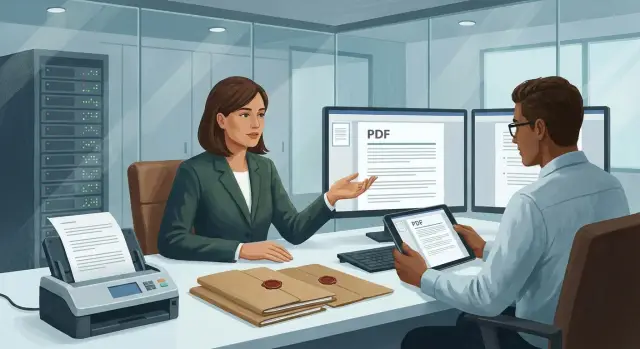
Challenges companies face when approving PDFs
PDF often becomes the final format not because it’s the most convenient for everyone, but because it’s the most stable for exchange between departments. Source files live in different programs, with different font versions and templates, while the output must be a single result: a document that opens identically on any workstation, is suitable for signing and can be safely archived.
That’s why approval in a closed environment is usually built around one PDF: comments, edits, the lawyer’s notes, approvers’ stamps and the final signature all stay in that file. But once the process goes beyond “send the file by email”, typical failures start.
Most often it looks like this:
- The file travels through different channels (email, messengers, USB drives), and it’s unclear which is the latest version.
- Deadlines slip because of manual reminders and waiting for multiple people to respond.
- Responsibility blurs: who made the edit, who approved, who should have checked the attachment.
- In a closed environment there are no familiar cloud functions, so everything relies on folders and discipline.
- Disputes arise over “what exactly changed”, especially when edits were made on top of scanned copies.
Roles in such a process almost always repeat: the author prepares the text and attachments, the approver checks departmental requirements, the lawyer reviews risks and wording. Often security or compliance teams get involved. There is usually an records clerk or archivist who monitors the final version and storage.
By document type you most often meet contracts and amendments, orders and directives, technical documentation, and forms that must be filled strictly according to a corporate template. In organizations with state participation and stricter retention requirements, an additional layer appears: mandatory recording of the approval route and the reasons for edits for inspections.
A small but frequent scenario: procurement brings a scan of a signed appendix to a contract, the lawyer asks to correct one clause, and the author edits the wrong file. The archive receives a version without the needed change, and finding the mistake is hard because there’s no single space for comments, versions and confirmations.
What PDF editor features matter specifically in a corporation
In a corporation a PDF is rarely “just a file.” It’s a contract, a regulation, an invoice, a technical passport, a memo. Each document has an approval route, deadlines and assigned responsibility. So when choosing a PDF editor for an approval workflow in a closed environment, you need not only convenient editing but also predictable results: the document after changes should look the same on any computer and remain intact in the archive for years.
Edits without breaking layout and fonts
The main pain of corporate documents is layout and fonts. The editor must handle Cyrillic correctly, embed fonts and not substitute them with “similar” ones — otherwise tables, signatures and numbering will shift.
Test on a real template. Can you change one digit in a table, replace company details, move a text block and not get line jumps and odd breaks? If saving changes spacing, headers/footers drift or alignment breaks, this becomes a mass problem in a corporate flow.
Comments, comparison and a clear history of remarks
Approval relies on remarks, so tools that preserve context are important: who left the comment, when, what place it refers to, and what happened to it later. In practice a “suggest edits” mode, statuses (accepted/rejected) and PDF comparison with highlighted differences help a lot.
Typical situation: the lawyer edits a clause, security adds an access condition, accounting asks to update bank details. If the editor cannot collect and display history properly, people start sending versions by email and editing manually. Control is lost quickly.
Signatures, stamps and batch operations
A corporate editor usually needs three groups of functions.
First, visual marks: stamps and labels like “Approved”, “Copy verified”, dates and names so status is readable at a glance.
Second, signatures: support for electronic signatures and validation so the document isn’t just an image and can be verified.
Third, batch processing: watermarks, continuous numbering, merging and splitting files, and applying settings to a batch of documents.
Batch operations are especially valuable when many similar materials are processed daily: appendices to a contract, bundles of acts, a series of orders. Time savings are immediate and reduce manual errors.
Corporate templates and forms: what to check in advance
If the company has approved forms (orders, contracts, memos), the PDF editor should handle them so that the header, logo, signatures and legal wording don’t need manual editing and don’t shift with each new document. Otherwise the approval workflow in a closed environment quickly becomes an exchange of files with many versions of the same template.
First check immutable blocks. In a good scenario the template is assembled once: fixed elements are protected from editing, and fields are left for variable data. Protection must be predictable: you shouldn’t be able to accidentally move company details, delete a confidentiality notice or change the footer font.
Next — autofill of details. Most time is eaten by small items: full name, position, department, document number, date, contacts. It’s better when fields pull data from a corporate directory or at least the user profile. Records management benefits from “smart” fields: automatic numbering, city substitution, selecting a department from a list.
Interactive forms deserve separate attention. Input fields, checkboxes and dropdowns must behave the same on all workstations, not depend on the viewer installed on the employee’s machine. Check validation: IIN/BIN of the correct length, date formats, required fields that prevent sending the document further when empty.
Before a pilot it’s useful to run a short checklist:
- Can immutable elements be protected while leaving needed fields editable?
- Is autofill of details and quick selection from lists supported?
- Does validation and required-field behavior work without complex setup?
- Are there unified rules for storing templates (single location, clear names) to avoid creating copies?
- Can templates be updated centrally so new documents are created from the new version?
A simple example: HR issues an order from a template. If full name and department are chosen from a list, number is auto‑assigned and the header is protected, approval goes faster and without cosmetic edits that often trigger extra cycles.
Scanned copies and the OCR layer: how to keep readability and search
A scanned PDF often looks like an image in a container. You can open and print it, but search, text copying and working with fragments don’t work. A PDF with recognized text behaves differently: a text layer appears, and the document becomes searchable, selectable and usable for copying fragments into memos or responses.
A key point for a closed environment: OCR must run locally, without sending files to external services. Otherwise security and the audit of document approvals become a formality.
What to check in OCR before choosing an editor
Good OCR is not just “recognized letters.” You need predictable results on your typical documents: contracts, incoming correspondence, acts, forms.
Before a pilot check:
- Languages and mixed texts: Russian, Kazakh, English in one document.
- Preservation of structure: paragraphs, line breaks, tables, numbering, headers/footers.
- Forms handling: recognition should not break fields or shift them relative to the template.
- Quality on poor scans: thin fonts, faint printing, faxes.
- Output modes: “text over image” and “text only” (for archive tasks).
Invisible OCR layer: the best option for approval
For most corporate processes an “invisible” OCR layer is more convenient. The visual appearance remains identical to the scan, but search and copy become possible. This is critical when the document contains signatures, stamps and registry marks and the image must not be changed.
Typical problems to test with sample files: skewed pages, noise and background, cropped fields, stamps over text. For example, an incoming letter with a round stamp often causes recognition errors in company details. A good tool either correctly recognizes text near a stamp or provides a quick way to check questionable places without retyping.
If the flow is large, ask about batch recognition: can a folder of incoming scans be processed on a schedule, save results to a chosen format and provide an error report? This saves hours for the records team and reduces the risk that a “silent” PDF without searchable text enters the approval flow.
Version control and traceability of changes
Without version control, approval quickly turns into exchanging files named like “Contract_final_3_edits_Ivan.pdf”. In an approval workflow in a closed environment it’s important to decide in advance where the “single source of truth” lives: versions as separate files in folders, or versions of one document record in a system.
Storing versions as files is easier to start with but requires strict discipline: it’s easy to lose the current copy, mix up signatures and attachments, or accidentally overwrite a file. A document record in a system (ECM/EDMS) is better for order: one document with a sequence of versions, statuses, actors and an action history. This is especially noticeable when one PDF passes through legal, accounting and security.
PDF comparison: what to treat as a real change
Comparison should show differences by meaning, not create noise. Line wraps, rebuilt page objects or font substitutions after export should not look like major edits. Check whether the tool can:
- highlight changes in text and numbers, not just the page image;
- show where pages, stamps, signatures or comments were added or removed;
- distinguish content edits from metadata changes (author, save time);
- produce a clear report for approvers.
Who edited and when: the audit log and immutability
Traceability relies on an action log: who opened, who edited, who left a comment, who changed a status. In a closed environment this is often an audit requirement, so logs must not be erasable by ordinary user rights, and access to the log should be role‑based.
Statuses should be fixed and consistent across departments. A minimal set is usually: draft, under review, approved, archived. When status changes the system should record the actor and time and link this to a specific PDF version.
Finalize strictly: after “approved” the document should become read‑only, with editing blocked and a clear procedure for issuing a new version (for example, “amendment to the document”). Otherwise someone may change a number and a week later it will be impossible to prove what was actually approved.
Security requirements for a closed environment
If you have a PDF approval workflow in a closed environment, security starts with architecture, not editor settings. The solution should run on‑prem, without mandatory cloud services, external accounts or background connections to vendor servers. This matters not only for classified data or banks but also for ordinary contracts, HR records and medical data.
Check how access control is organized. Corporations rarely need one access level for everyone: a lawyer needs to edit text, a manager only needs to approve and comment, a secretary may only apply the final stamp.
Typically rights are grouped into clear levels: read and search without edit; comment and mark up without changing content; role‑based text and form editing; printing with restrictions (for example, only after approval); export and copy of fragments according to policy.
Next — data protection. Inside the network secure channels are needed between workstations, the document server and the approval system. On the storage side encryption and clear key management rules are important: who has access, where keys are stored, what happens when an employee leaves or an account is compromised.
Retention policies often break the process more than anything. A simple example: an employee opens a PDF, signs it and out of habit emails the file to their personal address to print at home. In a closed environment this should be blocked by policy: disallowing USB exports, controlling the clipboard (if required), restricting attachments in mail clients, and adding watermarks to prints.
For audits clarify in advance which events are logged and how long they are retained. A common minimum:
- who opened the document and from which device;
- who added a comment, edit, signature or stamp;
- who changed access rights and printing policy;
- which version became current and who approved it;
- retention periods and deletion procedures per regulation.
If you build the closed infrastructure completely (workstations, servers, support), it’s easier when a single party is responsible for the whole perimeter: hardware, integrations and maintenance. Projects like this often involve a system integrator who can cover infrastructure and support.
Integrations without which the workflow won't work
Even the most convenient PDF editor becomes “another island” if it doesn’t live alongside your accounts, storage and approval rules. For a closed‑environment approval workflow it’s critical that documents don’t have to be manually downloaded, renamed, forwarded and reuploaded.
What should be connected first
Start with users. If the company uses Active Directory, it makes sense for editor access and approval routes to inherit roles, groups and rights from there. In closed networks local accounts are common; in that case you need clear rules: who creates users, how terminated employees are blocked, how roles like initiator, approver, signer, auditor are assigned.
Next — where the document lives. If you have an EDMS/ECM, archive or file storage, the editor should open PDFs directly from there and return results without losing metadata (number, date, author, document card). Otherwise version control and archive search fall apart.
Signing is a separate layer. It’s important not only to support electronic signatures but also to define the signing route: who signs first, who can see the document after signing, what happens on refusals, and how the grounds and comments are recorded. In a closed environment this is tied to internal regulations and audit.
Scanners and MFPs are another entry point. If incoming contracts and acts arrive in batches you need a clear flow: scan to “incoming”, sort by department or document type, run OCR and create a task for initial checking.
Notifications and tasks close the loop. Approvers should receive assignments where they actually work: in EDMS tasks, internal mail or a built‑in notification center.
How to quickly check during a pilot
Ask the vendor to show a real route from scanner to archive, not just the interface:
- AD login and role assignment by group;
- opening and saving PDFs directly in your EDMS/ECM or file structure;
- signing and signature verification at multiple steps of the route;
- importing a scan, OCR and searching the recognized text;
- tasks to approvers, return for revision and status recording.
In a government body or hospital this often reveals a typical problem: the document was scanned and recognized, but the editor saved a copy “to the side” and the archive received the wrong version. Good integration removes dependence on users’ manual discipline.
How to choose a solution: a step‑by‑step plan
Start with your real documents and rules, not feature lists in a brochure. Otherwise a pilot will suddenly show templates shifting, scans not being searchable, or comments not landing in the audit.
Collect a small but representative set of files (10–15 is usually enough): corporate templates, scanned copies with stamps and signatures, contracts with edits already applied, plus one or two “complex” documents (many pages, tables, mixed languages).
Then fix the approval route: who starts the document, who reviews, who approves, what the deadlines and statuses are, and how to handle exceptions (approver on leave, return for revision, parallel approvals). Even a one‑page diagram shows whether roles, process templates and deadline control are needed.
Practical order of actions:
- Describe scenarios: creation, edits, approval, final sign‑off and archiving.
- Build a rights matrix: who can edit, comment, stamp/watermark, export, print.
- Define critical prohibitions: for example, disallow copying sensitive sections or saving “as Word”.
- Run a pilot: compare 2–3 solutions on the same set of documents and rules.
- Fix acceptance criteria and assign reviewers.
Acceptance criteria should be measurable: open/save speed for large files, OCR quality (errors in numbers, lost lines), ease of edits and comments, resilience to poor scans, completeness of audit (who did what and when) and ease of restoring a previous version.
Example: accounting approves a contract with appendices and scanned acts. On the pilot check whether amounts in scans are found after OCR, whether the template layout breaks, and whether you can quickly see who edited a specific clause. If infrastructure is deployed on your servers, clarify workstation and server requirements before testing. It’s easier to test on typical configurations already used in the company.
Common mistakes during implementation
The first mistake is buying a PDF editor and assuming the approval workflow in a closed environment is “done.” The editor only solves part of the problem. Where files are stored, who has access, how versions are fixed and who approves — these are separate rules and roles. Without defined storage and access rules, documents start “wandering” across folders and USB drives, and the latest version becomes a matter of luck.
OCR is often tested on demo files, not on real scans. After rollout it turns out that company‑typical documents (crooked scans, stamps, tables, small fonts, handwriting) produce many recognition errors. Then text search fails, copying fragments requires manual fixing, and trust in the system falls.
Another pain is the lack of rules distinguishing comments from edits. When some employees leave notes, others change the text, a third draw on top, and “accepted/rejected” is not recorded, approval loses meaning.
A useful minimum:
- comments — for discussion, without changing source text;
- edits — only after an explicit “for revision” status;
- final version — a separate file or a separate status that cannot be changed without a new cycle.
Many keep approval in correspondence: emails, messengers, calls. Convenient at first, but later it’s impossible to restore who approved what, which remarks were critical and why a particular edit was accepted. Without an action log and statuses auditability and manageability are lost.
Backups are often forgotten. In a closed environment this is critical: if a server or workstation fails, “yesterday’s final” and the approval history can disappear. Check where files are stored, how backups are made, who controls them and how quickly access can be restored after a failure.
Quick check before purchase and next steps
Before buying licenses and starting rollout, run a short test on your real documents — not demo PDFs but files that live for years: orders, contracts, reports, acts, scans with stamps and signatures.
60‑minute checklist
Take 5–7 typical PDFs and run them through the candidate solution. Look at results and stability, not just whether a feature exists.
- Templates and forms: does your corporate template open without layout, font or field shifts? Are fields and values preserved after edits?
- Scanned copies: can the tool create an OCR layer so the image quality is preserved while text becomes searchable and selectable?
- Languages: check search and recognition on Russian and Kazakh in one document (especially names, abbreviations, numbers).
- Versions and transparency: is there version comparison (what changed), a clear action log (who did what and when) and an easy rollback method?
- Closed environment: can components be deployed without the cloud and can access be administered by your rules?
If a single key file fails at this stage, it’s not a minor issue. Workarounds usually follow: edits in Word, manual merging, loss of history, disputed versions.
Next steps after the check
Create a short rollout plan so the pilot doesn’t become an endless experiment. Start with load estimation: how many PDFs per day, how many simultaneous editors, how many scans need recognition, retention periods and logging requirements.
Then fix the infrastructure: where the repository and version storage will be, how backups are made, who sees logs, how roles are configured, how software is updated without internet access. In a closed environment also agree on support: who accepts incidents, support hours, and recovery times.
If you need a partner to cover infrastructure, integration and support, consider system integrators experienced in on‑prem projects. For example, GSE.kz (gse.kz) as a vendor and integrator can help select servers and workstations for the load and build and support a closed environment, including OCR scenarios, version storage and audit.
Frequently asked questions
What matters most when choosing a PDF editor for approval in a closed environment?
Most often focus on three things: edits that don’t break layout, robust comment history and change tracking, and the ability to work fully locally without cloud dependencies. If at least one of these is missing, approval will quickly degrade into file exchanges and manual checks.
How can I tell if the editor will not break layout and fonts in corporate PDFs?
Test on your corporate template: change a single number in a table or update company details and verify the document looks the same after saving on another computer. Pay special attention to Cyrillic text and font embedding — font substitution usually breaks tables, line breaks and headers/footers.
What commenting tools are needed so remarks don't get lost?
The minimum set: author of the comment, timestamp, a link to the exact place in the document, and a clear status for the remark. If the editor doesn’t show what happened to a comment next, people start editing “on top” and passing versions around, and control is lost.
What should I look for in a PDF comparison feature?
The comparison should highlight semantic changes, not create noise from line wraps or rebuilt page objects. It’s useful when you can see added or removed pages, stamps and signatures, and get a short clear summary of differences for approvers.
Which OCR mode is best for scans in the approval process?
An invisible OCR layer is best: the scan looks exactly the same visually, but text becomes searchable and selectable. For a closed environment it’s essential that recognition runs locally and does not send documents to external services.
What must be checked in OCR before buying a solution?
Test mixed languages, quality on poor scans, and preservation of structure — especially tables and numbering. If OCR confuses amounts, contract numbers or details, approvals will produce errors and archive search will be unreliable.
How to avoid chaos with corporate templates and forms in PDF?
The ideal is centralized templates with protected fixed blocks and fields for variable data. Then an employee fills only the required fields while the header, legal wording and company details cannot be accidentally moved or replaced.
How to organize signatures and document finalization correctly?
Define roles in advance: some people only view and comment, some edit text, and signers only sign and verify signatures. Decide what happens after the “approved” status: the document should become read‑only, otherwise you cannot prove which version was actually approved.
What audit and action log requirements should be set from the start?
In a closed environment it’s important not only to store logs but to protect them from being erased by users with normal rights. The log should record openings, edits, comments, signatures, policy and rights changes, status changes and be retained according to a clear procedure for audits.
How to run a quick and proper pilot before rollout?
Take 10–15 real files, including complex scans with stamps and your working templates, and run one full route from creation to archive. A pilot quickly reveals where versions are lost, templates break, signatures fail at steps, or documents are saved to side copies.
