7 min read
PCs for STEM Labs: Configurations for Colleges Without Unnecessary Extras
PCs for STEM labs: how to choose configurations for coding, simple modeling and basic graphics without overpaying for rare features.
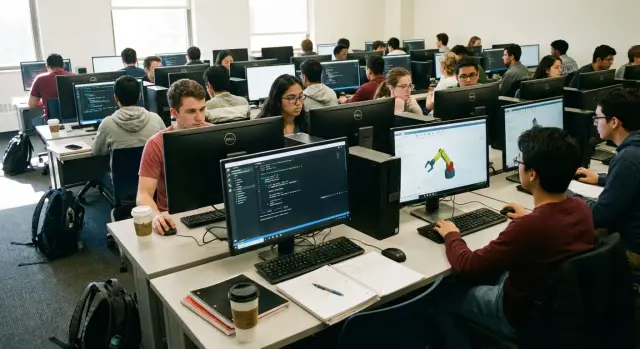
What matters most in a STEM lab
In a college STEM lab the real workload is usually simpler than it looks at procurement time. Most of the time students work in an IDE (Python, C/C++, Java), keep a browser open with documentation and learning platforms, write reports in office apps and run simple simulators.
A separate class of tasks appears in modeling and basic graphics courses: 2D graphics, simple 3D scenes, student CAD projects, visualization of experimental results, and working with graphs and data. What matters here is not "top-tier" components but predictable speed without freezes.
The problem with an "one PC fits all" approach is that it almost always misses reality. If you pick a configuration "with headroom for any course," you'll overpay for features most students will never use. If you choose a "middle" option without understanding the loads, it will start to lag during peak lessons (for example, when the whole cohort builds a project, runs a simulation and has 20 tabs open at once).
Bottlenecks most often appear in four places:
- RAM: it runs out when an IDE, browser and modeling tools are open at the same time.
- Storage: a slow drive turns app launches and project builds into waiting time.
- GPU: for basic 3D graphics and some simulators stable driver support is more important than raw peak power.
- Cooling: in a lab PCs run for hours and overheating causes throttling and noise, even if specs look fine on paper.
When choosing PCs for STEM labs prioritize memory, storage and reliable sustained performance, not the brand of individual parts. It's far more useful to have clear profiles for different courses and consistent maintenance standards than to mix "the most powerful" and "the cheapest" machines in one room.
Divide the fleet into 3 profiles, not just "weak and strong"
Purchasers often do "half weaker, half stronger." As a result, instructors don't know where to seat people and students get different speeds for the same tasks. It's more convenient to divide the fleet by types of teaching tasks. Then schedules, OS images and software requirements become predictable.
A practical approach is three profiles assigned to subjects and rooms:
- Profile 1: programming and tests. IDE, browser, Git, project builds. If containers are used, allow extra RAM and disk so multiple environments don't choke the system.
- Profile 2: modeling and educational CAD. 2D drawings and simple 3D scenes usually stress the CPU, RAM and a fast SSD. Integrated graphics often suffice for basic tasks, but drivers must be stable.
- Profile 3: basic graphics and multimedia. Image editors, presentations, simple video editing. Here the screen, reliable peripherals and quiet operation matter more than peak power.
This split helps explain procurement choices: two visually identical PCs can be different inside—not "more expensive vs cheaper" but "fit for task." It also makes upgrades easier: for example, strengthen profile 2 first if the share of 3D work grows.
A dedicated instructor PC is justified when the teacher does more than students: recording and demonstrating at once, building projects for the group and running automated tests, preparing 3D scenes and templates, or keeping several VMs for different courses. In such cases one more powerful machine (or workstation) reduces risks during lessons, while students keep configurations suited exactly to their needs.
Minimum hardware: where to save and where not to
If the budget is limited, it's better to fix core bottlenecks than chase "the cheapest." In STEM labs these are usually the same: many tabs, a development environment, simple models, working with datasets and sometimes light graphics.
CPU: single-thread and multithread matter
For teaching tasks single-core speed matters: it affects how fast projects open, code compiles and the UI responds. But multiple threads are also useful: the browser, IDE, simulator and background processes easily consume resources at once.
You can save by avoiding top-end lines, but don't pick knowingly weak CPUs that will lag during parallel work. A practical target is a modern mid-range CPU so there isn't a long queue for "the fastest" PC in the room.
RAM and storage: the usual pain points
8 GB can be enough for simple programming, but in a real lesson 16 GB is noticeably more comfortable: IDE, a browser with docs, a video and a couple of utilities open at once. If a lab serves multiple disciplines, 16 GB reduces the risk of constant hiccups.
Plan for an SSD from the start. The difference between NVMe and SATA in daily use: both are much faster than HDD, but NVMe launches heavy apps and handles big updates and projects noticeably faster. If you must choose where to spend, SSD is almost always more important than extra "fancy" case features.
Graphics and network: buy as needed
Integrated graphics suit programming, office tasks, basic 2D and simple educational 3D scenes. A discrete GPU is needed when there's real demand: 3D modeling with many details, CAD lessons, or AI projects that require acceleration.
For the classroom a wired network is more reliable: fewer surprises, easier administration, and steadier performance during tests and demos. Keep Wi‑Fi as a supplement, not the only option if all 20 seats might download environments, libraries or updates simultaneously.
Three workload scenarios and what they require
During the day a single machine in a STEM lab can move from simple code to an educational 3D scene and a projector presentation. To avoid over- or under-spec'ing PCs, it's useful to split workloads into three scenarios.
1) Programming and student projects
Typical picture: IDE (Visual Studio Code, PyCharm, Visual Studio), several small projects, a terminal, 10–30 browser tabs, sometimes an emulator or containers. Responsiveness is the top priority.
Guidelines: 4–6 cores of a modern CPU, 16 GB RAM (32 GB if you plan Docker and Android emulators), NVMe SSD 512 GB. Integrated graphics are usually enough.
2) Educational modeling and simple visualization
This covers simple assemblies, classroom scenes, basic animation and non‑photorealistic renders. Here you feel the difference between "it launched" and "you can work without waiting."
Guidelines: 6–8 CPU cores, 32 GB RAM, NVMe SSD 1 TB (projects and caches grow fast), entry-level discrete GPU with 6–8 GB VRAM. If the budget is tight, don't skimp on RAM in favor of a stronger GPU.
3) Basic graphics and teaching materials
Includes 2D layouts, simple effects, image prep and reliable output to a projector or large panel. Load is steady, but video outputs and quiet operation are important.
Guidelines: 4–6 CPU cores, 16 GB RAM, SSD 512 GB, integrated graphics or a simple discrete card if you need solid 4K output or multiple displays.
Before buying check four things: how many apps students actually open at once, whether 3D is needed at every seat or only some, the intended service life of the fleet and expected software updates, and which monitor/projection connectors are required (HDMI, DisplayPort).
Example: for 20 seats a sensible split is 12–14 "programming," 4–6 "modeling" and 2 "graphics/presentation." This keeps the lab flexible and avoids spending the budget on identical high-end PCs everywhere.
Form factor for the classroom: tower or all-in-one
Choosing PCs for STEM labs is not only about "how many FPS" and "which CPU," but how the equipment behaves in daily use: does it make noise, heat the room, allow easy flash drive access, and can it be repaired without interrupting lessons?
A tower plus a monitor usually wins when you need upgrade headroom and simple servicing. Adding an SSD, more RAM or swapping a GPU for 3D work can be done quickly without replacing the entire device. You can also pick monitors: 24–27 inches for modeling or smaller and cheaper for pure programming.
An all-in-one is convenient where order and compactness matter. Fewer cables and less chance of accidentally pulling a power lead make it easier in rooms with tightly arranged desks.
When a touchscreen truly helps
A touchscreen all-in-one is useful in specific class formats: showing diagrams, fast interactive tasks at the display, small-group demos, and simple interface work in student projects. If lessons are mostly about coding, CAD or office tasks, touch is often an unnecessary extra.
Service, noise and heat
Check three things before choosing form factor: how easily you can access front ports (USB for flash drives, headsets, microcontrollers), how quickly you can replace a drive and clean the system, and how machines behave in noise and temperature under extended load.
A simple rule: if your college has a person responsible for hardware and you plan upgrades, choose towers. If you prefer "install and forget" and loads are moderate, all‑in‑ones may be more practical. In mixed setups it's common to keep several more powerful towers for modeling and cover the rest with compact solutions.
The complete workstation: monitor, peripherals, power
Even a good tower won't help if the workstation is uncomfortable or loses power. For a STEM lab view the workstation as a kit: screen, input, ports and protection.
Monitor: make code and schematics readable
For programming and schematics clarity and ergonomic adjustment matter more than sheer size. A practical classroom minimum is 23–24 inches and Full HD so code lines and IDE interfaces aren't tiny. Height and tilt adjustment are useful: students of different heights will use the same seat and without adjustment neck and eye complaints appear fast.
Keyboard and mouse: simple and uniform
In a teaching room uniform experience and durability matter more than design. Wired sets are more practical: fewer battery issues and missing adapters.
Agree on one standard: full-size keyboard with numeric pad, mid-size mouse without extra buttons, USB connection, and matte plastic.
Plan ports in advance. Each seat usually needs at least 4 USB (mouse, keyboard, flash drive and another device), audio for headphones, and a clear video output for your monitors. If you use electronics kits, sensors, microcontrollers, 3D printers or scanners, front or side USB access saves class time.
Power and protection are often underestimated. A power strip with a switch at each seat is basic hygiene. UPS makes sense at least for the instructor PC, network gear and 1–2 critical workstations used for demos or where projects are saved. A short outage then won't break a lesson or corrupt data.
Step-by-step configuration selection
Choosing college PCs is easier as a small project: fix real needs and map them to 2–3 standard builds. This avoids overpaying "just in case" and prevents hitting weak spots in six months.
Short plan of action:
- List software by discipline and note versions for the next 2–3 years (IDEs, CAD, simulators, graphics, browser platforms).
- Assess concurrency: how many students run heavy apps at once and where projects will be stored (locally, on shared storage, on a server).
- Define 2–3 standard profiles and tie them to rooms and subjects, not to "strong vs weak."
- Plan a clear upgrade path: free RAM slots, room for a second SSD.
- Agree requirements with IT and procurement: domain compatibility, OS images, antivirus, brand restrictions and support timelines.
A small example. A college plans 20 seats: 12 for programming and basic labs, 6 for 3D modeling, 2 for instructor and demos. It's logical to approve three configurations: "base" (fast SSD and enough RAM), "modeling" (more RAM and a GPU per CAD requirements) and "instructor" (larger storage for materials). This is easier to maintain and upgrade than 20 different PCs.
If buying a batch, ask the supplier to confirm identical components within each configuration. This reduces surprises with drivers, images and support. Local manufacturers and integrators like GSE.kz usually allow fixing a specification and ensuring a consistent standard for the whole delivery.
Common procurement mistakes and how to avoid them
The costliest mistake is buying a fleet that looks powerful on paper but disrupts lessons due to small issues: not enough RAM, a tiny disk or mismatched models. Fixing that later is harder and more expensive than setting a clear standard up front.
What often goes wrong
- Overspending on a GPU. For programming, electronics and basic 3D often integrated graphics or an entry card suffice. High-end GPUs are needed only if the curriculum includes heavy 3D, rendering or GPU computations.
- Too little RAM. Lessons typically have a browser with tabs, IDE, emulators, spreadsheets and chats. If RAM is low, everyone experiences stutters even on simple projects.
- Small or weak SSD. When a drive is full, updates are slow, projects don't fit, and there's no room even for caches. Keep a healthy margin for updates, environments and temp files.
- Mixed configurations in one room. Different speeds and driver surprises complicate both teaching and maintenance.
- Ignoring service and warranty terms. One broken PC affects the schedule, so clarify who repairs, whether there's on-site service and whether spare parts are stocked locally.
A real case: a college bought 20 identical PCs with minimal SSDs and after a few months half the machines slowed due to updates and full student profiles. If they'd specified larger disks and a unified image with a cleaning policy, the problem would largely have been avoided.
If purchasing in a batch, clarify who will support the fleet post-delivery. In Kazakhstan this is especially important: local assembly and a service network from the manufacturer/integrator make after-sales support easier.
Quick pre-order checklist
Before ordering, check not "is this the most powerful PC" but "will it be equally convenient for teachers and students every day?" In a STEM lab repeatability matters: identical settings, predictable behavior and minimal surprises.
A short checklist to run on one reference machine, then lock as the standard:
- Memory: 16 GB RAM as a baseline for a general-purpose teaching PC.
- Storage: SSD sized to fit OS, teaching software, updates, projects and caches.
- Ports: front or side USB access for flash drives, sensors and programmers without reaching behind the case.
- Noise and cooling: run a 15–20 minute typical load (project build + several tabs + a simple 3D scene) and evaluate noise and temperature.
- Deployment standard: single OS image, identical driver and software versions, clear rules for accounts and project storage.
After that place the PC in a typical workstation, attach monitor and peripherals, and check access to the power button, ports and connectors.
One practical step: ask the supplier to describe how they will support the batch (response times, part replacement, identical components). If you work with a local producer like GSE.kz, this point is usually easier to settle organizationally.
Example: a 20-seat college lab
Inputs: 20 seats, a projector, two coding subjects (Python/C#, databases) and one modeling subject (simple assemblies and classroom renders). The fleet should be unified for management and spares but avoid overpaying where it's unnecessary.
A practical plan is two student configs and one boosted instructor/demo machine. The "base" covers programming and office tasks; modeling gets more GPU and RAM only where needed.
A sample seat breakdown:
- 12 seats: base profile for programming (i5 / Ryzen 5, 16 GB RAM, 500 GB SSD, integrated graphics).
- 7 seats: modeling profile (same CPU, but 32 GB RAM and an entry-level discrete GPU, 1 TB SSD if possible).
- 1 seat: beefed-up instructor PC (extra CPU headroom, 32–64 GB RAM, a stronger GPU, two drives: SSD for OS and SSD/HDD for projects).
Plan free RAM slots and space for a second SSD in all towers so you can add memory and storage later without full replacements.
On-site checks are short: three quick tasks per profile:
- Code: open an IDE, build a project and run tests.
- Modeling: open a typical assembly, navigate the scene and do a simple render.
- Stability: 10 minutes of load (build or render) and monitor temps and noise.
If buying from a local supplier, request consistent OS images and identical components across the batch. This saves support time during the academic year.
Next steps: a standard, a pilot batch and support
To avoid a "zoo" of different builds start with a standard. Fix 2–3 configurations for your profiles (programming, modeling, basic graphics) and include workstation requirements: monitor, keyboard, mouse, headset, webcam, required ports and network type.
Then prepare a list of preinstalled software and a short test assignment set to confirm identical behavior across machines: compilation works, a model opens, a calculation completes without errors, peripherals are detected.
Order of operations before bulk purchase:
- Approve 2–3 configurations and a uniform peripheral list.
- Agree on the OS image (OS, drivers, licenses, teaching packages).
- Run test tasks and measure key operation times.
- Buy a pilot batch (e.g., 3–5 PCs) and let instructors use them for one to two weeks.
- Lock changes and then order the full fleet.
Also schedule maintenance for the academic year: regular dust cleaning, replacing consumables (keyboards, mice, sometimes fans), a clear support procedure and 1–2 spare devices so a single failure doesn't cancel a class.
If local supply, service in Kazakhstan and a unified batch standard matter, consider solutions from GSE.kz: L200 desktops for classrooms, M200 all-in-ones where space savings matter, and S200 servers if you later need infrastructure for project storage or teaching services.
Frequently asked questions
What tasks in a STEM lab are really the most important when choosing PCs?
Usually it's not "maximum power" but stable, lag-free operation under a typical workload: an IDE, a browser with documentation, office apps and simple simulators. The most common bottlenecks are insufficient RAM, a slow drive and overheating during extended use.
Why does the “half weak, half strong” approach usually fail?
Because it's hard for teachers and students to predict who needs which machine, and people end up with different performance on the same assignments. When the fleet is organized by teaching scenarios (code, modeling, graphics/multimedia), it's easier to schedule, deploy identical OS images and maintain the equipment.
How much RAM should we plan for: 8, 16 or 32 GB?
For most college STEM scenarios, a comfortable baseline starts at 16 GB: IDEs, several windows and tabs, messengers and learning platforms quickly eat memory. 8 GB may be enough only for very simple classes without containers, emulators or heavy browsing, but in a full group it often turns into "everyone freezes at once."
How critical is an SSD and is NVMe worth it over SATA?
An SSD is almost always essential because it affects app startup, updates and project builds. SATA SSD already gives a big improvement over HDD, but NVMe is noticeably better for heavy apps, large projects and frequent updates; if you can pay a bit more, it usually pays off here.
When does a STEM lab actually need a discrete graphics card?
Integrated graphics are usually enough for programming, office tasks, 2D and simple educational 3D scenes if drivers are stable. A discrete GPU is needed when the curriculum includes substantial 3D workloads, CAD with complex scenes, rendering or projects that explicitly require GPU acceleration.
Which is better for a classroom: a tower PC or an all-in-one?
A desktop tower is more convenient if you plan upgrades and want to add RAM, SSDs or swap a GPU without replacing the whole device. An all-in-one is more practical when compactness, tidy desks and fewer cables are priorities, and workloads are moderate; just check port access and serviceability in advance.
Is it worth overpaying for a touchscreen on an all-in-one?
If lessons are mainly about code, CAD and typical desk work, touch rarely pays off. It's useful for specific formats: interactive demos in small groups, quick tasks at the display, or working with simple interfaces and presentations where touching the screen is convenient.
Should the classroom rely on wired networking or is Wi‑Fi enough?
It's more reliable to plan for a wired network, especially during tests and sessions when the whole class downloads libraries, environments or updates. Wi‑Fi is fine as a complement but shouldn't be the only channel, to avoid interference, access-point overload and random speed drops.
How to quickly choose configurations if you don't have time for long calculations?
Start with a list of software per subject and understand which tasks run in parallel, then boil that down to 2–3 standard profiles tied to subjects and rooms. Test a sample machine with real tasks (build a project, open a model, short stress load) and lock the components within each profile.
What mistakes are most common when buying STEM PCs and how to avoid them?
Common failures are small things: too little RAM, undersized SSD, mixing different configurations in one room and not checking noise/temperature under load. Another frequent issue is not planning support: who will restore a workstation quickly if it breaks mid-week? Working with a local manufacturer or integrator like GSE.kz makes it easier to specify support and service terms in advance.
