6 min read
PCs for Legacy COM/LPT Devices: Options and Testing
PCs for legacy devices with COM/LPT: compare built-in ports, PCIe cards and adapters, and learn how to pre-check drivers and software.
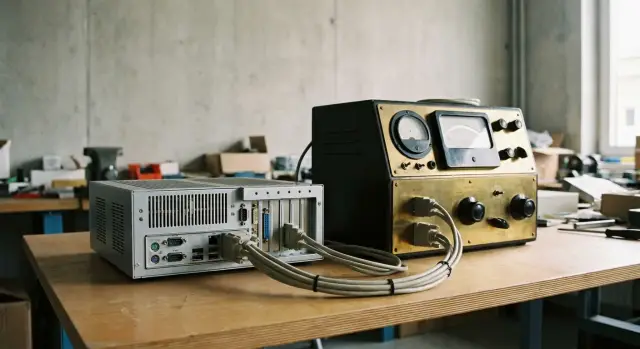
Why COM/LPT still matters and where problems appear
Many organizations still use "legacy" devices with COM (RS-232/RS-485) or LPT. This is not nostalgia: the equipment may be functional, calibrated, integrated into processes, and replacing it is often more expensive than updating the PC.
These interfaces are most common on machine tools and controllers in production, POS systems and terminals, medical devices, meters and laboratory equipment, as well as older printers and programmers. Often everything is tied to a specific port and an application that expects COM1 or LPT1.
Ports haven't disappeared for practical reasons. COM is popular in industrial peripherals: a simple cable, understandable settings (baud rate, parity, stop bits), and familiar wiring and instructions. LPT was long convenient for signal control and specific drivers, and some devices still expect physical lines on the pins.
Problems usually begin when replacing a PC. Modern systems often lack physical connectors, and "just using an adapter" can result in unstable communication. Worse is when a port appears to be present but there are no drivers, the application doesn't see the device, or timings break (for example, the device expects a response at a strict time).
Typical risks when updating PCs:
- no physical port on the case or motherboard, and you can't route one out;
- driver exists only for old Windows or is signed by an outdated method;
- the application only works with a "real" COM and rejects virtual ports;
- unstable communication because of adapter quality, cable, or interference;
- special modes required (RS-485, hardware flow control, nonstandard pinout).
To avoid discovering these after purchase, collect a minimum of data in advance: exact device model, interface type (RS-232, RS-485, LPT), port requirements (baud rate, flow control, COM number), target OS and the application that will use the device. These details usually decide whether a built-in port is enough, a PCIe card is needed, or only a proven adapter will do.
COM, RS-232, RS-485 and LPT: what's important for compatibility
When people say "we need COM", they usually mean RS-232. But in practice a "COM device" may imply different physical interfaces and cabling requirements. As a result, a new computer may "see the port" but communication is unstable or doesn't start.
COM doesn't always equal RS-232: how RS-485 differs
RS-232 is typically for point-to-point connections and short lines. RS-485 is often used for longer runs and where multiple devices share the same bus. Externally both may be called "COM", but electrically and in wiring they are different.
Before choosing a port or adapter check at least the following:
- what the device manual specifies: RS-232 or RS-485 (sometimes both on different terminals);
- whether half-duplex and direction control are needed (typical for RS-485);
- whether galvanic isolation is required (common in factories, long lines and noisy environments);
- whether RTS/CTS or DTR/DSR lines are used (critical for some devices);
- what speed and format are required: baud rate, data bits, parity, stop bits.
LPT: why it's still used
LPT (parallel port) appears not only on old printers. It still shows up on equipment that expects real electrical signals on pins: old controllers, test stands, sometimes hardware dongles. Important: many of these devices need a true LPT with line-level access, not merely a printer interface.
Another risk area is connectors and pinouts. RS-232 often uses DB9 and LPT DB25, but sites may have adapters, extenders and nonstandard cables. Sometimes a DB9 device actually uses a nonstandard pinout or only a few contacts and a single control line.
Practical example: a POS or lab device "on COM" may require RTS/CTS. Through a cheap USB-RS-232 adapter the connection drops under load not because of "bad drivers" but because the adapter doesn't support the needed lines or holds signal levels poorly in noisy conditions.
Option 1: PCs with built-in COM/LPT ports
If equipment must run daily without surprises, built-in ports are usually the calmest option. Fewer adapters and failure points, simpler on-site support: a technician sees the connector on the case and knows where to plug things.
Built-in COM is especially convenient when 1–2 devices are connected and predictability matters (scales, terminals, industrial controllers, medical devices, POS or lab equipment). LPT is rarer but still needed for dot-matrix printers, programmers or specific machines.
Before procurement don't be satisfied with "there's a COM". Clarify in the specification:
- how many physical ports and where they are routed (rear panel, via a bracket, or on a cable);
- connector type: DB9 or internal pin header;
- COM wiring: DTE or DCE (sometimes communication fails until the correct cable is used);
- for LPT: a full DB25 on the case or only an internal connector;
- the port controller (useful for drivers and diagnostics).
Sometimes the port is physically present but disabled in BIOS/UEFI or configured unusually. Older equipment manuals may mention address/IRQ or LPT modes (SPP/EPP/ECP). Today this is rare, but for old software it's worth checking that BIOS/UEFI allows enabling the port and changing parameters.
If a supplier or integrator handles procurement, agree acceptance criteria in advance: on which OS functionality is confirmed, where drivers come from, how the port appears in the system (COM1/COM2) and whether the number can be reassigned, and which tests you'll run together (data exchange, printing, extended runtime). This is cheaper than finding the cause of downtime once a critical process is stopped.
Option 2: PCIe COM/LPT expansion cards
A PCIe card is often the most reliable solution when multiple ports and stable operation are required. It's a good choice if you need 2–8 COM ports for instruments, controllers, process control systems, or if LPT is needed for an old printer or industrial device. The condition is simple: the PC must have a free PCIe slot (x1 is usually enough) and the case must fit the card.
Cards come in 1, 2, 4 and 8 port versions, and mixed options exist (for example 2xCOM + 1xLPT). For racks or compact builds internal connectors with ports routed to a bracket or a cable are convenient, but mechanical quality and cable strain relief matter more there.
Factors that most affect compatibility:
- what controller the card uses and whether drivers exist for your OS (especially Windows 10/11 or server editions);
- whether the driver is signed and will install without workarounds;
- whether required modes are supported (RTS/CTS flow control, stable timings, RS-485 specifics).
Power and mounting practicalities also matter. Multiport cards sometimes need extra power (via a connector on the board or Molex/SATA), especially with long lines and several devices attached. Plan for secure fastening: screws on D-Sub connectors, cable ties, and strain relief. Otherwise the issue won't be drivers but loose connectors over time.
If you're moving an operator to a new PC and have, for example, four RS-232 devices, a single PCIe 4-port card usually causes fewer failures than four USB adapters. Also, you can request drivers in advance and test on a bench before ordering a batch.
Option 3: USB-COM and USB-LPT adapters: what to expect in practice
USB adapters help when you need to connect old equipment quickly, but they have limits. Typically they are for service tasks, configuration, firmware updates or infrequent measurements where small delays and reconnections are acceptable.
With USB-COM (RS-232) problems often don't appear immediately but during operation: a driver behaves unstably on a new Windows, the COM number changes (today COM3, tomorrow COM7), or delays and timeouts appear. The device starts producing errors even though the port formally exists.
How to pick a USB-COM to avoid trouble
Look for basic quality signs:
- a recognizable controller and solid drivers for your OS;
- good assembly and reliable USB and DB9 connections;
- shielding and ferrites if power cables and interference sources are nearby.
A useful practice: ask the supplier for the exact adapter model and pre-check driver installation. Ideally test with your device, not just an empty loop.
USB-LPT: not always what you expect
USB-LPT usually works for basic printing to an old printer. But for low-level LPT tasks (line control, hardware dongles, specific drivers, direct port access) it often doesn't fit: the OS sees it as a print interface, and the application doesn't get "real LPT" behavior.
If the context is POS, medical equipment, production or round-the-clock operation, saving on adapters often costs more in downtime. In these cases it's safer to plan for solutions with predictable behavior (PCs with the required interfaces or proven expansion cards) and keep USB as a service tool.
How to check drivers in advance: a clear plan
COM/LPT issues usually surface after driver installation and reboot. So check before ordering a batch, especially if downtime is costly or there are security requirements.
First collect baseline data: device models, which interface is used (RS-232, RS-485, LPT), cable length and type, application version, Windows version, and constraints (no unsigned drivers allowed, operation without admin rights, group policies).
Then request from the device vendor or supplier a list of supported OS and drivers. Clarify exact versions (for example Windows 10 22H2, Windows 11), architecture, and whether separate drivers are needed for built-in ports versus cards/adapters.
Next check whether the driver is signed and installs without disabling security features. If the driver is old, find out if there is an official updated package for your OS.
The test bench should resemble production: a clean OS install "as in the organization", a regular user account, applied policies and antivirus, your connection method (built-in port, PCIe card or USB adapter), your application and its configuration.
After installation run stability tests: several hours of operation, a series of reboots, cable replugging, brief power interruptions, and sleep/hibernate if used. A common scenario: the port changes number or the application loses connection after a restart.
Record results: driver versions, exact port settings (baud, parity, data/stop bits, flow control), COM number, wiring scheme and installation requirements (permissions, components). This log is especially useful when IT or an integrator handles deployment.
How to test applications and protocols before buying PCs
Failures are usually not caused by the "port" alone but by the combination "application + protocol + operating mode." So test real operations, not just launching the program.
First agree with the process owner what must work every day: sensor polling, archiving, file exports, printing a shift report, firmware updates, or exchanges with scales. A test that only checks "the window opened" provides little assurance.
Create a short test plan: which operations to perform and in what order, required port settings, which protocol is used (Modbus RTU, proprietary protocol, text commands), and which error signs are critical (timeouts, corrupted lines, skips, duplicates).
Separately verify timings and buffering. On a new PC COM exchanges can fail because of too-fast polling cycles, very short timeouts or driver peculiarities. This is usually caught only in long runs: at least an hour, preferably a full shift.
If the software is old, clarify dependencies: 32-bit environment, legacy libraries, USB dongle drivers, a specific Windows or Java version, write permissions in folders, old ODBC drivers and local services.
Enable logging: app version, port settings, exact error time, message text, and where possible a dump of the exchange. Keep a rollback plan: the old PC ready, saved installers and configs, and a clear procedure for reconnecting cables and restoring settings.
Example: replacing a PC with a COM instrument and an LPT device
An operator's workstation uses an old PC: a measurement device is connected via RS-232 (COM) and reports are printed to a dot-matrix printer via LPT. The computer is failing but replacement is scary because downtime halts the shift.
COM is usually simpler: if the instrument is demanding (strict timings, poor tolerance for virtual ports), choose a PC with a built-in COM. For LPT, honestly answer whether it's truly required. If the printer can be replaced or moved to network printing, that's often more reliable. If LPT is mandatory (special equipment, dongles, a printer without alternatives), a PCIe LPT card with proper drivers for your OS is usually installed.
Before commissioning check three things: communication with the instrument (read/write, extended polling), printing from the application (including after reboot), and reliability (8–12 hours without drops and several consecutive restarts).
Cables solve half the problems. Check length (don't run RS-232 like an Ethernet cable), shielding, connector integrity and secure fastening. Label both ends — it helps support.
After tests document a minimum: list of components (including PCIe card or adapter model), driver versions, COM parameters (baud, parity, stop bits) and short support instructions on how to reinstall the driver and quickly check connection and printing.
Common mistakes when working with COM/LPT on new PCs
The most common mistake starts with "we'll use any adapter." For legacy devices that's almost always risky: communication may appear and disappear, and the cause turns out to be the adapter chipset, driver or port settings.
Frequent issues:
- buying a USB-COM at random without checking the chip and driver for your Windows version; the port then doesn't appear or fails under load;
- expecting USB-LPT to replace a real LPT; it sometimes works for printing but often not for direct line access;
- confusing RS-232 with RS-485: connectors may look similar, but electrical levels and operation modes differ;
- testing only 5 minutes instead of a long run and missing rare timeouts;
- not fixing settings and the COM number. After updates or moving the USB adapter the number changes and the program "loses" the device.
Real example: a device only works on COM3. After replacing the PC and plugging the adapter into another USB port it became COM6 and the operator saw "no connection." If you pin the COM number and avoid moving the adapter between ports, such stops can be avoided.
Quick checklist and next steps
If you need a PC for legacy devices with COM/LPT, record requirements on one page and run tests before ordering the batch. Most problems are not about the "presence of a port" but about drivers, cables and old software that expects specific settings.
Before purchase collect for each workstation: which device, which interface, cable type and length, port parameters, OS, software, and responsible support person. Note procurement requirements and local origin if relevant.
Short pre-purchase checklist:
- Interfaces: how many COM and LPT are actually needed, can LPT be dropped (for example, move to network printing);
- Connection: built-in port, PCIe card or USB adapter (is USB allowed by the regulations);
- OS and security: version, 32/64-bit, domain, policies, ban on unsigned drivers;
- Software: version, dependencies, compatibility mode;
- Drivers: source, signing, support for your OS version.
Test bench checklist:
- device is detected, COM number is fixed, LPT visible to the system (if required);
- real operations work (commands, printing, polling cycles), not just "empty" tests;
- stability after reboots and reconnects;
- long run of 1–2 shifts with error logging;
- a clear action plan if connection is lost.
After deployment adopt simple measures to reduce incidents: label cables, secure connectors, remove tension, check for interference near power lines. Keep a spare tested adapter or PCIe card, and copies of drivers and settings.
If you have many workstations and critical processes (medical, production, finance) or want a single point of responsibility for compatibility of "hardware + OS + application", involve an integrator and run a pilot on 1–2 workstations before the main purchase. In such projects GSE.kz (gse.kz) typically provides not only hardware supply but system integration: selecting PCs/servers with required interfaces and testing compatibility with your software and drivers on a bench.
Frequently asked questions
Can you connect an old device using any USB-COM adapter?
No. First, check which interface the device uses: RS-232, RS-485, or LPT, and whether it requires RTS/CTS lines and strict timing. For equipment that runs continuously, a built-in COM port or PCIe card is usually more reliable than a USB adapter.
How does RS-232 differ from RS-485?
RS-232 uses a point-to-point connection and is more commonly suited to a short link between one device and a PC. RS-485 is used over long lines and for multiple devices on one bus, so it requires a compatible port, cable, and transmission-direction settings.
Will a USB-LPT adapter work with any old equipment?
USB-LPT is usually suitable for standard printing. If the software directly controls LPT lines, uses a hardware dongle, or requires a specific driver, you need a physical LPT port, most often through a PCIe card.
What should you choose: a built-in port, PCIe card, or USB adapter?
For 1-2 demanding devices, choose a PC with built-in ports. If you need several COM ports or a mandatory LPT port, install a PCIe card. Reserve USB adapters for occasional tasks, configuration, or cases you have already tested with the specific device.
How can you check a COM or LPT driver before buying computers?
Check the exact Windows version, system architecture, and whether a digitally signed driver is available. Install the driver on a test PC with the same security policies and antivirus software that will be used at the workstation.
What tests should you run before putting a new PC into service?
Test communication with the device, printing, or other real operations from the production application. Then restart the PC several times, reconnect the cable, and run a long test for at least a few hours while logging errors.
Why does a COM port change its number after replacement or restart?
Windows may assign a new number, especially if you connect the adapter to a different USB port. Set the required number manually in Device Manager, document the setting in the instructions, and connect the adapter to the same USB port.
What information should you gather about the device before buying a PC?
Collect the device model, interface type, communication parameters, cable length and wiring, application version, and Windows version. Also determine whether hardware flow control, galvanic isolation, or a specific COM number is required.
What should you do if the application cannot see a COM device?
Make sure the port is enabled in BIOS/UEFI and visible in Device Manager. Then compare the baud rate, data bits, parity, stop bits, and flow control with the device documentation. After that, check the cable and its pinout.
How can you reduce the risk of downtime after moving to a new PC?
For continuous operation, prepare a tested backup adapter or PCIe card, copies of drivers, and documented port settings. Label the cables, secure the connectors with screws, and keep the old PC until the pilot is complete.
