7 min read
PCs for Government Accounting and HR: How to Choose and Specify
PCs for government accounting and HR: which specs really speed up 1С, EDS and reporting, and how to write requirements correctly in a procurement request.
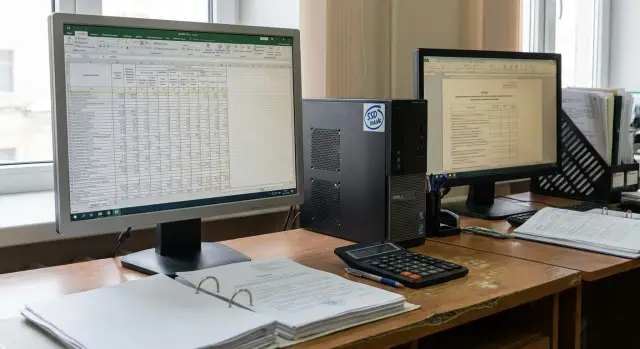
Why an accountant's workstation starts to slow down
“Office PC” is often chosen by the rule: it should turn on and open mail. But an accountant’s or HR specialist’s workstation in the public sector works in a different mode: a heavy 1С database, a browser with portals, EDS tools, scanning, printing, Excel and archives — often at the same time. So even a “seemingly decent” computer starts to annoy with delays.
Slowdowns are usually noticed not during calculations but in waiting: the user clicks and waits. Time is most often lost on launching 1С and logging into the database (especially over the network), opening large documents and exports to Excel, freezes when 1С, the browser and crypto plugins for EDS run together, and also during printing and scanning (long job startup, queue stalls). Another typical symptom is delays when switching between windows with many tabs and files open.
The cause is almost always a combination of “bottlenecks.” The most common story: the CPU looks fine on paper, but the disk is slow and there is little memory. Or there’s enough RAM, but the system stores temporary files and cache on a regular HDD, which causes everything to stutter.
It makes sense to look not at “maximum specs” but at what gives noticeable speed for your tasks. For accounting and HR, the right drive and extra RAM usually pay off fastest. Overpaying for extra CPU cores often brings little benefit if other components remain the same.
A good pre-purchase check: ask the accountant to describe 3–5 actions where they most often wait. That’s easy to turn into concrete requirements and then accept the delivery without disputes like “well, it does start.”
Real tasks for accounting and HR: what matters most
This role is usually not about “heavy computations” but constant multitasking. The accounting system (often 1С) is open, next to it Excel, mail, a browser with portals, an EDS program, a scanner window and several folders with documents. If you choose a configuration for these habitual actions, the speed improvement is felt immediately.
A typical day: database load in the morning, then payments and reports, correspondence and approvals, signing documents with EDS, attaching scans and files, working with personal accounts. Almost all of this is done concurrently, not sequentially.
When 8–15 windows are open, the computer often slows down not because the “CPU is weak” but because there isn’t enough RAM and fast disk I/O. So it makes sense to emphasize SSD and sufficient RAM in the requirements.
A separate scenario is large files: pivot tables, exports, registries, period reports, scan archives. Delays occur when opening, recalculating formulas, searching documents and saving. If an employee regularly works with “heavy” Excel files and exports from the accounting system, state that explicitly in the requirements.
There are things a PC won’t fix: a slow network link or overloaded VPN, a “lagging” 1С server or database, portal limitations and working through a remote desktop.
Describe concrete scenarios and the simultaneous use of several programs in the request, not abstract “office tasks.” That way the configuration will match the real load, not the formal minimums.
Drive: SSD and NVMe as the main source of perceived speed
If the workstation “thinks” when logging in, opens 1С slowly, freezes during printing and EDS, the cause is often the drive, not the CPU. Saving on the storage almost always turns into lost minutes every day.
HDD is suitable only as a second archival disk. As a system disk it is slow: Windows startup, updates, antivirus scans and 1С cache constantly load the drive, and waiting becomes normal.
NVMe and SATA are both SSD formats, but NVMe is usually noticeably faster in everyday small tasks: launching apps, opening the 1С database, switching between windows, unpacking updates, working with heavy scans. A SATA SSD also gives a big jump over HDD, but when buying new PCs it’s simpler to include NVMe right away so you don’t return to the question in a year.
Choose capacity with a margin. OS, 1С, crypto providers, drivers, updates, temporary files and cache quietly take space. A common situation: the accountant actively downloads registries, scans and exports, and after a few months free space runs out and the PC begins to slow again.
Practical guidelines:
- 512 GB — for most workstations with 1С and EDS.
- 1 TB — if there are many scans, reports, local databases or heavy email attachments.
- HDD — only as an additional archive drive, not system.
Reliability is as important as speed: drive failure means downtime and recovery. In the public sector it’s convenient when the manufacturer has clear support and service in the country. For example, GSE.kz as a Kazakh manufacturer and integrator has its own line of workstations and servers, plus technical support and a service network.
To avoid receiving a slow substitute in the delivery, fix the following in the spec:
- Storage: SSD (not HDD) for OS and application installation.
- Interface: PCIe NVMe (or specify “no worse than”) or SATA SSD if NVMe is not critical.
- Capacity: at least 512 GB (or 1 TB per department needs).
- Support for a second drive (if a separate archive/reserve disk is needed).
RAM: how much is needed to avoid waiting
RAM rarely “breaks,” but shortages are common when accounting and HR run many tasks in parallel: 1С, a browser with portals, EDS, mail, scans, Excel, messenger. If RAM is low, the computer “thinks” not because of the CPU but because it swaps to disk.
Signs of insufficient RAM are consistent: windows switch with delay, browser tabs reload, 1С stutters after printing or posting documents, and opening a large Excel can freeze the system for tens of seconds. Often this is accompanied by active paging file activity.
Guidance by workload:
- 8 GB — only for the simplest scenarios (1–2 programs and few tabs). In real work this quickly leads to waiting.
- 16 GB — a practical minimum: 1С + EDS + browser + office files usually work without stress.
- 32 GB — for constant heavy tables, many tabs, multiple 1С databases and frequent scan/PDF processing.
A separate point is dual-channel memory. It gives a small but noticeable responsiveness boost if you install two identical modules (e.g. 2×8 GB instead of 1×16 GB).
Write clear phrases in the spec for buyers and vendors:
- RAM: at least 16 GB DDR4/DDR5, expandable to at least 32 GB.
- Configuration: 2 modules (dual-channel), e.g. 2×8 GB or 2×16 GB.
- Slots: at least 2 memory slots.
- Proof: indicate model/size of installed modules and the maximum supported capacity in the specification.
This avoids a situation where 16 GB is delivered as a single module with no room for growth, and later expansion becomes a separate procurement.
CPU: how to choose without overpaying
The urge to take a “stronger CPU” is understandable, but for office tasks it doesn’t always produce the expected effect. If the PC boots slowly, opens 1С slowly or hangs when switching windows, the usual culprits are the disk and lack of RAM.
CPU matters more when users run heavy operations: big Excel files with formulas, mass processing in 1С, large exports/imports, archiving and encryption, or multiple concurrent programs. Then a higher-class CPU actually reduces waiting time.
To choose the right class without overspending, describe requirements by measurable parameters rather than naming a model.
What CPU level is usually needed
Look at a set of indicators:
- at least 6 physical cores;
- support for multithreading;
- a modern generation (no older than 3–4 generations from the purchase date);
- sufficient turbo frequency (single-core speed often matters for 1С and Excel);
- integrated graphics acceptable if there are no 3D tasks and monitors connect without complex adapters.
For 1С, EDS, mail and typical reports, a 6-core office CPU is usually sufficient. It’s wiser to spend budget on SSD and 16 GB RAM.
Wording for a request without debatable comparisons
Instead of “no worse than Intel Core i5” use verifiable characteristics:
\nПроцессор: x86-64, не менее 6 физических ядер, не менее 12 потоков, базовая частота не ниже 2,5 ГГц, турбо-частота не ниже 4,0 ГГц, поколение не старше 2022 года (или эквивалент), поддержка аппаратной виртуализации.\n
That sets a clear class without tying to a single brand.
Two monitors: a simple upgrade with a noticeable effect
A second monitor often gives a greater “felt” speed than a small CPU frequency increase. This is especially true when you constantly switch between windows.
The most frequent setup: 1С on one screen, Excel, mail, scans or time sheets on the other. Reconciling sums and copying details is faster because you don’t constantly minimize and restore windows.
Typically 2×23–24" monitors are enough. For text and tables Full HD (1920×1080) on 23–24" is comfortable. For a lot of small text and long lists consider 27" with QHD (2560×1440).
Check video outputs in advance. Offices often have a mix of monitors (HDMI and DisplayPort), and missing ports turn installation into a search for adapters.
In the spec include verifiable points:
- Support for dual-monitor operation (2 displays).
- At least 2 digital video outputs on the PC (e.g. 2×HDMI or HDMI + DisplayPort).
- Output resolution not lower than 1920×1080 per connected monitor.
- Ability to connect without mandatory use of nonstandard adapters (specify preferred interfaces for existing monitors).
Ports, network and security: so everything works without “dances”
Even a well-specced PC can annoy if there aren’t enough connectors, the network is unstable, or basic security requirements aren’t met. These things are rarely discussed up front, and then they consume time.
For ports: count everything that will be connected daily and add a margin. A typical office connects an EDS token, a flash drive, printer, scanner (or MFP via USB), plus mouse and keyboard. If USB is scarce, hubs appear, bringing intermittent disconnects and “device not found” at the worst moment.
Practical configuration guide:
- 6 or more USB ports in total, at least 2 at the front;
- at least 2 USB 3.0 (or higher) for fast drives and scanners;
- gigabit Ethernet (RJ-45) for wired network;
- video outputs for two monitors.
Wired networking matters not only for speed: gigabit Ethernet is usually more stable than Wi‑Fi, especially during exports, server exchanges and working with network folders.
Security typically requires simple items: TPM 2.0, UEFI Secure Boot capability and support for corporate access policies.
If desk neatness and space saving matter, an all-in-one can be more convenient than a tower. Check ports and the ability to connect a second monitor in advance.
How to choose a configuration: step-by-step for the department
To pick a PC without overspend, start from how the user actually works: which windows are open, what is stored locally, which devices connect. Then translate that into procurement parameters.
-
Describe work scenarios and simultaneity. Note what runs together: 1С (or another accounting system), browser with portals, mail, Excel with heavy files, EDS client, scanning.
-
Estimate data volume and growth. Record approximate folder sizes, export frequency, monthly scan volume. If growth is quarterly, add margin.
-
Decide on dual monitors. If the user constantly reconciles registries, payments and source documents, a second screen saves time daily.
-
Set minimum RAM and disk with a 3–5 year margin. For a typical workstation a reasonable minimum is 16 GB RAM and an SSD (preferably NVMe) of 512 GB.
-
Check peripherals and compatibility. List MFPs/printers, scanners, EDS tokens, required USB ports (including USB‑A), network connection and InfoSec requirements.
Example: if HR runs 1С, signs with EDS, stores scans and works with tables concurrently, bottlenecks are almost always disk, RAM and workflow convenience (second monitor), not the “most powerful CPU.”
How to state parameters in the request and specification: clear wording
The goal of the spec is to fix what affects speed and comfort and remove ambiguity. Otherwise the supplier may formally meet the requirements but cut corners: install a slow drive, provide a single video output or a borderline configuration without growth margin.
Write measurable phrases: “not less than”, “minimum”, “equivalent allowed”. Where equivalent options exist, set a class or range so you’re not tied to one model.
What is best set as minimum
These parameters give the most noticeable difference and are easy to verify against specs:
- Storage: NVMe SSD, capacity not less than 512 GB (or your minimum), PCIe interface.
- RAM: not less than 16 GB, expandable.
- Video outputs: support for two monitors, at least 2 digital outputs (HDMI/DisplayPort).
- Ports: at least 6 USB (including minimum 2 USB 3.x); network port 1 Gbit/s.
- Warranty and service: minimum 36 months, clear support procedure.
After that, specify security and compatibility: TPM 2.0 (if required by policy), OS and crypto provider support, EDS token compatibility.
Where a range is appropriate
CPU and form factor are better described by level. For example: “CPU not lower than Intel Core i5 / AMD Ryzen 5 of current generations or equivalent in performance”, “mini-tower or SFF chassis provided ports and cooling meet requirements.”
To make delivery verifiable, request full spec for each item, models of key components (CPU, SSD, RAM), warranty terms and service contacts. If local manufacturing and supply transparency matter, include that as a separate requirement.
Concise sample phrases without ambiguity:
- “SSD: NVMe PCIe, capacity not less than 512 GB, read speed not lower than 2000 MB/s (or ‘not lower than typical NVMe’ if you don’t want hard numbers).”
- “RAM: 16 GB DDR4/DDR5 minimum, expandable to 32 GB.”
- “Dual-monitor support: 2 independent digital video outputs, resolution not lower than 1920×1080 each.”
- “Ports: at least 6 USB (minimum 2 USB 3.x), RJ-45 1 Gbit/s, audio.”
- “Warranty: at least 36 months, fault resolution time no more than N business days.”
Common procurement mistakes for accounting and HR PCs
Costly mistakes usually look like “everything meets the spec” but work is still slow or inconvenient.
- Focusing on “high CPU frequency” while the disk is weak and RAM is small. Result: 1С and the browser open slowly and window switching lags. Better to require SSD (preferably NVMe) and 16–32 GB RAM.
- Asking for “the newest, top-end” without tying to scenarios. That narrows competition and rarely yields noticeable benefit. Fix what affects responsiveness: SSD, 16–32 GB RAM, ports and two monitors.
- Not specifying video outputs and ending up unable to connect two monitors without adapters.
- Not allowing disk margin. After a few months scans, 1С cache and updates fill the drive and performance drops.
- Skimping on service and support. One day of downtime in a reporting period costs more than the price difference. Fix warranty term and clear support process.
Simple example: you bought a “powerful” CPU but left a slow disk and 8 GB RAM. At acceptance everything starts but at month-end, with 1С, EDS and many browser tabs running together, the system “thinks” at every step.
Short checklist and next steps before submitting the request
Before submitting the request lock the parameters that truly affect speed and comfort.
- Storage: SSD, preferably NVMe; typical capacity 512 GB.
- RAM: 16 GB for a typical station; 32 GB if 1С, many tabs, scans and heavy tables run together.
- Video and monitors: support for 2 monitors (2 video outputs of required types) and matching resolution.
- Ports and peripherals: 6 USB with margin, at least 2 front ports; list devices (EDS token, printer, scanner) in advance.
- Network and warranty: gigabit Ethernet; warranty term and support format, service availability.
Divide minimal requirements by roles: “standard workstation” and “upgraded” for heavy tasks. That simplifies procurement and support.
Before finalizing the spec agree three things: which monitors and cables are already available, which applications are mandatory (1С, crypto provider, EDS, scanning), and InfoSec and port restrictions from your IT team.
If local supply and service in Kazakhstan matter, consider domestic GSE.kz PCs: for example L200 as a classic desktop or M200 as an all-in-one — clarify configuration and InfoSec requirements in advance.
Frequently asked questions
How to determine whether the PC is slow because of CPU, RAM or disk?
Start by observing 3–5 actions where the user most often waits: launching and logging into 1С, opening large Excel files, signing via EDS, printing, scanning. If delays occur when switching between windows and while several programs run at once, the bottleneck is almost always RAM and disk speed, not a “weak CPU.”
What speeds work the most: SSD, RAM or a more powerful CPU?
For a typical accounting or HR workstation the most noticeable improvements usually come from an SSD (preferably NVMe) and 16 GB of RAM. Replacing an HDD with an SSD speeds up Windows, 1С, updates and cache operations; increasing RAM reduces freezes under multitasking. Upgrade the CPU only after addressing these two components.
Does it make sense to change HDD to SSD if “everything mostly works”?
Yes — it’s worth switching. An HDD as a system disk significantly slows OS startup, 1С, antivirus scans and temporary file operations, causing persistent micro-delays. Leave HDD only as a secondary archive disk and install OS and applications on an SSD.
What SSD capacity is needed for accounting: 256/512 GB or 1 TB?
Typically 512 GB is enough for OS, 1С, crypto providers, updates and everyday files if large archives aren’t stored locally. Choose 1 TB when there are many scans, regular exports and large attachments, or local databases. Leave free space as a buffer; otherwise performance will degrade over time.
How much RAM does an accountant or HR specialist really need?
16 GB — a practical minimum for the scenario “1С + browser with portals + EDS + mail + documents”. 8 GB quickly hits swapping to disk, causing freezes and reloading tabs. Choose 32 GB if heavy Excel files, many tabs, multiple 1С databases and frequent PDF/scan processing are regular tasks.
Why do specs often say “2 memory modules” and what does it give?
Dual-channel mode offers a small but noticeable responsiveness boost when many windows are open or memory is actively used. Practically it means two identical modules, e.g. 2×8 GB instead of 1×16 GB. It also simplifies future upgrades: you have predictable configuration and less risk of running out of slots.
Does an accountant need a second monitor and how to account for it in procurement?
A second monitor usually saves time on constant context switching between 1С, Excel, mail and scans. Require support for two displays and at least two digital video outputs so you don’t depend on adapters. For comfort, 23–24" Full HD is enough in most cases; choose 27" QHD for long lists or small text.
What ports and network should be planned to avoid issues with EDS, printer and scanner?
Specify at minimum: a total of 6 USB ports with at least 2 on the front, and at least 2 USB 3.x ports for fast devices. This lets you connect an EDS token, printer/MFP, scanner and flash drives without hubs. Use wired RJ‑45 gigabit Ethernet for stable access to network folders and databases.
How to write requirements in the specification so they won’t deliver a “formally compliant but slow” PC?
Avoid vague “office PC” wording and lock measurable parameters: SSD (preferably NVMe) from 512 GB, RAM from 16 GB with expandability, two-monitor support, required number of USB ports and gigabit Ethernet. For the CPU use class indicators (cores/threads/generation) rather than a single model to keep options open while ensuring required performance.
When will replacing the PC not solve slowdowns in 1С and portals?
A PC won’t fix delays caused outside the workplace: an overloaded 1С server, slow VPN/channel, portal limitations or working via a restricted remote desktop. Measure network latency and server response times first so you don’t try to “buy away” the problem. Upgrading the PC is still useful, but don’t expect it to eliminate server- or network-side bottlenecks.
