7 min read
PCIe passthrough for GPU and NVMe: BIOS/UEFI on HPE and Dell
PCIe passthrough for GPU and NVMe: common BIOS/UEFI settings on HPE and Dell and a set of tests to catch errors and instability before production.
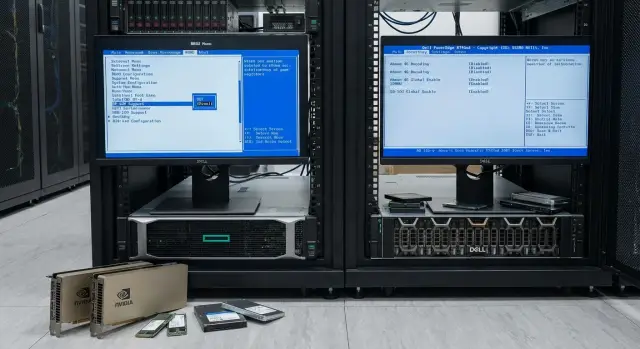
Why use PCIe passthrough and where problems usually happen
PCIe passthrough for GPU and NVMe is a mode where a virtual machine receives a device almost like on a physical server: not a “virtual disk” or a “virtual GPU”, but a specific NVMe drive or GPU over PCIe. It’s chosen when maximum throughput, low latency and access to hardware features matter (for example, CUDA on a GPU or near-native NVMe performance).
Things often look stable on the bench, but production brings surprises. GPUs and NVMe are sensitive to PCIe topology, IOMMU groups, power and firmware nuances. These devices use DMA heavily, so issues from “almost correct” settings often don’t show up immediately but under load.
Typical symptoms:
- the device periodically disappears from the VM or fails to come up after reboot;
- the VM hangs when the GPU driver loads or during intense NVMe I/O;
- logs show DMA/IOMMU, AER/PCIe errors;
- performance drops from near-native to something like a regular virtual disk.
Some problems are fixed by BIOS/UEFI settings: enabling VT-d/AMD-Vi (IOMMU), correct SR-IOV/ACS modes (if available), enabling Above 4G Decoding and disabling aggressive PCIe power saving. But if you see strange resets, instability under load or you cannot separate devices into proper IOMMU groups, it’s often a hardware compatibility issue: specific GPU/NVMe models, firmware versions, PCIe slots and risers, power and cooling.
Preparation: what to check before entering BIOS/UEFI
PCIe passthrough for GPU and NVMe often breaks not because of BIOS/UEFI, but due to small surrounding details. Spend 15–20 minutes before rebooting the server — this can save hours chasing intermittent hangs and device resets.
Start with platform compatibility. It’s important not only that IOMMU exists (VT-d or AMD-Vi), but how PCIe lanes are routed. A required slot may share lanes with another device or be physically behind a different CPU socket. That directly affects IOMMU groups and sometimes stability.
If you plan a GPU, check in advance whether the server will try to use it as the primary video output. On some platforms built-in graphics exists, but the BIOS can “grab” the discrete card, and initialization problems follow.
For NVMe evaluate connection type: U.2, M.2 or a PCIe adapter. Not all drives handle resets in virtualization equally well. Warning signs are rare hangs on VM restarts, lost disks after migrations (if you try migrations with passthrough), and power state errors.
Quick checks before entering BIOS/UEFI:
- record the hypervisor and version to test the exact combination;
- verify the PCIe slot provides required width (x16/x8) and generation;
- ensure GPU power is connected correctly with margin on the supply;
- prepare a firmware upgrade plan (BIOS/UEFI, iLO/iDRAC, GPU/NVMe firmware);
- save current settings to allow quick rollback.
Example: an NVMe is in a PCIe adapter and you add a second GPU nearby. If slots share lanes, one card may fall to x4, which sometimes only shows under load when using passthrough. Better catch that during inventory.
Key BIOS/UEFI options that affect passthrough
Successful PCIe passthrough usually depends on a few BIOS/UEFI settings. They control device isolation, PCIe address space and how the system enumerates hardware.
-
IOMMU (Intel VT-d or AMD-Vi) must be enabled. Without IOMMU the hypervisor cannot safely give a device to a VM: DMA will roam freely and IOMMU groups often end up too large.
-
Above 4G Decoding (64-bit MMIO) is usually critical for modern GPUs and fast controllers. GPUs have large BARs and need a big MMIO window. If this option is off, the card may be detected but the driver will fail when the VM loads, you may see a black screen or host reboots.
-
Resizable BAR can help when the guest OS actively uses GPU memory. But on some platforms it adds instability in virtualization. Practically, first get stable operation without it, then enable and compare under load.
-
SR-IOV enable it only when needed (usually for NICs and some controllers). If you don’t use SR-IOV, leave it off: fewer surprises with IOMMU groups and resource distribution.
-
Boot mode. Pure UEFI with CSM disabled generally yields more predictable PCIe device enumeration. With CSM you often see Option ROM problems and passthrough becomes a lottery.
Minimum set before testing:
- IOMMU (VT-d or AMD-Vi) - Enabled
- Above 4G Decoding - Enabled
- Boot Mode - UEFI, CSM - Disabled
- SR-IOV - only if required
- Resizable BAR - default Disabled
Simple example: you pass a GPU to a VM for compute. If Above 4G Decoding is off, the VM may boot but the GPU driver will crash on the first stress test.
Typical settings on HPE: what to look for in the menu
On HPE servers needed options are usually under System Utilities (F9 on boot), then BIOS/Platform Configuration (RBSU). Names vary across ProLiant generations but the intent is the same.
Virtualization and Security
Passthrough requires hardware IOMMU support: VT-d for Intel, AMD-Vi for AMD. On HPE these settings are often in Virtualization Options or Security.
Remember: VT-x/AMD-V is usually enabled by default, but passthrough depends on VT-d/AMD-Vi. If after enabling it the device still isn’t in its own IOMMU group, also check CSM and PCIe resource constraints.
PCIe, MMIO and boot mode
GPU + NVMe combinations often hit MMIO limits. Find and enable Above 4G Decoding if present. Switch the server to pure UEFI and disable CSM/Legacy to reduce resource conflicts and ROM initialization issues.
Before saving settings, quickly confirm:
- Virtualization Technology (VT-x/AMD-V) - Enabled
- Intel VT-d or AMD-Vi (IOMMU) - Enabled
- Boot Mode - UEFI, CSM/Legacy - Disabled (if supported)
- Above 4G Decoding - Enabled (if present)
- SR-IOV - enable only if used
Power: aggressive power saving modes sometimes cause rare disconnects or device hangs under load. If you see instability, start by disabling ASPM (if available) and choose a predictable power profile (maximum performance). Reintroduce power saving one option at a time and retest.
Typical settings on Dell: what to look for in the menu
On Dell PowerEdge, parameters are spread across BIOS Setup sections. Wording differs between generations, but the logic is the same: enable I/O virtualization, give PCIe enough address space, then check slots and power profile.
Virtualization Support and system profile
Start with Virtualization Support. For passthrough enable VT for Directed I/O (VT-d) on Intel or the platform’s equivalent. Enable SR-IOV only if you use it (e.g., for NICs); it’s not required for GPU or NVMe passthrough.
Next, check System Profile. If a profile choice exists, pick a performance profile during tests to avoid unexpected power or frequency limits. This matters when a VM uses both a GPU and a fast NVMe.
PCIe, address space and slots
In PCIe/Integrated Devices check items that break passthrough most often:
- Above 4G Decoding - should be enabled so large BARs on GPUs fit.
- Bifurcation - important when using risers or boards with multiple devices on one slot. Mode must match hardware.
- Memory Mapped I/O - ensure enough allocated space if present.
- Disable unnecessary integrated devices if resources are tight.
Quick sanity check: after enabling Above 4G Decoding and VT-d the system should reliably see GPU and NVMe without them disappearing after reboot. If a device vanishes or the VM fails to boot, the issue is usually address space or a specific slot’s settings.
Hypervisor-level settings: general logic (vendor-agnostic)
Once IOMMU (VT-d or AMD-Vi) is enabled in BIOS/UEFI, most work moves to the hypervisor. The logic is similar everywhere: choose the correct PCIe device, assign it to the VM and verify it survives resets. This applies to HPE/Dell and any racks, including GSE S200 class servers.
What exactly to pass
A common mistake with GPUs is passing only the graphics function and forgetting the card’s other functions. Many cards have an audio function (HD Audio) and some have separate USB controllers. Passing only part can make the driver unstable or fail.
Check IOMMU groups before assignment. If the GPU and its audio function are in one group, pass them together. If unrelated devices share the group, that signals poor isolation and higher risk.
Quick checks before pinning:
- are all device functions visible (GPU + audio etc.)?
- are there extra devices in the IOMMU group?
- do you need migration (usually not with passthrough)?
Binding and reboots: where it often breaks
VMs with passthrough are generally tied to one host. Disable live migration for such VMs or configure strict affinity/pinning so they always run on the same node.
Another trap is device reset. Some GPUs or PCIe cards don’t return to a clean state after a VM reboot: the guest driver fails, and the host sees the device as busy until the host itself is rebooted. Catch this before production with several guest reboot cycles and full VM power-off/on cycles.
Parameters that frequently affect stability include MSI/MSI-X (interrupts), AER (PCIe error reporting) and device behavior in the IOMMU. If PCIe error counters or timeouts grow under load, stop and investigate root causes.
NVMe: it’s safer and more predictable to pass the whole NVMe controller (the full PCIe device) to a VM rather than presenting a disk as a file/volume. This gives near-native performance but requires dedicating the NVMe to one VM.
Step-by-step plan for configuration and initial validation
This plan helps quickly determine whether PCIe passthrough for GPU and NVMe will work on your hardware and catch issues before drivers and workloads are installed.
Keep the workflow short: enable options — check host — check guest — apply load — repeat after reboots.
Short working scenario (5 steps)
-
After changing BIOS/UEFI save configuration and fully reboot the host. For tests avoid aggressive power saving: it can make PCIe behavior less predictable.
-
On the host verify IOMMU actually enabled and no critical bus errors. Check logs for IOMMU/VT-d/AMD-Vi and AER/PCIe errors. Quick hint on Linux:
dmesg | egrep -i \"iommu|vt-d|amd-vi|aer|pcie\"
-
Assign the device to the VM and verify detection inside the guest. Important not only to “see” the device but confirm the correct PCI ID/model and that it doesn’t share an IOMMU group with something the host needs.
-
Apply a short load and collect logs. For GPU — a compute or render test; for NVMe — read/write for 5–10 minutes. Immediately check for growing AER counts, device resets, driver hangs or timeouts.
-
Repeat the test after host reboots and several guest restarts (3–5 cycles). Many issues appear on the second start: devices don’t recover after reset, resource addressing changes, BAR conflicts emerge.
If you see PCIe errors or instability at any step, don’t proceed. Fix the basics first (BIOS/UEFI, firmware, power), then run long tests.
Pre-production tests: what to run and what to watch
Passthrough failures usually manifest under load and after reboots. Before production verify three things: performance, stability and device recovery after reset.
Minimum checks that reveal common problems quickly:
- GPU: compute test and VRAM stress test under load, plus temperature and frequency checks (no severe throttling within 5–10 minutes);
- NVMe: sequential and random I/O, separate read and write, capturing average and 99th-percentile latencies;
- Reset test: 10–20 consecutive VM reboots and verify the device initializes each time without manual intervention;
- Bus errors: monitor PCIe AER and recurring corrected errors;
- Long run: 2–8 hours of mixed load to reveal degradation and accumulating errors.
Watch not only peak speed but early signs of failure. Define critical metrics in advance (for example, for VDI latency matters more than peak throughput).
What to record in a report:
- GPU: frequency stability, temperature, driver errors (e.g., Xid), reproducibility of results;
- NVMe: p99 latency, queue depth, write errors, timeouts;
- System: AER messages, WHEA errors, device dropouts after reboot;
- Behavior after migrations and snapshots (if used): hangs on VM start.
Example: a VM for analytics uses GPU compute and NVMe for a local dataset. Short tests pass, but after 12 VM reboots the GPU fails once and corrected AERs spike. That signals returning to IOMMU, ASPM and initialization order until the issue is closed before production.
Common mistakes and traps that cause failures
The most frequent cause is simple: IOMMU (VT-d/AMD-Vi) is enabled but related options are left at defaults. Without Above 4G Decoding the server may lack address space for large devices and the GPU either won’t initialize or the driver crashes. NVMe can become unstable under load.
Another trap is mixed boot modes. When part of the system uses UEFI and part uses Legacy/CSM symptoms get strange: VMs won’t boot after changes, devices appear before a reboot and disappear after, or an OS installer doesn’t see the disk. On HPE and Dell this often appears after firmware updates that reset settings.
Resources and power: rare problems that take long to find
Even with correct checkboxes, passthrough can fail due to MMIO shortages. Signs: device shows but doesn’t initialize, resource allocation errors, GPU returns Code 43 or equivalent, NVMe unstable under load.
Power saving can also cause issues. ASPM and aggressive C-states sometimes produce rare but severe hangs: every few hours a VM freezes with almost no log clues. If you see that, temporarily disable power saving and compare behavior.
Reset and “corrected” errors you should not ignore
For NVMe a common pain is reset: after a VM reboot the disk can disappear because the device handles virtual reset poorly or the hypervisor needs a different reset mode.
Do not ignore corrected PCIe errors (AER). They are “corrected” but under load they become disconnects, timeouts and spontaneous driver resets.
To localize problems faster, check:
- VT-d/AMD-Vi and Above 4G Decoding are enabled;
- a single UEFI mode without Legacy/CSM;
- no signs of MMIO shortage (resource errors, driver crashes);
- NVMe doesn’t disappear after a VM reboot;
- corrected PCIe errors grow in host logs during tests.
Quick checklist before production rollout
Before a change window run this short list. These items often separate stable passthrough from late-night data center trips.
- BIOS/UEFI: VT-d (Intel) or AMD-Vi (AMD) enabled, and Above 4G Decoding enabled where available;
- Boot: pure UEFI, CSM/Legacy disabled;
- Logs: no persistent PCIe/AER errors at idle and under load, no repeated timeouts;
- Reboots: 10–20 consecutive VM reboots (including full power off/on) with no change in device behavior;
- Performance: tests repeated 3–5 times with consistent latencies and throughput; have a clear rollback plan.
If you maintain standards across platforms (HPE, Dell or local servers) record these values in a template and require them before each delivery or migration.
Real example: GPU and NVMe in one VM and how to catch the problem early
Scenario: one server (typical HPE or Dell), one VM for ML inference with GPU passthrough and a separate NVMe passthrough used as a cache. On the bench everything worked, but after 20–30 minutes under load the VM started rebooting unexpectedly.
What was done right: IOMMU enabled, unnecessary virtual devices removed from the VM, vCPU/memory pinned. What was missed: Above 4G Decoding in BIOS/UEFI (sometimes labeled Re-Size BAR) was off and power profile was Balanced. As a result the GPU dropped under peak draw and NVMe picked up bus errors.
Hints came from symptoms. Host logs showed IOMMU faults and frequent PCIe AER errors (corrected but numerous). Metrics showed NVMe latency spikes and a drop in inference performance before VM reboots.
Fixes were straightforward:
- enable Above 4G Decoding and, if available, set the PCIe generation for the slot to Gen3 instead of Auto;
- switch the power profile to Maximum Performance and disable aggressive PCIe power saving;
- move NVMe to another slot/port to spread devices across different root complexes (on some platforms this reduces bus contention).
To avoid catching this before production they put fixes into a template: a fixed BIOS/UEFI option set and minimal tests.
- run GPU and NVMe tests (15–30 minutes) in parallel;
- monitor AER/IOMMU errors in host logs;
- check temperature and power draw;
- run 10–20 consecutive VM restarts.
Next steps: how to standardize settings and validation
Once passthrough works on one bench, the main risk is repeating success on another server, slot or firmware revision. Reduce risk with simple discipline: identical profiles, identical tests, clear acceptance criteria.
Useful artifacts to maintain:
- compatibility matrix: server model, specific slot, GPU/NVMe (and revision), BIOS/UEFI and firmware versions, hypervisor version, test results;
- canonical BIOS/UEFI profile (screenshots or a short option list) and a rule of "do not change";
- host baseline settings (IOMMU, drivers, power policies) and minimum modules/packages;
- pre-production test suite with commands and thresholds (for example, allowed p99 latency for NVMe);
- acceptance report template: what was checked, findings, allowable deviations.
Decide up front where passthrough is really needed and where it adds operational complexity. A simple rule helps: the more users and the more important migration/HA are, the more cautious you should be with passthrough.
- Passthrough: maximum performance and predictability, but less flexibility (migrations, cluster features).
- vGPU: when density and manageability matter more than absolute peak performance.
- Dedicated host: when isolation and supportability outweigh resource efficiency.
If you need a turnkey bench and help with compatibility, procurement and support, involve a system integrator. GSE.kz (gse.kz) supplies servers and workstations, provides system integration and offers 24/7 support in Kazakhstan, which is convenient when scaling the same configuration across multiple sites.
Frequently asked questions
Why use PCIe passthrough for GPU or NVMe at all?
PCIe passthrough hands a real PCIe device to a virtual machine, so performance and latency are close to bare metal. This is important for CUDA workloads on GPUs and for NVMe, where typical virtualization often increases latency and hides some controller capabilities.
Which BIOS/UEFI settings are most often forgotten?
Start with three items: is IOMMU enabled (VT-d/AMD-Vi), is Above 4G Decoding enabled, and are you using pure UEFI without CSM/Legacy. If any of these are off, a GPU may be visible but the driver crashes on startup, and an NVMe may become unstable under load.
Why does the GPU fail when the driver starts even though the card is present in the VM?
Most often it’s lack of MMIO address space for large BARs on video cards. A practical sign — the VM boots and the card is visible, but the GPU driver hangs or crashes at the first load, and PCIe/IOMMU errors appear in logs.
Why doesn’t a device end up in a separate IOMMU group?
This is almost always related to PCIe topology: the slot shares lanes with another device, the device is behind a different root complex, or IOMMU group isolation is too coarse. Moving the device to another slot or adjusting UEFI/resource settings can help; sometimes it’s a platform limitation.
Do I need to pass the GPU’s audio function and other device parts to the VM?
Many GPUs expose multiple PCIe functions (for example, the main graphics function and an audio device, sometimes USB controllers). If you pass only one function, the driver may behave unpredictably or fail to initialize. Usually you pass the full set of functions for that card.
Why does NVMe or GPU drop out after a VM reboot?
Yes — reset handling is a common cause. Some GPUs and NVMe devices do not return to a clean state after a guest reboot, so the device remains busy, disappears, or begins to report errors until the host is rebooted. Detect this with repeated reboot cycles before production.
What to do if corrected AER/PCIe errors appear in logs?
Do not ignore frequent corrected AERs: under load they can turn into timeouts, freezes and device resets. First fix the basics — firmware, UEFI settings, power, PCIe slot/riser — then continue tests, otherwise the problem will recur in production.
Can power saving really break passthrough?
For diagnosis, temporarily disable aggressive PCIe power-saving and select a maximum performance power profile. ASPM and deep C-states can cause rare but severe freezes and resets. Once stable, reintroduce power saving one parameter at a time and retest under load.
Can I live migrate a VM with passthrough GPU/NVMe?
In most cases — no. Passthrough ties the VM to a specific host, and live migration usually isn’t available unless you have identical hardware and special support. It’s better to plan affinity/pinning and treat such VMs as non-migratable to avoid unexpected failures.
Which tests must be run before production and how to reduce risk when replicating?
At minimum — short GPU and NVMe load tests, host logs checked for IOMMU/AER messages, and a series of VM reboots, because many issues appear on the 2nd–3rd start. When scaling the same configuration across sites, maintain a compatibility matrix of models, slots and firmware versions; working with a local supplier or integrator simplifies repeating the build and getting on-site support.
