7 min read
PC Compatibility with Linux for Procurement: Drivers and Firmware
PC compatibility with Linux: what to check for drivers, firmware, Wi‑Fi, Bluetooth, TPM and how to record requirements in RFP and acceptance.
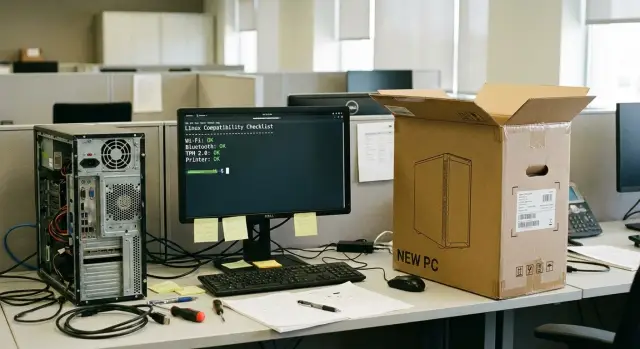
Why you should check Linux compatibility before procurement
Linux issues usually appear not when choosing a brand, but when a batch arrives and needs rapid deployment. Suddenly Wi‑Fi won’t come up, Bluetooth is visible but won’t connect headsets, a printer prints with errors, or a webcam is detected as an “unknown device.” The worst case is when a workstation technically “boots,” but people lose hours to workarounds and support tickets.
The main reason is simple: procurement specs often say “Intel/AMD, 16 GB, SSD” but don’t list exact chip and controller models. In Linux those details matter. The same “Wi‑Fi 6” can be implemented with different modules: one may work out of the box, another may require a separate firmware or not be supported by your distribution version.
It helps to separate three compatibility layers. Driver — kernel and OS support for the device. Firmware — microcode the device may request at startup (common with wireless modules and some controllers). And BIOS/UEFI settings, which can block boot or features (Secure Boot, SATA/RAID modes, TPM enablement).
You can test more before mass delivery than you might expect. On a single test sample it’s enough to:
- extract the exact hardware configuration by device IDs (Wi‑Fi/BT, network, audio, USB, card reader);
- boot from a Linux test image and run through networking, sleep, external monitors and basic peripherals;
- enter UEFI and ensure required modes are available and not “passworded” by policies;
- record results as requirements for the shipment so a module cannot be quietly swapped.
For a team that works by VPN and uses headsets, a single “wrong” Wi‑Fi revision is enough to later replace boards or buy external adapters. Checking PC compatibility with Linux before signing a contract is almost always cheaper than fixing after delivery.
What hardware information you need before buying
To avoid Linux compatibility surprises, ask for the composition of key components in the request for proposal, not just “PC specs.”
Minimum to request from the supplier as a spec or BOM:
- CPU (exact model) and chipset;
- LAN network controller (chip model);
- Wi‑Fi module (chip model and module vendor);
- Bluetooth (often bundled with Wi‑Fi, but confirm);
- audio codec (model).
Ask for the specific module, not just “has Wi‑Fi.” The same PC model can ship in different batches with different Wi‑Fi or audio: board revisions change or the module may be sourced from another vendor. For Windows this is often invisible, for Linux it can mean a different driver, a required firmware or unstable behavior.
To lock this in procurement documents, use wording that leaves no room for “equivalents without notice”: list exact component models and add a clause “replacement with an equivalent is permitted only by written agreement.” If a specific chip matters (especially for Wi‑Fi), name the chip, not only the system unit or motherboard brand.
If the supplier gives a generic description like “Wi‑Fi 802.11ac,” ask for confirmation: product datasheet with module list, a photo of the module marking on the board, or a test report from a sample (device list from system info). If that isn’t possible, require a test unit and acceptance by facts: without detail the compatibility risk remains with the buyer.
BIOS/UEFI and firmware: what to check in advance
Many Linux install and boot problems start not with drivers but with firmware and BIOS/UEFI settings. If discovered after a batch delivery, fixes become manual work on every device. So some requirements are better set during procurement.
Ask the supplier for the BIOS/UEFI version on the offered configuration and a clear update policy: how often updates are released, who is responsible for installing them, and whether centralized updating is possible. It’s important that firmware updates do not require mandatory installation of Windows or Windows‑only utilities.
Secure Boot: more than just “on/off”
Secure Boot can be either an ally or a boot blocker. Check that BIOS offers clear modes (enable, disable, “standard keys”, key clear) and that there are no restrictions preventing alternative bootloaders or installing your own keyset.
Settings that often hinder installation
Confirm in advance that these parameters are available and work correctly:
- SATA mode AHCI (not only RAID/Intel RST);
- virtualization enablement (Intel VT‑x/AMD‑V) and IOMMU if you plan VMs or pass‑through;
- UEFI‑only boot mode without forced Legacy;
- USB boot and boot order control.
A separate risk is stripped down menus and boot limiters (for example, forbidding disabling Secure Boot). It’s better to forbid such restrictions in the requirements, otherwise you’ll receive formally new but poorly manageable hardware.
Practical approach: get a test sample and include a simple acceptance check. Install Linux from USB, reboot, verify UEFI behavior and the ability to update BIOS without Windows.
Storage and controllers: drives, RAID, USB
Drives usually work fine under Linux, but issues come from controllers and operation modes. So check not only “which SSD,” but how it’s connected and what the installer will see.
NVMe SSDs commonly work without extra drivers, but surprises happen with some controllers, power‑saving modes and overheating in thin cases. In procurement, specify the interface (M.2 NVMe PCIe) and require that the drive is correctly detected by a typical Linux distro and installs without manual patches. For SATA SSDs or HDDs, clarify the controller mode: AHCI is almost always safe, nonstandard modes complicate installation.
For RAID, distinguish hardware from software. Many “hardware” RAID solutions on consumer PCs are actually pseudo‑RAID: visible as an array in BIOS, but the installer may show separate disks or require extra setup. Decide in advance what you accept: a true hardware RAID controller, Linux software RAID (mdadm/LVM), or no RAID and a solid backup plan.
USB should be tested manually. A typical issue: rear ports work fine, front panel via an internal hub causes device drops, low speed or power problems. Test real scenarios: flash drive, external SSD, token, keyboard/mouse and multiple devices simultaneously.
Also verify card readers, docking stations and USB‑C (including charging and video output, if important). Acceptance requirement in the RFP is simple: all advertised ports and devices must be detected and work on Linux on a test unit without vendor‑specific nonstandard drivers.
Wi‑Fi and Bluetooth: common problems and checks
Wireless modules are the most frequent reason for “it seems to work but is unusable” on Linux. The issue is rarely Linux itself: it’s usually the specific chip, its firmware or how the module behaves after sleep.
First, lock the exact chip and module model at procurement time (not just “Wi‑Fi 6”). The same laptop or mini‑PC can ship with different modules across batches. Ask for the chipset and module model so you don’t chase surprises later.
Then verify network requirements. For an office you need assured 2.4 and 5 GHz support, WPA2 and (if used) WPA3, and corporate 802.1X authentication (often EAP‑PEAP or EAP‑TLS). If a guest network, separate SSIDs and policies are used, discuss them in advance — many issues surface only in the production configuration.
Evaluate Bluetooth by scenarios, not just “it turns on.” Keyboards and mice are usually simple; headsets, barcode scanners and medical devices may require specific profiles and stable reconnections after sleep.
A short checks list on a test unit:
- connect to 2.4 and 5 GHz, verify WPA2/WPA3 and 802.1X login;
- 10–15 minutes of stable operation (video call or continuous data transfer);
- sleep/wake 5–10 times: Wi‑Fi should not drop and require a restart;
- Bluetooth: pair with headset and keyboard, reconnect after sleep.
Include measurable parts in acceptance: a speed test (for example, copy a large file) and a stability test (no disconnects). It’s easier to accept by facts than argue about “sometimes the internet drops” a week later.
Graphics and monitors: avoid receiving a black screen
Graphics usually work well in Linux, but they can break startup. The installer boots but the screen is black or only one port shows output. Test before procurement, especially if you need Linux compatibility without manual driver work.
Integrated graphics are typically simpler: Intel and AMD drivers are usually in the distro and update with the kernel. Discrete GPUs add power but also risk: NVIDIA often needs a proprietary driver, and without it some modes may be unstable.
Monitors, ports and modes
Issues are often about details: missing connector, USB‑C not outputting video, the second monitor not waking from sleep. If employees use two screens, determine which ports will actually be used (HDMI, DisplayPort, USB‑C) and test them on a sample.
Check on a live unit:
- is there an image in the installer and immediately after first boot;
- do all required monitors work, and are resolution and refresh rate detected correctly;
- is scaling acceptable on 2K/4K;
- does sleep/wake occur without a “black screen”;
- does each required port produce output.
Hardware video: when it matters
If PCs are for classrooms, meeting rooms or frequent online sessions, clarify hardware video decoding support. Without acceleration the CPU load is higher and playback may stutter at high resolutions.
Peripherals: printing, scanning, cameras, tokens
Peripherals often appear as issues after delivery: the PC boots and network works, but printing or tokens fail. Test compatibility alongside the everyday devices people use.
For printers and MFPs ask how the device connects (USB or network) and what protocol you use (e.g., IPP or print queues). For MFPs test scanning and the ADF: printing may work while ADF or duplex scanning does not.
Barcode scanners and retail peripherals often have two modes: HID (keyboard emulation) and COM (virtual serial). If your software expects COM, specify it, otherwise you’ll get “connected but not reading.”
Webcams, microphones and headsets are best tested in a real scenario: a call, selecting the correct mic, and stability after sleep. A common problem is the device is detected but audio is routed from the wrong source or disappears after wake.
Crypto tokens and smart cards must be tested on a bench before procurement, even if the supplier claims “supported.” What matters is the fact: does the system see the device, does the middleware install, and does a basic operation succeed (login, sign a test file, read the certificate).
Minimum tests on a reference PC:
- print a test page and duplex print;
- scan via the glass and via the ADF;
- read a barcode in the required mode (HID or COM);
- a 10–15 minute test call with camera and headset;
- token check: detection, PIN, test signature.
How to collect a list of models in advance
Ask departments to provide a list of peripherals “as on the invoice”: brand, exact model, connection method and intended use (for example, “MFP for accounting: batch scanning via ADF”). If the list is large, start with the 10–20 most critical devices. For systems projects it helps to agree a reference set for acceptance so you don’t scramble for alternatives after delivery.
Security: TPM, Secure Boot and organizational requirements
Security matters should be settled before signing the contract. Hardware may be suitable but a needed function disabled in BIOS or unusable without losing usability.
Check TPM 2.0 in two places: in the spec (explicitly TPM 2.0, not just “has a security chip”) and in BIOS (is it enabled). On a test Linux unit the TPM should be visible to the system:
ls /dev/tpm*
dmesg | grep -i tpm
If you plan to store keys or bind access to a device, clarify: discrete TPM or firmware fTPM, whether a user can disable it, whether TPM clearing is available and who has authority to do it.
Decide Secure Boot at the policy level. Usually two paths: keep it enabled and sign modules/drivers, or disable it where nonstandard drivers and tokens are used. Don’t leave it to chance: define who manages keys, who adds exceptions, and how mode changes are documented.
For disk encryption (LUKS) decide where keys are stored: user password only, TPM binding, or admin escrow for recovery. If you need a “turn on and go” scenario without entering a password, TPM is usually required.
Also verify BIOS supports basic admin controls: BIOS entry password, boot control, USB boot disable (if needed), port control by policy, and inventory fields (serial numbers, BIOS versions).
Step‑by‑step compatibility check on a test unit
The most reliable approach is to check PC compatibility with Linux on one test unit before mass procurement. It’s cheaper than chasing drivers, swapping Wi‑Fi modules or explaining to users why a device doesn’t wake from sleep.
Assemble a reference: one PC of the chosen configuration and the full set of items that will be used. Not only keyboard and mouse, but printers, scanners, headsets, webcams, tokens, docking stations, a second monitor, cables and adapters.
Then follow these steps:
- Boot from a Live image: assess monitor output in the installer, sound, wired network, Wi‑Fi and Bluetooth, USB ports and drive detection.
- Install Linux to disk: repeat the same checks after the first reboot.
- System updates: apply updates and test again (kernel updates can change driver behavior).
- Real scenarios: sleep/wake, connect to corporate network (VPN, certificates, 802.1X), print to a production printer.
- Final report: record results and exact versions.
To make the report useful, note not only “works/doesn’t work” but also kernel version, distribution, BIOS/UEFI version and device models. Minimal commands for the report:
uname -r
lspci
lsusb
How to capture compatibility requirements in the RFP and acceptance
“Says Linux support” means almost nothing. In the RFP ask for measurable outcomes: what must work out of the box, what can be configured, and how compatibility is proven during acceptance.
What to write in the RFP
Specify target environment: distribution(s), versions, architecture and install mode. It’s enough to set a base: Linux x86_64, UEFI install, GPT partitioning, minimal kernel version (for example, “not below 6.x” if that’s your policy). If you use a corporate image, name it.
Then list checks that are easy to accept: Wi‑Fi connects to WPA2/WPA3, Bluetooth works with headsets, webcam works in standard apps, printing to network printer, TPM is visible, sleep/wake works.
Component specification and immutability
Request supplier specs for key components: Wi‑Fi/BT module model, storage controller, network adapter, graphics, audio, TPM and BIOS/UEFI versions. Also lock component immutability: replacements only after agreement and retesting.
Formulate acceptance criteria as “pass/fail.” Fail if the device cannot be installed or a stated function does not work without nonstandard patches. Allowable fixes (BIOS update, firmware update, Secure Boot configuration) should be described in advance if they fit your change control.
Where the manufacturer or integrator can help
If you buy directly from a manufacturer who also does integration and support, agree in advance who will roll out critical firmware updates across the fleet. For example, GSE.kz as a local manufacturer and integrator can provide a fixed spec for key controllers and help with update procedures and acceptance checks.
Example: procuring PCs for a team with no downtime
A team is moving to Linux: some people print on MFPs, some sign files with tokens, some work on Wi‑Fi. The goal is simple: on day one everyone should print, connect to the network and sign files without manual workarounds.
Start by selecting 1–2 PC models for a pilot and get 2–3 units of each. The pilot must match the future shipment: the same Wi‑Fi module, chipset, BIOS/UEFI and port set.
In the pilot test the most critical: Wi‑Fi and Bluetooth stability (including sleep/wake and headsets), printing and scanning on your MFPs, token signing in your apps, plus TPM and Secure Boot per company policy. Also test docking stations and USB hubs: ports and monitors must come up after reboot.
Plan a window for BIOS/UEFI updates if needed and image roll‑out: one responsible person, one approved image, clear rollback. The pilot should not drag: 5–10 working days usually catch real issues.
Document a short RFP with acceptance tests, a matrix “device — status — driver/firmware version” and an IT support guide (how to install the image, how to enable TPM/Secure Boot, how to add a printer, how to check a token). This saves weeks of emails and emergency visits.
Short checklist and next steps
Before signing a delivery, do a quick check on a live Linux sample — ideally the image you will deploy. It takes about 10 minutes per PC and catches the costliest errors: nonworking Wi‑Fi, odd UEFI behavior, peripheral problems.
Check at minimum:
- UEFI boot: system starts without errors, disk is visible, boot menu works and order is preserved;
- network: Wi‑Fi sees networks and connects to WPA2/WPA3, Bluetooth finds and holds devices for several minutes;
- security: TPM is visible, Secure Boot can be switched per policy, and the system boots after enabling it;
- ports and drives: USB‑A/USB‑C detect a flash drive and external disk, writes proceed without drops; if RAID is needed, AHCI/RAID matches the contract;
- everyday peripherals: print a test page, camera shows video, token is detected (if used).
For each batch do quick checks of UEFI, Wi‑Fi/Bluetooth, basic USB and printing. Deep tests of graphics with your monitors, docking stations, specific tokens and rare scanners are better done in the pilot.
Record results simply: one report per device (serial number, Wi‑Fi module model, BIOS/UEFI version, Secure Boot/TPM modes, kernel/distribution version, final “OK/not OK”). This makes compatibility requirements verifiable instead of subjective.
Frequently asked questions
Why is it better to check Linux compatibility before procurement rather than after delivery?
Because most issues appear during deployment: the batch arrives, deadlines are tight, and you discover Wi‑Fi, sleep, sound or some ports do not work. Checking one test unit beforehand is almost always cheaper than fixes after delivery, replacing modules or buying external adapters.
Why aren't requirements like “Intel/AMD, 16 GB, SSD and Wi‑Fi” enough?
Linux compatibility depends on specific controllers and chips, not generic specs. “Wi‑Fi 6” or “has audio” can mean different chipsets with different driver and firmware requirements, so vague descriptions greatly increase the risk of surprises.
What hardware information should I request from the supplier in advance?
Ask the supplier for a specification or BOM with exact models: CPU and chipset, LAN controller, Wi‑Fi/BT module and its chipset, audio codec, storage and storage controller. The more precise the component list, the smaller the chance that the next batch will contain the “same PC model” but a different module.
What is the difference between drivers, firmware and BIOS/UEFI settings?
Driver — OS/kernel support for a device; firmware — microcode the device may need at startup; BIOS/UEFI — settings that can block boot or functions. Failures may look similar but are fixed differently, so you should check all three layers.
What should be checked in BIOS/UEFI before mass procurement?
At minimum, ensure manageable modes are present and not locked by policy: ability to enable/disable Secure Boot, availability of UEFI mode, USB boot, correct storage controller mode (usually AHCI), and the ability to update BIOS without requiring Windows. This reduces the risk of manually configuring each PC after delivery.
When does Secure Boot become a problem and what should I ask the supplier?
Secure Boot can block booting if your distribution or modules aren’t signed with the right keys. A normal requirement is that BIOS allows you to enable/disable Secure Boot, manage keys, and that after changing modes the system boots consistently without manual hoops on every device.
Can drives and RAID break a Linux install even if the SSD itself is fine?
Yes — especially when a vendor uses a BIOS ‘RAID’ that is actually pseudo‑RAID. The installer may see separate disks or require extra setup. Decide in advance what you accept: a single disk, Linux software RAID (mdadm/LVM), or a real hardware RAID controller, and verify the installer sees disks as you expect.
How to properly test Wi‑Fi and Bluetooth so headsets and VPNs don't fail later?
Lock the exact chipset and module model, not only the Wi‑Fi standard. On a test unit, verify connection to your security modes, stability under load and behavior after sleep — these are where drops and reconnection problems usually appear.
What should be tested for graphics and monitors to avoid a black screen?
Check that there is an image already in the installer and after first boot, that all required ports and the second monitor work (including wake from sleep). If discrete graphics are planned, clarify whether a proprietary driver is required and whether that fits your update and support policy.
How to properly lock Linux‑compatibility requirements in the RFP and acceptance?
Specify measurable acceptance criteria and immutability of key components, especially Wi‑Fi/BT and controllers. For acceptance, use verifiable actions: install from USB, network and sleep work, printing and camera work, TPM is visible, Secure Boot and BIOS versions are correct, and mark the result as “pass/fail” on a reference distribution.
