7 min read
PC form factor for the office: SFF, mini tower or all-in-one?
How to choose a PC form factor for the office — SFF, mini tower or all-in-one — considering space, maintenance, upgrades and security requirements.
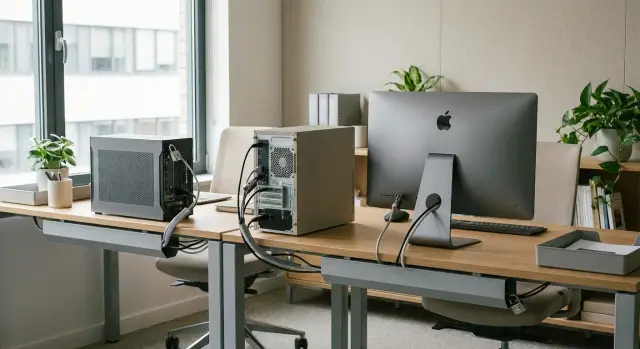
Start the choice with the office context, not the case
Choosing a PC form factor for the office should begin not with what looks better on the desk, but with how people actually work. For some it's documents, email, a browser and video calls. For others — constant 1С/ERP use, multiple windows, printing, scanning and working with peripherals all day. These scenarios directly affect requirements for noise, cooling, number of ports and ease of replacing parts.
Form factor seems like a minor detail until the first incidents happen: ports are hard to reach, there’s nowhere to put the tower, equipment overheats in a cabinet, and one workstation’s downtime causes a whole team to stall. The case affects not only convenience but also total cost of ownership: how much time IT spends on maintenance, how quickly components are swapped and how often site visits are needed.
Think of the choice as a combination of four things: space, maintenance, upgrades and security. The smaller the case, the harder it is to reach the internals and the fewer expansion options there are. Physical protection requirements often mean restricting access to ports and the device itself — that also depends on where and how the computer is placed.
To get started quickly, answer a few questions: Where will the PC stand (on the desk, under the desk, in a pedestal, on a counter), who will service it (in-house IT or outsourced), will upgrades be needed in 2–3 years (memory, storage, extra ports), what are the physical security requirements (port locks, seals, access control) and who is responsible for the result (users, IT, procurement, office manager).
When these conditions are clear, the choice between SFF, mini tower and all-in-one usually becomes obvious.
Three options in simple terms: SFF, mini tower and all-in-one
Most offices choose one of three options. They all solve the same basic problem (provide a workstation), but they behave differently in operation: in terms of space, repair speed and upgrade potential.
SFF (Small Form Factor) — a compact desktop unit. It’s placed on the desk, under it or mounted to the workstation to save space. Pros: neat and convenient for tight offices. Cons: less upgrade headroom — less internal space, some components may be non-standard, and cooling is more sensitive to dust.
Mini tower — the familiar “classic” case, just not very tall. It has more internal space, easier access to parts, easier to replace the PSU, add drives or install expansion cards. This option is often chosen where repairability and long service life are important.
All-in-one — computer and monitor in one enclosure. Minimal cables on the desk, tidy appearance, convenient for reception desks, classrooms and places with limited space. But the expectation that you can “replace a small part” often doesn’t match reality: repairs and upgrades are usually harder, and a screen problem affects the whole device.
Quick tip: choose SFF when space is tight and tasks are standard; mini tower when you need upgrade headroom and fast repairs by IT; all-in-one when desk tidiness and minimal cables matter and the configuration rarely changes.
Space and workstation ergonomics
Start with a simple measurement: how much actual free space is on the desk, under the desk and nearby. Workstations are often already occupied by documents, phones, chargers, stationery. Add pedestals, partitions and narrow aisles where an extra cable or box gets in the way every day.
SFF usually fits when you need to tuck the unit under the desk or place it to the side while keeping a regular monitor and not cluttering the desktop. A mini tower usually needs more room and airflow around it, but it’s easier to position so nothing presses against walls or a pedestal. An all-in-one saves desk space but increases requirements for stability: if the desk wobbles and the user often moves the monitor, there’s a higher risk of tugs and falls.
It’s useful to check this on site, not just on the office plan. Where will power, network and peripheral cables run; will they catch on feet or chairs; is there space for chargers and paper trays without blocking ventilation; will noise or heat be noticeable (under a desk by a wall this is more perceptible); do you need a VESA mount and protection against tugs.
Example: in accounting with partitions and pedestals, an SFF under the desk and a monitor on a mount often work best to free up space for documents. On a reception counter an all-in-one looks tidy, but plan for mounting and cable protection up front.
Maintenance and downtime: what happens in real operation
IT opens cases fairly often: routine dust cleaning, replacing a failed drive, adding memory, installing a second network card or Wi‑Fi module — these are common tasks that directly affect user downtime.
Mini tower is usually simpler: more room inside, easier access to slots and cables, and less risk of breaking fasteners when in a hurry. SFF access is tighter: sometimes you need to remove multiple parts, and compatible PSUs, coolers and expansion cards are more limited. An all-in-one is fine while it works, but when it fails you often need to replace the whole unit or send it to service, so the workstation stays down longer.
One often-forgotten detail is front ports. In offices people constantly plug in USB drives, digital signature tokens, headsets and chargers. If there are few front USBs or they’re inconveniently located, users reach to the back, wiggle cables or buy cheap hubs — which almost always leads to extra IT tickets.
Predictability matters for branches and remote sites. If the form factor is chosen so equipment can be serviced by a standard routine, you save time on every incident. Simple rules help: keep identical models in one unit, stock typical drives and memory modules locally, pick cases with easy access without rare fasteners, and decide in advance what gets replaced on site versus sent to service.
Upgrades and lifespan: where there’s headroom and where there isn’t
In offices, typical upgrades are straightforward: install an SSD instead of an old drive, increase RAM, sometimes add a second drive for documents. Video cards are rarely touched: most office tasks don’t need them, and compact cases often lack space or power for serious cards.
Mini tower usually has the most headroom: more space, better ventilation, easier to choose a PSU and add drives. If you expect some staff to move to heavier tasks in a year or two (large spreadsheets, heavy 1С/ERP databases, multiple monitors), this format is easier to extend with upgrades.
SFF can be upgraded too but with limitations. Sometimes only low-profile video cards fit, there’s less space for drives and cooling needs more attention. This option works when upgrades are predictable and limited — for example, buy a configuration with some spare capacity and later only add RAM or a second SSD.
All-in-ones are usually the most closed for upgrades. Access is often limited and compatible components are fewer. Plan for 3–5 years from the start with enough RAM and storage so you don’t hit a ceiling in 12–18 months.
A simple guideline: regular upgrades and long service life — mini tower; critical space and minimal upgrades — SFF; tidy desks and minimal cables — all-in-one, but with higher initial specs.
Upgrades are worthwhile when they solve a specific problem (added RAM, installed SSD) and extend life by 1–2 years. If you need to replace CPU, PSU and cooling at once, it’s often easier to replace the whole PC than to build a compromise upgrade.
Security: physical access and device control
Workstation security often fails not because of viruses but because someone can walk up to a PC, press the power button, plug in a USB drive or open the case. Form factor directly affects this.
A mini tower usually stands under the desk and is easier to reach: the side cover can be opened, a cable disconnected or a drive replaced. An SFF can be placed on the desk, mounted behind the monitor or locked in a pedestal, reducing accidental access. An all-in-one looks tidy and takes less space, but it’s easier to carry off whole if not secured, and side ports are within reach of visitors.
The worst-case scenario is an unnoticed replacement of a drive or removal of an SSD with data. In a mini tower this often happens fastest. SFF access can be harder due to tight layout, but that only helps when combined with physical restrictors (locks, seals, enclosed installation). In all-in-ones the drive may be hidden, but if the device stands in a passage it can be unplugged and carried away silently.
For organisations with strict control requirements (government bodies, finance, healthcare) decide in advance how physical access will be limited. Common measures: desk or counter mounts, seals and case locks, USB port blockers and rules for connecting removable media. On the firmware side, set a UEFI/BIOS password, disable USB boot, and enable TPM and Secure Boot.
Example: in a reception area with visitor flow, an unsecured all-in-one with exposed USB ports will almost always require extra measures. And in accounting, a mini tower without a lock or seal often becomes a weak point for drive removal.
Monitors and peripherals: how they affect the choice
If the office works a lot with spreadsheets, documents and multiple windows, the issue quickly becomes not the case but the screen(s). A second monitor is often needed by accounting, finance, analysts and call center operators: one screen for the main system, the other for a reference, mail or CRM.
SFF and mini tower usually win here: you can choose any monitor size and height, replace one easily and not touch the PC. An all-in-one is convenient when neatness and minimal cables matter, but screen size and stand options are fixed, and you still need space for a second display on the desk.
For video calls the details matter: where to place the camera, whether the top edge of the monitor blocks it, is it easy to place a microphone, does the stand get in the way. All-in-ones often include a built-in camera, but an external microphone or headset is still needed in noisy environments. For SFF or mini tower it's easier to choose a monitor with a good webcam or attach an external one.
Peripherals also affect the choice: USB keys, digital signature tokens, card readers, scanners, printers, headsets. The more devices are plugged in daily, the more important access to front and rear ports and the ability to quickly swap cables.
When something breaks, the difference is immediate. With a separate PC + monitor setup you often replace only the monitor and continue working. With an all-in-one, a screen or power supply failure can stop the whole workstation.
Step-by-step selection for your office
The same form factor can work well in an open space and be inconvenient in a small office. First sketch a profile of a typical workstation: how many desks, how much free space on and under the desk, where pedestals are and how cable channels run. Understand if there is room to access the rear panel and for maintenance so you don’t have to dismantle half an office to replace a drive.
Then add constraints that often decide everything: noise level (near a meeting room or reception), dust (production areas), visitor access (front office), security requirements for ports, sealing and physical access to the case.
Quick algorithm:
- Assess space: desk, niche, monitor mount, access to power and network.
- Determine how critical downtime is: how quickly can you swap a drive, PSU or memory.
- Choose 1–2 main priorities: compactness, upgradeability, security.
- Check peripheral compatibility: how many USB ports are needed, where adapters will sit, is a second monitor required.
- Compare with a 3–5 year upgrade plan: what will be expanded and what will be replaced entirely.
Small example:
If the office is tight and desk order matters, an all-in-one often wins. If you expect upgrades and want to extend life by adding memory or drives, a mini tower is more convenient. If space is limited but some upgrades are needed, SFF is a compromise.
Common mistakes and procurement traps
The most costly procurement mistake is not overspending on hardware but unpredictable downtime. People focus on price and looks but forget about repairability, standardisation and physical control.
Typical all-in-one trap: bought for tidiness, but no plan for screen failure. The downtime is longer because the monitor can’t be replaced separately and there’s no spare device. If timing is critical, decide in advance whether to keep 1–2 spare units or choose a setup where the screen isn’t part of the PC.
Reverse problem with SFF: buy a compact case and a year later discover you need a second drive, an expansion card or a more powerful PSU. In a small case that may be impossible or more expensive than planned. If you know upgrades will be regular, mini tower is usually safer for headroom.
Another issue is a model zoo. Different cases and configurations across branches complicate spare parts stock, instructions for field engineers and warranty swaps. This becomes noticeable when an organisation has dozens or hundreds of workstations.
Before ordering check: is there a replacement and repair plan (especially for all-in-ones), how many drives and ports will be needed in 12–24 months, will there be a single standard for models across departments and branches, how will you limit physical access (port blockers, mounts, locks) and who is responsible for maintenance and recovery times.
Short checklist before ordering
Take 10 minutes to ground requirements not by marketing specs but by how the workstation lives every day: where bags are placed, how dust is removed, who plugs in USB drives.
Record answers in the purchase request:
- Maintenance access: is there 10–15 cm to the wall for cables, is the rear panel easy to reach, are ventilation grilles blocked, how often is there dust (construction, archives, carpet).
- Monitors and ports in practice: does everyone need a second screen or only some users, which connectors are really used (HDMI/DP/USB-A/USB-C), how many front USBs are required.
- 2–3 year upgrade plan: are there enough RAM slots, space for a second SSD, will you need to replace the whole PC because of a single bottleneck.
- Physical security: can you secure the case or all-in-one, who has access to buttons and ports, is USB control needed (block, seals, locks).
- Downtime and support: who will replace a drive or PSU, are there spare units, is the repair SLA acceptable.
Example: in a call centre staff often plug headsets and USB drives and desks are close together. Here front ports, good airflow and a clear USB control strategy are important.
Office examples: three typical situations
Choosing a form factor is easier when you base it on real work habits, not on what’s trendy.
1) Accounting: 15 workstations, tight desks, two monitors and digital signature tokens
Major pain points — desk space and cables, plus constant use of USB tokens and documents. Two monitors are almost mandatory, so it’s better when the computer doesn’t take useful desktop area.
Common choice — SFF under the desk or mounted, with monitors on arms. This makes cable routing easier and reduces the risk of accidentally disconnecting tokens. A mini tower also fits if upgrade headroom is important, but it can interfere with legs and cleaning.
2) Call centre: tidy desks and fast swaps
Call centres prioritise rapid restoration of a workstation. If a PC fails, replacement should take minutes without long disassembly.
A practical option is SFF: it’s quicker to remove, replace and return to service. An all-in-one looks neat, but a failure means losing both PC and screen, which usually increases downtime.
3) Manager’s office: quiet, neat look, video calls
Here appearance, low noise, and minimal cables matter, plus a camera and microphone for meetings. An all-in-one often wins: one enclosure, fewer cables, easier to keep the desk tidy. But check privacy (e.g., a camera shutter) and how ports will be controlled.
Next steps: formalise the decision and deploy without pain
Once you’ve chosen a form factor, don’t let that decision get lost in emails and scattered requests. Lock it in as a standard: which models and configurations go to which departments, who approves deviations and what a typical workstation looks like.
Collect requirements by groups: accounting, call centre, engineers, managers, reception. Each group has its own software, peripherals and demands for noise, desk space and port access.
Then follow a short deployment plan: define 2–3 standard configurations and upgrade rules, assign responsibilities (receiving hardware, installing images, recording serial numbers), run a pilot on 3–5 workstations, agree service and replacement procedures, then roll out in waves to avoid overloading support.
If you procure equipment in Kazakhstan and need clear support and local delivery, consider a local manufacturer and integrator. For example, GSE.kz (gse.kz) produces office PCs and all-in-ones in Kazakhstan and provides round-the-clock technical support through a nationwide service network.
Frequently asked questions
Where should you start when choosing an office PC form factor?
Start with the workspace conditions: how much free space is available, which devices the employee connects, and how IT will service the computer. Then assess upgrade needs and restrictions on physical access to ports and the chassis.
When should you choose an SFF PC?
SFF is suitable for typical office tasks when desks are cramped and space needs to be saved. It takes up little room, but usually offers fewer expansion options than a mini tower.
When is a mini tower a better choice?
Choose a mini tower if you plan to repair and upgrade the computer over several years. This chassis makes it easier to replace a drive or power supply and add memory, storage, and expansion cards.
What tasks is an all-in-one suitable for?
An all-in-one is convenient for reception areas, classrooms, and offices where a tidy desk and minimal cables matter. Keep in mind that if the screen or internal components fail, the entire workstation may be out of service.
Which form factor is easiest to upgrade?
A mini tower is usually best for regular upgrades. You can upgrade an SFF with memory or an SSD if you check compatibility in advance, while access to components in an all-in-one is typically limited.
What should you choose for working with two monitors?
A separate PC with external displays, either an SFF or mini tower, is more convenient for two monitors. You can choose the monitors you need and replace one display separately without replacing the computer.
Why does port placement matter in an office?
Check where the USB ports are located and how many the employee needs each day. Accessible front ports are convenient for digital-signature tokens, headsets, flash drives, and scanners; otherwise, employees will have to run cables to the rear panel.
How can you protect an office PC from physical access?
Secure the device to a desk or rack, use chassis locks and USB port blockers where required. Also configure a UEFI/BIOS password, disable booting from USB, and enable TPM and Secure Boot.
Which option is faster to repair?
A mini tower is usually easier to service on site because it has more free space inside and its components are easier to access. An SFF requires more careful work, while an all-in-one is often sent for service when it has a major fault.
How can you avoid mistakes before a large-scale PC purchase?
Choose several standard configurations for different employee groups and run a pilot at a few workstations. Check placement, noise, peripherals, port access, and how quickly a device can be replaced if it fails.
