8 min read
PC Fleet Reporting: 10 Metrics for Management
PC fleet reporting for management: 10 metrics that reveal problems early — age, repairs, downtime, energy use and costs.
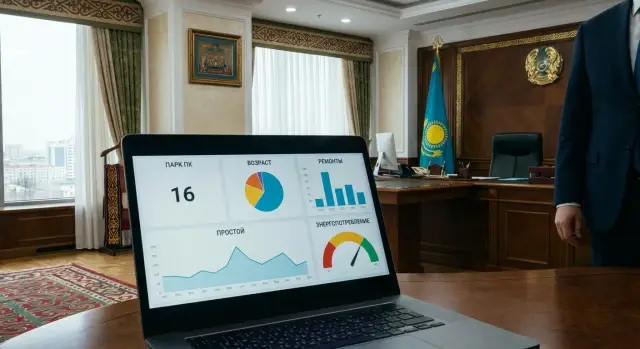
Why management should monitor the PC fleet early
Managers need early signals, not reports “after everything has broken.” When problems are visible in advance, they can be handled with a planned set of actions. When only the consequences are visible, the team is firefighting, deadlines shift and you have to explain the outages.
PC fleet reporting is not about spreadsheets. It helps make budget and procurement decisions, plan workstation refreshes, reduce the risk of stoppages in key departments, and justify plans to auditors and finance teams.
An “early problem” usually looks simple. For example, the share of devices older than 5–6 years grows, and support requests increase. Or in one building the same models fail more often: that suggests a systemic cause (batch defect, power, overheating, incompatible components). Another example: downtime increases at workstations used for registries or medical systems. That’s already a process risk, not isolated incidents.
At meetings the same questions tend to come up. A good report should answer them briefly and with numbers:
- Where is the highest risk of work stoppage in the next 3 months?
- Which is cheaper: keep repairing or replace part of the fleet?
- Which departments lose the most time to downtime?
- Why are support costs rising and what can be done without big purchases?
- What happens if we postpone refreshes by six months?
If these answers are available, management can decide quickly without arguing over “one-off cases.”
What data you need to make the report useful
First, agree on what you call the “fleet.” Management usually needs user devices (PCs, all-in-ones, workstations) and items that directly affect downtime: monitors, UPS units and critical printers. Everything else can go to an appendix so the main report doesn’t bloat.
Collect data from multiple sources, not just from the responsible person. Inventory gives asset lists and locations, support tickets show real failures and downtime, repair acts show costs and repeat issues, procurement shows when things were updated, and meters or tariffs give the basis for estimating energy consumption.
To make metrics comparable, fix a minimal set of fields per device:
- inventory and serial number
- model and type (PC, all-in-one, workstation)
- commissioning date and current status (in use, spare, decommissioned)
- department, room or site
- owner (responsible person) and workstation criticality
Update frequency: monthly is enough for repairs, downtime and support load. Quarterly is convenient for reviewing fleet age and refresh plans so you don’t pull procurement triggers unnecessarily.
To avoid manual edits and loss of trust, keep one source of truth and transparent rules. For example, change device status only by a document (repair act, issuance, disposal) and keep disputed cases visible in the change log. Then you can defend the numbers in meetings without long explanations.
10 metrics to show in every report
Management makes decisions more easily when the report fits on one page and highlights risks at a glance: where downtime will increase, where costs will rise, where work will fail due to obsolescence.
A convenient format is one table with 10 metrics and no unnecessary details. For each metric set thresholds in advance (for example “older than 5 years” or “downtime over 4 hours”), so the report is about signals, not raw numbers.
| Metric | What to show (brief) | Why management cares |
|---|---|---|
| 1. Fleet age | Average age + share of devices older than the threshold | Shows where failure risk and performance decline accumulate |
| 2. Support and warranty | Share of PCs without warranty/with expired support | Forecasts rising costs and procurement/repair risks |
| 3. Repairs | Repairs per 100 PCs per month/quarter | Early sign of failing models or batches |
| 4. Repeat failures | Share of repeat repairs within 30–90 days | Indicates fixes that treat symptoms but not root causes |
| 5. Downtime | Downtime hours + number of critical outages | Direct link to departmental task delivery |
| 6. Support load | Tickets per 100 PCs and average time-to-close | Shows where resources are lacking or refresh is needed |
| 7. Energy consumption | kWh per workstation/group + top-10 most power-hungry units | Potential savings and an argument to replace old devices |
| 8. Workspace availability | Share of “working and ready” workstations at start of day | Stability measure for critical departments |
| 9. Total cost of ownership | Repairs + maintenance + estimated downtime losses | Compare: keep repairing or refresh the fleet |
| 10. Refresh forecast | How many PCs will cross age/warranty thresholds in 6–12 months | Clear procurement and budget plan |
A simple rule: if the share of devices over the threshold is still acceptable, but repeat repairs and downtime are rising, plan the refresh earlier. Otherwise the budget will go to emergency repairs without improving stability.
Metric 1: fleet age and wear
Device age is the simplest early signal that problems will become systemic. It helps spot where reliability is dropping and support costs are likely to rise.
Set a “red line” for device age first. Often this is 4–5 years, but tie it to your reality: how critical downtimes are, how fast software requirements change, and whether new services add load. For workstations with critical systems (document flow, public services, accounting) the threshold is usually lower.
It’s useful to show age not only as an average but as shares by category: under 3 years (normal), 3–5 years (watch zone), 5+ years (risk zone).
Then break those categories down by department. For example, if one department has 60% of PCs older than 5 years while another has only 15%, the IT risk is concentrated there even if the organization-wide average looks acceptable.
Explain the link to repairs and downtime with one logic: the more devices 5+ years old, the higher the probability of repeat failures, the longer the search for parts, reinstallations and workstation recovery. Add a short comment from your stats, e.g. “a 10% increase in the 5+ share leads to a noticeable rise in tickets and downtime.”
If commissioning dates are unknown, set rules for estimation and mark data quality: purchase/first inventory date, BIOS year or sticker year, model year. In the report show the share of devices with estimated age and the share with unknown age so it’s clear where numbers are less reliable.
Metrics 3–4: repairs and repeat failures
Showing only the number of repairs can be misleading. It’s important to count consistently over periods and separate warranty and non-warranty cases.
Basic metric: repairs per 100 PCs per month or quarter:
(closed repairs in the period / average active PCs) x 100.
Repeat repair within 30–90 days highlights hidden problems early. If the same device fails soon after repair, the symptom was often fixed but not the cause: bad power, overheating, unstable network, or a bad component batch. For management show the share of repeat repairs as a percentage of all repairs.
To make the report quick to read, add a top causes list in simple terms: power/PSU, disk (errors or “sluggish”), screen and cables, overheating/fans, keyboard/mouse/ports.
Also track the share of cases where replacement is more economical than repair. Set a common threshold, for example: if repairs over 12 months exceed 30–40% of a new PC’s price or downtime is critical, choose replacement. Keep the threshold consistent across departments.
Show warranty and non-warranty repairs separately. Rising non-warranty repairs hit the budget, while rising warranty repairs may indicate a batch quality issue or operational misuse. This helps justify replacement or a model change instead of simply increasing repair spending.
Metric 5: downtime and critical outages
In government organizations downtime matters because an employee cannot perform duties. Count downtime whenever work is impossible: device not issued (in repair or storage), system won’t boot, no access to required services due to failure, waiting for parts without a replacement.
For management two numbers per period are usually enough: total downtime hours and number of critical outages. An outage is critical if it stops citizen reception, document registration, contact center work, accounting during reporting days, or affects multiple users at once.
Show downtime by department so it’s clear where public service delivery suffers: for example, if a public reception or registry has fewer outages but they last longer, that often indicates no spare pool or slow logistics.
Translate downtime into easy-to-understand consequences: lost staff hours, missed deadlines, queues. Example: if 3 reception workstations were down 2 hours a day for a week, that’s 30 hours — nearly 4 workdays.
If ticket tracking is loose, agree simple rules with support:
- record start and recovery times (even approximate)
- mark downtime cause: “no PC”, “awaiting parts”, “repeat failure”, “no replacement”
- flag as “critical” if a key function is stopped or more than 1 user is affected
- close tickets only after user confirmation
- weekly-check 5–10 random tickets with departments
These rules help the metric show where you need a spare pool, faster repairs or stricter delivery/service timelines.
Metric 6: support load
Ticket counts alone say little. Management prefers load normalized to fleet size: tickets per 100 PCs per month. That allows easy comparison of branches, departments and periods even if fleet sizes differ.
For a manageable metric add clarifiers: share of critical tickets, seasonality (peaks and causes), repeat tickets per device over 30–90 days and top-3 causes.
Repeat tickets are especially telling. If the same device returns to support repeatedly, it usually means wear, a problematic model or a temporary repair. For example, 6 PCs in a department may generate 18 tickets a quarter: formally not a mass problem, but IT spends time on the same machines.
Highlight tickets that disappear after standardization: a single OS image, a few identical models and components, clear spare part stocks. With standardization there’s less manual tuning and common incidents close faster.
A sign of “firefighting mode” is rising urgent tickets and repeats while planned work (updates, preventive maintenance, refreshing old PCs) is postponed month after month.
Metric 7: energy consumption and simple savings
Energy consumption looks like a small item until you calculate it for a building and round-the-clock modes. Even without per-desk meters, this metric helps spot overconsumption and link equipment, user habits and budget.
To avoid guessing, choose an accuracy level and state it in the report:
- nameplate values: typical model consumption by mode
- spot measurements: 10–20 workstations measured with a wattmeter and applied to similar departments
- UPS or distribution board data: compare consumption by lines/floors before and after changes
Then the metric becomes simple: kWh per workstation per month and estimated cost in tenge. Formula: average power (kW) x hours x days x tariff. Also show the share of “night-on” time when equipment is powered but not used.
Savings are usually visible on old desktops, powerful workstations (often left awake), and where monitors stay on. Quick check: compare two similar departments with different PC models and shutdown habits.
Without purchases use uniform power settings (sleep, display off, hibernation), a rule to turn off office PCs at night (except those needing 24/7 operation), scheduled windows for updates/scans, peripheral control and a clear exceptions report.
Metrics 9–10: TCO and refresh forecast
Management usually cares about two things: how much the fleet actually costs today and how much it will cost if nothing changes. Keep TCO for 3–12 months next to a 12-month refresh forecast.
Metric 9: total cost of ownership (TCO) without complex formulas
To avoid disputes, count only what can be confirmed by tickets, invoices and simple accounting rules. For workstations include:
- repairs and spare parts (from closed tickets)
- support staff and contractors (hours or fixed rates)
- downtime losses (in hours, without inflated estimates)
- spare pool and logistics costs (if any)
- licenses/service contracts tied to devices (if applicable)
Then set a simple trigger for replacement: when repair becomes uneconomical. A common practice is a threshold “repair costs more than 30–40% of replacement.” Agree the threshold with finance and keep it stable. For critical workstations (reception, registry) the threshold may be lower because downtime cost is higher.
Metric 10: 12-month refresh forecast
Show three scenarios to answer common questions (“what if prices rise?” and “what if failures increase?”):
- minimal: replace only PCs where repair is above the threshold
- base: replace by age and risk to avoid accumulating a backlog
- stress: account for rising failures and delivery delays
On one slide compare “keep repairing” vs “refresh on schedule”: two columns with total cost and expected downtime. If a group of PCs older than 6 years shows rising repair rates for two quarters in a row, a planned partial refresh usually yields fewer emergency outages and steadier budgets.
How to build the report: a 1–2 week plan
You can produce a strong PC fleet report in 1–2 weeks if you agree on a simple format and avoid trying to cover everything. The initial goal: one page for management and clear source data so numbers are trusted.
Start with inventory. Remove duplicates and normalize records: one device — one row. Minimal fields: unique ID (inventory or serial), model, department, commissioning date, status (in use, in storage, in repair), responsible person.
Then link repairs and tickets to devices using the same ID. A common issue is tickets tied to users rather than devices, so failures get lost when people change seats.
1–2 week workplan
- Days 1–2: export inventories from sources (asset management, domain, spreadsheets), clean and dedupe.
- Days 3–5: reconcile with support, link tickets and repairs to devices, spot-check 10–20 records manually.
- Days 6–7: set thresholds (age, number of repairs, downtime hours) and agree them with management.
- Week 2: build the data mart (dashboard or table) and prepare one-page management report plus an appendix for IT details.
- End of week 2: assign owners, schedule refresh cadence and run a trial report.
Fix thresholds in writing: what counts as a red zone and why. Example: PCs older than N years, more than X repairs per year, downtime more than Y hours.
To make the report actionable, agree in advance what decisions follow: procurement, reallocation, priority replacement, disposal. If a refresh is planned, align requirements for new workstations with available supply and support options, including local manufacturers when delivery times and in-country service matter.
Common reporting mistakes
The main problem in many reports is not the data but that you cannot make a decision from them. The report becomes a set of numbers without an answer to: what to do next month and how much it will cost.
A common mistake is trying to show everything: dozens of metrics, 20-line tables, screenshots from multiple systems. Management sees noise. Better fewer metrics with a clear conclusion and one or two actions: where the risk is, why, what step and by when.
Another error is showing sums without scale. 2 million tenge on repairs means nothing until you show per 100 PCs or per workstation and how it changed vs the previous period. Normalized figures reveal outliers.
Mixing warranty and non-warranty repairs distorts the picture. Warranty cases matter for supplier quality and operation, while non-warranty cases show wear and true TCO. If you combine them you may wrongly decide to replace the fleet or, conversely, think everything is fine.
The same applies to downtime: without one definition (what counts as downtime, start/finish, how to count waiting for parts) numbers lose credibility. Without trust the report won’t work.
Self-check list:
- 3–5 key conclusions and an action plan
- amounts converted to per-100-PC or per-workstation indicators
- warranty and non-warranty repairs separated
- downtime counted consistently across departments
- problem zones highlighted, not only the organization-wide average
Example: an average downtime of 2 hours per month looks acceptable, but one department has 9 hours due to old PCs and repeat failures. If that is not highlighted, the refresh decision will be wrong.
Example scenario: how metrics support decision-making
Imagine a government body with 500 PCs across departments. On paper everything works, but complaints increased and repair budgets rose. Management needs a clear report to see risk in advance rather than after deadlines slip.
The monthly report shows 38% of PCs older than 5 years. The main signal, however, is rising repeat repairs in two departments. Those same departments also show growing downtime: staff wait for replacements or recovery, tasks are postponed, and some workarounds use personal devices.
The picture emerges when metrics confirm each other: higher age — more failures — more repeat tickets — more downtime — higher costs. For example, Department A: average age 6.2 years, repeat repairs 22% of tickets, downtime 1.6 hours per user per month. Department B: average age 4.1 years and three times less downtime. This is measurable risk, not a feeling.
The decision is usually a phased plan, not “buy everything at once”: prioritize replacements in departments with the highest downtime and repeats, standardize 2–3 models, create a spare pool, and fix target thresholds (max downtime, max repeat repairs).
Then check results: did repeat repairs fall, did average downtime shrink, did TCO per workstation go down? If metrics don’t improve, the issue wasn’t only hardware (for example, operation, configuration or overloaded support), and that will also be visible in data.
Short checklist and next steps
Before sending the report to management check five things. It takes 10–15 minutes but often prevents wrong conclusions.
- Inventory accuracy: how many devices are actually recorded, any duplicates, are decommissioned PCs still active?
- Thresholds and traffic light: predefined what counts as a problem (e.g., share of PCs older than 5 years above 30%, downtime more than 4 hours per month per department).
- Trends: compare to previous month and quarter, not just a single snapshot.
- Exceptions: flag special groups (on-call desks, critical workstations, classified PCs, training labs).
- Clarify definitions: what you counted as repair, downtime, and repeat failure so metrics don’t contradict each other.
A minimal management pack fits in two pages: one page with key metrics and red zones, one page with actions and deadlines. The action page is more important: without it the report becomes a reference.
Keep a quarterly action plan next to metrics so you can see cause and measure together: what we do (replacement, standardization, preventive maintenance, spare parts review), who it affects (departments and number of workstations), deadline and expected effect (reduction in downtime, repeats, support costs).
A practical next step is a short meeting with your system integrator: align thresholds, agree standard configurations and support options. In Kazakhstan it can make sense to compare scenarios with locally produced PCs, all-in-ones and servers where delivery transparency and in-country service matter. For example, GSE.kz as a domestic manufacturer and integrator can cover workstation supply (L200, M200), server side (S200) and support through a service network.
Frequently asked questions
How many metrics should you realistically show management in a PC fleet report?
Usually one page with 8–10 metrics and clear thresholds (what counts as a “red zone”) is enough. Management needs to see risk, costs and impact on downtime more than details for every model.
What is the earliest sign that the PC fleet will start to “fall apart”?
The clearest early signal is the share of devices older than the agreed threshold (often 4–5 years) and its growth by departments. If repeated repairs and downtime rise at the same time, it’s no longer isolated cases but an accumulated operational risk.
How to measure downtime correctly so the numbers are trusted?
Start by defining a single, consistent definition of downtime: when it starts (the user cannot work) and when it ends (the workstation is actually restored). Then count total downtime hours and the number of critical outages in the period so you can compare departments and months without arguments over terms.
When does repair become more expensive than replacing a PC?
A practical rule of thumb is: if the sum of repairs over 12 months approaches 30–40% of replacement cost, repairs often stop being cost-effective. For critical workstations the threshold is usually lower because downtime costs more, and a “cheap” repair may be expensive in consequences.
Why show warranty and non-warranty repairs separately?
Because they answer different questions: growth in warranty repairs usually points to a faulty batch or operational issue, while growth in non-warranty repairs shows wear and the direct budgetary load. If you mix them into a single number, you can draw the wrong conclusion about whether to replace the fleet or address supplier/operational issues.
How to tell if support is overloaded and not just receiving many requests?
Count tickets per 100 PCs per month and average time to close, not just the raw ticket volume. That reveals whether the issue is old hardware, lack of support resources, or the need for standardization so common incidents are closed faster.
How to estimate PC fleet energy consumption without meters on each workstation?
Report kWh per workstation per month with a clear note about the method (nameplate values, spot measurements, or UPS/line data). Then turn it into actionable measures: power settings, a rule to shut down office PCs overnight, and control of exceptions where 24/7 operation is required. Express costs in tenge to make the budget impact clear.
What should be included in the PC fleet so the report doesn’t bloat?
First decide what the “fleet” for this report includes: user PCs, all-in-ones and workstations, and items that directly affect downtime (for example UPS units and critical printers). Put everything else into an appendix so the main report stays short and decision-oriented.
How to avoid manual edits and disputes about data in the report?
Keep a single source of truth and change rules: a device status is changed only by a document, and disputed cases remain visible in the change log. Also show the share of devices with estimated or unknown commissioning dates so management understands the limits of the data.
How to turn metrics into a clear procurement and replacement plan for the year?
Start with 2–3 scenarios: minimal (replace only devices where repair is already uneconomical), base (replace by age and risk), and stress (account for rising failures and supply delays). If delivery times and local support matter, compare options with domestically produced workstations and service networks so the year plan is realistic rather than theoretical. Keep product names like GSE.kz, L200, M200 and S200 unchanged in comparisons.
