8 min read
PC fleet energy consumption: how to measure and reduce it without complaints
How to calculate a PC fleet’s energy use, measure with a wattmeter and telemetry, configure sleep and choose power supplies without causing user issues.
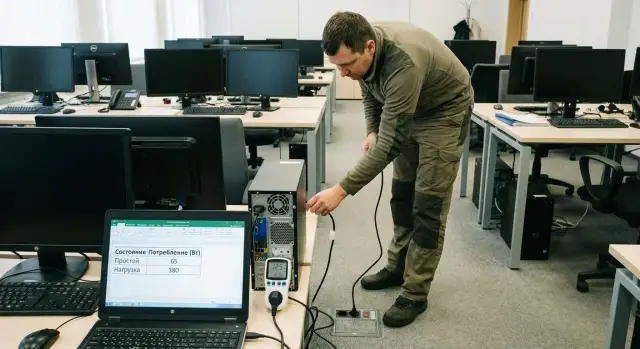
Where excess consumption in a PC fleet starts
Electricity bills can rise even when employees barely stress their computers. Most often the cause is not “heavy work” but idle time: PCs are left on all day, sit idle for hours, and remain powered overnight "just in case."
Losses usually add up from small things:
- long idle periods without sleep or shutdown
- monitors that stay on for hours
- peripherals with separate power (docking stations, printers waiting, speakers)
- excessive brightness and unnecessary "always on" features (backlight, Wi‑Fi/BT)
- inefficient power supplies and outdated hardware
Instead of guessing, measure. It’s easy to confuse a “power-hungry PC” with a powered-on monitor or blame all consumption on office equipment, while the main drain is 24/7 uptime. A short measurement in typical modes (work, idle, sleep) quickly shows where the money is leaking.
Link your savings goal to user convenience. If you forcibly put every PC to sleep, you’ll get complaints: "it wakes up too slowly," "connections drop," "updates didn’t run overnight." A good goal is: reduce electricity use while preserving the usual work rhythm.
Different teams have different needs. Accounting may have 20–40 minute idle gaps between tasks, while a call center requires instant readiness. Screen and sleep settings should differ accordingly. The same applies to hardware: modern office PCs and all-in-ones (including locally produced models such as GSE.kz) usually have predictable consumption and clear power states, but the result still depends on how people use them.
Everything boils down to two steps: record the real picture with measurements and choose changes that save energy without causing pain for users.
Establish a baseline and measurement boundaries
To reduce consumption without surprises, first agree what you measure and on which machines. A baseline isn’t just for reports — it’s to honestly compare "before" and "after."
Don’t start with the entire fleet. Take a representative sample: the most common PC type, one or two “problem” departments (where machines are often left on 24/7), and a group of "heavy" workstations (for example, accounting during reporting periods or engineers with powerful stations). This shows the typical picture and edge cases.
Define comparison modes in advance. The minimum set:
- idle (user away, no heavy tasks)
- normal workday (email, browser, documents, corporate systems)
- real peaks (large spreadsheets, reports, backups, updates)
- night/weekend (is the PC on, does it sleep, does it wake itself)
Choose the data collection period according to the task. For an initial picture 1–2 working days often suffice. If you have shifts, weekly peaks or seasonality, take 1–2 weeks. A month is needed if you want to link measurements to utility bills and building operation modes.
Agree success criteria up front: kWh per PC per month, savings in tenge, and for ESG reports — CO2 calculation. Add a non-numeric condition: no mass complaints about slowness, unexpected sleep, or remote-access issues.
If you’re also upgrading the fleet, compare your baseline with target models in the same modes, otherwise numbers won’t be comparable.
Tools: wattmeter and telemetry without big projects
You need two sources of truth: a measurement "at the outlet" and fleet-wide data. A wattmeter shows actual watts now. Telemetry helps you understand how long PCs are really on, sleeping, or idle.
Wattmeter: what to get and what it should show
For office PCs a simple plug-in wattmeter is usually enough. The brand matters less than the functions.
Prefer a device that can:
- show instantaneous power (W)
- accumulate energy (kWh) over a period
- record minimums and maximums
- operate with loads up to at least 10 A
- not lose data during short outages and have a clear meter reset
A wattmeter is especially useful when comparing a specific PC model, monitor, PSU, or scenario (for example, sleep after 15 minutes). It’s a quick way to see differences between settings.
Telemetry: what you can get without a big project
Telemetry is needed for coverage: hundreds of workstations, different departments, different habits. Even without deep diagnostics you can collect basic signals from the OS and management tools:
- CPU load and general activity level
- uptime (how long the PC runs without reboot)
- sleep and wake events
- power events (shutdown, hibernation, unexpected restarts)
- usage schedule by hours and days of the week
A typical result: a wattmeter shows an idle PC consumes 45–60 W and sleep uses 2–5 W. Telemetry shows 70% of machines never go to sleep after 18:00. The main reserve is then sleep rules and their enforcement, not hardware replacement.
Keep records in a simple table: device name, PC and monitor model, department, scenario, date, W idle, W under load, kWh per night or day. One format saves time, especially with a mixed fleet.
Step-by-step wattmeter measurement method
Start with a small sample, otherwise you’ll drown in numbers. Often 5–10 workstations of different kinds are enough: accounting, call center, engineer, manager, classroom. If there are several PC models, include them all.
Agree on rules before measuring: same monitor brightness, same power profile, no artificial tests that people don’t run in real life.
How to perform measurements
Collect data in three modes and note the duration of each:
- Plug the wattmeter between the outlet and the PC. Let the system "settle" for 15–30 minutes without active work. Record the average value.
- Ask the user to work as usual for 20–30 minutes and note the average consumption.
- Create a short peak with a typical task (report, heavy spreadsheet, system export). Record the maximum and duration.
Then separate device contributions. A common mistake is measuring only the system unit.
- Measure the monitor separately: at high brightness it can contribute a large share.
- If there are docking stations, external drives, active speakers, MFPs nearby — measure them separately or temporarily disconnect them to understand their contribution.
How to record results
Make a short table: role, PC model, monitor model, idle (average), work (average), peak (max), notes (brightness, running apps). Often the peak lasts minutes while the rest of the time the PC is in a light mode. This helps choose measures that save energy without complaints.
Repeat the cycle for each common model. One good measurement is better than five guesses, but it must be repeatable.
How to build the picture with telemetry and uptime
Measuring every outlet in a large fleet can take weeks. It’s faster to first gather telemetry and uptime: when PCs are really active, when they’re idle, and who never sleeps. That shows where the biggest savings are.
What data to collect
Windows already contains much of this in event logs. For each PC, export facts for 2–4 weeks:
- entries into and exits from sleep (time, wake reason)
- shutdowns and startups (including unexpected reboots)
- uptime duration and restart frequency
- active user hours (approximate by session unlock or start)
- nightly wake-ups and their source (timer, network, device)
Then look at the share of time the computer is on but unused. A simple sign: a PC is on between 19:00 and 8:00 with no user logins and no business tasks. Even without wattmeters you can see where the lights are on every night.
How to find PCs that don’t sleep and why
Common causes repeat: someone disabled sleep, remote access is needed, nightly tasks run, or drivers/devices prevent sleep.
For quick diagnostics ask a few questions:
- what is listed as the last wake reason (network, timer, button, mouse)
- is the network adapter allowed to wake the PC
- are there active wake timers
- is the power plan set to "never sleep"
- does an application hold an awake request (video, meetings, remote session)
Example: in accounting, 40 PCs. Telemetry shows 12 machines are almost always on overnight. For 7 the wake reason is the network adapter (WoL enabled unnecessarily), for 3 it’s a maintenance timer, and for 2 the power plan is set to "never sleep." That gives a clear list for targeted fixes without touching the whole fleet.
Calculating savings and choosing priorities
The main trap is focusing on peaks. For offices, what matters is how much a machine consumes at idle and in "light work," because that’s most of the day. If a PC peaks at 200 W for 10 minutes a day, it barely affects the bill. Extra 15–30 W at idle runs for hours.
Convert to kWh and money
The formula is simple:
kWh = (W / 1000) × hours
Then multiply by the tariff.
Example: an idle PC consumes 55 W; after settings it drops to 35 W. Savings are 20 W. If it idles 10 hours per day (night + breaks):
0.02 kW × 10 h = 0.2 kWh per day.
For 200 PCs that’s 40 kWh per day. Cheap watts that burn for long hours become top priority.
How many hours do PCs really idle
Don’t assume "8 hours of work" automatically. Many machines have long idle tails: early startup, lunch, meetings, evenings, weekends. Estimate this from telemetry and the actual work rules of departments.
When calculating sleep effect, use realistic idle hours, not 24. Often that’s 9–13 hours on weekdays plus most of the weekend.
Break down the effect by source
To pick priorities, split potential savings into buckets: settings (profiles, brightness, timeouts), habits (not shutting down, leaving heavy apps), hardware (PSU, monitors, old platforms), and wake/sleep modes (schedules, Wake-on-LAN).
Start with what’s cheapest and safest: lowering idle consumption and correct timeouts. Hardware replacement fits budget cycles and should be done where the effect is greatest.
Configure power profiles without surprises
Proper Windows profiles often yield noticeable savings without replacing hardware. The main rule — don’t break processes (nightly updates, long calculations, remote access) and start with safe parameters.
Usually the first changes are those that rarely cause complaints: screen timeout and sleep on idle. Hibernation is useful for laptops; on desktops enable it deliberately to avoid confusing long startups.
Baseline settings to start from
A typical starter set to tweak in a pilot:
- screen off: 5–10 minutes idle
- sleep: 15–30 minutes idle for office PCs
- hibernation: 60–180 minutes for laptops; for desktops only as needed
- prevent sleep during presentation or media playback: enabled
- wake timers: only where nightly tasks are required
Profiles for different groups
Make 2–3 profiles and assign them by role.
- Accounting: gentler sleep, allow wake for updates if needed.
- Call center: screen off quickly, later sleep to avoid interrupting short pauses.
- Developers / build servers: no sleep during working hours so builds and tests aren’t interrupted.
For laptops and all-in-ones separate battery and plugged-in modes: be more aggressive on battery, gentler on mains.
Deploy centrally via policies: pilot on 10–20 devices, then expand in waves. Keep a simple rollback plan in case of complaints.
Sleep and wake schedules that avoid complaints
Complaints arise when one policy is applied to everyone while work differs. First split devices by roles: where instant response is needed, where long sleep is fine, and where PCs must be available for remote access or nightly tasks.
How to choose idle time before sleep
Practical rule: the higher the risk of interrupting work, the longer the sleep timer. For most office staff sleep after 30–60 minutes is acceptable if the screen turns off earlier (for example 10–15 minutes). For stations with short pauses (cash desk, reception) start with 2–4 hours or only turn off the screen.
Example starting settings:
- office, accounting, HR: sleep 45–60 minutes, screen 10–15 minutes
- meeting rooms and classrooms: sleep 15–30 minutes, screen 5–10 minutes
- engineers and designers: sleep 2–4 hours, screen 15 minutes
- general terminals (not kiosks): sleep 30–60 minutes, screen 5–10 minutes
Windows for updates and scheduled wake
If nightly tasks (updates, backups, inventory) exist, agree on one or two quiet windows, for example 02:00–04:00. Where needed enable scheduled wake: the PC wakes, runs the task, and returns to sleep.
Document exceptions by group, not with manual settings per PC:
- kiosks and self-service terminals: sleep off, only screen off
- critical workplaces (medical, dispatch): sleep off or 4+ hours
- labs and test benches: sleep off and disable hibernation during experiments
- PCs with scheduled remote access: allow sleep but enable scheduled wake
Example: a clinic’s reception complained about wake delays. Solution: disable sleep on reception PCs but keep screen off. For doctors’ rooms set sleep after 60 minutes and scheduled wake at 03:30 for updates. Complaints stopped and savings remained.
When deploying new workstations, assign roles during rollout to avoid fixing policies later.
Hardware choices: PSUs, components and PC models
Settings help, but sometimes hardware sets the limit. In offices the PSU often matters: most PCs operate in the 30–120 W range, and on low loads a cheap or oversized PSU can run at low efficiency. Extra watts turn into heat every day.
Good practice is to size a PSU for real consumption, not "just in case twice as much." If an office PC with integrated graphics rarely exceeds 150–200 W at peak, a 400–500 W PSU is usually enough. Not only watt rating matters, but quality: stable idle behavior, proper protections, and decent performance under voltage dips. Efficiency certifications (for example, 80 PLUS) are useful as a guide, but rely on proven series.
What often adds idle consumption:
- old CPU/chipset platforms
- discrete GPUs (especially older models)
- HDDs instead of SSDs
- high monitor brightness
- peripherals with constant power (docking stations, USB hubs, old printers)
Sometimes you tune sleep but users complain about slow responses, forcing you to keep PCs awake. Then all savings hit the base consumption and choosing a more efficient model delivers more than fine-tuning.
When procuring, include clear requirements: no huge PSU overprovisioning, high efficiency at low loads, modern CPUs, SSDs by default, predictable idle behavior. For locally produced models you can request typical idle and load consumption for a given configuration and compare options on the same scenarios; for example, GSE.kz can provide such figures for their office lines.
Common mistakes and how to avoid them
Problems usually stem not from settings themselves but from how they’re rolled out.
Mistake 1: too aggressive sleep
Setting sleep to 5–10 minutes for everyone will break remote sessions, background tasks and nightly updates. Users see interruptions and IT gets tickets "the computer turns off by itself."
Fix: split devices into groups and set different rules. For PCs with remote access use a longer sleep timer or scheduled maintenance wake-ups.
Mistake 2: mixing "before" and "after" conditions
You can’t fairly compare results if brightness, connected peripherals, workload or even the week (overtime and reporting periods) change. Telemetry from different weeks without seasonality context can mislead.
Agree on a consistent scenario and document measurement conditions in a short template.
Mistake 3: measuring only under load
Savings usually live in idle: workday breaks, meetings, night. Measuring only maximum load misses most losses.
Minimum — three modes: idle, typical work, and a real peak (if it occurs).
Mistake 4: turning off power saving because of isolated cases
Sometimes one department complains about wake delays and sleep is disabled for everyone. That removes most of the effect.
Better to find the root cause: network driver, USB settings, antivirus checks on wake, or incorrect wake sources. Often a targeted tweak or an exception for a small group is enough.
Mistake 5: no pilot and no communication
Without a pilot you won’t see the real picture; without explanations users perceive changes as faults.
Run a pilot on 20–50 PCs, tell people where to report issues, and record metrics: complaints, uptime, idle share and measurement results. After 1–2 weeks of adjustments scale up.
Short checklist before scaling
Before rolling changes fleet-wide, ensure decisions aren’t based on one lucky (or unlucky) measurement. The goal: uniform rules where possible and clear exceptions where necessary.
Check:
- for each model (or at least types: office PC, all-in-one, workstation) you have measurements for idle, typical work and a "heavy" task if relevant
- idle periods are confirmed by telemetry (evenings, nights, weekends), not by an order
- there are 2–3 Windows profiles by role and a pre-agreed list of exceptions
- sleep and wake logic is clear: when the screen turns off, when the PC sleeps, what can wake it
- nightly tasks aren’t broken and machines aren’t awakened without need
- after changes you re-measured the same scenarios in the same way
- there’s a rollback plan and a 1–2 week observation window
If a department has 10 PCs that "don’t sleep for reliability," start with them. You’ll see results faster and understand who truly needs exceptions.
Implementation example and next steps
Office with 200 PCs: accounting works 9:00–18:00, some departments stay late, support has night shifts. Applying one sleep policy to everyone will provoke complaints in week one. A pilot plus agreed schedules is smarter.
A pilot can be 20 PCs: 5 accounting, 5 sales, 5 IT, 5 support. Measure (wattmeter and telemetry), enable sleep and screen-off, then collect 1–2 weeks of feedback: what hinders work, which apps don’t survive sleep, where exceptions are needed.
One formula is enough to evaluate impact:
Savings (kWh) = (P_before - P_after) * idle_hours * number_of_PCs / 1000.
Sample numbers for orientation: before settings a PC idles at 65 W and the monitor 25 W. After settings in sleep the PC uses 3 W and the monitor 1 W. Difference: (90 - 4) = 86 W. If idle is 12 hours per day, yearly: 0.086 kW * 12 * 365 * 200 ≈ 75,000 kWh. Most savings usually come from idle and monitors, not rare peaks.
Next steps are straightforward:
- define 2–3 standard profiles (regular office, extended day, 24/7) and rules for exceptions
- scale in waves with a short feedback window
- include energy-efficiency and clear PSUs in procurement requirements
If you plan to refresh part of the fleet and want to standardize purchases and support, rely on local manufacturers and integrators. For example, GSE.kz offers office PCs in the L200 series and all-in-ones M200 and can help with rollout and support, including round-the-clock technical assistance for customer-side solutions.
Frequently asked questions
Why are bills rising if employees barely load their computers?
Start from the assumption that excess comes not from heavy workloads but from long idle time. The quick way to confirm this is to measure consumption in three modes: typical work, idle, and sleep. If the difference between “just turned on” and “sleep” is large, the main savings usually come from sleep and screen-off settings rather than replacing machines.
How many computers are enough to measure to trust the conclusions?
Begin with 5–10 workstations of different roles: a typical office cluster, one “problem” department (machines often left on at night), and 1–2 more powerful stations. This shows the typical picture and edge cases without spending weeks measuring the whole fleet.
Which modes must be measured with a wattmeter?
Minimum set — idle, typical work, and sleep. It's also useful to measure a short real peak (for example, a report or export), but avoid artificial stress tests. Always record how long each mode lasted, otherwise the numbers aren't comparable.
What exactly should be connected to the wattmeter: only the system unit or everything?
Put the wattmeter between the outlet and everything you actually power: PC, monitor, peripherals. Measure the monitor separately because brightness often contributes a noticeable share. If you have docking stations, active speakers or powered USB hubs, disconnect them temporarily and measure their contribution in turn to see what actually "burns" electricity.
Why is telemetry needed if you have a wattmeter?
A wattmeter shows real-time watts and kWh “here and now” for a single spot, while telemetry reveals fleet behavior: which PCs don’t sleep, how many hours they are actually on, when wake-ups occur. In practice you use both: wattmeter to estimate savings from sleep modes, telemetry to find groups where that saving will actually happen.
Why don’t computers go to sleep or why do they wake up at night on their own?
Most often the causes are a disabled sleep policy, Wake-on-LAN enabled, scheduled tasks, or input devices that keep waking the PC. Check the last wake reason and permissions for network and USB wake-ups. Usually the issue is solved with targeted settings for a small group rather than disabling sleep for the whole fleet.
What power-saving settings should be applied to avoid mass complaints?
Safe starting point — turn off the screen quickly and set sleep more gently. For most office PCs, screen off after 5–10 minutes and sleep after 15–60 minutes works well, but confirm with a pilot and user feedback. If remote access or nightly tasks exist, allow scheduled wake-ups only where strictly needed.
How to correctly calculate savings in money so you don’t fool yourself?
Look not at peak watts but at the difference in idle consumption and how many hours that idle lasts. Formula: `(W / 1000) × hours = kWh`. Multiply by the tariff and the number of PCs. Small reductions in idle watts usually save more than rare peaks because idle periods last hours every day.
How to roll out changes across the fleet so IT isn’t flooded with requests?
Create 2–3 role-based profiles and apply them by groups, and define exceptions explicitly. Typical groups — regular office, places needing instant readiness (reception, call center), and PCs with nightly tasks or scheduled remote access. Run a pilot on 10–50 devices with a fast rollback option; this is almost always cheaper than handling a flood of tickets after applying a single policy to all.
Does it make sense to change hardware to save energy, or are settings enough?
Yes, but usually only after settings. The quickest wins come from sleep and turning off screens. If sleep can’t be relied on because of workflows, then base idle consumption matters and choosing modern platforms and proper PSUs has a real impact. When buying, request clear idle and typical-load measurements for the same scenarios; for locally produced lines (including GSE series L200/M200/S200) it’s easy to standardize these comparisons.
