8 min read
PACS Server: calculating DICOM archive capacity, disk IOPS and network requirements
PACS server: how to calculate DICOM archive capacity, disk IOPS and network requirements so images open quickly during peak hours and as the database grows.
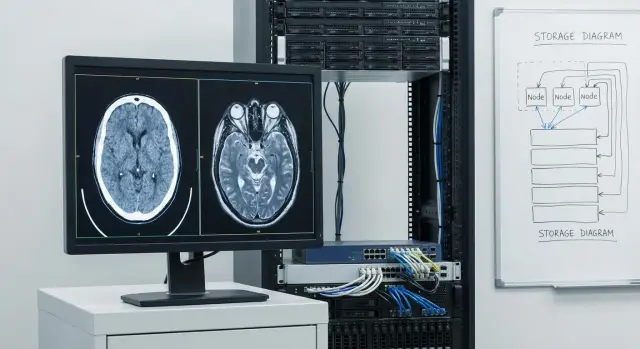
What affects the speed of opening images in PACS
The phrase “PACS opens quickly” can mean several different expectations in practice. First, a user expects the study list to load, then the series to open, and then smooth scrolling through slices. At each step the bottleneck can be different, so it’s important to separate symptoms.
Most often one of the following areas "lags":
- loading the study list: search, filters, sorting, database work and indexes;
- opening a series: DICOM transfer over the network and reading files from disks;
- scrolling slices: viewer cache, small-block read speed, storage latency;
- accessing older studies: reaching the “cold” archive on slower disks;
- many users working at once: disk queues, network limits, application server load.
Peak hours are almost always more important than average load. If 5 physicians view studies simultaneously, that sets one requirement level. If 25 workstations open CT series in parallel, IOPS, network and cache requirements rise sharply, even if total archive size is still small.
Growth of the archive affects not only terabytes. Over time metadata tables, indexes and logs grow, cache hit rates fall, and queries for patient history become heavier. As a result, PACS can hit database and storage latencies even though there is still free disk space.
Performance depends on four parts: storage, network, application server (PACS/DB) and the viewer. A good calculation starts with understanding where the delay appears in your scenarios.
Input data you need — without them calculations will be inaccurate
Before choosing a server for PACS, collect baseline numbers. Without them you can be off by 2–3x: either overspend on hardware or get slow image openings during clinic hours.
First, fix the list of modalities. CT and MRI usually drive archive growth most, but X-ray, mammography, ultrasound and endoscopy are also important: they add many "small" studies and create load due to simultaneous viewing.
Next you need real study sizes per modality (in MB or GB). Don’t take a hospital-wide average: head CT and chest CT will differ, as will MRIs with different protocols. The easiest way is to export statistics from your current PACS/modalities for 2–4 weeks and use the median.
Separately define three requirement groups:
- how many studies per day per modality and how the flow changes on peak days;
- how many days (or months) must be kept "online", i.e. on fast storage for instant access;
- how many copies of data are required: working, backup, and replication for high availability.
Check regulator and internal rules: retention periods, need for immutable archives, backup and restore regulations. In practice people often keep the last 6–12 months “hot” and move older studies to a cheaper tier while keeping access.
Small example: a clinic adds CT, the flow increases by 15 studies/day. At an average size of 1.2 GB that is about 18 GB/day for that modality alone. With copies and online retention the final capacity changes dramatically, so calculate before purchase.
How to calculate DICOM archive capacity for 1–3 years
PACS capacity is usually counted in two layers: fast online archive (what clinicians open most during hours) and cheaper long-term storage (accessed rarely but kept by regulation). This split keeps performance stable and avoids overpaying for expensive terabytes.
The basic formula is simple:
Capacity = daily study volume × retention period (days) × growth factor + overhead.
Take daily volume not as a yearly average but as a “typical busy day”, otherwise you’ll underestimate peaks.
Overhead includes not only DICOM files themselves but things often forgotten when sizing a PACS server: database, indexes, previews, metadata, logs, temporary files, space for maintenance and updates. A practical rule of thumb to start is to add 15–30% on top (your PACS vendor and backup policy will refine this).
Treat growth as a plan, not a single number. Capacity is most affected by new modalities and protocol changes (e.g., switching to thinner CT slices).
A convenient way to set a growth factor:
- +10–20% per year for overall patient flow growth;
- separate line items: launching CT/MRI, screening programs, new departments;
- quality changes: more frames, higher resolution.
Example (simplified). You currently write 200 GB/day, overhead 20%.
- Now (online 90 days): 200 × 90 = 18 TB, with overhead about 22 TB.
- In 1 year (15% growth): daily volume 230 GB, online roughly 25 TB.
- In 3 years (15% annually): daily volume ≈305 GB, online roughly 33 TB.
Calculate long-term storage similarly, but for a longer retention (1–3 years or more) and remembering that most flow will move there.
IOPS and latency: what’s critical for PACS and what’s secondary
In PACS speed is felt when a clinician clicks and waits. Most interactive actions hit many small read operations and disk response time, so both IOPS and latency (ms) matter.
Load comes not only from DICOM files but from the viewing "plumbing": patient search, opening a study, selecting a series, flipping frames, loading thumbnails and prefetching adjacent slices. This often looks like many short DB queries and small-block disk reads.
Random reads vs sequential
Sequential read is when a workstation streams a large file or read a long contiguous part of a series — throughput (MB/s) matters here. Random read is when the system pulls many small fragments from different places. In PACS random reads often “kill” responsiveness during peak times.
Latency is the key metric. Even with “high IOPS on paper”, HDD latency of 15–25 ms causes visible pauses in the UI. For interactive use, reads should be in single-digit milliseconds, so SSD (or at least an SSD cache) often improves perceived performance more than just adding HDD capacity.
How to lower latency without overspending
A common pattern: put the database and logs on a separate fast SSD pool, and DICOM files on another pool. An SSD cache for hot data and separating streams so viewing reads aren’t affected by background archiving and backups also helps.
For a rough estimate, plan 50–150 random IOPS per active physician during peak hours (this strongly depends on modality, slice thickness and viewer behavior). A practical test: simulate 5–10 concurrent openings of typical studies in a test day and watch not only disk utilization but average read latency. If latency starts to spike, users will feel it immediately.
Step-by-step storage performance calculation (simple method)
To make images open quickly, count not abstract IOPS but a clear peak: how many studies are read in parallel and how they are viewed.
1) Count the peak concurrent openings
Take your busiest hour and estimate how many workstations actively open studies in parallel. Don’t confuse this with the number of accounts: usually fewer are reading concurrently.
Then define viewing scenarios. For example: a typical study view, comparison with prior (two studies), or multi-series CT with active scrolling.
2) Convert scenarios to MB/s and IOPS
You usually need two numbers: read throughput (MB/s) and number of read operations (IOPS). For a rough estimate use this approach:
- determine typical study size (e.g., CT 800 MB, MRI 400 MB, X-ray 20 MB);
- estimate how much must be read before the clinician can start working (often 5–20% of the study, the rest streams in);
- set a target time for first display (e.g., 2–5 seconds);
- compute required throughput: (startup volume) / (time);
- estimate IOPS from average read block size. If block is 256 KB, then 100 MB/s ≈ 400 IOPS (100 / 0.256).
Mini example: 10 clinicians at peak open CTs, 100 MB needed to start within 3 seconds. Per clinician ~33 MB/s, for ten ~330 MB/s just for initial display.
3) Add background load and headroom
Add background tasks to peak reading: importing new studies, compression, index rebuilds, replication, backups. They can consume a notable share of disk during daytime.
Include 20–40% headroom and define acceptance criteria: e.g., “first CT frame within 3 seconds during peak” and “comparing with prior study without visible pauses”.
Network requirements for DICOM: throughput, latency and peaks
Network is felt instantly in PACS: a study can be large, and a clinician expects it now. Traffic types vary: DICOM C-STORE (modalities sending) is often steady, while C-FIND and especially C-MOVE (delivering studies to viewers) produce sharp peaks when multiple clinicians open series.
Design for peak throughput during working hours, not averages. 1 Gbps often suffices for a small department with moderate CT/MRI flow, but 10 Gbps becomes necessary when many workstations, archive retrievals, 3D post-processing, or growing CT volumes are present. A simple sign: if responsiveness drops for everyone during simultaneous deliveries, upgrading the network will help more than changing disks.
Channel quality matters more than nominal speed. For DICOM, latency and packet loss are critical: with packet loss TCP retransmits and effective throughput drops dramatically. Even a powerful server won’t help if there are unstable switches, overloaded Wi‑Fi or long chains without error control between PACS and viewers.
To make network behavior predictable, separate medical traffic from office traffic (VLAN), set priority for DICOM and viewing (QoS), limit noisy tasks (backups, updates) during working hours and measure actual throughput, latency and loss — not just that the link is up.
For branches and teleradiology the bottleneck is often the WAN. VPNs add overhead and a wide link can still have high latency. A practical approach is to keep a local cache near the workstation (gateway or viewing station) and schedule large archive transfers at night, leaving only current patient data during the day.
Choosing a disk subsystem: SSD, HDD, RAID and storage tiers
The disk subsystem in PACS solves two tasks: quickly finding the right study and quickly delivering the DICOM files. It usually makes sense to split storage: SSD for database, indexes and logs, and a separate pool for the DICOM archive. That way searches stay fast and bulk writes impact image delivery less.
SSD vs HDD: assign roles
Practical pattern: keep hot data on SSD and cold on HDD. Put the PACS database (metadata), viewer cache and most-recent months on SSD. Move the long-term archive to HDD.
If budget is tight, “all SSD” is not always the best plan. CT and MRI volumes grow quickly, and paying for SSD terabytes can cost more than the performance gain. A properly sized cache often yields a better result: popular studies served from SSD, older ones kept on HDD.
RAID without extra terms
RAID prevents a single disk failure from stopping operations. For PACS both reads and writes matter, so pick a layout that tolerates failures and keeps performance predictable.
Guidelines:
- RAID 10 is chosen when fast writes and predictable performance are important (e.g., active pools and databases).
- RAID 6 saves capacity and tolerates two-disk failures, but rebuilds on large HDDs can take longer and impact performance.
- A hot spare speeds up recovery without manual intervention.
Tiering and caching help meet budget constraints: a small SSD layer absorbs frequent reads while the bulk lives on HDD.
Local disks or SAN/NAS
If you have one PACS and moderate load, local disks in the server are often simpler and cheaper. SAN/NAS is chosen when multiple systems must share storage, scaling without downtime is needed, or strict overall storage HA is required.
Don’t forget operations: easy disk replacement, health monitoring, spare slots for expansion and a clear upgrade process.
CPU, RAM and architecture: single server or role separation
PACS bottlenecks are more often storage and network than CPU. Still, CPU and RAM affect stability during peaks when writes, retrievals and preview generation run simultaneously.
Simple guidance: more general-purpose cores are better than a few extremely fast ones. CPU handles background tasks (compression, index rebuilds, preview generation, encryption, antivirus, web services). If CPU stays above 70–80% during work hours, latency begins to spread across the system.
RAM often produces the most noticeable effect because it helps caching. More memory increases the chance that frequently opened series, metadata and indexes are served without disk access. Typical symptom of low RAM is active swap and stepwise increases in study open times.
Architecturally there are two options: everything on one server (easier and faster to deploy) or separated roles so peaks in one area don’t throttle another. Databases, store/retrieve services and web viewers are often separated, and for heavy load a separate node for 3D/postprocessing is added.
Virtualization eases deployment and failover, but can introduce latency from noisy neighbors or wrong limits. Rule of thumb: reserve resources (CPU/RAM), don’t skimp on controllers and network queues, and test a “peak hour” scenario.
GPU is not needed for storing DICOM but for heavy visualization (3D MPR/VR, AI processing, rendering). For routine viewing and archiving a server GPU usually brings no noticeable benefit.
From day one collect metrics so archive growth isn’t a surprise:
- CPU: load and queue;
- RAM: cache and swap;
- disk: IOPS, latency, queue;
- network: throughput and loss;
- application: retrieve time and series open time.
Common mistakes when selecting a PACS server
The most common mistake is focusing only on total archive size. In reality space is consumed not only by DICOM files but also by the database, indexes, logs, temporary files and backups. If you size storage tightly, the system will start to slow before disks fill: because of full logs, not enough free space for maintenance and degraded cache behavior.
Second trap is planning based on an average day. PACS lives on peaks: mornings see many incoming studies, daytime has active deliveries to clinicians, and evenings often have report finalization and rechecks. If you calculate IOPS and network on averages, images will open noticeably slower during busy hours.
Another mistake is putting everything on the same array: DICOM archive, PACS DB and backups. In that setup background tasks (backup or integrity checks) easily consume disk operations needed by clinicians. Better separate roles at least into different pools/volumes, and for heavy loads separate nodes.
Network is often considered last, especially when there are branches. Even a powerful server can be defeated by a narrow or high-latency link between server and workstations, turning CT viewing into waiting for each slice to load.
To avoid problems in six months, document expected peak concurrent viewings, where DB, DICOM and backups will reside (separate), headroom for 2–3x growth, backup windows, and links to branches.
Simple example: a clinic added a second CT and opened a branch. Archive volume rose fast, but the bigger impact came when backups started at 18:00 just as clinicians re-opened studies. Without a scaling plan and load separation even a good configuration will start to degrade.
If you bring in an integrator, ask not only for a “hardware list” but for a calculation with assumptions, load profile and headroom.
Quick checklist before purchase and deployment
Before buying a PACS server, fix a few numbers and rules. It takes an hour but saves weeks of rework.
First agree with clinicians on target responsiveness. “Fast” means different things: for X-ray it’s one level, for CT with hundreds of slices it’s another. Write down target study open times during peak (and separately the time to first image) in seconds.
Then check key points that usually break expectations:
- peak response goal: how many simultaneous clinicians and what latency is acceptable;
- online archive: how many months/years stay hot on fast storage and what headroom for growth;
- resource separation: DB and DICOM storage should not compete for the same disks;
- network by measurement, not by nominal link: measure speed, latency, loss and peak usage;
- backup and recovery in plain terms: acceptable data loss (RPO) and required service restore time (RTO).
Finally define a scaling plan: what to add first (storage pool, network upgrade, second node/server) and what will hit limits first (controllers, network, licenses, backup windows).
Example scenario: a clinic grows and images must stay fast
Imagine a multispecialty center: 120 studies/day. 60 X-rays (avg 30 MB each), 40 CTs (350 MB), 20 MRIs (250 MB). That’s about 22–25 GB/day, ~8–9 TB/year without overhead and backups.
The first six months all is fine: 10 workstations, images open in 2–4 seconds. Then they add another CT and clinician workstations grow to 20. Daily data increases by roughly a third, but more importantly concurrent load during working hours rises: several clinicians scroll series, techs send studies, printing and exports run.
When the PACS server starts to lag you usually see these symptoms:
- study list and patient search are slow — often a DB or disk latency issue;
- first frames appear quickly but scrolling stalls — often insufficient storage IOPS;
- nights are fine but from 10:00 to 16:00 it lags — sign of daytime peaks hitting network or disks;
- modality-to-PACS transfers are bursty — possible network or ingest-disk bottleneck.
Quick wins that separate interactive from background tasks:
- move DB and journaling to SSD (separate volume) so searches and lists aren’t affected by archive;
- add SSD cache for hot data (last 30–90 days) and keep old studies on HDD;
- move to 10 Gbps on PACS backbone if many parallel viewings occur;
- separate roles (storage, DB, services) so updates and backups don’t steal responsiveness.
To grow without full replacement, plan 30–50% capacity headroom for 1–2 years, ability to add disk shelves or a second storage node, and a clear upgrade sequence (SSD cache and network first, then archive capacity).
Next steps: how to write requirements and choose a vendor
Start with measurable goals. State how many seconds a study should open during working hours (for example, first CT frames within 3–5 seconds at the workstation) and what constitutes degradation at peak.
Collect baseline numbers and put them into a single document for IT, radiology and management to agree on. Often a short 1–2 page spec with attached calculations is enough.
Useful to include:
- load profile: studies/day, concurrent clinicians, modalities and peak times;
- target times: study open, series scroll, comparison with prior studies;
- calculations: capacity (with growth and retention), IOPS and network throughput, plus 20–30% headroom;
- verification plan: check PACS logs and run a short pilot on real workstations;
- reliability and operations: what must survive without downtime, monitoring, replacement rules.
After that it’s easier to pick a delivery and test how the system scales over 12–24 months.
If you need a partner covering both hardware and integration, it makes sense to discuss the project with GSE.kz (gse.kz): a manufacturer and system integrator from Kazakhstan with the S200 server line and experience building infrastructures, including 24/7 support. In such a conversation you can align storage, network and backup to your peak scenarios rather than an "average day."
Frequently asked questions
Why can PACS open images slowly?
First, break the user journey into stages: finding the study, opening a series, and scrolling through slices. Then measure at which stage the delay increases. Search more often depends on the database, while opening and scrolling depend on storage, the network, and the viewer cache.
How do I calculate DICOM archive capacity?
Take the daily study volume, multiply it by the retention period in days, and add projected growth. On top of that, allow 15-30% for the database, indexes, previews, logs, temporary files, and maintenance.
How does an online archive differ from a long-term archive?
An online archive keeps recent studies on fast storage so clinicians can open them without delay. A long-term archive keeps older data on a less expensive tier while preserving access according to policy.
What matters more for PACS: IOPS or disk latency?
Both metrics matter for PACS. IOPS show how many small read operations the system performs, while latency shows how long each operation takes. With high latency, clinicians will see pauses even when throughput is good.
Does PACS need SSDs, or are HDDs enough?
SSDs are usually chosen for the PACS database, indexes, logs, and cache. The main multi-year DICOM archive can be kept on HDDs if the fast tier and cache handle frequent access. This split reduces cost without a noticeable loss of speed in everyday work.
When does DICOM need a 10 Gbps network?
For a small department with a moderate workload, 1 Gbps is often enough. If many clinicians open CT and MRI studies simultaneously, there is 3D processing, remote sites, or a large study volume, the PACS backbone should usually be built on 10 Gbps.
How do I estimate peak PACS load?
Count not user accounts but actual simultaneous openings during the busiest hour. Include scenarios involving comparison with prior studies and active CT scrolling. Add imports, backups, replication, and a 20-40% buffer to that load.
Why can't I keep the database, images, and backups on the same array?
Do not place the database, DICOM archive, and backups on one overloaded array. Backups and integrity checks can consume disk resources precisely when clinicians are actively reviewing studies. At minimum, separate databases and logs, the archive, and backup jobs into different pools.
What data should I collect before selecting a server?
Specify the number of studies per day by modality, typical study sizes, the number of simultaneous clinicians, the online retention period, and data-copy requirements. Add target times for the first image, opening a series, and comparison with a prior study during peak hours.
How should I account for PACS backup and recovery?
Define the acceptable data loss in hours or minutes, this is the RPO. Then determine how quickly PACS must be returned to operation after a failure, this is the RTO. These values affect the number of copies, replication, the backup design, and standby hardware.
