6 min read
Ordering memory and drives mistakes: the risk of being unsupported
Ordering memory and drives by basic specs can lead to failures, support disputes and extra costs. We explain compatibility checks and preventive steps.
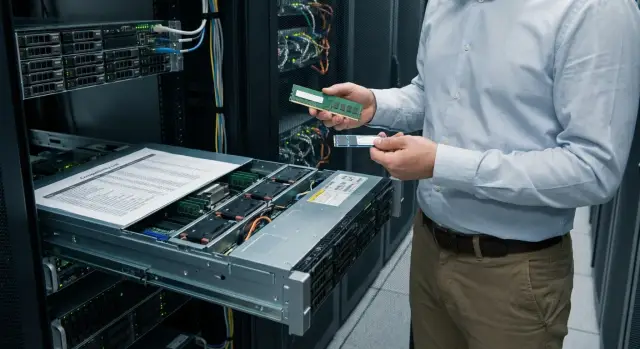
Why “by specs” doesn't mean “compatible"
Memory and drives are often bought this way: pick the required capacity, frequency, connector type and take whatever is cheaper or available sooner. On paper everything matches, so it seems safe. In practice this is how problems usually appear: components fit formally, but the platform behaves unstably and support doesn't validate the configuration.
Product sheet numbers don't tell the full story: how a module or drive will behave in a specific system.
For memory, not only DDR type and frequency matter, but also:
- chip organization and SPD profile
- ranks
- ECC support
- voltage requirements
- compatibility with the memory controller in the CPU
For drives, the connector (M.2, U.2, 2.5") also doesn't guarantee operation. Drives can be SATA or NVMe, have different firmware, different workload characteristics and controller requirements. A component that works flawlessly in a desktop can cause rare failures in a workstation and even more so in a server.
Servers are designed for 24/7 load, predictable latency, correct operation with RAID/HBA, state monitoring and strict read/write error requirements. It's not enough that the system simply "boots" — it must sustain load for weeks without rare but destructive failures.
If you install unsupported modules, you most often get one of four outcomes:
- random reboots and errors that are hard to reproduce
- performance drops due to incorrect operating modes
- problems after BIOS/firmware updates or after replacing other components
- a dispute with support, which asks you to restore the system to a "supported" configuration first
A simple scenario: you buy RAM “with the same frequency” for a server, install it and everything boots. After a week under load memory errors and hangs appear. Support will first check whether the modules are listed in the QVL and whether the part numbers match. Until the configuration is returned to a supported state, troubleshooting often becomes a long exchange.
How it ends: failures, downtime and disputes with support
When memory and drives are chosen only “by specs” (capacity, frequency, interface), people usually overlook firmware, controller revision, chips, timings, power‑saving modes. The worst part is problems often do not show up immediately but only after putting the system into production.
What you’ll notice in operation
A typical story: the server passes installation and quick checks, but under real load (backups, ERP, databases, virtualization) it starts acting unpredictably. Logs show scattered errors that are hard to attribute to a single part.
Usually it looks like this:
- reboots and hangs specifically under load
- ECC errors and inexplicable performance drops with normal CPU and network load
- hidden degradation: rare errors accumulate and then turn into a major incident
- RAID issues: a drive “drops” from the array, rebuilds start and then fail
- SMART warnings and controller errors even on a new drive
The most dangerous thing is that such failures erode trust in the system. You plan one maintenance window and get a series of unplanned downtimes.
Why support insists on compatibility
During investigation they almost always request exact part numbers, QVL entries, controller logs, BIOS/BMC versions and drive firmware details. If unsupported modules are installed, diagnostics become complicated: it's unclear whether it's a platform defect or a reaction to “foreign” components.
In practice you may be asked to return the server to a supported configuration before continuing investigation. That means downtime and extra work: find the “right” modules, replace them and repeat tests.
If the equipment is under warranty and supplied with vendor/integrator support, compatibility requirements are usually stricter. It's better to agree in advance which modules and drives are considered standard and which are not.
Where incompatibility comes from: platform and firmware
Compatibility is defined by the specific platform: CPU, chipset, board layout, memory controller and storage controllers. The same module can work fine in one system and cause errors in another.
Limits often come from the memory controller in the CPU. It doesn't support all memory types: UDIMM and RDIMM can't be mixed, and ECC vs non‑ECC is not just a "checkbox". Server platforms care about ranks, chip organization, voltage and channel requirements. On paper the frequency matches, but the controller may downclock it, memory training may fail at boot or the system may go into rare hangs.
Firmware is a separate story. BIOS/UEFI version affects how the board recognizes a memory module, picks timings and works around known issues of certain batches. For drives, RAID/HBA controller and backplane firmware matter. A drive may be visible but under load timeouts appear, array rebuilds fail and logs fill with warnings.
Why “identical” modules can differ
Two modules with the same capacity and frequency may differ internally: different chips, different organization, different SPD profile, different PCB revision. Manufacturers sometimes change components while keeping the same marketing name. For a server this is critical: it needs predictable behavior and correct SPD data.
Consumer components vs server components
A consumer SSD with the same connector as a server drive may behave differently: aggressive power saving, different write algorithms, no power‑loss protection. In a workstation this often just means "slower", while in a server it leads to timeouts and controller errors.
A practical rule: compatibility is born at the intersection of hardware and firmware. Before purchase check not only specs but also platform, firmware versions and exact part numbers.
Memory: important details beyond capacity and frequency
When people pick memory "by specs" they usually look at capacity and frequency. For servers and workstations that's not enough. This is where ordering mistakes happen most often: a module fits the numbers but makes the system unstable or prevents support.
ECC, Registered and why they may be mandatory
ECC is needed where silent data errors are unacceptable: accounting, databases, virtualization, healthcare. Registered (RDIMM) and Load‑Reduced (LRDIMM) modules are used in servers to work with large RAM capacities.
The main trap: UDIMM, RDIMM and LRDIMM are normally not mixable. Some platforms won't even boot with the “wrong” type.
Ranks, chip organization and why “64 GB” can be different
Two 32 GB modules can differ by rank (single/dual rank) and chip organization. For the memory controller this affects max frequency, stability with all slots populated and sometimes whether the system will boot.
Another risk area is profiles. XMP is primarily for consumer scenarios and is usually unnecessary on server platforms. It's safer to rely on JEDEC profiles, which firmware expects for support.
Short rules:
- do not mix UDIMM and RDIMM (and RDIMM with LRDIMM)
- install identical modules within the same channel sets
- consider limits on ranks and modules per channel
- prefer JEDEC profiles over XMP
- record exact part numbers, not just “32 GB DDR4‑3200”
A practical example: while upgrading servers for virtualization they ordered “equivalent” RDIMMs with a different part number and chip organization. The server booted, but under load rare errors and reboots occurred. Replacing them with modules from the compatibility list fixed the problem.
Drives: same connector, different behavior
One of the most common mistakes is choosing SSDs or HDDs by capacity, connector and form factor only. In servers this is almost always risky: even if a drive physically fits, it may be unstable, not reach expected speed or not be recognized.
The interface on the label (SATA, SAS, NVMe) doesn't guarantee the platform will expose its features. Limits may exist in the controller, drive cage and backplane. For example, an NVMe drive won't work in a system without PCIe NVMe routing, and a SAS drive won't be seen in a SATA bay.
Form factor, cages and real limits
A 2.5" drive can be SATA or SAS, with almost no visible difference. U.2 looks like 2.5" but electrically often means NVMe and needs proper wiring. With M.2 it's easy to mix up keys (B, M) and types (SATA or NVMe).
Before buying, check at minimum:
- what the controller and backplane support: SATA, SAS, NVMe
- the required form factor and connection type: 2.5", U.2, M.2
- endurance for your workload (DWPD/TBW), presence of power‑loss protection (PLP), temperature range
- encryption and secure erase requirements (if any)
- firmware and certified model requirements: QVL and exact part numbers
Endurance and firmware
Consumer SSDs are often not designed for constant writes. Under load they overheat, throttle and start producing errors. In RAID this quickly becomes drive dropouts and endless rebuilds.
Firmware matters too. For server platforms vendors often require drives from the compatibility list or with specific part numbers. Otherwise any incident ends with the “unsupported hardware” argument instead of a solution.
A real example: NVMe 2.5" drives were installed in a chassis, the system saw them intermittently and the array degraded. The root cause was the backplane was wired for SAS, not NVMe over PCIe. It's easier to catch before purchase than after installation.
Compatibility checklist before purchase
Compatibility checks protect not only the ability to "see" a component but also against hidden errors and a situation where support cannot assist because of unsupported parts.
-
Gather precise platform data: model, configuration, board revision (if listed), serial numbers, BIOS/UEFI, BMC and storage controller firmware versions.
-
Check compatibility lists (QVL) and recommended part numbers. Match the exact SKU, not just capacity and frequency.
-
Clarify operating mode requirements: will you use RAID or HBA, need hot‑swap, allow mixed capacities, and are there controller or backplane limits?
-
Ban unsanctioned equivalents in writing. In procurement specify: part number changes are not allowed, permissible revisions and firmware are listed in advance.
-
Run a short test before commissioning: memory stress, SMART and write tests for drives, controller log checks and temperature monitoring. If using RAID — simulate a drive failure and check rebuild behavior.
Also agree on what exactly counts as a “supported configuration” in your organization:
- list of approved part numbers and firmware
- allowed combinations (what can be mixed and what cannot)
- set of tests and acceptance criteria
- who confirms compatibility (IT, integrator, vendor)
If purchasing through an integrator, ask them to include a list of supported items and the final specification they will support.
Typical procurement and spec mistakes
The main reason for failures is simple: specs often list only “general parameters”, while the platform vendor checks compatibility by exact SKUs, revisions and firmware. As a result, a formally suitable part may run unstably or fail initialization.
Problems usually start at the specification wording level:
- Writing “DDR4 3200 32GB” without clarifying ECC, Registered/Unbuffered, ranks and channel requirements.
- Allowing “equivalents” without tying them to part numbers, QVL and firmware versions (BIOS, BMC, RAID/HBA, backplane).
- Mixing drive types in one array or pool (SATA and SAS, NVMe and non‑NVMe, different endurance classes) without considering workload and endurance.
- Ignoring platform limits on channel population, cooling and power. After an upgrade a server can start throttling or showing errors under load.
- Not fixing diagnostic requirements: which logs are collected, which serial numbers are recorded and who is responsible for compatibility when contacting support.
A small example: two “identical” 1.92 TB SSDs were bought for RAID1, but one used a different controller and firmware. Short tests were fine, but after a week timeouts began and support asked whether the drives were on the verified list.
To make a spec work, add specifics, not just numbers:
- For RAM: type (RDIMM/UDIMM), ECC, ranks, channel/slot configuration rules.
- For drives: interface, form factor, endurance class (DWPD/TBW), intended role (cache, DB, archive), requirements for batch uniformity.
- For “equivalents”: only allow SKUs preapproved by part number or from the QVL for your platform and firmware versions.
- For support: who updates firmware, how serials are recorded, what logs and conditions are needed for warranty cases.
Practical example: upgrade and “floating” errors
A 2U rack server running databases and file services was upgraded: more RAM and drive replacement in RAID, with the same server left in place.
Procurement was done “by specs”: memory with the same capacity and frequency, drives with the same connector and form factor. On paper everything matched, but the part numbers were different and drives belonged to another lineup with different firmware. Numbers matched, supported configuration did not.
After installation the server did not fail immediately. Symptoms were "floating":
- memory and controller warnings in logs
- RAID occasionally entering rebuild for no clear reason
- short hangs and unexpected reboots every few days
Diagnosis dragged on: first they blamed the OS and updates, then the controller and power. When vendor support was engaged, the first request was exact part numbers and QVL confirmation. Part of the hardware turned out to be out of list. The next step was a requirement to return the configuration to supported parts.
You could have prevented this by:
- checking QVL by SKU and revision, not just capacity and interface
- buying identical memory modules from the same batch
- clarifying drive series for your workload (read‑intensive, mixed use) and controller requirements
- performing load tests before commissioning and recording the final configuration
If you already bought them: how to reduce damage and restore stability
If unsupported RAM or drives are already in hand, do not install them immediately in a production system. The most costly part is not the purchase but the downtime and dispute with support when the issue cannot be reproduced on a supported configuration.
First, check return or exchange options. Then act like in a lab: change one element at a time and record results. Installing a whole batch of modules or several SSDs at once mixes symptoms.
Quick action plan
- Install one memory module or one drive and repeat the scenario where the failure appears.
- Record symptoms: under what load the error occurs and what changes after rollback.
- Collect data: system logs, RAID controller reports, SMART, BIOS/firmware versions.
- Temporarily revert the system to the previous stable configuration to remove downtime.
- Prepare a list of exact models (part numbers) and serial numbers of what is installed now.
How to “get back into support”
The goal is to bring the server to vendor‑recommended items (QVL, supported part numbers) or to models the system supplier is willing to support. This most often means replacing “similar by specs” parts with recommended ones.
Once stability returns, document the final state: installed modules and drives, their part numbers, firmware versions and slot map. One such file usually saves hours at the next procurement and when contacting support.
Procurement without risks and predictable support
To avoid repeating memory and drive ordering mistakes, build compatibility into the project and spec stage. Record not only capacity and speed but also part numbers, rank/type requirements (for RAM), drive type and operating mode requirements (for drives), and allowed firmware versions.
For critical systems it's often better to buy equipment in a pre‑validated configuration where responsibility for compatibility is clear. If you work with vendor and integrator support, for example GSE.kz (gse.kz), agree the list of standard components and the procedure for confirming configuration for support.
Before project start get written answers to:
- which compatibility lists and part numbers the selection is based on (QVL, platform specs)
- whether firmware is checked (BIOS/UEFI, controllers, backplane) and whether there is an update plan
- what testing will be done before commissioning (load, ECC/SMART, RAID checks)
- what is recorded in the handover: configuration, firmware versions, serial numbers
- what counts as a “supported configuration” in case of incident
Keep one artifact package for the future: list of part numbers, serial numbers, firmware versions at launch, test results and work reports. This speeds up incident handling and makes support predictable from minute one.
Frequently asked questions
Why does “by specs” not mean “compatible”?
"By specs" only means the part looks similar by basic numbers: capacity, frequency, connector, form factor. "Compatible" means the exact *part number* and its revision were tested on your platform (CPU, board, controllers, firmware) and do not cause errors under sustained load.
What is QVL and why is it needed if the server already boots?
QVL is a list of models the platform vendor actually tested and is prepared to support. It matters not only for initial boot, but also for support: in an incident you will often be asked to confirm that installed modules and drives match the list and have the expected *part number*.
What symptoms usually appear with unsupported memory or drives?
At first everything can look fine: the OS installs and quick checks pass. Problems surface later under real load — rare memory errors, disk timeouts, RAID rebuild failures or unexplained reboots that are hard to reproduce and tie to a single cause.
Why does support often refuse to investigate until you restore a “supported” configuration?
Because without a "supported configuration" it's hard to distinguish a platform defect from reactions to foreign components. Support usually asks for exact *part number*s, BIOS/BMC and firmware versions; if they don't match, they often require you to return the system to recommended parts before further diagnostics.
What to check in RAM besides capacity and frequency?
Look beyond DDR type and frequency. It is important to match module type (UDIMM/RDIMM/LRDIMM), ECC presence, ranks and internal chip organization, voltage and expected JEDEC profiles. Two modules labeled "32 GB DDR4‑3200" can behave differently and cause instability.
Can UDIMM, RDIMM, LRDIMM and ECC/non‑ECC be mixed in one server?
Generally you should not mix UDIMM with RDIMM, RDIMM with LRDIMM, or combine ECC and non‑ECC modules. The correct approach is to determine the allowed memory type for the platform in advance and keep the set homogeneous so the memory controller behaves predictably.
Why can two “identical” memory modules behave differently?
Because manufacturers can change chips, SPD profiles and PCB revisions while keeping the same commercial name. For servers what matters is how a module is identified and trained at boot and how it behaves when all channels are populated — which depends on the specific implementation, not the marketing name.
Why doesn’t the “same connector” on drives guarantee they will work?
Connector and form factor do not guarantee electrical and logical compatibility. The same "2.5" label can be SATA or SAS; U.2 looks like 2.5" but often means NVMe and requires proper wiring. You must check what the controller, backplane and mode (RAID/HBA) actually support, not just that the drive fits physically.
Why are consumer SSDs dangerous in a server even if they are fast?
Because server workloads involve long writes, predictable latency, RAID/HBA behavior and state monitoring. Consumer SSDs may aggressively save power, throttle, lack power‑loss protection and behave unstably in an array — leading to drive dropouts and failed rebuilds.
What is the simplest compatibility check algorithm before purchase?
Collect precise platform and firmware data first (BIOS/UEFI, BMC, RAID/HBA, backplane). Then compare compatibility against QVL and exact *part number*s, not just equivalents. Run a short load test before commissioning and record the final spec: which modules and drives are installed, in which slots, with which firmware — this greatly speeds up support later.
