7 min read
Operator Workstation with Compliance: Setup Without Pain
Operator workstation with compliance: practical setup of ports, logging, rollback and secure boot without unnecessary restrictions for staff.
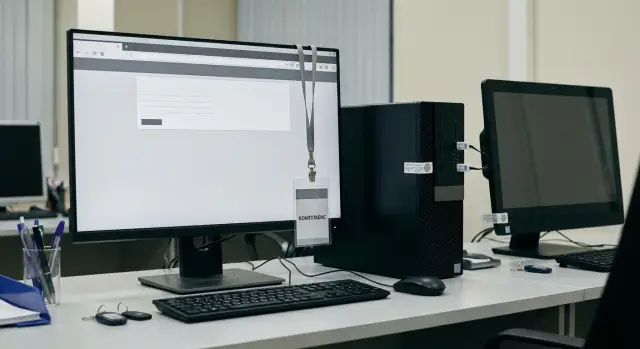
Goal: compliance and security without slowing work
An operator workstation is where money, personal data and daily routine meet. On such a PC any mistake or excessive freedom quickly turns into an incident: data leak, altered payment details, unauthorized statements, payments to wrong accounts, and sometimes insider fraud.
At the same time an operator works fast: queues, calls, clarifications, several systems at once. If security adds extra clicks, forces constant password entry or blocks common peripherals without clear rules, users start to bypass it. The paradox: formally everything is configured, but in practice control is weaker.
The idea of a compliant workstation is simple: close key risks and keep the workflow familiar. Security and compliance usually need not exotic measures but a predictable minimum: device and media control (especially USB), user action logs for investigations, quick rollback to a known state after a failure, secure boot, role and rights separation.
A practical rule: things that must be the same across all branches — fix them in policy. Things that depend on context and common sense — put them in an instruction.
A policy should typically define: which ports and device classes are allowed, prohibition of local installs and allowing only approved applications, the composition and retention period of logs (and where they are sent), the rollback mechanism and integrity checks, UEFI Secure Boot and basic account settings.
In instructions leave rare cases: how to add a new scanner by request, what to do with a suspicious email, how to act when POS or banking software freezes. That way requirements are met and users’ lives aren’t complicated.
Ports and peripherals: what to allow and what to restrict
For a bank branch one thing matters: the operator must work quickly, and device and media control must be predictable. Start not with “block everything” but with an inventory: which devices are needed daily and which add risk.
Typical essentials include a token or smart card for digital signatures, a printer (often networked, sometimes USB), a document scanner, a headset for calls, sometimes a PIN-pad or card reader. Explicitly allow this set so it always works and does not depend on the whims of a local rule.
Principle: only explicitly approved devices are allowed
It’s convenient to split peripherals into two groups: “allowed devices” and “everything else.” Practically this means allow by device class and, where possible, by specific models or identifiers. The phrase “any USB” almost always ends in incidents.
Most often they limit or fully disable:
- USB storage devices and external drives (common channel for leaks and malware)
- smartphones in data-transfer mode (allow charging if needed)
- unidentified devices, including suspicious HID devices that may impersonate keyboards
- Bluetooth, if it’s not needed for specific headsets
This keeps the workstation convenient: tokens and scanners work reliably, and a random flash drive won’t become an incident.
How to describe exceptions in advance so requests don’t flood you
Better make exceptions as a short card: who requests, for how long, why, exact model, where it will be used, who approves (IT and security). Agree in advance on typical reasons (e.g., a one-time export from POS equipment) and a validity period. Requests then become a controlled process, not a debate.
Basic OS protection: minimal settings, maximum effect
A financial workstation doesn’t need to be tightened until it can’t work. Close the most common holes. Usually a standard Windows configuration is enough if rules are agreed in advance and enforced by policy.
First — accounts and rights. The user works under a standard account. Installs, drivers and system changes are done through a separate IT admin account and only when necessary. The operator must not have local admin rights: this is the most common cause when a “random launch” becomes a real incident.
To avoid breaking work, keep a simple set:
- one domain account for regular work without local admin rights
- a separate admin account for support (not for daily use)
- prohibition of software installation by the user
- access only to needed network resources and printers
- control of unknown application launches via a small allowlist
Next — secure boot. The goal is simple: the device should boot only from a trusted, signed environment, not from a rescue USB. Enable UEFI (no Legacy/CSM), then UEFI Secure Boot and TPM support. On new PCs this is done once when preparing the image; users won’t notice it later.
Disk encryption mitigates risk in case of theft or repair. More important than encryption itself is handling recovery keys: store them centrally, provide access by role and log accesses. In practice this saves hours when, after a hardware change or update, a device requests the key and the branch must not be idle.
Another often underestimated layer is session discipline. Auto-lock after a short idle time (e.g., 5–7 minutes) protects against “I stepped away for a second.” Password policies should be practical: better longer (for example, 12+ characters) without obvious patterns, and avoid forcing monthly changes that become a burden. Change on suspicion of compromise and on termination or transfer.
Example: an operator urgently needs to print a form but the printer driver “asks for admin.” If rights are configured properly, the employee selects a published corporate printer and prints without searching the internet for drivers or disabling protections.
Logging: what to record, where to store it and how not to drown in logs
Workstation logs are not for show. They help quickly investigate incidents, confirm operation correctness and close audit questions without turning IT into endless event readers.
What really matters to log
Collect what answers simple questions: who worked, what was launched, what data could be taken, what was changed. Usually the following is enough:
- sign-ins and sign-off attempts (successful and failed), lockouts, password changes
- launch of critical applications and admin tools
- device and media connections (flash drives, external disks, smartphones as storage)
- changes to security settings and attempts to disable protection
- privilege elevation actions (installs, “run as administrator”)
This is sufficient to investigate unauthorized actions and data exfiltration attempts. Add other events only when there is a real need.
Where to store and how to prevent deletion
Local logs are useful but cannot be fully trusted: a device can be turned off, a disk can fill up, and traces can disappear. A simple approach: keep a local buffer and always forward logs to a centralized store.
The “local buffer plus centralized store” model in a protected perimeter (SIEM or log server) works well; only IT and security should have access. Add integrity checks and forbid ordinary users from clearing logs.
On typical workstations — desktops and all-in-ones — this is mostly about policies and rights, not special hardware. If the fleet uses standard configurations (for example, GSE PCs and all-in-ones), identical settings are easier to replicate and verify.
Retention and “smart” alerts
Choose retention based on regulator requirements and internal rules, without extremes. Often about 90 days of “hot” logs for quick investigations and 1–3 years in archive for audits is enough.
To avoid alert fatigue, keep alerts for deviations from normal: a series of failed logins, sign-in at unusual hours, connection of a banned device, launch of admin tools on an operator workstation, disabling protection or log-clearing attempts. Add new rules gradually based on real incidents and audit findings.
Rollback policy: fast return to working state
Rollback is needed not only after malware. More often it saves the day after a failed update, a driver crash, broken settings or a simple error that stops banking or POS software from running.
Define in advance what you consider the “working state.” It’s not “clean Windows” but a concrete set: OS, application versions, security policies, certificates, network settings, printing and token support.
Recovery options: from soft to hard
Have several recovery levels so you don’t reimage a PC for a minor issue.
Practical levels are usually:
- reset the user profile to the standard (when settings are corrupted but the system is intact)
- restore settings for a specific application (bank client, crypto provider, printing)
- full system image re-deploy as the most predictable branch-level option
Restore points can be an auxiliary layer but don’t rely solely on them: they don’t always survive major updates and may fail internal checks.
Banks often prefer a “golden image plus fast re-deploy” workflow. After a morning failure the employee gets a spare workstation, while the problematic machine is restored from image without keeping customers waiting.
Rights and minimal downtime
Rollback must be controlled: who can run it, in what cases and how it’s recorded. Usually IT can run rollback on request; for security incidents an additional request from InfoSec or compliance is needed.
To reduce downtime, prepare: the golden image, a short post-rollback checklist (certificates, printers, tokens), a spare device, and a rule when replacing a workstation is faster than repairing it onsite. Log the rollback and reason so recurring problems are visible and you stop treating symptoms.
Applications and updates: a managed set with no surprises
The fastest way to lose control is to allow a “zoo” of software. Operators need a short, clear set: everything that helps serve clients and nothing extra.
Define a base application profile. This usually includes the OS, the bank front-end, an office suite (only needed components), a PDF viewer, a browser with a limited set of extensions, a support agent and security tools. Everything else — by request with a clear reason.
To keep updates from breaking branch work, set a maintenance window and a simple compatibility check. Pilot on 1–2 test workstations (not at the cash desk or an operator with a queue) and then roll out to the rest. If the fleet is homogeneous, testing takes less time and causes fewer surprises.
Allowlists help avoid turning each install into a manual exception. It’s practical to rely not on the program name but on verifiable attributes: a trusted publisher’s signature, installation from an internal catalog, running from trusted folders (Program Files, Windows) and banning execution from user profile and temp folders. For banking modules and drivers use separate rules.
Handle macros and external files separately. Operators regularly receive attachments, templates and statements from clients. Common approach: macros off by default (enable only for signed templates), external files open in protected mode or read-only, and execution of email attachments and scripts blocked (provide a safe viewer instead).
Step-by-step configuration: assemble a workstation in 1–2 iterations
To deploy a compliant workstation without heavy bureaucracy, start with one pilot PC and agree who signs off: InfoSec, IT and the branch manager. The goal for the first iteration: the employee serves clients at normal speed while controls are embedded and predictable.
Iteration 1: base profile and real-task testing
Build the configuration as a single “Operator” profile and record decisions briefly on one page. Practical order:
- User and software. Regular rights without local admin. Install only needed apps (bank client, office, drivers, signature tools, printing) and remove unnecessary autostart items.
- Ports and devices. Explicitly allow required peripherals (keyboard, mouse, headset, printer, scanner, readers). Block USB storage and smartphone data mode by default; exceptions only by request and by device identifier.
- Secure boot and encryption. Enable UEFI Secure Boot, disk encryption and central storage of recovery keys. Verify recovery actually works.
- Logs and test events. Configure log forwarding: sign-ins, device blocks, attempts to run forbidden programs, update errors. Perform tests: wrong password, plug in a flash drive, print, run an unapproved EXE.
- Rollback and a short drill. Describe how to restore the PC to working state in 30–60 minutes: who to call, what first-line support does, when to reimage. Run a short drill for IT and a senior operator.
Iteration 2: refine by feedback
After 2–3 working days collect a list of “what gets in the way.” Usually printing, signature tokens, the scanner and rare operations like importing directories surface. Adjust device rules and the allowed app list, but keep the principle: exceptions must be targeted, verifiable and time-limited.
If typical workstations are used (for example, GSE L200 or M200 families), lock the profile as a procurement and deployment standard. This reduces unique surprises during updates and support.
Common mistakes and traps when implementing compliance
A typical mistake is presenting security as a ban rather than as a working standard. As a result, operators suffer, queues grow and IT ends up investigating avoidable incidents.
A common story: a branch “for safety” disabled all USB. Next day tokens, document scanner and receipt printer stopped working, and people started seeking workarounds, including personal flash drives and adapters.
Most implementations stumble on five things:
- Blocking ports without considering real devices. Allow by class and models, close everything else.
- Turning logging “to the max.” Logs become noise; choose a small set you actually investigate.
- Not planning recovery. Without a rollback procedure downtime stretches to days. You need a short recovery scheme: what, from where and who signs off.
- Chaotic updates. Patches and drivers are installed ad hoc and break critical apps. Use a maintenance window and a pilot.
- Too many manual exceptions. “Allowed for this user” or “disabled on this PC” without time limits. Exceptions must be recorded, time-limited and reviewed.
Security must be predictable. When rules are clear and rollback and updates are managed, compliance stops being a brake and becomes part of normal work.
Quick checklist before rolling out to a branch
Before deployment run a short check on a reference machine, then repeat on the batch before distribution. This catches issues before the client queue does.
Check:
- Peripherals. Only allowed devices work and everything else is blocked without crashing apps.
- Media and ports. Plugging a flash drive or external disk is blocked or allowed strictly by policy and this is visible in events.
- UEFI Secure Boot and encryption. Secure boot is enabled, disk is encrypted and recovery keys are available to IT via a clear procedure.
- Logging. Key events reach the centralized store and local disk isn’t filled up by logs.
- Rollback. The recovery scenario is tested and fits the target downtime.
Also verify the help button for employees. It should be clear where to report a block and what to include: PC name, time, what was connected or launched and the error text. This speeds support and reduces frustration.
A simple practice: before launch ask an operator to do 5 minutes of normal work (sign in, print, scan, launch bank software). If there are no surprises at that stage, there will rarely be surprises in the branch.
Practical example: one day at an operator’s workstation
A new operator starts and is moved to another service window the same day. They have about an hour to log in, check access and begin serving clients without waiting for an engineer.
The workstation is prepared to standard: domain account, UEFI Secure Boot enabled, no local admin rights. The employee simply signs in and launches banking apps.
Peripherals connect quickly but not “in any way.” Keyboard, mouse, printer, scanner and PIN-pad work immediately because their identifiers are allowed by policy. The e-signature token is detected automatically: the driver is preinstalled in the image and smart card access is allowed. If a token is unknown, the system gives a clear message and directs the user to support rather than forcing driver reinstallation.
Compliance sees a clean picture: logs show sign-ins, launch of critical apps, token connection, attempts to connect media (with a result of allowed/blocked), admin actions and update errors.
During the day a client asks to print account details and brings a flash drive. The operator inserts it by habit, but the media is not on the allowed list. Access is blocked and an event is logged with media type, time and user. This is exactly when a rule protects both the employee and the bank: no need to argue whether copying happened.
Later an auxiliary component update fails and an app starts crashing. The employee doesn’t try to “fix” the PC: the standard recovery scenario starts and the system returns to the golden state quickly.
Next steps: how to implement the standard without overloading IT
To make compliance work package it into a short standard. One to two pages are enough: what is mandatory, what is forbidden, who approves exceptions and how to restore the workstation after a failure or incident.
Consolidate compliance, InfoSec and business requirements into one table and remove ambiguity. Instead of “ban external media,” specify which USB classes are allowed (keyboard, mouse, scanner), which are forbidden (storage) and how to process rare cases (specific token or non-standard printer).
To avoid drowning IT in approvals keep five artifacts: the standard configuration and allowed peripheral list, an exception registry (duration, reason, owner), a pilot plan, a deployment template (image, policies, logging profile), and a rollback procedure.
Then run a short pilot on a small group — one branch or 10–20 operators across locations. Evaluate not only security but also the user experience: downtime caused by blocks, number of support calls and reasons, count of exceptions and repeat requests, and time to recover to working state.
When the standard stabilizes, it’s easier to keep configurations consistent across branches if the device fleet is also standard. In that case some choose a single partner to supply workstations and system integration. For example, GSE.kz (gse.kz) manufactures PCs, all-in-ones and servers in Kazakhstan and provides integration and support, which helps replicate a unified profile and support branches through a service network.
Frequently asked questions
Where to start configuring an operator workstation so compliance doesn't slow work?
Start from an inventory of real tasks and devices, not from total bans. Create a single standard profile “Operator”: regular user rights without local admin, a fixed set of applications, predictable rules for peripherals, UEFI Secure Boot and disk encryption enabled, centralized logs and a tested rollback scenario.
How to restrict USB correctly so tokens, scanners and other peripherals don’t break?
By default block USB storage and external drives, and explicitly allow required peripherals. Practically, allow by device class and by specific models or identifiers so tokens, scanners and PIN-pads always work, while a random flash drive remains inaccessible.
What to do with smartphones: fully block them or allow connections?
Allow charging but block data transfer or mass-storage modes. This way employees can charge devices but cannot copy files or mount the phone as a disk, which reduces the risk of leaks and malware introduction.
How to handle exceptions for non-standard devices without drowning in requests?
Make exceptions short and formalized: who requests, why, where it will be used, exact model or identifier, duration and who approves from IT and security. By default an exception should be temporary and targeted, otherwise you’ll end up with permanent, uncontrolled relaxations.
Why enable UEFI Secure Boot and TPM on the operator workstation if there is already antivirus?
Enable UEFI without Legacy/CSM, then UEFI Secure Boot and TPM when preparing the image. This prevents booting from unauthorized media and boot environment tampering; for users the login and daily work usually do not change.
Should disks be encrypted and how to avoid the “everything is encrypted but there is no key” situation?
Encryption protects against theft, loss or repair-related leaks. Store recovery keys centrally, grant access by role and log accesses; otherwise replacing a motherboard or a failed update can stop a branch due to missing keys.
Which logs are really important on an operator workstation?
Collect events that answer practical investigation questions: log sign-ins and lockouts, launches of critical apps and admin tools, device and media connections, attempts to disable protection and privilege elevation actions. Don’t collect everything indiscriminately or important signals will be lost in noise.
How to protect logs from deletion and what to do if a PC was turned off or the disk filled up?
Keep local logs as a buffer, but always forward them to a centralized protected store where only IT and security have access. Add integrity checks and forbid ordinary users from clearing logs so traces can’t be quietly removed on the workstation itself.
Which rollback strategy is best for a bank branch and how to reduce downtime?
The most predictable approach is a golden image plus fast reimaging, with softer options like profile reset or restoring app settings for minor issues. Define the golden state, who may run recovery and how it’s recorded so restoration takes hours, not days.
How to reduce the risk of users bypassing compliance rules themselves?
Provide a clear help channel and a simple rule: if something is blocked, don’t try to bypass it—report to support with the PC name, time, what was connected or launched and the error text. A couple of short training scenarios and predictable rules (especially for USB and installs) usually reduce irritation and attempts to “fix it oneself.”
