8 min read
Open source for VDI: when it works and where it breaks
Open source for VDI can be a great choice, but only with the right network and configuration. We review SPICE, RDP, web access and common issues.
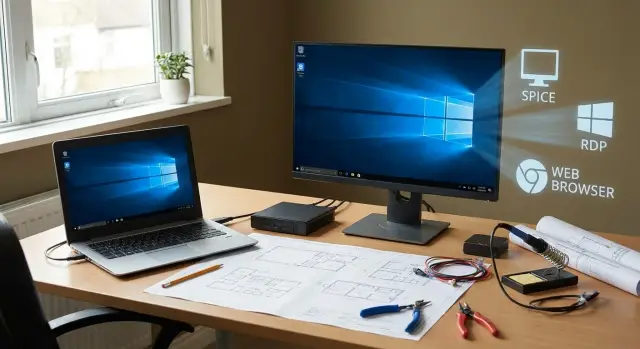
When does open source VDI even make sense
Organizations don’t choose VDI for fashion. The goal is simple: a single unified desktop so data stays in the datacenter and new workplaces appear quickly without long PC setups.
People pick open source for VDI when control and freedom of choice matter. It’s for teams ready to manage images, access, updates and security themselves, and who don’t want to be tied to a single vendor with its licensing and rules.
Expectations often clash with reality. Open source VDI performs very well in office scenarios; the main issues usually aren’t the hypervisor but the network, profiles and peripherals. If a branch has an unstable link, many video calls, profiles balloon to tens of gigabytes, or rare USB devices are used, the experience will fluctuate even with good servers.
Open source VDI typically makes sense when several conditions align: tasks are mostly office‑type (browser, email, 1С or similar systems), endpoints and applications can be standardized, there’s a platform owner team (updates, monitoring, backups), and quality criteria are defined up front (latency, login time, printing, audio).
Success here isn’t “it worked in a test” but stable day‑to‑day operation. Clear internal agreements are needed: who owns the network, who owns profiles, who owns hosts and storage.
A practical example: a head office and several branches move to a unified desktop to avoid storing documents on local PCs and to onboard staff faster. In that scenario the platform matters, but so does the hardware. If the infrastructure runs on standard servers and locally supported workstations like GSE.kz, it’s easier to unify configurations and support, which reduces surprises in production.
VDI in plain words: what affects user experience
Think of VDI as your desktop living in a datacenter (or server room) instead of on the office PC. The image is streamed to the screen, while clicks, keys and audio go back. The access protocol largely determines how “like a local PC” it feels.
VDI scenarios vary. For fixed desks, stability and familiar apps matter. For shifts and hot‑desking, fast login and a clean environment after logout are more important. In classrooms and call centers uniform settings and easy support are crucial. So open source VDI can be a great fit, but the result depends on your conditions, not the platform’s popularity.
Network and protocol have the biggest impact on user perception.
What most often ruins the picture and patience
Common pain points:
- latency: 80–120 ms is already noticeable when typing and dragging windows;
- packet loss: causes stutters, video blocks and audio dropouts;
- unstable Wi‑Fi: speed may be high but link quality fluctuates and the session “slides”;
- channel limits: especially in branches with dozens of simultaneous users;
- poor codec and compression settings: either a smeared image or channel saturation.
Why the protocol matters more than a “pretty” hypervisor
Users don’t see the hypervisor — they see how fast menus open, how text types and how video behaves. The same VM can feel “local” or “through molasses” solely because of the protocol and its settings.
So before choosing a platform, it’s more useful to test the protocol in your network with real tasks: office work, 1С, browser, calls, printing.
SPICE, RDP and web access: real differences
When choosing open source for VDI, the key question is usually the access protocol. It determines image clarity, acceptable latency, and whether printers and USB devices appear in the session.
SPICE: great on LAN, picky over distance
SPICE often excels in a local network: it renders the desktop quickly, handles multiple monitors well and feels very responsive. Over WAN it is sensitive to losses and jitter: stutters appear and audio can lag.
Peripherals aren’t always smooth. Simple printing is usually solvable, but USB redirection, tokens and specific drivers can be unpredictable and may need manual tuning.
RDP: widest compatibility
RDP is valued for maturity and broad scenario support. It’s familiar for support teams, tolerates unstable links better, and usually surprises less with printing and basic devices. But quality heavily depends on configuration: default settings can yield a smeared image or unnecessary channel load.
For RDP plan redirection policies in advance: which devices are allowed (printers, clipboard, drives), what to restrict, and how this will differ between user groups.
Web access: easy entry, harder to feel "like a PC"
Web access (opening a desktop in a browser) wins on simple login — no client installation. It’s handy for guest seats and quick checks. Limits usually affect multimedia and devices: audio, mic, camera, scanners and USB tokens often work worse or need workarounds.
A typical comparison looks like this:
| Criterion | SPICE | RDP | Web access |
|---|---|---|---|
| Image and responsiveness | excellent on LAN | stable, depends on settings | average, depends on browser |
| Audio and video | OK, but sensitive over WAN | predictable | often limited |
| Printing and USB | sometimes "fragile" | usually easier | usually harder |
| Support | needs careful tuning | familiar to many | easy start, harder to attach devices |
Example: an accountant in HQ with two monitors and fast LAN will enjoy SPICE. The same user in a branch over an unstable link is often more comfortable with RDP. A contractor who only needs to check reports may be best served by web access if no USB token or special printing is required.
How to pick a solution for your scenario, not by habit
Protocol choice usually fails on two points: what the user does all day and how stable the connection is. In open source VDI this is clearer because you own the tuning, profiles and edge cases like USB.
If tasks are office‑type (email, documents, browser), almost any option can work. But once you add heavy 1С forms, video training, medical imaging or CAD, differences become visible.
Guidelines by scenario:
- Office and basic 1С: stability and simple connectivity beat perfect image;
- CAD, 3D, multi‑monitor setups, video, analytics: these hinge on GPU and how the protocol compresses motion and images;
- Training and call centers: audio, mic and headsets matter, plus fast login without extra steps;
- Medicine and work with fine details: readability, no "smearing" and stable color reproduction matter even if traffic cost is higher.
For branches and remote work the enemy is not only high latency but jitter and loss. Flaky channels make the cursor jump, audio stutter and input lag. In such environments prefer a protocol that tolerates loss and can adapt quality.
The trade‑off is nearly always image quality vs network and host load. Higher fidelity and fewer artifacts mean more traffic and more host work (especially at high resolutions).
A simple example: HQ with good network can allow a nicer mode for designers, while a branch on an unstable link should use aggressive compression and resolution limits. Plan server resources accordingly, e.g., on racks like GSE S200 Series if many concurrent sessions or GPU profiles are needed.
Network requirements: what to measure before deployment
VDI quality often depends less on "tariff speed" and more on latency, loss and stability. For open source VDI this is especially clear: protocols can be tuned, but one bad network segment turns “almost local” into “can’t print, cursor jerks”.
Practical targets: latency up to 30–50 ms within a country usually feels comfortable, but spikes (jitter) can be more important than the average. Packet loss should be near zero: even 1–2% on Wi‑Fi or an overloaded link causes freezes, audio dropouts and session disconnects. Measure not only averages but peaks during busy hours.
Wi‑Fi is often to blame rather than the server. Typical case: a user moves around, the device roams between access points, one AP is overloaded or there is interference, and VDI degrades. Some clients aggressively save power and harm connectivity. Where possible, prefer wired for stationary workplaces.
QoS helps when applied meaningfully. Prioritize interactive desktop and voice traffic over backups and updates. It’s important to test QoS under load and ensure queues actually enforce priorities on the right ports or classes.
Before the pilot run simple tests repeatedly during peak times on each site (office, branches, home users):
- ping and jitter to the VDI gateway or host (5–10 minute series in morning, midday, evening);
- packet loss on the route and Wi‑Fi (especially while moving);
- real throughput both directions, not only download;
- channel saturation tests: what happens when cloud backup or video calls run concurrently;
- compare routes: over VPN and without, if both are possible.
A ready network shows similar results day to day, not “fine on Monday, falling apart on Tuesday”. If numbers fluctuate, fix the channel first — otherwise the pilot will expose connection issues, not VDI limitations.
User profiles: where the most painful failures occur
In open source VDI profiles break more often than the hypervisor or access protocol. Users judge the system by how fast they log in and whether their settings persist. If profiles are unstable, VDI’s advantages vanish.
Profile model choice determines half the outcome. Local profiles are simple but poor for pooled desktops: today one VM, tomorrow another. Roaming profiles carry settings but can turn into a mess of tiny files. Containerized profiles (profile stored as a single container) usually boot faster and are more resilient but require discipline for storage and backups. The “profile as a template” approach (minimal base profile plus policies) works well for call centers, classrooms and role‑based desks where personal settings should be limited.
Typical symptoms:
- login takes minutes, especially in the morning;
- desktop appears empty, shortcuts and settings missing;
- apps forget settings, plugins, licenses, printers;
- profile grows and then fails to load or loads partially.
Profiles usually fail because of three things: heavy folders (Downloads, Desktop, AppData), large caches (browsers, messengers, CAD), and file locks (antivirus, indexer, hung processes). Add slow storage or an overloaded file server and even powerful hosts won’t help.
Quick wins come from discipline: exclude caches, redirect heavy folders, set cache size limits and clean temp data at logout. If VDI is on local server infrastructure with branch connections, tidy profiles often matter more than adding another server: fewer files — less latency — fewer strange failures.
Peripherals and devices: printers, scanners, tokens, USB
Peripherals are the main source of surprises in VDI, especially if you expect everything to “just move” into the virtual desktop. In practice decide in advance what to forward and what to replace with network equivalents.
Printing: drivers and “disappearing” printers
The most common pain is drivers. If a VM image lacks a needed driver, a printer may appear but not print, print incorrectly, or vanish after reconnection.
Typical solutions: use universal drivers (PCL/PS), install drivers on the print server, or migrate printing to network printers with fixed names. Visibility problems often relate not to VDI itself but to printer publication, DNS and security policies.
Scanners, tokens, smart cards: why they don’t work out of the box
Scanners and crypto tokens often require low‑level USB access and drivers, which isn’t always possible or secure in a virtual session. Browser access is even more restrictive: the web client may not support device classes or might need additional components.
Check in advance:
- does the scanner support network modes (TWAIN over IP, scan‑to‑folder, email)?
- is the token supported via a smart card reader and the chosen protocol?
- can a USB key be replaced by a network service or HSM?
- how will driver updates and user rights be managed?
Separate USB and COM scenarios by purpose. USB redirection is convenient for occasional tasks, but in production it often breaks on network changes, sleep/resume or thin client reconnects. If a device has a network alternative (network printer, network scanner, terminal server for COM) it’s usually more reliable.
For audio, mic and video calls agree expectations in advance. System sounds and basic calls often work fine, but microphone quality and video stability depend on the protocol, latency and application optimizations. Example: an accountant in a branch prints reports easily, but a signature token fails until a supported reader is chosen or signing is moved to a dedicated secure PC.
Common mistakes and pitfalls when launching open source VDI
The most frequent error starts not with software but with planning. Pilots run in HQ on ideal networks and with the most convenient users, then are rolled out to branches where Wi‑Fi is overloaded, VPN is used and internet sometimes drops. The result looks like “VDI doesn’t work”, though it worked in the pilot.
Second trap — storage. VDI is very sensitive to IOPS, especially when everyone logs in at once. A morning login storm, OS updates, antivirus scans and simultaneous browser launches can turn a fast server into a bottleneck. It’s easy to confuse that with a protocol problem.
Check storage and images in advance:
- IOPS and disk latency metrics at peak, not daily averages;
- mass login scenario (e.g., 50–200 users within 10 minutes);
- scheduling of OS and app updates to avoid peak times;
- antivirus policies to avoid scanning the same data on each login.
Third problem — configuration zoo. Mixing SPICE, RDP and web access without standardizing per user group leads to floating errors: printing works for some, clipboard breaks for others, audio disappears for a third group. Support wastes time guessing because every department has exceptions.
Fourth trap — lack of basic telemetry. Without it you can’t prove the bottleneck: network, virtualization host, storage, user profile or client.
Minimum metrics to collect from day one:
- latency and loss to the VDI (latency, jitter, packet loss);
- login time and profile load time;
- CPU/RAM on hosts and inside VMs;
- disk latency and operation queues;
- device redirection and printing errors.
A good pilot checks not only the office but at least one “complex” branch. Real limitations typically surface there and cost more to fix later.
Quick checklist before pilot and scale
Pilots fail not because of hypervisor or protocol but because of small unspoken details. Before inviting users, set minimum quality criteria and responsibility boundaries. This saves weeks of debates about “everyone is slow but mine is fine at home”.
Checklist for 1–2 meetings (network, infra, support) and one day of tests:
- Network and Wi‑Fi: measure latency and loss on real routes (office, branch, VPN). Check for Wi‑Fi congestion at peak and identify where QoS is needed (usually at bottlenecks, not everywhere).
- Profiles and first login: decide where profiles live, what is cached and what is excluded (large folders, browser caches, temp files). Set limits and a first‑login scenario so 50 new users don’t overload storage during initialization.
- Peripherals: list critical devices (printers, scanners, smart cards, tokens, USB drives) and pick a reference set for testing. Prepare alternatives for unsupported models.
- Load and work windows: estimate peak concurrent logins (morning, after lunch, after break) and provision CPU, RAM and disk reserves. Schedule image updates and reboots outside peaks.
- Support and roles: assign ownership for access protocol, golden image and packages, network and accounts/rights. Add a simple channel to collect symptoms (time, branch, connection type, device).
Example: piloting 30 staff with 10 remote over VPN printing to local printers — if you don’t test losses on the branch‑VPN‑DC path and don’t agree which printers are supported, the pilot will break on printing and the whole VDI will be blamed.
When the checklist is closed you can fairly compare SPICE, RDP and web access under the same conditions rather than guessing why open source VDI “sometimes flies, sometimes is unbearable”.
Example deployment: HQ plus branch
Scenario: 120 employees — 80 in HQ, 40 in a branch. Shared network printers, some staff sign documents with tokens, contractors need access to a single accounting system.
A mixed approach was chosen. In HQ they kept SPICE for its LAN feel and multi‑monitor support. In the branch they prioritized RDP for its stability on medium links and easier support. Contractors got web access with clear limitations: no USB redirection and no local printing.
Initial problems surfaced: some logins took 3–5 minutes because profiles loaded slowly or conflicts occurred when switching seats. Printing behaved inconsistently: the same document printed differently on different printers or failed. In meeting rooms and in the warehouse with Wi‑Fi sessions sometimes dropped and users returned to suspended sessions.
Fixes were mundane, not magical:
- simplified profiles: excluded heavy folders, enabled temp cleanup, separated large settings and documents;
- standardized printing: limited models, fixed driver versions, one template of settings;
- measured the network: latency, loss and jitter at peak by Wi‑Fi and location;
- enabled QoS for VDI traffic and separated it from backups and updates.
Results were measured, not felt. They set a target login time (e.g., under 45–60 seconds) and monitored median and 95th percentile. They tracked peripheral tickets (printing, tokens, scanners) and introduced a change plan: when images, drivers or client settings change, do it on a schedule to avoid breaking the working day unexpectedly.
Next steps: pilot, standards and infrastructure prep
If you consider open source VDI, start with a short pilot. It will quickly reveal pains: network, profiles, printing, USB tokens, audio and video.
Pilot size: 10–20 users covering different roles — accounting, call center, an engineer with two monitors, a user with a digital signature (ЭЦП). Tests must be real workdays, not five‑minute checks.
Pilot format for 2–3 weeks:
- gather 10–20 users and document their tasks (1С, browser, email, scanning, ЭЦП);
- pick 1–2 access options to compare (e.g., SPICE and RDP, or RDP and web access) and evaluate by metrics and feel;
- test peripherals: printers, scanners, USB, headsets, dual monitors;
- measure latency, packet loss and peak load during busiest times;
- record what breaks and decide: tune, change approach or exclude the scenario.
After the pilot create a simple standard; otherwise every new image and desk will be unique. Capture it in a short document and follow it.
What to record in the standard:
- access protocol rules (when to use SPICE, RDP, browser);
- supported peripheral list and what’s unsupported;
- image templates (base, accounting, operator) and update procedures;
- profile policy (storage, cleanup, conflict resolution);
- support plan: who receives incidents and SLA targets.
Think about hardware once load profiles are known: concurrent sessions, apps, GPU or video needs. Limits are usually storage IOPS, memory and network — not nominal core counts.
If you lack an internal team, consider engaging an integrator for network surveys, VDI design, pilot setup and support. For pilot and production you can rely on integration experience from GSE.kz and their 24/7 support, and build infrastructure on domestic servers and workstations to simplify unification and service across sites.
Frequently asked questions
When is open source VDI really justified, and when is it better not to start?
Open source VDI makes sense when you want full control over the platform and avoid dependence on a single vendor’s rules, and when scenarios can be standardized. It fits best for office tasks like browser work, email and typical business applications where stability is more important than perfect graphics. If you don’t have a team ready to own images, updates and security, any license savings quickly get eaten up by operational costs.
How to choose between SPICE, RDP and web access without extra theory?
Pick the protocol you already know how to support and the one that handles your network best — often that’s RDP for mixed conditions. SPICE usually feels very smooth on LAN but reacts more to losses and jitter over WAN. Web access is handy for quick, clientless entry, but it often limits sound, camera and USB, so reserve it for simple scenarios without peripherals.
Which network metrics matter most before a VDI pilot?
Look beyond raw bandwidth: measure latency, jitter and packet loss, because these metrics make VDI feel ‘jerky’. Take measurements in work hours and separately for each site, especially Wi‑Fi and VPN links. If results vary a lot day to day, stabilize the network first — otherwise the pilot will show connection problems rather than platform issues.
Which latency and loss values noticeably harm VDI?
Comfort usually starts with latency in tens of milliseconds and, more importantly, with stability (no sudden spikes). Packet loss should be near zero — even small percentages cause freezes, video artifacts and audio glitches. If a branch has jitter and packet loss, choose a more loss‑tolerant protocol and limit image quality in advance, otherwise users will see constant interruptions.
Why do user profiles so often break in VDI and how to fix it quickly?
Profiles usually break because folders and caches grow uncontrolled, turning login into a wait and sometimes leaving a blank desktop. A practical first step is to limit and clean caches, move heavy folders and data to locations that don’t slow profile load, and choose a profile model that fits your scenario. Without that, even with a good network users will perceive VDI as unstable.
How to tell if the bottleneck is storage, not the access protocol?
VDI shows disk latency problems especially at peak times — many users logging in and launching apps at once. If storage can’t keep up, it feels like the protocol is slow, though the real cause is I/O queues and long disk operations. Before scaling, test a mass login scenario and look at peak metrics, not daily averages.
Why are there so many printing problems in VDI and what to do?
Printing issues are usually driver related or caused by how printers are published in the network. A device may be visible but print incorrectly or vanish after reconnects. The most reliable approach is to standardize printer models and driver versions, or route printing via a server or network printers with fixed names. If printing is critical, include it as a mandatory pilot scenario, not an afterthought.
Will USB tokens, scanners and smart cards work in open source VDI?
Tokens and scanners often need low‑level USB access and specific drivers, which isn’t always stable or secure in virtual environments. Expect that “just redirecting USB” can be unreliable with VPNs, Wi‑Fi changes, sleep states and reconnections. Best practice is to test the exact models in advance and, where possible, move to supported readers, network scanning modes or dedicated workstations for signing.
How to run an open source VDI pilot so it doesn’t fail?
Set quality criteria before the pilot: login time, session stability, printing, audio and key application behavior — not just whether users can connect. Run the pilot with real roles and include at least one complex site (a branch via VPN or Wi‑Fi users). If you don’t collect telemetry for network, logins and storage, disputes like “is it VDI or the connection?” are inevitable.
How to choose hardware for VDI and how does unification help?
Start by profiling expected load: concurrent sessions, applications, GPU needs and monitor counts, because these define memory, disk and network requirements. In operations, uniform hardware simplifies spare parts, updates and support across sites. In Kazakhstan, it’s often practical to use series servers and workstations from a local vendor like GSE.kz to speed up service and keep a single configuration standard.
