7 min read
Open-source PDF editor with OCR: a replacement for office document processing
How to choose an open source PDF editor with OCR for office workflows: recognition, batch processing, quality control, error handling and a simple correction process.
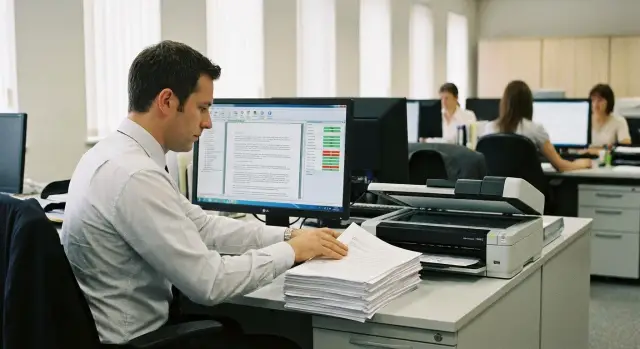
What tasks need to be covered when replacing software
A commercial PDF editor in an office usually handles several needs at once: quickly clean up a file, make it easy to read and send, and—most importantly—turn a scan into a document you can actually work with. When replacing such software, it's important to list the tasks first. Otherwise it's easy to install one open source tool and expect it to do everything at once.
In office work the common PDF operations are basic: merge files, split by pages, rotate, remove blank pages, normalize format, add page numbers, apply stamps (for example, "Copy verified" or "Incoming"), and redact personal data. Notes and annotations for approvals are usually required too.
OCR is needed where documents arrive as scans or photos: incoming correspondence, signed contracts, invoices, acts, archival folders. Without OCR a PDF remains an “image”: search doesn't work, you can't reliably copy details, and it's harder to check amounts and dates.
It's useful to divide requirements into three blocks in advance:
- PDF editing (visual layout, pages, hidden data);
- OCR (how the text layer is produced);
- batch processing (how tens or hundreds of files are handled by the same rule).
This makes it easier to choose tools and assign responsibilities: the operator prepares the scan, the system recognizes text, the verifier confirms quality.
Acceptable results for office use are measured by practice, not a single “accuracy percentage”:
- searches find family names, numbers and dates;
- text copies without turning into “gibberish”, especially in details;
- layout stays intact: lines don’t “jump”, stamps and signatures remain visible;
- errors are visible and fixable, with a clear path to return the document for correction.
If you record these requirements before choosing solutions, replacing a commercial PDF editor becomes a process setup rather than an ongoing fight with the “wrong” tool.
What the process consists of: PDF, OCR and document flow
To replace commercial software, it helps to split the work into parts: what you do with PDFs, how you obtain text, and how a document travels from scan to archive. That shows which functions the toolchain must provide, even if you assemble an open source solution from multiple components.
1) Working with PDF as a container
In office work a PDF often acts like a “folder” with pages. You need to edit it quickly without rebuilding the whole document: join incoming pages, remove extras, rotate, redact personal data, and leave annotations for approvals. Stamps and signatures are added where required.
2) OCR as creating a text layer
OCR is more than just “recognizing text”. Practically you need a PDF where an image has an overlaid text layer. Then the document becomes searchable, copyable and indexable while the original image remains for checking disputes.
3) Flow and batch processing
Manual mode doesn't scale, so you need a simple pipeline with queues and rules. A typical route looks like: receive files (scanner, MFP, shared folder), preprocessing (deskew, background cleaning, orientation), OCR and assembly of the final PDF, quality control, save to storage and register.
To keep the process stable, use templates: for example, “incoming letters” use one language and settings, while “contracts” use another set of rules.
4) Quality control and corrections
Quality is easier to control with clear rules: spot checks, percentage of documents with errors, a log that records failure type and who corrected it. If an error is found, a clear path is needed: open the PDF, find the problematic area, correct it (by text edit or page replacement) and mark the document as verified.
5) Storage and search
Documents must be easy to find. That’s usually achieved by combining three things: clear naming (date_type_number_counterparty), stable folder structure and attributes (status, department, owner). Then search works by both text and metadata, and the flow doesn't turn into a “folder with thousands of files”.
Which open source tools to consider and how to link them
It's easier to replace a commercial package not with a single program but with a chain of tools. That way you build an open source PDF editor with OCR tailored to your rules and can swap components without redesigning the whole process.
A practical set often includes: a viewer/editor for basic edits (rotate, remove pages, insert pages, simple annotations), utilities for assembling and disassembling documents (merge/split), the Tesseract OCR engine, the OCRmyPDF wrapper to add a text layer, and utilities for bulk operations (qpdf, Ghostscript or PDFsam) for compression, page rearrangement and standardization.
The typical chain looks like this: the operator receives scans, checks orientation and page order, OCR runs, then the document goes to quality control and, if needed, to correction. For example, you can set a rule that all files from the folder “Incoming/Scans” pass through OCRmyPDF and results are placed in “Incoming/Ready” with the same name and a date stamp.
For Russian and Kazakh there are details to check: whether Tesseract language models (rus, kaz) are installed, whether suitable fonts can be embedded, and whether encoding is preserved when copying text. It helps to compile a short list of typical words and fields where OCR often fails: full names, organization names, IIN/BIN, addresses, numbers and dates.
Before choosing tools verify OS compatibility and security requirements: can software be installed from a corporate repository, does it work offline (often required for government and financial institutions), is there logging (who and when ran processing), is it supported on workstations and servers, and is there no need to send documents to external clouds.
This approach is especially convenient when processing is done on local workstations and on servers inside the organization.
How to prepare scans so OCR is stable
OCR stability usually depends less on the “smartness” of recognition and more on the quality of the input file. In offices you commonly meet four source types: MFP scans, phone photos, multi-page TIFFs and existing PDFs (sometimes images-in-PDF without text).
For MFP scans aim for 300 dpi and straight paper feed. For photos the main enemies are perspective and shadows: the document should lie flat, the camera directly above, without glare. For very small text (passport data, tables, small fonts) use 400–600 dpi.
Do basic preprocessing before OCR. It takes minutes but noticeably reduces errors: deskew the page, correct orientation, crop margins and black scanner frames, remove noise, raise contrast and slightly brighten the background, and normalize to one mode (for example grayscale) if color isn’t important.
Choose OCR settings for the actual language flow: Russian, Kazakh or both if bilingual forms are common. Also test auto-orientation detection and table handling: tables help for acts and invoices but sometimes add artifacts for ordinary letters.
Store results not only as a PDF with a text layer (for search and copy) but also as a separate TXT for quick checks. For archival tasks save HOCR/ALTO if you need coordinate layers.
To avoid operator confusion define naming rules and folders up front. For example: a unified filename template (Year-month_type_number_counterparty.pdf), separate folders “Incoming”, “Outgoing”, “Contracts”, “OCR-Errors”, identical names for outputs (.pdf, .txt, .hocr) and a processing log next to them (.log with date and status).
A practical tip: run 20 different documents (letters, contracts with stamps, tables) through the chosen toolchain. These samples quickly reveal which settings and preprocessing your flow needs.
Step-by-step implementation plan: from pilot to production pipeline
Start with requirements. In office work decide in advance what must be searchable (full name, IIN, contract number, date, outgoing number) and which errors are unacceptable. A transposed digit in a contract number can be more critical than a missing comma.
Step 1: pilot and measurable criteria
Assemble a pilot set: 200–500 pages of various types. Include scans with stamps, faded stamps, tables, small fonts, skewed pages and “copies of copies”. For each type set a simple check: is the number found, does the date match, are key paragraphs readable.
Agree on quality profiles in parallel. Three modes are usually enough: fast (rough processing), balanced (main flow), and maximum quality (for complex documents). This prevents wasting heavy OCR on files that don't need it.
Step 2: queues, roles and correction rules
For an open source PDF editor with OCR to run like a pipeline, the most important part is folder order and responsibility. A practical minimum: “incoming” (raw scans), “processed” (PDF with text layer), “for review”, “error” (corrupt/problem files), “archive”.
Roles should be documented. The scanning operator is responsible for source quality and naming. The verifier spot-checks key fields. The archive owner resolves disputes and enforces storage rules.
Example for a mixed flow: verifiers always confirm number and amount for contracts. For incoming letters check date and outgoing number on 1 of 10 pages. If there’s doubt about a field, the document goes “for review” rather than to archive.
Batch PDF processing: typical office operations
When hundreds of documents arrive daily, manual edits become a bottleneck. Batch processing solves that: you set rules once and the system applies the same actions consistently. For OCR this is crucial: recognition quality heavily depends on input cleanliness.
Start by splitting batches automatically: detect separators by page, by template (for example, always 2 pages per application) or by a separator sheet. In paper archives separators are often a barcode sheet or a large case number.
Next comes page hygiene: rotate, remove blank pages, and standardize to one size (usually A4). This reduces operator errors and stabilizes OCR.
Then normalize for storage. Compression should reduce weight but not blur text and stamps. A simple rule: after compression the document must be readable at 100% zoom and within your ECM or email attachment size limits.
For internal copies add a watermark or stamp such as “Working copy” or processing date. Decide in advance where this is acceptable so you don't damage legally significant originals.
To keep processing manageable keep logs: what was done, when, with which profile and result. Minimum useful data: input filename and source, list of operations, final size and page count, errors and warnings, and profile version.
Quality and error control: how not to lose document meaning
The main risk when switching to an open source PDF editor with OCR is not just slightly worse recognition. The risk is a silent error that changes meaning: an extra zero in an amount, a wrong date, an incorrect contract number.
First define what is critical in your documents and must match the original. Typically this includes dates and deadlines, amounts and currencies, full names and positions, document numbers, and details (IIN/BIN, addresses, bank data).
Checking every page rarely pays off. Sampling is more practical: 5–10% of pages per batch plus 100% for critical documents (financial, legal, HR). For large batches pick pages from the start, middle and end — they often contain different templates and scan quality.
To keep control objective use simple metrics: manual corrections per page, share of documents sent for review, and common failure reasons. These numbers quickly show whether the problem is scanning, settings or templates.
Common OCR mistakes repeat: confusing similar characters (O and 0, 1 and I, 5 and S), broken hyphenation, missing spaces, and stray dots in details. These harm text quality and search.
Record errors uniformly. A simple “nonconformity card” helps: source (scan/page), expected text, recognized text, error type (characters, spaces, hyphenation, details), cause and who fixed it. Then you not only fix a file, but eliminate recurring causes.
Common mistakes when moving to open source
Disappointment usually comes not from the tools but from lack of discipline in settings and control. Commercial software often hides complexity; when you switch, that complexity becomes your responsibility.
A typical mistake is recognizing everything with one language set. In office documents a single page can contain Russian, Kazakh and English (body text, stamps, details). If the wrong languages are chosen, OCR starts to mix characters and errors appear most often in numbers, IIN/BIN, addresses and amounts.
A second problem is running OCR on “as is” scans: noise, skew, shadows, low contrast and patterned backgrounds sharply reduce quality. Operators then spend more time fixing than before, and bad pages spoil statistics for the whole batch.
A third mistake is lacking a unified profile. When every operator tweaks parameters differently, results become incomparable: different filenames, rotation rules, output PDF formats and text-layer choices. Later it’s hard to understand why one batch passes and another fails.
A risky habit is editing recognized text directly in the PDF without recording the error source. Keep three states separate: what was in the original scan, what was recognized, and what was corrected by a person. Otherwise you can’t trace where the error occurred later.
Also have a contingency plan: where to place unrecognized files, how to re-run only problem documents, how to keep an error log and who decides whether to fix manually or rescan.
Short checklist for operator and verifier
To make an open source PDF editor with OCR predictable, split control into two roles: the operator does quick checks before and right after recognition, the verifier spot-checks quality and records errors.
Before OCR (operator)
A couple of minutes before starting saves hours later.
- Confirm recognition language: one main language and only necessary additional ones.
- Check scan quality: baseline 300 dpi for text, no strong shadows or overexposure.
- Ensure pages are correctly rotated and margins are not cropped, especially where numbers, dates, signatures appear.
- Look at the first 2–3 pages: if skew is present, fix it immediately.
Immediately after OCR (operator + verifier)
First confirm recognition worked at all, then check if quality is sufficient.
- Open the PDF and verify there is a text layer: can you select text and does search work?
- Find 1–2 key fields (contract number, IIN/BIN) and ensure they are searchable.
- Check 3–5 control fragments: header, details, table, signature, stamp. Pay special attention to numbers and names.
- Verify the final file: readability, reasonable size, correct name and destination folder.
- Review the processing log: any warnings, missing pages, duplicates or low-quality messages?
If you find an error, record its type (rotation, language, scan quality, table handling) and send the document for reprocessing under a clear rule. This prevents errors from accumulating and turns them into process improvements.
Example scenario: contracts and incoming letters in one flow
An office processes 50 contracts and a batch of incoming letters per day. Scans vary: some are crisp, some have stamps, signatures and gray backgrounds. Lawyers and clerks need to quickly search clauses, deadlines and amounts, and the archive needs stable quality.
To avoid endless manual review, create two OCR profiles and select them by document purpose. A fast profile suits drafts and quick lookup; a quality profile is for archives and documents where accuracy matters (contracts, attachments, letters with details). This fits well with the open source approach: editing, recognition and control stay inside a clear process.
Make the route repeatable: scan to a single incoming folder with a clear name, an OCR queue with profile choice “fast” or “quality”, a “for review” folder for problems, then an archive with final PDFs and text layers.
Handle exceptions in advance. If a page is recognized as “gibberish”, the operator marks it “bad page” and sends it for rescanning. If the issue is local (skewed fragment, shadow on the edge), the document stays in workflow but gets a “needs manual correction” tag. For contracts always check amounts, dates, IIN/BIN and party details even if the rest looks fine.
Next steps: lock the process and prepare infrastructure
To prevent the transition from falling apart after a month, lock down the boundaries: list the most common document types and prepare a small pilot set (30–50). For each type set acceptance criteria: readability, searchability, correct dates and amounts, preservation of stamps and signatures, and allowed rate of manual corrections.
Processes usually survive on simple agreements: who owns the process (who decides what is “acceptable”), which statuses to use (“accepted”, “needs correction”, “rescan”), 3–5 typical rejection reasons, and reference processing profiles for 2–3 sources (MFP, production scanner, photo).
Training often fits into 30–60 minutes if you provide a single checklist and a couple of ready profiles instead of long manuals. The best training is hands-on: a 10–12 page contract where OCR confuses O and 0 in an IIN or messes up an amount.
Where to run processing depends on volume. For 10–30 documents per day work PCs are usually enough. For a stable flow dedicate a workstation; for hundreds of documents deploy a separate OCR node and storage server.
If you build the pipeline internally, plan servers and workstations in advance and think about integration: roles, storage, backups and support. In Kazakhstan this is often done on locally supplied hardware and system integrator services. For example, GSE.kz offers S200 servers and L200/M200 workstations, plus experience deploying infrastructure and 24/7 support for government, finance, education and healthcare.
Frequently asked questions
Where should I begin when replacing a commercial PDF editor with open source tools in an office?
Start by documenting the tasks: which PDF operations are required (merge, split, rotate, stamps, redact personal data), where OCR is mandatory, and what volumes need batch processing. Then define acceptance criteria: searches should find numbers, dates and full names, and copying of details should not produce gibberish. After that choose a toolchain and build the process around roles and folders, not around a single program.
What should I consider the OCR result to be so the document is usable?
Aim for a “PDF with a text layer over the image”, not just “recognize text”. For office work this is key: the document remains visually identical to the scan but becomes searchable, copyable and indexable. Also verify that OCR does not break encoding and that it handles Russian and Kazakh correctly.
How do I know OCR quality is “good enough” for office use?
Test in practice: can you select text in the PDF, does search find numbers, dates and ID numbers (IIN/BIN), do details copy without extra symbols or missing spaces. Visually ensure signatures, stamps and lines remain intact and not distorted. If errors are visible but there is a clear way to return the document for correction, the process is manageable.
Which scanning parameters affect recognition quality most?
Use 300 dpi as a baseline for normal text and ensure sheets are fed straight. For small fonts, tables and fine details use 400–600 dpi. The most important thing is to remove skew, black borders, shadows and noise before OCR — otherwise even a well-configured OCR will give unstable results.
Should I look for one program that does everything or build a chain of tools?
It’s usually more efficient to assemble a toolchain than to find one all-in-one program: a viewer/editor for basic PDF edits, utilities for merging/splitting and standardizing, and a separate OCR pipeline that adds the text layer. That way you can replace individual components without redesigning the whole process. The key is to specify who is responsible for each step.
Why does OCR often fail on numbers and details, and how to reduce it?
Most often the issue is mixed languages and similar characters: O vs 0, 1 vs I, missing spaces, and broken hyphenation. On bilingual forms choose recognition languages consciously and avoid enabling extra models “just in case”. Maintain a short list of control fields where errors are most critical and always check those.
How to organize document flow so processing is repeatable and not confusing?
Create a simple folder/status route: “incoming”, “processed”, “for review”, “error”, “archive”. Assign roles: the operator is responsible for scan quality and naming, the verifier confirms key fields, and the process owner resolves disputes and enforces storage rules. This way every document can be traced by its processing steps and corrections won’t turn into chaos.
What should be automated first in batch PDF processing?
Start with templates: separate profiles for “incoming letters”, “contracts”, “financial documents” with specific settings and languages. Batch tasks to automate page hygiene: rotate, remove blank pages, force A4 and apply reasonable compression that preserves readability. Always keep logs: what was processed, which rules were used and what the result was, so you can trace defects.
How to track errors and corrections properly so document meaning isn’t lost?
Record not only that an error occurred but also its type and cause: where the document came from, which page failed, what was expected and what was produced. Distinguish the states “as in the scan”, “as recognized” and “what a human corrected”, otherwise it is hard to find the source of discrepancies later. Regularly review reasons for failure so you fix scanning or profiles, not just individual files.
How to meet security and offline requirements when switching to open source OCR?
If external services are prohibited, choose a fully offline process and keep storage and processing inside your perimeter. Ensure tools can be installed via corporate repositories, that actions are logged and that access rights to queues and archives are clear. For higher volumes assign a dedicated workstation or an OCR server; many organizations in Kazakhstan build such infrastructure on local hardware and integrator services, often using GSE solutions.
