8 min read
Offline synchronization for field workers: no data loss
Offline synchronization for field workers: how to implement a change queue, resolve conflicts, and avoid data loss in poor connectivity and disconnections.
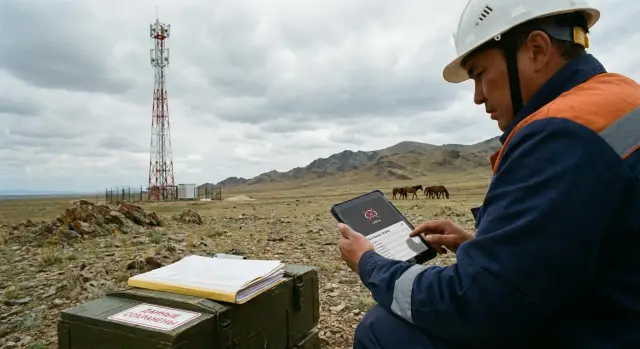
What field teams struggle with and why data gets lost
Connectivity in the field almost never behaves "like in the office." One minute 4G, then 2G, then a basement, an elevator or a road between villages. For an app this is not just "slow": requests are cut off, responses arrive late, and sometimes twice. As a result, what a worker entered isn’t saved or is saved only partially.
Most often it’s not the "big data" that disappears but the small, most valuable work items: filled forms (inspection, work report, checklist), photos and signatures, status changes ("accepted", "in progress", "closed"), comments, meter readings, coordinates and visit time. The worst case is when one line or one photo is missing: the worker is sure they "sent" it, but the server has no record.
For users, "offline" usually means a simple thing: "I work as usual and it will send itself later." Reality is often different. The app may show a green check even though the data only lives in phone memory. Or it may get stuck on sending and prevent moving to the next task. Another pain is duplicates: the worker tapped "Save" multiple times because the network "was thinking", and identical records reached the server.
The goal of offline synchronization is not just to "wait for the internet." It must guarantee two outcomes: changes won’t be lost and they’ll be applied correctly. "Correctly" means the system understands the order of actions, doesn’t create duplicates, and doesn’t silently overwrite someone else’s edits. If changes conflict, the app either resolves them by pre-set rules or asks a person to confirm.
This is especially critical for service engineers, inspectors and auditors, mobile healthcare, logistics and delivery. The cost of lost data is high: repeat visits, disputes with customers, wrong status in the system, missed deadlines, reporting issues. Good offline sync makes unstable connectivity a routine situation: the worker completes the task and the system reliably delivers the changes.
Basic concepts: what we actually synchronize
Offline mode means a worker can keep using the app without internet and not worry that records will disappear. It usually relies on two things: local data for reading and a separate mechanism for saving edits.
Cache is a "fast-access copy." It helps open a client card, an address or a case history even with weak connectivity. But cache alone doesn’t guarantee changes reach the server. For that you need a local database on the device: it stores data so it can be restored after the app restarts, the phone reboots, or a temporary failure.
Synchronization is the exchange of changes between device and server according to rules. You don’t sync an entire app screen but concrete entities: requests, statuses, comments, photos, signatures, meter readings, coordinates.
Reading data and writing changes are different tasks
For reading, it’s often enough to preload data and refresh it when network is available. Problems start when the worker changes something: marks a job done, adds a photo, corrects an address, records a part replacement.
Writing changes requires guarantees. You must be sure every user action is saved locally and will be sent to the server even if the network drops in the middle.
What is a change queue and why you need it
A change queue is a list of operations that must be delivered to the server. Not "save a new version of a request," but the actions themselves: create a record, update fields, attach a file, close work.
A queue is needed because connectivity is patchy: a request may have gone out while the response didn’t return; the app could be closed; the phone could switch networks. With a queue the app retries sending safely and in the correct order.
Important: "just send the request later" usually doesn’t work. First, context is lost — what exactly did the user do and in which sequence. Second, without handling retries you can easily get duplicates or partially applied changes (for example, the status updated but the photo didn’t).
Source of truth: who decides which version is correct
The "source of truth" is where the final data version is stored. Usually it’s the server: it sees all devices and applies global rules. But in offline scenarios part of the truth temporarily lives on the device: while there’s no network, it knows what the worker did on site.
So rules are defined in advance. Which fields are changed only by the server (for example, a calculated amount), which can be changed from the device (statuses, comments), and what to do if the same request was edited on both sides. That leads to conflicts, but first you must set the basics: local storage + change queue + a clear source of truth.
Change queue: how to design it correctly
The change queue is the heart of offline mode. Instead of storing "screenshots" or entire tables, store operations: create, update, delete. That way you know exactly what the worker did and can safely replay it on the server when connectivity returns.
A practical rule: turn each user action into a separate event in the queue. Then the app won’t "argue with itself" and edits won’t lose meaning during partial sends.
What to record in an event
An event must be self-sufficient: it can be sent later, retried and checked for conflicts. Usually enough information includes who made the change, when it was made, what was changed, and how to deliver the event.
In practice this comes down to several fields: user or device identifier; creation time (local and, if possible, a monotonic counter); entity type and record ID; changed fields plus version/revision; delivery technical fields (unique event ID, status, retry count).
The "old version" doesn’t always have to be a full snapshot. Often a record version number and a set of changed fields are enough for the server to determine if the change applies.
Identifiers and order
Without internet you can’t rely on a "next number from the database." So generate unique IDs locally (for example, UUIDs) and use them until sync. When the server returns an "official" identifier, save the mapping and update references. It’s better not to rewrite already created events retroactively.
Ensure order simply: the queue should be sequential per record. If a worker created a request, then added a photo and a comment, those events are applied in the same order. A convenient option is to store a local operation number (1, 2, 3...) per device and never change it.
After connectivity is restored send events one by one or in small batches and confirm applied items. If a batch fails midway, progress isn’t lost: keep confirmed items and resend the rest.
To prevent retries from turning into duplicates, rely on three pillars:
- unique event ID and server-side idempotency (repeated ID does not create a duplicate);
- clear queue statuses (new, sending, confirmed, error);
- recording record version: if the version doesn’t match, mark the event as a conflict rather than applying it blindly.
This keeps the queue predictable: connection lost — keep working; connection returns — upload everything without losses and without duplicates.
Local storage: surviving a day without network
For field work the rule is simple: every user action is first saved on the device, then attempted to be sent to the server. Bad connectivity becomes an inconvenience, not a threat: data is already stored and can be sent later.
What to keep locally
Local storage should hold not only the final "Save" result but also intermediate state. This is especially important for long forms: reports, checklists, inspections, requests with comments. Auto-saving drafts every few seconds (and when the app is backgrounded) dramatically reduces losses from calls, reboots or sudden closures.
It’s useful to store a clear status next to the data: "draft", "ready to send", "sent", "needs review." The user must see that a record hasn’t vanished even if connectivity is gone for half a day.
To prevent local storage from growing too large, plan limits in advance. The main volume usually comes from photos, files and signatures. A typical scenario: an engineer attaches 10 equipment photos and connectivity appears only in the evening. If the device is low on space the app will slow down or crash — and you risk the data again.
Simple measures help: compress photos to a reasonable size and store thumbnails separately; set limits on the number of attachments and show them upfront; make large-file uploads a separate task that doesn’t block saving the form; store signatures in a lightweight format; add a "storage used" screen with a simple explanation of what consumes space.
Security and cleanup
Offline data often contains personal information and object details. Therefore local storage should be encrypted and app access protected by a PIN or biometrics. This is important if a device is lost.
You also need a clear retention policy: what to delete and when. For example, automatically remove sent records after 30 days but keep the last 100 for history. Mark failed or "stuck" drafts clearly and offer the user a choice: resend, merge, or delete after confirmation.
Reliable delivery: how to send changes without loss
When connectivity drops the main danger is not only that changes won’t reach the server, but that they’ll arrive partially or twice. So agree on what counts as "delivered" and how to safely retry.
Retry without duplicates
A practical rule: the client can resend the same change, and the server must process it as if it arrived for the first time. Give each change a unique identifier (for example, UUID). The server records processing by this identifier and replies the same result on repeat, without creating a duplicate.
In practice "delivered" usually means three steps: the server accepted the request and recorded the change; it returned confirmation with the same identifier; the client saved the confirmation locally and marked the change as completed.
If confirmation didn’t arrive (timeout, disconnect), the client doesn’t guess. It retries later because idempotency protects against duplicates. In partial failures distinguish error types: "could not connect" (retry) and "server rejected the change" (stop and show the reason to the user).
Batch sending helps when many actions accumulated: fewer overheads, faster catch-up. But there’s a risk that part of a batch is recorded and part is not. So keep batches small and confirm items individually within the response so the client knows exactly what is closed and what needs to be resent.
Example: an engineer in a basement made 12 actions on a request (photos, status, materials). Connectivity appeared for one minute. The app sent a batch of 5 changes, the server confirmed 4, and on the fifth the connection broke. The client marks 4 as delivered and leaves the fifth in the queue to retry later.
Logs that actually help
Without logs, investigating "lost data" becomes an argument. It’s enough to record the minimum: change ID and local creation time; time of each send attempt and result (success, timeout, rejection); error code and short server message; data version (e.g., record version) and user; device or installation ID.
These records let you quickly understand where the failure occurred — on the device, in the network or on the server — and confirm that the data hasn’t vanished but awaits retry.
Data conflicts: how to detect and resolve them
A conflict occurs when the same field or document is edited on both sides and those edits meet during sync. A common case: a field worker updated an address and added a comment while offline, and a dispatcher in the office changed the request status at the same time. With good connectivity this rarely shows up, but with poor network edits can be hours apart.
To detect a conflict, timestamps alone are usually insufficient. Device clocks can be wrong and changes may arrive out of order. It’s better to combine several signals: record version (revision), operation ID and knowledge of which fields overlap. A conflict isn’t always present: if different fields were edited, that’s a safe merge.
Practical resolution strategies
Define strategies in advance by data type:
- "last write wins" — simple but risky for important fields;
- role priority — e.g., dispatchers decide status and closure, while field workers provide readings and photos;
- field-by-field resolution — status comes from the server, notes and attachments are merged;
- user choice — when the correct variant can’t be determined automatically.
If user choice is needed, present it as simply as possible: two options and a short difference. Don’t force the person to compare the whole document.
The UI helps with basics: highlight only conflicting fields; show "who changed" and "when" (server time if available); buttons "keep mine" and "accept server" with a preview; mark "conflict resolved" in history.
After resolution record the result so the dispute won’t reappear: write the new version on the server, mark which operations were rejected, and keep links to original changes. Then old queue operations won’t overwrite the agreed state on retry. For organizations where mistakes are costly (government, healthcare, finance) this is critical: better to show a conflict once than to silently lose data.
Real-life example: a request updated from both sides
A technician went to a site and descended into a basement with almost no signal. The app had a request open: address, contact, list of tasks and a field for the work report. He checked completed items, took 3 photos of the fault, added a comment and captured the client’s signature on the screen.
At the same time a dispatcher in the office received new information: the client asked for a different responsible person and clarified the address (another entrance). The dispatcher changed the address in the request and moved the status from "In progress" to "Waiting for parts."
The technician’s change queue prevents losing steps even if the app restarts or connectivity drops. The queue contains separate actions: mark a task done, comment, add a photo as an attachment, signature, change local status to "Work completed on site."
When connectivity returns for even a minute, the app sends the queue in order. If the send is interrupted it resumes from the last confirmed step rather than restarting. This is crucial for large attachments: photos take longer and are most likely to be lost with poor connectivity.
A conflict then appears: the server already has an updated address and status from the dispatcher, while the technician’s queue still contains the "old" fields he worked with. A good app doesn’t pretend everything is fine. It accepts the updated address from the server and marks disputed fields as "needs review." Status can be disputed: the technician marked the job done on site while the dispatcher marked it as waiting for parts.
The system should do two things. First, ensure attachments and proof of work (photos and signature) are preserved and linked to the request in any case. Second, for disputed fields offer a clear choice: keep the dispatcher’s status, accept the technician’s status, or create an administrative note like "completed, but parts required." The dispute is resolved without data loss: the address is updated, the status is reconciled, and photos, comments and signatures remain attached and visible to both sides.
Step-by-step plan to implement offline synchronization
What to do step by step
Start simple: decide which actions a worker must be able to do offline. Usually this includes creating a request, changing status, comments, photos, coordinates, signatures, and viewing assigned tasks. Anything non-critical can be online-only.
Next choose your data model and identifiers. Each entity must have a stable ID created on the device and unchanged after sync. This reduces duplicate risks when connectivity fails and the user repeats an action.
Then implement the change queue. Record each action as a separate operation: what changed, when, by whom, and the data version. The queue must survive app restarts and sudden shutdowns. Immediately define retry rules: backoff retries, protection against infinite attempts and — most importantly — idempotency.
To prevent conflicts breaking work, add versions and resolution rules. Practically you need at least a record version, a timestamp and a clear policy (for example, server decides status, while comments are appended). If a conflict is important, show it to a person rather than silently merging.
Finally, provide a clear sync status screen. The user should see: unsynchronized changes, how many, what’s been sent, what’s pending, and what needs attention. This reduces support calls and prevents duplicate input.
How to test so you don’t lose data
Don’t limit testing to emulators. Check behavior on real devices used by field teams (including corporate PCs and all-in-ones).
Test scenarios that break offline mode most often: abrupt connection loss during send and recovery after 5–30 minutes; a full day offline with a large backlog to upload; large attachments (photos, scans) and partially uploaded files; concurrent edits of one record from two devices; user switch or logout with filled drafts.
If after each test you can clearly say where the data is and what will be sent next, the basic flow is ready for a pilot.
Common mistakes and pitfalls in offline mode
The main cause of data loss in offline mode is not "bad network" but wrong expectations. The user thinks everything is saved and sent, while the app actually keeps changes only in memory or "gets stuck" retrying. This requires not just algorithms but discipline in data handling and UI.
Errors that most often cause data loss
The most painful error is when input is considered saved even though it won't survive app close or battery drain. The second common problem is duplicate sending: with an unstable network a request went out, the response didn’t return, and the app sends the same thing again. If the server doesn’t recognize duplicates, you get double requests, double work records or double charges.
It’s also dangerous to mix "draft" and "sent" in one state. Then the user can’t tell what’s already on the server and what’s only on the device. Related issues include conflicts: the app tries to "glue" changes silently, choosing one version and losing the other.
Attachments are a separate risk area. If you store photos/videos/scans without limits and without compression, device storage runs out unexpectedly and even text stops saving. Finally, poor communication: the UI doesn’t show what failed to sync and why.
If you see signs like this the offline mode is probably unsafe: records have no explicit status (draft, queued, sent, error); retries create duplicates; conflicts are resolved without user choice and without changelogs; attachments pile up uncontrolled and aren’t cleaned; you can’t tell which fields didn’t reach the server.
How to guard against problems in practice
Imagine a field engineer filled a report, took 6 photos and tapped "Done" in a basement without signal. If the app didn’t explicitly save everything, he loses half an hour’s work. If it saved but doesn’t show "in queue: 1 report, 6 photos," he leaves not noticing that sending never started.
Protection should be simple and visible: explicit save plus autosave with clear confirmation; safe retry by operation ID; statuses and history (what changed, what was sent, what was rolled back); a clear conflict dialog "your version" vs "server version"; limits for attachments with compression and cleanup.
If you deploy these scenarios in a corporate environment (workstations, laptops or tablets for field teams) the rules matter equally regardless of hardware. The user must always know: what’s saved locally, what’s already on the server, and what needs attention.
Pre-launch checklist and what to do next
Before launch check not only "works without internet" but predictability under connection failures. Key point: be confident that any action will be saved and won’t disappear even if the network drops midway.
Pre-release checklist
Five checks that usually catch most surprises before the pilot:
- Every action (create, edit, comment, photo) reliably goes into local storage and the queue first, not "waiting for network" in app memory.
- The queue has statuses: "queued", "sending", "delivered", "error", and the user sees what to do next.
- Retrying does not create duplicates: the same operation with the same ID does not produce two requests or two identical charges.
- There are conflict rules and a clear manual resolution flow if automatic resolution is impossible.
- Attachments are prepared for poor connectivity: photo compression, resume after interruption, size limits and a clear hint if a file is too large.
A test scenario for self-check: a technician on site changes a request status and attaches 3 photos, connection drops, then appears for 2 minutes, drops again. After an hour of such fluctuations the data should arrive and the user should see exactly what was sent.
What to do next
The next step is a pilot with one team (5–15 people) on real tasks. The pilot quickly reveals which messages are unclear, where the queue "sticks," and which conflicts occur most often.
Also agree on device support and configuration: unified OS and app versions, monitoring free space, camera and file handling rules, and log collection. If the project is done together with GSE.kz (gse.kz), predefine responsibility for devices, backend and support procedures. This is especially useful when you need an end-to-end bundle — from workstations and servers to integration and 24/7 technical support.
Frequently asked questions
How does the app save data without internet access?
First, the app saves every action to local storage on the device. It then adds the change to a queue and sends it to the server when a connection becomes available.
How is a change queue different from a cache?
A cache stores a copy of data for viewing, such as job cards and addresses. A change queue stores user actions that need to be reliably sent to the server.
How can you avoid duplicates when retrying a send?
Assign each operation a unique ID, such as a UUID. The server remembers the processed ID and, if the operation is sent again, returns the original result instead of creating a second record.
Will photos and a signature be lost if the connection drops?
Yes, if the app saves the draft and each attachment locally before sending. It is best to upload photos as separate tasks so they do not block saving the report or status.
What should an employee see in the sync status?
Show distinct states: draft, queued, sending, delivered, and error. The employee should see the number of pending changes and the reason if the server rejects an action.
What if a dispatcher and a technician change the same job?
A conflict occurs when different people or devices modify the same record before synchronization. If they edited different fields, the system can merge the changes. It is best to show disputed fields to a person for selection.
Where is the correct version of a job stored?
The server usually stores the final shared version because it sees changes from all devices. The device temporarily stores the employee's working version and operations that have not yet reached the server.
What happens if the phone restarts before synchronization?
Yes. The queue should survive an app restart, network change, and device shutdown. After launch, the app reads unconfirmed operations and continues sending from where it stopped.
How can you prevent offline data from filling up the device's memory?
Keep only the necessary jobs, drafts, and recent history in the local database. Compress photos, store previews separately, and clear confirmed data after a clear retention period, such as 30 days.
Which scenarios should you test before launch?
Test a network drop during sending, a full day without internet, partially uploaded files, and simultaneous edits to the same job. After each test, it should be clear which data has already been delivered and which is still waiting to be sent.
