8 min read
Offline Repository for Drivers and Firmware: Keeping Order in an Isolated Network
How to organize an offline repository for drivers and firmware: storage layout, version control and integrity checks so updates run smoothly.
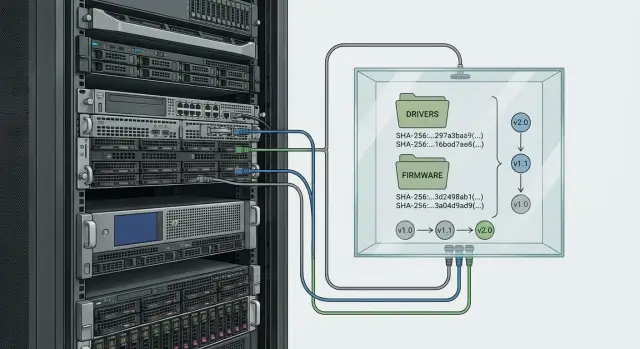
Why you need an offline repository in an isolated network
In an isolated network updates almost always start the same way: “download what’s needed, transfer it, install.” After a couple of months this turns into chaos: every admin has their own USB stick, “the latest version” is in three places, and on the server a firmware file sits next to something named new_final2_ok.exe.
The problem is usually not size, but that nothing can be proven. If a file has no source, version and date, you won’t be able to confidently answer basic questions: where did it come from, which hardware it fits, and what to do if you need to roll back. The danger of a “New_Files” folder is that it’s easy to mix drivers for similar models, confuse BIOS and BMC firmware, or install a utility that doesn’t match the microcode version. In the best case you waste time; in the worst case you get downtime.
An offline repository for drivers and firmware makes updates repeatable and verifiable. It should contain not only OS drivers but everything that affects hardware and stability: BIOS/UEFI and BMC, microcode, RAID/HBA firmware, NIC and storage firmware, and vendor utilities for updating and diagnostics.
Roles are often mixed too: security defines transfer and verification rules, admins are responsible for compatibility and scheduling, while procurement and service map updates to specific models, batches and constraints.
A good outcome looks like this: any team member takes a specific update, understands what it applies to, verifies integrity, follows the instructions to install and rolls back if needed. For example, when servicing data center servers you can see in advance which packages apply to a given model and revision, whether equipment is GSE or mixed, and you don’t depend on a single specialist’s memory.
What counts as an "update package" and where the repository boundaries are
To keep the repository from becoming a junkyard, first agree what you consider a single “update unit.” A practical unit is: specific device (or board/controller) + exact version + source (vendor, internal build, part of a project delivery). Then any file can be located and compared unambiguously.
Next choose storage granularity. If you group too broadly (e.g., by vendor) you lose traceability to models and environments. If you go too fine-grained (per PC) you drown in folders. Usually the level “device type -> model -> version” is enough, and projects are better tracked with metadata tags rather than duplicating files.
Where the repository ends
The repository should contain what is actually used for updates: installers, firmware images, flashing utilities, release notes and minimal instructions. Don’t pull everything in (marketing PDFs, screenshots, email threads). Less clutter means easier checks and better order.
To avoid mixing “raw” and working versions, split into three zones:
- Incoming: everything newly brought in and not yet verified.
- Verified: items that passed integrity checks and testing.
- Archive: out-of-support versions kept for investigation and rollback.
Naming rules and “supported” versions
File and folder names must be consistent: model, version, date received and brief type (driver, firmware, tool). Metadata (at least a text manifest nearby) records source, compatibility, requirements and who added it.
Decide in advance which versions are supported. For example: “the latest stable and the previous one”, plus exceptions for critical systems (healthcare, finance) with a longer shelf life. This helps when updating servers and workstations in an isolated network and needing to roll back quickly without hunting for the “one old” firmware.
Storage structure: a simple folder scheme that won’t break
The goal is for anyone to quickly find the right file and understand its purpose without calling the author or guessing.
Rule of thumb: first split by vendor, then by model, then by OS, and only after that by version. This avoids folders like “misc” and prevents mixing packages for similar devices.
Keep firmware on a separate branch: firmware has different types and risks. Inside that branch divide by purpose (BIOS, BMC, network, storage controllers). Even if you only have BIOS today, the scheme will hold up when servers and NICs are added.
Example (fleet of PCs, AIOs and servers, hypothetically GSE L200, M200 and S200 lines):
repo/
  drivers/
    intel/
      gse-l200/
        windows10/
          2024-11_31.0.101.2115/
      gse-m200/
        windows11/
          2025-01_23.60.1/
  firmware/
    gse/
      gse-l200/
        bios/
          2024-12_1.08/
      gse-s200/
        bmc/
          2025-02_2.14/
        storage/
          2025-02_4.3.0/
  docs/
    gse-s200/
      2025-02_maintenance-notes/
Keep documentation next to files, not in a shared docs folder: release notes, compatibility matrix (which version fits which hardware revision), update and rollback instructions, and internal notes (for example, “only update when on UPS”).
To keep names tidy, adopt simple rules:
- no spaces or non-Latin characters; only Latin letters, digits,
_and- - date as YYYY-MM
- version exactly as the vendor uses it (no “final” or “new” added)
- include type (driver, bios, bmc) and model in the name
- one archive or installer = one package, avoid “mixed” folders
This structure is easy to verify, transfer between media and scale when new models and OSes are added to the isolated network.
Metadata and manifests: so files are understandable without the author
In an isolated network files quickly become a “mystery folder”: who downloaded it, where from, what it’s for, which model, and whether it can be installed. Keep a manifest next to each set of files that answers these questions without relying on an engineer’s memory.
Practical rule: one manifest per update package (e.g., NIC driver + utility + release notes, or BIOS firmware + instructions + checksums). Store the manifest alongside the binaries so it always “travels” with them.
Minimum mandatory fields:
- source (vendor portal, email, ticket number)
- date received and who received it (owner)
- purpose (what it fixes or adds)
- compatibility (model, revision, OS, BIOS/UEFI version)
- constraints and risks (e.g., “requires reboot”, “do not install on older board revision”)
Format can be simple: README.yaml/README.json or manifest.yaml next to the files. Example that remains clear after a year:
package_id: gse-l200-intel-lan-1.2.3
received_at: 2026-01-10
source: "Vendor portal, ticket SD-1842"
owner: "Ivan K."
purpose: "Network adapter driver to fix packet loss"
compatibility:
  model: "GSE L200"
  os_image: "Windows 10 22H2, image W10-GOV-2025.11"
status: received
files:
  - name: "LAN_Driver_1.2.3.exe"
    sha256: "..."
Record relationships: “this driver must be installed together with this OS image” or “firmware fits S200 only for this board revision.” This prevents the common pain when an update is accidentally applied to the wrong line (e.g., L200 instead of M200).
Make statuses explicit and uniform: received, verified, approved, deprecated. This separates “just downloaded” from “approved for production.”
For auditability and repeatability you usually need: the manifest, a checksum file, a short verification log (who and how checked) and an approval record (who set approved and for which fleet, e.g., GSE L200/M200 or S200 servers).
Version control: how to keep history and enable rollback
Versions must be understandable without guessing. Firmware often lacks nice SemVer, and drivers may have vendor version, build date and package number. Store vendor versions as-is, but keep your own clear label nearby: device, board revision and test result.
A rule that prevents chaos: never overwrite. Any change is a new version and a new folder. Even if a file is “the same, only renamed”, tomorrow that will cause a disputed rollback.
It helps to separate two levels:
- Component version: what sits in the specific driver or firmware folder.
- Release of a set: a label for the update package you actually hand out (quarterly, project-based, for a specific environment).
This lets you reproducibly assemble the same set and quickly see what it included. For example, for servers and workstations (including GSE S200 and L200 lines) keep releases tied to test dates: “2026Q1-DC”, “2026Q1-Workstations”.
To make rollback practical, keep a short changelog for each release: what was updated, why, which models were tested and any known risks. Write the reason in plain language: “fixes network hang after sleep” instead of only a bulletin number.
For operations, identify “golden” versions: stable firmware and drivers that are guaranteed to work with your hardware and OS images. In an incident you roll back not to “the previous one” but to a preapproved golden version — and you always know where it is and in which release it was last used.
Integrity checks: hashes, signatures and repeated verification
In isolation the main risk is often not “internet malware” but quiet errors: incomplete downloads, media failures, someone accidentally replacing a file with a slightly different one. So integrity is checked at every step.
Minimum baseline — hashing. Calculate SHA-256 for each file and store the checksum with the package metadata (in the manifest). Make sure the hash is for the final file (e.g., .exe, .msi, .cab, firmware image), not just for the archive containing it.
Digital signatures are needed when the vendor provides them, or when you build an internal package and want to assert it’s approved. A signature doesn’t replace a hash: the signature answers “who released it”, the hash answers “did it change”. In the manifest store signature type, who verified it, date and result.
For transfer into the isolated network follow a simple rule: verify before and after copying. A convenient order:
- check hashes and signatures externally before writing to media
- copy, then recalculate SHA-256 inside the isolated environment
- compare with the manifest and only then mark the package as available for install
- record provenance: where it came from, by which request, who uploaded it
- save the verification log with the package
To protect against media degradation and unnoticed edits, schedule periodic rechecks of hashes (for example, quarterly) and after any storage migration. This is especially important for rare firmware updates where one-bit corruption can cause downtime.
A formal trusted-source policy should state acceptable channels, required supporting documents and who may mark a package as trusted. Then disputes are resolved with repository records.
Repository intake process: a step-by-step flow without manual chaos
You need one repeatable path for each file. Then it’s always clear where an update came from, who checked it and why it can be installed.
Five steps that always work
Keep the process short and the same for drivers, firmware and utilities.
- External collection: a responsible person downloads only from approved sources and records exactly what was taken (model, version, date, source).
- Initial verification: version check, hash calculation, basic signature verification if present.
- Quarantine: files land in a temporary zone where they cannot be used for installation until checks and tests finish.
- Approval: a separate person confirms compatibility and risks, then authorizes publication.
- Publication: the package moves to the main repository, gets a final manifest and becomes available according to access rules.
Separation of duties reduces errors: one brings it, another verifies, a third approves. For organizations with server and workstation fleets (e.g., S200, L200, M200) this is crucial: firmware applied to the wrong revision can cause downtime that's hard to explain later.
An "update card" so nobody has to guess
For each package create a short template (file next to the manifest): what is updated and for which models/revisions, compatibility (OS, BIOS/UEFI, dependent drivers), risk and impact (downtime, reboot, rollback), rollback plan and installation window.
To avoid a perpetual “urgent” mode, set regular update windows (e.g., every two weeks) and a separate emergency process with explicit approval. Manual work is reduced by consistent file names, mandatory manifests, automatic recompute of hashes on transfer and a single verification checklist.
Access and responsibility: who may add or change files
Order rests on rules, not folders. If anyone can drop a driver or replace firmware, the repository quickly becomes random files and finding the cause of a failure takes days.
Roles and permissions that actually work
Divide access by stage: uploaded, verified, approved, released. A minimal set of roles:
- Reader: pulls only from approved or verified, cannot modify.
- Uploader: adds new files only to incoming, cannot edit accepted versions.
- Reviewer: checks hashes, signatures and compatibility, fills the manifest and prepares release.
- Approver: moves the package to approved and sets status (for example, recommended or on-request only).
- Administrator: manages permissions, signing keys, naming rules and logs.
Key rule to prevent ad hoc changes: no direct edits in verified. That zone should be read-only for everyone except the admin. Changes are allowed only by repackaging and issuing a new version, not by replacing a file in place.
Contractors and temporary access
If contractors participate, give them limited access: incoming only and only for the task duration. Better to grant access to a specific equipment branch (e.g., S200 servers) and record who uploaded each file and its source.
Logs and physical security
Logs should answer two questions: who changed it and what changed. Typically log user, time, action (added, approved, revoked), file name, version, hash before and after, source (media, batch, request) and verification results (signature, antivirus, test bench).
For offline transfers add simple discipline: track media by serial number, store them in a locked cabinet, issue them against a log and use a dedicated quarantine machine for initial checks before files go into incoming.
Common mistakes and traps that break updates
The most common cause of failures is compatibility confusion. It seems “there’s a driver for this model”, but the fleet contains different board revisions, controller or NIC variants. The same chassis index doesn’t guarantee identical internals, especially across batches.
A simple example: desktops of one series (L200) were delivered with two different Wi‑Fi modules. If you put all drivers in one “Wi-Fi” folder, half the machines will get the wrong package during the next update, and you only find out inside the isolated network where “quickly fetching the correct one” isn’t possible.
Second trap — “cleaned up old junk.” Deleting old versions without an archive or reason looks tidy but removes the ability to roll back and to explain why the transition happened. In a month someone will ask: “what firmware was installed before and why was it changed?” and there will be no answer.
Third mistake — no manifest. A file sits there but it’s unclear which device and revision it’s for, where it came from and what it changes. The repository becomes a warehouse.
Even worse is flashing firmware “between tasks” without a test window and rollback plan. If the device fails to boot after reboot you lose time and sometimes hardware.
Finally, don’t trust files “from chat or email.” Even if sent by a known admin, without confirmed source and verified hashes you risk introducing corrupted or tampered files.
Quick signs your process is near chaos:
- many files named like final_new2.exe with no explanation
- multiple drivers for one model but no revision or date info
- old versions disappear with no recorded reason
- firmware installed without testing on a single device and without rollback steps
- files enter the repository “as sent” without verification
Example scenario: updating a fleet in an isolated network without panic
Imagine an isolated segment: work PCs, several touchscreen all-in-ones and a couple of rack servers. No internet access inside, updates arrive only through controlled transfer. To avoid guesswork you prepare one clear package and put it into the repository.
Assembly begins by answering “which devices and why are we updating?” For example: some GSE L200 PCs need a BIOS update, some M200 all-in-ones need a touch controller driver, and S200 servers require RAID firmware and a verification utility.
Then you build the package as a sealed box: files, startup utilities, instructions, list of affected models and constraints. Before transfer to isolation calculate hashes, record versions and save the manifest so anyone can verify the set wasn’t altered.
Rollout is staged and results are recorded immediately:
- Pilot: 1–2 devices of each type with a rollback plan.
- First wave: 10–20% of the fleet on less critical workstations.
- Main wave: the rest, with stops for checks.
- Verification: confirm versions after reboot and run a short functional test.
- Record: log serial numbers, which version was applied and when.
If some devices fail to accept the new version, don’t push blindly. Typically the cause is a board-revision mismatch, locked settings, dependent drivers or a missed intermediate update. Flag problem devices, save logs, compare conditions against the manifest and release a small corrective package or a rollback plan.
Short checklist before releasing an update to production
Pause briefly before publishing a package. These checks take minutes but often save hours when an update is already in the isolated network and doesn’t fit half the fleet.
Check and record in the package card or manifest:
- there is a manifest and a clear package owner: who assembled it, where the files came from, what’s inside and who to ask
- hashes matched after transfer: checksums before copy and recheck in target storage
- compatibility is clear: exact model and revision, OS version and required dependencies (e.g., chipset driver before NIC driver)
- rollback plan and archive of previous version: where the previous package is and how to restore it
- status recorded: approved, publication date, who approved and which test bench was used
Short example: you prepare a server firmware and a NIC driver for workstations. On the test machine everything passed, but after transfer into isolation one file was corrupted by media failure. Rechecking the hash after transfer catches the problem before deployment.
If any item raises doubt, delay the release and clarify. In isolation the cost of error is higher than the cost of an extra check.
Next steps: how to implement without disrupting work
Start small and don’t try to “rebuild the world” over a weekend. You’ll get value once there is a clear structure and simple rules, even if content is limited.
Plan for 1–2 weeks
Create a minimal skeleton and record it in a short procedure (1–2 pages). That’s enough for any on-call engineer to add a new package without breaking order.
- approve a folder structure by vendor, model, type (driver, BIOS, BMC, RAID) and OS
- introduce naming rules: model, version, date, source, status (prod/test)
- add a minimal manifest next to files: what it is, purpose, compatibility, who/when added, hashes
- assign a repository owner and a backup during vacations
- create a single intake window: test first, then move to the production branch
How to sort the already accumulated files
Don’t try to reorganize the entire archive. Move only what will be needed in the next 4–6 weeks: current PC and server models and critical firmware. Move the rest on demand, adding a manifest and hashes each time. This gradually eliminates chaos without downtime or mass mistakes.
Leave automation for later: manifest generation from a template, scheduled hash rechecks, reports of files missing metadata.
Integrate the process into regular maintenance windows: prepare update packages in advance, record versions and rollback plans, and after the work log actual results (which version landed on which nodes).
If you need help without long implementations, a systems integrator or the vendor like GSE.kz can step in: help prepare procedures, check update compatibility for your fleet (PCs, servers, workstations) and provide 24/7 support so night maintenance windows don’t turn into guesswork.
Frequently asked questions
Why have an offline repository at all if files can be copied on a USB stick?
An offline repository ensures updates are repeatable and verifiable, not just a pile of random files. Each package in the repository has a version, a source, compatibility info and a rollback option, so you can explain what was installed and why — even six months later.
What types of files should be stored in an offline drivers and firmware repository?
Typically: OS drivers, BIOS/UEFI and BMC firmware, microcode, RAID/HBA firmware, NIC and storage firmware, plus vendor utilities for updating and diagnostics. A practical rule: if a file affects hardware, stability or compatibility and must be installed in isolation, it belongs in the repository.
What should count as a single "update package"?
A convenient unit is a specific device or component + exact version + source. That way any file can be found unambiguously and you know which model and revision it applies to without guessing.
Which folder structure prevents the repository from becoming a mess?
A basic scheme that scales is: top-level by type (drivers or firmware), then by vendor, then by model, then OS for drivers or purpose for firmware, and finally by version. Don't mix drivers and firmware in the same branch and avoid creating duplicates for projects — tag projects in metadata instead.
What metadata is essential so a package is understandable without the author?
Place a short manifest next to each package answering “what is this”, “why”, “where from” and “what it fits”. At minimum include source, date received, compatibility (model, revision, OS), purpose, constraints and file checksums.
Why divide the repository into incoming/verified/archive?
Split into three zones: incoming, verified and archive. This separates “just received” from “approved to install” and preserves old versions for investigations and rollbacks instead of deleting them “for tidiness.”
How to correctly verify file integrity in isolation: is a signature enough?
Calculate SHA-256 for each final file and verify checksums before and after transfer into the isolated environment. Signatures are useful when provided by the vendor or for your internal approved package, but a signature does not replace a hash: the hash detects silent corruption and substitutions during copy.
How to manage versions and rollbacks so they actually work?
Never overwrite files in place: any change must be a new version and a new directory, even if it looks like a rename. Keep approved “gold” versions and a short change log so rollback is a documented procedure, not a memory hunt.
What does a sane process for populating the repository look like without manual chaos?
A minimal process: fetch from an authorized source, verify integrity, place in quarantine, test, then approve and publish. Separation of duties reduces the risk that one person downloads, eyeballs it and immediately pushes it to production — especially important for firmware on servers and workstations.
What mistakes most often cause problems with updates in an isolated environment?
Common causes of failures are compatibility confusion across revisions and batches, missing manifests, and deleting old versions “to tidy up.” In mixed fleets (GSE or multiple vendors), discipline helps: record model and revision, keep verified packages separate and never accept files “from chat” without a confirmed source and hashes.
