8 min read
Offline Domain Join (ODJ): PCs Without Network Connectivity
A practical guide to Offline Domain Join (ODJ): staging in an OU, steps for offline installation, and when and in what order GPOs apply after connectivity is restored.
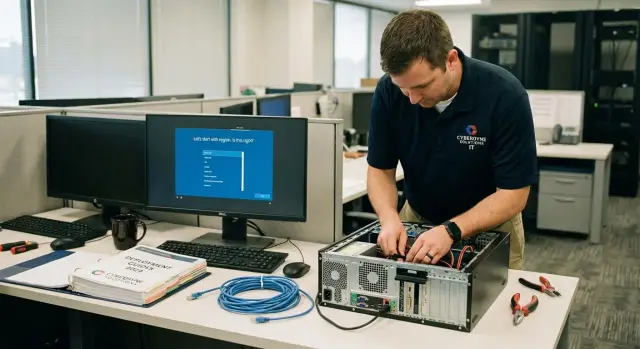
When PCs are installed without a network and why it matters
Sometimes you need to set up and prepare computers where the network isn’t available yet or will appear later: a new office, a server room under repair, a temporary site, or an isolated network where cables and access are provided only after acceptance.
You want to do as much as possible in advance so that when the network appears the PCs immediately join the domain and get the right settings. That’s what Offline Domain Join (ODJ) is for: part of the work is done ahead in Active Directory, and the PC applies prepared data locally without contacting a domain controller.
ODJ differs from a normal join in one main way: during a typical online join the computer immediately validates credentials, creates (or reuses) the computer account, receives initial policies and starts operating under domain rules. When a PC is installed without a network that step is missing, so until the first successful contact with the domain the machine stays in an intermediate state.
If the process is not planned, risks appear: duplicate computer accounts, wrong OU and therefore wrong policies. Worse, during the “offline window” the machine might retain unnecessary local admins, weak security settings, or an unsuitable firewall configuration.
Convenience can be prioritized, but manageability and security should be kept at a minimum required level. Typically you should prepare in advance to:
- define a staging OU and decide which GPOs are allowed there
- control who can create or reuse computer accounts
- keep local administrators and passwords under control (temporary accounts only when necessary)
- plan how updates and protection will work before domain policies arrive
- verify time and regional settings so there are no surprises with logon or certificates once the network is up
If these points are covered, offline setup becomes a predictable process: once connected, wait for policies to apply and finish verification.
What to prepare before going on site
To avoid surprises with ODJ, most work is done in advance, before the PC sees the network. The most common failures happen when OU structure, permissions and security rules are decided on site.
Start on the domain side: have the OU structure ready where new computers will land, and have a clear set of policies that should apply once the network is available. If you have different PC types (for example, accounting, a classroom, or a server rack), separate them by OU or at least by clear groups so policies don’t conflict.
Decide in advance who performs staging of the computer account. Sometimes a domain admin does it, but it’s often more convenient to delegate specific rights on an OU (create and reset computer accounts) to the support team. That way you don’t wait for a senior admin and the process remains controlled.
Before leaving for the site, gather specifics not wishes: computer names by template, target OU, a responsible person who confirms the name and OU, the ODJ file creation date and the planned moment of application. Also decide how the ODJ file will be stored and transferred — it’s sensitive information.
Agree with the site about the network: when it will realistically be available and how. For the first contact the important things are not speed but basics: access to DNS and domain controllers, time synchronization and a clear route (local LAN or VPN). If the network will appear in a week, record that so staged accounts and ODJ files do not remain "hanging" without oversight.
Example: you prepare 20 PCs for a branch where renovation is ongoing. You pre-create objects in the correct OU, label names on boxes, create ODJ files and agree on the date to activate VPN. On site you only install OS and apply the file; domain policies will arrive once connectivity exists.
ODJ in simple terms: what is done in advance and what comes later
ODJ is used when a PC is deployed and configured where domain connectivity is not yet present. The idea is simple: the domain prepares a "join package" for a specific computer, and the PC applies it locally. When it later contacts a domain controller it finalizes the join and completes the process.
Provisioning (often called the "blob") is a file containing the data that allows the machine to become a domain member without immediate contact with the domain. It’s usually created on the domain side with djoin (provision mode), and later applied on the PC (requestODJ mode). Inside are domain parameters and a secret that replaces the password exchanges and verifications that happen during a normal online join.
Treat this file as almost credentials. If intercepted, an attacker could try to "bring up" a computer with your name in the domain. Store and transfer the blob carefully: on a protected USB, in an encrypted container, or over a closed channel with access controls. Don’t send it loosely by email or messenger and don’t leave it in shared folders without restrictions.
Before planning ODJ, check basic requirements:
- The Windows edition on the PC must support domain join (usually Pro/Enterprise/Education).
- You need permissions to create (or provision) the computer account in the domain.
- The computer name must be final: renaming after ODJ often causes confusion.
- The PC clock and time zone must be correct to avoid trust errors later.
Before the PC first connects to the network the domain side pre-creates (or stages) the computer account, assigns it to an OU (and thus future GPOs), and generates the blob. But policies, logon scripts and software installations via GPO will not apply until the PC sees the domain and performs its first proper machine authentication.
Staging OU: how to organize OUs to avoid surprises
A staging OU is needed when you prepare ODJ in advance while the PC will only join the network after onsite installation. It’s a holding area: the computer account exists but production-level policies and access should not be enabled yet.
How to choose OU and structure logic
Work OUs are usually organized by site (branch, city), by device role (office PC, kiosk, engineering station) or by owner (department). The main point is that the OU should make clear which policies apply.
Keep staging OU separate from production OUs so new machines don’t accidentally get settings that require network resources, certificates or access to internal services.
In staging OU you usually limit automatic software installation and heavy scripts, overly strict policies that could block sign-in before checks are done, and settings that depend on unavailable services (WSUS, file shares, PKI). If group membership is added automatically, be cautious about granting access to sensitive resources.
Delegation and lifecycle
Decide in advance who can create, move and reset computer accounts. A common practice: give the field engineer rights to create objects only in the staging OU, and have the admin move them to the production OU after acceptance. That reduces the risk that a device ends up in the wrong place and gets inappropriate GPOs.
Keep the lifecycle simple:
- create the computer account in the staging OU
- prepare the ODJ file and install the PC onsite without network
- perform a quick check after the network appears (name, domain, basic policies)
- move the account to the production OU and apply production GPOs
- record who moved it, when and why
Example: a batch of office PCs is delivered to a branch (for instance, to a government office in a region). While the network is down, devices remain in staging OU and receive only basic settings. After acceptance and domain connection the admin moves them to the branch OU and roles, and only then all corporate policies and installations apply.
Step-by-step: preparing ODJ on the domain side
The idea on the domain side is simple: you pre-create the "place" for the future PC in Active Directory and issue an offline join file. This file will be placed on the computer that is currently offline.
First agree on naming rules. Mistakes in the computer name and OU are the most common cause of failure. A scheme where the computer name includes an inventory number or site code works well (for example, ALM-FIL-023).
- Prepare the computer account and OU
Create the OU for "staging" and apply basic GPOs there (for example, local administrators, security settings, disable unnecessary services). If policies should apply only after acceptance, keep a separate production OU and move the PC there later.
Maintain discipline: verify the OU exists and you know its DN; create the computer account (pre-stage) with the exact future computer name; ensure you have rights to create and bind it to the OU; generate the ODJ file using Windows tools; save the file to a secure location and label it for which PC it was created.
- Generate the ODJ file using standard Windows tools
On a domain controller or an admin workstation with AD access use djoin.exe. Example command (replace values):
djoin /provision /domain corp.local /machine ALM-FIL-023 ^
/savefile C:\\ODJ\\ALM-FIL-023.odj ^
/machineou "OU=Staging,OU=Workstations,DC=corp,DC=local"
A helpful habit is to record the three parameters in one place and not change them at the last minute — computer name, domain, target OU. And remember: the ODJ file contains a secret, so restrict access and don’t transmit it over open channels.
- Keep an inventory so files and hardware are not mixed up
When preparing dozens of machines (for example, workstation batches for branches), confusion grows quickly. Minimum tracking should include: computer name, inventory tag, serial number, ODJ filename and its creation date.
Step-by-step: actions on the offline PC
Start with a normal Windows installation and basic settings. Immediately set correct time, timezone and keyboard layout: time errors frequently block the first domain logon.
Before importing the ODJ set the computer name according to the agreed template and verify it matches what was prepared in the domain. If the name differs, the computer account won’t match and you’ll need to redo the process.
Then apply the ODJ: copy the prepared file (the blob) to the PC and import it locally. This is typically run as an administrator:
djoin.exe /requestODJ /loadfile C:\\ODJ\\odjblob.txt /windowspath %SystemRoot% /localos
If everything succeeds the utility reports success. After a reboot the System properties will show the domain (while the PC still has no contact with a controller — that’s normal).
Minimal on-site checks:
- the command completed without errors and requested a reboot
- after reboot the computer name remained as expected
- System properties show a domain instead of a workgroup
- local sign-in (for example with a temporary admin) still works as before
While offline you can do many useful tasks: install drivers, apply offline updates, configure local power settings, enable needed roles, and prepare printers with local drivers. If you plan to enable encryption, do it only after you have agreed how recovery keys will be stored: offline you won’t be able to automatically save the key to AD.
What to postpone until the network appears:
- heavy corporate agents that require update servers
- policies and scripts that pull files from network paths
- mail and domain-dependent applications
- software requiring online activation or license server access
The scenario is simple: you deploy Windows on a new office PC, apply the ODJ file, reboot, install drivers and a basic software set. When the network appears the machine is ready for its first domain contact and further configuration.
When the network appears: order of policy application and expectations
After ODJ the PC can look "domain-joined" before it actually sees a controller. Real verification begins when the site network appears and the machine first contacts the domain.
When and how GPOs apply
Group Policy is not applied in a single bundle but at several moments: at computer startup, at user logon and during background refresh. Background refresh typically runs roughly every 90 minutes (plus a random offset), so some settings may not arrive instantly after connectivity.
Remember LSDOU: Local, then Site, then Domain, then OU, with inheritance and priorities. If a setting is defined in multiple places the lower-level (closer to the object) and non-blocked policy takes effect.
Typical events after the first network contact:
- On the next reboot computer policies will be pulled.
- On first domain user logon user policies will apply.
- Some settings arrive only during background refresh.
- If the PC is still in staging OU, staging policies apply instead of production ones.
What changes after moving from staging OU
Staging OU usually contains only "soft" policies so the PC boots without surprises and allows admin access. Once the device is moved to the production OU, at the next policy refresh it begins receiving full corporate rules: security settings, software installs, restrictions and network parameters.
To verify the PC truly established trust with the domain check the secure channel and policy application:
- try logging on with a domain account when a domain controller is available
- view applied policies (for example, the list of applied GPOs)
- check the secure channel with:
nltest /sc_verify:ВАШДОМЕН
If verification fails the usual causes are DNS, the PC time, or the fact the device is still in staging OU waiting for further action.
Common mistakes and pitfalls with ODJ
ODJ is often seen as a simple "preparation" file to apply later. Most problems surface after the network appears when expected policies and accesses don’t arrive.
A common mistake is failing to agree on the computer name in advance. If you applied ODJ and then renamed the device "for convenience," you may get a conflict with the computer account or a mismatch with the expected AD object. Policies, filters or exceptions scoped by OU will not behave as planned.
Another trap is treating the ODJ file as an ordinary config file. It effectively grants the right for a device to become a specific object in the domain. If it falls into the wrong hands it can be used on another PC. Reapplying it can cause odd behavior: intermittent sign-ins and broken trust, and root-causing these symptoms can take hours.
A third issue is the staging OU: a computer can remain there and not receive the production GPOs tied to the production OU. To the outside this looks like "ODJ failed," while the PC is actually in the domain but in the wrong place.
There are also technical things easy to miss during offline setup:
- clock drift on the PC (even 5–10 minutes) causing domain logon errors when the network appears
- policies that require DNS or DC access, failing under an unstable network
- expecting everything to apply immediately, while first you need network, then DNS, then DC reachability
- applying ODJ on the wrong Windows image or in the wrong scenario making results hard to reproduce
- no rule about who and when moves PCs from staging to production OU
Example: a branch with prepared PCs sits a week without connectivity. On the day of go-live they expect printers and security settings to appear immediately. But PCs are still in staging OU, half the devices lost time after a CMOS battery drain, and DNS at the site was set up later. Authentication and GPOs cascade-fail and the issue appears as one problem while causes are multiple.
It’s easier to lock down the process in advance: computer naming, ODJ file storage, controlling movement from staging OU and a minimal set of checks right after the network appears.
Quick checklist before handing a PC to a user
Before giving the workstation to a user do a short verification. Small errors in ODJ often surface only after the network appears and are more time-consuming to fix then.
First check basics on the PC: the computer name must match inventory and the label on the case. If the name differs even by one character you’ll get confusion in AD, reports and remote support.
Then check where the computer object landed in AD. If you use a staging OU ensure it is indeed the staging OU (or production if that was intended) and that policy inheritance is expected. In practice surprises are more often caused by an extra GPO in an OU that applies as soon as the network is up rather than by ODJ itself.
Check the time separately. Incorrect date or timezone breaks domain logon, certificates and access to resources. Understand the time source: offline it’s the local clock; after network availability the computer should switch to domain time sync.
When the network is up don’t stop at "Internet is available." Verify the PC received an IP (DHCP or correct static), DNS points to domain servers, and the domain controller is reachable.
Short pre-handover check:
- Computer name: matches inventory, no duplicates in AD.
- Object OU: staging or production as intended, no unexpected GPO inheritance.
- Time: correct date and time zone, and after network the PC syncs with domain time.
- Network: has IP, correct DNS, domain authentication works, DC reachable.
- Policies: trigger an update and check 2–3 key settings (for example proxy, update settings, disk encryption — whatever is critical for you).
If everything matches, the PC usually survives the first user logon and subsequent policy application without issues.
Realistic scenario: a branch without network at install time
Imagine a school or clinic receives a batch of new PCs but the switch and connectivity will only be installed in a week. Management needs staff to print and use local apps now, and IT wants machines to become domain-joined quickly and predictably once the network is active.
A day or two before the site visit the admin stages accounts in AD and places them in the staging OU. Apply only minimal policies there that won’t break offline usage: a local admin, basic security settings, disable unnecessary autoruns. Network-dependent policies (proxy, network drives, software installs from network) are left for the production OU.
On site they image PCs, install drivers, set up local printers and then perform ODJ with the prepared files. Users get PCs with instructions: until the network appears sign in with a local account (or a temporary one if that’s the policy), store files in the agreed location, and do not rename the PC.
To keep the week trouble-free set simple rules: one responsible person collects cabinet and serial numbers, users don’t create new local admins, and all changes are logged in a short journal.
On the day the network goes live the visible work begins. PCs gain access to the domain controller, run some reboots, and at the next sign-in domain parameters arrive. There may be delays: first logons take longer due to policy updates and computer registration.
A key point to avoid downtime: move machines from staging OU to production OU in batches (for example, 5–10 PCs). After each batch move, force a policy update and one reboot. Users lose minimal time and you control when heavy GPOs (software installs, drives, certificates) apply so you avoid surprises across all workstations.
Next steps: formalize the process and assign responsibilities
To make ODJ repeatable and not a one-time “magical” operation, document it as a standard: who prepares data, who installs on site, who accepts results. Agreeing rules once is usually cheaper than troubleshooting why a PC ended up in the wrong OU and got wrong policies every time.
Mini rollout plan
Define a basic solution set:
- OU structure for offline scenarios: a separate staging OU and production OUs by device type or department.
- A single naming template and a rule who assigns names.
- Roles: domain admin prepares account and ODJ package, field engineer installs OS and applies the package, security or senior admin accepts via checklist.
- A single place for instructions and change records.
- A defined "lifetime" for staging: how many days a PC can remain there before moving to production.
After that it’s easier to remove manual errors and speed up site onboarding.
What to automate
Automation doesn’t have to be complex. Start by automating the frequent failure points: tracking prepared ODJ packages (who created them, for which name, expiry), checks for account readiness (correct OU, required groups, no duplicates), basic post-network checks (DNS, time, key GPOs), and an acceptance report (date, PC name, OU, policy status and reboots).
Engage an integrator if you have many sites, strict security requirements, tight deadlines, or need to tie domain onboarding to broader infrastructure (servers, virtualization, backups, ticketing).
If you need a turnkey partner, GSE.kz can be useful in typical domain scenarios: supply of PCs and servers produced in Kazakhstan, system integration and 24/7 support, including deployment and acceptance by unified rules for branch offices.
Frequently asked questions
Why use ODJ at all if you can just wait for the network and do a normal join?
ODJ is needed when a computer must be prepared at a location where the domain network will only become available later or access will be granted after acceptance. You create the computer object in AD in advance and produce an ODJ file, which is applied locally on the PC without contacting a domain controller. When the network becomes available, the machine completes the join and starts receiving policies like any domain-joined computer.
What exactly happens with ODJ: what is done in advance and what happens on the PC?
On the domain side you prepare or pre-stage the computer account in the target OU and generate an ODJ file with `djoin` in provision mode. On the offline PC you import that file with `djoin` in requestODJ mode and reboot. Full domain verification and most domain-applied settings only start when the PC first contacts DNS and a domain controller.
What are the most common reasons ODJ "didn't work" after the network appeared?
Most often the process breaks because of discipline around the computer name and OU: the object was prepared under one name or OU, but the machine at the site was given a different name or placed in another OU. A second common cause is incorrect time and timezone, which leads to trust errors after the network appears. Another frequent issue is site DNS pointing to public resolvers so the PC 'sees the Internet' but cannot reach the domain.
Why have a staging OU and how is it different from a production OU?
A staging OU is a reception area so new devices do not immediately receive production policies that depend on internal services or might block sign-in. It usually contains only minimal base settings for security and manageability that don’t require WSUS, file shares, PKI, etc. After verification and acceptance the computer is moved to the production OU and then receives the full corporate rules.
Who should get rights to staging and to move computers between OUs to avoid chaos?
It’s best to separate responsibilities: the field engineer can create objects only in the staging OU, while an administrator moves the computer into the production OU after acceptance. That reduces the risk of devices ending up in the wrong OU and immediately receiving inappropriate GPOs. If you delegate permissions, limit them to the specific OU and keep a clear record of who created or reset the computer account.
How risky is an ODJ file and how should it be stored and transferred?
The ODJ file contains a secret that allows a specific machine to become a specific object in the domain, so treat it as sensitive data. Store it so only the installers can access it and so it cannot be quietly copied “just in case.” Do not leave the blob on the PC after use and do not keep such files in shared folders without access controls.
What must be done on the PC before the network appears to avoid problems later?
Set the correct date, time and time zone immediately, and set the final computer name before applying ODJ. Install drivers and basic software that do not require domain resources or online licensing. Don’t leave multiple ad-hoc local administrator accounts: it’s better to have one clear temporary access with control than several forgotten accounts.
Network is up: what checks should be done first so the domain is picked up?
Right after connecting, check that DNS points to your domain servers and there is a route to the domain controllers, not just general Internet access. Then allow the machine to reboot and update policies: some GPOs apply at startup, some at user logon, and some during the background refresh. If you need things faster, trigger a forced policy update and verify the secure channel.
When and how should a PC be moved from the staging OU to the production OU?
Ensure the computer is indeed in the staging OU and is receiving the expected “soft” policies, then move it to the production OU in a planned manner. After the move allow time for GPO refresh and perform one reboot so computer policies apply correctly. Moving too early or without verifying service availability can cause long logon delays and installation errors.
Can I enable BitLocker and other security measures before the domain appears, and what are the risks?
Do not enable encryption 'blindly' if the recovery key must be stored in AD, because without domain connectivity you may not be able to save the recovery key automatically. Agree the process in advance: when encryption will be enabled, where the key is recorded and who verifies that it was saved in domain infrastructure. If encryption was enabled offline, do not hand the PC to users until you confirm the recovery key is securely recorded and available to responsible staff.
