5 min read
Office PCs for Mass Deployments: Comparing Dell, HP and Lenovo
Office PCs for mass deployment: how servicing works for Dell OptiPlex, HP EliteDesk and Lenovo ThinkCentre — and which parts fail most often.
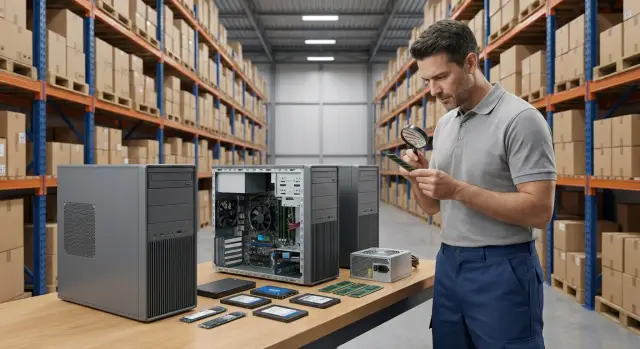
Why compare serviceability, not just specs
When buying office PCs in bulk, the price of a single tower isn’t the only factor. Much more important is how long workstations will be idle because of small failures, waiting for spare parts, and queuing for an engineer.
In real use a “+10% performance” bump is rarely noticeable. But one non-working PC immediately disrupts processes: accounting can’t close the day, an operator can’t take calls, a training room sits idle. In batches of 100+ even a small failure rate becomes a steady stream of incidents.
Serviceability in practice is not an abstract “convenient chassis.” It usually comes down to three questions:
- how quickly can you open the PC and reach the needed part;
- how easy it is to find a compatible replacement;
- how clear the diagnostics and replacement procedures are.
Most downtime comes from faults that look minor but block work: a failed power supply, a dead SSD, a loose memory module, a dust-clogged fan causing overheating, a broken power button or port, or a BIOS/firmware update that stalls.
To avoid firefighting, plan support in advance: assign responsibilities and times for typical operations (SSD, PSU, RAM replacement, cleaning), keep a small stock of identical parts, standardize configurations and the system image, and agree on warranty rules and repair lead times.
A short example: a government agency deploys 200 PCs and 2–3% of drives fail in a year. Without spare SSDs and a practiced recovery procedure you’ll get regular downtime. So comparing Dell, HP and Lenovo by serviceability often helps more than debating CPU clock rates.
What inputs you need before comparing Dell, HP and Lenovo
A model comparison quickly turns into a spec sheet unless you agree inputs first. Problems usually appear during installation and the first months of support.
Start with use cases. “Office” sounds the same, but loads differ: a call center needs quiet systems and many front USBs for headsets; accounting often needs two monitors and reliable operation with printers and tokens; a classroom needs protection against accidental disconnections and fast peripheral replacement.
Next, fix the form factor. A small chassis saves space but can limit cooling, the number of ports and the ability to add a second drive. If PCs will sit in open spaces, set noise limits and port-location requirements up front (front USB and audio often solve many issues).
Create a short “standard passport” for the whole batch: unified RAM size and expansion plan, primary and minimum SSD size (and whether a second drive is needed), Wi‑Fi/BT requirements, video outputs for your monitors and mandatory ports for peripherals.
Final step — compatibility with infrastructure: OS image, domain, security policies, encryption, drivers, docks, and small items like cables, mounts, surge protectors and inventory tags.
Example: you plan 150 workstations. The call center needs front USBs and quiet cases; accounting needs two DisplayPort outputs and guaranteed token support. If you don’t set this up, you’ll buy identical towers and then start buying adapters, swapping monitors and spending time on field visits.
Access to components and ease of on-site repair
For mass deliveries it’s important how fast a technician can replace a part in the office. A clear internal layout saves hours and reduces the risk of breaking something during repair.
First, check whether a tool is needed to open the case. Many corporate models have a latch or thumbscrew. You can test this at receipt: try to remove the side panel without a screwdriver and see how easy it is. If the panel sits askew or needs strong force, in the field this will annoy staff and often end with broken clips.
Inside, practicality matters more than looks: cables shouldn’t be taut or in the fan path, connectors should be clearly labeled, and RAM and PCIe latches should open without tools.
Mini-checklist for on-site repair:
- SSDs and memory are accessible immediately after removing the cover.
- Fans are quick to remove and power connectors can be unplugged without a fight.
- The PSU can be extracted without disassembling half the chassis or stretching cables.
Consider tamper seals. Many organizations require them: the seal should be placed neatly while allowing a service engineer to open the case without risking accidental damage to the seal.
Common failures in office PCs: what breaks most often
In large batches it’s not the “complex” units that fail most, but the parts used every day: power, cooling, storage, memory and ports. If support knows the typical symptoms in advance, it’s easier to tell a single faulty unit from a systemic problem.
Power supply
PSU degradation often starts subtly: the PC takes longer to boot, sometimes reboots under load, there is a whining noise or a hot smell. Common causes are voltage spikes, poor grounding, clogged intake grills and constant heat in under-desk niches.
Cooling and overheating
Noise often means not just a loud fan but worn bearings, an imbalanced blade due to dust, or dried thermal paste. Overheating causes throttling (lowered frequencies), sudden shutdowns and freezes during video calls or heavy browser use.
Drives (SSD)
SSDs often “die” not suddenly but with rising errors and slower throughput. Monitor SMART and have a unified imaging and recovery approach: without a backup image and a clear recovery routine a disk failure turns into long manual workstation setup.
RAM
RAM issues are tricky: a PC can work one day and show a blue screen or corrupted files the next. Stress tests and swapping modules help distinguish a bad module from a faulty slot or contact.
Ports, buttons and front panel
Connectors suffer from daily plugging. Front USB and audio, and the power jack fail most often if cables are tugged constantly. Buttons wear out too, especially if machines are switched on/off multiple times per day.
To speed repair, record in the ticket: when the fault appears (at boot, under load, idle), whether there is noise or a hot smell, whether the outlet/cable/peripheral was changed, what SMART reports, and whether the issue repeats on another workstation.
Dell OptiPlex: serviceability and common tickets
OptiPlex comes in many form factors (Micro, SFF, Tower), and that affects repair. In SFF and Tower units it’s usually easier to reach memory, drives and fans: the case often opens without a screwdriver and drives sit in quick-release trays. Micro units are also quick to access but have less space, so cleaning and fan replacement can take longer.
OptiPlex’s strength for mass deployment is a predictable design. If the batch is homogeneous, support can prepare procedures faster and spend less time figuring out how each unit opens.
Common tickets are about day-stopping issues: power (PSU, button, unstable mains), noise and overheating (dust, fan, thermal paste), front USB/audio wear, BIOS settings after updates, and SSD degradation or poor contact after transport.
When buying a batch, check revisions and compatibility. Even “identical” OptiPlex units can have different boards, drive mounts or PSU versions, so one spare fan or cable might not fit all.
HP EliteDesk: serviceability and common tickets
EliteDesk is often praised for thoughtful internal layout: in some models the cover comes off without tools, and there are clear latches and markings. This saves time when servicing dozens or hundreds of PCs.
Repair speed usually depends on access to drives and memory. If rails and trays are well designed, an SSD swap takes minutes. If the drive is hidden under covers or tangled cabling, a simple repair turns into long cable fiddling.
Corporate tickets are similar: overheating and noise (dust, thermal paste, fan), unstable starts from power, front USB wear, SSD degradation, and small mechanical faults (buttons, mounts, LEDs).
Before deploying a batch, spend time unifying BIOS/UEFI settings and do a basic check: power modes, temperatures under short load, firmware updates if needed, and a quick drive health check. This noticeably reduces “weird” tickets in the first weeks.
Lenovo ThinkCentre: serviceability and common tickets
ThinkCentre is often chosen for mass deployments due to clear internal layout and tool-free operations. Typical chassis usually have tidy cable routing and easy access to core components.
After removing the side panel the usual parts are immediately available: DIMM slots, M.2, 2.5/3.5" bays, the CMOS battery and sometimes the PSU. But some revisions use nonstandard front-module mounts or tighter SFF layouts, so cleaning and fan replacement can take longer than expected.
Frequent tickets are down-to-earth: tired power supplies or poor surge-protector contacts; noisy or vibrating fans and dust (especially if the unit sits on the floor); SSD degradation and failures after updates when the drive was already marginal. The front panel is another category: USB sockets become loose, power buttons fail intermittently, and ribbon cables sometimes come loose.
A risk for large batches is mixed deliveries: the same chassis with different motherboards, Wi‑Fi modules or NICs. That appears during rollout: one image installs fine, but on some PCs networking or drivers fail.
Step-by-step plan to prepare and deploy a batch of PCs
For 100+ workstations predictability and repeatability matter: installation should be consistent and support shouldn’t turn into constant troubleshooting.
A practical workflow:
-
Build the golden image: one reference OS image, a basic app set and validated drivers for the chosen model and revision. Record BIOS/UEFI and key driver versions.
-
Do incoming inspection: you don’t need to test every PC, but run a 5–10% sample through memory, storage and temperature checks to catch transit damage and manufacturing defects before installation.
-
Set BIOS/UEFI to corporate policy: boot order, disabled devices, passwords, TPM. If you use disk encryption, ensure TPM is detected and initialized correctly.
-
Configure patching and management: who is responsible for updates, when reboots are allowed, and how profiles are backed up. Without this you can get “unexpected reboots” during the working day.
-
Write the repair policy: what is swapped on-site (SSD, RAM, PSU), where the spare pool is kept, how PCs are tagged, how swaps are logged and where faulty units go.
If you have many branches, a 5–7% spare pool and a small set of identical consumables (SSD, RAM sticks, fans or PSUs for your form factor) is often cheaper than downtime and urgent deliveries.
Common mistakes in large purchases and operations
Problems usually don’t start with “bad hardware” but with small decisions at the start.
First trap — “the same model” but different configurations and revisions. A single batch can include different motherboards, PSUs, SSDs and mounts. The OS image behaves differently, drivers don’t match, and a spare part that “should” fit won’t.
Second mistake — no preapproved list of compatible parts and no minimum local stock. At scale it’s cheaper to hold common consumables on site than to wait weeks for replacements.
Third — ignoring the room environment. Dusty archives, hot classrooms, closed cabinets without airflow, unstable power and poor grounding kill fans, PSUs and drives fastest. If power is flaky, plan UPS and surge protection from the start.
Another cause of chaos is lack of incident logging. Without a simple log (date, symptom, replaced part, serial number) you won’t spot patterns and won’t know if the issue is the batch, a room or a configuration.
Short acceptance and launch checklist
The biggest risk at receipt is mixed revisions, missing parts and transit damage. Catching this early saves days of troubleshooting.
Check three things:
- Batch configuration uniformity: CPU, RAM size, SSD model, port set, PSU type.
- Packaging and case condition: dents, cracks, broken seals, loose parts.
- Quick sample tests: network, video, all USB, storage, temperatures and noise under a 10–15 minute load.
After acceptance pick one PC as the reference: settings, image, drivers, policies. Then replicate and watch for deviations.
Example scenario and next steps
You need to replace 200–300 workstations and have a single weekend window. The main risk isn’t deployment speed but downtime from small issues: wrong power cables, incompatible monitor mounts, no spare SSDs, or no clear swap process. Treat a mass delivery as a project.
First choose the form factor to fit conditions: SFF usually fits most desks and balances serviceability and compactness; mini-formats save space but can be harder to repair quickly.
Run a pilot of 10–20 PCs: perform typical tasks, measure drive-swap and memory-access times, evaluate noise and temperatures. At the same time agree the support model: who holds spares, how the spare pool works, who manages the image and updates.
If local origin and supply-chain transparency matter, check manufacturer status, certifications and service network in advance. In Kazakhstan this often affects procurement procedures and recovery times.
It’s convenient when a supplier covers delivery, integration and support. For example, GSE.kz operates as a technology manufacturer and system integrator in Kazakhstan: besides corporate supply and deployment, they produce local lines L200 (PCs), M200 (all‑in‑ones) and S200 (servers), and they have a nationwide service network.
Frequently asked questions
Why is serviceability more important than specs when buying 100+ PCs?
Compare by workstation recovery time rather than a “+10% CPU” spec. For a batch of 100+ PCs, it matters more how quickly a technician can open the case, swap an SSD/RAM/PSU and get the user back to work than a small performance difference.
What inputs should be collected before comparing Dell, HP and Lenovo?
Document the use cases (call center, accounting, classroom), the form factor and requirements for ports, noise and monitors. Then agree on a single configuration standard and check compatibility with your infrastructure: OS image, drivers, domain, security policies and disk encryption.
What should I check in the case to make on-site repair fast?
Look for immediate access to SSDs and memory after removing the cover, a fan that can be removed without wrestling with cables, and a PSU that can be extracted without disassembling half the case. Ideally the case opens without a screwdriver; otherwise clips break and repair time grows.
What usually breaks in office PCs in large batches?
Most often — power supply, cooling, SSDs, RAM and ports/power button. These are not always complex faults, but they stop work immediately. Keep spare common parts and a clear replacement/recovery procedure.
How to quickly tell where to look based on symptoms?
Symptoms guide diagnosis: unstable boot and reboots usually point to power issues; rising noise and shutdowns indicate overheating; freezes and IO errors often mean the SSD; random blue screens suggest RAM; “device not detected” usually means worn USB or front-panel connectors. In the ticket, note when the fault occurs and whether it repeats on other workstations.
What to watch for in Dell OptiPlex when buying in bulk?
If the batch is homogeneous, OptiPlex is predictable: support can build instructions and keep compatible spares. The risk is mixed revisions within a model—different motherboards, mounts or PSUs—so a spare part might not fit all units.
Which points matter most in HP EliteDesk for support?
Pay attention to real access speed to the drive and memory in your chosen EliteDesk variant: in some configs it’s minutes, in others covers and cabling slow everything down. Standardize BIOS/UEFI settings and run basic temperature and storage checks before rollout to reduce odd tickets.
What typical risks do Lenovo ThinkCentre units have in large deliveries?
Mixed deliveries are dangerous: same chassis but different motherboards, Wi‑Fi modules or NICs can make one OS image work on some units and fail on others. On a pilot, test imaging, networking and peripherals across multiple samples from the intended batch.
What minimum plan is needed to prepare and deploy a batch of PCs?
Start with a golden image and fixed BIOS/UEFI and driver versions, perform incoming inspection on 5–10% of units, and set BIOS/UEFI to corporate policy. Define what is replaced on-site, where the spare pool is, and how swaps are logged so downtime doesn’t turn into waiting for parts.
What are the most frequent errors when buying and operating 100+ PCs and how to avoid them?
Common mistakes are: different revisions within the “same” model, no approved list of compatible parts and no local spare stock, and ignoring room conditions and power quality. If local origin and supply-chain transparency matter, verify the manufacturer status, certifications and service network—this often affects procurement and recovery times in Kazakhstan.
