7 min read
Office cabling infrastructure: copper or fiber and cable categories
Office cabling infrastructure: how to choose copper or fiber, cable categories and growth reserve considering speed, run lengths and interference.
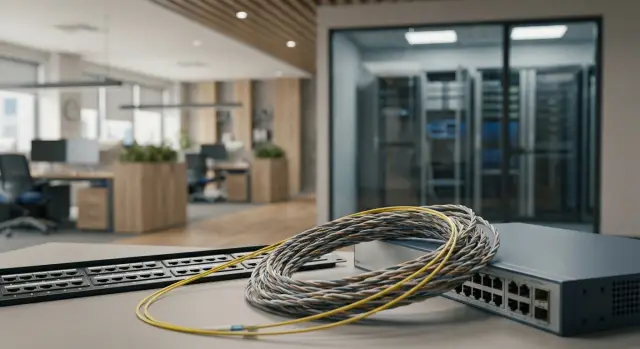
Where problems usually start: cables are chosen last
Cables are often treated as "consumables": as long as the internet works, we’ll sort the rest later. As a result, the wired part of the network becomes the weak link, even if the provider tariff is fast and Wi‑Fi is modern.
A typical situation: a video call drops in the meeting room, files from the server open slowly, IP telephony occasionally "crackles." People start replacing access points or blaming the provider, while the cause is often simpler: the run is too long, the twisted pair category can’t support the required speed, or the route runs next to power cables and picks up interference.
Offices constantly change. Workplaces are added, new services appear (video conferencing, cloud drives, accounting systems), and security requirements grow. Layouts change, departments move, printers and cameras are added. A cable that was installed "with a rough margin" a couple of years ago may suddenly become a limitation.
The cost of fixing mistakes is almost always higher than the initial savings: rework means dust, noise, partial downtime and new purchases. Worse, problems often show up not immediately but under load, when the network is needed most.
To separate real requirements from abstract "for growth," answer a few questions: which services must work without interruption (video, 1С, file access, telephony, cameras)? How many workplaces and devices will there be in 1–2 years? Are there limits on run lengths or installation conditions (shafts, proximity to power lines, server room)? Is power over cable required (for APs and cameras)?
A good "reserve" is a plan for near‑term growth and identified bottlenecks. A reserve without task clarity often becomes an unnecessary extra cost.
Copper or fiber: the difference in simple terms
In short, copper (twisted pair) is the familiar cable to workstations. Fiber are thin optical fibers, which are most often used as backbones between racks, floors and remote areas.
Copper is convenient where you need to connect an endpoint and sometimes provide power right away. For computers, IP phones, Wi‑Fi APs and cameras this is often the most practical option: one cable provides both connectivity and PoE power. Also, a copper line is easier to test and reterminate on site.
Fiber is justified when distance and immunity to interference matter. It's well suited for links between the server room and floor cabinets, between buildings, and for distant meeting rooms or warehouses where copper hits length limits. Fiber does not pick up electromagnetic induction, so it’s more stable near power runs, elevators and electrical cabinets.
Key practical differences
Copper is usually simpler and cheaper at the workstation but more sensitive to interference and limited in length. Fiber offers headroom for distance and signal quality but requires optical modules and tidier installation. If something goes wrong, "fixing it on the spot" is harder.
Typical choice for small and medium offices
The most common scheme is "copper to the workstation, fiber in the backbone." For example, fiber runs from the server room to floor cabinets, and twisted pair runs from the cabinet to employee sockets (with PoE where needed). This gives reliability and growth capacity without overpaying for fiber at every desk.
Assessing requirements: speed, lengths, power, environment
Cable selection starts not from a catalogue but from answers to four questions: what speed is needed, how long will runs be, will there be power over cable, and how "noisy" is the environment around routes.
Speed should be assessed by services. 1G is enough for office PCs, printers and normal file access. 2.5G is often chosen when Wi‑Fi 6 APs actually deliver more than a gigabit or when many simultaneous video calls and cloud services are used. 10G is typically needed for uplinks between switches, the server room and storage, not for every workstation.
For lengths remember copper’s basic limit: the closer to 100 m, the stricter the cable and installation requirements. Typical office "workstation to telecom cabinet" runs are short, while "cabinet to server room" and especially inter‑floor routes easily become longer and more complex.
If you plan APs, cameras, IP phones or turnstiles, it’s often more convenient to power them via PoE than to bring 220 V to each point. Check device power and switch budgets in advance, and estimate how many such lines will be active simultaneously.
The environment matters too. Networks drop more often due to interference and poor routing than due to speed: routes next to elevator and power risers, electrical cabinets and UPS systems, near frequency converters and large motors, in rooms with many metal structures, or near production and warehouse areas can cause trouble.
Example: a two‑storey office. Workstations need 1G, APs require PoE, and between floors it’s better to lay a backbone with speed and length headroom. The logic is simple: provide speed where it’s actually needed, not "everywhere the same."
How to choose twisted pair: categories and shielding
Choosing twisted pair often determines whether the network will still work stably in a year. Don't chase the highest category; pick one that matches real speeds, lengths and routing conditions.
Category logic:
- Cat5e usually suffices for 1 Gbit/s on office runs up to ~90 m with careful installation.
- Cat6 is chosen when extra margin for interference and quality is needed, or when many runs are bundled in one tray.
- Cat6A is used where 10 Gbit/s over copper is planned or there's a high risk of induction (e.g., next to power runs), accepting thicker cable and stricter installation.
Beyond category, check the cable itself. For permanent runs prefer solid copper, not CCA (copper‑clad aluminum). CCA has worse attenuation, heats more under PoE and more often produces surprises on long segments. Also pay attention to conductor diameter: thicker conductors typically keep performance better, especially with PoE.
Shielding depends on conditions. UTP is sufficient for most offices. FTP/STP make sense when strong interference sources are nearby or many cables run tightly together over long distances. But shielding helps only with proper grounding and a unified approach across the route; otherwise it’s an extra expense without effect.
When purchasing and installing, ensure components are the same category across the link (cable, outlets, patch panels, patch cords). Don’t skimp on connectors and quality control. During termination avoid untwisting pairs excessively and don’t overtighten zip ties. After installation test lines with a certifier, not just by checking whether the link came up.
Fiber in the office: types and considerations
Fiber is typically needed where copper hits limits: long distances, lots of interference or high inter‑floor/shelf speed. In a typical office SCS fiber is laid in backbones while twisted pair reaches workstations.
Multimode vs singlemode: a simple rule
Multimode fiber (OM) is logical for short in‑building segments. It’s suitable for cross‑connects, floors and server rooms when lengths are tens — rarely hundreds — of meters. OM3 or OM4 are common: OM4 gives more margin for speed and distance but costs more.
Singlemode (OS2) is required when you want distance headroom, expect moves to another wing or building, or foresee the backbone may become longer. OS2 is often chosen as a universal option: more expensive for cable and installation, but fewer future restrictions.
Connectors, patch cords and maintenance
LC is often convenient for office tasks: compact and widespread. Ensure connector types match on patch panels, outlets and equipment to avoid adapters and extra failure points.
Budget separately for transceivers (SFP/SFP+/QSFP): the cable itself may be cheap, but modules at both ends can materially change total cost.
Before purchase clarify current and near‑term backbone speed requirements (e.g., 10G/25G/40G), real route lengths with installation reserves, choice of OM3/OM4 or OS2, a unified connector and patch cord standard, and compatibility and count of transceivers (usually two per link).
Example: two‑floor office with a server room on the first floor and workstations on the second. Copper is fine to desks, but fiber between floor cabinets and the server room reduces interference issues and makes it easier to increase speed if a new server or video system is added.
Interference and installation: what affects stability
Even a good cable can give unstable connections if routed poorly. In offices, electromagnetic interference from power runs and mechanical installation errors (bends, tension, abrasion) are the most common culprits.
Separate power and network cables into different routes. If proximity is unavoidable, keep distance and avoid running twisted pair parallel to power for tens of meters. Cross at right angles — induced noise is usually much lower. Be especially careful near UPS systems, elevators, electrical cabinets and heavy HVAC.
Saving on routing often costs more than the entire SCS. Trays, ducts and conduit protect cable from crushing, dirt, overheating and stray screws. Use grommets or protective inserts at wall/metal penetrations to avoid abrasion over time.
Respect each cable’s minimum bend radius. Kinking behind a rack or over‑tight zip ties causes errors and speed drops that are hard to find later. It’s better to leave a neat service loop in the rack than pull a cable to the limit.
To avoid turning support into a scavenger hunt, plan labeling and simple documentation from the start. The minimal set that saves hours during moves and fault finding: identical labeling on both ends of a run (outlet and patch panel), a port/room diagram updated after changes, photos of complex sections before closing trays, and a test log after installation.
In practice this looks like: the internet goes out in an office next to the server room, and the cause is not the switch but a cable routed tightly against a power bundle and crushed by the tray cover. If a contractor installs the network, specify routing and acceptance criteria in advance.
Step by step: choose a solution without overpaying
To avoid the "expensive and nonworking" scenario, rely on measurable facts: where endpoints will be, what speeds are needed and how far runs must go. The fewer guesses, the fewer unnecessary purchases.
First, map rooms and list endpoints: workstations, Wi‑Fi, printers, meeting rooms, cameras, access control. Include technical zones: server room, floor racks and AP locations in corridors.
Then estimate real cable routes, not straight‑line distances. Cable follows trays and shafts and makes detours. At this stage it becomes clear where copper suffices and where fiber is more advantageous (e.g., between floors or buildings).
Quick selection algorithm:
- fix speeds and services (internet, telephony, video, access) and a 2–3 year reserve;
- calculate route lengths and decide topology (central rack or floor cabinets with backbone);
- select cable type: twisted pair of the right category for workstations, fiber for long/noisy backbones;
- separately verify PoE: where power is needed (APs, cameras) and switch power requirements;
- add small reserves: spare ports, rack space and a couple of empty conduits if feasible.
How to lock the result into an estimate
Ask the contractor to document acceptance requirements: labeling, route diagrams and test results (certification tests for copper, measurements for fiber). For a two‑floor office it is often cheaper to place a small cabinet on the upper floor and connect it to the server room with fiber than to pull many long copper runs downwards.
Common procurement and selection mistakes
The most regrettable outcome: money spent, renovation done, and the network performs worse than expected. In office SCS this often happens because of small procurement and installation details that become bottlenecks for years.
A typical mistake is mixing cable and components of different classes. For example, buying Cat6 cable but using Cat5e patch panels and outlets. The real speed and interference margin will be limited by the weakest link, and proving the cause without measurements is hard.
Another common misstep is buying "Cat7" just because it sounds more reliable. In offices this doesn’t always help: you need compatible connectors, correct shielding and stricter installation. The resulting system can be pricier and more finicky without noticeable gain.
PoE is another risk area. For APs, phones, cameras and turnstiles, the wrong cable choice and tight bundling in trays can lead to heating, power drops and replacements after launch.
Designing "to the limit" is dangerous. Without spare ports, conduits and rack space any expansion becomes rework: temporary patch cords, extension boxes and new failure points appear.
Finally, not having tests and diagrams is risky. When two desks lose connectivity after six months, troubleshooting becomes guessing. The normal situation is to have test results, labeling and a clear wiring map on hand.
Before purchase check: uniform component class across the link, actual need for shielding and higher categories, PoE calculation by power and routing conditions, spare ports and rack space, and mandatory tests and as‑built documentation.
Short checklist before procurement and installation
Spend 30 minutes to verify basics before ordering materials. Most problems arise not from a "bad cable" but from mismatched details.
Check and record decisions in the specification and route plan:
- Lengths and routes: estimate actual paths before installation (trays, risers, detours) and add installation slack. "90 m" on paper easily becomes longer in reality.
- Component compatibility: category must match across cable, outlets, patch panels and patch cords.
- PoE: specify which devices are powered over the network and check switch power budgets.
- Reserve and order: leave 10–20% spare ports and agree on labeling and a cable log format.
If a contractor will install, ask to see the final specification, labeling plan and a sample filled test log. This is cheaper than hunting for "why it doesn’t work" after a move.
Example scenario: an 80‑seat office
80 employees, two floors, 6 meeting rooms, 10 APs and 12 cameras. The aim: a stable network now and a clear growth path.
Cat6 is usually sufficient for workstations. With 2 ports per desk (PC and phone/dock), plus printers and meeting endpoints, you’ll reach roughly 180–220 ports. Keep some as spare.
Avoid pushing the backbone. If the server room is on the first floor and work areas on the second, keep horizontal runs to sockets within the ~90 m standard. Place a floor cabinet on each floor and aggregate in the server rack.
Make the backbone between floor cabinets and the server room using Cat6A (if distances are short and interference is low) or fiber (if you need distance/capacity and robustness). Plan PoE for APs and cameras to avoid pulling mains to every device.
In racks provide patch panels for all ports with labeling, switches with spare PoE ports, cable managers and a clear wiring diagram, backbone Cat6A or fiber between cabinets, and space for 1–2 additional devices in the rack.
Count reserve simply: add 20–30% free ports per floor and budget 1–2 extra meeting rooms (≈ 8–16 ports) and 2–4 additional APs. Expansion should then be a matter of plugging in, not re‑routing.
Growth planning: where to leave headroom and where it’s wasted
Money is lost mostly on rework, not cable. Reserve where changes are hardest: backbones, routes and rack space. Overdoing each workstation is often unnecessary.
Reasonable reserves: backbones between floors and the server room, cross‑connect field and rack space, trays and entries (so you don't run out), spare switch ports, and rack power/cooling capacity.
Include 10G where load will definitely grow: backbones, server rooms, heavy file areas (design, video, backups), and segments with high Wi‑Fi density. Most desks still need 1G; 2.5G is a compromise where modern Wi‑Fi actually exceeds 1G.
Upgrade in stages: first correct routes and backbones, then active equipment, then targeted segment upgrades (meeting rooms, open spaces) without touching the rest.
To see where you overpay, calculate total cost: cable and consumables, installation and testing, active equipment (switches, modules, APs), downtime for rework, maintenance and spare parts.
Next steps: from plan to implementation and support
When you've decided where to use copper, where to use fiber and which categories are needed, turn that into a clear plan: what to do, how to verify and who is responsible.
First, fix acceptance criteria. This protects against surprises when the network "comes up" but later shows drops, low speed or PoE issues.
Minimum to document before work:
- required speeds by zones (workstations, APs, cameras, server room);
- what tests and delivery protocols are required (certified tests for copper, measurements for fiber, labeling);
- documentation format (schematics, routes, port and outlet numbers);
- rack, switch, patch panel and power placement and change rules (who approves moves and added outlets).
Then plan support: who handles tickets, response times for on‑site visits, where spares (patch cords and SFP modules) are kept, and how switch configs are backed up.
If you need a contractor, choose by ability to deliver the whole project: survey and design, testing and handover, and ongoing maintenance. In Kazakhstan such tasks are often given to system integrators. For example, GSE.kz can handle design and systems integration, supply servers and workstations, and provide 24/7 technical support via a nationwide service network.
Frequently asked questions
С чего начать выбор кабельной инфраструктуры в офисе?
Start from the services and connection points: - which services are critical (video, IP telephony, files, 1С, cameras); - how many workplaces and devices will there be in 1–2 years; - where Wi‑Fi APs and cameras will be located (if present, PoE is likely needed); - where racks/cabinets will be and what the real cable route lengths are. Then choose the scheme: most often **copper to workstations + fiber in the backbone**.
Когда в офисе выбирать медь, а когда оптику?
For most offices it's more convenient to connect workstations, phones, cameras and APs with twisted pair: easier installation, diagnostics and you can supply power via **PoE**. Fiber is usually needed for: - backbones between racks/floors/buildings; - long runs where copper reaches its limits; - "noisy" areas near power lines, elevators and electrical cabinets. Practical rule: **use fiber where distance and immunity to interference matter**.
Какая скорость реально нужна офису: 1G, 2.5G или 10G?
For most workstations and typical office tasks: - **1G** is usually enough for PCs, printers and standard file work; - **2.5G** makes sense where Wi‑Fi 6/6E actually exceeds 1 Gbit or there are many concurrent calls/cloud services; - **10G** is typically needed for uplinks, server rooms and storage, not for every desk. Define speed requirements by zones, not uniformly for the whole office.
Что делать, если линии получаются длинными?
Copper (twisted pair) has a practical limit: the closer a run gets to **100 m**, the stricter the cable and installation requirements. If runs are long: - place a floor cabinet closer to endpoints so horizontal runs are shorter; - use fiber for backbones to the cabinets; - measure actual routing in trays and shafts rather than straight‑line distance. If a project is borderline, plan the solution in advance rather than chasing outages under load.
Какую категорию витой пары выбрать: Cat5e, Cat6 или Cat6A?
Safe choices for office twisted pair: - **Cat5e** — usually OK for 1 Gbit on typical runs with careful installation; - **Cat6** — a good practical reserve for quality and interference, especially with many cables in one tray; - **Cat6A** — when you plan 10 Gbit over copper or the routing conditions are harsh (lots of interference) and you accept thicker cable and stricter installation. Important: the entire link must be the same class (cable, outlets, patch panels, patch cords).
Нужно ли экранирование (FTP/STP) или достаточно UTP?
By default **UTP** is enough for most offices. Shielding (FTP/STP) makes sense when: - the route runs close to strong sources of interference (UPS, electrical cabinets, elevators, power risers); - many cables are routed in parallel over long distances. A shield only helps if it's properly grounded and applied consistently across the whole link. Done haphazardly, it often becomes an unnecessary cost without benefit.
Почему не стоит брать CCA-кабель для офиса?
For permanent links prefer **solid copper**, not **CCA (copper‑clad aluminum)**. Why: - CCA has worse attenuation and more problems on long runs; - with PoE it heats more and increases the risk of unstable power delivery; - link quality can degrade under load. Savings on CCA usually end up more expensive due to rework and troubleshooting.
Как правильно спланировать PoE для точек доступа и камер?
Plan PoE by counting power needs: - which devices are powered over the network (Wi‑Fi APs, cameras, IP phones, access control); - how many such lines will be active simultaneously; - what power each device requires and the total sum. Then check two limits: the **PoE budget of switches** and the routing conditions (tight trays, cable bundles, high ambient temperature). With PoE, cable quality and careful installation are especially important.
Какие ошибки монтажа чаще всего вызывают обрывы и низкую скорость?
Most often network issues are caused by poor routing and installation rather than "bad internet": - parallel runs of twisted pair next to power cables for tens of meters; - bends, tension, over‑tight zip ties; - abrasion through walls/metal without protective grommets; - lack of trays/covers and mechanical protection. Best practices: separate power and network routes, cross them at 90°, respect bend radii and leave a neat service loop in racks rather than pulling cables tight.
Что обязательно попросить у подрядчика при сдаче СКС?
Minimal handover that saves time in support: - labeling on both ends of every run (outlet and patch panel port); - a port‑to‑room wiring diagram updated after changes; - a test log after installation (for copper — certification tests; for fiber — loss measurements); - documentation of key route sections (where risers and tight passages are). Without this, troubleshooting becomes guessing, especially after moves and rearrangements.
С чего начать подбор решения без переплаты?
Plan rooms and a list of endpoints: workstations, Wi‑Fi APs, printers, meeting rooms, cameras, access control. Include technical zones: server room, floor racks and potential AP locations in corridors. Then estimate real route lengths (trays, shafts, detours). This reveals where copper suffices and where fiber is more economical (e.g., between floors or buildings). Quick selection algorithm: - fix speeds and services with a 2–3 year reserve; - measure route lengths and decide topology (central rack or floor cabinets); - choose copper category for workstations and fiber for long/noisy backbones; - check PoE needs and add spare ports, rack space and a couple of empty conduits if possible.
Пример сценария: офис на 80 рабочих мест
Typical scenario for an 80‑person office: two floors, 6 meeting rooms, 10 Wi‑Fi APs and 12 cameras. Goal: a stable network now and a clear growth path. Use Cat6 for workstations. If planning 2 ports per desk (PC and phone/dock), plus printers and meeting room endpoints, you'll reach ~180–220 ports — fine, with a portion kept as reserve. Place a floor cabinet on each floor and aggregate in the server rack. For the backbone choose Cat6A if distances are small and interference is low, or fiber if you need distance/capacity and immunity to noise. Plan PoE for APs and cameras to avoid running mains to every device. Reserve 20–30% free ports per floor, add 1–2 extra meeting rooms and a few spare APs. This turns expansion into simple connections, not rework.
Будущий рост: где нужен запас, а где это лишние траты
Most money is lost on rework, not on the cable itself. Reserve where changes are hardest: backbones, routes and rack space. Over‑specifying every workstation is often wasted cost. Make growth reserves in backbones, cross‑connect fields, rack space, trays and entries. Reserve switch ports and rack power/cooling. Deploy 10G where load will surely grow: backbones, server rooms, heavy file zones; most desks are fine with 1G, with 2.5G as a compromise where Wi‑Fi outpaces 1G. Do upgrades in stages: first correct routing and backbones, then active equipment, then targeted segment upgrades (meeting rooms, open spaces) without touching the rest. When calculating costs, include cable, consumables, installation and testing, active gear (switches, modules, APs), downtime for rework, maintenance and spare parts.
Следующие шаги: от плана до внедрения и поддержки
Turn the decisions into a clear plan: what to do, how to verify and who is responsible. Specify acceptance criteria before work begins — this protects against post‑installation surprises like intermittent drops, low speed or PoE issues. Minimum to document before works: - required speeds by zone (workstations, APs, cameras, server room); - required tests and handover protocols (line certification for copper, loss measurements for fiber, labeling); - documentation format (diagrams, routes, port and outlet numbers); - rack and equipment placement, power and rules for changes (who approves moves and additional outlets). Then plan support: who handles tickets, response times, where spares are kept, and how switch configs are backed up. If you need a contractor, choose not by price per meter but by ability to deliver the whole project: survey and design, testing and handover, and ongoing support. In Kazakhstan such projects are often handled by system integrators. For example, GSE.kz can provide design and integration, supply servers and workstations, and offer 24/7 support via a national service network.
