8 min read
Automating Invoice and Act Processing with OCR: Pipeline and Quality Control
Automating invoice and act processing with OCR reduces manual entry: we review the pipeline, recognition errors and quality checks before journal entries.
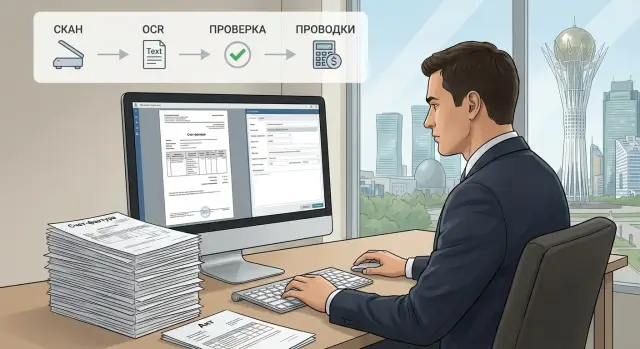
What pains invoice and act processing and why OCR helps
Manual processing of invoices and acts usually fails in the same places: documents arrive in different formats, data must be entered into the accounting system, and then checked again. Most time is spent not on typing, but on reconciling amounts, finding discrepancies and figuring out what is wrong with the details.
A typical day looks like this: accounting receives a batch of scans and PDFs from suppliers, enters the BIN/IIN, number and date, total and VAT, then compares the document with the contract and the purchase order. One digit mistake sends the document back. The approval chain stretches, and payment is delayed.
The most painful risks are almost always related to small fields that are easy to mix up: total and VAT (an error in a digit or wrong rate), document date and service period (especially in acts), supplier and buyer details (BIN, account numbers, bank), and the contract or order number that people later use to find the document.
Automation with OCR helps when at least one of these conditions exists: a high volume of documents, repeatable forms from the same counterparties, or tight period closing deadlines. OCR does not replace accountants. It removes routine: quickly turns an image into text and extracts fields so a person verifies exceptions instead of typing every line.
The value of OCR is not in perfect recognition. The value is in reducing manual work where errors are predictable and embedding quality checks directly into the process.
Success is easier to measure with metrics: how many minutes it takes to process one document, what percentage passes without manual correction, how many returns happen due to details, and how many errors were caught before postings.
In environments with higher control and localization requirements (for example, the public sector or finance), the OCR pipeline is often deployed on-premises. Then not only accuracy matters, but also transparency: why the system decided that this is a specific BIN and this amount, and how quickly you can find the error source.
Which data you want to get: the minimal field set
OCR is needed not for the text from the image, but for clear fields that can be checked and sent further: for approval, payment, or journal entries. So first agree which documents you consider similar and which data are mandatory.
Typically you see invoices, acts of services rendered, VAT invoices and attachments (specs, amendments, registers). Each document type has its own rules: an act focuses on the period and basis, while a VAT invoice requires VAT details.
A minimal field set that usually delivers noticeable benefit:
- supplier: name and BIN/IIN (store both if possible);
- document number and date (and issuance date if separate);
- total amount and currency;
- VAT: rate and amount (or a "no VAT" flag);
- basis: contract or order number if present in the document.
Next you almost always hit reference data. Even if a line is recognized correctly, the system must understand who that supplier is and where to route the document. It is minimally useful to prepare supplier directories (with BIN/IIN and name variants), contracts and amendments (numbers, dates, linked counterparty), expense accounts or accounting codes for routing, and VAT rates and rules for phrases like "no VAT".
Plan exceptions in advance, otherwise they will break the process daily. Nonstandard forms (for example, a free-format invoice), poor scans and handwritten notes are better sent immediately to a separate mode: "manual check" with a clear reason. A practical rule: if BIN/IIN is not found or the amount with VAT doesn't match, the document should not proceed automatically.
A real example: accounting receives an act and an invoice from the same supplier, but one document uses an abbreviated name while the other uses the full name. Relying only on the name creates duplicates. Using BIN as the key, the system links documents correctly and a human only needs to check rare cases.
Preparing scans and photos: what affects recognition quality
Source image quality matters more than it seems. If the input is skewed, dark or noisy, automation will quickly hit manual corrections. The good news: most problems are fixed by simple scanning and photo rules.
For scans, three things matter: resolution, legibility and geometry. Scan so that small text (BIN, bank details, contract number) is sharp and table lines don’t disintegrate. Often 300 DPI is sufficient for printed documents; use 400 DPI if the font is small or there are many tables. Watch contrast: text should be darker than the background, but avoid "blown" highlights where light areas disappear and letters merge.
Before uploading to the system, quickly check:
- the page is flat, not skewed, with no cropped corners or "waves";
- background is clean, without patterns, stripes or strong shadows;
- text is not covered by stamps or signatures in critical places;
- file has no strong JPEG compression or visible blurring;
- tables are readable, borders and columns are distinguishable (a common issue in acts).
Phone photos often perform worse not because of the camera but because of lighting and angle. Shoot in even light—near a window by day or with two side lights to avoid hand shadows. Keep the phone parallel to the sheet: a strong tilt turns lines into trapezoids and OCR starts confusing digits. Cropping matters too: too much background adds noise, too tight a crop may cut a number or a detail.
Multi-page documents need special discipline. Preserve page order (invoice, then attachments, then act) and check integrity: no missing pages, no duplicates, no two sheets in one frame. A practical example: if the last page of an act with signatures is shot darker than the rest, the system may not recognize the signing date and the document will go to manual check even though amounts and items were recognized correctly.
How to choose an OCR and field-extraction approach
First decide what matters more: maximum accuracy for a few known forms, or acceptable quality across a wide variety of documents. This determines whether you build the solution around templates or around more flexible semantic extraction.
Languages, fonts and mixed fields
Invoices and acts often require support for multiple text variants: Russian, Kazakh, and Latin letters in details (for example, bank names, SWIFT, domains in e-mails). Check whether the OCR confidently handles Cyrillic and Kazakh characters and does not fail on lines where Latin letters and digits mix. In practice this especially affects BIN/IIN, account numbers, BIK, IBAN and addresses.
A quick preselection test:
- take 30–50 real scans from different departments;
- mark documents with Kazakh text and mixed Latin separately;
- see where errors occur most often: digits, dates, abbreviations, names;
- check whether table structure is preserved or everything turns into a single block.
Templates vs keyword/context extraction
If you have 3–10 typical forms from the same suppliers, a template approach typically yields better accuracy. You fix zones on the page (where number, date, sum are), and the system extracts fields predictably. The downside is obvious: any redesign or a new supplier requires setup.
If you have many suppliers and layouts constantly change, keyword and context-based extraction is better: the system looks for field labels ("Invoice No.", "Total", "Supplier") and pairs values nearby. This is more flexible but requires strong postprocessing: normalizing dates and amounts, validating BIN/IIN, and matching to your supplier directory.
A separate question is the tabular part. If accounting only needs totals and VAT, you can skip recognizing all rows: the total block and details suffice. If you need item lines, quantities, units, VAT breakdown and allocation by account, choose a solution that can extract table rows and not confuse columns on breaks or page transfers.
From a security perspective, define minimal requirements from the start: where scans and recognized data are stored, who has access, how quickly a document can be deleted on request, and whether there is an action log (who uploaded, who corrected a field, who exported to the accounting system). Organizations with higher requirements often prefer on-prem processing and a clear access-rights scheme. A systems integrator can help tie OCR, storage and accounting systems into a single process.
Pipeline step by step: from scan to journal entries
For OCR processing to work reliably, assemble the process into a clear chain. Then you can see which step loses quality and what to fix: the intake channel, recognition or validation rules.
1) Where the document enters the system
Documents arrive from scanners or MFPs, email, EDO (electronic document exchange), and sometimes as photos from employees. At intake it is useful to immediately classify type (invoice, act, waybill) and supplier. This can be done by keywords, templates, barcode, or email subject data.
The process usually looks like this:
- Intake and classification: record source, date, sender, document type.
- Image preprocessing: deskew, crop, denoise, increase contrast.
- OCR: get a text layer and word coordinates (to know where things are located).
- Field extraction: find BIN/IIN, number, date, amount, VAT, details, line items.
- Checks and routing: validate fields against directories, send to approval, save versions.
After approval the document is exported to the accounting system. At this step journal entries are created: accounts, expense items, department, project are selected. A good practice is to keep a link between the journal entry and the source document so audits take minutes, not days.
What to check before automated postings
Even simple rules noticeably reduce errors:
- line sums match total and VAT calculation;
- date is not in the future or unreasonably far in the past;
- BIN/IIN passes checksum and exists in the directory;
- currency and VAT rate are allowed for your company;
- document number is not duplicated for the same counterparty.
Example: if accounting gets 200 invoices monthly from 20 regular suppliers, it makes sense to configure extraction templates and strict checks. For rare counterparties keep a softer mode with mandatory fast human review before postings.
Postprocessing and validation: turning text into data
OCR usually outputs text that looks plausible, but accounting needs precise fields: dates, numbers, amounts and details. So after recognition the most important part is rules that turn recognized text into validated accounting fields.
Auto-checks: what to catch before integration
Start with checks that give the most value and require little manual work:
- arithmetic: line sums should match total, VAT calculated by the rate, rounding consistent across the document;
- formats: date in an acceptable format (not "32.13.2025"), number without extra spaces, BIN/IIN of correct length, IBAN and BIK by pattern;
- field logic: if VAT is present there must be a rate and base; presence of a stamp or signature does not guarantee correctness but helps detect a draft.
Such checks are best run before uploading to the accounting system to avoid corrections and reversals.
Directory matching and confidence thresholds
Next comes matching to your directories. Identify counterparties by BIN/IIN rather than name: names vary, numbers are unique. From the matched counterparty you can pull the contract, payment terms, VAT type, and sometimes the accounting account or expense item by rules.
A helpful technique is an OCR confidence threshold. If confidence on a key field (total, BIN/IIN, number, date) is below the threshold, send the document to manual review. When correcting, it’s better to ask the operator to edit only the doubtful fields so they spend minutes instead of tens of minutes.
One more step is enrichment. If a document lacks an attribute (for example, department or project), add it by clear rules: by counterparty, contract, payment description or document type. This turns a recognized file into a set of fields for journal entries and reduces exceptions.
Typical recognition errors and how to catch them
Even with good scans OCR sometimes makes mistakes. Don’t wait for perfection — build checks that catch errors before they become incorrect amounts and details in accounting. This is critical where fields are short and error cost is high.
What goes wrong most often
The most frequent errors are confusion of similar characters: zero and letter O, 1 and 7, И and Й, and mixing Cyrillic and Latin in BIN/IIN, BIK, account number or company name. Visually it's almost invisible, but for the system these are different values.
The second issue is number formatting. OCR may confuse decimal point and comma, drop thousand separators, or insert extra ones. "1 200,50" may turn into "1200.50" or "12 005,0".
Third is shifting across rows and columns in tables. For example, VAT amount ends up in the "total" field or contract number is taken from a neighboring line. This happens due to page skew, faint tables or a changed supplier template.
Stamps and signatures that overlap fields are another case: OCR reads the blot as characters and important digits are lost.
Finally, cropping and rotation. If the page edge is missing you may lose date, invoice number or the "amount due" line. If the image is rotated, recognition often produces garbage or omissions.
How to catch errors before postings
The best approach combines simple rules and selective human checks. Start with basic controls:
- formats: BIN/IIN by length, BIK by length, account number by expected character count;
- arithmetic: net + VAT = total (allowing small rounding differences);
- number normalization: unified decimal separator, removal of extra spaces;
- suspicious characters: Latin letters where only digits are expected;
- history comparison: if a supplier usually has 12 lines in an act and now has 2, flag for review.
Then use confidence levels. If OCR is unsure about a single character in BIN/IIN or the last digit of an amount, mark the document as risky and send it for manual confirmation.
Example: accounting received an act where a stamp covered two digits of the contract number. OCR substituted similar characters and the contract wasn't found in the database. A simple rule "contract must be found" immediately sends the document for clarification instead of creating a new contract or posting to the wrong account.
The main idea is simple: don’t try to catch all errors with a single method. Combine format checks, arithmetic, common-sense rules and selective verification, and quality will improve without constant manual work.
Quality control: metrics, samples and monitoring
OCR pays off when quality is measurable and maintained. Otherwise you can miss that accuracy "drifted" for one supplier or after a rules update.
Metrics to track continuously
Pick a few indicators that accounting and IT understand and agree on how to calculate them:
- field accuracy: share of documents where key fields were extracted correctly (BIN/IIN, amount, VAT, number and date);
- share of manual edits: how many documents required intervention and which fields were edited most;
- share of "undefined": how often the system could not extract a field and left it empty (different from errors);
- processing speed: time from scan upload to ready data plus manual verification time;
- return rate: how many documents had to be reprocessed due to errors or disputed recognition.
Track metrics overall and by supplier, document type (invoice, act, UPP) and channel (scan, photo, electronic PDF).
Ground-truth sample and monitoring
To understand real accuracy you need a ground-truth set: store the source image and correct field values, then compare them with system output.
Build the ground set gradually. Take recent documents from your 10–20 most frequent suppliers, add rare formats and update it whenever a new template or error appears. Record context: supplier, date, document type, rules version.
Most quality issues come from three causes: poor scan (skew, glare, low resolution), a new or changed supplier template, or an extraction rules update that broke an old case. So in monitoring keep thresholds: if manual edits spike or amount accuracy drops for one supplier, check the template and rules immediately before a backlog forms.
Every 2–4 weeks do a short review: 10–15 real errors, their causes and what to change (rule, operator hint, template tweak). This teaches the team with live examples and makes quality manageable rather than random.
Example scenario: a company with regular invoices and acts
Imagine a service company receiving about 300 documents monthly: invoices and acts from 15 suppliers. Forms vary: some include invoice and act in one PDF, others are separate files, others are scans with stamps and handwritten notes. Accounting wants data to go into the accounting system without manual typing but with clear control.
For the initial rollout don’t try to extract everything. Agree on a minimal field set and rules: number and date, supplier BIN/IIN, total with and without VAT, VAT rate, currency, contract or order number, and line items if needed. This is the core for automation.
Before enabling auto-upload set checks that immediately filter risky documents:
- format: PDF with text layer or scanned image, presence of all pages;
- totals check: total equals sum of lines, VAT calculated by rate;
- supplier match: BIN found in the directory;
- duplicate check: number + date + BIN was not seen before;
- confidence threshold: if recognition confidence is below the limit, send to manual review.
Typically most invoices from 5–7 major suppliers pass automatically (for example, 60–70%). Others enter the verification queue but with prefilled fields where an employee confirms or corrects 1–2 items. Initially limit manual correction to a few fields (date, number, amounts) so verification does not become full data entry.
In the first two weeks recurring issues appear: similar characters (0 and O, 1 and I), dates in different formats, VAT placed in the wrong field, tabular parts glued together on poor scans. These issues are solved not by "magic" but by discipline: add templates for frequent suppliers, refine validation rules, and maintain a list of nonstandard forms that go straight to review.
You can measure effect with simple weekly checks: share of documents passing without human intervention, average verification time, top 3 reasons for manual edits, number of duplicates and returns.
If after a month the auto-pass share increased by 15–20 percentage points and average verification time halved, the pipeline works and can be scaled to new suppliers and document types.
Short checklist and next steps
Before launching OCR the bottleneck is often not the engine but readiness: what fields you need and how to check quality.
Quick start checklist:
- Collect 50–100 real documents and assess scan/photo quality: skew, shadows, low resolution, stamps over text.
- Fix the minimal field list for accounting: number, date, BIN/IIN, total, VAT, contract, item lines (if needed). Record signatures and stamps as presence/absence, not as text.
- Prepare directories and rules: suppliers, bank details, VAT rates, date formats, allowed amount ranges.
- Decide where data will go and which statuses you need: recognized, under review, approved, posted.
- Assign a process owner and a clear procedure for manual checks of disputed cases.
After launch watch practical signals: out of 100 invoices how often was the total or BIN corrected and which errors repeat most.
For weekly control track a few metrics: share of documents with manual edits and average edit time, top error fields (date, BIN/IIN, VAT, totals) and their sources (channel, supplier, template), share of documents failing checks, and verification queue and turnaround times.
Scale the solution by adding new document types one at a time: first a new supplier, then a new act format, then table positions. For each template set a test sample and acceptance criteria.
On infrastructure decide in advance where the archive will be stored, how to organize workstations for verification and whether resources are enough for batch processing. If you need a turnkey contractor, a systems integrator like GSE.kz can help with infrastructure, integration with accounting systems and 24/7 support within its service perimeter.
Frequently asked questions
Why does accounting need OCR for invoices and acceptance certificates?
OCR quickly extracts text and fields from scans, PDFs, and photos. The accountant reviews questionable details and exceptions instead of manually entering every document.
Which fields should be extracted first?
To start, extracting the supplier name, BIN/IIN, document number and date, total amount, currency, VAT, and contract or order number is enough. Add line items if they are needed for accounting.
Why is it better to identify a supplier by BIN or IIN?
Use the BIN/IIN as the primary identifier. A company name can vary across documents, while the BIN/IIN helps prevent duplicates and incorrect matching.
What scan resolution is suitable for OCR?
For printed documents, 300 DPI is usually sufficient. If the document contains small print, bank details, or dense tables, choose 400 DPI.
How should I prepare a document photo taken with a phone?
Photograph the sheet in even lighting and keep the phone parallel to the page. Remove shadows, do not crop details at the edges, and save pages of multi-page documents in the correct order.
When should I use templates and when should I use flexible extraction?
Templates work well for a few regular suppliers with identical forms. If layouts change often, extract data based on field labels and context, then validate it against reference data.
What checks are needed before automatic journal entries?
Before importing into the accounting system, check the arithmetic of amounts and VAT, the date format, BIN/IIN length, permitted currency, and whether a duplicate exists for the supplier, number, and date.
Which OCR errors occur most often?
Most often, the system confuses similar characters, decimal separators, and table columns. Stamps, signatures, skewed pages, and heavy file compression also reduce accuracy.
What should I do with documents OCR recognized with low confidence?
Set confidence thresholds for the amount, BIN/IIN, number, and date. If the system is uncertain about any of these fields or a validation check fails, send the document to a person for confirmation.
How can I tell whether the OCR process is delivering results?
Track the share of documents that need no manual corrections, processing time, error rates by field, the number of returns, and blank values. Also compare results by supplier, document type, and upload channel.
