8 min read
NVMe U.2 and U.3 in a server: questions to ask the supplier before ordering
NVMe U.2 and U.3 in a server: which questions to ask the supplier about backplane, PCIe lanes, cables and cooling to ensure the order is correct.
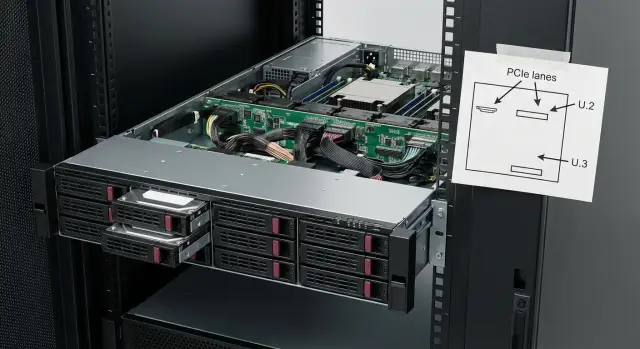
Why ordering NVMe for a rack is easy to get wrong
There is a common paradox with NVMe in racks: the quote looks correct on paper, but during assembly some drives are not detected, perform slower than expected, or hot-swap doesn't work. The cause is rarely the SSDs themselves. NVMe in a server is a system made of U.2/U.3 drives, the backplane, cables, PCIe lane distribution, BIOS/UEFI settings and sometimes hidden components between them.
Some phrasing sounds convincing but guarantees nothing: “NVMe ready”, “U.2 support”, “up to 8 NVMe”, “PCIe x16 available”. Without clarification you don't know whether all bays are wired directly to the CPU, whether lanes are shared with other devices, which PCIe generation is used (Gen3/Gen4/Gen5) and what happens when all slots are populated.
Before discussing price, clarify three things: compatibility (U.2/U.3 and modes), actual bandwidth (how many PCIe lanes and where they come from) and the type of backplane (how switching is done internally). These answers usually remove most risks and save weeks of rework.
Most issues cannot be fixed on-site without hardware changes:
- an incompatible backplane (different PCIe routing, no proper hot-swap support)
- insufficient PCIe lanes on the chosen platform when fully populated
- PCIe generation limitations (expected Gen4 but some paths are Gen3)
- an overlooked PCIe switch/retimer that affects latency, compatibility and cable requirements
- mismatch between tray form-factor and cable types (rework often means disassembly and replacement parts)
A typical scenario: a server is ordered “for 8 NVMe”, 8 drives are installed, but two only appear after firmware updates, and under load throughput drops because some bays share PCIe lanes with the NIC or another controller. These surprises are easier to avoid with a short set of questions to the supplier than to troubleshoot later in the rack.
U.2 and U.3 in simple terms: what you're actually buying
U.2 and U.3 are form-factors and connectors for 2.5" drives in server trays. Drives installed there can use different protocols: NVMe (over PCIe), and sometimes SATA or SAS. So the line “2.5" U.2” by itself does not guarantee NVMe.
Practically, the difference matters more for compatibility than raw speed. U.2 usually implies a specific pinout and a single connection scenario. U.3 was designed to be more universal: the same slot can support different drive types (NVMe, SATA, SAS), but only if the backplane and controllers are implemented that way.
When U.3 is useful: if you plan some bays for SATA/SAS (e.g., for archives) and others for NVMe (e.g., for databases), or you want flexibility for future changes.
When “U.3” is often marketing: if all bays will be NVMe and the supplier doesn't confirm multi-protocol support for the backplane with exact part numbers.
A separate pitfall: the same-looking 2.5" chassis can contain a SATA or SAS drive that looks like NVMe externally. The result: drives fit physically, but performance and connection scheme are different.
To avoid guesswork, ask the supplier to include in the specification:
- exact part numbers for each drive and an explicit protocol (NVMe or SATA/SAS)
- part numbers for trays (tray/caddy) and the backplane
- confirmation of which protocols each slot supports, not just a statement about the chassis as a whole
- wiring: how many PCIe lanes per drive (x4 or otherwise) and where those lanes go
- confirmation of hot-swap specifically for NVMe in that configuration
Example: for virtualization you buy 8 “U.3” drives. If the backplane is truly NVMe-only, fine. But if you were promised the ability to later add cheap SATA drives for backups, that may require replacing the backplane or the whole module, not just buying drives.
Backplane: questions that remove 80% of the risks
A backplane in a drive tray may look like a simple board with connectors, but it often determines whether U.2/U.3 drives will operate at full NVMe performance or turn into something else. Start by asking whether the backplane is NVMe-capable or only for SATA/SAS.
NVMe-capable backplanes have PCIe traces to the drives. SATA/SAS backplanes do not, and no firmware will turn them into NVMe. Confusion happens because trays can look identical while backplane revisions differ.
Ask the supplier for two documents: a server block diagram and the drive-tray wiring diagram. These should show where lanes from each slot go: directly to the CPU, through a PCIe switch/retimer, or via a controller (HBA/RAID). For NVMe it is important that drives are not routed through a SAS controller, otherwise they will not appear as NVMe devices.
Practical questions that quickly clarify the situation:
- exact model and revision (part number) of the backplane and how many NVMe slots that revision supports
- mode of each slot: NVMe, SATA/SAS or mixed, and whether there are limitations when mixing drive types
- NVMe path: direct PCIe lanes to CPU or through a PCIe switch, and any impact on latency/bandwidth
- how drives are shown in BIOS/UEFI: as NVMe devices rather than via a “Storage controller”
Example from practice: you are promised 12 NVMe drives, but the backplane supports NVMe on only 8 bays and the other 4 are SATA. The tray name may not reveal that, but it is always visible on the block diagram. If the supplier cannot show the wiring diagram, the risk of getting the wrong tray increases sharply.
PCIe lanes and PCIe generations: how not to miss bandwidth requirements
PCIe lanes are the "lanes" between CPU (or chipset) and devices. NVMe typically needs x4 per drive. A common ordering mistake: there are many physical drives but some share the same narrow section of lanes. Drives exist, but expected speed does not.
The PCIe generation matters only together with the number of lanes and the actual signal path. Gen4 is faster than Gen3, Gen5 faster than Gen4. But if a drive is connected indirectly or gets fewer lanes (for example x2 instead of x4), any generation advantage is lost. In practice it depends on the platform: how many lanes the CPU provides, how slots are routed, and what is already taken by network, HBA/RAID, GPU and other cards.
A typical conflict is NVMe bays versus PCIe expansion slots. You install 8–12 NVMe and also want two 100G NICs and a controller. If the platform lacks lanes, some NVMe may be silently routed through the chipset (usually slower and higher latency) or certain slots will be restricted.
Ask the supplier for a simple lane and generation breakdown per socket (this is critical for dual-socket systems). Useful questions:
- how many NVMe will be installed and in what mode: x4 per drive or are there limits
- which bays/ports come from the CPU and which from the chipset
- how PCIe lanes are distributed across sockets and what happens if some drives are "behind the other CPU"
- what PCIe generation will actually be present at the drives in the chosen CPU + board combination
- whether the board supports bifurcation (e.g., x16 → 4×x4) for needed slots and the backplane
Example: you order a server with 10 NVMe and plan to add a GPU. If the GPU requires x16 Gen4 and two NICs are x8 each, there may be not enough lanes left for the drives and some NVMe will operate in a reduced mode. Better to request a lane distribution table and lock it into the order.
PCIe switch and retimers: hidden components of an NVMe subsystem
When many NVMe are needed in a single server, direct CPU lanes are often insufficient. A PCIe switch is added as a "splitter": it takes a set of PCIe lanes and distributes them to more devices. This helps build dense configurations but introduces elements you should agree on up front.
What these components change:
A PCIe switch can slightly increase latency and may become a single point of failure if it serves an entire backplane. This is more noticeable for databases and workloads with many small I/O operations (OLTP) than for backups or archives.
Retimers appear when traces are long, cables are used, many connectors exist, or speeds are high (Gen4/Gen5). They "refresh" the signal so links can hold their speed instead of falling back to Gen3. Retimers affect compatibility and sometimes require correct firmware.
Example: a server for a database cluster with 16 NVMe. Tests look good, but under load some drives start to "blink" and renegotiate at lower speeds. Often the issue is not the SSDs but the path: switch, retimer, cable or firmware.
Questions to the supplier:
- which PCIe switch model is used and what speeds/number of devices it supports in practice
- whether retimers exist, where they are placed (backplane, cable, board) and for which PCIe generations they are rated
- any vendor recommendations for database-like loads (for example, “direct attach preferred” or “switch is acceptable”)
- firmware versions for switch/retimers, how updates are handled and who is responsible for compatibility
- what happens if one element fails: does the whole pool go down or only part of the slots
Server platform and CPU: where resources run out
In racks, NVMe more often hits platform limits than disk limits. Final throughput and the number of front bays depend on how many PCIe lanes the CPU actually provides, how they are routed to slots and backplane, and what the chipset does.
First question to the supplier: how many PCIe lanes will the chosen processor provide in your configuration and how many are already reserved. On paper a CPU can support many lanes, but some will be consumed by network, HBA, GPU, controllers and extra cards.
1 CPU or 2 CPU: where the catch hides
A single CPU setup usually has fewer lanes and fewer layout options for front NVMe. Dual-CPU systems have more lanes but introduce distribution across sockets: some drives may end up "behind the second CPU", and access from the first CPU goes over the interconnect. This is not always a problem, but for databases and dense virtualization you should know where the busiest volumes will be.
For quick agreement ask for:
- a lane map: which ports/bays belong to which CPU and with what width (x4, x2)
- the maximum number of front NVMe the platform supports without compromises
- a list of limitations: what will be disabled when additional cards are installed or when certain network options are chosen
RAID over NVMe: what is realistically possible
NVMe RAID can be hardware (specialized controller), software (OS level) or omitted if redundancy is provided at the cluster level. Check in advance whether your desired RAID approach is supported on the chosen platform and whether it affects maintenance scenarios (for example hot-swap) or performance.
A practical request that saves weeks: ask for a “supported configurations” list (CPU, NVMe count, backplane type, RAID/none) and tie your order to it.
Hot-swap, cables and connectors: often forgotten in orders
Hot-swap for NVMe seems obvious, but it only works when three things align: the tray, the backplane and firmware support (BIOS/BMC, and sometimes PCIe settings). If any link is not designed for hot-swap, a replaced drive may not appear without reboot or may show link errors under load.
Cables and connectors cause even more confusion. For U.2/U.3 you may encounter SFF-8643 (Mini-SAS HD), SFF-8654 (SlimSAS), OCuLink, and variants of direct backplane attachment without separate cables. “8 NVMe drives” can be implemented with different port and cable sets inside the chassis, and they are not interchangeable.
A typical mistake: drives are in the spec, the tray is “NVMe-ready”, but the needed cable, adapter or free port on the board/risers is missing. As a result you can only connect some drives or connect them without hot-swap capability.
Before ordering ask for confirmation of completeness and compatibility:
- exact connectors on the backplane and on the board (precise port names and quantities)
- what cables are included (type, length, quantity) and what must be purchased separately
- routing limits (bend radius, length) that could degrade the signal
- whether spare ports are available for growth or if other options consume them
- confirmation that hot-swap is validated for your exact configuration, not just “for the server model in general”
If in doubt, request photos of the internal layout or a bill of materials (BOM) with part numbers: backplane, cables, risers, trays.
Power and cooling for NVMe: keep speeds stable under load
NVMe in racks often runs hotter than SATA and SAS. Higher throughput means more IOPS and more heat. If heat isn't removed, drives throttle and reduce performance.
Throttling typically looks like: high speed at test start, then a stepped drop after a few minutes and rising latency. In logs this appears as “random slowdowns”. It is especially visible with databases, VDI and long backup jobs.
Cooling depends not only on fans but also on chassis details: airflow guides, blanking panels for empty bays, sleds and covers. Empty front bays without blanks let air bypass drives and increase temperature of the busiest drives.
Before ordering ask specific questions:
- what are the operating temperature ranges for NVMe and where temperatures are measured (drive sensor, backplane, chassis)
- whether per-drive telemetry is available and how it is exposed (BIOS/BMC/OS)
- how fan policy is configured: does it react to NVMe temperature or only to CPU temperature
- what power budget is allocated to the NVMe tray and whether there are limits for sustained writes
- what inlet temperature is required in the rack to maintain declared performance
Example: the server room is 27–28 °C, a node has 12 NVMe and a nightly batch load runs. If fans are conservative by default, drives will throttle and maintenance windows will stretch. Agreeing blanks and fan profiles in advance avoids this.
Step-by-step: how to prepare requirements and questions for the supplier
Before ordering, lock requirements and ask for confirmations on diagrams, not just verbal promises. This reduces the chance of receiving a server where some NVMe don't reach declared speed or lack hot-swap.
Step 1: describe the workload with numbers
Provide 4–5 parameters: current data volume, monthly growth, workload type (many small IOPS or large sequential writes), acceptable latency and how many VMs/threads will run concurrently. Example: “20 TB now, growth 2 TB/month, 4K reads important, latency 1–2 ms, 50 VMs.”
Step 2: decide drives and redundancy buffer
Decide how many drives are needed now and how many spare slots you want. Clarify failure handling: RAID/mirroring, hot spare, replacement window. This directly impacts backplane and controller choice.
Step 3: request the NVMe-to-CPU wiring diagram
Ask for a diagram from the tray (U.2/U.3) through the backplane and cables to the specific CPU/slot. The response should list hidden components (PCIe switch/retimers) and possible bottlenecks.
Step 4: check PCIe lanes and generation
Ask clearly: how many PCIe lanes are assigned for all NVMe, what PCIe generation will actually be at each drive, and what gets disabled or changed when bays/slots are fully populated.
Step 5: agree acceptance tests
Specify what you will check on delivery: visibility of all drives in BIOS/OS, hot-swap (remove and re-detect), a simple read/write speed test and a 15–30 minute load run to ensure no sudden drops. Include temperature checks to rule out throttling in rack conditions.
Common mistakes when ordering NVMe for a rack
Problems usually start with terminology. NVMe, U.2, U.3, tri-mode and “NVMe backplane” are often mixed up, then you discover the tray, cable or controller doesn't support the required mode. Drives may fit physically but won't boot or perform as expected.
Frequent issues:
- confusing U.2 and U.3 and buying drives without verifying tri-mode support for the specific bays
- a spec says “NVMe backplane”, but NVMe is supported only on some bays (for example 4 of 8)
- not accounting for PCIe lanes: after drive installation there are not enough lanes for 100G network, HBA or GPU
- expecting a single-slot universality while slot mode depends on backplane and routing
- forgetting about cooling: drives throttle under sustained load and “fast” becomes “ordinary”
A simple scenario: a database needs a server with 8 front NVMe, but you later find only 4 are true NVMe and 4 are SATA. The result is rework and data migration.
Short checklist before signing the spec
Run through this short list before signing. It doesn't replace a full requirements document but helps catch common mismatches: “the drives are correct but the tray is wrong”, “there are enough ports but not enough lanes”, “hot-swap is promised but cables are missing.”
Check that the server model and backplane revision are explicitly stated. Variants exist within a model line and “the same” can mean different components.
Clarify drives: part number, form-factor and interface. Don’t accept vague lines like “NVMe 3.84 TB” — require U.2 or U.3 and PCIe generation (Gen3/Gen4/Gen5).
Next — PCIe lanes: how many lanes are available specifically for NVMe and how they are distributed. Which drives get x4 direct, where aggregation happens, and whether there is division across CPU sockets.
Also fix the included accessories: which cables, connectors and mounting hardware are supplied. For NVMe this often decides whether hot-swap will actually work.
Finally, agree cooling and acceptance: specify rack inlet temperatures and the load at which the array must maintain speed without throttling, and which tests prove compliance.
- Server model and backplane revision explicitly stated.
- Drives listed with part numbers, U.2/U.3 and PCIe generation.
- PCIe lanes and lane distribution confirmed.
- Cables, connectors and fasteners included in the delivery.
- Cooling and rack conditions agreed.
- Acceptance tests and pass criteria defined.
Example configuration and next steps before ordering
Scenario: a 2U server for virtualization with a separate fast pool for a database. VMs live on one storage tier while the database requires stable low latency NVMe. As a baseline: 2U, 2 CPUs, 384–768 GB RAM, two separate boot drives (SATA/SAS or M.2 if supported), and 8–12 front NVMe for the DB pool. At this stage it is important to clarify what you are actually buying: U.2 and U.3 look similar externally, but tray compatibility, backplane and cables can differ.
To ensure 8–12 NVMe behave predictably, ask about the whole chain, not just disk brands:
- NVMe backplane: direct attach to CPU or via PCIe switch, and how many PCIe lanes are allocated to each bay
- total PCIe lanes used by front NVMe and what remains for expansion
- any limitations when installing everything concurrently (for example NVMe + 2×100GbE NIC + HBA/RAID)
- how hot-swap is implemented and what is needed for in-rack servicing (indicators, safe removal at OS/BIOS level)
Next step: ask the integrator to provide not only a spec but also the wiring diagram: which backplane ports go where, which slots are active and the expected PCIe speed. If you need a supplier covering both hardware and integration, GSE.kz (gse.kz) can usually package a single solution: server platform, agreed NVMe wiring and pre-shipment configuration verification.
Frequently asked questions
Why does a spec say "8 NVMe" but some drives are invisible or slow in reality?
Most often the issue is the whole chain: backplane, cables, PCIe lane distribution and BIOS/UEFI settings. A quote may say "up to 8 NVMe", but some slots might actually be SATA/SAS or share lanes with a network card, so performance and stability won't match expectations.
Does U.2 or U.3 automatically mean NVMe?
No — that only describes the 2.5" form factor and connector. Inside a U.2/U.3 bay there can be NVMe (PCIe) drives, or SATA/SAS drives. Always specify the protocol of each drive (NVMe or SATA/SAS) in the specification.
When should I choose U.3 and when is U.2 enough?
U.3 makes sense when you need true multi-protocol slots (NVMe plus SATA/SAS) and want to change drive types without swapping the tray. If all drives will be NVMe, "U.3" without a confirmed multi-protocol backplane usually brings no real benefit.
How can I tell a backplane is truly NVMe-capable and not just "almost NVMe"?
Ask for the exact part number and revision of the backplane and have the supplier confirm how many slots in that revision work as NVMe. Also request a diagram showing that each NVMe slot has PCIe connectivity rather than going through a SAS/HBA controller.
What questions should I ask to avoid mistakes with PCIe lanes for NVMe?
Request a lane map: how many PCIe lanes are allocated per drive (usually x4), where they originate (CPU or chipset) and what happens when all bays are populated. This reveals bottlenecks where multiple drives converge onto a limited segment.
How important is the PCIe generation (Gen3/Gen4/Gen5) when ordering NVMe?
The PCIe generation matters only together with the number of lanes and the actual signal path. Gen4 is faster than Gen3 in principle, but if a drive is not connected directly or receives fewer lanes (e.g., x2 instead of x4), the benefit disappears. Fix the actual PCIe generation at each slot in your configuration and check for cases where links can fall back to Gen3 due to routing, cables or extra components.
What is PCIe bifurcation and why can it "break" an NVMe configuration?
Bifurcation is when a slot (for example x16) is split into multiple separate channels like 4×x4 for NVMe. If the platform or that slot does not support the required bifurcation, some drives may not be detected or will operate in an unexpected mode.
Why are PCIe switches and retimers used in servers, and what risks do they bring?
A PCIe switch allows more NVMe devices to be connected when direct CPU lanes are insufficient, but it adds latency and can become a single point of failure for the group. Retimers help keep Gen4/Gen5 speeds over long traces and cables, but they can require correct firmware and higher-quality cables; otherwise links may be unstable.
Why does NVMe hot-swap sometimes not work even though it "should"?
Hot-swap works only when the tray, backplane and firmware (BIOS/BMC) all support it and PCIe parameters are configured correctly. Ask the supplier for written confirmation of hot-swap specifically for NVMe in your build and agree on how a disk replacement will be verified without rebooting.
What tests should I include in acceptance to catch problems before production?
Agree on a simple acceptance checklist: all drives visible in BIOS/OS, removing and reinserting one drive is handled without reboot, and a 15–30 minute load test shows no sudden throughput drops or latency spikes. Also check NVMe temperatures to rule out throttling under real rack conditions.
