8 min read
Network Cards and HBAs for Hypervisors: a Checklist for Dell and HPE
Network cards and HBAs for hypervisors: what to check on Dell and HPE for VMware, Hyper-V and KVM — drivers, firmware, offload, SR-IOV and tests.
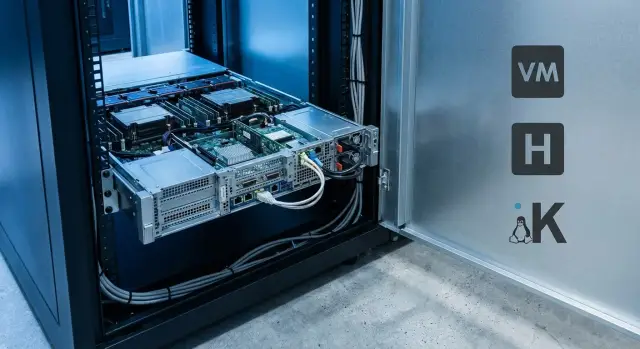
Why you should check NICs and HBAs for the hypervisor in advance
Planning virtualization without checking hardware is like installing a new engine without looking at the gearbox. Network adapters (NICs) and HBAs for storage can look the same on paper but behave differently in VMware, Hyper-V and KVM. The cause is usually not port speed but drivers, firmware, and how the hypervisor handles offload and SR-IOV.
The worst part is that failures often don't look like clear errors. A Dell or HPE server may boot and interfaces show Up, but under load you may see strange issues: rare packet loss, VM freezes, IOPS drops, iSCSI timeouts, migrations that sometimes succeed and sometimes fail. This affects not only users but core platform functions: live migration, HA, replication, backups.
A typical scenario: after a hypervisor update, the management network works fine but storage traffic over another port starts hitting timeouts. The cause may be an incompatible driver version, new offload logic, or SR-IOV being enabled by default without checking limits for your VMs and network.
Checking becomes critical when one of these events happens:
- hypervisor upgrade or moving to a new branch (for example, an LTS release)
- replacing a NIC/HBA with a different chip or revision
- enabling accelerations (offload, SR-IOV, RDMA) for performance
- moving a cluster to new Dell/HPE hosts or changing storage topology
If you run compatibility checks and plan driver and firmware updates in advance, you greatly reduce the risk of silent production failures. That's why NICs and HBAs should be checked before purchase and before the maintenance window, not after the first complaints.
NICs and HBAs: what they are and what they do
A network adapter (Ethernet NIC) and an HBA may look similar, but they serve different purposes. A NIC carries normal IP traffic. An HBA provides access to storage via specialized protocols. Before choosing, map out which networks you have, traffic types, and how storage is connected.
Common adapter types
In practice you most often see:
- Ethernet NICs: 1/10/25/40/100GbE for management networks, VM traffic, and service VLANs
- FC HBA: connection to SAN over Fibre Channel (typical for enterprise external arrays)
- SAS HBA: connection to SAS disks or external JBODs, sometimes tape libraries
- converged adapters (CNA): a single adapter that can act as Ethernet and FC over Ethernet (depends on model and configuration)
A single NIC often carries multiple streams: VM traffic, migrations (vMotion/Live Migration), iSCSI/NFS/SMB storage access, replication and backups. So speed and port count matter, but driver support, VLAN handling and offload stability are equally important.
HBA is needed when storage is not IP-based or when SAN predictability is required. FC HBA connects the server to the SAN fabric and array LUNs. SAS HBA gives direct access to a disk shelf or library and can be simpler than building a separate IP storage network.
How to determine what you need
Base choices on storage type and availability requirements. If you have an external FC array, you need FC HBAs. If storage is iSCSI, good NICs and a dedicated storage network are usually enough.
Before purchase check these basics:
- storage protocol (FC, iSCSI, NFS/SMB, SAS)
- how many independent paths are required (2 ports, 2 adapters, 2 switches)
- which traffics should be physically separated (migrations, storage, VM)
- whether SR-IOV or passthrough isolation is needed for some VMs
A good rule: design networks and storage paths first, then pick specific models for your Dell or HPE servers and chosen hypervisor.
Where to look for compatibility for VMware, Hyper-V and KVM
Compatibility checking is not a formality. The same adapter name can cover different revisions, firmware or OEM implementations. The hypervisor may see them differently. For "network cards and HBAs under hypervisor" the main reference is the official compatibility lists (HCL) for the specific hypervisor and version.
For VMware, check the HCL by controller model and driver: exact identifiers, supported ESXi versions and notes about features (SR-IOV, offloads) matter. For Hyper-V, start from the Windows Server version and the driver model: if the driver targets your OS branch, stability chances are higher. For KVM, compatibility often depends on the distribution (RHEL, Ubuntu families) and kernel version: the same chip might work fine on a newer kernel and be problematic on an older one.
Also check Dell and HPE OEM data. They sometimes ship cards with the same chipset but different Part Numbers, custom firmware and driver packages. Recommended BIOS/UEFI and microcode versions also matter: sometimes the issue is the combination of BIOS + NIC/HBA firmware rather than the hypervisor alone.
When reading an adapter description, don't fixate on "10/25/100G." Ask for chipset model, revision, PCIe generation and port type (SFP28/QSFP28, Base-T). These affect drivers, power and slot compatibility.
Before purchasing, record and store in one place:
- exact Part Number and marketing name as listed by Dell/HPE
- PCI ID (Vendor/Device) and revision (if you have a sample)
- firmware version and the tool or package used to update it
- driver version (and which hypervisor/OS it targets)
- server data: model, BIOS/UEFI, and chosen hypervisor (with build)
Simple example: in a Dell project you may pick two "identical" 25G cards with the same chipset, but one is an OEM variant requiring a different driver package, while the other's SR-IOV works stably only on a specific firmware. Catching this at compatibility stage prevents surprises in the pilot.
Step-by-step validation plan before deployment
To keep NICs and HBAs from becoming a post-purchase surprise, treat compatibility checks as a mini-project: from hardware and slots to a pilot and acceptance criteria. This is important on Dell and HPE platforms where PCIe generation or slot placement can limit real throughput.
-
Document server baseline: model, CPU generation and chipset, available PCIe slots (version and lane count), which slots are occupied (RAID, GPU, extra HBA), and power/cooling layout. Often you plan 2x25GbE but the free slot is PCIe x8; the adapter will work but may not deliver expected speed.
-
Choose an adapter for the task, not by the number on the box. Port type (copper or optics), spare ports for redundancy, needed speed and storage protocols matter.
-
Make a short checklist for validation:
- compatibility with your VMware/Hyper-V/KVM version and the guest OSes you plan
- minimum firmware versions (NIC/HBA, BIOS, iLO/iDRAC) and available drivers
- whether special management utilities are required and how they are updated in your process
- offload and SR-IOV plan: what to enable immediately and what to keep for tests
- pilot criteria: load, acceptable latency, survival of one port or controller failure, VM migration behavior
- Finish with a pilot on 1–2 hosts. Run realistic load: multiple VMs, migrations, redundancy (LACP/teaming) and failover scenarios.
Drivers and firmware: how to avoid incompatibility
NICs and HBAs most often fail not as hardware but as a combination: driver, adapter firmware and hypervisor version. "Driver installed" means nothing if firmware is older or newer than what the driver was tested against. This causes intermittent disconnects, performance drops or strange timeouts under load.
For VMware, Hyper-V and KVM, the approach is similar: select a supported combination of versions, lock it down, and only update in a controlled window. This is especially important if NICs and HBAs handle storage traffic, cluster networking or vMotion/Live Migration.
Native drivers vs. vendor packages
Native hypervisor drivers are usually easier to maintain and less likely to conflict with updates. Vendor packages (from the server or chipset vendor) are useful when you need specific fixes, support for new hardware revisions or features like SR-IOV and offload that the in-tree driver may support only partially.
A practical rule: if Dell or HPE is used in a standard configuration and you update hosts frequently, start with the native driver. If you encounter issues or need advanced features, move to the vendor package and lock its version.
Before deployment, record:
- hypervisor version and patch level
- NIC/HBA driver version
- adapter firmware version and (if present) option ROM
- server BIOS/UEFI version affecting PCIe and IOMMU
- scheduled update window date and scope
How to avoid surprises after updates
Typical scenario: you updated hosts and within 24 hours iSCSI or 10/25GbE link problems appear. Often the hypervisor updated a driver while firmware stayed the same (or vice versa).
If something goes wrong, start with logs and symptoms that often indicate incompatibility:
- adapter resets or repeated reinitialization
- link flap (link up/down repeatedly)
- timeouts on transmit queues or storage commands
- messages like firmware mismatch or unsupported firmware
- rising packet errors and throughput drops under load
Then revert to a known-good "driver + firmware" pair and repeat the real-load tests (VM migrations, peak network traffic, storage load).
Offload and accelerations: what to enable and what to test carefully
NIC offload features often reduce CPU load significantly, but in virtualization they can be a source of rare and unpleasant failures. When choosing NICs and HBAs for VMware, Hyper-V or KVM on Dell and HPE servers, define a safe baseline profile and a test plan.
Large offloads that affect stability include TSO (large send offload), LRO/GRO (receive aggregation) and checksum offload. On standard Linux they usually work well, but in VM networks they can show up as packet loss, jitter or problems limited to some VMs. If you see symptoms, check these options at the vSwitch, driver and host OS level first.
Virtualization accelerations that usually make sense to enable
For most workloads, RSS (receive-side scaling), multiple queues and proper interrupt moderation are useful. In Hyper-V these pair with VMQ and vRSS, while in VMware correct queue configuration and driver behavior under load matter. If traffic is stuck on a single core, tune distribution across cores and queues rather than only increasing port speed.
Overlay networks (VXLAN/Geneve) and why to be careful
Overlay offload depends on hypervisor version, driver and firmware. Sometimes enabling overlay offload yields big gains, other times it worsens behavior with certain MTU settings or a large number of VMs. If you use NSX, OVN/OVS, OpenStack or SDN features in Hyper-V, include a separate test for overlay traffic.
Keep a disciplined approach:
- lock a baseline and change one parameter at a time
- after each change measure host CPU, packet loss and p99 latency
- test at least two profiles: small packets and large flows
- test behavior after VM migration and host reboot
- if things get worse, roll back and lock driver and firmware versions
A practical example: when users report VoIP jitter inside VMs, disabling LRO/GRO on the host often helps while leaving RSS and proper queueing enabled. This keeps throughput but avoids issues with small packets.
SR-IOV and passthrough: requirements and limits
SR-IOV is used when a standard vSwitch is not enough. It divides a physical adapter into virtual functions (VF), giving VMs near-direct access to the NIC. This reduces latency and CPU load. Passthrough (DirectPath I/O, DDA and equivalents) goes further: you assign the whole adapter or port to a VM with no sharing.
If your project requires predictable latency (VDI, telecom, high-throughput gateways, storage traffic), SR-IOV often helps. But it costs flexibility and operational simplicity.
What to check before enabling
Start with basic server prerequisites on Dell and HPE (and any platform):
- IOMMU: Intel VT-d or AMD-Vi must be supported by CPU and chipset
- BIOS/UEFI settings: enable VT-d/AMD-Vi and any SR-IOV-related options
- driver and firmware compatibility: the hypervisor must support SR-IOV on your NIC model and the host driver must create VFs correctly
- security plan: how filtering and segmentation will work if part of traffic bypasses the vSwitch
Commonly forgotten limitations
SR-IOV and passthrough can limit regular operations:
- live migration of VMs becomes harder or impossible without identical hardware and settings on hosts
- snapshots, backups and traffic inspection may behave differently because part of the path bypasses the hypervisor
- monitoring and network policies (like microsegmentation) may not apply fully depending on platform and mode
How to decide on SR-IOV? If you're hitting CPU limits on network processing, need strict latency targets, or want max throughput to a single VM, include SR-IOV in the pilot. If migrations, uniformity and simple operations are more important, start with a standard vSwitch and enable accelerations only after measurement.
Example: in a bank's VDI cluster most VMs can stay on a vSwitch, while SR-IOV is used only for GPU pools or gateways that need minimal latency.
HBA checks for storage: FC, SAS and iSCSI
Storage HBAs often become a bottleneck not by raw speed but by compatibility and settings that surface only after the hypervisor is installed. It's better to check these prior to purchase or at least before a mass deployment on Dell and HPE.
FC HBA (SAN)
Start with the basics: does the hypervisor support your exact FC HBA model and firmware version? A common issue is the adapter being visible but unstable due to an incompatible driver or old firmware.
Then check physical layer and modes. Ensure optics and cables match SAN requirements and that speed (16G/32G) is agreed between HBA, switch and array. FC duplex is not usually set manually, but auto-negotiation and line errors should be monitored.
If you plan to expose LUNs to VMs, verify NPIV support and limits on virtual WWPNs. This matters in VMware and is often critical for zoning and security.
SAS HBA and iSCSI via NIC
For SAS decide if you need pure HBA (JBOD/passthrough) or RAID. For clustered virtualization and external arrays HBA mode is often preferred; otherwise caching policy conflicts can cause unexpected latency. Check compatibility with the backplane, queue depth and timeouts: under load these parameters often cause storage stalls in guest OSes.
For iSCSI over NICs key points are consistent MTU (only use jumbo frames if enabled everywhere), MPIO/multipath configuration and tolerance to packet loss. DCB makes sense only if the network is truly prepared for it; otherwise troubleshooting becomes harder.
Before the pilot lock down redundancy design:
- at least 2 adapters or 2 ports
- two independent paths (two FC fabrics or two iSCSI switches)
- spread across PCIe slots and, if possible, controllers
- use different cables and switch ports
- test taking one path down without VM downtime
Example: on a dual-socket Dell or HPE server install two FC HBAs in separate slots, connect to two SAN switches and test path failover under load (backup or test IO). This quickly reveals driver, timeout and multipath problems.
How to test in the pilot: stability and performance
Run the pilot on one or two representative hosts using the same BIOS, firmware and driver versions planned for production. The goal is to catch driver, offload and SR-IOV issues before procurement or wide deployment.
Quick network tests
Start with a simple host–switch–host or host–test-server loop and repeat tests at different times, including peak hours.
- throughput: single stream and multiple streams, both directions
- latency and jitter: small packets and mixed loads
- loss and drops: push load to saturation and find thresholds
- behavior under load: run VM migrations or backups simultaneously
- CPU for networking: compare with offload on and off (e.g., LRO/TSO)
Watch host and hypervisor metrics beyond speed: queue depths, drops on vSwitch or port group, retransmits, port errors, and unexpected CPU spikes. If SR-IOV is enabled, compare latency and CPU usage between standard vNIC and VF.
Storage tests (HBA)
For FC/SAS/iSCSI, stability matters more than single-run peak speed. Run several hours of load: read, write, mixed profiles and different block sizes. Track latency growth, timeouts, path errors, retries and how the system handles path failures.
Test failover in controlled ways:
- disable one HBA or NIC port
- unplug a cable
- reboot a switch or disable an uplink
- reboot a host during active IO
- change LACP/teaming under load (if used)
Agree success criteria in advance: acceptable latency, absence of path errors, stable throughput and predictable recovery after failures.
Common mistakes when choosing and configuring
The most costly virtualization problems often start not with the hypervisor but with small details around NICs and HBAs. On Dell and HPE this is clear: the same name can hide different revisions, firmware and OEM builds — and thus different drivers and behavior in VMware, Hyper-V or KVM.
A frequent mistake is buying a card that is "almost the same" as a reference but a different revision. On paper speed, ports and chip match, but SR-IOV may not come up or offload may be unstable because the vendor driver targets a specific device ID.
Another dangerous habit is updating hypervisors on a schedule and only then discovering that the adapter driver or firmware doesn't support the new version. This can cause intermittent packet loss, driver resets or performance regression.
Physical layer mistakes are common too: mixing optics, DAC cables and different speeds can cause link down under load or rare errors that are hard to catch. For example, migrations look fine but at night during backups one port starts dropping for seconds.
Things often forgotten before going live:
- exact revision and OEM version (especially for Dell and HPE) so drivers match the hardware
- version compatibility: hypervisor, driver and adapter firmware should be a tested bundle
- cables and transceivers: one speed and one standard verified for compatibility
- offload functions: enable one at a time and test instead of turning everything on at once
- PCIe and NUMA placement: the wrong slot can cause noticeable degradation under heavy load
If you're planning SR-IOV or passthrough, add a rule: any change goes to the pilot first, then to production. It's cheaper than troubleshooting instability on a live cluster.
Short checklist and next steps
When it comes to network cards and HBAs under a hypervisor, spending an hour on checks now is cheaper than chasing cause of disconnects, speed drops or migration issues later.
Before purchase or installation go through these basics. They help quickly filter incompatible combinations and identify what to confirm with Dell or HPE.
- Verify exact adapter model: not just the name but revision, PCIe generation and port type (1/10/25/40/100G, FC, etc.).
- Check support for your hypervisor and exact version — not just "VMware compatible." Minor releases can matter.
- Record versions: driver, NIC/HBA firmware, server BIOS/UEFI and vendor management packages.
- Review settings: MTU, teaming/bonding, vSwitch parameters, RSS/VMQ, then offload and SR-IOV only if needed.
- Design redundancy: two independent paths, spread across slots/controllers, and real failover tests under load.
If enabling offload or SR-IOV, treat it as a controlled experiment. Switching everything on at once makes it hard to know what caused a regression: driver instability, monitoring gaps or security policy issues.
Next steps after validation
Once hardware and versions are confirmed, lock the result so an update doesn't break your setup next month.
- Save a reference: models, serial numbers, firmware and driver versions, key vSwitch/teaming parameters and VLAN policies.
- Create an update plan: who updates what and when, rollback procedures for BIOS, firmware and drivers.
- Run a short pilot: VM migration, host reboot, single-link failure, network and storage load tests.
If you need to speed up compatibility checks and avoid guessing about revision nuances, involve an integrator. For example, GSE.kz (gse.kz) as a systems integrator can help with selecting server and network configs, a firmware and driver plan, and ongoing infrastructure support.
Frequently asked questions
What should I check on a NIC or HBA before buying?
Check the exact model, revision, PCI ID, firmware, and driver for your specific hypervisor version. Identical port speeds do not guarantee identical behavior in VMware, Hyper-V, or KVM.
How does a NIC differ from an HBA?
NICs handle IP traffic: management networks, VMs, migrations, iSCSI, and backups. HBAs connect storage over FC or SAS when you need access to a SAN, disk shelf, or tape library.
How do I check whether a card is compatible with VMware?
Check the official compatibility matrix for the exact ESXi version and controller model. Verify the supported driver, firmware, and feature notes for options such as SR-IOV.
What matters for Hyper-V?
Use the Windows Server version, the vendor driver, and support for Hyper-V features, including VMQ and vRSS, as your guide. Then validate the combination in a pilot under VM migration and load.
Why does the kernel version matter for KVM?
For KVM, the distribution, kernel version, and adapter driver matter. A card may work well on a newer kernel but produce errors or offer limited functionality on an older branch.
Do I need to install the vendor driver?
No, not always. A vendor package is needed when the built-in driver does not support your revision, has a known issue, or lacks required features. Use only a version validated with the firmware.
Which offload features should be tested cautiously?
First establish a baseline configuration, then test TSO, LRO/GRO, checksum offload, RSS, and queues one setting at a time. Compare CPU usage, packet loss, and latency under real workload.
When is SR-IOV needed?
SR-IOV is useful for high network load or strict latency requirements. It can complicate live migration, monitoring, backups, and the application of network policies.
What is required to enable SR-IOV?
Check whether the processor and platform support VT-d or AMD-Vi, then enable IOMMU and SR-IOV in BIOS/UEFI. Also make sure the NIC, firmware, driver, and hypervisor support this mode together.
How do I verify storage connectivity over FC or iSCSI?
For FC, you need compatible HBAs, firmware, drivers, optics, and two independent paths to the SAN. For iSCSI, use a separate network, consistent MTU, and configured multipathing. Test the failure of one port or switch under I/O load.
