7 min read
Monitors for control rooms and situational centers: how to choose
Control room monitors: what matters beyond diagonal — panel type, backlight uniformity, 24/7 operation, mounts and reliability.
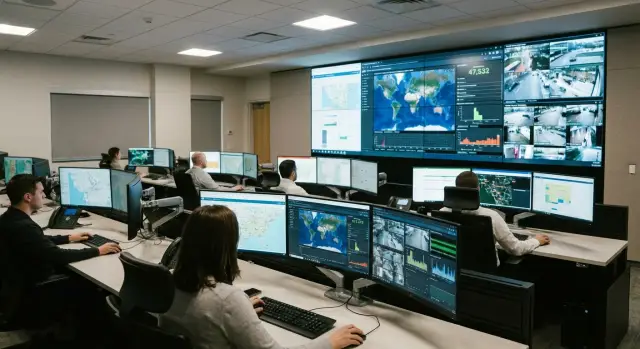
The control room’s job: a stable image with no surprises
A control room or situational center differs from a normal office because the screen doesn't just "assist" — it directly affects decisions. The image must be predictable hour after hour: no brightness dropouts, no color shifts, and no small defects that might be forgiven in an office but become an operator error here.
Large diagonal alone doesn't solve the problem. If text and lines are thin and interfaces are crowded, a big screen can produce the same discomfort, only more costly: eyes tire faster and details are lost due to reflections, uneven backlight or narrow viewing angles. "Bigger" doesn't mean "better visible."
In these projects the priorities are the risks that lead to downtime and staff complaints: overheating and instability in 24/7 mode, uneven image (backlight spots and different tones at the edges), reflections from windows and overhead lights, and difficult maintenance and replacement access—especially when there are many screens.
There are usually three scenarios: a videowall for overall monitoring, operator workstations for detailed tasks, or a mixed setup. For example, part of the team watches camera feeds and a map on a shared wall while each operator also works with tickets and dashboards at their desk. These zones often need different priorities: the videowall needs uniform image and secure mounting, while workstations need eye comfort and crisp small text.
When choosing, start not with diagonal but with what will be shown on the screen, how many hours per day it will run and where the light sources are. Only then compare panels, backlight, 24/7 rating and mounting options. When a project includes local supply and service, this approach helps plan maintenance and avoid surprises after installation. In Kazakhstan such projects are often carried out through system integrators like GSE.kz, where displays can be tied to workstations, servers and the videowall output scheme.
Start with conditions: operating mode, distance, content
Selection begins with how the screen will actually live. Monitors in control rooms almost always run longer than ordinary office screens, and a "standard" model may behave well for the first weeks and then start to "tire": brightness drops, uniformity worsens and heating issues appear.
The first thing to lock down is the operating mode. If there are night shifts and the screen runs continuously, you need models designed for constant operation, with clear limits for temperature and ventilation. Decide in advance whether brightness will be reduced at night: that affects both operator comfort and backlight life.
Next — distance to the screen. For a workstation readability of small text, line sharpness and comfortable UI scaling matter most. For a videowall viewed from a distance, uniformity, color stability and how the image looks off-angle are more important when people walk around the room.
Content also defines requirements. Maps and tables need tidy fonts and an even background. Camera feeds and video streams require smooth motion and good shadow detail. SCADA and dashboards often have many static elements, so plan in advance to prevent image retention and to change screen layouts.
To avoid mistakes, answer a few questions: how many hours per day will the monitor actually run and will night brightness be constant; where will it stand (on a desk at 60–80 cm or on a wall several meters away); what content predominates (text and schematics, video, maps, mixed panels); how many signal sources and who manages them; what are room conditions (windows and glare, dust, HVAC stability).
A simple example: an operator at a desk reads tables and maps while a pair of screens on the wall show cameras. Those are two different tasks. It's often wiser to choose different models for workstations and the shared panel than to try to cover everything with a single "universal" purchase.
Panel type: IPS, VA, TN and what changes in practice
In a control room a monitor rarely faces only one person straight on. Operators view from angles, sometimes several people at once, and parts of a videowall are seen almost from the side. So the panel type affects not the "pretty image" but whether information remains readable.
IPS is usually the calmest choice for control rooms. It offers wide viewing angles and more stable colors: if you turn your head or move seats, whites don’t "yellow" and grays don’t fall into shadow. This is important for maps, diagrams, tables, SCADA interfaces and cameras, where details are often lost due to tone shifts.
VA is often chosen for higher contrast: dark scenes from cameras and night maps look deeper. But with VA you should carefully check motion trailing. In practice this shows up on tickers, fast-moving objects in video and when scrolling lists: text can "drag" and tire the eyes.
TN panels can be very fast, but they have poorer viewing angles and worse image stability when tilted. For control rooms this is rarely justified: you gain milliseconds but lose readability for colleagues to the side and for high-mounted panels.
Before buying, don't rely on a single spec number — ask about response time and measurement method, refresh rate (60 Hz is sufficient for most tasks, but motion and scrolling should be smooth), real stable brightness, viewing angles and color uniformity on a gray field. On a large screen any spots are more noticeable.
A quick test before deciding: open a table, a map and a moving video, step back to the working distance and view from the positions where people will actually sit. If you already see "milky" blacks, smearing or contrast loss at this stage, it will quickly become a problem in shift work.
Backlight and uniformity: not just "brighter or dimmer"
In a control room the priority is not maximum brightness but a predictable image. On dark camera scenes, night maps, subway or power diagrams any non-uniformity is immediately obvious: one corner loses detail, another has a bright spot that looks like haze. This is critical because an operator must notice a change, not guess whether it's an image defect or a real event.
Common issues are edge glow and "clouding." Edge glow appears as a bright spot at an edge or corner on black backgrounds. "Clouding" are wide lighter areas on dark-gray or black video. In real work this interferes with reading small text on dark themes, assessing object boundaries on a map and comparing images across several screens.
In specifications look not only at "brightness, cd/m²" and "contrast." Pay attention to backlight type (usually LED), and if the manufacturer specifies uniformity tolerances, that's a good sign. When tolerances are absent the risk is higher: two batches of the same model can behave differently.
Do a simple acceptance test. Open a uniform gray (around 20–30% brightness) and check for spots, then a black background in a dark room and check angles for glow. Compare several identical monitors side by side and be sure to test low brightness: defects often appear there.
Excessive brightness and contrast tire faster, especially with small text and tables. Choose a comfortable level and confirm the monitor maintains uniform backlight at the settings you will use every day.
Reliability and 24/7 operation: lifespan, heat, burn-in
24/7 means the monitor is designed for continuous operation: power supply, backlight, control boards and cooling are selected for constant load. An "office" model may look fine in a store but often fails earlier in a control room: brightness declines, spots appear, and the risk of sudden shutdowns grows.
Heat is the main enemy. In a videowall or rack air often "stalls" and temperatures around the screen rise above normal. That accelerates backlight and electronics degradation. Even a good monitor will perform worse if placed flush to a wall with no gap or if ventilation holes are blocked by cables.
Backlight lifetime matters not only in hours but in how you will replace screens without stopping the center. Plan a buffer: keep 1–2 identical monitors in reserve or choose a model available for long-term supply. Otherwise in a few years an "identical" replacement may not be available, and different batches will show different images.
Image retention and burn-in are another topic. Situational centers often display the same map, menu, timeline or logo. Simple measures help: pixel shift by a few pixels, periodic layout changes, auto-hide panels.
Check settings that must not interfere with duty: disable auto-sleep for brief signal drops, predictable behavior after power loss (auto power-on), scheduled night brightness limits, no aggressive "eco" modes, and clear overheating warnings and protections that do not abruptly cut power.
If a videowall sits in a niche, discuss gaps, ventilation and service access with the integrator at the design stage. It's cheaper than fixing clouding and overheating later by replacing panels.
Operator comfort: glare, flicker and readability
In a control room not only eyes but attention gets tired. Comfort is almost as important as reliability: the image must be readable without strain in any shift.
Anti-glare coating helps but won't fix poor lighting. The most common complaint is reflections from windows, glass partitions and ceiling panels. A good rule: place screens so strong light sources are to the side, not behind the operator and not directly in front of the screen.
Choose brightness for conditions, not for maximum. Daytime needs a noticeable image; nighttime needs reduced brightness so it doesn't blind or cause dry eyes. It's convenient when the monitor has simple brightness controls and presets for day and night shifts.
Use blue-light filters cautiously. Heavy yellowing can reduce distinguishability of color-coded statuses (alarms, warnings, normal). Start with a moderate mode and test on real SCADA, VMS or map windows.
Flicker is often related to PWM at low brightness. If an operator is uncomfortable at night, try increasing monitor brightness and lowering room lighting, or choose models with no PWM or with very high PWM frequency so flicker is less noticeable.
Readability depends not just on inches but on scaling. Test fonts in your applications at typical distances, thin lines and map grids, contrast of small elements and scaling at 100–125–150% without blurring. Also check brightness uniformity at the corners when the interface is dense.
A simple test: have an operator sit at the workstation for 10–15 minutes doing normal tasks. If they squint or shift position to find the "right angle," the cause is more likely glare, brightness or settings than diagonal size.
Mounts and installation: VESA, stands, service access
Mounting matters as much as screen specs. Mistakes at this stage often lead to tilt, vibration, awkward operator posture and difficult repairs.
VESA is the pattern of holes on the back. Common sizes: 75x75 and 100x100 for office models, 200x200 and 400x400 for larger panels. Check not only dimensions but whether the holes are recessed, required screw lengths, and whether ports block the bracket. If the monitor will be in a niche or on a wall, ensure there's space for plugs.
Service access is crucial for videowalls. Favor brackets with pull-out or tilt mechanisms so you can replace a power supply or cable without dismantling the whole row. That directly reduces downtime.
Shift comfort relies on adjustability: height, tilt and swivel let you set the viewing angle for different operators and reduce neck strain. A slight tilt often removes glare from overhead lights.
Before buying mounts and stands check monitor weight and allow at least 20–30% load margin, horizontal leveling options (important in a row), access to buttons and ports after installation, room for ventilation and heat dissipation, plus cable management and strain relief.
Cables should not pull on connectors. Leave a bit of slack, secure harnesses and use supports so nothing jams or breaks when a panel is pulled out.
Connections and power: avoid signal loss
Even good screens disappoint if the signal drops or power fluctuates. Visually this looks like random black screens, snow, flicker or different colors on identical panels.
First, check inputs and compatibility with sources. For PCs, workstations and video controllers DisplayPort and HDMI are most important; DVI appears in older systems. USB-C is useful if laptops or thin clients actually output video via USB-C. Don't build a videowall on random adapters: they often become the weak link.
Next is cable length. On short runs (within a rack or workstation) almost any quality cable works. On long runs with multiple connections problems appear unexpectedly: picture drops when scenes switch, snow appears, a monitor doesn't wake from sleep. Rule: fewer connectors, good cable quality and a chosen long-distance transmission method rather than a chain of adapters.
To make all screens look identical, lock settings: brightness, color temperature, image mode, and disable enhancers. If sources differ (operator PCs vs a videowall controller) agree on identical profiles and resolutions or you'll get a mismatched look.
Power strategy favors predictability over saving. Practical minimum: dedicated circuits for critical screens and controllers, UPS where a brief dropout is unacceptable, surge protection and correct grounding, labeled outlets and cables, plus a restart test (power off/on and confirm everything comes up the same).
Example: after a short mains dip some panels restarted while others showed "no signal." Often the reason is different power feeds, cable lengths and adapters. If procurement includes workstations and servers, confirm port compatibility and include power and cabling in the project scope, not as an afterthought.
Common mistakes in procurement
The worst issues usually come not from diagonal but from small details noticed after installation. For control rooms those mistakes are costly: you cannot halt a shift for rework.
A common story is buying "almost identical" monitors from different batches or product lines. On paper specs match, but in reality white point, brightness and tilt behavior differ. The videowall ends up patchy and operators tire faster. Lock the exact model, batch and acceptable color/brightness deviations in advance.
Another typical error is ignoring glare. Windows, glass partitions and bright overhead lights are common in situational centers. If not planned at the project stage you'll end up treating reflections with films and rearranging desks.
Mount mistakes are easy too. The wrong bracket can block ports or make replacing a power supply require removing the entire row. Check access to ports and buttons after installation, whether a single monitor can be removed without disassembling neighbors, tilt and extension margins from the wall, and whether the mount supports the weight including cables.
People also run brightness at max 24/7. The image may look better at first, but heat and wear increase and uniformity degrades faster. In a dim hall medium brightness with correct calibration is usually more comfortable than an "blinding" mode.
Finally, lack of a replacement plan. For critical positions decide in advance what happens on failure: a spare monitor in stock, identical model for quick swap, clear rules on who replaces it and within how many hours. Integrators like GSE.kz usually document this at the project stage so operation doesn't depend on chance.
Quick pre-acceptance checklist
Acceptance is when it's easiest to catch hidden problems. Even good models can differ in backlight, glare and settings if not checked on site under real conditions.
Test with simple fills and typical working content. Spend 30–40 minutes per post rather than arguing with the supplier for weeks later.
- Backlight uniformity: open a gray fill (~30–50%) and black. Look for bright corner spots, bands, clouds and edge glow visible from the operator position.
- Viewing angles: step to the normal operator distance and view from actual angles. Text and thin lines should not wash out or change tint.
- Glare and reflections: check with overhead lights on and daylight from windows. If the screen is reflective the operator will raise brightness and tire faster.
- Ports after installation: ensure cables are easy to connect and secure, and connectors don't hit the wall. Verify no obstruction when the monitor is mounted.
- 24/7 rating and documents: compare the spec sheet and warranty for allowed 24/7 operation, pixel and burn-in conditions, and who provides on-site service. If rapid response is critical, confirm spare parts and service availability.
Finally, record unified brightness and color temperature settings for all screens in the acceptance report. This prevents the videowall from looking patchwork in the first week.
Example selection: a typical situational center and considerations
Scenario: six operator workstations and a small 2x2 videowall for general situational awareness. Desks have maps, tables, tickets and camera windows. The videowall usually shows four camera streams, dashboards and occasional presentations.
For workstations readability and stable viewing angles matter more than absolute contrast. IPS is commonly selected: fonts don't "flow" when you tilt your head and colors on maps and interfaces look consistent across seats. Brightness is set moderate for office lighting but with headroom so you don't run at 100% all the time. If there are many windows or bright fixtures nearby, check glare in advance rather than hoping to fix it later.
For the videowall uniform backlight and 24/7 capability are key. Practically this means the four panels must match in brightness and tone, otherwise seams are visible even on a gray background. IPS or VA are both options; a practical test decides: VA can look deeper on dark camera scenes, IPS is usually more even off-angle.
To avoid downtime from a single panel, plan spares and a replacement procedure: keep 1–2 identical monitors in reserve, define who replaces them and how, and use unified profile settings so you can quickly match the image.
Also agree on installation: confirm VESA, mount load limits, access to controls and ports, cable lengths and types, and power (outlets, UPS, spare capacity). A frequent error is buying seemingly similar mounts and then discovering a cable won't fit because of a wall stop.
Next project steps are straightforward: measure lighting and distances, pick a configuration, then build a test bench. Do this with an integrator so monitors, PCs, workstations, servers and the videowall output scheme are coordinated from the start.
Frequently asked questions
Do I need a 24/7-rated monitor for a control room if a "regular" one seems to work?
If the screen runs in shifts and is often left on, choose models rated for 24/7. They tolerate continuous heat and prolonged load better and usually give fewer surprises with brightness drop or random shutdowns in operation.
Which is better for a control room: IPS or VA?
For operator workstations IPS is usually the safer choice: the image changes less with viewing angle, and text and fine lines remain more legible. VA can deliver deeper blacks, but check for motion smearing and readability of small text when scrolling.
How to quickly check backlight uniformity before acceptance?
Open a gray fill around 20–30% and look for spots and banding across the panel; then check a black screen in a dim room for edge glow. Evaluate from the actual operator distance and compare several identical screens side by side if you will have many.
What brightness should I set for day and night shifts?
Set brightness to a comfortable working level rather than max, and plan separate "day" and "night" presets. Constant 100% speeds up backlight wear and causes more eye strain, especially with tables and small text.
Why does the monitor feel harsh on the eyes at night though it’s fine during the day?
Most often the issue is PWM flicker at low brightness. Try increasing the monitor brightness and lowering room lighting, and during procurement check the monitor’s behavior at low brightness and test it for 10–15 minutes on site.
How to reduce burn-in and image retention from static interfaces?
Burn-in risk is higher where many static elements are shown: maps, SCADA panels, constant menus and statuses. Mitigation: rotate layouts periodically, enable pixel shift if available, hide static panels when possible, and avoid keeping contrast and brightness constantly too high.
What to do about reflections from windows and ceiling lights?
Start with placement: strong light sources are better positioned to the side of the screen rather than behind the operator or directly in front of the monitor. Anti-glare coatings help, but if windows or fixtures reflect in the screen, solve it with layout and lighting rather than by cranking up brightness.
What to pay attention to in mounts and installation to avoid service headaches?
Check not only VESA dimensions but also service access: can a panel be pulled out or tilted without dismantling the whole row, and is there space for cables and ventilation. A wrong mount can turn a simple power supply swap into a full shutdown of the zone.
How to avoid signal loss and "different colors" on identical panels?
Minimize adapters and extra joints, especially on long runs. Agree on port types (HDMI/DisplayPort), resolutions and refresh rates in advance, and make power predictable: dedicated lines for critical displays, surge protection and UPS where even a short dropout is unacceptable.
What must be checked at acceptance to avoid later disputes with the supplier?
Test with your actual working content—tables, maps, camera windows and dashboards—not demo videos. Record identical brightness and color temperature settings for all screens in the acceptance report and ensure access to ports and buttons after installation. Also check how screens behave after a power loss.
