7 min read
Monitoring all-in-one peripherals: camera, microphone, touch
Monitoring all-in-one peripherals helps detect camera, microphone and touch failures early using metrics and simple scheduled tests.
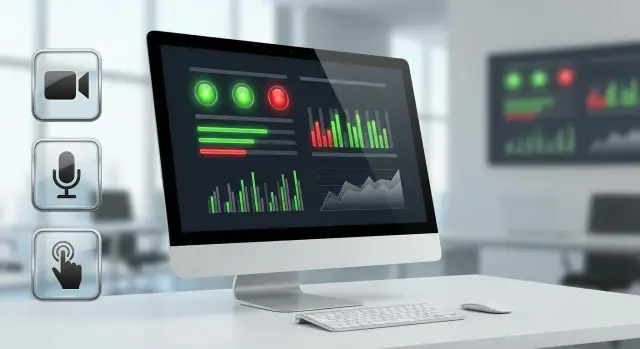
Why monitor camera, microphone and touch in advance
Cameras, microphones and touchscreens rarely fail “instantly.” More often there’s a chain of small issues: a device appears and disappears, audio starts to hiss, touch loses precision at the edges. Users get used to “reboot and carry on” and only contact support when they can’t make a call, admit a patient, open a lesson or complete identification.
The common scenario is familiar: a camera stops being detected or returns a black frame, a microphone drops to zero level or picks up heavy interference, touch registers ghost taps or doesn’t detect touches in certain zones. In all-in-one devices this is especially painful: peripherals are built-in and there may be no workaround (unlike using an external webcam).
Late tickets hit the service in multiple ways: queues grow, engineers go on-site “blind” without understanding scope, and business processes stall. If you have a fleet of all-in-ones in a classroom, ward or contact center, the same failure after a driver update or security policy change can affect dozens of units in a day.
It’s easier to detect “mass issues” with metrics rather than feelings. For example, if the daily share of devices with camera errors exceeds the usual background level, or microphone incidents spike in one branch, that’s a wave, not a one-off. Peripheral monitoring for all-in-ones helps spot that wave before users start flooding support.
You can automate much without a complex system by starting with a repeatable minimum: confirm the device is detected and not disabled by policy, monitor driver errors and frequent reconnects, run a short self-test (camera returns a frame, microphone reports non-zero level, touch registers touch events) and log the result (success/failure, time, model).
In practice this is especially useful for large deliveries of all-in-ones, for example M200 Series, when you need to quickly determine whether the issue is isolated or relates to a fleet-wide configuration.
Common causes of failures: not just broken hardware
When camera, microphone or touch stop working, it’s not always “the hardware died.” IT teams more often see failures caused by settings, permissions and updates. Monitoring should distinguish hardware faults from software causes.
Hardware faults usually look like stable, repeatable problems: the device is not detected by the system, disappears from Device Manager, initialization errors appear, the module fails after heating. For touch this may be loss of screen zones, ghost touches, or jittery coordinates.
Software causes often masquerade as hardware failure. After an OS or driver update a camera may work only in some apps and not in others. Security policies can block access to microphone and camera for all apps except allowed ones. Conflicts with virtual devices are common: video-call software creates a “virtual camera” and apps may select it by default.
Another class of problems relates to connections and the environment. Even all-in-ones in offices can have external devices: USB headsets, docking stations, extenders, USB hubs. They can capture the microphone, change the default device or provide unstable power. In organizations using touchscreen all-in-ones, a bad cable or hub sometimes causes intermittent touch dropouts users describe as “sometimes works, sometimes doesn’t.”
Human factors matter too. Many “failures” are caught by simple checks: muted microphone in system settings or via headset switch, camera shutter closed or module disabled in BIOS/UEFI, blocked app access to camera/microphone, wrong input selected (built-in mic instead of USB), or a mode/utility interfering with touch.
A simple example: after a group policy change in the finance department, 30% of PCs lost camera access in the browser but the system Camera app still worked. From the outside it looked like a mass hardware failure, but the cause was a restriction on web apps.
Where to start: what to monitor and how to group devices
Peripheral monitoring for all-in-ones begins with inventory, not tests. If you don’t know what models and drivers are in your fleet, it’s hard to tell a single failure from a mass effect after an update.
Collect a minimal “device card” for each all-in-one and keep it up to date: model and serial number, OS version and last update date, camera/audio/touch-controller driver versions, peripheral connection type (built-in, USB, Bluetooth), location and responsible team.
Then define control boundaries. For all-in-ones this is usually the built-in camera, microphone, speakers and touchscreen. But external USB cameras, headsets, conference speakerphones and styluses often appear nearby and affect tickets. Decide in advance whether you monitor only built-in devices or everything actually used.
Grouping helps find patterns and act fast. Create groups based on how you’ll respond: who to notify, where to send a technician, what to update. Common groupings are by branch/building, by room type (meeting rooms, reception, classrooms), by user role (operator, doctor, teacher), and by model and procurement batch (e.g., M200 units from one contract).
Set a basic alert threshold at the start and don’t try to guess perfect numbers. Simple rules work best: if 3–5% of devices in a group fail a test in one day, or the same device “drops” 2–3 times in a row, investigate the cause (driver, update, cable, privacy settings). After 2–3 weeks thresholds usually get adjusted to real-world norms.
Key metrics to spot a wave before tickets
The goal of monitoring is simple: notice rising camera, microphone or touch issues before users start contacting support en masse.
Basic metric — failure rate. Calculate it separately for 1 day and 7 days: daily reveals spikes, weekly smooths noise and shows persistent degradation (for example after an OS or policy update).
Second metric — retries of the same error on one device. One failure can be a fluke; 5–10 repeats in a day usually indicate a flaky problem: contact, driver, app conflict or access block.
To understand remediation speed, record time-to-recovery: from first recorded failure to first successful test. This helps compare sites, vendors and image versions, and highlights where issues persist for weeks.
Track silent devices separately — devices with no telemetry. Silence isn’t “all good”; it’s a blind spot: agent not running, device offline, scheduled tasks disabled, or log delivery broken.
For quick reports keep 4–5 cause categories: device not found (camera/mic not detected), access blocked (policy or app), no signal (zero level/empty stream), touch not responding (no touch events), driver or service error.
When error share rises and retries increase on the same models, you can usually see the wave before tickets appear.
Simple tests you can run automatically
Automated tests should be fast (10–30 seconds per PC) and return a clear result: “working”, “questionable”, “not working.” Run them on a schedule on each machine and aggregate results into a central report.
Short check list
Instead of a full diagnostic, prefer several short tests that catch common failures.
Check 1: device presence and driver status. Camera/microphone/touch should be detected by the system, drivers should report no errors, and devices must not be disabled.
Check 2: camera. The tester opens the stream and obtains one frame. Success — stream opened, frame captured, non-zero dimensions.
Check 3: microphone. Record 3–5 seconds and compute a level (e.g., average loudness). Success — recording exists and level is above silence.
Check 4: touch. Minimum — touch controller appears as an HID device without errors. It’s also useful to verify multi-touch support is seen by the OS.
Check 5: permissions. Separately verify that privacy policies/MDM have not blocked app access to camera and microphone.
Practical tip: camera and microphone tests often make sense to run in the user context (after login), while driver and permissions checks can run in the background.
What to log to find the root cause later
A simple success/fail is not enough. Save a minimal set that helps distinguish mass problems from isolated cases: error code and text (“access denied” vs “device not found”), test time and duration (a sudden rise in duration can signal hangs), device identifier and driver version. For microphone log measured signal level and existence of an audio track.
If on touchscreen all-in-ones (e.g., M200 Series) the share of camera “access denied” errors rises, that usually looks like a policy update rather than hardware faults.
How to schedule tests: a practical plan
One small agent or script that checks camera, microphone and touch the same way across all all-in-ones and writes results in a stable format works best. For IT teams repeatability and consistent run conditions matter more than elaborate tests.
Package a single bundle (script, settings, log folder, version). Split checks into two frequencies: a daily quick test and a weekly extended test. Schedule via your management tool (task scheduler, MDM) with consistent timing and timeouts. Configure centralized log collection and verify logs actually arrive. Assign a person responsible for summaries and a simple escalation rule: what is priority and who opens incidents.
Daily quick tests usually answer three questions: is the device visible to the system, is access not blocked, does a basic functional test pass. Weekly extended tests can include a short microphone recording, a camera trial frame and more detailed touch checks (for example, multiple zones).
How not to disturb users
Choose windows when workstations are usually idle (before shifts or at night). Lower process priority and set timeouts: if the camera is in use by a call, the test shouldn’t fight for the device.
If a test cannot run (no rights, device busy, no audio access), record that as a separate status, not success. This separates real failures from run-time conditions and helps decide whether to change policies or repair hardware.
Thresholds and alerts: when to treat it as an incident
To avoid alert noise, use clear levels and thresholds. Consider not only absolute failure counts but share of devices in a group (branch, floor, model, image), and growth rate over 24 hours.
A convenient grading:
- Warning: 1–2 devices in a group or up to 1% share with repeated failure.
- Incident: 2% of devices in a group or at least 5 devices if the group is small.
- Mass incident: 5% of devices in a group or a twofold jump in 24 hours.
Set separate thresholds for camera, microphone and touch. Touch often has isolated failures due to calibration or contamination; microphone issues often stem from privacy policies or disabled devices.
To catch waves earlier add a growth threshold: if yesterday was 0 and today 6 devices in one branch, investigate even if the share is below 2%.
How to reduce false positives and find causes faster
A good rule is “two consecutive checks.” Mark a device problematic only if the test failed twice 10–30 minutes apart. This filters out one-off situations: temporary camera capture by another app, hung audio service, accidental mute.
Then use correlation. If most failures share a driver version, a recent OS update or the same image, that often matters more than geography. In practice you may discover: after a camera driver update on some M200 units the number of access errors spikes.
In support notifications include a short block: what failed and which test fell, group and scope (branch, model, percent and count), 24-hour dynamics (was/now), common signs (driver, update, OS version), and what was already automatically checked (two consecutive failures, error code, device visible or not). This looks like a ready incident card.
Common monitoring mistakes and how to avoid them
The same check can be a useful signal or paint your dashboard red every day without value. Here are mistakes that delay spotting real failures.
Mistake 1: “device not responding” without checking permissions
Cameras and microphones often “fail” due to blocked access: security policy, privacy switch, OS or app settings. Don’t conclude “broken” until your test separates causes: device missing, no rights, device busy.
Practice: add statuses like blocked by policy, access denied, in use, device missing. This shows faster whether the issue is rules or hardware.
Mistake 2: running tests during business hours and getting false busy states
If a mic test runs during a call you’ll get device busy or an empty recording. That’s not a failure but it will raise alarms.
Solution: schedule tests for early morning, lunch or after shift. If that’s impossible, treat “busy” as a separate category, not a failure.
Mistake 3: not saving OS and driver versions
When a camera or touch driver changes, problems can appear fleet-wide. Without OS/build and driver version in reports it’s hard to find common factors.
Minimum fields per result: device model and type (built-in/external), OS version and build, driver version, result code and duration, execution time and user context (which account ran it).
Mistake 4: mixing built-in and external devices
A room can have a built-in all-in-one camera and an external USB camera. If you aggregate to a single “camera OK/not OK” metric you lose meaning. Separate by connection type and specific device.
Mistake 5: ignoring devices that report nothing
If an agent didn’t send a result that’s often the problem: service stopped, disk full, no network, scheduled task failed. Add a metric “no report for N hours” and elevate it over a test failure.
Example: if 20 all-in-ones in one branch stopped sending camera and mic results, it’s more likely a network or policy issue than simultaneous hardware failures.
Quick daily checklist
Daily checks should take minutes and give one clear outcome: is there a risk of a failure wave. Rely on three things: system sees the device, access is allowed, a short functional test passes.
Run checks at the same time (for example, morning before the workday) and record simple metrics: how many devices checked, how many failed, percentage of failures.
Short daily set:
- device detected without driver errors (camera, microphone and touch are active, not disabled or unknown);
- access to camera and microphone not blocked by policies or privacy settings;
- camera provides a frame (not a black screen), microphone shows level above threshold;
- touch registers touch events (at least 5 points: corners and center to catch dead zones);
- repeatability: if the same error appears across multiple devices of one model or batch, it’s not a random event.
Example: if daily share of “camera returns no frame” rises from 0.5% to 3% and most cases are in one production batch, start incident handling. Often the cause is a recent driver update or changed access rights rather than physical faults.
Example scenario: catching a failure wave in an organization
A district has 200 all-in-ones in classrooms (touchscreen all-in-ones like GSE M200 Series). After a scheduled OS update teachers reported cameras not working in the lesson app. Waiting for tickets shows only the tip of the iceberg; some classes quietly switched to spare laptops.
Monitoring helps: every night a short camera test runs on all devices (device visible, stream opens, result code stored). In two days the report shows failures jumped from 1–2% to 18%, and most instances share the same camera driver version and update number.
Failures are then split into three groups to avoid mixing causes:
- access blocked: test fails with Access denied or device busy, and events show privacy policy changes;
- driver issue: device appears and disappears, identifiers change, errors and reinitializations increase after reboot;
- physical fault: the camera is never detected regardless of user or app.
Basic remediation that solves most cases without site visits: roll back the driver for the affected group, adjust camera access policy (if an update tightened it), restart the service/device, then confirm with a repeat test in 30 minutes. On-site visits are needed only for devices never detected at all.
A concise summary for managers: how many devices are affected and where, when the increase started, what common factors the faulty PCs share (driver version/update), probable cause, remediation plan and timeline, and how many physical visits will likely remain after remote measures.
How to embed the process and reduce ticket volume
To make monitoring actually reduce tickets, turn it into a regular process. Start with a pilot on one clear group: 30–50 devices in a single branch or department with typical tasks (calls, lessons, reception). In the pilot precision matters less than simple rules: which tests to run, how often, what counts as failure, who checks results and what actions follow. After 2–3 weeks you’ll almost always tweak thresholds: real-life factors (USB peripherals, noisy rooms, strict privacy policies) influence metrics more than expected.
Do a short weekly review with support: what’s rising (e.g., camera failures after an update), what repeats (same driver versions), and which devices aren’t reporting. Then plan preventive actions: driver and firmware updates, cable and module replacements, policy adjustments for camera and microphone access, exceptions for required apps.
If you procure all-in-ones and service from an integrator, agree on a “monitoring standard” in advance: required tests, mandatory log fields, incident thresholds and the support report format. In projects with equipment and integration from GSE.kz such agreements usually save a lot of time because it’s clear from the start how to separate mass configuration effects from individual hardware failures.
Frequently asked questions
Where to start monitoring the camera, microphone and touch on all-in-ones?
Start with inventory: which all-in-one models are deployed, which OS and driver versions the camera, audio and touch controller have, where each device is installed and who uses it. Then add one repeatable daily test that returns a clear status and writes the result to a log.
How to tell if it’s hardware failure or a software/configuration issue?
Look at stability and symptoms. If the device is consistently not detected, disappears from the system or shows repeat initialization errors, that points to hardware. If the problem appears in waves after updates or policy changes, depends on the application or shows “access denied”, it’s more likely configuration, permissions or drivers.
Which metrics actually help spot a wave before support tickets arrive?
Track the share of devices with errors in a group for 1 day and 7 days, and the repeats of the same error on a single device. Add time-to-recovery from first failure to first successful test. Also track devices that report nothing — silence is a blind spot, not proof of health.
What thresholds should we set to avoid drowning in false alerts?
A good starting rule is 3–5% of devices in a group failing a test in a day, or 2–3 consecutive failures on the same device. For small groups use absolute numbers, for example 5 devices in one day. Adjust thresholds after a couple of weeks to match your real baseline.
What simple autotests can be scheduled?
Minimum tests: check the device is detected and the driver has no errors; camera test to capture a single frame; microphone test with a short recording and check that the level is above silence; touch check that a touch controller appears as an HID device and supports multi-touch; check that privacy policies/MDM do not block camera and microphone access.
What must be logged to quickly find the root cause later?
Log more than pass/fail: reason codes such as device not found, access denied, device busy, no signal, driver/service error. Include test time and duration, driver version, OS version and device identifier. For microphones record the measured level to see degradation, not only binary up/down.
How to run checks without disturbing users?
Run tests in windows when the workstation is usually free: before the shift, at night or during lunch. Use timeouts and low process priority so tests don’t interfere with calls. If a device is busy or lacks rights, mark that as a separate status instead of a failure.
What typical mistakes are made in peripheral monitoring and how to avoid them?
Common mistakes: mixing built-in and external devices, running tests during busy hours and ignoring device busy states, and not recording OS/driver versions. Another frequent error is treating “no report” as “everything is fine”. Use separate classifications and a metric for “no report for N hours”.
How to classify camera, microphone and touch errors correctly?
Classify by categories: “device not found” (not detected), “no access” (policy/privacy), “no signal” (zero level/empty stream), “driver/service error”, and “touch not responding” (no events). This helps decide whether to fix policies, drivers, conflicts or actual hardware.
How to formalize the process to actually reduce support tickets?
Run a pilot on 30–50 devices, agree on a log format and simple reaction rules. Check daily for error share and repeats, and weekly review common factors (driver version, update, model, site). For all-in-one fleets like M200 Series, it’s critical to separate mass configuration effects and updates from individual hardware failures.
