8 min read
Monitor replacement plan: reduce eye strain and complaints
A monitor replacement plan to reduce eye fatigue and complaints: prioritize by department, wear and medical needs, with simple implementation steps.
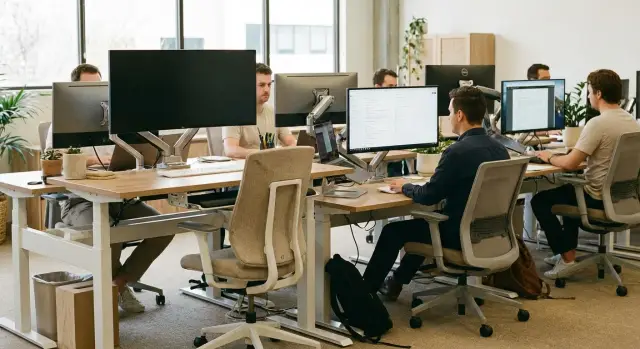
What usually lies behind complaints and fatigue
Complaints about working at a screen rarely sound the same. Some say they feel a "gritty" sensation and blurred text by evening, others get headaches, and some notice neck pain or lower back tension. Often the cause is not "age" or "bad habits," but the way the workstation is set up and the monitor on the desk.
Typically it looks like this: eyes get tired and dry, by evening people squint, and headaches appear in the second half of the day. An awkward screen height or posture strains the neck and shoulders, and constant leaning forward leads to back pain. Concentration falls and irritability grows.
These symptoms arise when an employee spends the day "compensating" for discomfort. Tiny text makes them lean closer, glare and incorrect brightness force visual strain, and an unsuitable screen height causes the head to sit at the wrong angle. As a result, even people who previously worked comfortably at a PC begin to tire.
The load varies greatly between departments. Accounting and finance stare at spreadsheets and small numbers for hours. Legal teams read dense text. Dispatchers and operators watch multiple windows at once. Designers and marketing staff react more to image quality and color. So a "one-size-fits-all" monitor won’t have the same effect everywhere: where demands are higher, complaints appear sooner.
That’s why you need a clear monitor replacement plan, not purchases based on "who shouts loudest." Point replacements often skew results: the most insistent employees get new screens, while those with real overload continue using unsuitable models.
A common scenario: managers’ monitors are updated first because it’s visible and quickly approved. But complaints persist because the real visual load was in the call center and accounting. When replacements are planned by tasks and conditions, IT and medical complaints about fatigue drop within the first months.
Monitor factors that cause faster fatigue
Eye strain is often caused not by "bad eyesight" but by the combination of small text, glare, and incorrect settings. Consider this before making a replacement plan: some problems are solved by adjusting the workstation, while replacement is needed where the equipment itself limits comfort.
Size and resolution work together. A small screen with a high resolution often results in overly small fonts: people squint, lean in, and overload their focus. The opposite is also harmful: low resolution on a large screen makes text look jagged, and eyes tire faster with spreadsheets and documents.
Brightness and flicker are especially noticeable in the evening or in dimly lit rooms. If a monitor is much brighter than the background, eyes constantly adapt. Backlight flicker (often unnoticed at first) can cause headaches and a gritty eye sensation by the end of the day.
Screen coating and reflections are another issue. A side window, overhead lamps, a glossy display and a dark UI theme create reflections. The eye keeps searching for a "clean" patch on the screen. Even a good monitor will be tiring if it faces a light source.
Low contrast and unstable colors also drain energy, especially for people who read lots of tables, emails and contracts. When gray text on a gray background seems to "float," the brain spends more effort recognizing characters. On cheap or worn panels this is more pronounced: the image becomes uneven, and edge hotspots appear.
Finally, height and viewing distance matter. Too low — neck and upper back strain. Too close — eyes work under constant tension.
Practical guidelines for a workstation:
- top edge of the screen roughly at eye level
- distance about an arm’s length
- brightness close to room lighting, without glaring white
- angle the screen to avoid window or lamp reflections
- increase UI scaling if fonts are too small
Example: accounting complains of burning eyes by 4 PM. Inspection shows 24" monitors facing a window, brightness at maximum, and spreadsheets opened at 100% scale. Even before replacement you can help: rotate the desk, lower brightness and raise UI scale to 125–150%. But if the monitor is old with uneven backlight, then it becomes a priority candidate.
Gathering initial data without a complex inventory
You don’t need a month-long inventory to make a replacement plan. A minimal dataset is enough to compare workstations and quickly find problem spots.
For each monitor collect a short card: model (or at least brand and series), diagonal size, main interfaces (HDMI, DisplayPort, VGA), and an approximate purchase or deployment year. If the exact date is unknown, the year from a sticker or procurement documents will do.
Wear can be assessed without instruments. Ask employees to open a simple template (solid white, black and gray backgrounds) and note obvious defects: dead or stuck pixels (especially in the center), hotspots and stains, flicker or rippling (often visible at low brightness), scratches and cloudy coating, and unstable connectors or cables.
Also record the type of work, because the same monitor affects people differently. For documents and email, clarity and comfortable brightness matter most. For graphics, color reproduction and backlight uniformity are key. In medicine and dispatch, image stability and the ability to work 8–12 hours without a "floating" picture are usually critical.
Collect complaints with minimal bureaucracy: a one-minute form with three fields (symptom, when it appears, workstation). Formats like "eyes sting by end of day," "headache after 30 minutes," "text blurs" quickly reveal recurring problems rather than scattered emotions.
Don’t forget physical constraints. Sometimes monitors aren’t replaced not because of budget but because of "physics": the stand can’t hold the weight, no VESA mount, desk too narrow, cables too short. A quick inspection of 10–15% of workstations in each department usually uncovers typical bottlenecks and makes the plan realistic.
Prioritization by department and task type
To make the replacement plan effective, start not from "the oldest" but from places with the highest visual load and the biggest cost of errors. People may spend the same time at screens but tire differently due to tasks, pace and responsibility.
Usually first in line are teams where the screen is the main tool and there are almost no "breaks to other tasks." Finance, accounting, analysts and call centers read small text, spreadsheets and dense UIs for hours. Fatigue there quickly turns into errors, slower performance and more complaints.
Mark critical roles where you can’t "make up from memory": operators, dispatchers, reception, front desks. Small decreases in readability or glare easily cause data entry mistakes, timing errors, queues and client conflicts.
Shift work increases requirements. Night shifts and dim-light conditions create more strain. For these stations stable brightness, absence of flicker and easy adjustment are especially important because multiple people share one monitor.
Some departments require image accuracy: design, engineering, medicine. Problems there show not only as fatigue but also as color or detail errors. Managers might not notice this immediately, but it becomes visible through rework and "what you see on screen differs from print" disputes.
If you need to quickly rank priorities for a single purchase, five criteria usually work well: high visual load, role criticality, shift work, accuracy requirements, and daily workload density.
Treat meeting rooms and shared desks separately. Updating them "for looks" will drain the budget while leaving complaints unchanged. Meeting rooms usually only need reliable screens for presentations. Outfit shared desks according to the standards of the teams that actually use them.
Prioritization by wear and operational risk
With limited budget, choose replacements that will actually reduce complaints and avoid downtime. A simple 0–5 scoring filled out in 2–3 minutes per workstation that can be sorted afterwards is useful.
Rate each monitor on three axes (0 = no problem, 5 = critical):
- Wear and condition: flicker, dead pixels, dimming, loose stand, tired backlight, overheating.
- Compatibility: missing required inputs, unstable adapter-based connections, dock station issues, resolution/frequency limits.
- Complaints and impact on work: frequent IT/HR requests, fatigue, errors due to poor readability, constant need to change scaling.
The sum gives an overall priority. To keep the plan clear, set thresholds in advance and stick to them.
Example thresholds:
- 12–15 points — replace urgently (next procurement)
- 7–11 points — replace in scheduled wave
- 0–6 points — leave, but check settings and workstation
Add a downtime risk adjustment. In some spots a monitor failure stops work completely (cash desks, front office, dispatch, security, single-PC stations). For those places, raise medium wear scores by 1–2 points: sudden failure usually costs more than planned replacement.
Another frequent failure cause is surrounding details. When replacing a monitor, check the full kit: correct cable type and length, adapter if needed, VESA mount or stand, condition of the bracket, free power outlets, and dock compatibility. Otherwise a new monitor becomes a "temporary solution" with lost time and fresh complaints.
To make decisions easy to explain to management, prepare a one-page table: department, workstation, three-axis scores, downtime adjustment, final priority and reason in a single line. Example: "Call center operator: 4+3+4, high error risk, replace first."
Medical indications and individual cases: how to handle them correctly
Some complaints are solved by settings, but others need special handling. Build a clear path for individual requests into the general plan so these cases don’t look like "privileges" and don’t spark team conflicts.
Relevant medical indications typically include confirmed vision disorders (including astigmatism), severe dry-eye syndrome, migraines, consequences of injuries or surgeries, and cases where a doctor recommends restrictions on screen work or specific conditions (large fonts, reduced brightness, increased viewing distance). You don’t need to ask for a diagnosis. A statement like "requires specific conditions for screen work" plus a list of requirements is sufficient.
To coordinate the process with HR and occupational safety while preserving privacy, split responsibilities: HR receives the request, occupational safety confirms the need for adaptations, and IT selects solutions by parameters rather than diagnosis. Documents should only record the requested "conditions" and a review date.
Adaptations that most often help
Simple measures usually work: a larger or higher-resolution monitor (so fonts can be comfortably scaled up), height adjustment (stand, VESA mount or arm), matte coating and proper lighting, correct brightness and color temperature, and sometimes a second monitor if the employee frequently compares documents and is forced to use too-small scaling.
How to avoid conflicts and discrimination
Announce the rule in advance: individual adaptations are possible when there is a confirmed need and they follow a standard procedure. Explain that this is part of occupational safety, like a special chair or footrest.
Record exceptions briefly: date, provided conditions, expiry date, responsible person. Reviewing cases every six months keeps the process manageable: conditions change, equipment ages, and standards are updated.
Step-by-step implementation plan: from standard to installation
A good monitor replacement plan starts with goals, not model selection. Define what you want to improve: number of IT/HR complaints about eye strain, breaks due to discomfort, downtime from failures, or speed of common tasks (e.g., processing requests or working with spreadsheets). Choose 2–3 measurable metrics and agree on a baseline.
Next, set a minimal standard so new monitors are not heterogeneous and inconvenient. The standard should be simple and verifiable: diagonal suitable for task types, adjustable stand (height and tilt), required ports for PCs and docking stations, anti-glare coating, and adequate brightness headroom. If some staff work with graphics or numbers all day, create a separate standard for those roles.
Break the fleet into replacement waves so work isn’t disrupted. Planning by quarterly waves is practical: first the units with high visual load or critical processes, then the rest. This keeps procurement and installation manageable and avoids inventory or budget overload.
Pilot and quick feedback collection
Before mass procurement run a pilot in one department for 1–2 weeks. For example, install new monitors for a group of 10 people (6 call center staff and 4 accountants). Collect short feedback: less dry eyes? Easier to read small text? Any new glare issues? Is height adjustment convenient?
Batch procurement and room-by-room installation
After the pilot, buy in batches and install by room on a schedule so meetings and shifts aren’t disrupted. Allow time for not only plugging in, but quick setup:
- set the top edge of the screen roughly at eye level
- check viewing distance (typically 50–70 cm)
- set brightness for the lighting and avoid an overexposed white
- check UI scaling and font readability
- explain where to report recurring discomfort
If procurement and support should remain in a single national loop, it’s often easier to work with a local manufacturer and integrator. For example, GSE.kz as a system integrator can help align standards, batch deliveries and ongoing service — especially when monitor replacement is part of broader workstation and infrastructure modernization.
Common mistakes that undermine results
Even a solid plan fails if new screens are installed "however they fit." Complaints persist and IT and procurement face higher support costs.
The most common mistake is buying "different but cheap" models without a single standard. After a few months this becomes a settings and cable zoo. Spares are harder to manage and replacements take longer.
The second mistake is choosing only by price and diagonal while neglecting adjustability and glare. If a monitor can’t be adjusted by height or reflects light heavily, eye strain may remain even with a brand-new screen.
The third mistake is not checking compatibility in advance. Real-world failures often come from small details: no VESA mount for an arm, missing cables, a dock that won’t support the required frequency, or mismatched ports (e.g., monitor only has HDMI while the PC needs DisplayPort).
Fourth mistake — replacing monitors solely based on complaints without checking the workstation. Sometimes the root cause is an overhead lamp, a side window, wrong chair height or viewing distance. The monitor is changed but glare and poor posture remain.
Fifth mistake — doing replacements at peak workload without a schedule and responsible people. Setup drags on, people work "as is," and the project’s first impression is poor.
Before procurement and installation, check basics: 1–2 standard models for typical roles, height adjustment and matte coating where glare is likely, VESA and required ports, cables matching the real infrastructure, test installs in 2–3 places with different lighting, and a work plan with dates and responsibilities.
Small example: accountants received new monitors but tables still faced windows. Complaints returned within a week. After a simple desk rotation and installing blinds, people reported a noticeable reduction in strain without extra purchases. If you have a system integrator (in Kazakhstan supply and support are often combined, for example GSE.kz), ask them to start with a site check, not a catalog. It’s cheaper than a "second wave" of buys.
Quick workstation assessment checklist
This mini-check helps quickly determine whether an employee has the basic conditions for comfortable screen work. It’s convenient to run with the user in 3–5 minutes without measurements or special tools.
First check posture and screen position. If the monitor is too low or far, the person almost always leans forward and slouches. This increases general fatigue and often leads to eye and back complaints.
Short checklist:
- top edge of the screen roughly at eye level, distance about an arm’s length (no leaning forward)
- no glare from windows or lamps, brightness not set to maximum "to beat the light"
- no obvious flicker, banding, edge hotspots or unstable brightness
- monitor can be raised (adjustable stand, arm or simple riser) so the head is not dropped
- connections match current PCs and laptops: required ports present, cable length adequate, and no permanent adapters
If at least two items fail, record it as a prioritization reason. For example, an accountant works with spreadsheets all day, the monitor is low and catches window glare. They squint, lean forward and raise brightness, causing end-of-day eye and head pain. Sometimes a change of angle, a riser, or a desk rotation is enough. If the screen flickers or has visible defects, it’s a replacement candidate.
Tip for IT: separately mark port compatibility. When upgrading PCs, ensure new monitors and cables fit without a cable zoo of adapters and extra failure points.
Example scenario: how it might look in a company
A 250-person company saw the same pattern in two places: accounting staff who spend all day in spreadsheets and a call center with shift work and constant CRM usage. Complaints were similar: burning eyes by the end of shift, headaches, and the urge to "zoom in." At the same time small errors in numbers and details were increasing.
HR and IT agreed to collect minimal data over 10 working days without a long inventory. The spreadsheet captured what’s easy to check on site:
- approximate monitor age (purchase year or sticker)
- two quick employee questions about eye fatigue and text readability (10-point scale)
- workstation conditions: glare sources, presence of blinds and desk lamps
- visible business-impact facts: downtime from "floating" images, flicker, failures, support requests
- shift patterns and role criticality (where errors cost more and replacements are harder)
Prioritization was then done by risk and expected effect rather than by noise. Shifted workstations in the call center ranked first: one monitor serves several people per day, so replacing it immediately reduced incoming complaints. Accounting came second due to high visual load and the cost of mistakes.
A pilot covered 20 workstations: 12 in the call center and 8 in accounting. The goal was not only to replace hardware but to remove common discomfort causes through settings and posture. In the pilot:
- the oldest and most problematic monitors were replaced (flicker, uneven backlight)
- height and distance were set so the top edge of the screen was at or just below eye level
- brightness was adjusted to match lighting and avoid an overblown white
- consistent scaling and font settings were applied so text is readable without strain
- screen placement relative to windows was checked to reduce glare without a full office rearrangement
After three weeks complaints decreased and IT tickets about "bad picture" in pilot zones dropped noticeably. The standard (minimum diagonal, resolution, height adjustment and basic settings) was finalized and procurement split into 2–3 waves to avoid budget shock.
Next step: tie monitor refresh to PC and workstation upgrades. Where zones need performance or usability upgrades, plan a bundled modernization — it simplifies compatibility, standards and support. In such approaches consider all-in-ones for typical tasks — for example the GSE M200 lineup, if it fits the operational conditions and workstation requirements.
Frequently asked questions
Where should I start if employees complain of eye strain and headaches after working at screens?
Start with two parallel tracks: quick workstation fixes (height, angle, brightness, glare, scaling) and a short list of monitors that may need replacement due to wear or repeated complaints. Often within the first week you can see which issues are solved by adjustments and which are hardware-limited.
Which departments should usually be updated first?
Prioritize places where the screen is the primary tool and errors are costly: accounting, finance, call centers, dispatch, and reception. Replacing monitors in these areas usually reduces complaints and improves work quality faster than replacing the oldest monitors across the whole office.
How to rapidly prioritize replacements without a long inventory?
Use a quick 0–5 rating on three axes: condition (flicker, backlight bleed, defects), compatibility (ports, docks, stability), and impact on work (frequency of complaints, errors, forced squinting). Sum the scores to rank priority and explain decisions to leadership.
How can I tell if the issue is backlight flicker and not just normal tiredness?
Flicker often shows as end-of-day fatigue, headaches, a gritty sensation in the eyes, or slight "rippling" at low brightness. If several people at the same workstation describe similar symptoms and settings adjustments don’t help, that monitor should be considered for urgent replacement.
Which basic workstation settings really reduce fatigue?
Default recommendations: set the top edge of the screen roughly at eye level and keep the screen at an arm’s length so people don’t lean forward. Adjust brightness to match room lighting and increase UI scaling if text is small — these measures often reduce strain faster than buying a new monitor.
Do I always need to replace the monitor when there are complaints?
Not always. If the cause is glare from a window, excessive brightness, or incorrect screen height, a new monitor alone won’t help. First fix reflections and posture; replace monitors where there is flicker, uneven backlight, matrix defects, or obvious physical wear.
What is most often forgotten before buying monitors?
Check actual ports on PCs and monitors, the real connection types in use (including docks), and the required resolution/refresh to display comfortable text. Commonly forgotten items: cable lengths, VESA mount availability, and the reliance on adapters that become points of failure.
Should I create a single monitor standard or buy different models?
Have a simple standard: 1–2 models for most roles and a separate option for tasks requiring higher accuracy. This reduces problems with cables, settings, spare inventory and support while giving users predictable comfort.
How to handle medical indications and individual requests without violating privacy?
Do not ask for diagnoses. Accept a request stating the required "working conditions" with a list from a doctor or occupational safety (larger font, lower brightness, greater viewing distance, height adjustment). HR collects the request, occupational safety confirms the needed adaptations, and IT chooses a solution by parameters. Record only the conditions and a review date to protect privacy and avoid conflicts.
When does it make sense to involve a systems integrator like GSE.kz?
When the project includes standardization, batch delivery, compatibility with current PCs and ongoing maintenance across sites, an integrator can save time and reduce risks. In Kazakhstan it’s often convenient to work with a local manufacturer and integrator like GSE.kz, especially when monitor updates are part of broader workstation modernization.
