6 min read
Minimal spare parts inventory for a PC fleet: PSUs, SSDs and RAM
How to calculate minimal spare parts for a PC fleet: choose PSUs, SSDs and RAM nomenclature for typical models and delivery lead times.
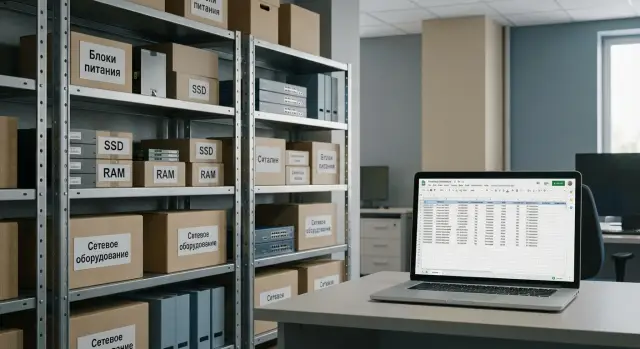
Where downtime starts and why you need a spare
Downtime usually doesn’t begin with a “computer failure” but with a small part that prevents a workstation from being quickly restored. Typically this is a power supply, an SSD, or RAM: components that are mass-produced, always under load, and often fail suddenly.
Typical situations look like this:
- The PC won’t power on or turns off unexpectedly (often the PSU).
- The system boots slowly, disk errors appear, files disappear (often the SSD).
- Blue screens, freezes, “memory not detected” (often RAM).
The difficulty is that parts that look identical can be incompatible. PSUs differ by form factor, wattage, connectors and cable lengths. For SSDs the interface and size matter (SATA 2.5 or M.2, NVMe or SATA) and sometimes there are requirements for image recovery. For memory the generation (DDR4 or DDR5), frequency, module capacity and type (UDIMM, SO‑DIMM, ECC or non‑ECC) are critical.
You need stock to choose repair speed, not to wait for delivery. But the warehouse should not grow unchecked: the goal isn’t to “buy as much as possible” but to hold minimal stock tied to real criticality. Where there is a strict SLA (e.g., a call center, reception, cash desks) the stock justification is higher than for an office where an employee can move to a spare workstation for a day.
A practical approach is simple: for critical workstations keep replacement parts close and swap them on the day of the incident; for non‑critical ones keep a small pool with clear delivery expectations. The fewer different PC models and component generations you have, the easier it is to maintain the stock: fewer variants, fewer mistakes, faster recovery.
Describe the fleet in simple groups
To calculate minimal spare parts you first need to understand what you actually support. Don’t try to build a perfect database for every device at once. It’s enough to split the fleet into 5–10 clear groups so PSU, SSD and RAM inventory stops being guesswork.
Start with a short list of typical models: towers, all‑in‑ones, mini‑PCs. For each model note the purchase year (or at least “pre‑2019”, “2020–2022”, “since 2023”). The same brand in different years often means different chassis form factors, different PSUs and different memory limits.
Then separate a “standard workstation” and special groups. For example: accounting (heavy use of 1C and files), dispatch (24/7 operation), design (heavy projects), reception desk (low load but higher risk of accidental damage). This matters because “standard” PCs are usually repairable with the same parts, while special groups need separate rules.
Next count devices in each group and note locations: main office, branches, remote sites. At the same time determine who will actually swap parts: your engineer, a contractor or a service vendor. If replacement is done onsite, stock should be closer to users; if centralized, store it in one warehouse.
For inventory you only need a simple set of fields: group, model and purchase year, quantity and location, responsible person for replacement, and spare location. Once groups are ready it becomes easier to build a compatibility matrix and calculate minimums for each typical parts “basket”.
Build a compatibility matrix for PSUs, SSDs and RAM
A compatibility matrix is a table with typical workstation types (or PC groups) as rows and key spare parameters as columns. It shows what fits where and helps keep the warehouse free of unnecessary SKUs.
Start by inventorying the 5–10 most common configurations. If the fleet is built from several standard series, the matrix is easier to maintain: fix the typical characteristics and rarely revisit the base during planned purchases.
What to record:
- PSU: form factor (ATX or SFX), wattage, connectors (24‑pin, CPU 4+4, PCIe), cable specifics and chassis compatibility.
- SSD: interface (SATA or NVMe), form factor (2.5" or M.2 2280), for M.2 — type (NVMe or SATA) and keying (B, M or B/M).
- RAM: type (DDR4 or DDR5), supported frequencies, module capacity, number of slots and maximum total memory.
After filling it in, mark positions that cover several groups at once. These are your “universal” parts that usually start the stock:
- ATX PSU 500–650W with common connectors for office PCs without discrete GPUs.
- 2.5" SATA SSD if many machines lack M.2.
- RAM modules in the most common sizes (often 8 or 16 GB), but strictly of one DDR generation.
Add short risk notes: “do not mix modular PSU cables from different brands”, “M.2 can be SATA or NVMe”, “DDR4 and DDR5 are physically incompatible”. These notes save time both in the warehouse and for the technician during urgent replacements.
What affects the minimum stock
Minimum stock isn’t pulled from thin air. It depends on how often particular parts fail in your fleet, how fast you can get replacements and how painful downtime is. The simple goal: replacements take hours, not weeks, and the warehouse doesn’t become a spare‑parts museum.
First data source — service desk tickets (or repair logs). Look at the last 6–12 months for how many PSUs, SSDs and RAM were replaced and on which models. Often one PC type accounts for half of all replacements while others have almost none.
Second factor — delivery lead time and delay risk. “7‑day delivery” on paper can be very different in reality due to logistics, approvals, tender procedures and seasonal load. Plan for the worst realistic lead time, not the ideal one.
Third factor — workstation criticality. If an employee can be quickly moved to a spare PC, the risk is lower. If it’s accounting during month‑end, a clinic reception or a cash terminal, downtime is costly and stock should be higher.
Finally, the swap strategy matters: how many spare PCs you have, whether SSD or RAM can be moved without compatibility issues, whether standards exist for PSUs, SSD interfaces and memory generations, and who performs replacements and how fast.
Example: an office of 120 PCs with only 2 spare machines. If there were 6 SSD replacements over the year and delivery sometimes stretches to 3–4 weeks, it makes sense to keep several SSDs in stock rather than just one spare. If you have 10 spare PCs, you can reduce parts stock and focus on spare machines instead.
Step‑by‑step: from fleet to nomenclature and minimums
To make minimum stock work rather than sit idle, start with inventory, not purchasing: identify repeating workstation types and the parts that fail most often.
Sequence:
- Choose 3–5 typical workstation types that cover most employees.
- For each type record parameters: PSU form factor and wattage, SSD type and interface, RAM type and capacity (DDR4 or DDR5), and constraints (for example, only SFF chassis).
- Check what can be unified: the same SSD across different models, identical memory sticks, PSUs with matching connectors.
- Calculate minimums: how many you actually replace over a period, delivery lead time, and required buffer.
- Approve replenishment rules and a compatibility check before installation.
Keep the formula simple:
минимум = среднее потребление за месяц * срок поставки (в месяцах) + буфер
Buffer is often 1–2 units per SKU, but increase it for critical workstations.
Small example: if you replace 2 SSDs per month, delivery takes 3 weeks, and downtime is costly, keep 2–3 SSDs in stock. If PSUs rarely fail but are essential, keep at least one PSU per common model.
If the fleet was assembled in batches, agree on standards for new purchases so the nomenclature doesn’t scatter and the compatibility matrix doesn’t need rebuilding every quarter.
Spare power supplies: choose to avoid surprises
PSUs often fail suddenly and cause workstation downtime. Therefore PSU nomenclature must be clear and risk of incompatibility minimal.
Start from what’s already installed in typical PCs. Check not only wattage but real connectors and their counts. Two 500 W PSUs can differ greatly in cabling and quality.
Before locking a model into inventory verify three things: wattage with margin (usually 20–30% above real load) and efficiency class (if specified), connector set (24‑pin, 4+4 CPU, PCIe where needed, SATA), and physical compatibility with the chassis (form factor and length).
If the fleet is mixed, it’s economical to select 1–2 unified PSU models that fit most workstations. This reduces SKUs and speeds up replacement.
Don’t forget small items. Sometimes the PSU sits in stock but installation fails because screws or a power cord are missing. Keep a small kit of consumables that actually occur in your fleet.
Store PSUs in individual boxes or bags with dust protection and label them: “fits group A/B”, wattage, connector types. The technician will then grab the correct PSU at once.
Spare SSDs: capacity, interface and recovery process
SSDs are often fixed by simple replacement, so stocking them yields fast wins. To avoid dozens of SKUs, fix a standard capacity and interface for your typical models.
Two capacity levels usually suffice. 256 GB covers OS and office tasks. 512 GB is better for accounting, analytics, users with large mail archives and heavy document work. If some PCs host heavy local databases, create a separate category; otherwise a universal SSD will be used up quickly.
Don’t complicate the interface: older PCs usually need SATA, newer ones NVMe. A wrong choice is costly: NVMe may have no slot, while SATA may bottleneck performance.
Practical nomenclature:
- 1–2 SATA SSD models (256/512 GB) for older machines.
- 1–2 NVMe SSD models (256/512 GB) for newer machines.
- A separate SKU for specific needs (larger capacity or higher endurance).
Key is the recovery process. With a unified OS image and driver set for your models a workstation can be up in 30–60 minutes instead of a day.
Before adding an SSD to stock do an intake and labeling: check SMART, a short read/write test, sticker with date and interface, link it to the PC group in the inventory.
Spare RAM: avoid mistakes with type and capacity
Memory mistakes are usually about type and compatibility rather than capacity. One wrong module can turn repair into long diagnostics. It’s more important to set a standard than to stock many different sticks.
Start with exact requirements per typical group: DDR4 or DDR5, supported frequencies, required form factor (UDIMM or SO‑DIMM), and whether ECC is needed. Take these parameters from model specs or by reading the installed module.
Then pick a “standard module” for unification — often 8 or 16 GB — to cover most replacements and upgrades with one SKU. If many workstations are identical, one module type is better than three different capacities.
Consider slot usage. If many PCs have both slots occupied and an upgrade needs 2×8 or 2×16, keep kits. If a free slot is usually available, single modules are more convenient as fast replacement stock.
Before adding a module to the ready stock perform intake checks: verify DDR and frequency markings, test boot in a PC of the same group, quick memory diagnostics, and record the result (date, PC model, module serial).
Common mistakes in procuring and storing spares
The most costly mistake is buying parts that “almost fit.” Money is spent but downtime isn’t shortened. This is especially visible in heterogeneous fleets without enforced rules.
Typical problems: buying a “similar” PSU or SSD without checking connectors and form factor (M.2 2280 vs 2242, SATA vs NVMe), purchasing too many SKUs instead of 2–3 typical items per group, failing to label and track stock, storing RAM and M.2 without antistatic protection, and planning purchases without considering real delivery lead times and tender cycles.
To make the warehouse useful, apply simple storage and control rules. Minimum discipline: antistatic bags for RAM and M.2, proper packaging and a dry room; a sticker on each unit (date, compatible groups, status); a quick test before issuance; and issuance records (who took it, where it was installed, and returns).
Quick checklist before purchase and before installation
This checklist helps verify you buy the right items and can install them without surprises.
Before purchase
Keep, for each typical model, a short list of compatible SKUs: PSU (form factor and connectors), SSD (interface and form factor), RAM (DDR4/DDR5, frequency, module capacity). Then recalc minimums using the real delivery lead time: stock must cover the wait plus buffer. Ensure batches match on key parameters so the nomenclature doesn’t drift. Name SKUs clearly in the inventory (not just “SSD 512” but include interface and form factor). Predefine roles: who installs, who tests, who writes off and who triggers replenishment.
Before installation
Check consumables and tools (screws, M.2 standoffs, screwdrivers, antistatic bags). Run a control replacement on one PC: swap the part, boot the system, check stability and measure real recovery time. For SSDs define the recovery scenario (image, backup, encryption key handling). After installation record what was installed (model/serial) and how the stock will be replenished.
If the control replacement takes more than 30–60 minutes due to “searching for small things” the checklist or the standard model definitions need improvement.
Example: office of 120 workstations and one spare parts warehouse
Input: 120 PCs across two locations (main office 90, branch 30). Fleet split into 3 typical models: 70 standard office towers, 40 all‑in‑ones, 10 critical workstations (accounting month‑end, dispatch, reception) where downtime is especially costly.
Goal: the spare parts stock must cover typical failures without waiting for delivery. To avoid a “zoo” of SKUs first seek maximum unification.
For PSUs you often get 1–2 SKUs for the entire fleet: a universal ATX PSU for most towers and a separate PSU or adapter for all‑in‑ones (usually model‑specific).
For SSDs two SKUs are usually enough: 2.5" SATA for older machines and M.2 NVMe for newer ones. In the example it’s convenient to stock a single capacity (e.g., 512 GB) so technicians make fewer mistakes and recovery follows a single scenario.
Initial minimums considering criticality and delivery times might look like:
- ATX PSU: 2 pcs
- PSU/adapter for all‑in‑one: 2 pcs
- SATA SSD: 3 pcs
- NVMe SSD: 3 pcs
Make “boxes by model” so each box clearly shows the workstation model, list of compatible SKUs and simple labeling “PSU/SSD”. It’s convenient when each box contains a ready kit: the part plus required fasteners.
Review nomenclature whenever a typical model is updated and at least quarterly. If new PCs exceed 10–15% of the fleet update the compatibility matrix and minimums, otherwise the warehouse will hold parts nobody needs anymore.
Next steps: formalize the standard and simplify support
After calculating the nomenclature, formalize it as policy, not a one‑time purchase. Start with a short spare parts specification: which PSUs, SSDs and RAM modules you keep, which PC groups they match, where they are stored and who is responsible. Also fix replenishment rules so the process doesn’t depend on one person.
Triggers for replenishment are simple: stock fell to the minimum, a part was used in an emergency swap, the share of identical workstations grew, a series of similar failures started, or the configuration standard changed (switch to a different SSD type or RAM).
Then align spares with your 1–3 year fleet refresh plan. If some PCs will be retired soon it makes no sense to buy rare parts for them. If you’re moving to a single standard PC, narrow the nomenclature in advance and keep stock only for the new standard.
If you plan a fleet refresh and want to simplify future support, choose typical configurations with predictable compatibility and local service options. For example, GSE.kz (gse.kz) as a manufacturer and integrator in Kazakhstan can supply and support standard PCs (series L200, M200), which helps keep spares smaller and simpler.
Frequently asked questions
Where do I start if I don’t have a proper inventory of my PC fleet?
Start with 5–10 clear groups: device type/model, approximate purchase year and location. That’s enough to see which PSUs, SSDs and RAM repeat and where you can unify.
Why can’t I just buy “universal” PSUs, SSDs and memory?
Because “similar” often isn’t compatible: PSUs differ by form factor, connectors and cable lengths; SSDs differ by interface and M.2 type; RAM differs by DDR generation and form factor. A part that looks right may not let you restore the workstation.
How do I know where a spare is mandatory and where I can do without?
Keep spares where downtime is expensive: cash desks, reception, dispatch, or any role with a strict SLA. For non-critical users, it’s often cheaper to rely on a predictable delivery time or a couple of spare workstations than to bloat the spare-parts stock.
What is a compatibility matrix and what must it record?
A compatibility matrix maps each typical PC group to key parameters: for PSUs — form factor, wattage and connectors; for SSDs — SATA vs NVMe and form factor; for RAM — DDR4/DDR5, UDIMM/SO-DIMM, ECC or not. This reduces SKUs and the risk of buying “almost compatible” parts.
What practically determines minimum stock levels?
Use your repair history for 6–12 months, realistic delivery times including delays, and workstation criticality. Simple rule: stock should cover delivery lead time plus a small buffer so replacements can be done within hours, not weeks.
How to quickly estimate the minimum with a formula without overcomplicating things?
Use the formula: average monthly consumption × delivery time in months + buffer. Buffer is usually 1–2 units per SKU, increased for critical workstations to avoid running out during a series of failures.
How to pick a spare PSU to avoid surprises during installation?
Start from what’s actually installed and choose 1–2 unified PSU models that fit most systems. Check not only wattage but connectors, physical size, a 20–30% safety margin over real load, and compatibility with the chassis. Keep small consumables (screws, power leads) nearby to avoid installation delays.
Which SSDs make sense to keep in stock and how to avoid SATA/NVMe mistakes?
Decide standard interface and capacity per typical group: older machines usually need 2.5" SATA, newer ones M.2 NVMe; capacities commonly 256 and 512 GB. Also define a recovery procedure (system image, drivers, encryption key handling) so a replaced SSD gets a workstation up fast.
How not to mess up with RAM when the fleet mixes generations and form factors?
Lock the requirements first: DDR4 or DDR5, UDIMM or SO-DIMM, ECC or not, and supported frequencies. Then standardize on one module (often 8 or 16 GB). Always test and label modules before adding them to the ready stock to avoid compatibility/diagnostic delays.
What are the most frequent mistakes in procuring and storing spare parts and how to avoid them?
Common failures are buying parts that “almost fit”, mixing M.2 sizes or SATA/NVMe, PSUs with incompatible connectors, lack of labeling and record-keeping, and storing RAM/M.2 without antistatic protection. Good practice: test at receiving, label each unit (compatible groups, date, status), store RAM and M.2 in antistatic packaging, and record issuance and returns.
