7 min read
Minimal Power Resilience for Workstations Without Large UPS Units
Minimal power resilience for workstations: when a small UPS is enough, when a laptop is simpler, and how to power the router and switch to keep services available.
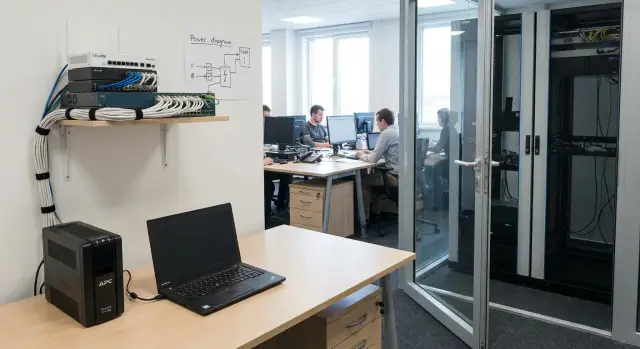
Task: survive an outage without big UPS systems
Power outages rarely damage equipment directly. Much more often they interrupt workflows: unsaved changes are lost, operations in accounting systems are interrupted, the network goes down, and telephony and messengers become unavailable.
So minimal power resilience for workstations isn’t about "powering a whole office for hours." In many scenarios it’s enough to buy a little time to finish work calmly, save data and keep access to critical services.
When power goes out abruptly, three things usually suffer.
First, data: incomplete documents, corrupted files, database failures if an operation was interrupted mid-way. Second, the network: the router or switch can go offline, cutting Internet and server access. Third, communications: IP phones and softphones stop registering, and staff can’t log in via VPN or open 1С even if the server in the data center is still running.
A large UPS for the entire office can be justified sometimes, but it’s often expensive, requires space and maintenance, and doesn’t solve the main issue: not all loads are equally important. It’s more practical to decide in advance what needs to be kept powered and for how many minutes.
In real work "enough" often means 5–30 minutes. That’s enough to save documents, close a 1С session properly, end a call, wait for power to return, or decide to stop operations.
The most valuable services are often also the lightest consumers: Internet and VPN (to stay connected to remote systems), access to 1С or a terminal server, corporate email. If these remain available, even a short autonomy window significantly reduces losses.
It’s convenient to split the task into two parts: the workstation (PC or laptop) and the network (router, switch, sometimes access points). A small UPS under one desk can help, but in some offices it’s smarter to invest in powering the network node: without the network "nothing works."
What exactly needs to be "kept" when power fails
The goal is usually not to continue working for hours. More often you need to finish an operation calmly, save data and not lose access to services. For that you define three levels in advance: what must always work, what should survive 5–15 minutes, and what can just shut down cleanly.
Workstations
A desktop PC without power immediately interrupts work and almost guarantees the risk of losing unsaved data. A monitor isn’t critical for data safety, but it’s needed so users can close programs and shut down without rushing.
Thin clients depend on where the "brain" is (server or cloud). If the network doesn’t survive, powering the thin client gives little benefit.
A laptop is often the simplest backup: the battery is already inside. Then the key question isn’t "how to power the laptop," but "how to keep the network and access to necessary systems."
Network
If you want mail, CRM, telephony or remote access to continue during an outage, the network must stay alive. Usually it’s enough to power the provider device (ONT/modem), the router, the switch (especially if it powers access points or phones), and 1–2 Wi‑Fi access points.
Local services
If there’s an on-site server, NAS, IP telephony or video surveillance, they need to survive the outage correctly rather than run forever. A server or NAS often needs only a few minutes to finish writes, stop services and shut down cleanly.
This is especially relevant where data is stored locally and the office has its own servers and workstations—for example, organizations using domestic PCs and servers to reduce supply and support risks.
Quick way to set priorities
To avoid trying to "keep" too much, split everything into two groups.
- Must remain available: network (provider device, router, basic switch) and, if needed, critical telephony lines.
- Must have time to shut down correctly: PCs, servers, NAS, cameras (if recording integrity matters).
A simple guideline: if a device is needed to keep services available, it belongs to the network category. If a device is needed to avoid data loss, it’s more important to give it time to shut down properly rather than long autonomy.
Where a small UPS at the workstation is sufficient
A small UPS at a workstation is not for hours of work, but to survive a power failure calmly: save documents, close programs properly and shut down the PC without data loss.
This UPS is usually justified where sudden shutdowns cause problems: accounting (1С, reports), cash desks and administrator stations, medical offices (patient records, results), classrooms (tests), and office PCs where people keep spreadsheets and documents open.
How much time is really needed
Most often 5–15 minutes is enough. The simple goal is to save work and finish processes without rushing. If staff have a clear checklist, sometimes 3–7 minutes suffice.
Before buying, do a short check.
First, total the power draw: system unit plus monitor (only what must remain on). Second, decide how many minutes you need to save work and shut down. Third, make sure the UPS can handle the load with a margin, not "barely." Also check that there are enough UPS outlets without relying on extension cords and multi‑plugs.
Printers, MFPs, heaters, kettles and other heavy loads should not be plugged into a UPS. That almost always ends in overload or a sharp reduction in runtime.
Limitations that make a UPS "not help"
Small UPS setups often fail not because the idea is wrong but due to small details.
Common cases: the battery is already old and holds 30 seconds instead of 10 minutes; input voltage fluctuates and the UPS too often switches to battery; the load is higher than expected and the device overloads or shuts down.
A real example: in accounting a PC and monitor need about 7 minutes to save a report, close the database and shut down. A small UPS for 10–15 minutes is enough if only the PC and monitor are plugged in and the battery is healthy. If someone also plugged in an MFP and desk lamp "just in case," runtime drops sharply and the solution loses meaning.
To keep such solutions working for years, run a short test every few months (simulate an outage for 1–2 minutes) and replace batteries based on condition rather than assumptions.
Where a laptop helps more than a UPS
A laptop often solves the problem more easily than a UPS at each desk: the battery is already inside. During an outage you don’t lose your work and you’re not at risk of losing documents to sudden shutdown.
Laptops are especially convenient where the goal is not to keep typing for hours but to finish tasks calmly: save files, send an email, close deals in CRM, or wait for power to return.
When a laptop is truly better than a UPS
A laptop wins when outages are short and unpredictable and space is limited. You don’t need to size power, replace UPS batteries or tolerate a noisy box under the desk. Plus a laptop can be moved to a place where power has returned.
Simple scenario: a manager works with mail, documents and video calls. Power goes out for 15 minutes. With a laptop they continue the call, record outcomes and save files. With a desktop without a UPS the call drops and unsaved documents may be lost.
How to keep a laptop workstation convenient
To make a laptop as comfortable as a desktop, a docking station or set of cables is usually enough: power, monitor, mouse and keyboard.
When power fails the second monitor and some peripherals will go dark if they’re plugged into mains. That’s normal. What matters is that the laptop keeps working and stays connected to required apps.
A few habits help in practice: keep charge above a chosen threshold (for example 60–80%), lower brightness and disconnect unnecessary devices when power disappears, check that Wi‑Fi doesn’t sleep on battery, and do a short monthly test (unplug power and see how long the laptop really holds). If the battery ages, plan replacement in advance, not after the first surprise.
The main rule is simple: the laptop should start the day with at least the minimum charge. Then even with frequent outages you won’t worry about backup power every minute.
How to keep services available: power the network
For short outages it’s often more important to keep the network alive than individual PCs. If the router and switch keep working, people retain access to cloud services, telephony, internal resources and remote work.
A minimal network kit is usually small and often cheaper than a UPS per seat. In a typical office that includes the provider terminal (ONT/modem), router, switch (at least for key ports) and one Wi‑Fi point (or Wi‑Fi built into the router). Sometimes that also covers small IP telephony or a mini‑server.
The question then is not "which UPS to buy" but "for how many minutes." For communication, messaging and calm task completion, 30–120 minutes is usually enough. This window allows time to warn clients, save data, switch to mobile Internet or organize remote work.
To estimate capacity, first measure consumption in real figures. A plug power meter is best. If you don’t have one, check the device label or power brick (V and A) and calculate approximate power.
Typical indicators: ONT 8–12 W, router 10–15 W, small switch 15–30 W, Wi‑Fi point 10–20 W. Even with margin this is often 50–80 W, so a compact UPS can power the network noticeably longer than a single office PC.
There are two handy approaches. First — one small UPS just for the network so monitors and PCs don’t drain it. Second — two small UPS units: one for the provider input (ONT) and one for the internal network (router, switch, Wi‑Fi). This makes it easier to survive a situation where power is lost in one room or someone accidentally switches off one UPS.
If you plan to refresh workstations and servers, include this scheme early. A systems integrator can plan not only equipment but also power for the network node so critical services stay available during outages.
Step-by-step plan: minimal backup scheme
Minimal workstation power resilience starts not with buying UPS units but with understanding what must continue and how many minutes you really need.
1) Count and group
Start with a simple plan.
Make a list of critical devices and the required autonomy for each (for example: 10 minutes for a PC, 30–60 minutes for the network). Estimate consumption—preferably by measuring in real operation—and add a 20–30% margin.
For PCs, workstations and especially servers with multiple disks, consider inrush/power‑on loads. Separate circuits by group: workstations separate from network. That way the network UPS won’t be drained by monitors and system units.
Typical UPS logic: line‑interactive is often enough for workstations. Online UPS makes sense where power quality and a clean sine are critical for sensitive equipment.
2) Configure shutdown and test in real life
Two things are often forgotten.
First — proper shutdown: notify users, enable autosave, and ensure machines shut down when UPS charge is low. Second — use a dedicated UPS for network gear where only ONT/media converter, router, switch and, if necessary, one Wi‑Fi point are connected.
Then test. Cut the main power, time actual autonomy, check services remain reachable and verify PCs shut down without data loss. One run usually reveals weak spots faster than any theory.
If you have many machines and servers, coordinate load levels and compatibility with your supplier. For example, when choosing workstations and servers through GSE.kz you can embed autonomy goals and pick UPS units based on real consumption rather than guessing.
Common mistakes that make UPS ineffective
The most frequent disappointment is simple: a UPS is installed but the load isn’t calculated. A small UPS for an entire desk—PC, monitor and "something else"—almost always gives 1–2 minutes, not enough even to close documents.
Mistake 1: one small UPS for "everything"
If you plug a system unit, two monitors, chargers and network equipment into one UPS, it runs at its limit. In a real outage it goes: alarm, then everything dies after a minute, and the user concludes "the UPS doesn’t hold."
Mistake 2: Internet dies because the provider device was forgotten
Even if PC and Wi‑Fi router are on backup, the connection can be lost due to a small box nobody thought about: the provider terminal, media converter or ONT. It often has a separate adapter in another location and goes off first.
A related trap is PoE access points. It may seem the point is self‑powered, but the switch supplies it. If the switch isn’t on UPS, Wi‑Fi disappears even when the router is alive.
Mistake 3: plugging a laser printer and "eating" autonomy
Laser printers take a large current during warm‑up. The UPS may overload and shut off, or runtime will drop drastically. For printing it’s better to wait out the outage than put an office laser on the UPS.
Mistake 4: batteries not changed for years
A UPS can appear to function but the battery may have lost capacity. Then in a real outage it holds seconds. If outages are rare the problem is discovered too late.
If you need a short action list that fixes most issues, do this: calculate total power and add margin; keep only critical devices on UPS; always power the provider’s ONT/media converter; check how Wi‑Fi points are powered (PoE or adapter); run a short battery test every few months.
Practical example: an office puts PC, monitor and router on a UPS but forgets the switch in the cabinet. When power fails the PC continues but access to files and services is lost because the network drops. The fix is simple: move switch and provider device to the same UPS or put a separate small UPS nearby.
Short checklist before deployment
Before buying and placing UPS units, quickly run through basic points.
- Network separated from workstations: router, switch and access point are on their own small UPS (or at least on a separate circuit in the cabinet).
- No heavy consumers on UPS: printers, MFPs, heaters and anything with heating or high inrush current are excluded.
- Batteries actually hold the needed time: do a 5–10 minute test and observe real behavior.
- Staff have a short memo: what to save, how to exit programs correctly, who to notify.
- Proper shutdown is configured: auto‑shutdown on low battery for important PCs and servers.
If you procure workstations or PCs (for government bodies or schools), clarify models and power supplies in advance. That determines load calculations and which small UPS will give 10 minutes and which only 2.
Example scenario: a small office with frequent outages
An office of 25 people. Ten of them work in functions where continuity matters: accounting, sales with CRM, dispatch, registry. Ten others can wait 20–40 minutes without consequence. Five people already use laptops and handle short outages without extra cost.
The logic is simple: don’t protect the whole office at any cost, protect what truly affects service availability and data integrity.
For the 10 critical desktop PCs install small UPS units for 5–15 minutes. That’s enough to save documents, finish operations and wait for power or a generator.
Separately, provide backup for the network. This is often more important than a UPS at every desk: if the router or switch fails, even laptops with batteries lose VPN and internal systems access.
The minimal set in such a scenario looks like this: small UPSs for critical PCs and monitors, one UPS dedicated to the network (router, switch, Wi‑Fi and ONT if needed), plus clear rules for what to do when a UPS alarm sounds.
What happens during an outage: Internet and Wi‑Fi stay up, VPN recovers, telephony and messengers work, and access to cloud and internal systems remains. Laptop users continue almost uninterrupted. Critical workstations either finish urgent tasks in a few minutes or shut down cleanly without data loss.
Some staff on regular desktops simply wait for power to return. But the business keeps connectivity and access to services, and support isn’t flooded with "everything’s gone" tickets.
Measure the effect with numbers: total downtime of key functions (Internet, VPN, service access), number of data losses or corrupted files after outages, support requests on the incident day, and time to recover after power returns.
Next steps: lock the result without complicating things
After you build a minimal backup scheme, avoid turning it into a "zoo" of different models and random settings. Better make a simple standard that’s easy to repeat at each workstation.
Start with an inventory: which workstations are critical, where people can wait on laptops, and where a small UPS for PC and monitor is required. Then run a real blackout test once (preferably out of hours): cut the power for 5–10 minutes and observe PCs, the network and service access. Such a test quickly reveals weak spots: an overloaded UPS, a switch that drops, or an access point without power.
Next, formalize the standard. For example: a normal desktop — a small UPS with power margin and a clear runtime; managers and mobile staff — a laptop instead of a UPS; network — separate backup for router, switch and access point; critical services (cash desk, registry, terminals) — a verified setup, not "plugged in however."
To keep the scheme working for months and years add minimal maintenance: quarterly short battery test (1–2 minutes) and indicator checks; semiannual load checks so UPS units aren’t at their limit; scheduled battery replacement per lifecycle; a repeat test and root‑cause note after any incident.
If you need a unified office project, procurement specs or local content, it’s convenient to collect the kit and scheme for the task at once. GSE.kz, as a manufacturer and systems integrator, can help select and integrate PCs, workstations and servers and design the network with 24/7 support—so backup power stays simple, clear and verifiable.
Frequently asked questions
Why bother with backup power if outages are usually short?
The goal is usually not to work for hours, but to buy time to save data and shut down processes cleanly. In most office scenarios 5–30 minutes is enough to close documents, finish operations in 1С and decide whether to wait for power to return or stop work.
What is most important to power in the office during a blackout?
Start by answering two questions: what must remain available during an outage and how many minutes that needs to last. A practical minimum almost always includes the network node (provider device, router, switch) and only then — individual workstations where sudden shutdowns cause losses.
How many minutes of autonomy does one PC realistically need?
Plan on 5–15 minutes per workstation: that’s usually enough to save changes and exit programs properly. If staff follow a short action checklist when the UPS beeps, sometimes 3–7 minutes is enough, but it’s better to have a small margin to avoid panic.
When is a laptop better than a UPS under the desk?
If employees use laptops, the main task is keeping the network alive, not powering every seat. The laptop battery already solves sudden shutdowns, but without a live Internet and internal network VPN, 1С/terminal access and communications will still be lost.
Why does the Internet disappear even though the router is on a UPS?
Most often the Internet goes down because the provider’s terminal (ONT/modem) or media converter is not on the UPS. Even if the router is on backup, the line itself drops when that small box loses power, leaving the office without external access.
Why does Wi‑Fi vanish even though the router is working?
Often the access point is powered via a PoE switch, so if only the router is on UPS, Wi‑Fi can still go dark. Check where the access points and phones get power from, and keep the actual powering device on backup.
Can I connect a printer or MFP to the UPS to print during an outage?
Heavy loads quickly consume autonomy and may cause overload. Laser printers, MFPs and any heating elements draw high current—especially during warm-up—so UPS either discharges fast or trips. It’s better not to put office laser printers on the UPS.
Why does the UPS hold 30 seconds instead of the promised 10 minutes?
The most frequent reason is an old battery: the UPS appears functional but only holds seconds. Another cause is overload: more devices are connected than planned, and the real battery time is far less than calculated.
How to configure PCs and servers to shut down properly from the UPS?
Set basic behaviors: user notification and automatic shutdown on low charge, especially for important PCs and for servers/NAS. After configuration, run a short blackout test to ensure everything closes without errors and data isn’t lost.
How not to make a mistake choosing a UPS for the office and avoid overpaying?
Measure or estimate consumption first and add a safety margin so the UPS doesn’t run at its limit. If you procure workstations, PCs or servers centrally, define autonomy targets and pick solutions for actual loads and network layout—this is easier as part of a unified project with a systems integrator like GSE.kz.
