7 min read
Migrating to Linux Desktops in a Government Organization: Implementation Plan
Migrating to Linux desktops in a government organization: a step‑by‑step plan for choosing a distribution, building an image, training, support and readiness criteria for departments.
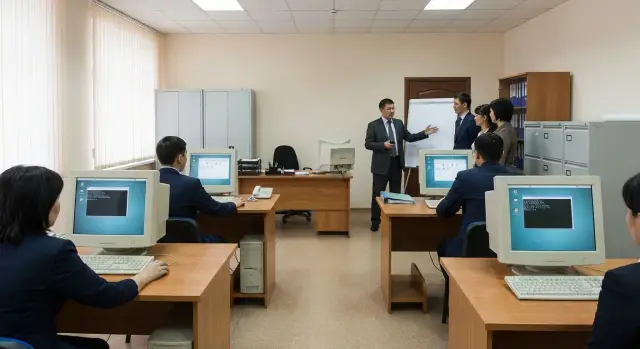
Why you need a migration plan and where problems usually occur
Migration to Linux desktops in a government organization usually starts with clear goals: reduce dependence on a single vendor, better control updates and settings, and standardize the workplace for information security. Without a plan these goals quickly turn into scattered setups: one department uses one distribution and software set, another uses something else, and support becomes a lottery.
A unified plan is not just for reporting. It answers uncomfortable questions in advance: what will happen to critical applications, who and how will train people, what a standard workstation looks like, and by what criteria a unit is considered ready to migrate. Without that, the project stalls on small issues that eventually stop progress.
Problems most often arise in four areas: incompatible or Windows‑dependent applications (banking clients, departmental systems, old plugins, print drivers and digital signature tokens), user habits (printing, interface, hotkeys, different file rendering), support organization (no clear rules about where to go and who owns the image and updates) and timing clashes with procurement (hardware delivery, licenses, local content requirements).
In practice migration fails not on installing Linux but at organizational seams. For example, IT may be ready to deploy workstations, but InfoSec hasn’t approved settings, and business process owners haven’t confirmed that key operations can be performed without workarounds.
For a plan to work you usually involve the IT service (standards, deployment, support), InfoSec (policies and controls), procurement and legal (contracts and compliance), unit managers and process owners (what is critical and what can change), plus user champions in departments (pilot and feedback).
If the organization is renewing its PC fleet at the same time, it’s useful to tie migration to typical hardware configurations and the service model. Then the plan matches real delivery schedules and local support capacity.
Inventory: users, scenarios and critical applications
Inventory answers a simple question: who is affected, what people do on their PCs daily, and what cannot be lost. Without this, migration often fails because of one forgotten plugin, template or regulation.
Start with scope. Record which departments are in the first wave, how many workstations each has, what device types are used (desktops, all‑in‑ones, laptops) and where they are located (office, remote sites, secured rooms). Note workstations with special requirements separately: classified information, isolated networks, shift work.
Then group users by scenarios. Four or five clear groups are usually enough to build typical profiles:
- Office staff: documents, spreadsheets, email, digital signatures, printing.
- Call center and front office: browser systems, headsets, fast login, stable video calls.
- Accounting and procurement: specialized software, crypto providers, templates, exchanges with the treasury.
- Specialized workstations (ARMs): departmental applications, scanners, tokens, non‑standard drivers.
- Managers: presentations, video calls, mobility, working outside the office.
Next, list software and dependencies as action chains rather than a formal registry. For example: document -> sign -> send -> archive. Separately check digital signatures (tokens and drivers), printing (network printers, MFPs, scanning), video conferencing, and browser extensions and plugins that can be critical.
The final block is integrations: domain and accounts, mail and calendar, file shares, VPN, remote assistance. A simple test: a new PC should join the domain (or alternative), access shared folders, print a document and sign it with a digital signature.
Agree on timelines and success criteria: how many seats in the pilot, what percentage of tasks are completed without workarounds, and how quickly incidents are resolved. If you engage an integrator, ask them to document criteria as a clear checklist so departments have a single understanding of what “ready” means.
How to choose a distribution: criteria for a government organization
Choosing a distribution is not about "what admins like", but what can be supported safely and predictably for years. Look at support, updates and operating rules from the start; otherwise a pilot will go fine but mass rollout will descend into chaos.
1) Support and updates requirements
Decide which model you need: long‑term releases with infrequent but tested updates, or more frequent releases. For the public sector long‑term support options are usually better: clear update schedules and stable security fixes without surprises.
Also check localization, ease of policy management (passwords, screen lock, permissions), and what’s required for internal audits: procedures, logs, control of software sources. If formal quality attestations are needed, clarify certification requirements and how the chosen option satisfies them.
2) Hardware and peripheral compatibility
In practice most issues are caused by printers, scanners, MFPs, digital signature tokens, smart cards and rare drivers. Don’t guess—create a showcase of typical workstations and run tests.
Minimum checks:
- printing (including duplex and network printing) and scanning;
- tokens and signing in key systems;
- working with office documents and templates;
- video conferencing and headsets;
- suspend/resume and output to a second monitor.
If you use corporate PCs or locally produced all‑in‑ones, ask the manufacturer about standard configurations and peripheral support on the chosen distribution. Standardized hardware makes testing and operation noticeably smoother.
3) One standard or “standard plus exceptions”
Ideally one main distribution and a single ruleset. Sometimes exceptions are necessary (special software, certain departments). Ensure exceptions appear only by request with a clear justification.
Document what is supported: where updates come from, allowed versions, and what is unsupported (and who accepts the risk). This reduces disputes and speeds up support.
Workplace image: what should be standard
A standard workplace image is not just “Linux installed”. It is an agreement on how most employees’ computers look and behave: the same apps, the same settings and clear access rules. The fewer surprises after deployment, the fewer help requests.
A good standard image usually covers five things: basic applications (office suite, one or two approved browsers, PDF viewing and signing if needed, an archiver), a consistent desktop environment (panels, shortcuts, language, keyboard layouts, date/time format), templates and settings (fonts, certificates where used, default printer), printing and scanning on real devices, and security and updates (disk encryption where required, automatic screen lock, clear update and rollback schedule).
Decide rights policy separately. By default employees work under a normal account. Admin access only via a separate account or controlled sudo for specific actions reduces accidental damage and simplifies investigations.
Example: a department of 80 employees, 10 of whom regularly use specialized plugins and scanner drivers. Create an extended profile for them, while keeping the base image identical. This prevents turning workstations into dozens of “unique” builds.
To allow exceptions without losing the standard, keep simple rules:
- every deviation is a formal request with reason and duration;
- exceptions are assembled as a separate package or profile, not manual local tweaks;
- review exceptions quarterly;
- test the image on typical workstation models before mass deployment.
Step‑by‑step rollout plan: from pilot to mass deployment
Treat migration as a project with stages and checkpoints. The pilot’s goal is not to “show Linux” but to prove that typical tasks run every day without failures and that IT can respond quickly.
Deployment stages
-
Decide the deployment method. For a large fleet you usually need centralized management and network installation. For small sites or remote branches, bootable media may be simpler. Decide how updates are applied and how to restore a device to the standard state.
-
Assemble a pilot group of 10–30 people. Include diverse roles: clerical staff, accounting, users with digital signatures, managers, and 2–3 “complex” users with unusual tasks.
-
Set up feedback collection. Agree on a short five‑question form after the first week and after a month, and define a single channel for urgent issues (phone, chat, hotline). Record not only errors but also time to resolution.
-
Practice rollback. For critical seats define how to restore the previous environment in 30–60 minutes: backup device, disk image, access to the old profile, list of mandatory apps.
-
Prepare an IT playbook for support: installation, recovery, typical settings, updates and checks after updates. It must be an operational procedure, not a presentation.
Move to mass deployment only after simple readiness checks:
- 90–95% of typical tasks in the pilot are completed without workarounds;
- a clear escalation process and response times are in place;
- rollback is practiced on at least 1–2 devices;
- the standard image is reproducible across different PC models.
If workstations are procured centrally and configurations repeat, it’s much easier to keep the image and support consistent.
Training: the minimal program to avoid disruption
Projects most often fail not on installation but on small things: where to find a file, why printing fails, how to install an app, which hotkeys changed. Training must be short, practical and role‑based.
Segment training by audience: ordinary users (daily tasks, printing, files, browser, office), department superusers (help colleagues, basic diagnostics, collect data for tickets), IT specialists (image management, policies, remote help, logs, typical incidents), and managers (what changes, how to measure readiness, how to escalate).
Provide a mandatory 30‑minute start session for every employee on the day of handover or 1–2 days before. Keep the topics identical for everyone: logging in (password and screen lock), files (Documents, Downloads, network folders, search), printing and scanning (selecting a printer, print queue, error handling), network (wired, Wi‑Fi, VPN if needed), updates (when they run and why they shouldn’t be postponed indefinitely).
Cover “habit differences” that cause most questions: hotkeys (copy, paste, layout switching, screenshots), installing apps (via the app center or by request, not “download from anywhere”), working with USB drives and archives.
A one‑page cheat‑sheet on common tasks helps a lot: open and print a PDF, prepare a document to send, collaborate (shared folders, comments), and a separate checklist for digital signatures (what to run and who to contact if the signature is not detected).
Plan enhanced support for the first 2–4 weeks after migration: a duty channel, fast on‑site visits for critical locations (reception, registry), and daily reviews of recurring issues. If one printer repeatedly fails in accounting, it’s a signal to fix the image, not to blame users.
Support and operations: how to keep things stable
Stable support solves half the problems in the first months after migration. Users adapt faster and the IT team doesn’t drown in the same questions.
Define support levels and responsibilities so tickets reach the right people quickly:
- Level 1: ticket intake, simple instructions, password resets, basic diagnostics;
- Level 2: workstation setup, drivers, printing, mail, access, typical app failures;
- Level 3: complex incidents, distribution updates, integrations, security;
- contractors and vendors: narrow tasks requiring specific product or hardware expertise;
- service owner in the organization: decisions on changes and priorities.
Agree SLAs: availability hours, response and recovery times. For critical units (e.g., accounting during reporting) set an extended mode and clear escalation rules.
To reduce load, build a short knowledge base: 20–30 typical problems with quick fixes and response templates. Track tickets by category (software, network, printing, access), priority, root cause and resolution time. After a month statistics usually show the most frequent failures and where the standard image needs fixes.
Plan updates as a service: maintenance window, test group, then mass update. Have a clear rollback method (snapshot, backup image, fast package restore) and forbid an “update as you like” approach.
For emergencies keep a fallback: temporary Windows access for specific tasks (remote or on a limited number of reserve PCs). This reduces the risk of work stoppage while Level 2–3 handle the issue. If support is external, ensure the contractor can operate across the organization’s network and in an agreed mode.
Common mistakes and traps during migration
The most expensive mistake is treating migration to Linux as just reinstalling the OS. In reality the usual workflow breaks: printing, signing, access, updates and security rules.
What typically fails at the worst moment
Problems usually come from five areas:
- Peripherals and special devices: printers and MFPs with non‑standard drivers, scanners, smart cards, USB tokens and readers. This is critical when digital signatures and access to departmental systems depend on them.
- Piloting with “convenient” users: if only the IT department is tested you won’t see scenarios from clerical work, procurement, HR or public reception.
- Lack of a standard workstation: different app sets, extensions and settings turn support into endless exceptions.
- Mass migration too early: without short training and a clear support channel users start bypassing new rules and complaints go straight to managers.
- Blurry update policy: some update daily, others never, and compatibility with internal services and peripherals breaks.
How to avoid these traps
A simple order helps: first lock the golden image and operating rules, then expand scope. For HR, for example, check printing forms, template imports, digital signature flows and scanning to required formats—not just launching a browser and office suite.
Security and procedures are another risk area. If roles and rights, key storage, encryption, logging and incident response are not described, rollout can stop during checks. Include InfoSec requirements in the pilot from the start, not later.
Assign an owner for the workplace standard and an owner for update schedules. Then support becomes predictable: one settings set, one process, clear timelines for fixes.
Quick readiness check: department checklist
Before mass switching a department to Linux, run a short readiness check. It usually takes 30–60 minutes per typical workstation and saves days of post‑go‑live troubleshooting.
What must be green before launch
Check one or two employees from each role (clerical, accounting, HR, analysts) and the most common PC models.
- Printing and scanning: about 95% of listed devices should work, including duplex and network MFPs.
- Documents: typical files and templates open, required formats save correctly, layout and signatures remain intact.
- Access: mail, shared folders, video calls, EDI or other corporate services work with organizational credentials.
- Users: completed short training on basic tasks and know one clear channel for help.
- IT package: deployment, update and recovery instructions are ready so workstations can be raised and restored consistently.
Record exceptions separately, e.g. “one old scanner needs a different driver”, “one contract template requires layout fixes”, “one service uses a temporary workaround”. Ensure exceptions are agreed in advance, not discovered on day one.
If tests pass, the department is usually ready for a pilot or first wave. If not, don’t push users—return to the issues list, assign owners and deadlines, then retest the same scenarios.
Example scenario: migrating one department without stopping work
A department of 120 seats is usually heterogeneous: some people work with documents all day, some serve visitors, and the archive needs reliable scanning and printing. So migration without downtime starts not by moving everyone, but with a careful pilot that reveals problems early.
First, collect short task profiles by role and prepare a standard image: office suite, mail, browser, digital signature tools and templates, printers and scanners, shared folders and basic security policies. Deploy the image on identical hardware to reduce surprises.
Run a pilot with 20 employees across roles: an office clerk, an HR specialist, an operator, a manager and a few reception staff. The manager quickly highlights non‑obvious needs (signatures, approvals, presentations), and reception tests peak‑hour load.
Handle exceptions honestly. In this scenario five seats remain on Windows due to specialized software without a replacement. For them set a review date and rules: separate network segment, scheduled updates, minimal rights.
Training is short and practical: two sessions of 40–60 minutes (interface basics and document work, then printing, digital signatures and common errors) plus a one‑page “what to do if…” cheat‑sheet.
Support is strengthened at launch: Level 1 operates tightly for the first two weeks, handles tickets faster and compiles recurring issues into a single list for image fixes.
Evaluate the pilot with clear metrics:
- tickets per user per week;
- average resolution time for typical requests;
- share of tasks completed without workarounds (printing, signing, access);
- number of rollbacks to the old environment;
- top‑5 reasons for tickets to improve the standard.
If metrics stabilize and recurring issues are fixed, roll out the department in waves of 15–25 seats, avoiding peak work periods.
Next steps: consolidate results and scale
To avoid a set of scattered tweaks, lock in the solution package: chosen distribution, a single workplace image, update rules, ticket templates and a short training program. Once formalized, the package is easier to replicate and audit.
Plan hardware refreshes where capacity is insufficient. Linux is usually undemanding, but old disks, low RAM and special peripherals can be bottlenecks. Categorize seats that need hardware replacement and schedule procurement for the next quarter or half‑year.
Before scaling run another short pilot in difficult areas: where digital signatures, multiple departmental portals, scanners and special printers are used. This pilot should be short and confirm the image and support work in near‑real conditions.
Assign process owners so nobody is left answering everything:
- image and workplace standards owner;
- updates and security owner;
- training and knowledge base owner;
- support and SLA owner;
- change management owner (what and when to change).
If you want to combine migration with equipment renewal and a service model, it’s convenient to use a single contractor: supply standard workstations plus system integration and support. In Kazakhstan this approach is often implemented with local manufacturers and integrators, for example GSE.kz (gse.kz), which simplifies uniform configurations and nationwide support.
Final step—fix metrics: share of migrated seats, incident counts after updates, average resolution time for typical tickets, percentage of users trained. These numbers make it easier to expand rollout safely.
Frequently asked questions
What is the right starting point for migrating to Linux desktops in a government organization?
Start with a fixed standard: which distribution is supported, what a typical workplace image looks like, how updates are applied and who approves exceptions. Then inventory users, scenarios and critical software so the pilot validates real work, not just an “OS reinstall”.
Why run a pilot and how many people should be included?
A pilot proves that daily tasks work and support is ready, not just to “show Linux”. Typically 10–30 people across different roles are enough, including several “complex” users with digital signatures, printing and non-standard peripherals to quickly reveal bottlenecks.
How to determine which applications and dependencies are truly critical?
Collect not only programs but action chains: document -> sign -> send -> archive, and check exactly where dependencies exist. Separately verify digital signature tokens and drivers, printing and scanning, and login to key departmental and corporate services.
How to pick a Linux distribution for the public sector to avoid rework later?
Choose a distribution with predictable long-term support: a clear update cycle, stable security fixes and transparent operational rules. Before selecting, test compatibility with your typical hardware and peripherals on a lab bench; otherwise issues surface at mass rollout.
What peripheral devices usually don’t work on Linux and how to test them in advance?
Peripherals that most often fail are printers and MFPs, scanners, digital signature tokens, smart cards, video headsets and sleep/second-monitor behavior. The best approach is to run a short set of checks on the most common device models in your network and with your procedures.
What must be included in the standard workplace image?
A standard image should be the same for the majority: office suite, approved browsers, PDF tools, interface settings, fonts and templates, printers, access to shared resources and basic security policies. Minimize manual local tweaks—otherwise support becomes maintaining dozens of “unique” PCs.
Should users be given administrator rights on Linux?
By default users should have a normal account; admin rights should be granted only via a separate admin account or tightly-scoped sudo for specific actions. This reduces accidental breakage, simplifies investigations and keeps workstation configurations uniform.
How to set up support so it doesn’t get overwhelmed after the first wave?
Agree a single contact channel and who owns the image, updates and escalation for complex incidents. In the first weeks run an intensified mode: fast reactions, collect recurring issues and promptly patch the standard image so you don’t fight the same fires on every PC.
What training do users need to avoid disruption?
Provide a mandatory 30‑minute quick start before handing over the workstation: login and screen lock, files and network folders, printing and the print queue, VPN if needed, when updates run and where to report issues. Add a one‑page “what to do if…” cheat‑sheet to cover frequent questions.
By what criteria is a department truly ready for mass migration?
Consider a division ready when typical scenarios run without workarounds on a representative PC, support meets agreed response and recovery times, and you have practiced rollback on at least one or two devices so critical work can be restored within an hour, not “sometime”.
